Your first week sets up everything Ken needs to work for you. Most of the setup happens on day 1. After that, plan on about 15 minutes a day. This plan tells you what to do each day, what Ken does in the background, and when to expect results.
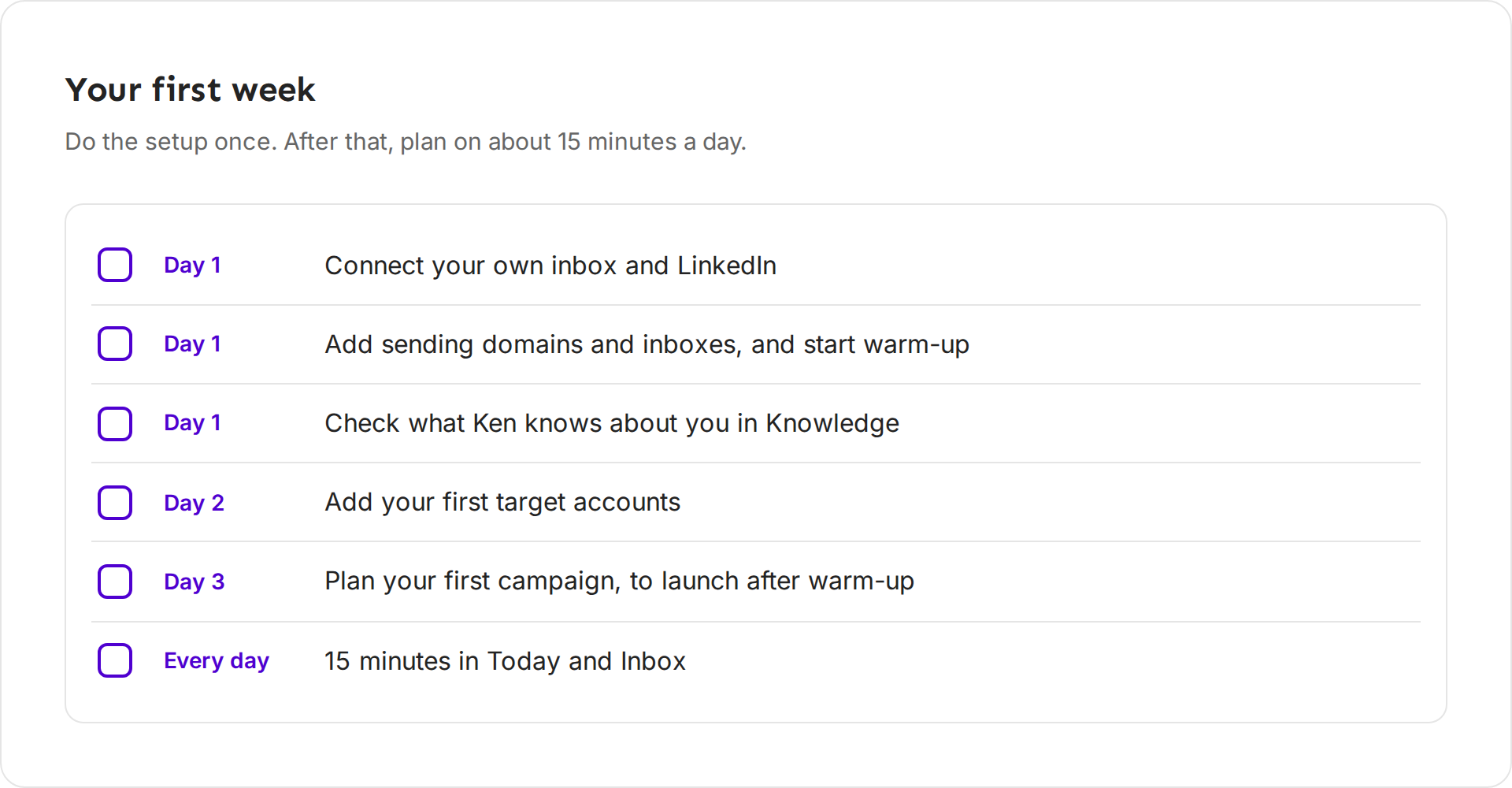
The plan at a glance
- Day 1. Connect your inbox and LinkedIn. Add sending domains and inboxes, and start warm-up. Check Knowledge.
- Day 2. Add your first target accounts.
- Day 3. Plan your first campaign, to launch when warm-up is done.
- Every day. Spend 15 minutes in Today and Inbox.
On day 1, set up
Connect your inbox and LinkedIn
Your own inbox sends your one-to-one touches and receives the replies. It is already warm, so Ken can use it from day 1. Connect it in Delivery with Add inboxes, then connect LinkedIn on the LinkedIn accounts tab. Connect your mailbox and LinkedIn has the steps.
Add sending domains and start warm-up
Campaigns send from inboxes on separate domains, never from your main domain. A new domain has no reputation yet, so its inboxes need to warm up before they send campaign email. Start this on day 1, because it takes weeks.
- Open Delivery with G then D and click Add inboxes.
- Pick how you want to get them:
- Buy domains with Ken. Ken sets up the DNS and warms the inboxes up.
- Buy Ken inboxes. Each one costs 200 credits ($4) a month.
- Google Workspace, Microsoft 365 or SMTP and IMAP to connect inboxes you already have on your own sending domains.
- Check the Inboxes tab. Inboxes you bought from Ken show Warming up. Ken can't warm up an inbox you connect yourself, so warm those outside Ken first. See How warm-up works.
Ken doesn't stop a campaign from using an inbox that is still warming up. Keep new inboxes out of your campaigns until warm-up is done.
How many you need depends on how many emails you plan to send. Read How many inboxes do I need and Set up sending domains and check their DNS.
Check Knowledge
At sign-up Ken wrote down what you sell and who buys it. Open Knowledge with G then K and read it. Fix anything wrong now, because every email Ken drafts starts here. Then open Playbook and check your Writing rules. Your signature is set on each inbox in Delivery, under Sender.
On day 2, add your first target accounts
Pick the companies you most want to win this quarter and add them to Accounts. Press G then A, then click Add or press C. In Add dream accounts, paste their domains, separated by commas. You can paste up to 1,000 at a time. Ken researches each company, maps its buying committee and looks for signals. Each account uses about 18 credits.
Keep the first list short, such as 25 companies. A short list lets you read every brief and approve every touch with care. Add target accounts and let Ken research them has the steps.
Because Accounts sends from your own inbox, your first one-to-one touches can go out this week.
On day 3, plan your first campaign
Build your first campaign now, so it is ready when warm-up ends. Pick the audience, the offer and a 3-step sequence. In the campaign's Settings tab, leave Auto-launch when ready off until your sending inboxes are warm. Ken doesn't wait for warm-up on its own. Launch your first campaign walks you through it.
Every day, spend 15 minutes in Today and Inbox
From day 2 on, this is the whole routine.
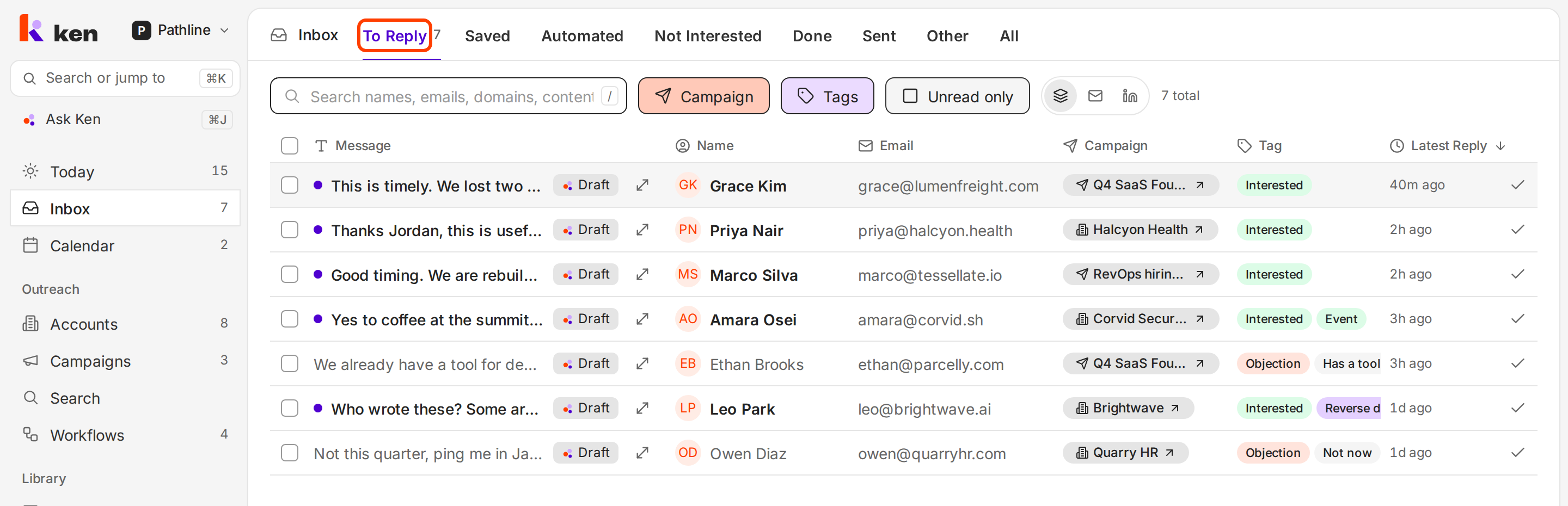
- Open Today. Press G then T. Work down Needs you. Read each touch, then press ⌘ ↵ to approve it, or Ctrl ↵ on Windows. Press E to mark a row done or H to snooze it. A snoozed touch comes back in a week.
- Review campaign batches. If Campaign batches shows a batch, click Review, read the samples and approve the batch or send it back.
- Answer replies. Press G then I and open To Reply. A Draft tag means Ken already drafted a reply. Read it, change what you need and send it.
- Promote the hot ones. If a campaign reply shows real interest from a company worth more attention, click Promote to Accounts on the thread, if your workspace has it.
The first weeks, week by week
Ken's team plans every new client the same way: domains and DNS in week 1, warm-up in weeks 1 to 4, small test sends in weeks 4 and 5, and real campaign volume from week 6.
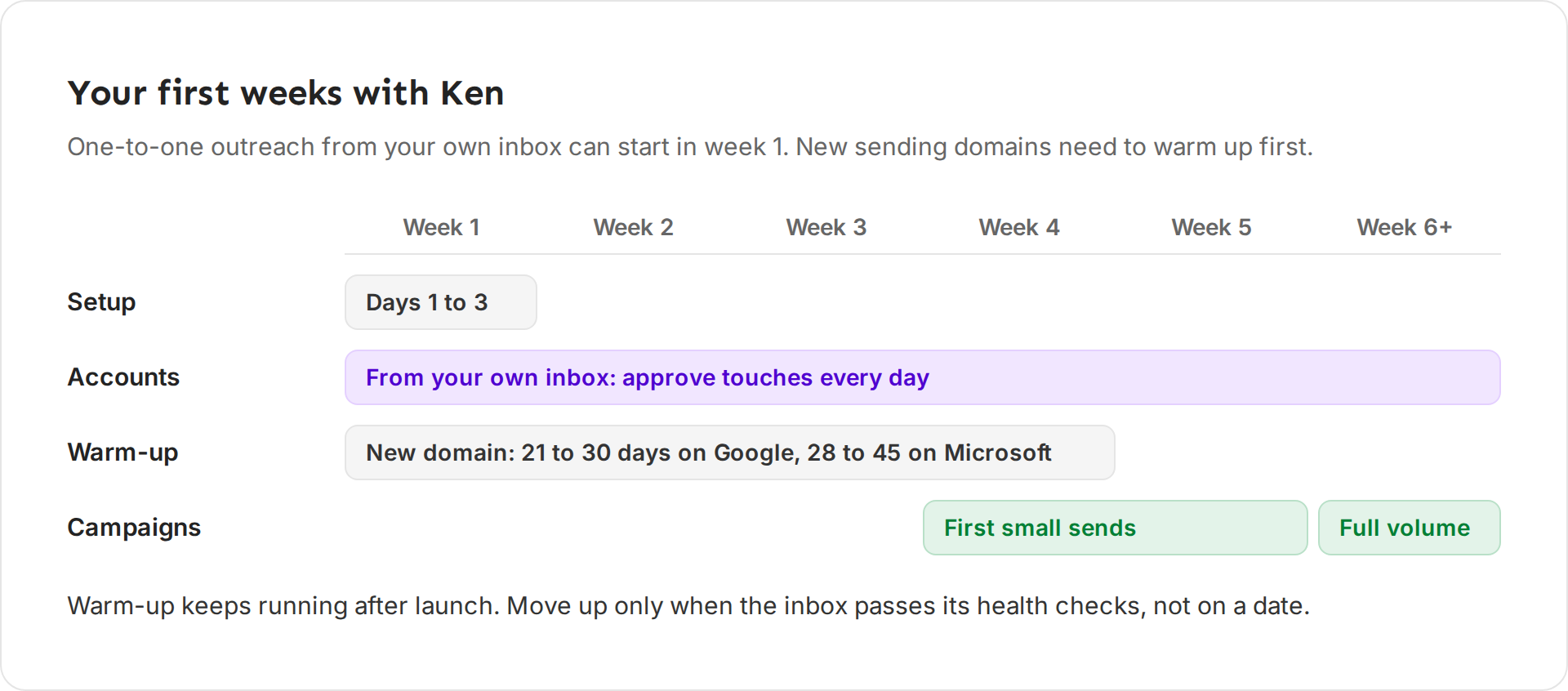
How long warm-up takes depends on the domain and the provider. A new domain needs 21 to 30 days on Google Workspace and 28 to 45 days on Microsoft 365. How warm-up works has the times for older domains. The days alone are not enough, so Ken's team also checks that test emails land in the main inbox, not in spam.
Volume then grows on its own. Each new inbox sends up to 5 campaign emails on its first sending day and 2 more each sending day after that. A new campaign also ramps up over its first 5 sending days, from a fifth of its daily limit on day 1 to the full limit on day 5. Warm-up keeps running after launch, next to your campaigns.
What to expect, and when
Accounts. Your first touches can go out in week 1. Ken plans a top account's touches over about 90 days, so judge Accounts by how many accounts engage over the first months, not by one week of replies.
Campaigns. Expect your first campaign replies in weeks 4 to 6, after warm-up. Judge a campaign only once enough people have received it. Under about 100 sends, count replies instead of reading percentages. Typical reply rates run from 0.3 to 2%, depending on the audience. Read campaign results has the range for each audience.
Knowledge. Ken's drafts get better as Knowledge gets more accurate. Fix every wrong fact you notice in week 1, and the drafts in week 2 need fewer edits.
If something goes wrong
- An inbox still shows Warming up after weeks. That is normal, because warm-up keeps running after the inbox is ready. Check Progress in the inbox's side panel. For a new domain, still wait the full warm-up time, up to 45 days on Microsoft 365.
- An inbox shows Paused, Disconnected or Banned. On the Inboxes tab, pick the Needs attention filter to see every inbox with a problem, then open one to see why. Fix an inbox that needs attention has the steps.
- Today says "You are clear for today" on day 2. Ken fills Today from your accounts and campaigns. Add target accounts first, and give Ken time to finish the research.
- "You're out of credits." Research, email finding and AI work pause until you add credits. Sending and warm-up keep running. Click Buy credits on the banner.
- A campaign is ready but nothing sends. Check that it is launched, and that today is a sending day in its Schedule. With Auto-launch when ready on, it launches only when Ken finishes building it. Then check Campaign batches in Today for a batch that waits for you.
Next: Work through Today, Read campaign results or How warm-up works.