Every campaign shows how it is doing in three places: the Campaigns list, its Analytics tab and its Leads tab. This guide explains what each number means, how your reply rate compares with the typical range for your audience, and when a number tells you to change something.
The campaign list
Press G then C to open Campaigns. Each row shows the campaign's Status, Leads, Sent, Replies with the reply rate, Positive replies, Progress and Owner. Use All, Active, Draft, Paused and Completed at the top to filter the list.
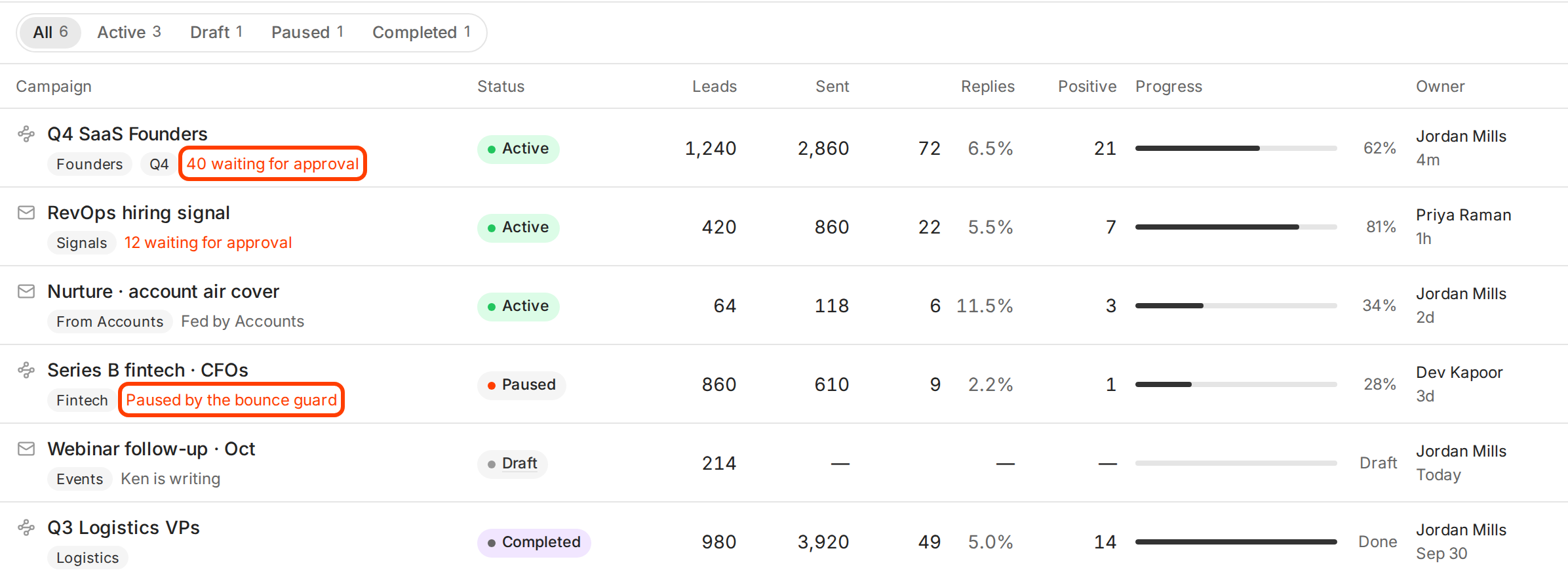
The note under a campaign's name tells you what it is waiting for:
- "40 waiting for approval" in orange. A batch of first emails needs your review. See Approve outreach before it sends.
- "Paused by the bounce guard" in orange. Too many emails bounced in the last 24 hours, so Ken paused the campaign. The note adds the count, such as "21 of 500 (4.2%) hard bounces in 24h". Clean the list before you resume. See Keep your email out of spam.
- Other pause notes in orange say who or what paused the campaign, such as "Paused by Dev Kapoor.", "Paused after sending errors." or "Paused for billing." Fix the cause, then click Resume.
- "Ken is writing". Ken is still writing the emails for a draft.
- "Fed by Accounts". People from accounts moved to Nurture join this campaign.
Hover a row to see its contacts, leads contacted, emails sent, clicks, replies, positive replies and bounces.
The Analytics tab
-
Click a campaign and open its Analytics tab.
-
Read the progress bar at the top. It shows how much of the campaign has sent and when Ken expects it to finish, such as "Forecasted to finish Oct 24".
-
Hover the info icon beside it to see how Ken calculated the forecast. It lists the emails remaining, the emails a day allocated to the campaign, how many are scheduled over the next 3 days, and the schedule.
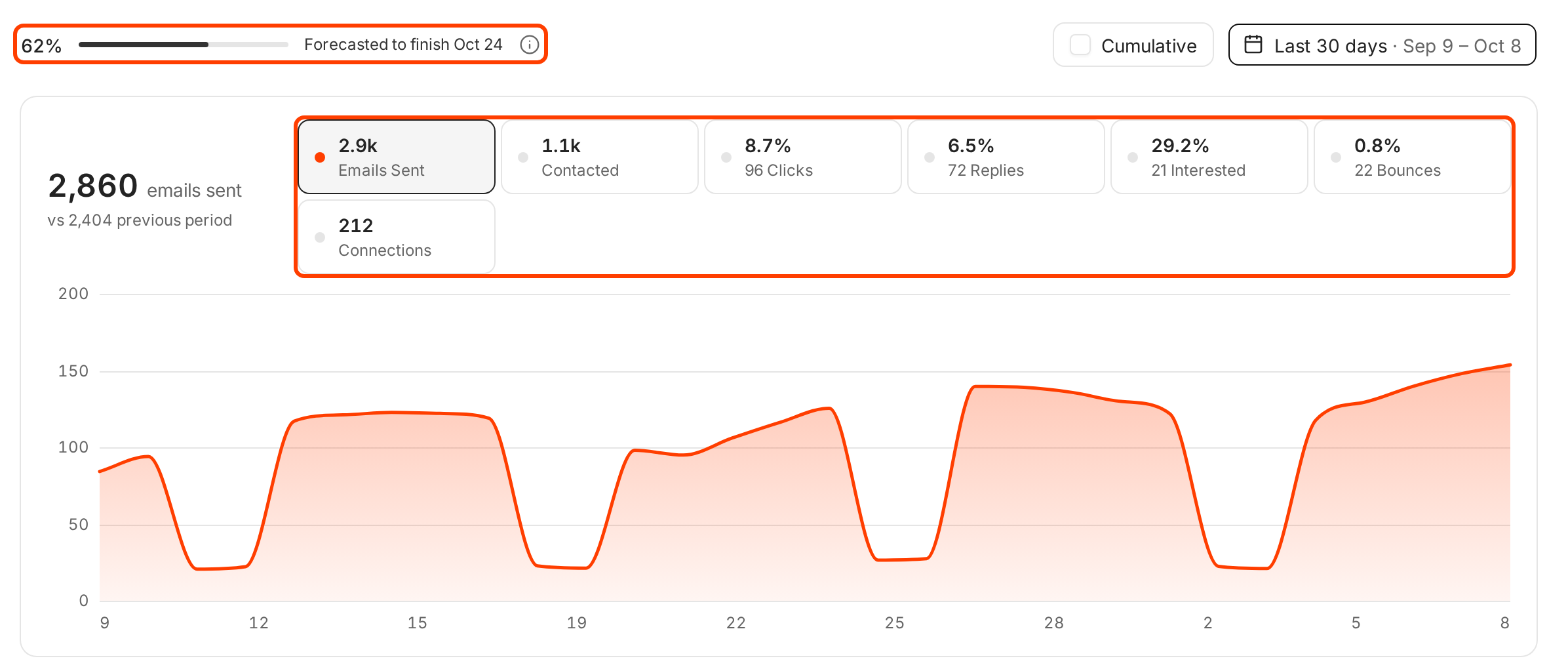
The forecast at the top, the metric pills, and the chart of the pills you pick. -
Click a metric pill to add it to the chart, and click it again to remove it.
-
Use the date range at the top right to change the period. It starts at the last 30 days. Tick Cumulative to chart running totals instead of daily numbers.
What each pill means
| Pill | What it counts | How Ken works out the rate |
|---|---|---|
| Emails Sent | Every email sent, follow-ups included | |
| Contacted | Leads who got at least one email | |
| Clicks | Clicks on tracked links | Clicks divided by contacted |
| Replies | Leads who replied, automatic replies included. Out-of-office replies are left out | Replies divided by contacted |
| Interested | Replies Ken marked as interested | Interested divided by replies |
| Bounces | Emails that bounced back | Bounces divided by emails sent |
| Connections | LinkedIn connection requests sent. Shown only for a campaign with LinkedIn steps |
Segments and export
Below the chart, the Segments table shows each segment's Steps, Contacts, Messages sent, Progress, Replies, Interested and Clicks. Each segment runs its own sequence, so this is where you see which audience works.
- Hover a segment's Replies to split them into Human and Automated, and to see each kind, such as Interested, Not interested, OOO and Auto-reply. The human count tells you how many people actually answered.
- Hover Messages sent to split bounces into hard and soft.
- Click Export CSV to download every segment for the dates you picked.
The Leads tab
The Leads tab lists every lead with their Company, Status, Step, Segment and Fit score. Step counts the emails the lead has received so far.
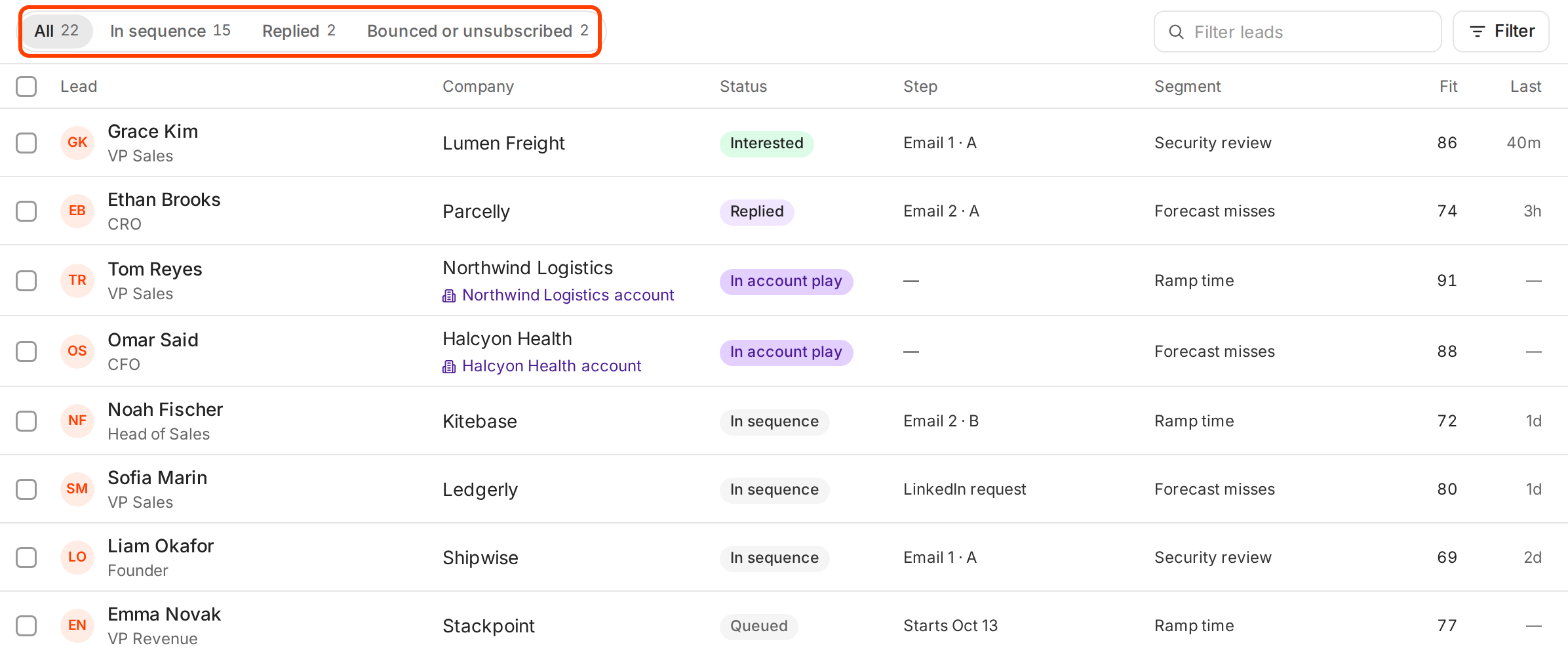
- Statuses. Queued leads haven't received an email yet. In sequence leads have received at least one, including leads who got every step. Replied and Interested leads answered. Bounced and Unsubscribed leads get nothing more. In account play and Promoted leads work at accounts you work one to one (see below).
- Filters. Click a status filter at the top, type in Filter leads to search, or click Filter to build a filter on any field. Queued leads show only under All.
Who was skipped and why
A lead with the status In account play works at a company you work one to one in Accounts. Ken skips them so bulk email never reaches someone your team is already talking to. Promoted means the account play stopped the lead for good, so they get no more campaign email. When this happens, the tab says how many, such as "3 people are skipped because their company is an account you work 1:1. Bulk email never reaches them." The Protect account plays setting controls this. See Set a sending schedule.
How your numbers compare
Ken's team judges a campaign's reply rate against the typical range for its audience. The ranges use the same math as the Replies pill: replies divided by people contacted, automatic replies included.
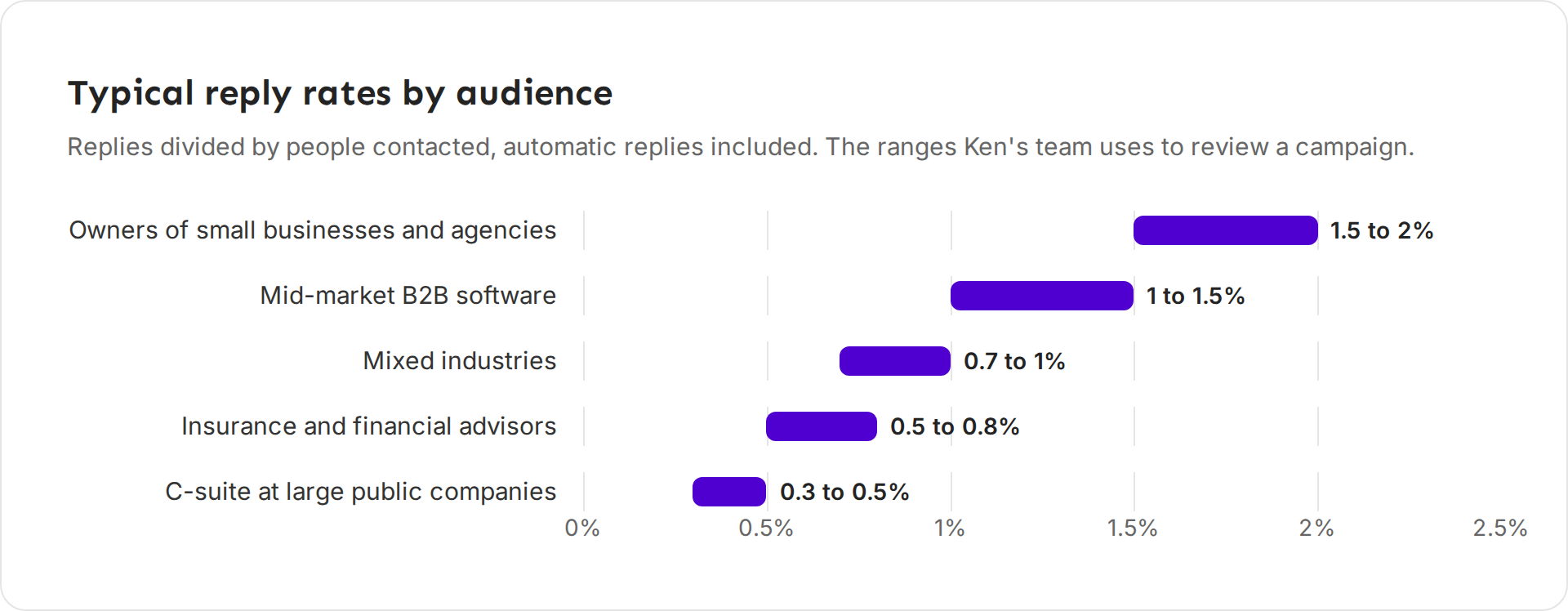
| Audience | Typical reply rate |
|---|---|
| Owners of small businesses and agencies | 1.5 to 2% |
| Mid-market B2B software | 1 to 1.5% |
| Mixed industries | 0.7 to 1% |
| Insurance and financial advisors | 0.5 to 0.8% |
| C-suite at large public companies | 0.3 to 0.5% |
Treat them as a guide, not a promise. A narrow audience of senior buyers replies less than a broad one, and once you have run a few campaigns, your own results over the last 90 days are the better yardstick. Interested replies matter most, because they turn into meetings. Keep the bounce rate under 2%, and pause the campaign to clean the list once it passes 3%.
When to change something
- Wait for volume first. With a few hundred leads contacted, one or two replies swing the rate a lot. 3 replies from 40 contacted is not a winner yet. Compare segments once each has reached a similar number of people.
- Bounces over 3%. Pause the campaign and clean the list before anything else. A high bounce rate hurts every email you send after.
- Replies near zero, or less than half of what they were. Your emails are likely landing in spam. Check your inboxes in Delivery before you touch the copy. See Keep your email out of spam.
- Replies are fine, but few are interested. The audience or the offer is off. Try a different segment or a different offer.
For the full method, see Fix a campaign that isn't getting replies.
If something goes wrong
- "Interested says 29%, that seems too high." It is a share of replies. Divide Interested by Contacted to get your positive reply rate.
- "The forecast date keeps moving." It follows the daily volume. If inboxes pause or the daily limit drops, the finish date moves later.
- "There is no progress bar." A draft has none until it launches.
- "Leads are missing from the campaign." Check the skip note on the Leads tab. Leads at accounts you work one to one are skipped on purpose.
- "My reply rate is higher than the replies I see in the inbox." The Replies pill counts automatic replies too. Hover a segment's Replies to see the human count.
- "My export has fewer segments than I expected." Export uses the date range you picked. Widen it and export again.
Next: Fix a campaign that isn't getting replies, Handle every kind of reply or Keep your email out of spam.