Ken doesn't send a campaign's first emails until you approve them. It groups them into batches, picks a few samples for you to read, and waits. This guide shows how to review a batch, what to check in each sample, and what happens when you approve or send it back.
How batches work
- A batch is a group of first emails. Ken writes the first email for a group of leads, such as 40, and holds them for you.
- You read samples, not every email. Ken picks 5 emails across the batch's segments and versions, so you see the range of what it wrote.
- Batches wait in Today. They sit under Campaign batches, with the note "Bulk email is approved in batches. Ken shows you samples first." On the Campaigns list, a campaign with a batch waiting shows "40 waiting for approval" in orange under its name.
Review and approve a batch
-
Press G then T to open Today. Find the batch under Campaign batches. Each row shows the campaign, how many emails are ready, and how many segments they cover.

Each batch waiting for you is one row in Today. -
Click Review. The header shows the campaign, the size of the batch, and the inboxes that send it.
-
Click each name under Samples Ken picked. The right side shows the email exactly as that lead gets it, with every variable filled in. Under the email, Ken notes the segment, the version, and where it found the facts for the opening line.
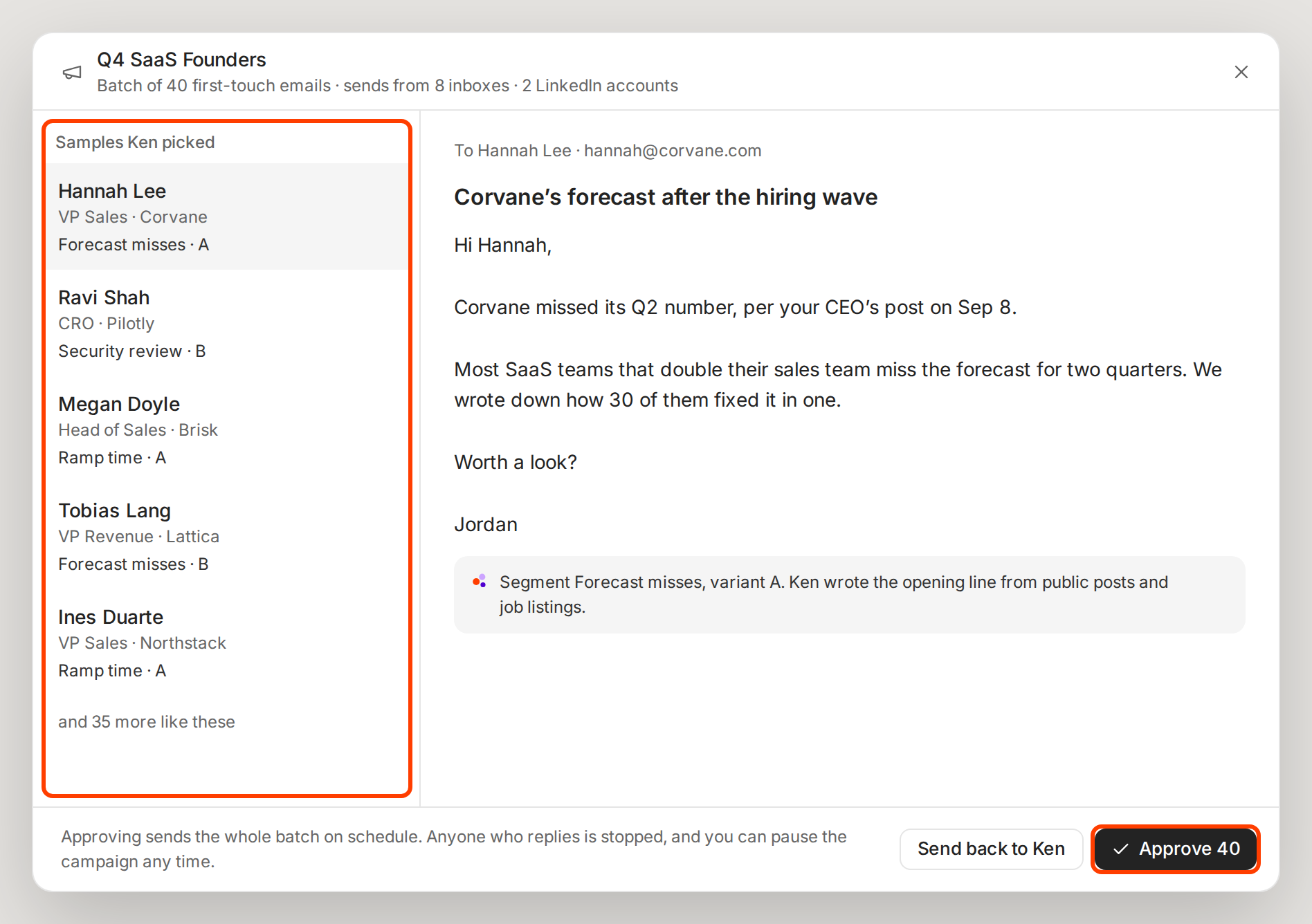
Read each of the five samples before you approve. -
Check each sample against the five checks below.
-
Click Approve 40. The number is the size of the batch. Ken confirms with "Approved 40 emails in Q4 SaaS Founders. They send on schedule."
The Approve 40 button on the row in Today approves without opening the batch. Use it only for a campaign whose samples you have already checked in an earlier batch.
What approving sends
The note at the bottom of the dialog says it plainly: "Approving sends the whole batch on schedule. Anyone who replies is stopped, and you can pause the campaign any time."
- The whole batch sends, not only the 5 samples. Approving 40 approves all 40 emails.
- It sends on the campaign's schedule. Emails go out in the sending window and within the daily limit, not all at once. See Set a sending schedule.
- There is no undo. To stop emails that have not gone out yet, pause the campaign.
Five checks for every sample
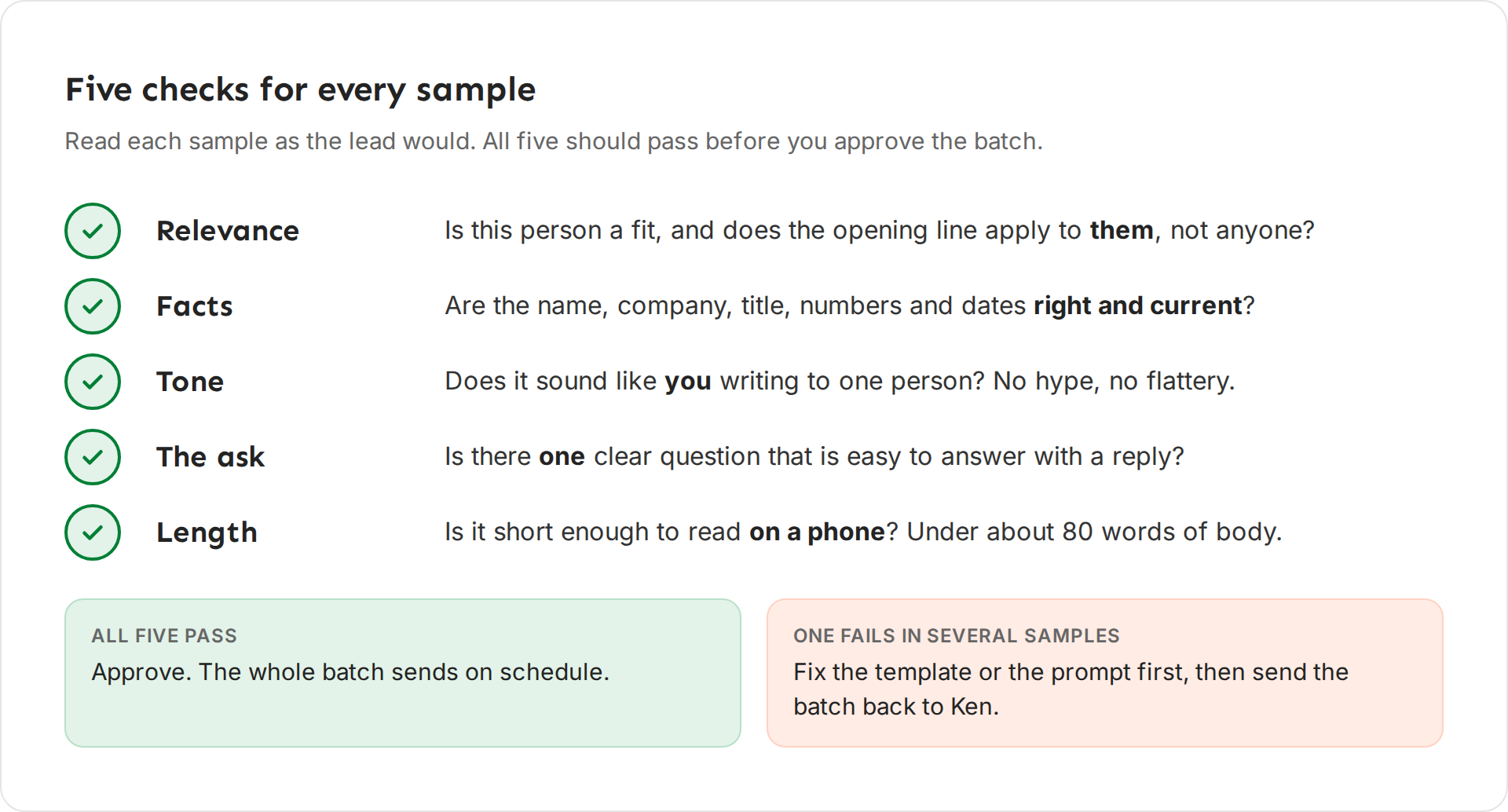
- Relevance. Is this person a fit for your offer? Does the opening line apply to them, or could it go to anyone?
- Facts. Are the name, company, title, numbers and dates right and current? Ken writes opening lines from public posts and job listings, and a post can be old.
- Tone. Does it sound like you writing to one person? Cut hype and flattery.
- The ask. Is there one clear question that the lead can answer in a line?
- Length. Can they read it on a phone without scrolling? Aim for under about 80 words of body.
Example: a sample to send back
In this sample, the opening line comes from a public post, and the fact is right. The line still fails the tone check.
- Weak. "Corvane missed its Q2 number, per your CEO's post on Sep 8."
- Better. "Saw your CEO's post on Sep 8 about hiring 40 more reps this year."
The weak line tells a stranger their company failed. Even when it's true, it reads as a dig, and the lead stops reading. The better line uses the same post and starts from something the company is proud of. If 2 of the 5 samples open like the weak line, expect the same problem in many of the 35 emails you didn't see.
Send a batch back
If a check fails in more than one sample, don't approve the batch.
- Fix the cause first. If the problem is in the email template, edit it in the campaign's Sequence tab and click Save. If it is in a line Ken writes for each lead, change that AI variable's prompt. See Personalize emails with AI variables.
- Open the batch again and click Send back to Ken. Ken confirms with "Sent back to Ken. It rewrites the batch and asks you again."
- Review the new batch when it shows up in Today.
What works
- Read all 5 samples. They come from different segments and versions, so the third sample can fail where the first one passed.
- Check the opening line hardest. It is the line Ken writes for each lead, so it is where wrong facts and odd phrasing show up.
- Fix the cause before you send a batch back. If you send it back without changing the template or the prompt, the next batch is likely to have the same problem.
If something goes wrong
- "I don't see any batches in Today." No batch is waiting. If a campaign shows "Ken is writing" on the Campaigns list, the batch shows up when Ken finishes.
- "I approved by mistake." Open the campaign and click Pause. Emails that have not gone out yet stay unsent until you click Resume.
- "Every sample has the same mistake." Fix the template or the prompt, then click Send back to Ken.
- "One sample has the wrong job title." The lead's data is out of date. Check the lead on the campaign's Leads tab.
- "I want to tell Ken what to change." The batch review has no comment box. Make the change in the Sequence tab or the prompt yourself, then send the batch back.
Next: Read campaign results, What Ken does on its own or Write cold emails people reply to.