Ken does a lot of work without asking. It researches accounts, watches for signals and drafts the next touch for each person. It does not send an email, a LinkedIn message or a gift until a person approves it. This page explains what runs on its own, what waits for you, and the limits Ken works within.
The rule
Ken can read, research, plan and draft on its own. Anything a prospect would see waits for a person to approve it.
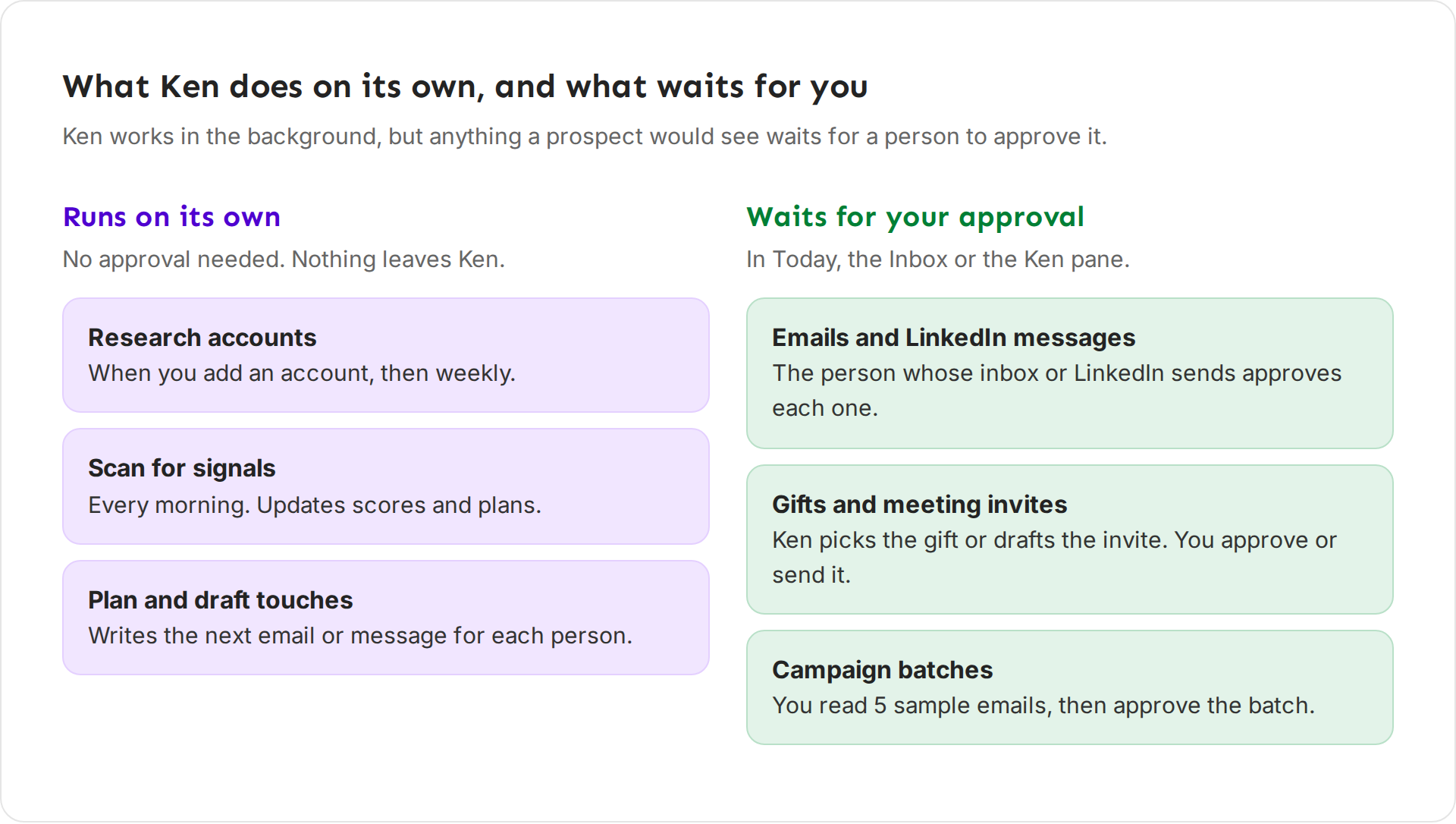
Ken never sends a touch until a person approves it. It also never launches a campaign, deletes, archives or exports anything, or changes billing. If you ask for one of these in the Ken pane, Ken tells you which page to use. A campaign launches only when you click Launch, or when Ken finishes building it if you turned on Auto-launch when ready.
One exception: automatic replies for campaigns. If your team turned them on for a campaign before, that setting still applies, and Ken can send replies in that campaign without a person approving each one. Write to [email protected] if you are not sure whether yours are on.
Where approvals wait
Approvals wait in three places, and you can act on them from any of them.
- Today. Touches waiting for you sit in the Needs you group, in the order they will send. Campaign batches sit in their own group.
- The Inbox. Ken drafts an answer to a reply in your voice. You read it and send it.
- The Ken pane. When you ask Ken to do something, it shows an approval card above the message box with the exact message and date. See Ask Ken from any page.
How each kind of work is approved
| Work | How it is approved |
|---|---|
| A touch on an account (email, LinkedIn message, gift) | One at a time, in Today or the Ken pane, by the person whose inbox or LinkedIn sends it |
| A campaign | In batches. You read 5 sample emails Ken picks, then approve the batch or send it back to Ken |
| A reply in the Inbox | Ken drafts an answer in the thread. You read it and send it |
| A meeting invite from a reply | Ken drafts the invite when a prospect picks a time. You send it |
| A change to a campaign's sequence or segment | Ken quotes the text before and after, then shows a card. You approve it |
| Pausing or resuming a campaign | Ken says what pausing does, then shows a card. You approve it |
Only the person whose inbox or LinkedIn sends a touch can approve it. A teammate cannot approve a touch from your inbox, and you cannot approve one from theirs. For agency work, a client approves touches that send from their own inbox on their Approvals page. See Approve messages as a client.
What happens after you approve
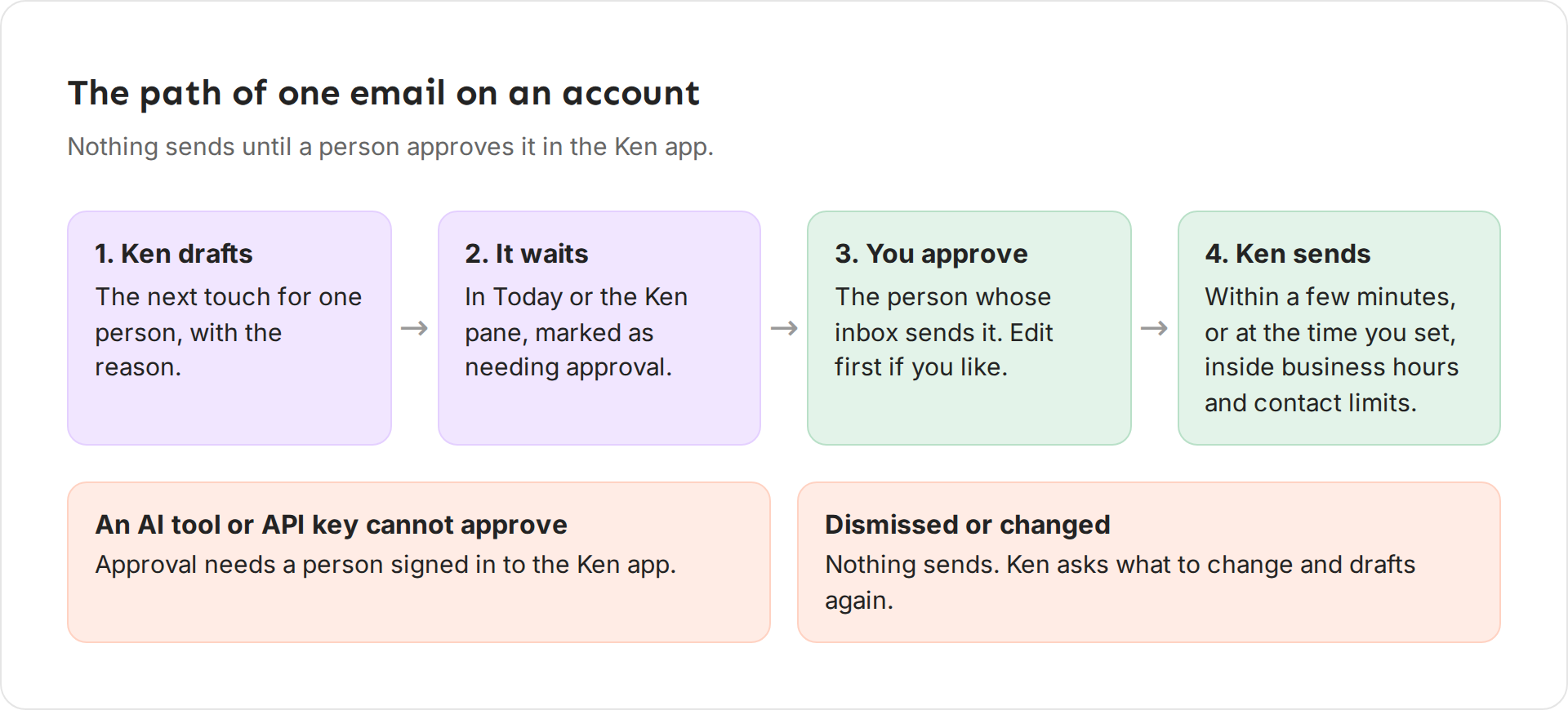
- Ken drafts the touch and says why it picked that person and that message.
- The touch waits in Today or the Ken pane.
- You approve it. Edit it first if you want to.
- Ken sends it within 3 minutes, or at the time you scheduled. It sends only inside business hours and your contact limits. If a limit is in the way, the touch waits and goes out as soon as the limit allows it.
Approval works only in the Ken app, from Today or an approval card in the Ken pane. An AI tool connected to Ken, a script or an API key can create a draft, but it cannot approve or send one. See Use Ken from Claude or ChatGPT.
Agent modes
Open Settings, then Ken agent, to see what Ken does on its own. Each action has three modes.
- Draft. Ken does the work and waits for your approval. For email: "Ken writes each email. You approve it before it sends."
- Full permissions. Ken acts on its own. For research: "Ken researches when you add an account, then weekly."
- Manual run. Ken acts only when you start it.
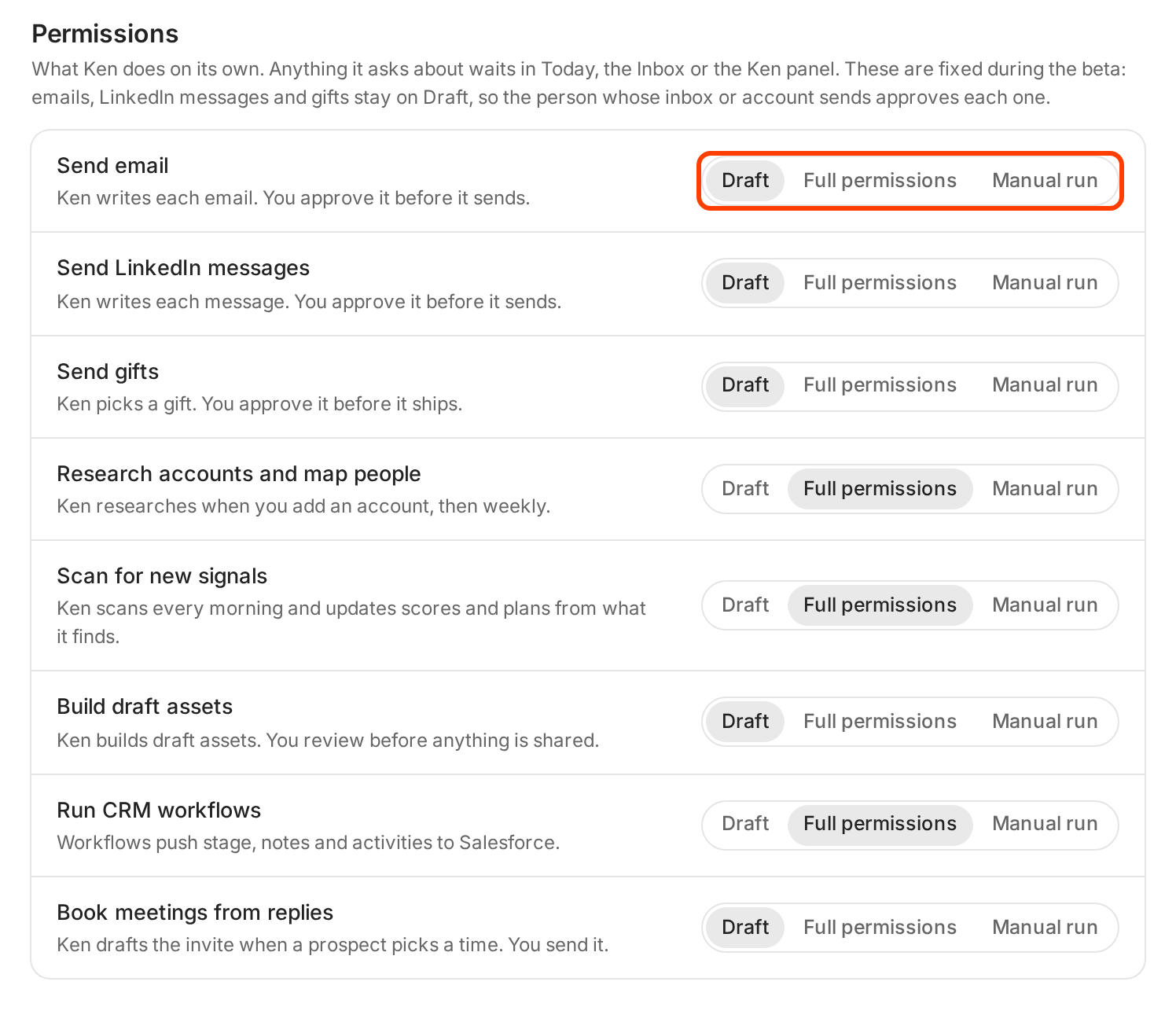
During the beta these modes are fixed. Emails, LinkedIn messages and gifts stay on Draft, so the person whose inbox or account sends approves each one.
| Action | Mode now | What it means |
|---|---|---|
| Send email | Draft | Ken writes each email. You approve it before it sends. |
| Send LinkedIn messages | Draft | Ken writes each message. You approve it before it sends. |
| Send gifts | Draft | Ken picks a gift. You approve it before it ships. |
| Research accounts and map people | Full permissions | Ken researches when you add an account, then weekly. |
| Scan for new signals | Full permissions | Ken scans every morning and updates scores and plans from what it finds. |
| Build draft assets | Draft | Ken builds draft assets. You review before anything is shared. |
| Run CRM workflows | Full permissions | Workflows push stage, notes and activities to Salesforce. |
| Book meetings from replies | Draft | Ken drafts the invite when a prospect picks a time. You send it. |
Contact limits and guardrails
Approval decides whether a touch sends. Contact limits decide when. Open Settings, then Contact limits.
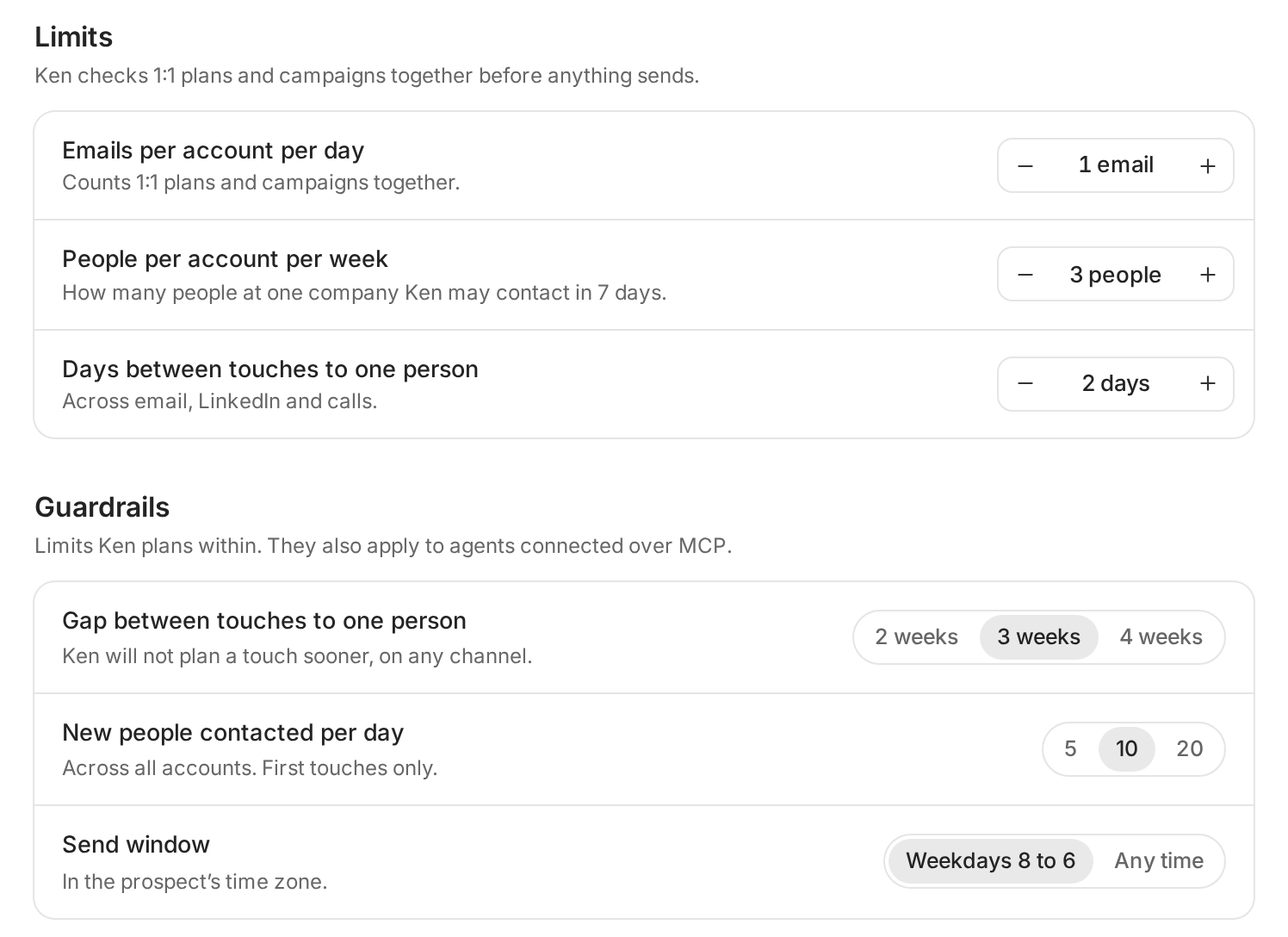
Limits apply to every touch, including ones you write yourself. Ken checks 1:1 plans and campaigns together. Guardrails apply only to Ken's own plans and to AI tools connected to Ken. They never block a person.
| Setting | Kind | Default |
|---|---|---|
| Emails per account per day | Limit | 1 |
| People per account per week | Limit | 3 |
| Days between touches to one person | Limit | 2 |
| Gap between touches to one person | Guardrail | 3 weeks |
| New people contacted per day | Guardrail | 10, first touches only |
| Send window | Guardrail | Weekdays 8 to 6, in the prospect's time zone |
Where a limit and a guardrail cover the same thing, the stricter one wins. So Ken plans touches to one person 3 weeks apart, while you can still write to them after 2 days.
Under Rules, these switches are on by default:
- Business hours only sends every touch between 8 AM and 5 PM in each person's time zone.
- Pause the account when anyone replies stops Ken from planning more touches at a company until you decide what is next.
- Skip accounts with an open opportunity keeps Ken away from accounts your sales team already works.
What you can change
- Each item. Edit, change or dismiss any draft before you approve it. Nothing sends until you do.
- Page sharing. Stop Ken from seeing the page in one chat with the chip or the eye button in the Ken pane. To start every chat with sharing off, turn off Share page context with Ken in Settings, then Preferences.
- Limits. The Contact limits page shows your limits, but you can't change them there during the beta. Write to [email protected] to change a contact limit or guardrail. An AI tool connected to Ken can make a guardrail stricter, but never looser.
- Agent modes. These are fixed during the beta.
Tips from our team
- Approve in one sitting. Clear Needs you in Today once in the morning, so approved touches can go out the same business day.
- Read the reason, not only the email. Ken says why it picked that person and that message. A weak reason is a sign to skip the touch, not to rewrite it.
- Dismiss with a note. When you dismiss a card, Ken asks what to change. One sentence of feedback improves the next draft.
- Plan with the limits, not around them. If many approved touches wait for a limit, you are planning more than your limits allow. Approve fewer, better touches.
If something goes wrong
I approved a touch and it has not sent. A contact limit or business hours moved it to a later time, or the sender's inbox or LinkedIn is not connected. Ask Ken "Why hasn't my touch to Owen sent?" Ken tells you when it goes out and why it waits. A client sees the same on the Approvals page as Held until, with the date and the reason.
I can't approve a touch. Only the person whose inbox or LinkedIn sends it can approve it. Ask that person to approve it.
My AI tool says approval requires a person. That is expected. Open Ken and approve the touch in Today.
I want Ken to send without asking. Sends stay on Draft during the beta. Write to [email protected] to tell us how you would use it.
Next: Use Ken from Claude or ChatGPT, Work through Today or Work the account plan.