Ken is a chat that opens beside every page in the app. When page sharing is on, Ken sees the page you are on, so you can ask "what should I do next here?" without explaining where you are. Ken can research, plan, write touches and build assets, but anything it would send or change waits for you to approve it.
Open Ken
-
Press ⌘ J (Ctrl J on Windows). You can also click Ask Ken in the sidebar, the Ask Ken button on an account, or the Ken button in the bottom right corner.
-
Look at the chip in the message box, under the line where you type. It names the page Ken can see, for example Halcyon Health. The message box reads Ask Ken about this page...
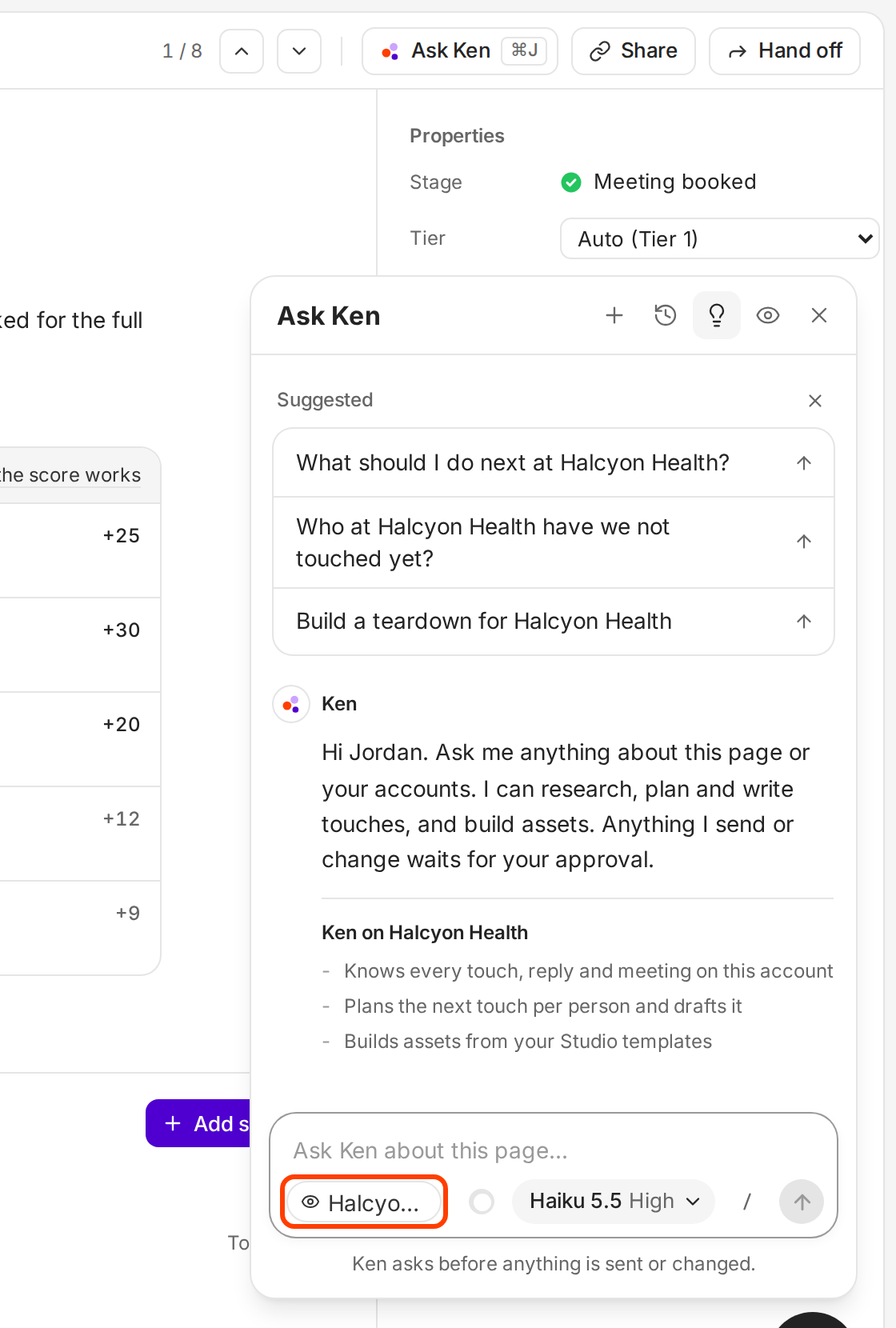
The chip in the message box names the page Ken can see. Click it to stop sharing in this chat. -
Pick one of the suggested questions, or type your own and press ↵.
-
To close the pane, press ⌘ J again or click the close button.
You can also right-click an item in the sidebar and choose Ask Ken about Inbox (or any other page), or right-click a row on Today and choose Ask Ken about this.
What Ken can see
When page sharing is on, Ken reads the page you have open: the account, the thread, the meeting or the setting. It also reads your workspace data through its tools, such as touches, replies and meetings on an account.
- To stop sharing in the chat you have open, click the page chip or the eye button at the top of the pane. The chip's tooltip says Ken can see this page. Click to stop sharing. The pane then says Page and workspace context is not shared in this chat.
- To share again in that chat, click the eye button.
- To start every new chat with sharing off, open Settings, then Preferences, and turn off Share page context with Ken.
When sharing is off, Ken does not guess what you are looking at. Name the account or thread in your message, or Ken asks you first.
Ken answers from your data and from what it finds with its tools. If it cannot find something, it says so. When you ask how to do something in the app, it searches this help center first and names the article.
Use a slash command
Type / in the message box to open Commands. Each one starts a common task with a ready-made prompt, and you add the detail.
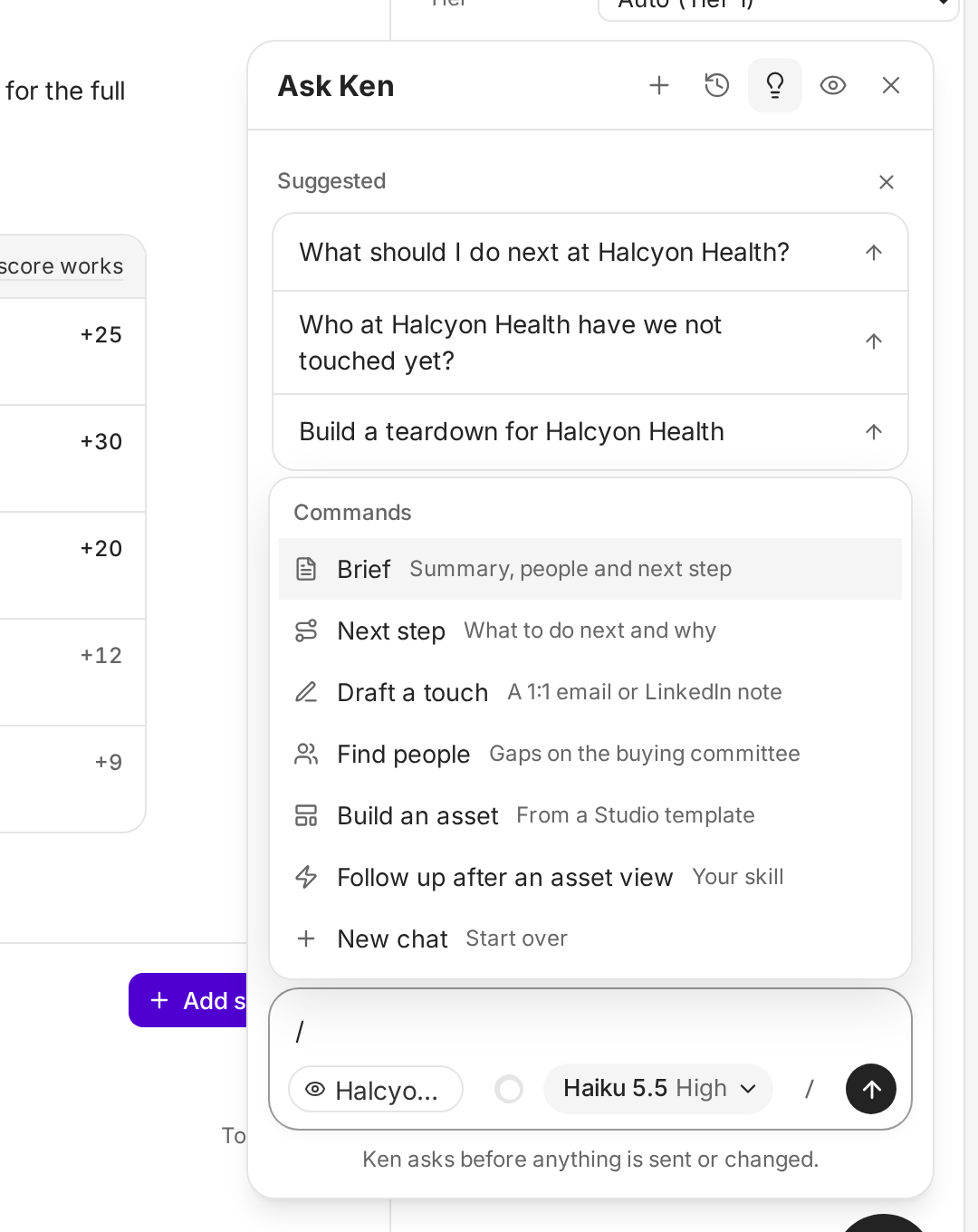
| Command | What it does |
|---|---|
| Brief | A short summary of the account, its people and the next step |
| Next step | The single best thing to do next, and why |
| Draft a touch | A 1:1 email or LinkedIn note, scheduled for your approval |
| Find people | People missing from the buying committee |
| Build an asset | A personal asset from a Studio template |
| New chat | Starts over |
Skills you turned on in Knowledge show up in the same list. If your workspace has booking links, you also see Send my booking link and Make a single-use link.
Approve what Ken proposes
When Ken wants to do something, it shows an approval card above the message box instead of doing it. The card names the action, such as Schedule this touch?, and shows what will happen: who, when, and the message itself.
-
Read the card. If Ken proposes several actions, the card shows 1 of 3 and so on.
-
Click the main button to go ahead. It is named after the action, such as Schedule or Approve and send. You can also press ⌘ ↵.
-
Click Edit or Change to tell Ken what to fix. Click Dismiss if you do not want it.
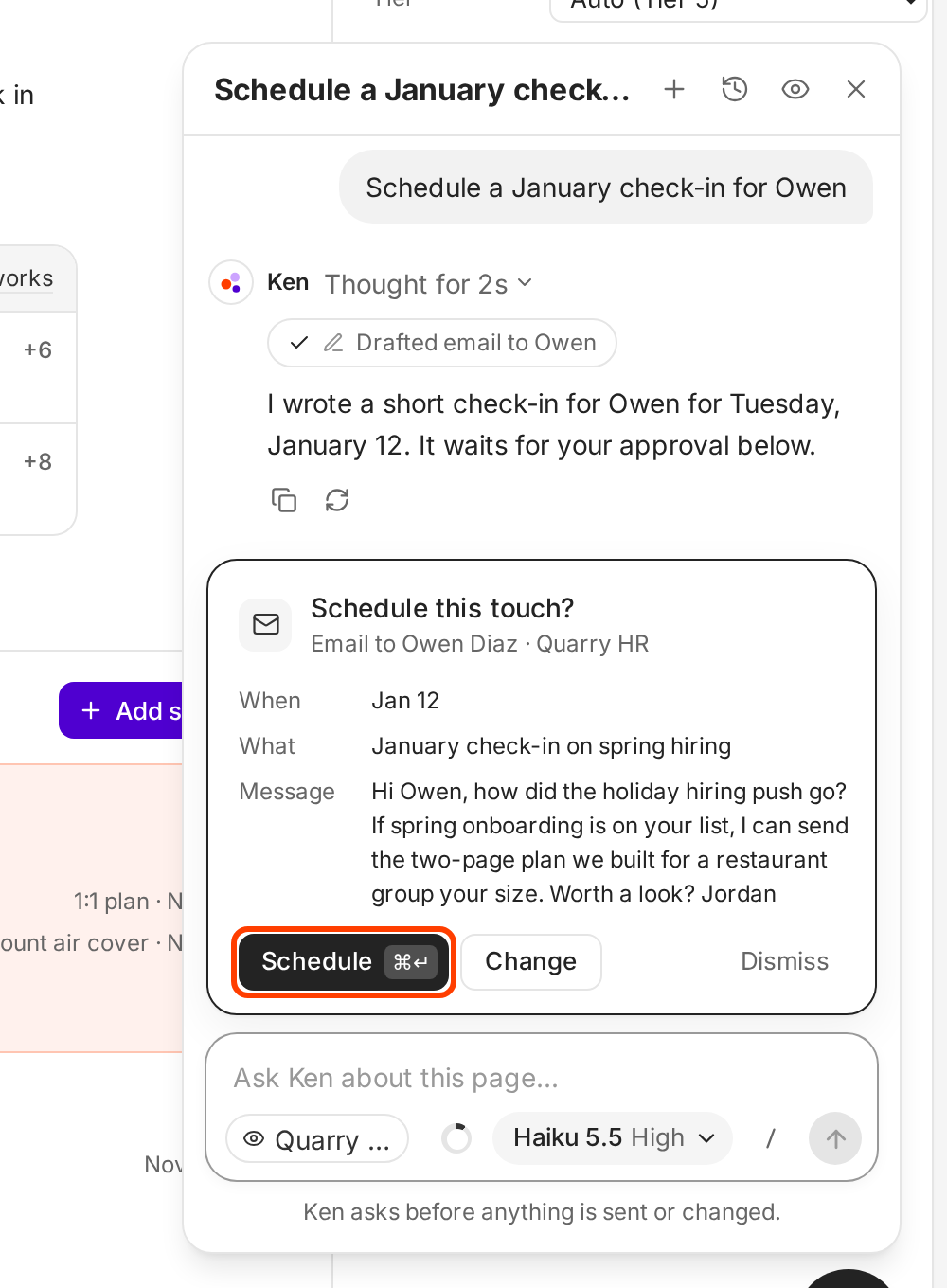
Nothing runs until you click the main button. Example data.
After you decide, the card moves into the chat, marked Approved, Changes asked or Dismissed. If you dismiss a card, nothing changes, and Ken asks what you want instead.
This clip shows the whole flow on Today. It asks Ken to schedule a check-in, reads the draft, and approves it with ⌘ ↵.
Ken never launches, deletes, archives or exports anything from the chat, and it never changes billing. If you ask for one of these, Ken tells you which page to use. A touch Ken drafts sends only after the person whose inbox or LinkedIn sends it approves it. See What Ken does on its own for the full rule.
Find an old chat
Click the History button at the top of the pane. You see Chats, with the current one first. Each chat is named after its first question. Click a chat to open it, or right-click it and choose Open chat or Delete chat. Click the New chat button (the plus) to start fresh.
Ten useful things to ask
These are good starting points. Each one works best on the page named in the first column.
| Page | Ask |
|---|---|
| Today | "What needs me today?" |
| Today | "Which accounts are going cold?" |
| An account | "What should I do next at Halcyon Health?" |
| An account | "Who at Halcyon Health have we not touched yet?" |
| Accounts | "Where are we missing a champion?" |
| Inbox, on a thread | "Summarize this thread" |
| Inbox, on a thread | "Draft a reply that offers two times next week" |
| Calendar | "Prep me for my next meeting" |
| Knowledge | "What does Ken know about Northwind?" |
| Settings | "What can you do without asking me?" |
For more on writing requests that get a useful answer the first time, see Get better answers from Ken.
Tips from our team
- Ask on the page you mean. Open the account or thread first. Ken then knows which record you mean, and you can write a shorter request.
- Ask for numbers. Ken quotes real numbers and the date range they cover. "How did this campaign do in the last 14 days?" gets a better answer than "Is this campaign good?"
- Read every card before you approve. The card shows the exact message and send date. Fix them there, not after the email has gone out.
- Use a slash command for repeat work. Type / and pick Brief before every call, or Next step on every account you open.
- Watch the ring. The small ring next to the model button shows how full the chat is. It turns orange at 80%. Hover it to see the tokens and credits the chat has used. A long chat uses more tokens with each message, so start a New chat when you switch to a new task.
If something goes wrong
Ken asks what I'm looking at. Page sharing is off in this chat. Click the eye button at the top of the pane to share the page. If every new chat starts with sharing off, turn on Share page context with Ken in Settings, then Preferences.
I approved a touch but it has not sent. Ken sends an approved touch within 3 minutes, inside business hours and your contact limits. If a limit is in the way, the touch waits until the limit allows it. Ask Ken "Why hasn't my touch to Owen sent?" Ken tells you when it goes out and why it waits.
The approve button is not there for a touch. Only the person whose inbox or LinkedIn sends the touch can approve it. Ask that person, or ask Ken who owns it.
Ken's answer looks wrong. Ask where the answer came from, or open the record and ask again. Ken answers from your data, so a missing reply or meeting in Ken means a missing answer too.
I don't see the Ken pane or the Ask Ken button. Ken may not be turned on for your workspace yet. Write to [email protected] to ask for it.
Next: Get better answers from Ken, What Ken does on its own or Use Ken from Claude or ChatGPT.