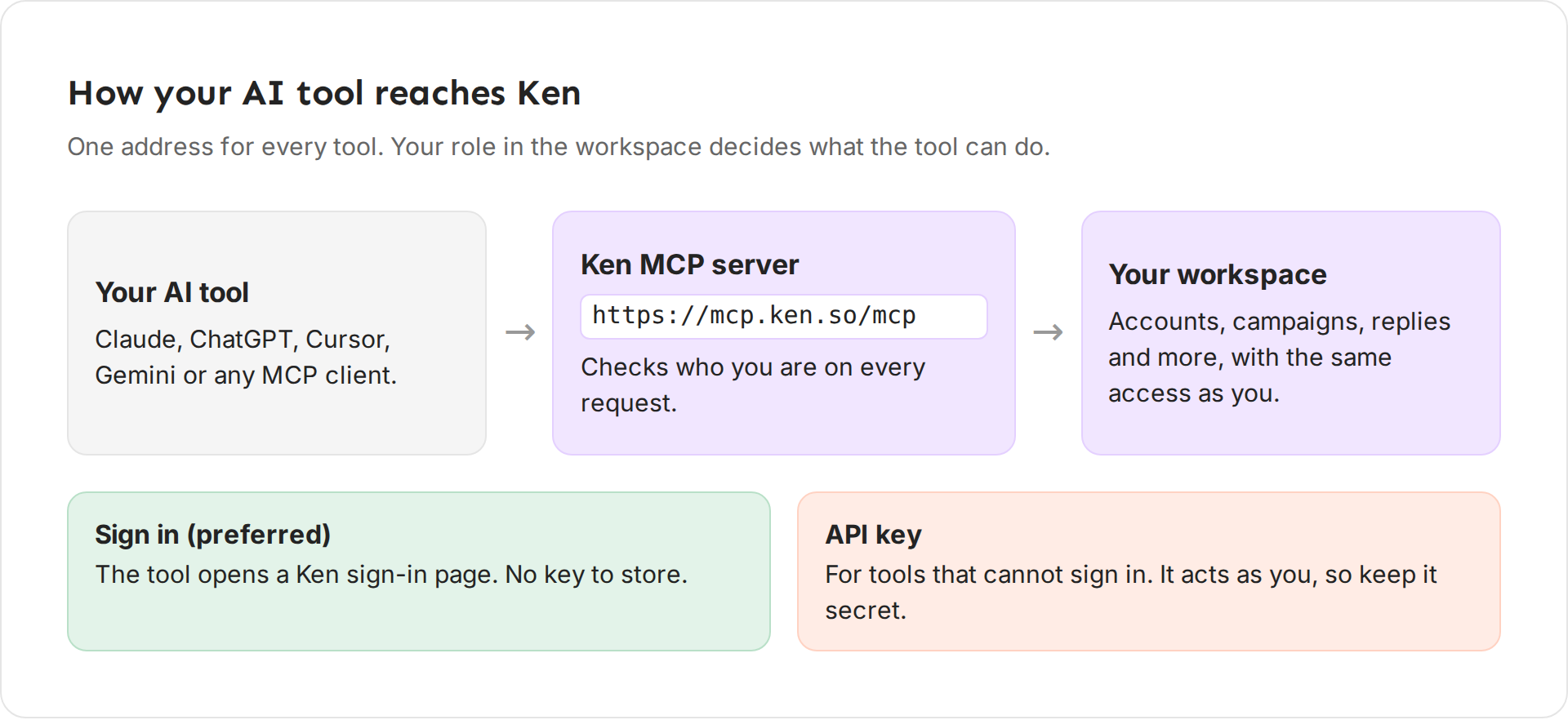
You can work with Ken from the AI tool you already use, such as Claude or ChatGPT. The tool connects to Ken's MCP server and works with your role. It can do most of what you can do in Ken, but it cannot approve a send, and a few admin areas stay off limits. You can then ask it about your accounts, replies and campaigns, or have it draft work for you to approve in Ken.
Before you start
- You need a Ken account that is a member of the workspace.
- Your AI tool must support remote MCP servers. Claude, Claude Code, ChatGPT (in developer mode), Cursor, Windsurf, VS Code and the Gemini CLI do.
Copy the server URL
-
Open Settings, then MCP and AI agents.
-
Under MCP server, click Copy URL. You see Copied the MCP URL. The URL is
https://mcp.ken.so/mcp.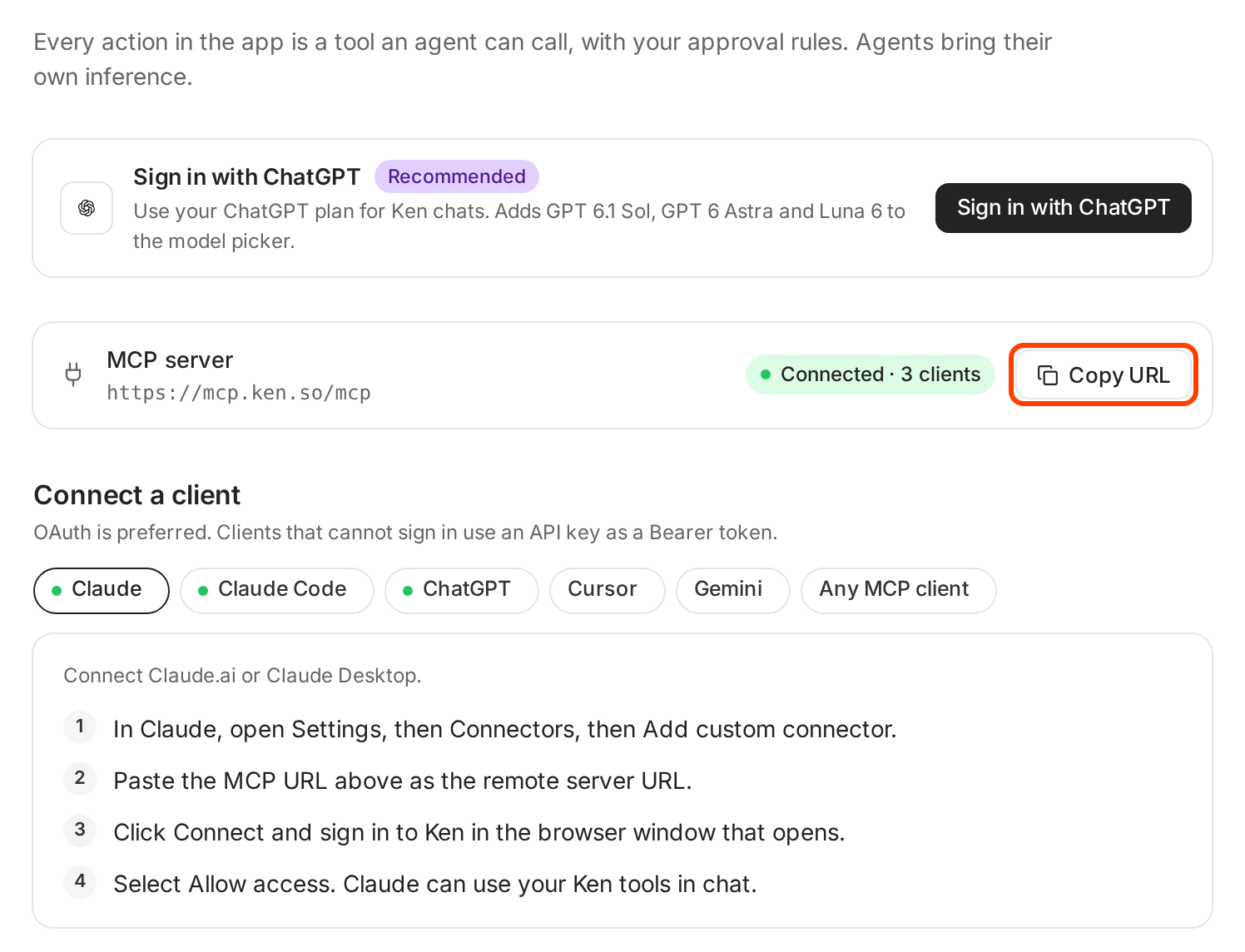
The MCP server card shows the URL and how many clients are connected. -
Under Connect a client, pick the tab for your tool. Each tab lists the steps for that tool.
Connect your tool
Signing in is the preferred way. Your tool opens a Ken sign-in page, and you never handle a key.
Claude
- In Claude, open Settings, then Connectors, then Add custom connector.
- Paste the MCP URL as the remote server URL.
- Click Connect and sign in to Ken in the browser window that opens.
- Select Allow access. Claude can now use your Ken tools in chat.
Claude Code
Run this in a terminal:
claude mcp add --transport http ken https://mcp.ken.so/mcp
The first time you use it, sign in to Ken in the browser.
ChatGPT
- In ChatGPT, open Settings, then Connectors. Turn on developer mode if ChatGPT asks.
- Choose Add or Create connector, and paste the MCP URL.
- Choose OAuth, then continue.
- Sign in to Ken and select Allow access.
Cursor, Gemini and other tools
Add a remote MCP server that uses streamable HTTP, and paste the MCP URL. When the tool asks you to sign in, complete the sign-in. If it cannot, use an API key as its Bearer token (see the next section).
Create an API key for tools that cannot sign in
Use an API key only when your tool cannot complete the sign-in, or for a script or scheduled job.
-
Open Settings, then API keys.
-
Click Create key. Ken adds a key named New key 1 (then New key 2, and so on) and shows it once under Copy this key now.
-
Click Copy. You see Copied the key. Paste it into your tool as the Bearer token right away.
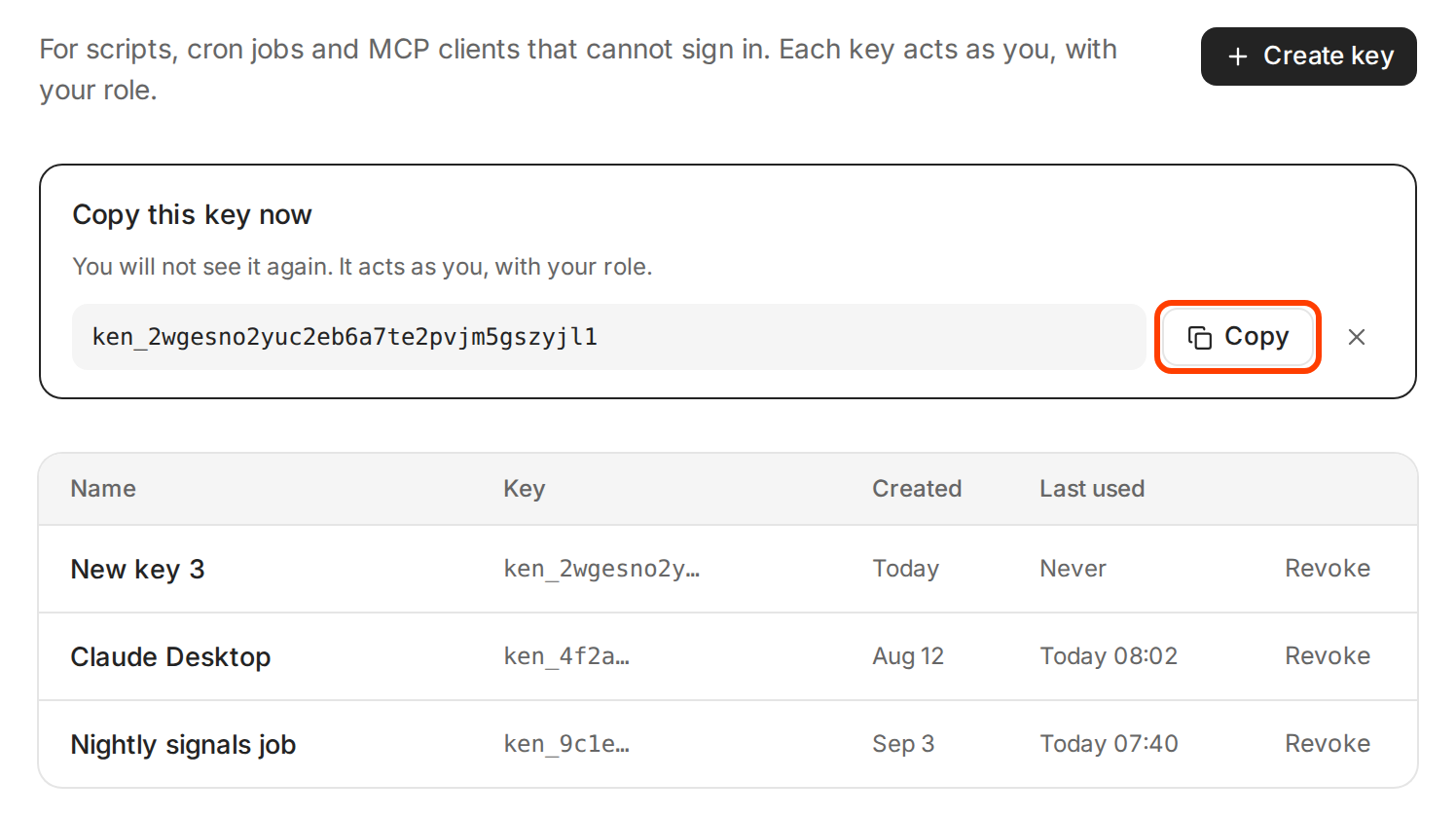
You see the full key only once. The list keeps only its first characters. Example key. -
Click the x button (Done) to close the box. After that, or once you leave the page, you cannot see the key again.
A Ken key starts with ken_. The list shows its name, the first characters of the key, when it was created and when it was last used. Keys cannot be renamed, so note which key prefix you gave to which tool.
This clip copies the MCP URL, then creates a key and copies it.
What your AI tool can do
Your AI tool works with your role in each workspace you belong to. If you belong to more than one workspace, tell the tool which one to use. Ken checks your role on every request, so if an admin changes your role or removes you, the tool's access changes at once.
| Area | Examples of what the tool can reach |
|---|---|
| Accounts | Accounts, people, the buying committee, opportunities, touches |
| Campaigns | Campaigns, leads, segments, sequences, results |
| Inbox | Threads and replies |
| Today and meetings | What needs you, meetings, booking links |
| Search and Knowledge | Lead search, your Knowledge files and skills |
| Delivery | Domains and inboxes |
Some things stay out of reach for every AI tool, whatever your role: billing, API keys and webhooks, member and workspace administration, and audit logs.
Two rules always hold:
- A tool cannot approve or send a touch. It can draft one, and the draft waits in Today for the person whose inbox sends it. See What Ken does on its own.
- A tool cannot loosen your guardrails. It can make a contact guardrail stricter, never looser.
The Sign in with ChatGPT card at the top of the same page is a different feature. It lets each person use their own ChatGPT plan for chats inside Ken.
What to ask
- "Which of my Tier 1 accounts have had no touch in the last 3 weeks?"
- "Summarize the replies I got yesterday and draft an answer to the two most interested ones."
- "What changed at Halcyon Health this month? Then draft a touch to Priya Nair for my approval."
- "How did my campaigns do in the last 14 days? Show replies by step."
- "Who is on my calendar this week, and which of those meetings are with accounts?"
For how to phrase requests well, see Get better answers from Ken.
Keep your keys safe
- Prefer signing in. There is no key to store, so there is nothing to leak.
- Treat a key like a password. It acts as you, with your role. Never paste it into a chat, a shared doc or a code repository.
- One key per tool. If one leaks, you revoke only that one. Right-click a key and choose Copy key prefix to match it to the tool that uses it.
- Revoke keys you no longer use. On API keys, click Revoke on the row, or right-click it and choose Revoke key. Check Last used to find old keys.
- Keep your tool's confirm step on. An admin's tool can make real changes, such as pausing a campaign. Have the tool ask you before any change.
If something goes wrong
The tool says it cannot connect. Check that the URL is exactly https://mcp.ken.so/mcp and that the tool uses streamable HTTP, not a local server.
The sign-in window never opens. Your tool may not support signing in to a remote server. Use an API key as the Bearer token instead.
The tool asks which workspace to use. You belong to more than one. Name the workspace in your request.
The tool says approval requires a person. That is expected. Open Ken and approve the touch in Today.
I lost my key. You cannot see it again. Create a new key, update your tool, and revoke the old one.
The tool can read but not change anything. Your role in that workspace can only view. Ask a workspace admin to change it.
The MCP page shows 0 clients after I connected. The client count and Recent calls can stay empty even when your tool works. To check the connection, ask your tool "List my accounts in Ken."
Next: Ask Ken from any page, What Ken does on its own or Invite your team and set roles.