Everyone in your workspace has a permission template that decides which pages they see and what they can do. Ken has four built-in templates (Admin, Editor, Viewer and Client), and you can change any page or feature for one person without touching anyone else. Platform includes unlimited seats, so invite everyone who works your accounts.
Before you start
You need the Manage members permission to invite people and change roles. Admins have it.
Invite a teammate
-
Press G then , to open Settings, then click Members under Workspace.
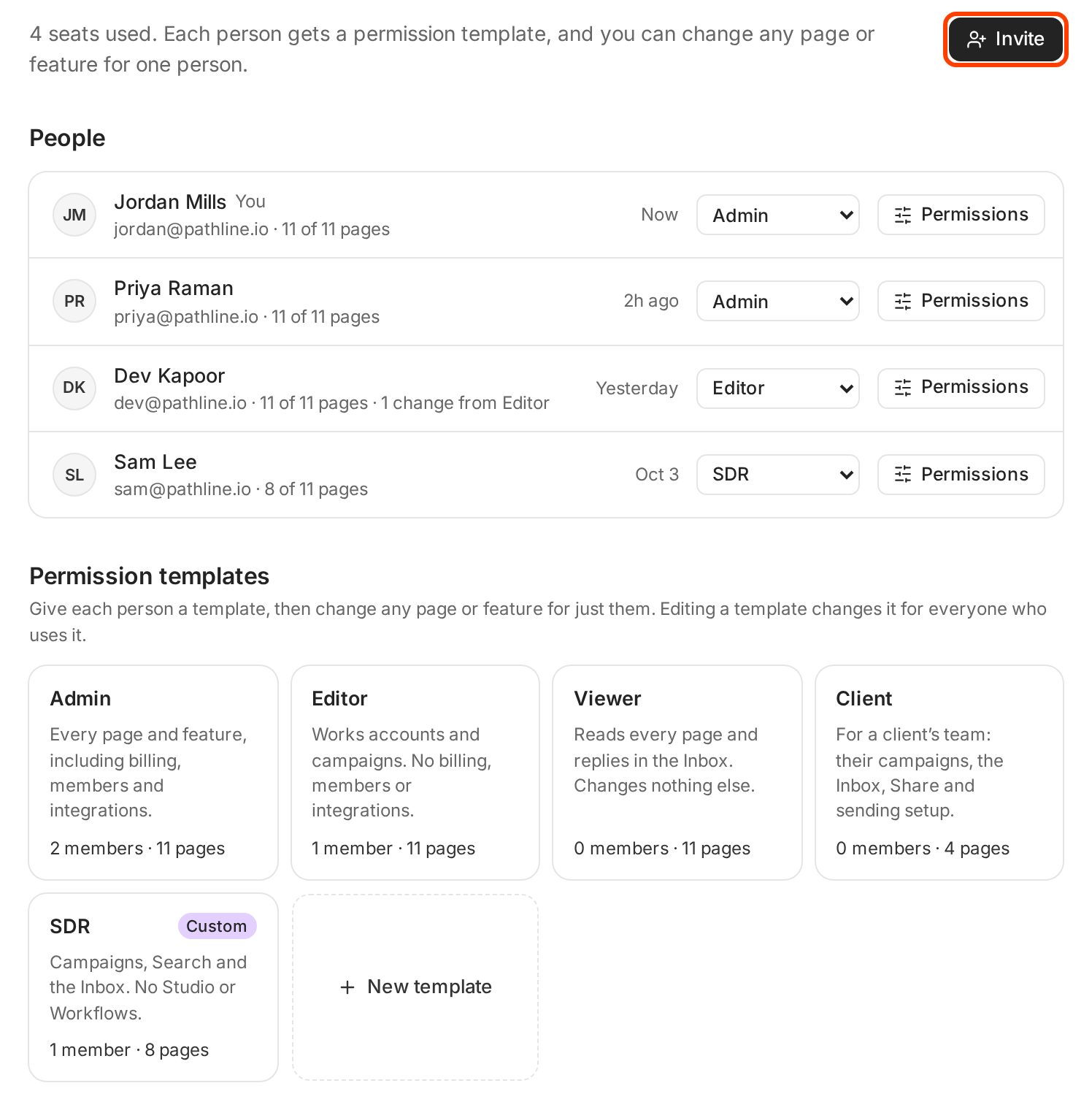
People at the top, permission templates below. -
Click Invite. A row opens above the list of people.
-
Type the person's work email.
-
Pick a template. Editor is selected by default. The table below shows what each one allows.
-
Click Send invite, or press ↵. Press Esc to close the row without sending.
Ken confirms with "Invite sent to" and the email. The person shows up in the list with an Invite sent tag. They get an email from Ken with a link, and once they sign in, the workspace is there.
To invite several people, repeat the steps for each email.
What each template can do
Admin has every page and feature, including billing, members and integrations. Editor works accounts and campaigns, with no billing, members or integrations. Viewer reads every page and replies in the Inbox, and changes nothing else. Client is for a client's team and sees their campaigns, Share and sending setup.
| Pages | Admin | Editor | Viewer | Client |
|---|---|---|---|---|
| Today, Calendar, Accounts, Search, Workflows, Studio, Knowledge | Edit | Edit | View | Hidden |
| Campaigns, Share, Delivery | Edit | Edit | View | View |
| Inbox | Edit | Edit | Edit | Edit, if clients can read replies |
| Features | Admin | Editor | Viewer | Client |
|---|---|---|---|---|
| Approve and send touches | Yes | Yes | No | Only touches sent from their own inbox |
| Launch and pause campaigns | Yes | Yes | No | No |
| Reply in the Inbox | Yes | Yes | Yes | Yes, if clients can read replies |
| Share for approval | Yes | Yes | No | No |
| Ask Ken and run agents | Yes | Yes | Yes | No |
| Import leads and accounts | Yes | Yes | No | No |
| Export leads and reports | Yes | Yes | No | No |
| Workspace settings: company, Ken agent, tags, blocklist, contact limits | Yes | Yes | No | No |
| Manage members | Yes | No | No | No |
| Billing and credits | Yes | No | No | No |
| Integrations and API keys | Yes | No | No | No |
| White-label and client workspaces | Yes | No | No | No |
| Monthly credit limit | No limit | No limit | None | None |
Hidden pages leave the sidebar. View is read only. A monthly credit limit of None means Ken refuses any work that would charge credits to that person. To see what a client sees, read What a client seat can see and do.
Change someone's role
To switch a person to another template, use the template menu on their row, for example from Editor to Viewer. Ken confirms with a message such as "Dev now has Viewer permissions".
To change one page or feature for one person:
-
Click Permissions on their row.
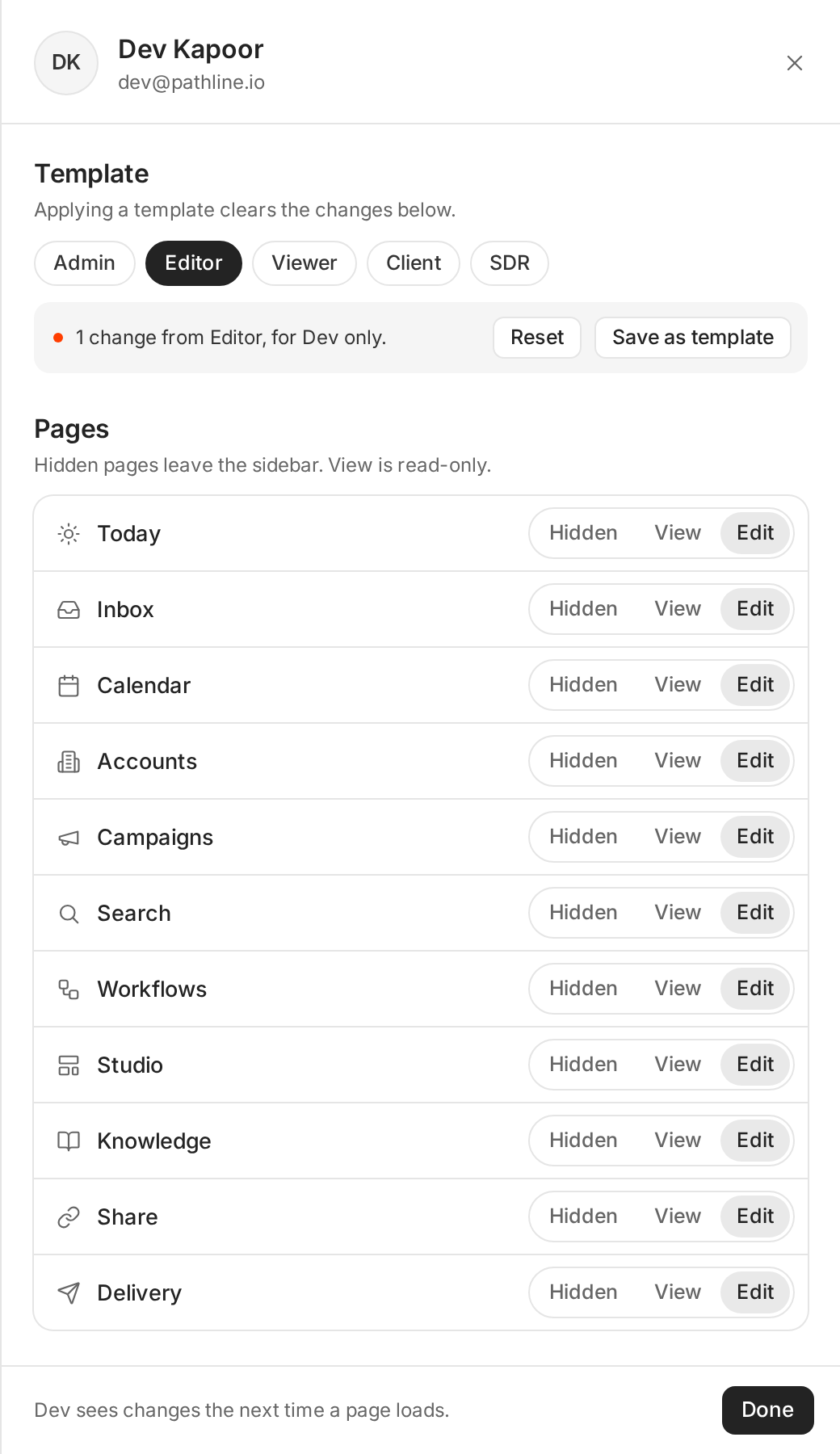
One change from Editor, for Dev only. -
Under Pages, pick Hidden, View or Edit for any page.
-
Below the pages, turn features on or off, and set the Monthly limit under Credits to No limit, 10,000, 2,000 or None. Workflow runs don't count toward it.
-
Read the line under Template. It counts the changes, for example "1 change from Editor, for Dev only." Click Reset to undo them, or Save as template to reuse the same set for others.
-
Click Done. The person sees the change the next time a page loads.
Picking a different template in the panel clears that person's changes.
Custom templates
Click New template under Permission templates to build your own, for example an SDR template that sees Campaigns, Search and the Inbox but not Studio or Workflows. Editing a template changes it for everyone who uses it. If you delete a custom template, the people on it move to Viewer.
Remove someone or cancel an invite
Right-click a person's row to see every action for them.
- Deactivate takes away their access to this workspace and keeps them in the list, so you can Reactivate them later.
- Remove from workspace takes them out of this workspace. Their other Ken workspaces don't change.
- Cancel invite withdraws an invite they haven't accepted. Resend invite sends the email again.
- Copy email copies their address.
When someone leaves your company, deactivate them on their last day. Their accounts, campaigns and replies stay in the workspace.
Pick the right template
- Keep two admins. Ken won't let you remove the last admin or move them off Admin, and nobody can change their own permissions. A second admin means you can always fix a role.
- Give salespeople Editor. It covers accounts, campaigns, approvals and replies without access to billing or members.
- Use Viewer for people who read. Managers and founders who check results and answer replies don't need more.
- Set a monthly limit for new hires. A 2,000 limit lets a new SDR work a test batch without spending the month's credits. See Get more from your credits.
- Give clients the Client template, never Viewer. Viewer can read every page in the workspace. Client sees only campaigns, Share, Delivery and, if you allow it, the Inbox.
If something goes wrong
- "I can't change my own role." Nobody can. Ask another admin.
- "Ken won't move the last admin off Admin." Make someone else an admin first.
- "The invite never arrived." Check the spelling of the email on the row, ask them to check spam, then right-click the row and click Resend invite.
- "They accepted but can't see a page." Their template hides it. Open Permissions on their row and set the page to View or Edit. They see it after they reload the page.
- "I can't invite people or change roles." You need the Manage members permission. Ask an admin.
Next: Sign in safely with two-factor and passkeys, What a client seat can see and do or Get more from your credits.