Your Ken account holds your inboxes, your replies and your prospects' data, so a stolen password should never be enough to get in. Everything about how you sign in is on one page: your password, two-factor authentication, passkeys, connected logins and the devices where you are signed in.
Open your security settings
-
Press G then , to open Settings, or click the gear next to your name.
-
Click Security under Account.
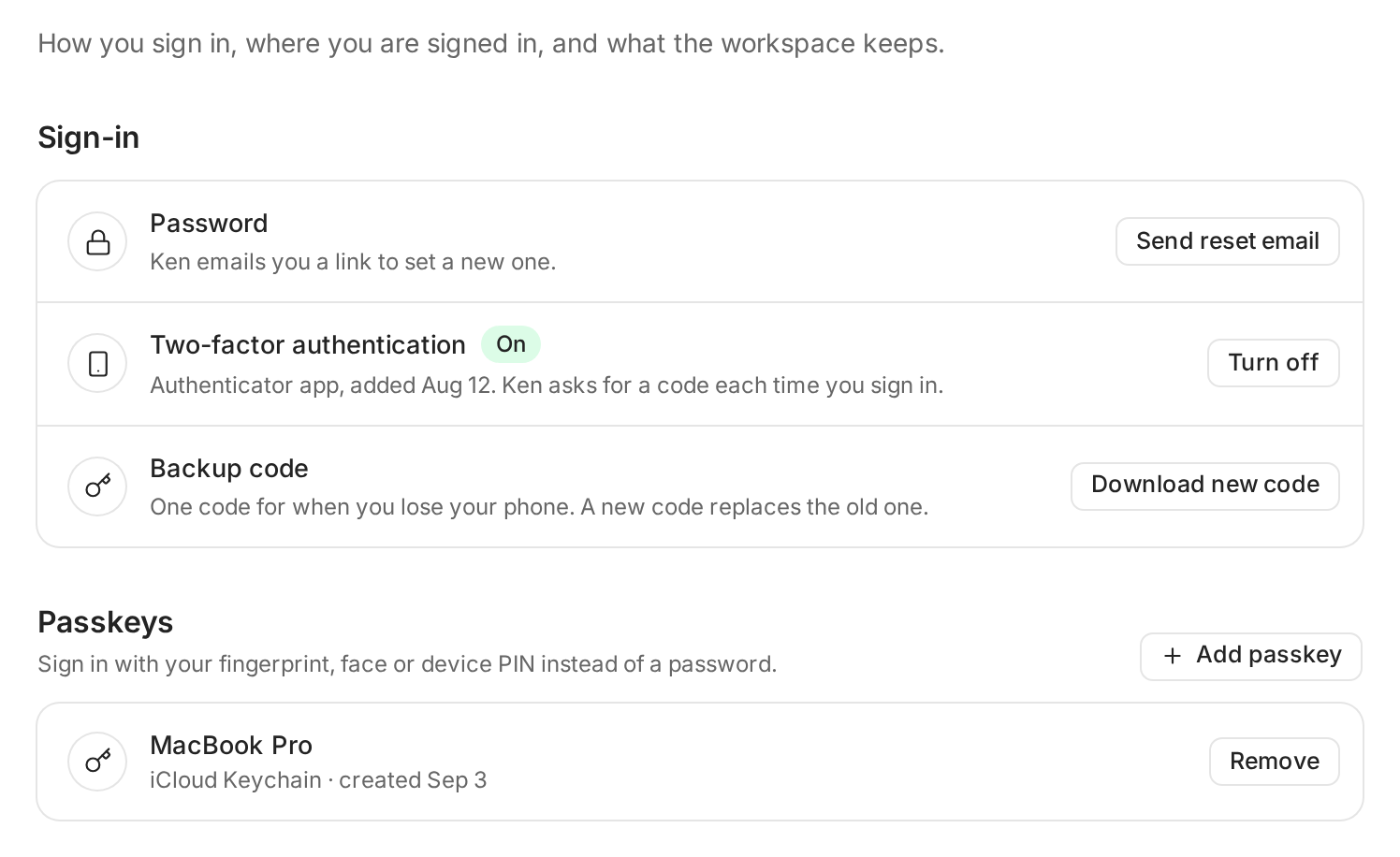
Sign-in and Passkeys are at the top of the Security page.
These settings belong to you, not the workspace. They apply to every Ken workspace you are in.
Reset your password
- Under Sign-in, click Send reset email on the Password row.
- The row changes to "Reset link sent to" and your email. Open the email from Ken and follow the link to set a new password.
- If the email doesn't come, check spam, then click Send again.
Turn on two-factor authentication
With two-factor authentication on, Ken asks for a code from your phone each time you sign in. You need an authenticator app on your phone.
- On the Two-factor authentication row, click Turn on.
- Scan the QR code with your authenticator app.
- Type the 6 digit code the app shows under Verification code, and confirm.
- Ken shows your backup code with "One code. Save it now." Save it in your password manager or print it.
The row now reads On with "Authenticator app", the date you added it, and "Ken asks for a code each time you sign in."
Keep a backup code
The backup code gets you in once if you lose your phone. To get a new one, click Download new code on the Backup code row. The new code replaces the old one, which stops working right away, so save it before you leave the page.
Add a passkey
A passkey lets you sign in with your fingerprint, face or device PIN instead of typing a password. There is nothing to type, and a passkey works only on Ken's real sign-in page, so a fake page can't steal it.
- Under Passkeys, click Add passkey.
- Ken opens a password sign-in on auth.ken.so. Sign in.
- When your browser offers to save a passkey, save it, then come back to Ken.
Your passkey then shows in the list, named after the device or password manager that holds it. Add one on each computer you use every day. To remove one, click Remove on its row. If it is your last passkey, Ken warns you to keep a password or another sign-in method so you can still get in.
Connect another way to sign in
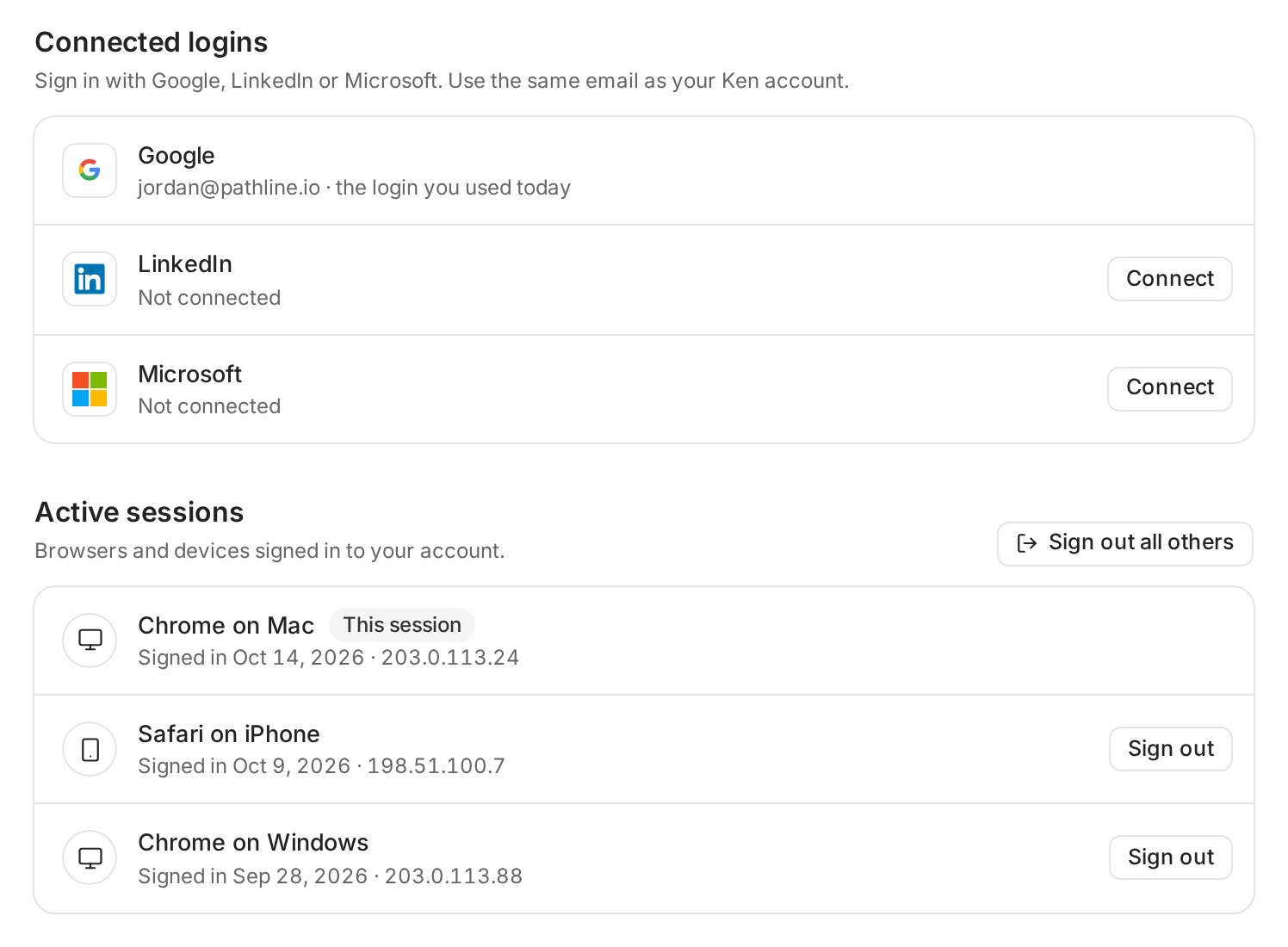
Under Connected logins, click Connect next to Google, LinkedIn or Microsoft, then sign in to that account. Use the same email as your Ken account. After that, the matching button on the Ken sign-in page signs you in. To stop using one, click Disconnect on its row.
Sign out other devices
Active sessions lists every browser and device signed in to your account. Your current one is marked This session.
- To sign out one device, click Sign out on its row.
- To sign out everywhere except here, click Sign out all others.
A signed out device can't renew its sign-in, but access it already has can last up to 24 hours. If you think someone else has your password, reset it too.
Best practice for your team
- Turn on two-factor for everyone, admins first. An admin account can change billing, members and integrations, so it needs more than a password.
- Add a passkey on every computer you use daily. You sign in faster, and a fake sign-in page can't capture it.
- Store the backup code in your password manager, not in the same phone as the authenticator app.
- Use your work Google or Microsoft login. Connect it with the same email as Ken. When you sign in with that button, your company's own sign-in checks run too, such as its two-factor rules.
- Check Active sessions after travel or a lost device. Sign out anything you don't recognize, then reset your password.
- Remove people the day they leave. Deactivate them in Settings, Members. See Invite your team and set roles.
If something goes wrong
- "That code did not match." Codes change every 30 seconds. Type the newest one. If it keeps failing, set your phone's clock to update automatically.
- "This setup session expired." You waited too long to scan. Click Turn on again to get a new QR code.
- "Too many attempts." Wait a few minutes and try again.
- "I lost my phone." Sign in with your backup code, then turn two-factor off and on again with your new phone. Save the new backup code.
- "I lost my phone and my backup code." Write to [email protected] from the email on your Ken account and ask for a two-factor reset.
- "No new passkey was saved." Your browser didn't save a passkey during the sign-in. Click Add passkey again and save the passkey when your browser offers it.
- "Couldn't connect that login." Check that the Google, LinkedIn or Microsoft account uses the same email as your Ken account, then try again.
- "Some sessions are still signed in." Wait a minute, then click Sign out all others again.
Next: Keep companies and people off your lists or Invite your team and set roles.