The blocklist is the list of companies and people Ken must never contact. Add a domain and Ken skips everyone at that company. Add an email and Ken skips that one person. Set it up before your first send, because one email to a current customer or an open deal costs more than any campaign earns.
Before you start
- You need the workspace settings permission. Admins and Editors have it.
- Gather the domains of your customers, partners, competitors and open deals, and any people who asked you not to contact them. Your CRM is the best source.
Block a domain or an email
- Press G then , to open Settings, then click Blocklist under Workspace.
- Click the field that says "Add a domain or email, like acme.com".
- Type a domain, such as
kestrellabs.com, or one person's email. - Click Add, or press ↵.
Ken confirms with "Ken will not contact kestrellabs.com", and the entry appears at the top of the list with today's date.
A few rules for entries:
- A domain covers its subdomains. Blocking
stackpoint.ioalso blocksmail.stackpoint.ioand anyone with an email at either one. - Paste a website if that is easier. Ken keeps only the domain, so
https://www.stackpoint.io/pricingbecomesstackpoint.io. - No wildcards. Entries like
*.govdon't work. Add each domain. - Each entry once. If it is already on the list, Ken says so, for example "stackpoint.io is already blocked".
To take an entry off, click the x at the end of its row. Ken confirms with "Removed" and the entry. Ken can contact that company or person again from then on, so remove entries with care.
What the blocklist stops
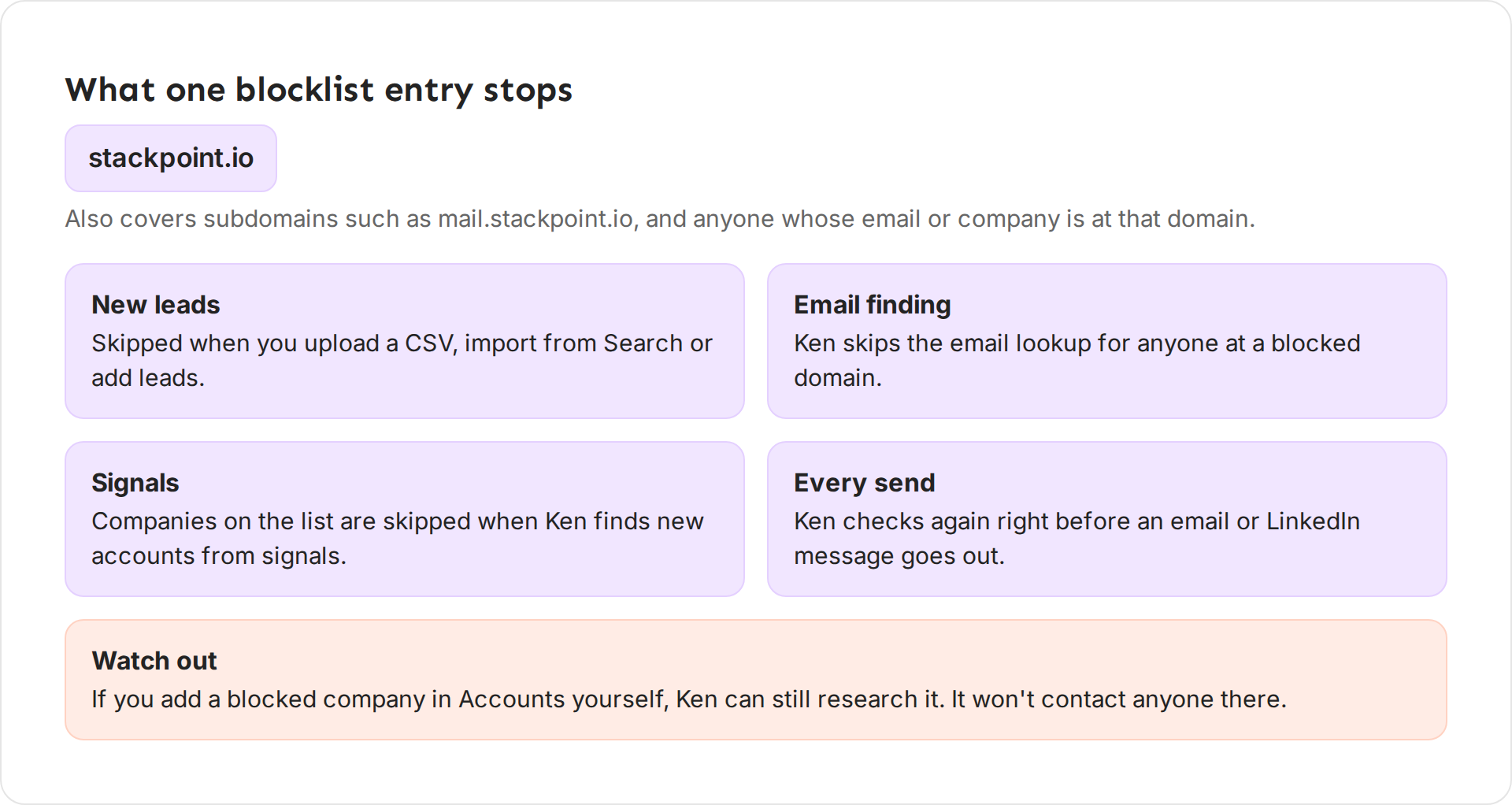
- New leads. When you upload a CSV, import from Search or add leads, Ken skips anyone at a blocked domain or with a blocked email.
- Email finding. Ken doesn't look up emails for anyone at a blocked domain, so you spend no credits on them. Workflows also check the blocklist before every step.
- Signals. When Ken finds new accounts from signals, it skips companies on the blocklist.
- Every send. Ken checks the blocklist again right before each email and LinkedIn message goes out. If you block a company after its people are in a campaign, the next touch to them doesn't go out.
- Replies. When you reply from the Inbox to a blocked email or domain, Ken asks first with "Send to a suppressed contact?". Click Cancel to keep the reply, or Send anyway if you mean to write to them. Ken's autonomous replies never go to a blocked contact.
Add your own company's domains
Your own domains belong in two places.
-
In Settings, click Company under Workspace.
-
Under Websites and domains, click Add domain, type the domain and click Add. Ken confirms with "Added" and the domain.
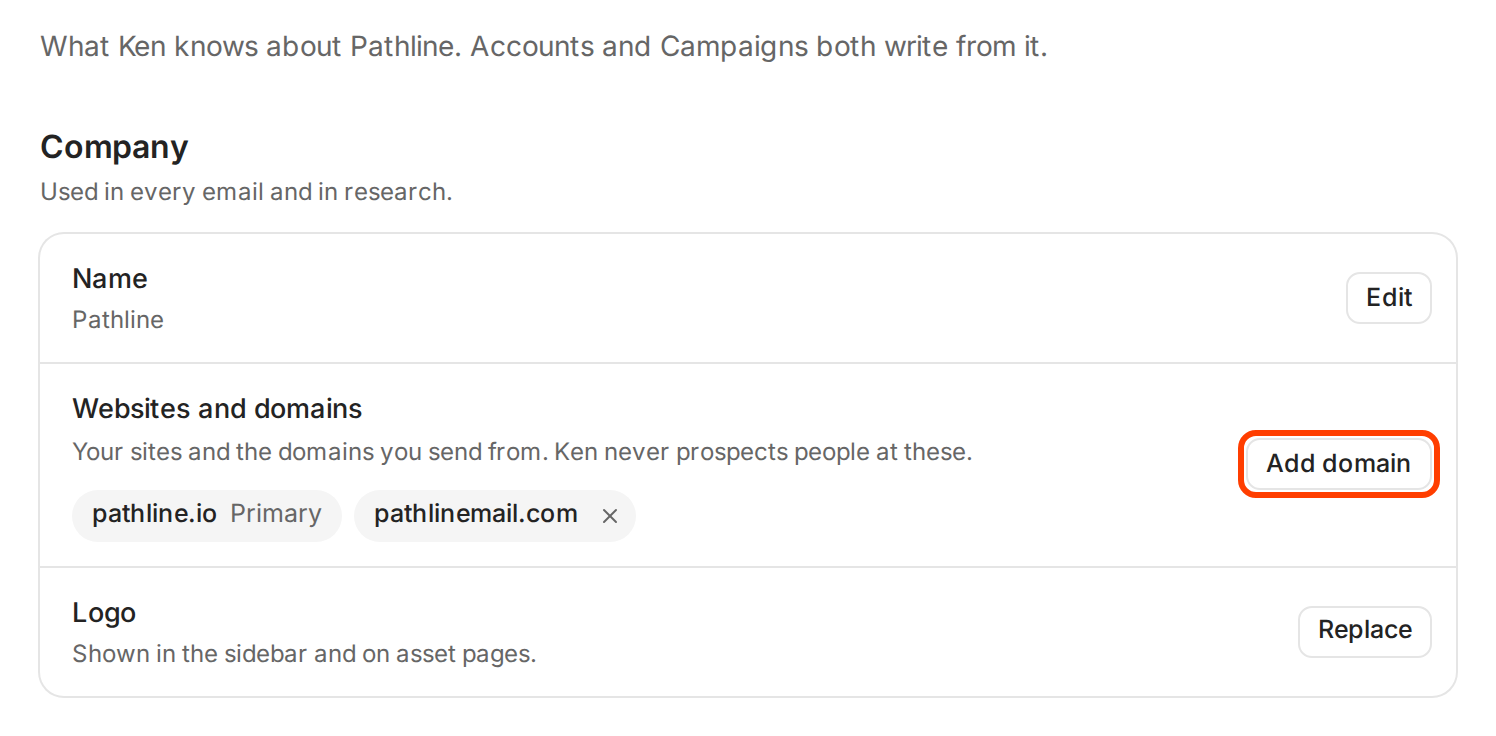
List every site you own and every domain you send from. -
Add the same domains on the Blocklist page.
List your main website, other sites you own and every domain you send from, so Ken knows which domains are yours. The blocklist entries are what make Ken skip your own people in every import and never send to a colleague, even from an imported file.
Unsubscribes are kept for you
When someone clicks the unsubscribe link in your email, or replies asking you to stop, Ken adds their email to the blocklist. You don't need to do anything. Don't remove these entries. Anti-spam laws require you to honor an unsubscribe, and ignoring one hurts your sending reputation.
Best practice: block before your first send
Ken's own outbound team imports exclusion lists before a campaign launches, never after a complaint. Before your first send, block:
- Current customers. Cold email to a customer looks careless and can start a churn conversation.
- Open deals. Your sales team is already talking to them. Block the company domain, not just the contact, so a teammate at the same company isn't pitched.
- Partners and resellers.
- Competitors. A pitch to a competitor wastes a send and shows them your playbook.
- People who asked not to be contacted, from your CRM or an old tool.
Check at both levels. Block the domain for whole companies and the email for single people, such as a former customer's champion who moved to a new company you do want to reach.
Review the list each month. Add new customers and new open deals, and take off companies that are prospects again, such as a lost deal you want to try in a new quarter.
If something goes wrong
- "Ken says the entry is not valid." Check for typos and wildcards. Use a plain domain like
acme.comor a full email. - "Someone at a blocked company is still in my campaign." They stay in the list, but Ken checks the blocklist before every send and doesn't send to them.
- "A blocked company still shows in Accounts." It was added by hand, so Ken researched it. Remove the account.
- "I have hundreds of domains to block." The page adds one at a time. For a long list, write to [email protected] with the file.
- "Send to a suppressed contact?" You are replying from the Inbox to someone on the blocklist. Click Cancel, or Send anyway if they wrote to you and you mean to answer.
- "I can't add or remove entries." You need the workspace settings permission. Ask an admin.
Next: Connect Salesforce or HubSpot, Choose your audience and split it into segments or Add target accounts and let Ken research them.