Target accounts are the companies you want to work one to one. You give Ken their domains, and Ken researches each company, maps the buying committee and looks for signals. Adding an account sends nothing to anyone.
Not sure which companies to add? Start with Choose the right target accounts.
Before you start
- Have the company domains ready, like
halcyon.health, or a CSV file with a domain column. - Each account uses about 18 credits. About 12 pay for research, signals and scoring. About 6 pay for valid emails of the buying committee, and you only spend those when Ken finds the emails.
Add accounts
-
Open Accounts in the sidebar, or press G then A.
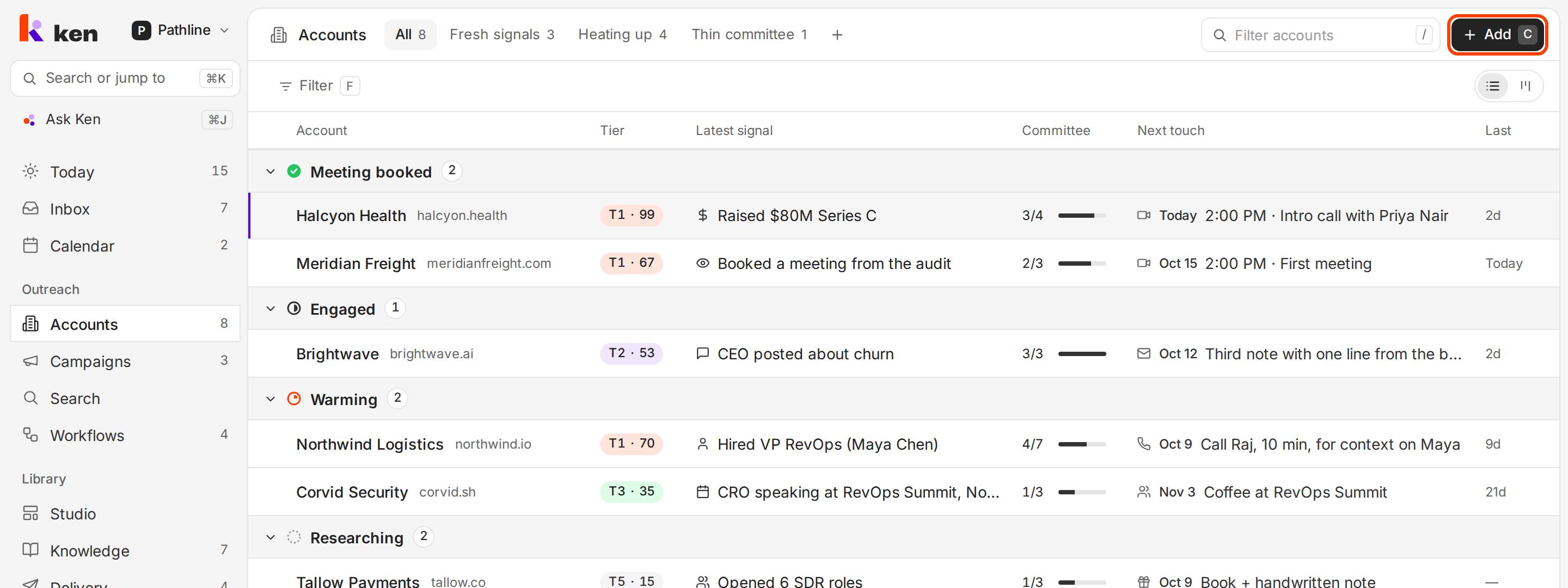
Add is at the top right of the Accounts list. -
Click Add, or press C. The Add dream accounts dialog opens.
-
Paste or type the domains. Separate them with commas, spaces or new lines. Website addresses and work emails work too:
https://www.example.com/pricingand[email protected]both becomeexample.com. Ken drops duplicates and ignores words with no dot in them, like a company name. -
Check the estimate under the field. It shows how many accounts Ken will research, the credits they use, what that costs, and how many credits you have.
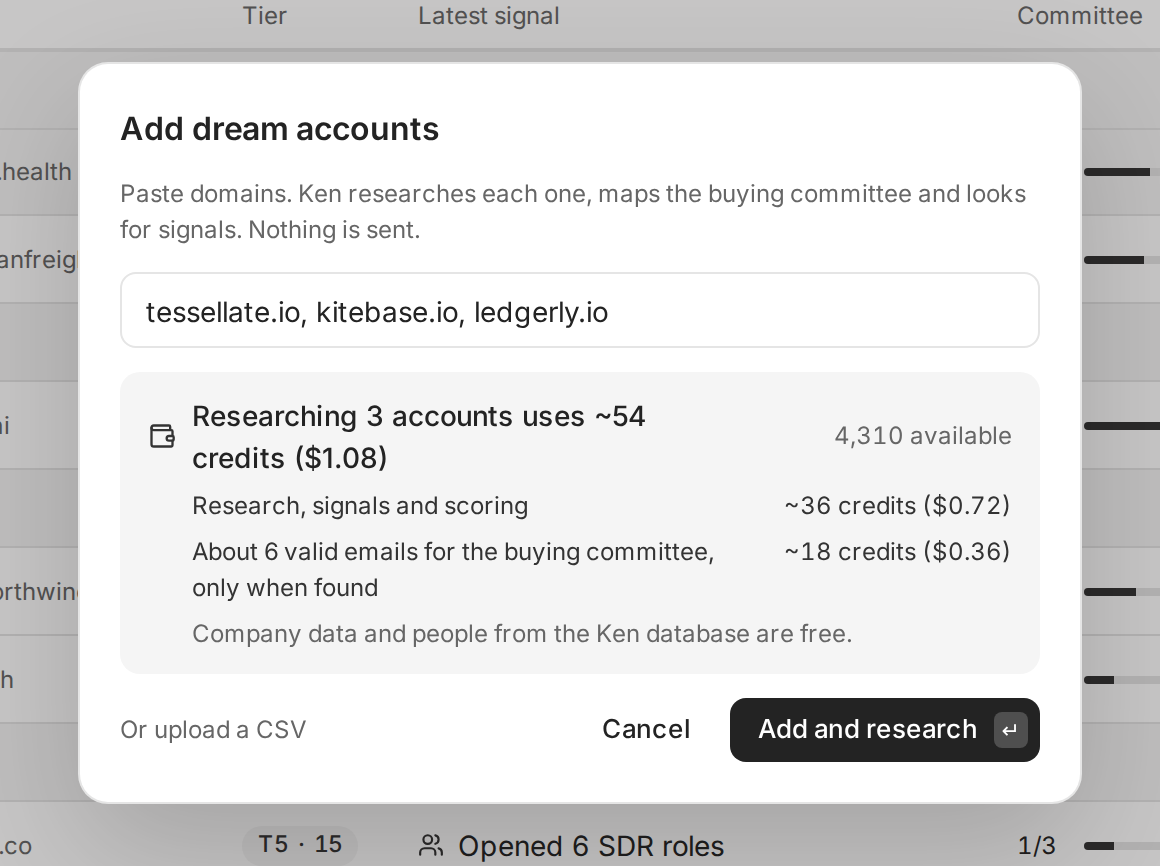
Three accounts use about 54 credits ($1.08). -
Click Add and research, or press ↵.
The dialog closes and Ken confirms with a message like "Added 3 · Ken is researching". The new accounts appear under Researching, each marked "Ken is researching".
Add accounts from a CSV file
- In the Add dream accounts dialog, click Or upload a CSV and choose your file.
- Check the line in the field. It shows the file name, how many accounts Ken found and how many rows it skipped, for example "targets.csv · 24 accounts · 2 rows skipped".
- Click Add and research.
Ken reads these columns. Upper or lower case, spaces, dashes and underscores all work in the header.
| Column | Needed? | Header names Ken accepts |
|---|---|---|
| Domain | Yes | domain, company domain, website or company website |
| Name | No | name, company name, account name or company |
| More domains | No | domains, with the extra domains separated by semicolons or spaces |
A short file looks like this:
domain,company name
tessellate.io,Tessellate
kitebase.io,Kitebase
ledgerly.io,Ledgerly
Ken skips a row with no domain, and a row whose domain is already in the file. A file can have up to 1,000 rows. If you leave out the name, Ken names the account from its own company data, or from the domain. Use the domains column for a company with more than one website, so Ken keeps them on one account.
Add companies from Search
- In Search, find the companies you want and select them.
- Click Add to, then Accounts.
- The Add dream accounts dialog opens with their domains already in the field. Check the estimate and click Add and research.
Ken adds nothing until you click Add and research. See Find people and companies with Search.
What Ken does while it researches
For each new account, Ken:
- reads the company's website, news and other public sources and writes a short brief,
- maps the buying committee and finds their work emails,
- checks for signals such as funding or new hires, then scores the account and sets its tier.
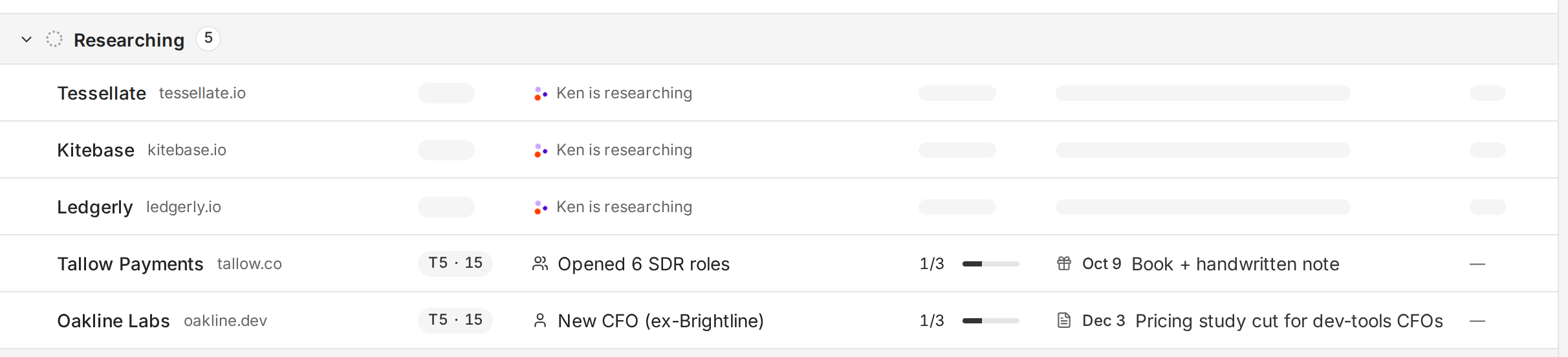
For 10 minutes after you add accounts, the list updates on its own. After that, reload the page to see newer results. When research finishes while the list is open, Ken shows "Research done for" followed by the account names.
The estimate is a guide. Ken charges for the work each research run actually does, so the final charge can be a little higher or lower. Emails cost credits only when Ken finds them.
If your workspace is short on credits, Ken still adds the accounts and the message says how many are "waiting for credits". Their research picks up when you add more credits.
See what Ken found
Click an account to open it. The Ken brief at the top tells you Why now and the Angle to lead with. Below it, Signals lists what Ken found and the points each one adds to the score.
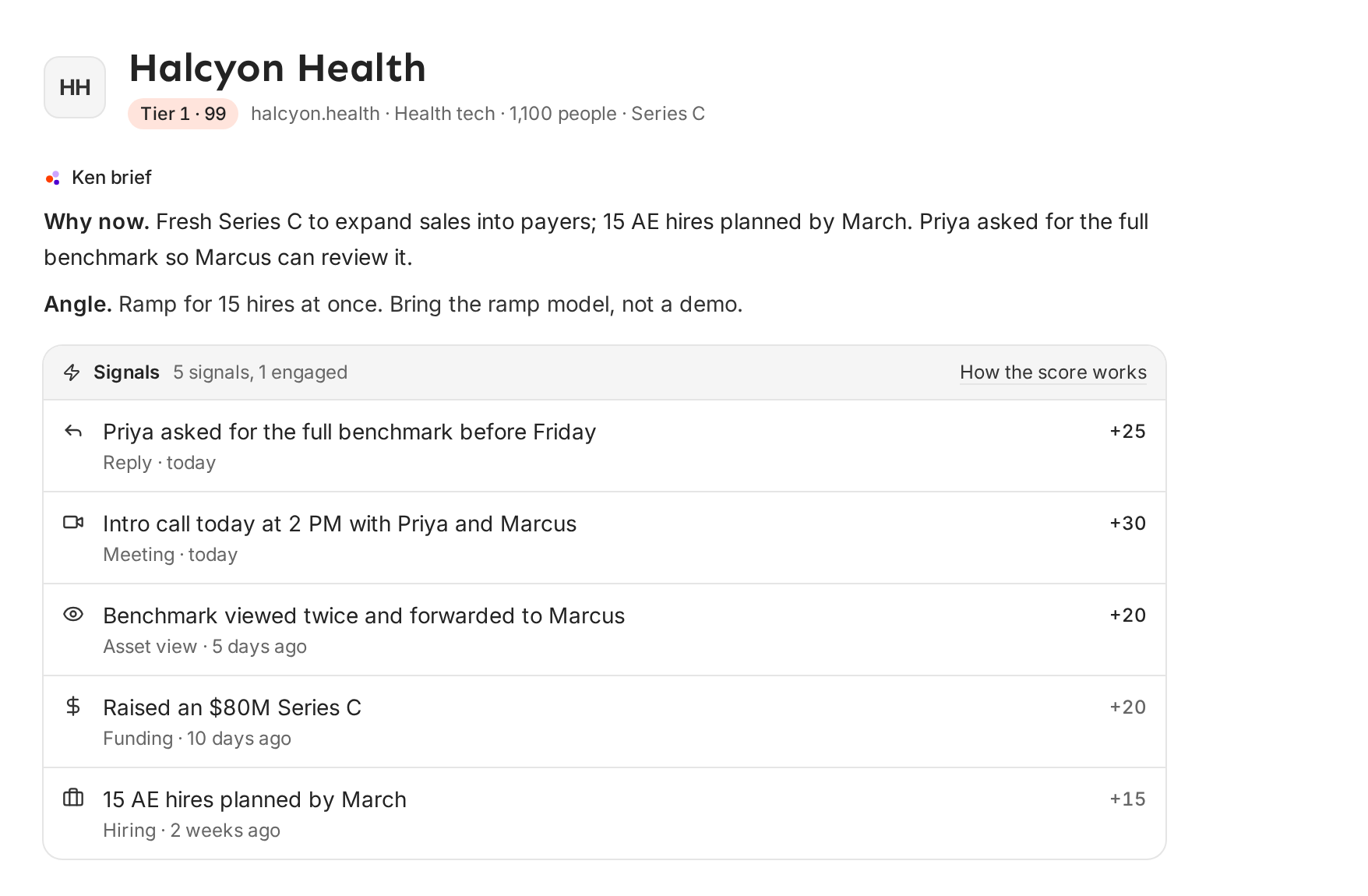
Read an account explains every part of this page.
How many to add at once
- Your first time: add 10 to 25 accounts. Read the first briefs before you add more, so you can see whether your list is right.
- Later: add up to 1,000 at a time, pasted or in one CSV file. A bigger batch takes longer to finish research.
- Budget: multiply the number of accounts by 18 to get a rough credit total. 100 accounts use about 1,800 credits ($36).
If something goes wrong
- "2 already in Accounts". Two of the domains belong to accounts in your workspace already. Ken skips them and adds the rest. Press / on the Accounts list and type the company name to find the existing account.
- "Not added". The message lists each domain Ken could not add and why. A free email provider such as gmail.com is not a company, so use the company's own domain.
- "Waiting for credits". Your workspace ran out of credits. Ken added the accounts, and their research picks up when you add more credits. See How credits work. If the dialog says "Your Ken team manages credits for this workspace", ask your Ken team.
- "Paste up to 1,000 domains at a time". Split the list into batches of 1,000 or fewer.
- "Upload up to 1,000 at a time". Your CSV file has more than 1,000 rows. Split it into smaller files.
- The estimate counts fewer accounts than you pasted. Ken ignores duplicates and anything without a dot. Check that each company is written as a domain, like
kitebase.io. - "Add a domain column (domain or website) and upload it again". Your file has no column Ken recognizes. Rename the column to
domainand upload it again. - "Couldn't add these accounts right now". Nothing was added. Wait a minute and click Add and research again.
- A row still says "Ken is researching" after a while. Reload the page. If it still says that an hour later, write to [email protected] with the domain.
Next: Read an account, Map the buying committee or How credits work.