Search finds the people and companies you want to reach. You set filters, or describe who you want and Ken sets them for you. Then you add the results to a campaign, to Accounts or to a workflow. Searching is free. Credits start only when Ken works on the people you add.
Pick what you are looking for
Open Search in the sidebar, or press G then F. The tabs at the top set what Search returns.
| Tab | What it finds | Use it when |
|---|---|---|
| Profiles | People by role, seniority and company | You know the role you sell to |
| Companies | Accounts by industry, size and funding | You start from the company, then find people |
| Job posts | Companies hiring for roles you sell to | A new hire means a new budget or a new problem |
| Funding | Companies that just raised a round | Fresh money means a new budget |

Job posts and Funding find companies first. Their results have a toggle between Companies and People to contact. The Who to contact card on the left decides which people Ken picks at each company, such as titles, seniority and Max people per company.
Describe who you want
The fastest start is a sentence. Ken turns it into filters you can check.
- Click the box under the tabs, or press /.
- Type who you want, the way you would tell a colleague. For example: "Heads of Sales at software companies with 50 to 500 people in the US".
- Click Fill filters, or press ↵.
Ken fills in the filter cards on the left and shows a note such as "Ken added 6 filters", with a line on what it mapped. Read it. If Ken got it wrong, click Undo and try again with different words.
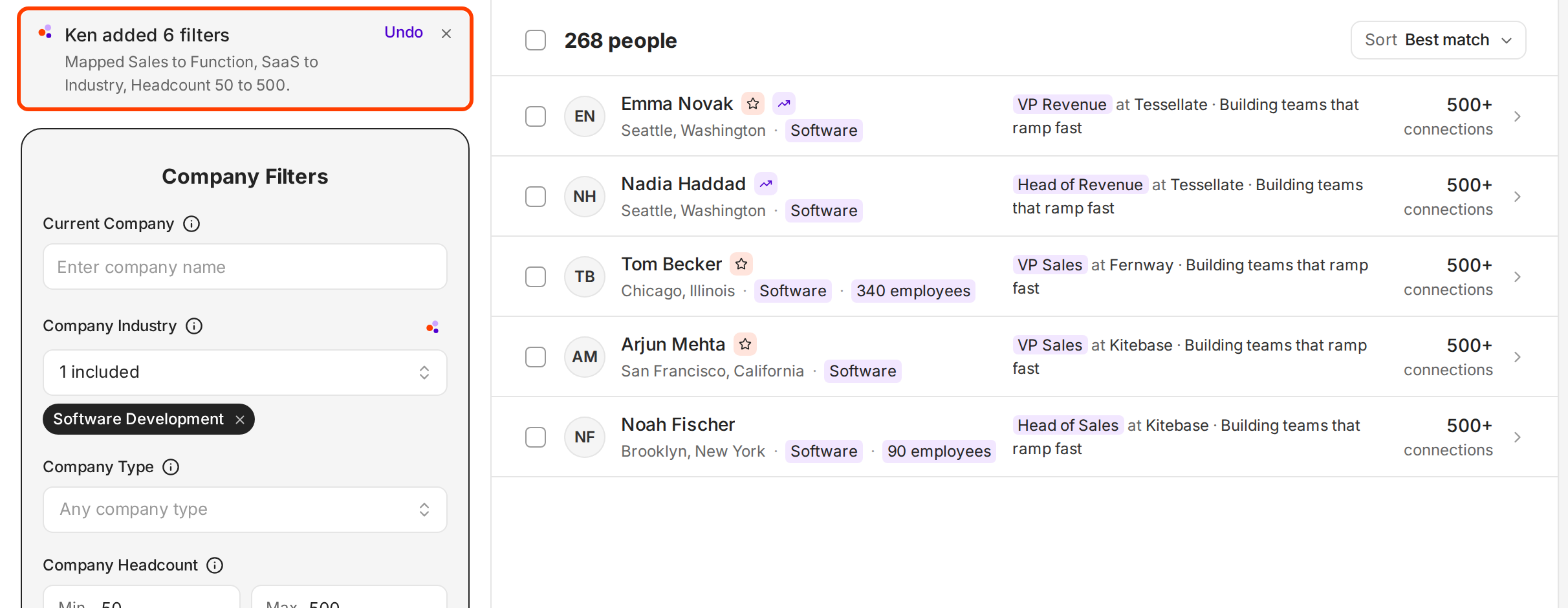
If Ken says it "couldn't derive any filters from that prompt", add a role, a company size, an industry or a place. On Job posts and Funding, add a title, a place or a time window.
Set filters by hand
Each tab has its own filter cards. Profiles has Company Filters and Person Filters. The rail header shows how many filters are on, and Clear all removes them.
The filters that matter most:
- Title matches the whole phrase, not single words. "VP Sales" does not find "Vice President of Sales". Add 8 to 15 variants of each role, or use the sparkle button next to Title for similar titles.
- Function and Seniority together cover a role family without a long title list. Use them for broad roles, and titles when the role name is unusual.
- Company Headcount takes a min and a max. Leave one side blank for an open range.
- Company Industry has a sparkle button that suggests similar industries.
- Headquarters Location and Profile Location support six countries: the United States, Canada, the United Kingdom, Ireland, Australia and New Zealand. Any other place shows "Location not supported".
Every field has an info icon with tips and a "Watch out" line. Read it the first time you use a field.
Include and exclude
Exclude keeps out a company, an industry or a title you do not want. On Profiles and Companies, Current Company, Company Industry, Title, Function and Seniority can include or exclude. On Job posts and Funding, fields such as Job title and Industry can exclude too. Other fields, such as the two locations, Keywords and School, only include.
- Open a list field, such as Company Industry.
- Tick a value in the Include column to keep only those, or in the Exclude column to leave them out.
- Press Esc to close the list. Each value shows as a chip under the field. An excluded chip is red with a ban icon.
- To switch a chip, click it. "Included. Click to exclude" becomes "Excluded. Click to include". Click × to remove it.
The field summary shows what you set, such as "1 included, 1 excluded". The count above the results updates as you go.
Read and sort the results
The count at the top, such as "338 people", is the number of matches. Sort changes the order: on Profiles, Best match, Most connections, Name (A-Z) or Recently updated. Scroll down and click Load more to see more rows.
Click a row to open the person or company.
Add results to a campaign, Accounts or a workflow
There are two Add to buttons. The one at the top right adds every match. The one in the bar at the bottom adds only the rows you tick.
-
To add only some rows, tick their boxes. A bar shows how many you picked, such as "3 people selected", with Clear and Add to.
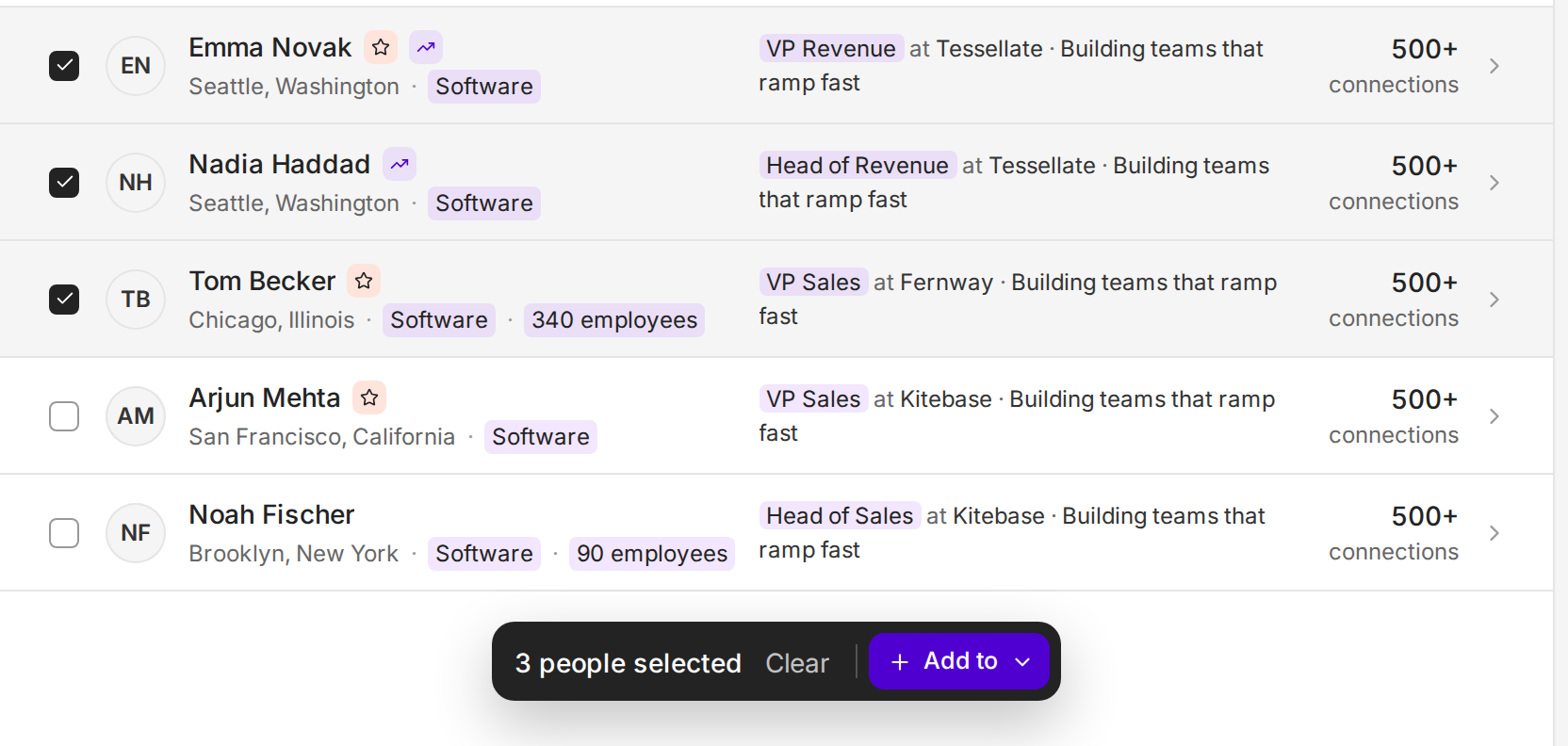
Tick rows to add only those people. -
Click Add to at the top for every match, or in the bar for the rows you ticked.
-
Pick where they go:
- Accounts. Ken groups people by company and researches each company. See Add target accounts and let Ken research them.
- A campaign from the list, or New campaign from this search. From the bar, this row says New campaign with 3 people.
- A workflow from the list, or New workflow from this search.
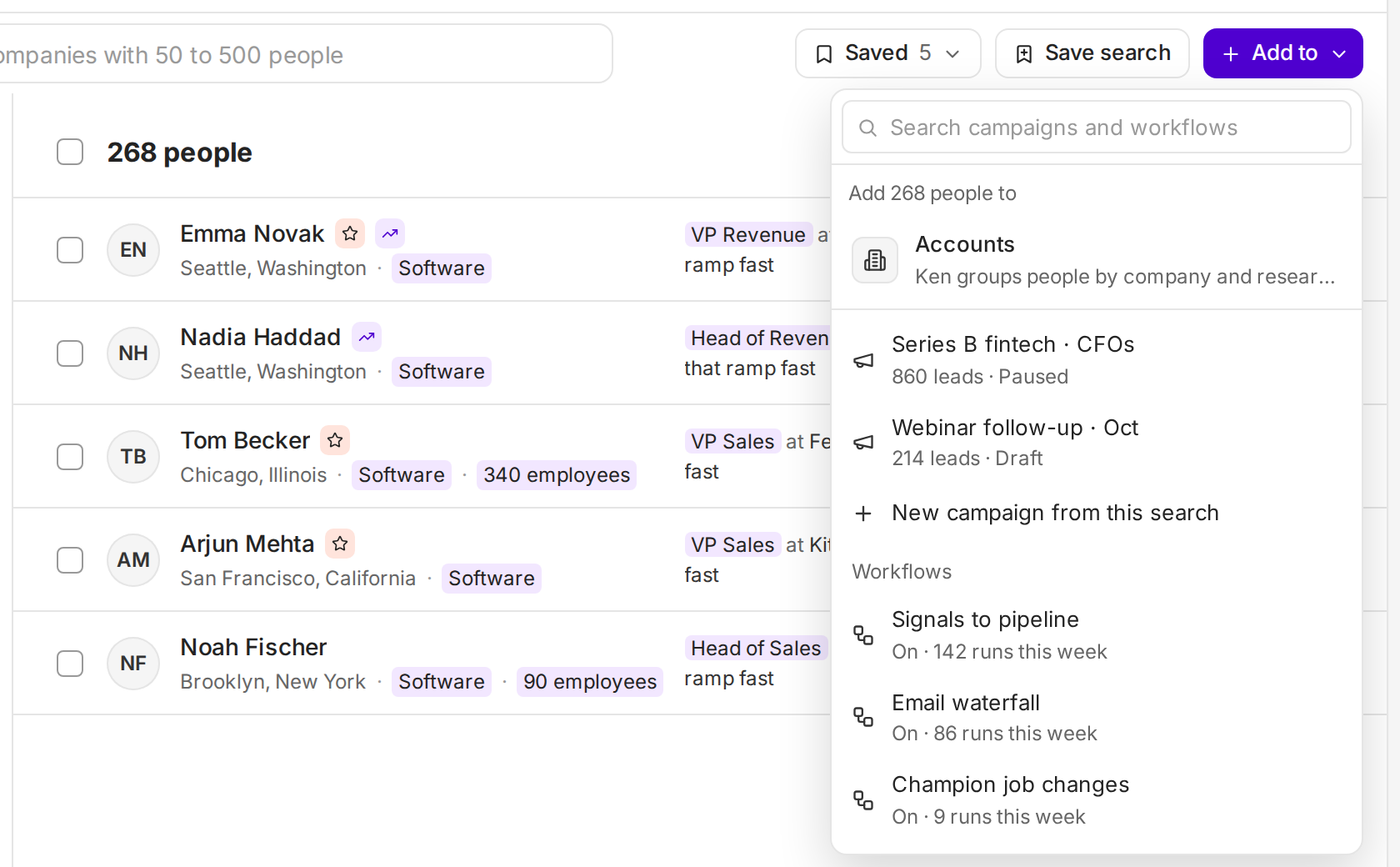
Type in the box at the top to find a campaign or workflow by name.
What happens next depends on where they go:
- A campaign. Ken confirms with a message such as "Importing 338 leads into Q4 SaaS Founders · Ken verifies emails before the first send". From Companies, Job posts or Funding, Ken finds people at each company with the campaign's persona.
- A workflow, from the top. Ken saves the search if you have not saved it yet, and adds it to the workflow as a lead source. New matches then flow in daily. See Save a search and reuse it.
- A workflow, from the bar. The people you ticked start at the workflow's first step. New matches do not follow.
- New workflow from this search. Ken saves the search and opens Import leads with it. Ken then builds the workflow around the search.
On the Companies tab, the bar also has Find people. It switches to Profiles with the companies you picked as Current Company filters, so you can add the right people at each one.
What works
- Start broad, then narrow. A wide search with a few strong filters beats a narrow one with ten. Qualification later drops people who do not fit, so you do not need to catch every edge case with filters.
- Use Function and Seniority before long title lists. Stacking titles, function and seniority on one search often empties it.
- Avoid Keywords. Each keyword chip shrinks the list sharply. Use them only for a term no title or function can express.
- Use School and Language only when they are a must. Many profiles leave them empty, so these filters drop good people.
- Exclude early. Exclude the industries, titles and companies you never want before you look at the count.
- Check 10 rows before you add. Open 10 people and ask "would I email this person?" If two or more are wrong, fix the filters first.
For how big a search should be and how to plan a list, see Build a lead list that books meetings.
If something goes wrong
- "No people match these filters". Remove a filter or widen a range. Start with the narrowest one, such as Keywords, School or a short title list.
- "Location not supported". Search covers six countries. Remove that place, or use a supported country.
- "Add a filter first". You opened Search from a workflow and clicked Add to workflow with no filters set. Set at least one filter, or describe who you want.
- "Preview paused". On Funding, the minimum raised is higher than the maximum. Fix the amounts.
- "No one fits Who to contact". On Job posts or Funding, Ken found companies but no people who match Who to contact. Add titles or widen seniority.
- Add to is greyed out. There are no filters or no results yet. Set filters first.
- The count looks too high. A filter may be set to exclude when you meant include. Check for red chips.
Next: Save a search and reuse it, Build a lead list that books meetings or Add target accounts and let Ken research them.