A workflow is a trigger plus a few steps that Ken runs for you, once for each account, person or lead the trigger brings in. It can qualify a company that just raised money, find the right email, write a first draft and update your CRM while you do other work. Anything Ken writes waits for your approval in Today, so nothing reaches a prospect without you.
How a workflow works
Every workflow has the same shape:
- A trigger starts a run. It can be a signal on an account (funding, hiring, a new leader), new matches in a saved search, a CSV, website sign-ups, a CRM list or a call from your own app.
- Steps run in order for that one record. Some do work, such as Qualify the account or Research the account. Some move data, such as Add to Salesforce or Message in Slack. A Logic step splits the path, such as "Qualified?" with a score of 70 or higher.
- A run is one trip through the steps for one record. 200 signals in a month means 200 runs.
Steps that do AI work or find data, such as an email address, cost credits. Steps that only move data, like CRM updates, Slack and webhooks, are free. So order matters. Put a cheap step that drops bad fits before an expensive one.
Each campaign also runs on a workflow. Those show in the list with a Campaign label.
Three workflows that work
These examples show the shape of a good workflow. Credits are approximate and come from each step's price.
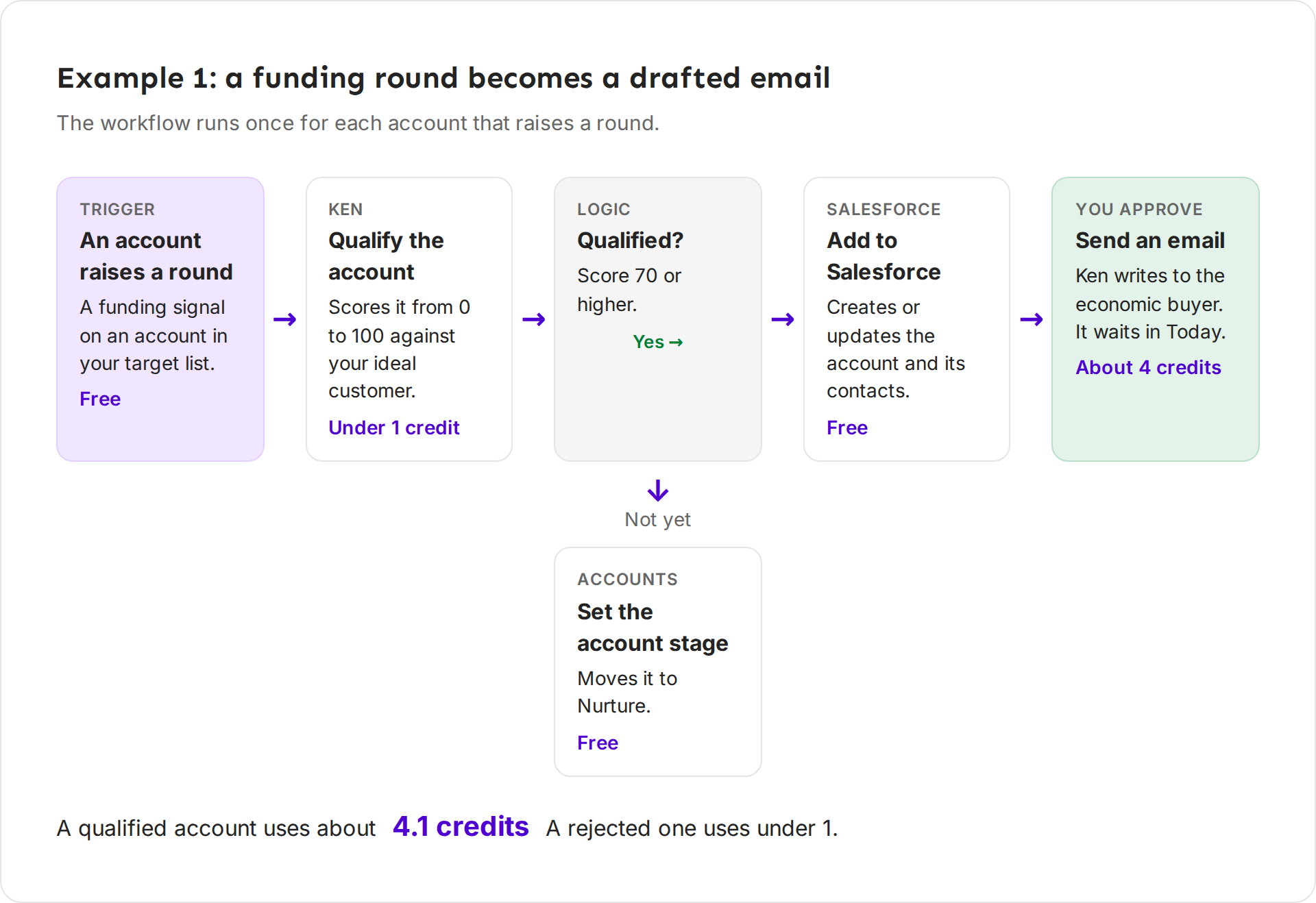
Funding round to drafted email. When an account in your target list raises a round, Ken qualifies it against your ideal customer (0.05 credits, shown as "under 1" in the app). If it scores 70 or higher, Ken adds it to Salesforce (free) and writes an email to the economic buyer (about 4 credits), which waits in Today. If not, Ken moves the account to Nurture (free). A qualified account costs about 4.1 credits.
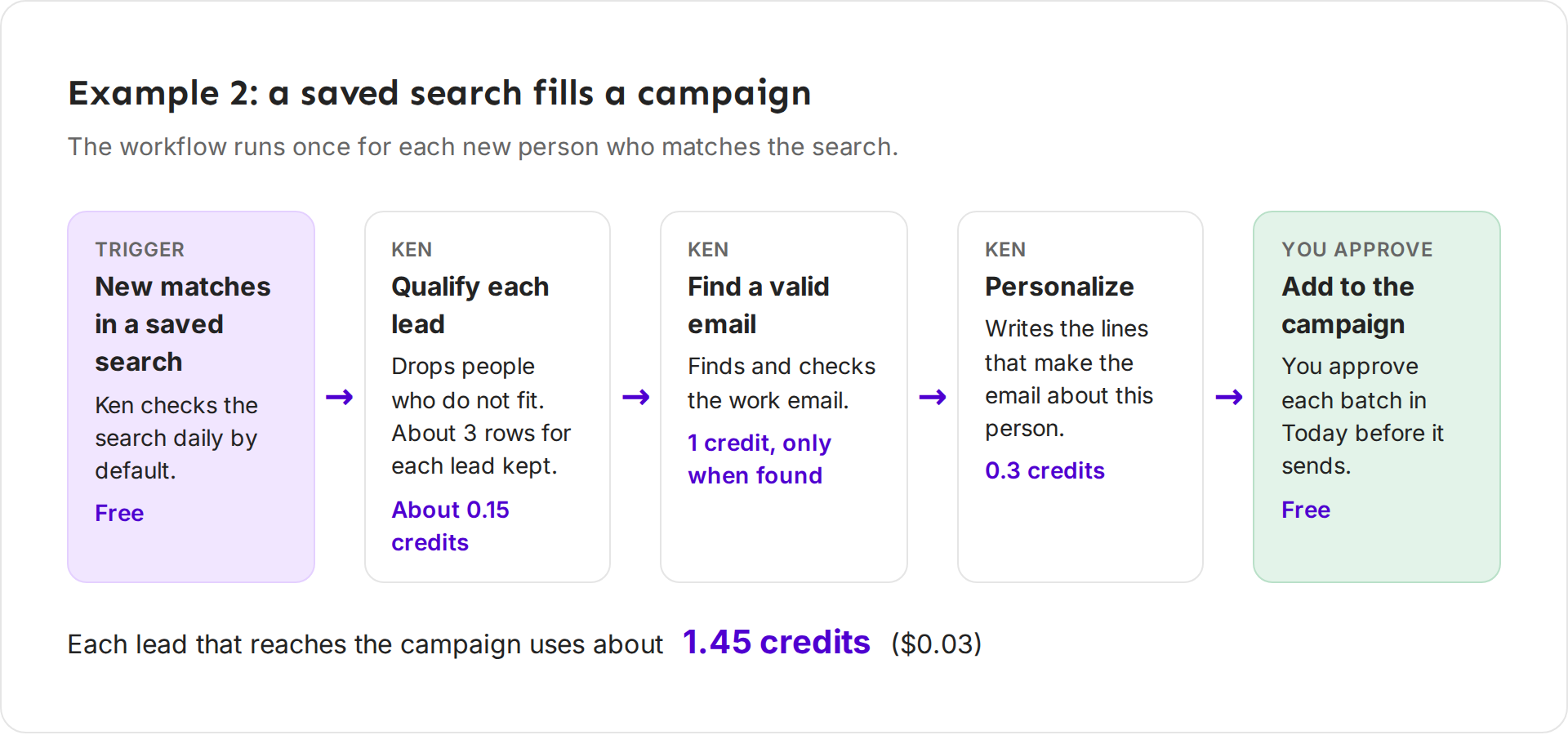
Saved search to campaign. New matches in a saved search start a run. Ken checks the search daily unless you pick another pace. Ken qualifies each lead, finds a valid email (1 credit, only when found) and personalizes the first email (0.3 credits). The lead joins the campaign, and you approve each batch before it sends. Each lead that reaches the campaign costs about 1.45 credits ($0.03).
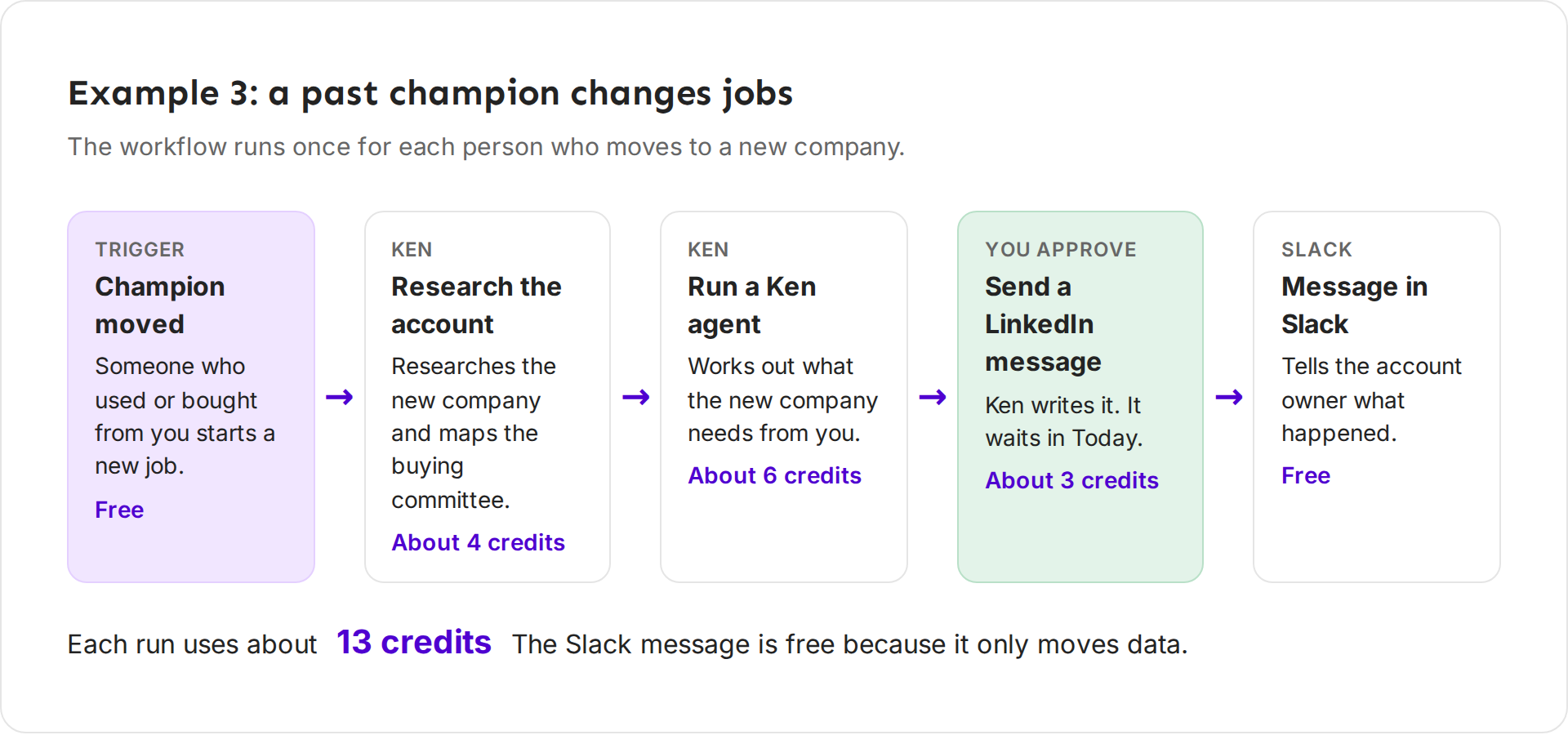
Champion job change. When someone who used or bought from you starts a new job, Ken researches the new company (about 4 credits), works out what it needs (about 6 credits) and writes a LinkedIn message (about 3 credits) for you to approve. Then it tells the account owner in Slack (free). About 13 credits a run.
Build a workflow
Open Workflows in the sidebar, or press G then W. You can describe a workflow, start from a template, start from a lead source, or start blank with New workflow (C).
Describe it
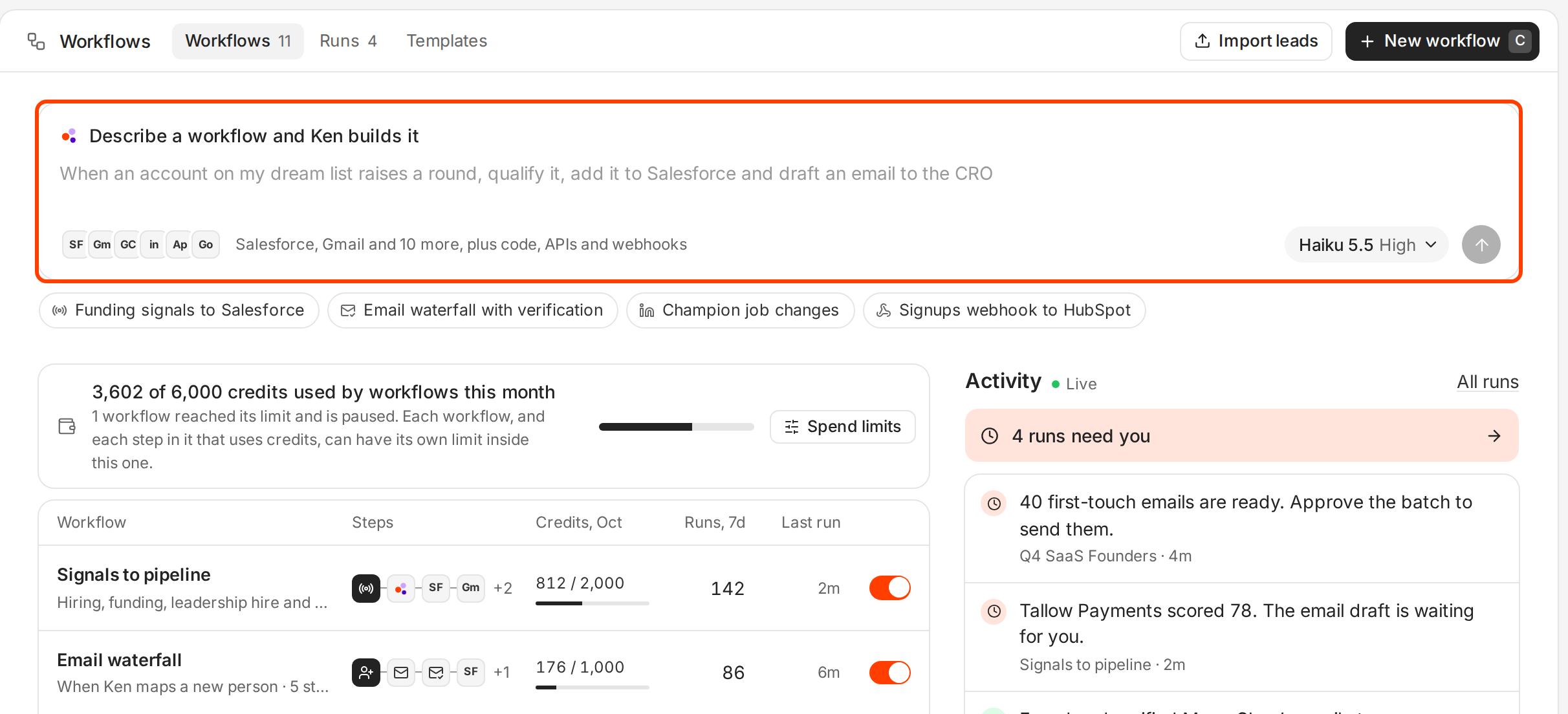
- In Describe a workflow and Ken builds it, write what should happen, in one or two sentences. Name the trigger, the check and the result. For example: "When an account on my dream list raises a round, qualify it, add it to Salesforce and draft an email to the CRO".
- Press ↵ or click the arrow. You can also click an idea under the box, such as Funding signals to Salesforce or Champion job changes.
- Watch the chat on the left. Ken checks your connected integrations, reads your ideal customer in Knowledge, then adds the trigger and each step to the canvas.
- Read the card at the end: "Ken built this workflow. Turn it on?" It shows the monthly limit and about how many credits a run uses. Click Change to set a different limit.
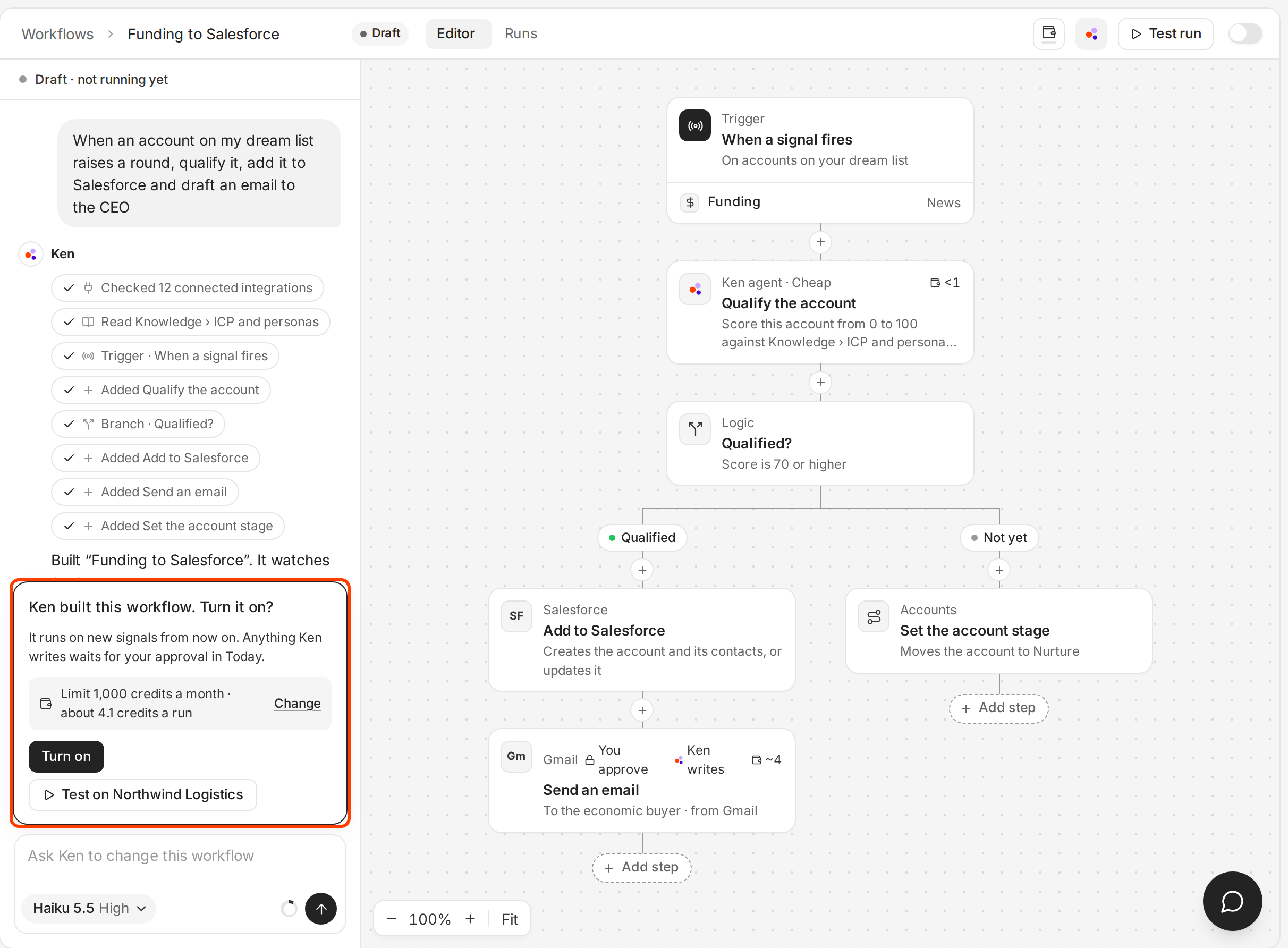
To change anything, type in Ask Ken to change this workflow, such as "Raise the qualify score to 80" or "Wait 2 days before the email".
Start from a template
Click All templates, or the Templates tab. Templates are grouped as Signals, Accounts, Enrichment, Meetings and Developer. Ken swaps in your integrations and your ideal customer when you use one.
Start from a lead source
Click Import leads and pick where the leads come from. Ken builds the workflow around it.
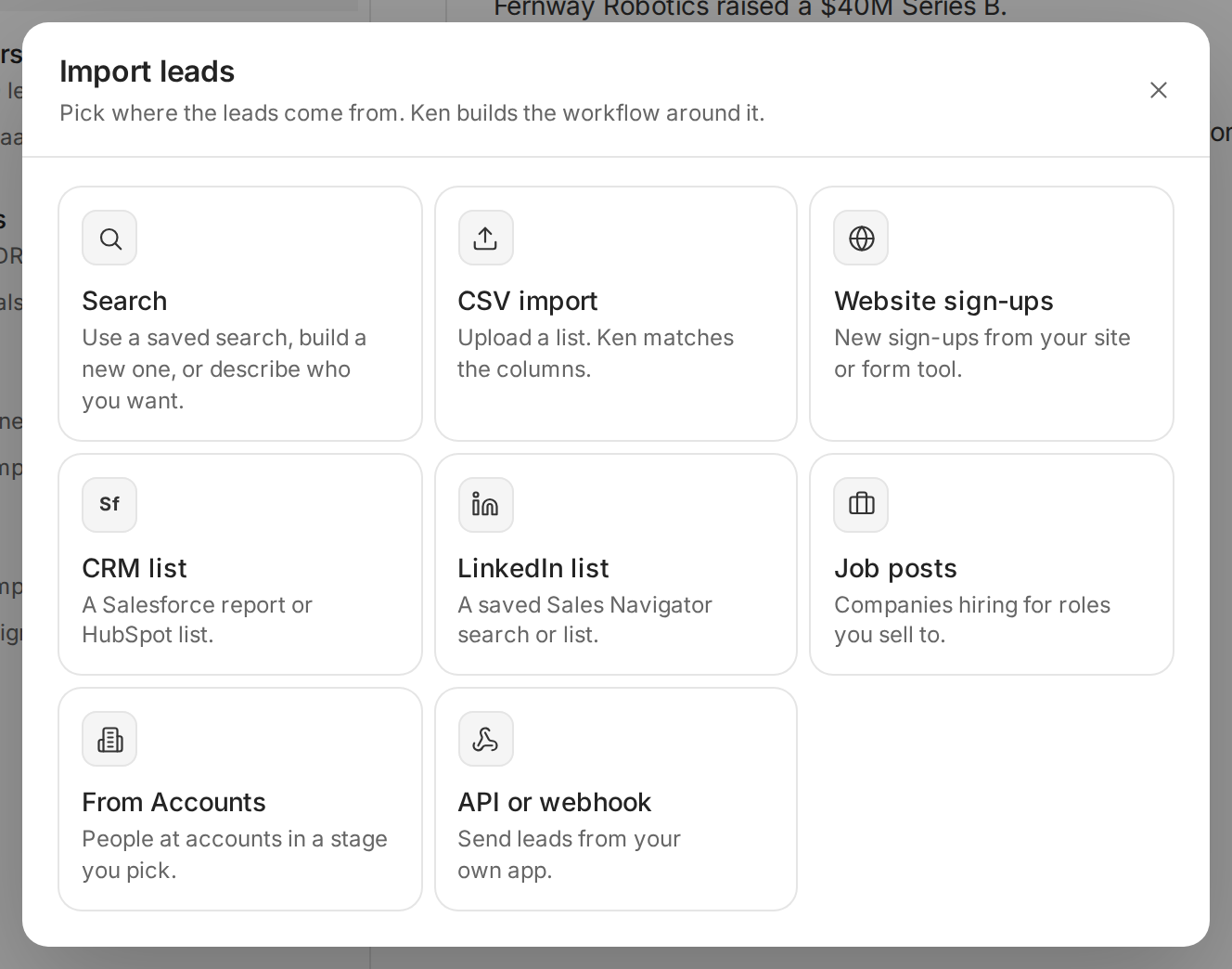
| Source | What it brings in |
|---|---|
| Search | A saved search, a new search, or people you describe |
| CSV import | A list you upload. Ken matches the columns. |
| Website sign-ups | New sign-ups from your site or form tool |
| CRM list | A Salesforce report or HubSpot list |
| LinkedIn list | A saved Sales Navigator search or list |
| Job posts | Companies hiring for roles you sell to |
| From Accounts | People at accounts in a stage you pick |
| API or webhook | Leads sent from your own app |
Importing is free. As Ken imports, it checks each row and drops duplicates and anyone already in a campaign.
Edit the steps
The canvas shows the trigger at the top and each step below it.
- Click + between two steps to add one there. Type in Search steps to find it.
- Right-click a step for Edit step, Ask Ken to change it, Add a step after, Duplicate, Move up, Move down and Delete step.
- Use Fit at the bottom to see the whole workflow.
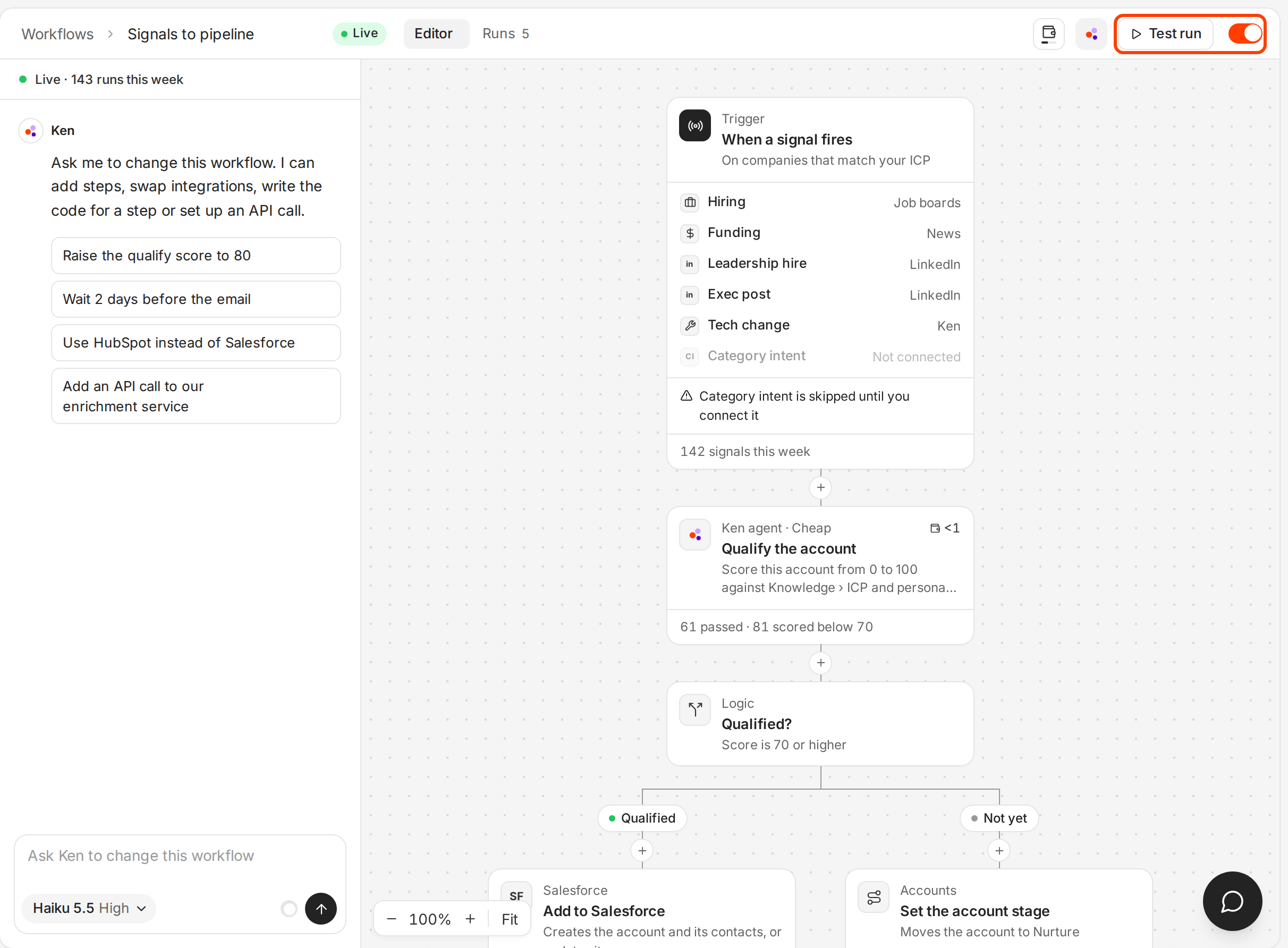
A step that needs an integration you have not connected shows it, such as "Category intent is skipped until you connect it". Connect the integration, or delete the step.
Test it on one record
A workflow goes live only after a test run passes on it. If you change a step after the test, test again.
- Click Test run at the top right. After Ken builds a workflow, you can also click Test on and the record's name on Ken's card, such as Test on Northwind Logistics.
- Ken runs every step on one record, such as one account, and marks each step as it passes.
- Read the result. Ken confirms with "Test passed on Northwind Logistics. Nothing was sent", and the run appears under Runs with each step's result.
In a test run, Ken sends no email or LinkedIn message, posts nothing to Slack, calls no webhook and writes nothing to your CRM. Those steps return an example result instead. Steps that find data or do AI work, such as qualifying, research and finding an email, run for real, so they use credits.
Turn it on
Click the switch at the top right of the workflow, or Turn on on the card Ken shows after building. The status at the top of the editor changes to Live, and the Draft or Off label leaves the workflow's row in the list. The workflow runs on new records from now on. It does not go back over old ones.
- A workflow needs a trigger. Without one, Ken says "Add a trigger before you turn it on".
- A workflow needs a passed test run on its latest version. Test it first, as shown above.
- If a step needs an integration you have not connected, the workflow still goes live, and Ken says which steps are skipped until you connect it. The list shows a Connect label with the app's name on that workflow.
- To stop it, turn the switch off.
Each workflow has a monthly credit limit. New workflows start with 1,000 credits a month. See Set spend limits on workflows.
Handle runs that need you
Some runs stop and wait for you, such as a drafted email that needs approval, or a step that failed. The Activity panel on the Workflows page shows how many runs need you.
- Open the Runs tab, or click All runs in Activity.
- Filter by Needs you or Failed.
- Click a run. Each step shows what happened: passed, waiting for you or failed.
- Act on it:
- Review in Today opens what Ken wrote so you can approve, edit or skip it. See What Ken does on its own.
- Fix with Ken opens the workflow with Ken ready to fix the failed step.
- Open workflow opens the editor.
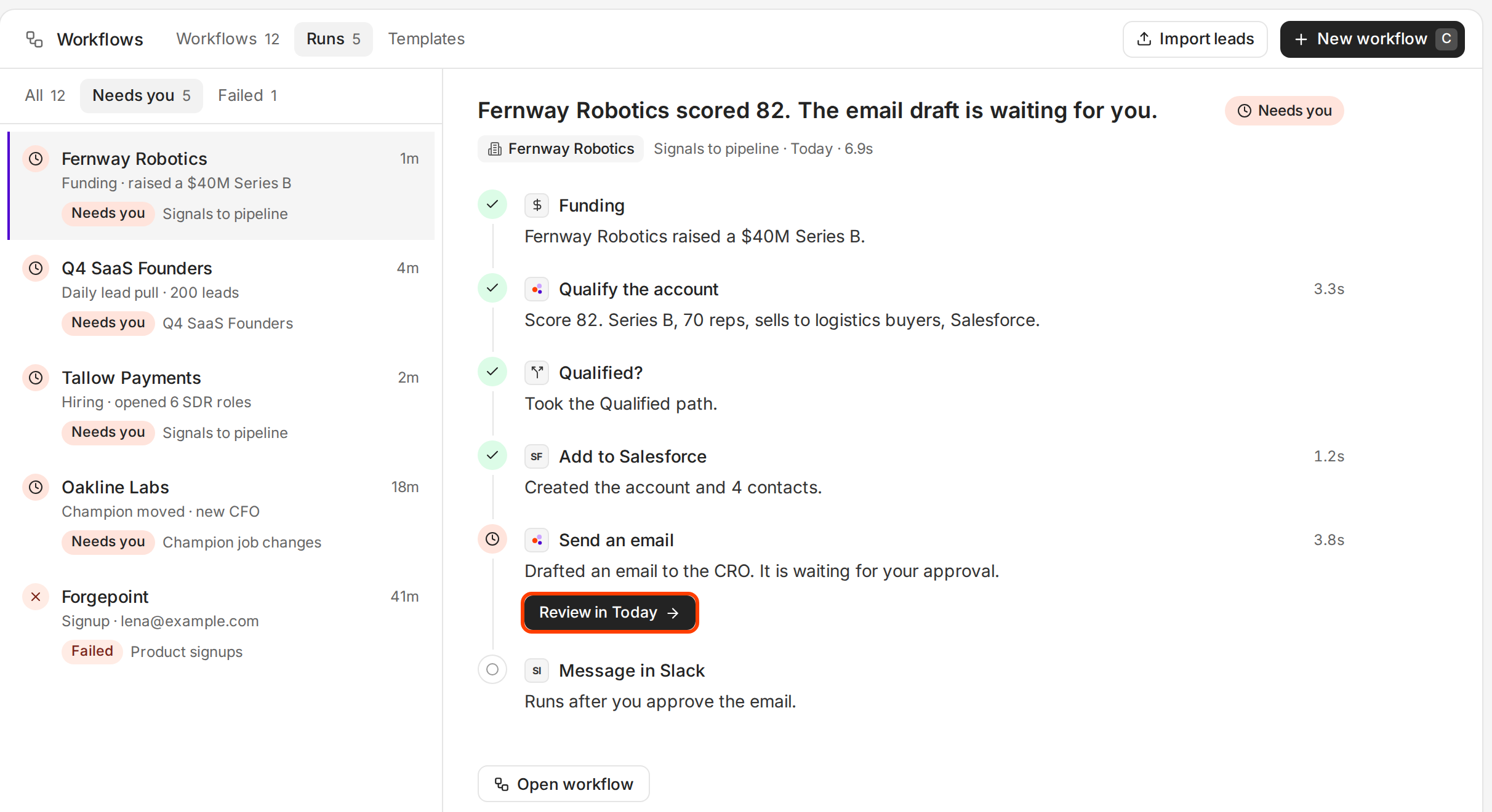
A run's status is one of Done, Needs you, Failed, Skipped, Not run or Test run.
What works
- One job per workflow. "Funding round to drafted email" is easy to test and fix. A workflow that does five jobs is hard to read when a run fails.
- Qualify first. A qualify step costs 0.05 credits. Research costs about 4 and an email draft about 4. Drop bad fits before the expensive steps.
- Keep approval on anything that reaches a person. Ken writes, you approve in Today. Review a batch every day so runs do not pile up.
- Start small, then widen. Turn a new workflow on with a narrow trigger, read the first 10 runs, then widen it.
- Set the limit from the estimate. The card after building shows credits a run. Multiply by the runs you expect in a month, then round up to leave room for a busy month. See Set spend limits on workflows.
If something goes wrong
- "Add a trigger before you turn it on". The workflow has no trigger. Add one at the top of the canvas, or ask Ken to add it.
- "Limit reached" on a workflow. It reached a spend limit and paused. Raise the limit, or turn it back on when the new month starts. See Set spend limits on workflows.
- The workflow will not turn on. It needs a passed test run on its latest version. If you changed a step after the last test, click Test run again, then turn it on.
- A step is skipped. It needs an integration you have not connected. Connect it, or delete the step.
- The workflow turned itself off. Ken turns a workflow off when more than half of its recent runs failed, after at least 20 runs. Open Runs, filter Failed, fix the cause, test, then turn it on again.
- Many runs need you. Approve or skip them in Today. If most of them are drafts you skip, tighten the qualify step so fewer weak records get that far.
- No runs at all. Check that the switch is on and that the trigger has new records, such as new matches in the saved search.
Next: Set spend limits on workflows, Save a search and reuse it or Connect Salesforce or HubSpot.