A saved search keeps your filters so you can open them again in one click. Share it and your whole team uses the same list. Add it to a workflow and Ken checks it for new matches, daily by default, and sends them through the workflow's steps.
Save a search
- Set up the search in Search. See Find people and companies with Search.
- Click Save search at the top right.
- Check the name. Ken names the search from your filters, such as "VP and C-level Sales · 50 to 500 people · United States and Canada". Keep it or type your own.
- Turn on Share with your workspace if your teammates should see it. Teammates can open it and use it in their workflows. It is off by default.
- Click Save search.
Ken confirms with a message such as "Saved "Q4 sales leaders" · Ken checks it daily for new matches". The search now shows under Saved, and the count next to Saved goes up by one.
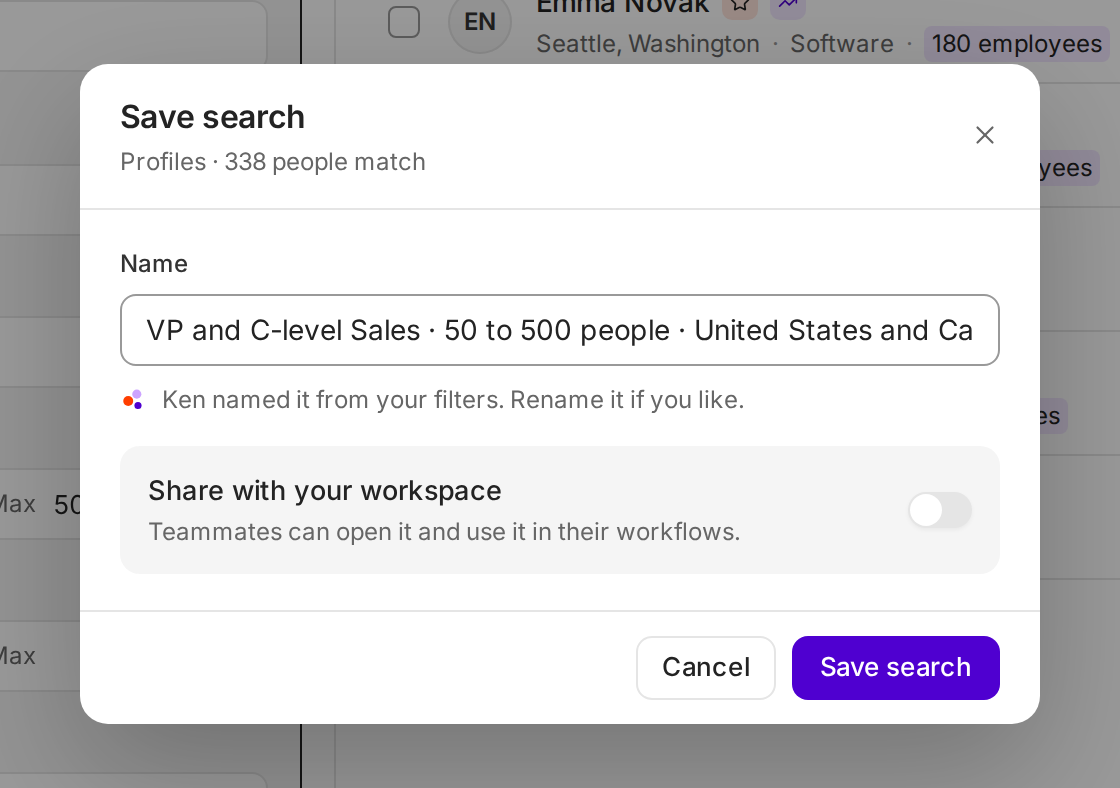
If you change Ken's name, the note under the field shows what Ken suggested, with Use Ken's name to put it back.
Name it so the team knows what it is
A good name says who is in the list and why. Someone who never saw your filters should know what they get.
| Weak name | Better name |
|---|---|
| My search | Heads of Sales · US software · 50 to 500 people |
| List 2 | Series A fintech CFOs · raised in last 90 days |
| Test | Champions who changed jobs · last 3 months |
Ken's suggested name already follows this pattern. Shorten it if it gets long, but keep the role and the main filter.
Open, change or delete a saved search
- Click Saved next to Save search. The list shows each search with its type, its count, who can see it (Shared or Only you) and the date.
- Click a search's name to open it with its filters.
- Use the three buttons on its row:
- Edit filters opens the search so you can change it. Change the filters, then click Save changes in the banner at the top. Cancel leaves the saved search as it was.
- Rename changes the name only.
- Delete removes it. The message has an undo button for a few seconds.
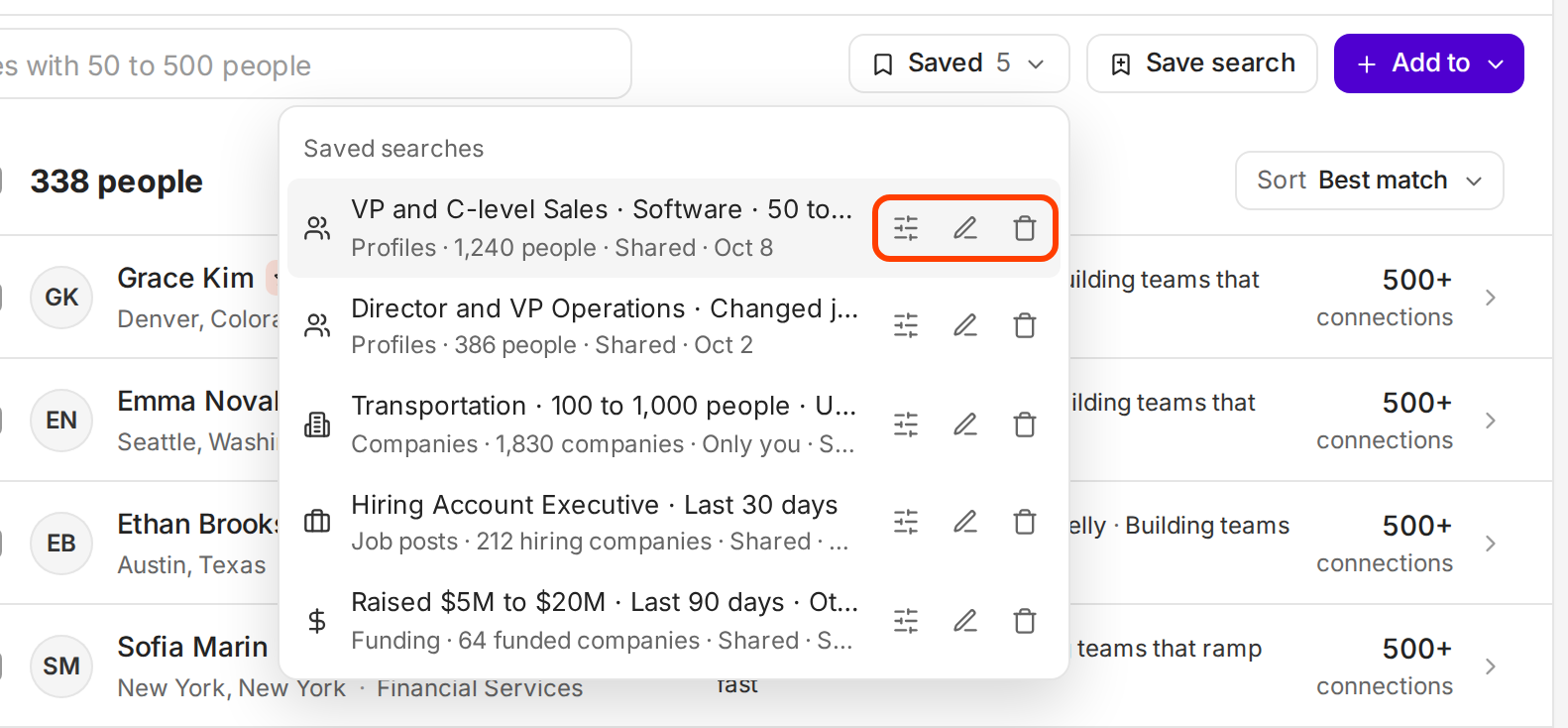
When you save changes, Ken confirms with "Updated" and the name.
How Ken checks for new matches
Ken runs a saved search again to find new matches. A new match is a person who matches now and did not match before. People join companies, change titles and companies grow, so a good search keeps finding new people.
New matches only go somewhere when the search is a lead source in a workflow. A saved search on its own is a list you can open and add from.
In a workflow, the trigger When new leads come in sets the pace:
- Pull is how often Ken checks: Hourly, Daily or When I import. Ken sets Daily unless you pick another.
- New leads per day caps how many new people start the workflow each day: 50, 200 or 500. Ken sets 200 unless you pick another.
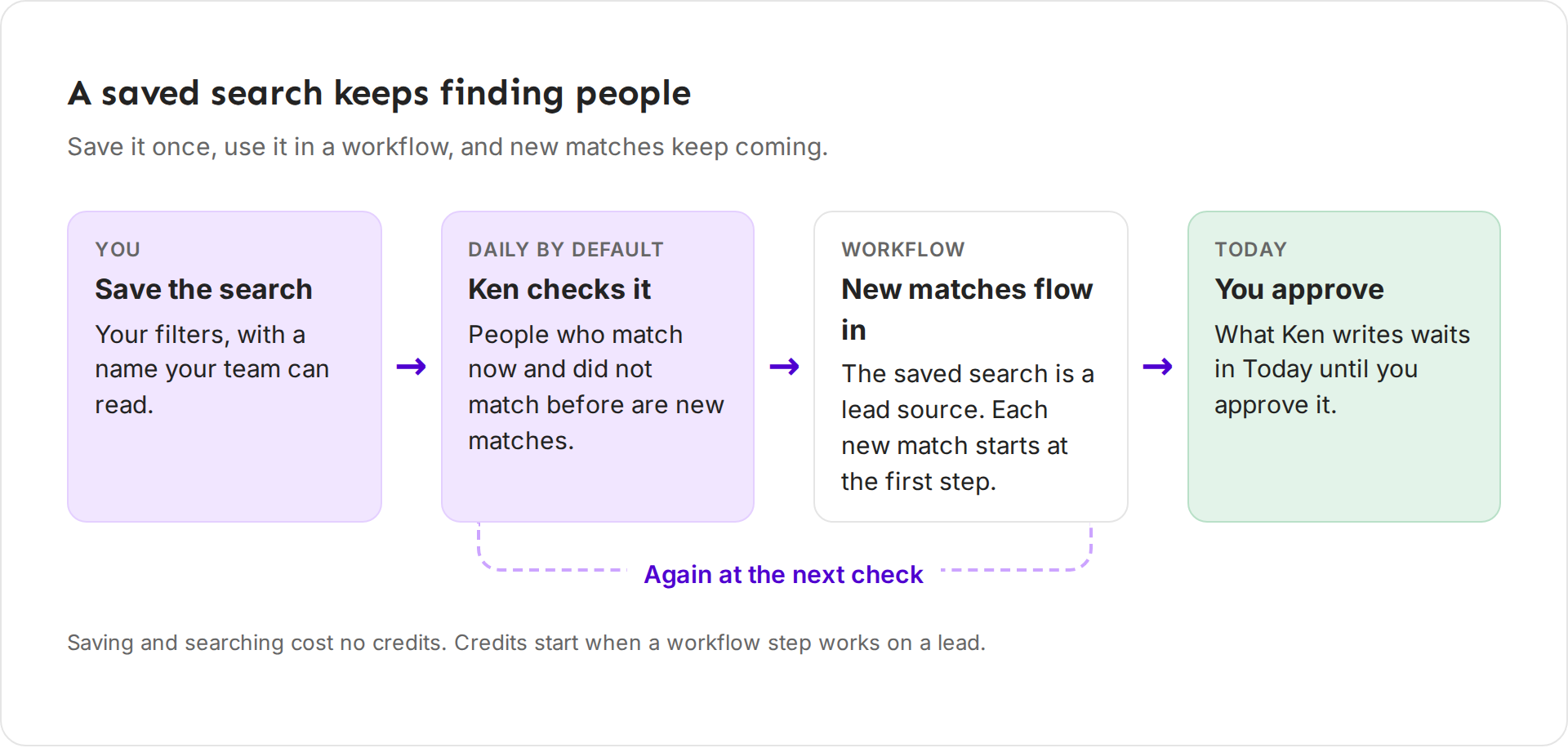
Saving and checking searches costs nothing. Credits start when a workflow step works on a person, such as finding an email or writing a first line.
Use a saved search in a workflow
There are two ways:
- From Search. Open the saved search, click Add to at the top right and pick a workflow. Ken confirms with "Added ... as a lead source · new matches flow in daily". To start a new workflow, pick New workflow from this search.
- From Workflows. Click Import leads, pick Search, and tick one or more searches under Saved searches. Each search becomes its own lead source, and Ken drops anyone who shows up in more than one.
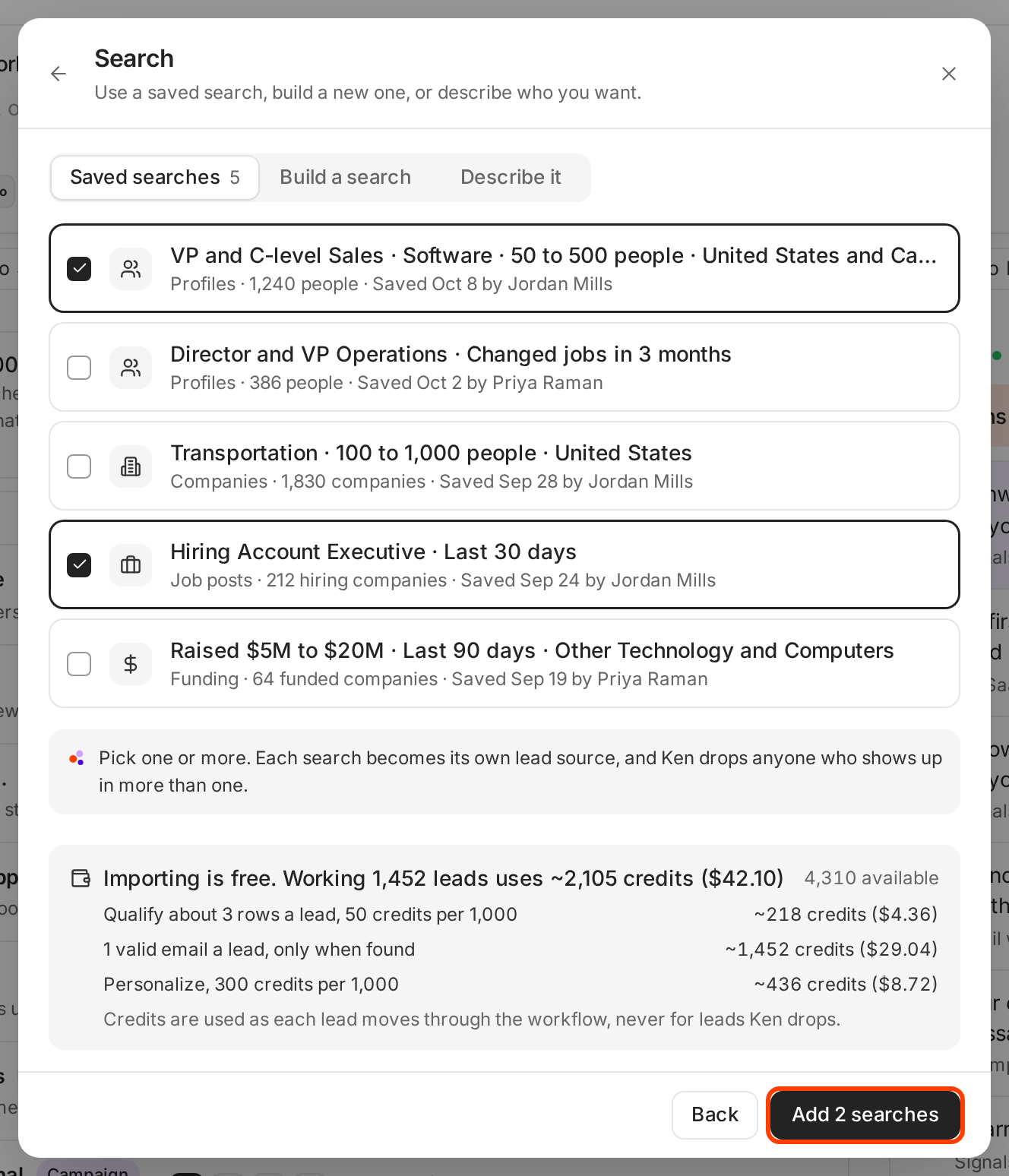
The estimate under the list shows what the leads will cost. Importing is free. Each lead then uses about 1.45 credits ($0.03) as it moves through the workflow:
| Part | Credits a lead |
|---|---|
| Qualify about 3 rows for each lead Ken keeps | 0.15 |
| One valid email, only when Ken finds one | 1 |
| Personalize | 0.3 |
Ken never charges for leads it drops. See Automate your outbound with workflows.
When saved searches pay off
- A campaign that runs for months. Save the search behind it and add it to the campaign's workflow. New people reach the campaign without you rebuilding the list.
- A signal you watch. A Funding search for "raised $5M or more in the last 90 days" or a Job posts search for a role you sell to keeps finding fresh accounts.
- A team that shares one ideal customer. One shared search means everyone works the same list, and nobody builds a slightly different copy.
- Agencies. Save one search per client so you can open, check and change each client's list fast. See Run outbound for clients: a playbook for agencies.
A one-off list for a single send does not need saving. Add the results and move on.
Tips from our team
- Check the count before you save. Aim for about 5 times the people you want to email. Anything from 3 to 10 times works. See Build a lead list that books meetings.
- One audience per saved search. Two different buyers in one search means one message for both. Save two searches and give each its own segment.
- Change it, don't copy it. Use Edit filters and Save changes instead of saving a near copy, so the team keeps one version.
- Clean up. Delete searches nobody uses so the Saved list stays short.
If something goes wrong
- "Nothing saved yet". You have no saved searches. Set filters and click Save search.
- A teammate cannot see my search. It is set to Only you, and sharing is set when you save. Open the search, click Save search, turn on Share with your workspace and save. Then delete the private copy.
- No new people come in. Check that the search is a lead source in a workflow and that the workflow is on. If Pull is When I import, Ken only checks when you import. A narrow search may also have no new matches for days.
- Fewer new people than matches. New leads per day caps how many start the workflow each day. Raise it if the search finds more than that.
- The same people keep showing up. When you import, Ken drops duplicates and anyone already in a campaign. With two or more saved searches, it also drops anyone who shows up in more than one.
Next: Automate your outbound with workflows, Find people and companies with Search or Build a lead list that books meetings.