Spend limits cap the credits a workflow can use. They stop a burst of signals, or a step that goes wrong, from using a month of credits in a day. You can set limits for each workflow, for each step in it and for all workflows together. This guide shows where to set them, what happens at a limit and how to pick the right number.
The limits you can set
| Limit | What it caps | New workflows start with |
|---|---|---|
| Monthly limit | Every credit one workflow uses in a month | 1,000 credits |
| Per run | Credits one run can use | 25 credits |
| Runs a day | How many runs start each day | 50 runs |
| By step | Credits one step can use, per run and per month | No step limit |
| All workflows together | Every workflow in the workspace, added up | 6,000 credits a month |
One credit costs $0.02, so 1,000 credits is about $20. Monthly limits reset on the 1st.
Only steps that do AI work or find data count. Steps that only move data, like CRM updates, Slack and webhooks, are free.
Set limits on one workflow
- Open the workflow from Workflows (G then W).
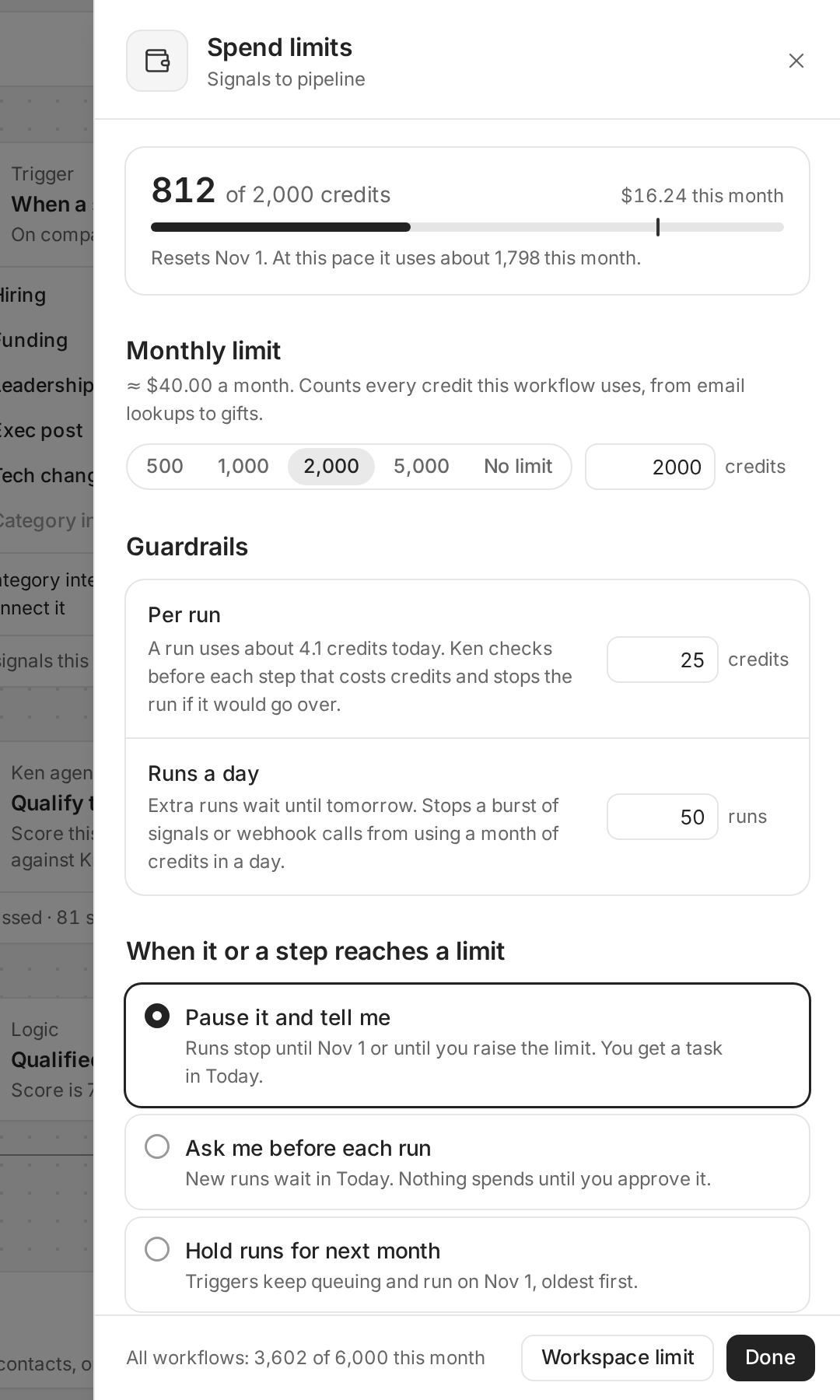
- Click the wallet button at the top right, next to Test run. Its tooltip says "Spend limits" and how many credits the workflow used this month. The Spend limits panel opens with the workflow's name under the title.
- Read the top card. It shows the credits used this month, what that costs, and how many credits the workflow will use by the end of the month at its current pace.
- Under Monthly limit, pick 500, 1,000, 2,000 or 5,000, or type your own number. No limit removes the cap.
- Under Guardrails, set Per run and Runs a day. The text under Per run shows how many credits a run uses today.
- Under When it or a step reaches a limit, pick what Ken does. See the next section.
- Under Alert me at, pick 50%, 80% or 90%, or Off. Ken alerts you in Today, and in Slack if it is connected.
- Click Done.
Scroll down to By step to cap a single step. The table lists each step that uses credits, with what it used this month. Type a number under Per run or Per month. Leave it blank for no step limit.
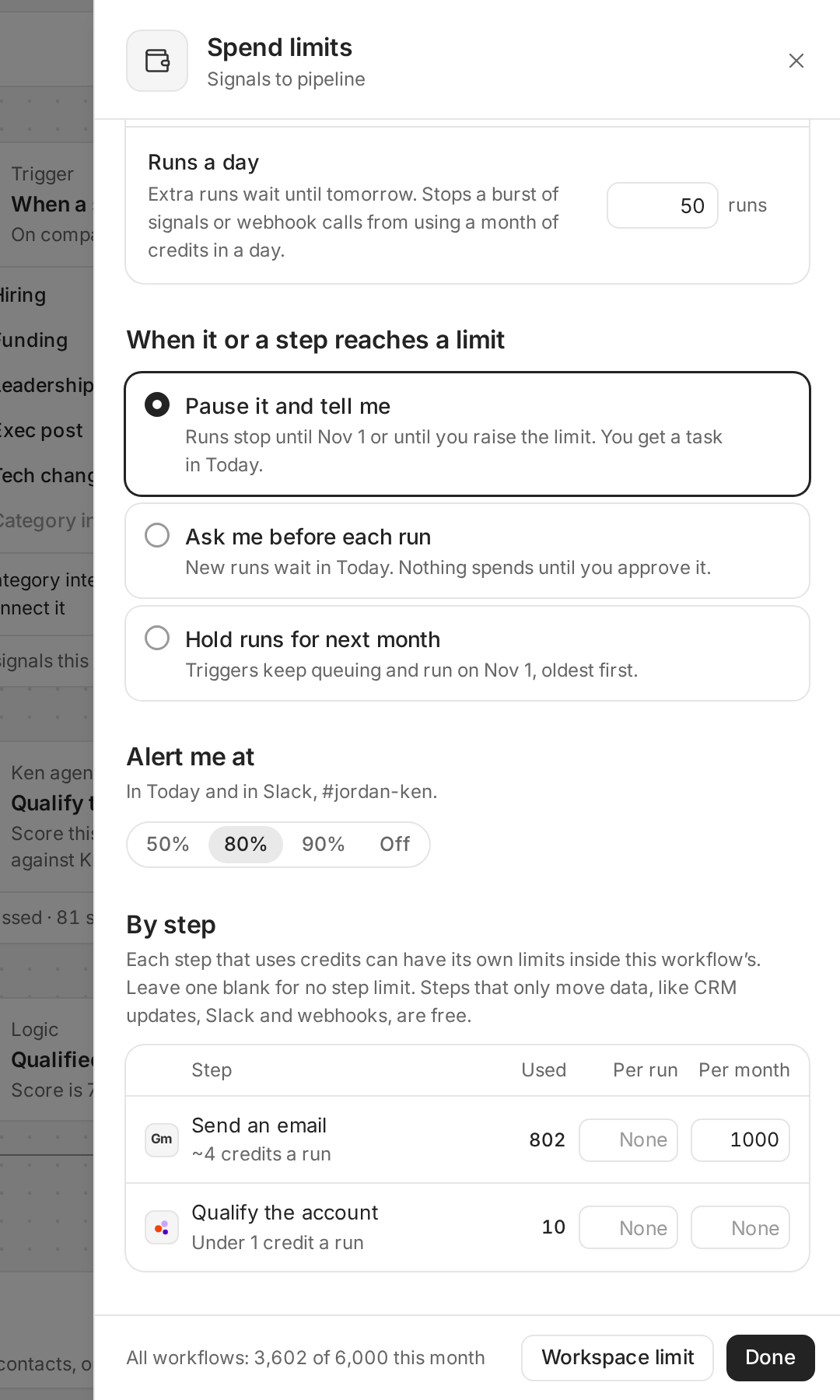
Use a step limit for the one step that costs the most, such as writing emails or research. What happens when that step reaches its limit depends on the rule you pick. With Pause it and tell me, the whole workflow turns off. With the other two rules, the workflow stays on and runs wait at that step.
At the bottom of the panel you see what all workflows used this month. Click Workspace limit to open the limits for all workflows.
Set limits for all workflows
- On the Workflows page, click Spend limits on the card that shows "credits used by workflows this month". Or click Workspace limit at the bottom of any workflow's Spend limits panel.
- Under All workflows together, pick 3,000, 6,000, 10,000 or 20,000, or type your own. Every workflow stops when the total reaches this, even if its own limit has room.
- Under New workflows start with, set the Monthly limit, Per run and Runs a day that new workflows get. You can change each workflow after.
- Pick the rule for When a workflow or step reaches a limit.
- Click Done.
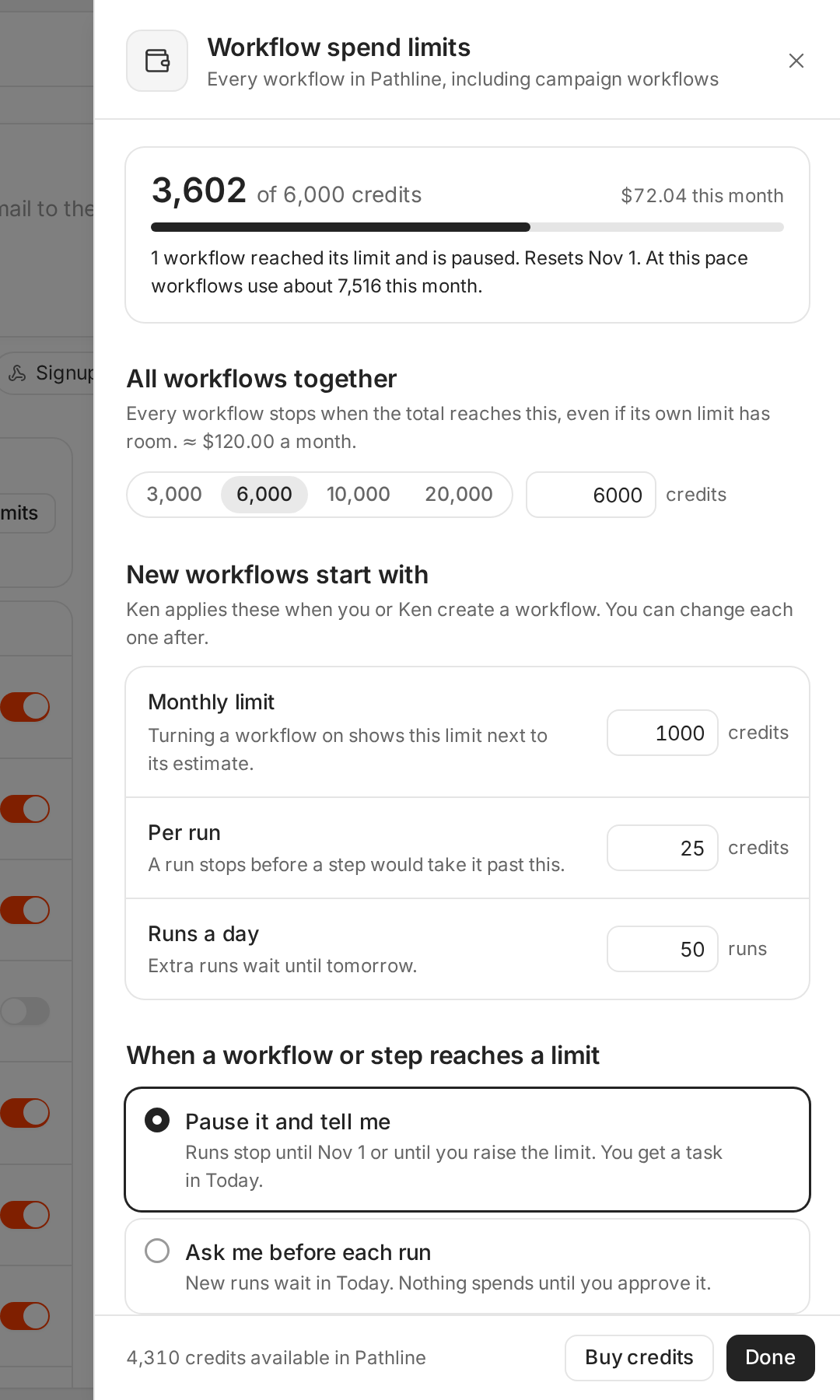
The panel's footer shows the credits available in the workspace, with Buy credits to add more. See How credits work.
What happens at a limit
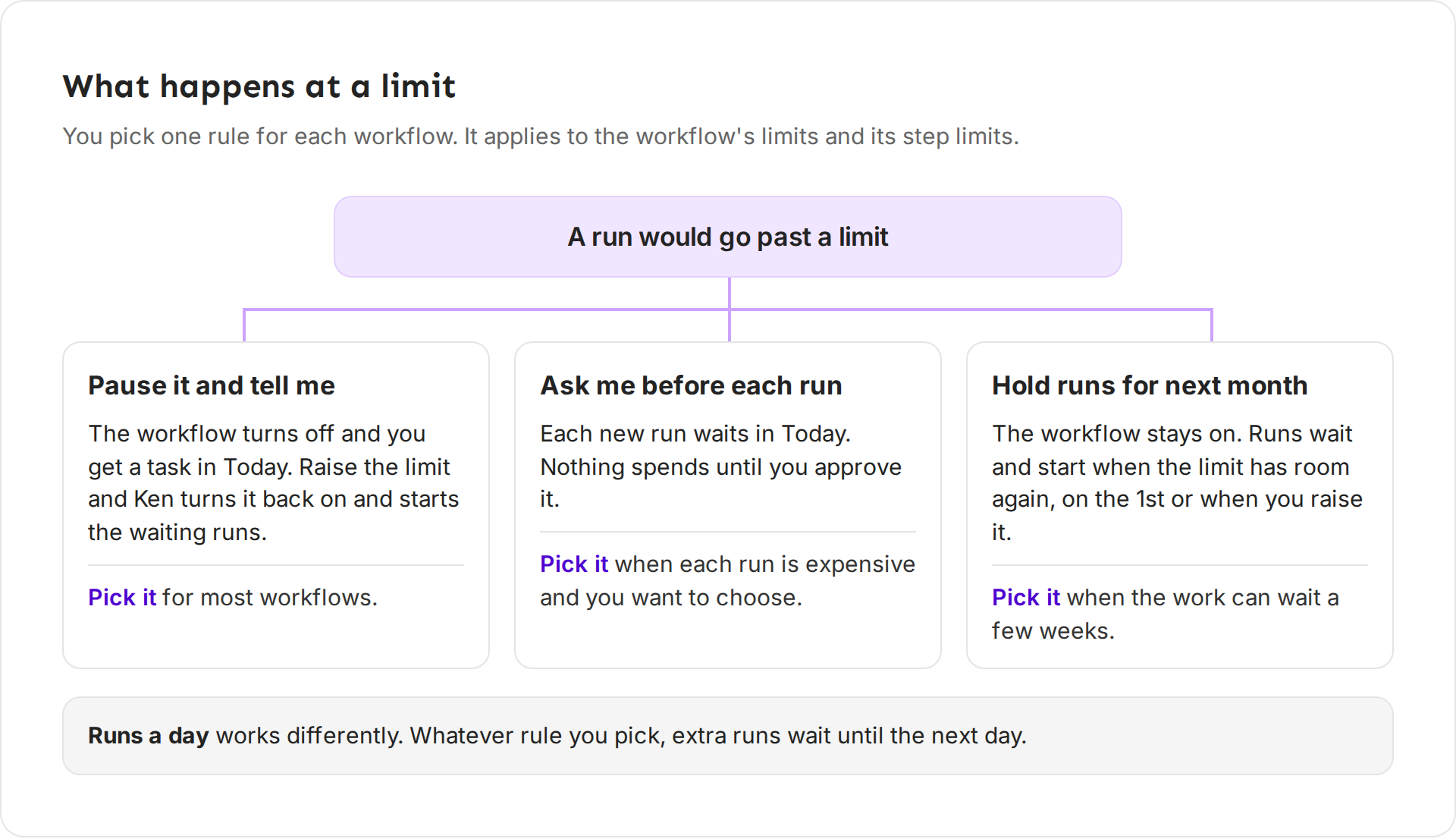
Before each step that costs credits, Ken checks that the step will not take the run, the step or the workflow past a limit. If it would, Ken does not run the step and follows the rule you picked:
- Pause it and tell me. This is the rule new workflows start with. The workflow turns off and you get a task in Today. The waiting runs stay where they stopped. Raise the limit and Ken turns the workflow back on and starts them. If you wait for the new month instead, turn the workflow back on yourself on the 1st.
- Ask me before each run. Each new run waits in Today. Nothing spends until you approve it.
- Hold runs for next month. The workflow stays on. Runs wait, and start when the limit has room again, on the 1st or when you raise it.
Runs a day works differently. Whatever rule you pick, extra runs wait until the next day. The day changes at midnight UTC.
When a workflow pauses at its limit, the list shows Limit reached on it, and the workflow shows a bar such as "Paused on Oct 12 at its 250 credit limit for October. 3 runs are waiting." Click Raise to and the next limit up, such as Raise to 500. Ken confirms with "Limit raised to 500 credits. 3 waiting runs started."
Pick a limit from the estimate
Do not guess. Work it out from what one run costs and how many runs you expect.
- Find the cost of one run. After Ken builds a workflow, its card says "about N credits a run". In the Spend limits panel, the text under Per run says "A run uses about N credits today".
- Estimate runs a month. For a signal, count how many accounts in your list had that signal last month. For a saved search, use the number of new matches you expect.
- Multiply, then round up. Signals come in bursts. The extra room stops a busy month from pausing the workflow.
- Keep the alert at 80%. That is the default. You hear about it with time to act.
- Keep Per run well above a full run. It then stops only a run that goes wrong, not a normal one.
- Keep Runs a day above a normal day. It then caps a burst at a known cost and leaves normal days alone.
A worked example
Example numbers. Pathline's funding workflow gets about 200 funding signals a month. Ken qualifies all 200, and about 80 pass. Each of those 80 gets research, an email lookup and a drafted email.
| Step | Credits each | Runs | Credits a month |
|---|---|---|---|
| Qualify the account | 0.05 | 200 | 10 |
| Research the account | 4 | 80 | 320 |
| Find and verify the email | 1.5 | 80 | 120 |
| Write the email | 4 | 80 | 320 |
| Total | 770 |
These are the estimates the workflow builder shows for each step. The email step is 1.3 credits to find the email and 0.2 to verify it. The real charge can be lower, because Ken charges 1 credit for each valid email it finds and nothing when it finds none.
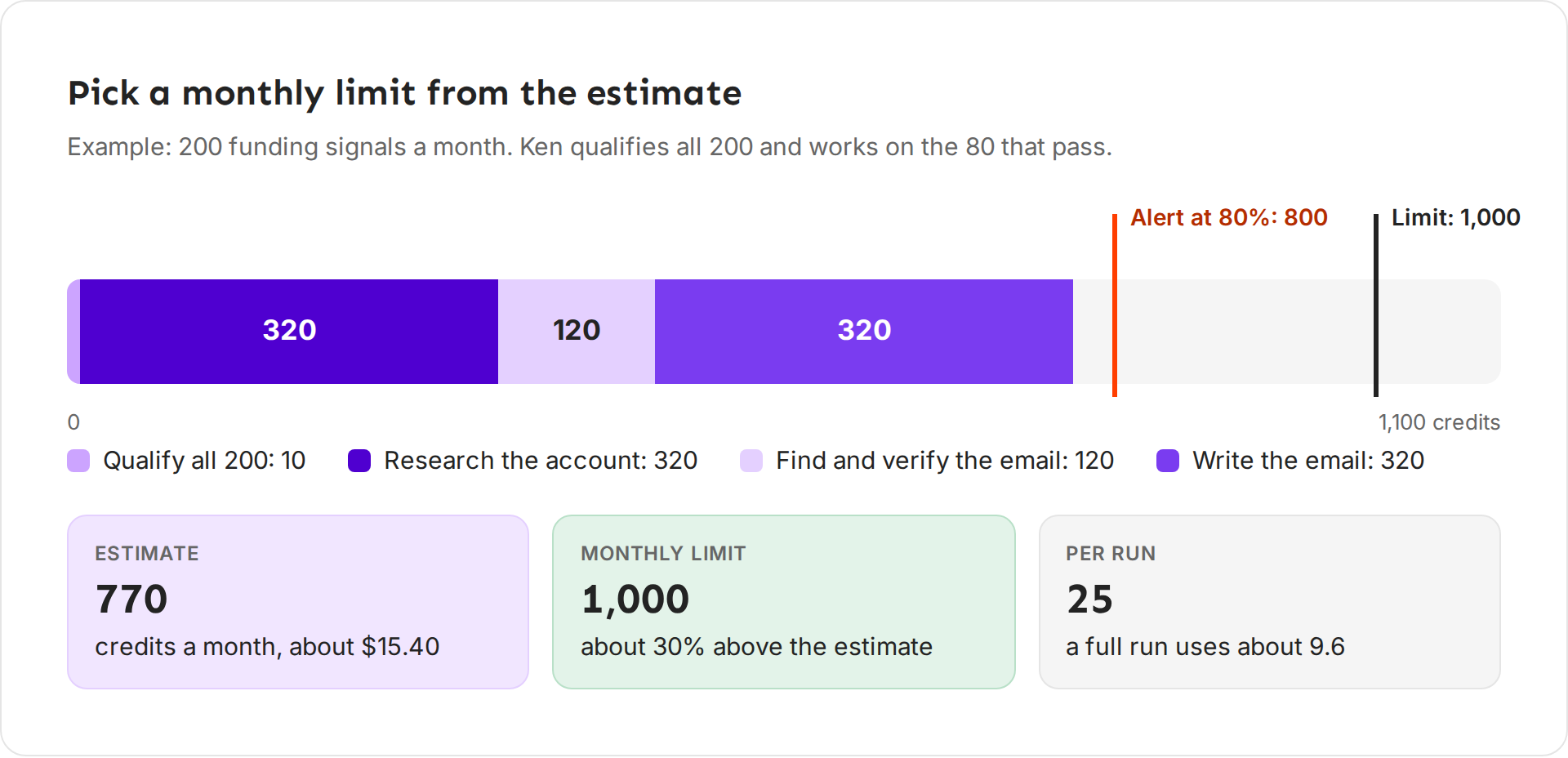
What to set:
- Monthly limit: 1,000 credits, about $20. That is the default, and it leaves 230 credits of room above the estimate.
- Alert at 80%, which is 800 credits. A normal month never triggers it, so an alert means something changed.
- Per run: 25. A full run uses about 9.6 credits, so 25 stops only a run that goes wrong.
- Runs a day: 50. Even if 50 accounts raised money on one day and all of them passed, the day would cost about 480 credits.
- When it reaches a limit: Pause it and tell me. A funding signal is worth a look a week later, so nothing is lost while you decide.
Tips from our team
- Start with the defaults. Every new workflow gets 1,000 credits a month, 25 a run and 50 runs a day. Change them once you have a month of real numbers.
- Watch the pace. The top card says how much the workflow will use by the end of the month at its current pace. If that is over the limit by the middle of the month, decide now.
- Pair a step limit with Hold. With Hold runs for next month, a capped research or email step waits while the cheap qualify step keeps running, so you still see which accounts fit. With Pause it and tell me, a step limit turns the whole workflow off.
- Pick Ask for expensive runs. When one run uses many credits, such as research plus a Ken agent, a quick yes before each run is worth it once the workflow reaches its limit.
- Keep the all-workflows limit below your balance. Then workflows can never use credits your campaigns need.
If something goes wrong
- "Limit reached" on a workflow. It used its monthly limit and paused. Open it and click Raise to, or wait until the 1st and turn it back on.
- "It reached its 250 credit limit. Raise the limit to turn it back on." You tried to turn on a workflow that is at its limit. Raise the limit first.
- Every workflow stopped at once. The workspace reached All workflows together. Raise it on the Workflows page under Spend limits, or add credits.
- Runs wait until tomorrow. The workflow reached Runs a day. Raise it if the burst is real, such as a big import.
- A run stopped halfway. The next step would have gone past Per run or a step limit. With Pause it and tell me, the workflow also turned off. Check the run under Runs, then raise the limit or use a cheaper step.
- No alert came. Check that Alert me at is not Off. Slack alerts need Slack connected.
Next: Automate your outbound with workflows, How credits work or Check what a run costs before you start.