Connecting Salesforce or HubSpot tells Ken which companies are customers, which deals are open and who owns each account, so it does not cold-email the wrong people. Once you turn sync on, Ken also writes its email and LinkedIn activity back to your CRM. Setup takes five steps, and nothing is written to your CRM until the last one.
Before you start
- You need to be a workspace admin. Only workspace admins can change sync settings. Everyone else can read the page.
- Your workspace needs a paid plan. CRM sync works on Starter, Growth, DFY, Core, Premium and Platform. The Free plan reads nothing and writes nothing.
- One CRM per workspace. If HubSpot is connected, disconnect it before you connect Salesforce, and the other way round.
- Sign in as a CRM user who can read and write companies or accounts, contacts, deals or opportunities, and activity. Ken also asks to create its own Ken fields, which it does only when you turn sync on.
What flows where
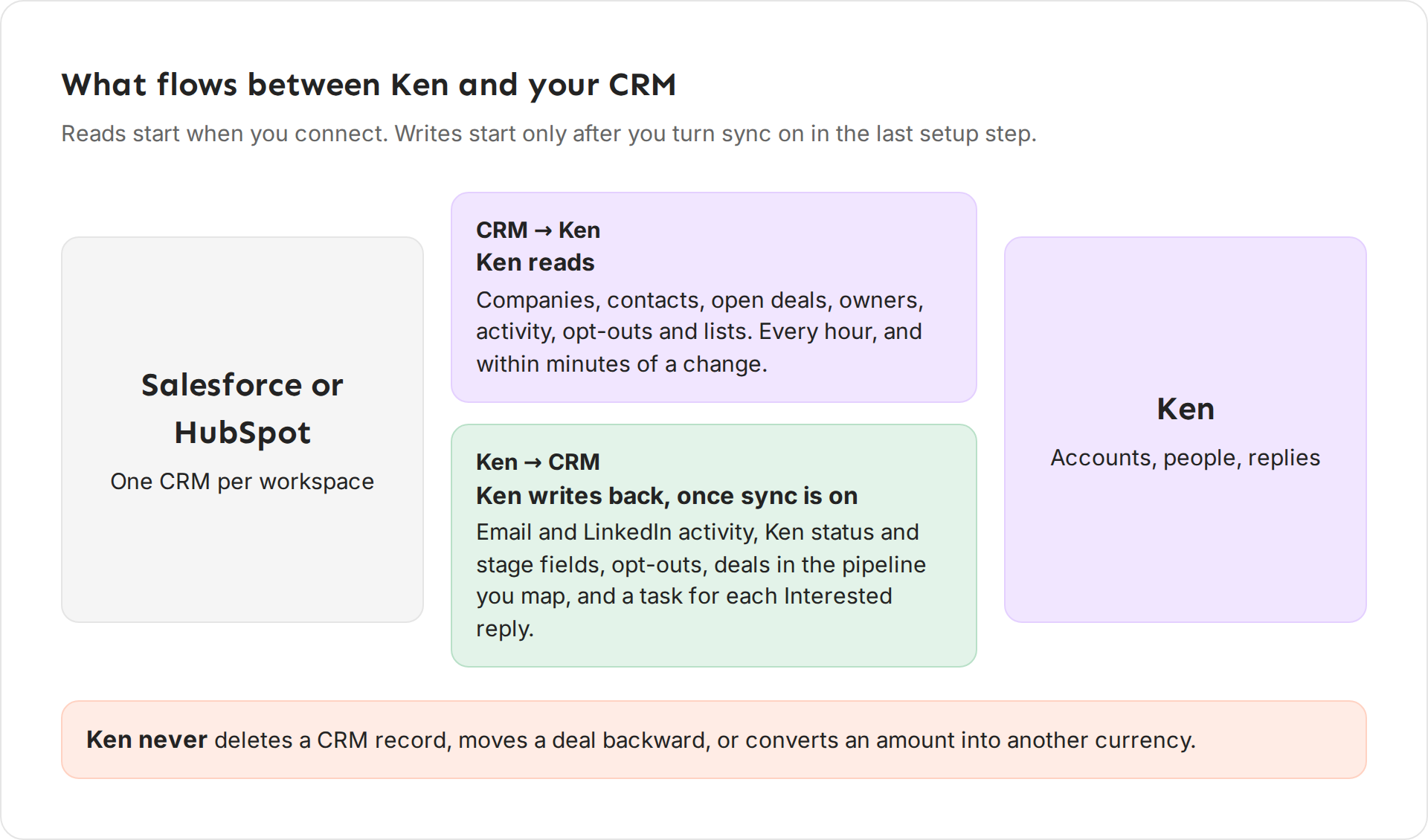
Ken reads companies, contacts, open deals, owners, activity, opt-outs and lists. It reads every hour, and within minutes of a change in your CRM.
Ken writes, once you turn sync on:
- Its email and LinkedIn activity on the contact, the company and the open deal
- Ken status and stage fields
- Opt-outs
- Deals in the pipeline you map
- A follow-up task for each reply marked Interested
Ken never deletes a record in your CRM, moves a deal backward, or converts an amount into another currency.
Ken moves a deal forward through three stages only: Interested, Meeting booked and Meeting held. After your CRM moves the deal further, your CRM owns the stage.
Find your CRM
-
Open Settings, then All integrations.
-
Click CRM, or type the name of your CRM in the search box.
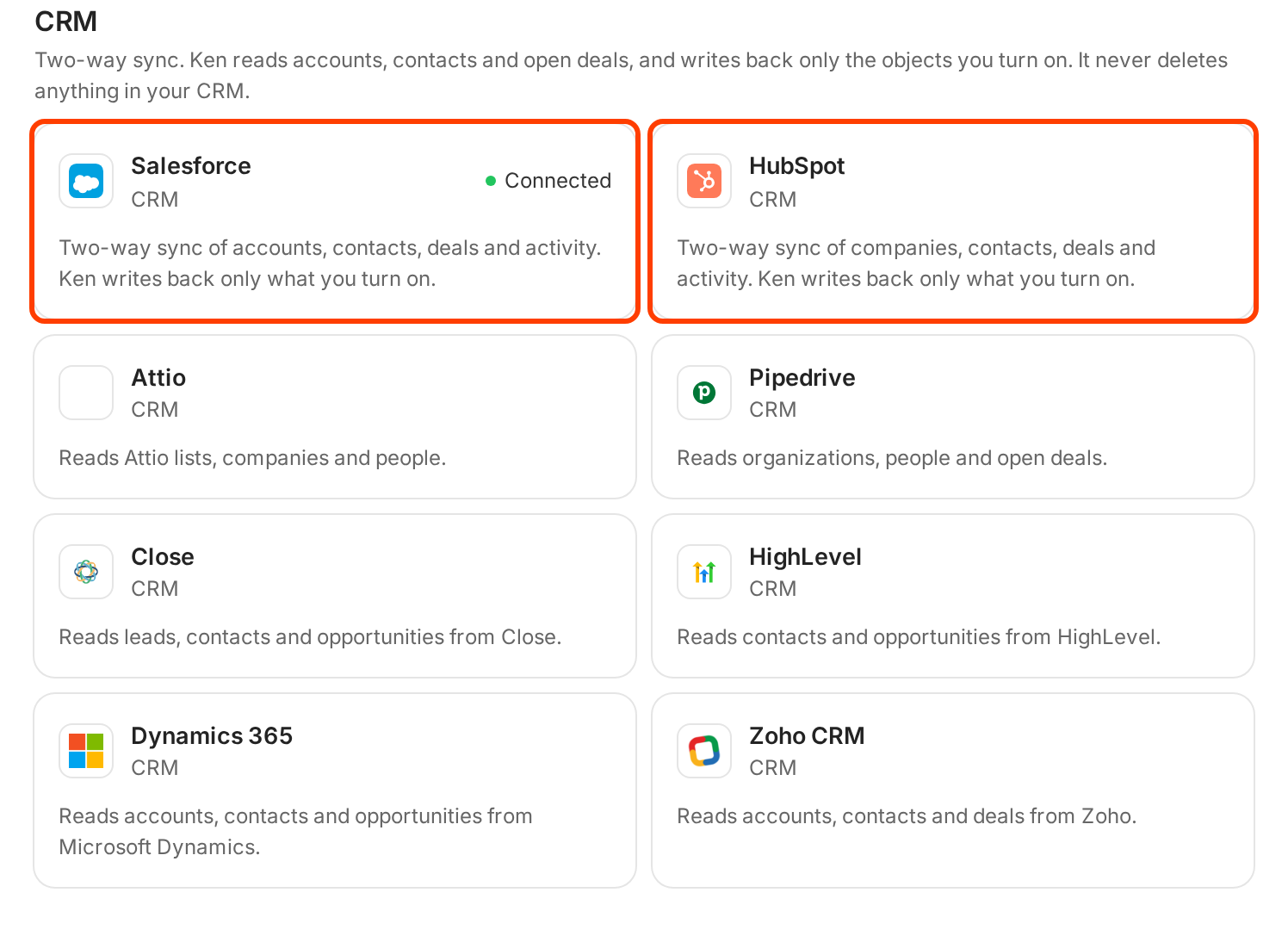
Salesforce and HubSpot sync both ways. The other CRMs are read only. -
Click the Salesforce or HubSpot card to open its page.
If the card says Coming soon, CRM sync is not on for your workspace yet. Write to [email protected] and we will tell you when it is.
Set up two-way sync
The CRM's page shows Set up two-way sync with five numbered steps. Each step opens in place, and you can start the next one when you finish it.
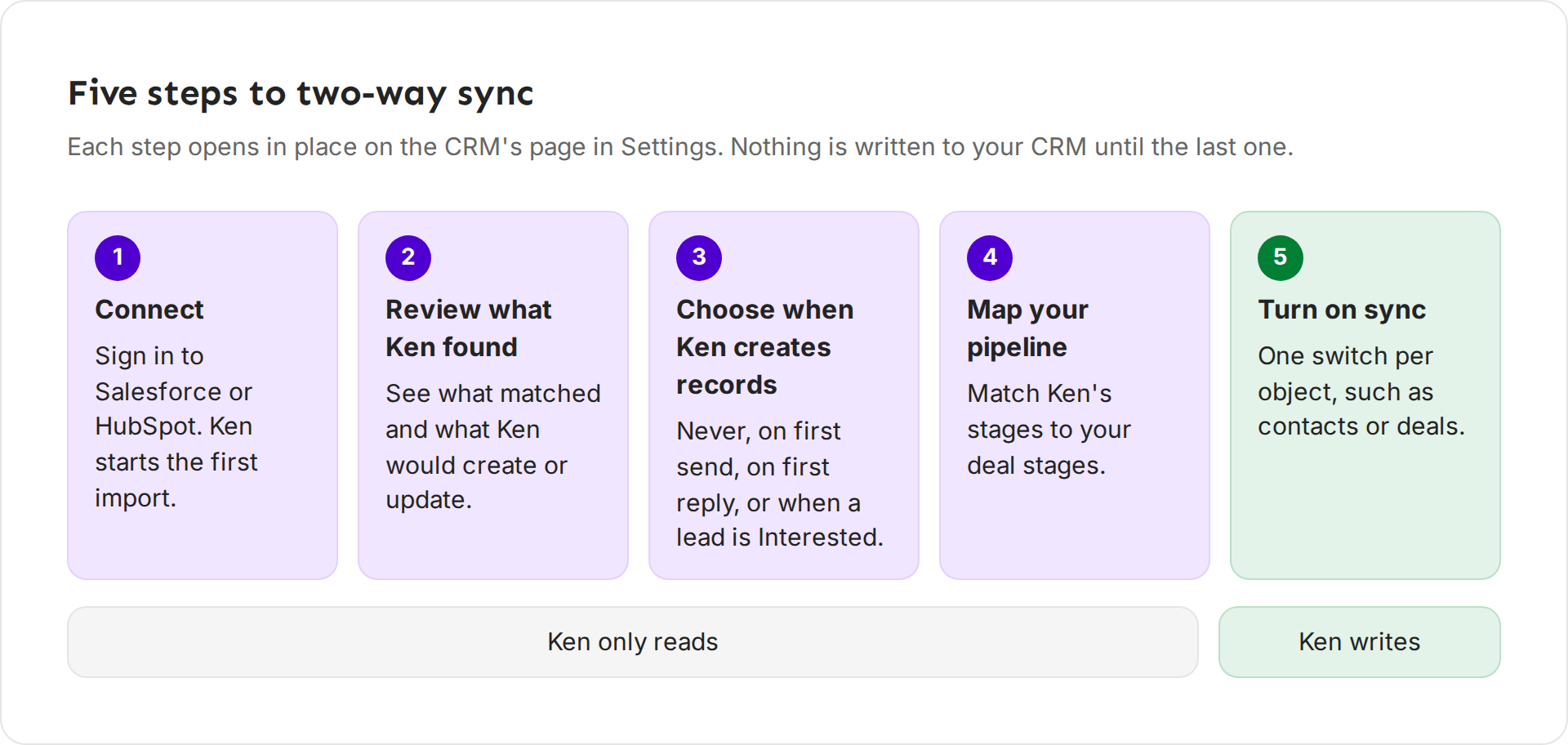
- Connect Salesforce (or Connect HubSpot). Click the button with the same name, sign in, and allow access. You see Connected Salesforce. Ken is importing your records. Ken writes nothing during the import.
- Review what Ken found. Ken shows how many companies and contacts matched, how many contacts it would create, and the field updates it would write, with examples. Click Looks right, continue.
- Choose when Ken creates records. Pick Never, On first send, On first reply or When a lead is Interested. Records that already exist in your CRM always get Ken's activity and status, whatever you pick.
- Map your pipeline. Pick the pipeline Ken writes deals to, and match Ken's stages to your stages. Only deals in this pipeline sync. Open deals in other pipelines still keep Ken from emailing those accounts. A deal in a currency other than your workspace's syncs with no amount in Ken, and Ken never writes an amount to it.
- Turn on sync. Turn on one switch per object, such as contacts or deals. You can use the switches once the first import finishes. Each object reads and writes on its own. Use Review field mapping to check which Ken field goes to which CRM field.
To pull fresh data at any time, click Import now.
What to set up first
Start with "When a lead is Interested" or "On first reply". These keep your CRM to people who engaged. "On first send" creates a contact for every person Ken emails, which can flood a CRM your sales team uses every day.
Map only the stages Ken moves. Ken moves deals through Interested, Meeting booked and Meeting held. Map those three and leave the rest to your team. If no stage in your CRM matches one of them, Ken skips that step.
Check the field updates before you turn sync on. Step 2 shows examples of the values Ken would change. If a field looks wrong, fix the mapping in Review field mapping first.
Turn on activity before deals. Activity is the least risky write and gives your reps the most context. Add deals once you trust the pipeline mapping.
Under Other settings, check these before you start sending:
| Setting | What it does |
|---|---|
| Skip contacts with an open deal | An open deal in any pipeline keeps Ken from emailing that account |
| Add customers to the blocklist | Companies marked customer in your CRM never get cold outreach |
| Import new accounts every day | Companies and contacts added to your CRM show up in Ken the next morning |
| Pause outreach when a rep worked the contact | Days since the last rep activity. 0 turns it off |
Keep the first two on. They protect deals your team is already working and customers who should never get a cold email.
To fill a campaign from a CRM list, look for Lists that feed campaigns below these settings. Pick a list and the campaign it feeds.
Other apps in the catalog
All integrations also lists other CRMs: Attio, Pipedrive, Close, HighLevel, Dynamics 365 and Zoho CRM. Their cards describe what Ken reads from them. Only Salesforce and HubSpot sync both ways.
The catalog has more groups, such as email and calendar, LinkedIn, data enrichment, intent and signals, meeting transcripts, gifting, messaging, automation and AI agents. A card that says Coming soon is not available in your workspace yet. For calendars, see Connect your calendar and share booking links. For AI tools, see Use Ken from Claude or ChatGPT.
If something goes wrong
The card says Coming soon, or the page says "Sync is not available for this workspace yet." CRM sync is not on for your workspace. Write to [email protected] to ask for it.
The page says "CRM sync is on paid plans". Your workspace is on the Free plan. Upgrade to connect. If you downgrade later, sync pauses and every record stays.
The switches are locked. You can use them once the first import finishes. If the page says Pick a pipeline first, finish step 4.
Ken says another CRM is connected. Only one CRM can be connected per workspace. Disconnect the other one first.
Ken says it is connected to a different account. Disconnect first, then connect the CRM account you want.
A banner says your CRM disconnected Ken. Sync stops until you reconnect, and nothing in Ken or your CRM is lost. Click Reconnect Salesforce or Reconnect HubSpot and sign in again.
I can't change anything on the page. Only workspace admins can change sync settings. Ask an admin.
Next: Connect your calendar and share booking links, Keep companies and people off your lists or Hand off an account.