When Ken can see your calendar, it offers only times you are free and shows your meetings on each account. Your booking link lets a prospect pick a time without a round of email. This page shows how to connect your calendar, set your hours, and offer times that get a yes.
What Ken does with your calendar
- Offers open times in replies. When someone asks to talk, Ken's reply draft can include times from your calendar.
- Shows your meetings in Ken's Calendar and on each account.
- Preps you for a meeting. In Calendar, right-click a meeting and choose Ask Ken to prep me.
- Follows up on lost bookings. If a prospect cancels a meeting they booked with your link, or you open the meeting and click Mark as no-show, Today shows a row such as "Maya cancelled - send a new link?" Ken has already drafted a short email with a new single-use link. Approve it to send it. This works when the prospect's company is an account in Ken.
Connect your calendar
- Open Settings, then Calendar.
- Scroll to Calendars and click Integrations. The row says No calendar connected until you connect one.
- Click the Google Calendar or Outlook Calendar card, click Connect at the top of its page, and sign in.
If your company's Google Workspace or Microsoft 365 admin has to approve Ken first, use Send to your admin on the same page. Copy message or Email it gives your admin the steps.
Back on Calendar, the Calendars section shows your calendar as Connected as your email. Ken checks it for busy times. If it says Needs reconnecting, click Manage and sign in again.
Set your hours
Still in Settings, then Calendar:
-
Under Time, check your Time zone. It follows your profile unless you set one. Add a Second time zone if your buyers work in another region.
-
Under Working hours, set Starts and Ends. Ken only offers times inside these hours.
-
Under New events, pick a Default length (15, 30 or 45 minutes, or 1 hour) and a Gap between meetings (none, 5, 10 or 15 minutes). Ken leaves the gap free when it offers times.
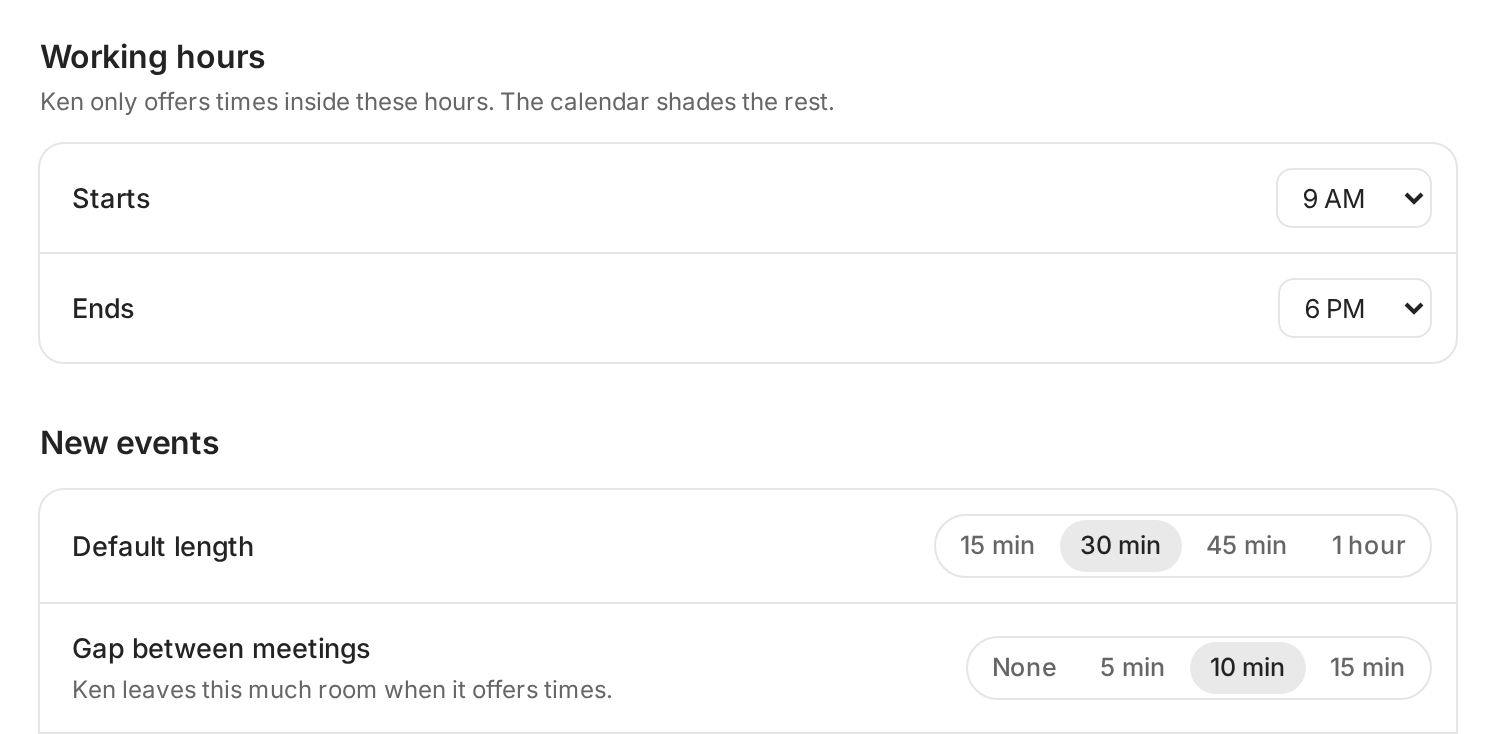
Ken offers times only inside your working hours, with the gap you set.
The defaults are 9 AM to 6 PM, 30-minute meetings and a 10-minute gap.
Choose how Ken handles replies
Scroll to Replies on the same page.
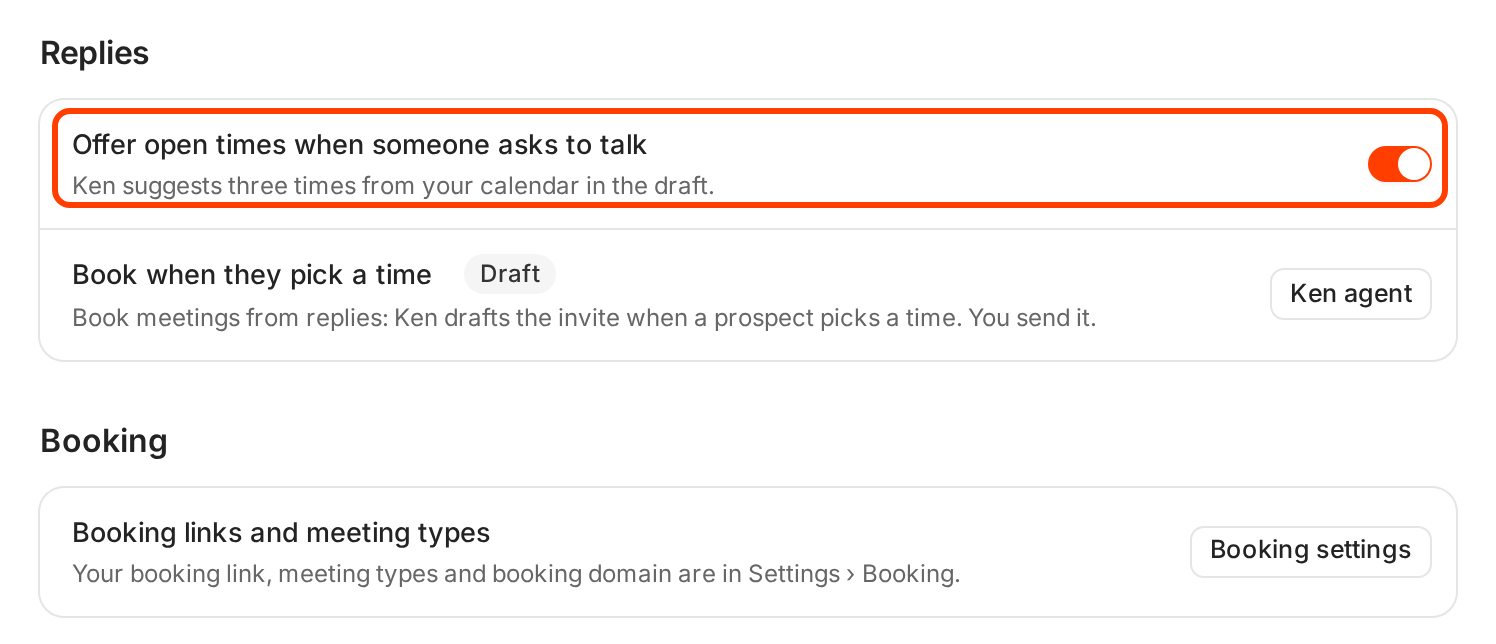
- Offer open times when someone asks to talk. When this is on, Ken suggests three times from your calendar in the reply draft. Turn it off to put only your booking link in drafts.
- Book when they pick a time. During the beta this stays on Draft. Ken drafts the invite when a prospect picks a time, and you send it.
Get your booking link
-
Open Settings, then Booking. You can also click Booking settings at the bottom of Calendar.
-
Under Booking links, find your link. It shows Live when it works.
-
Click Copy. You see a toast with the link, such as Copied cal.ken.so/pathline/jordan.
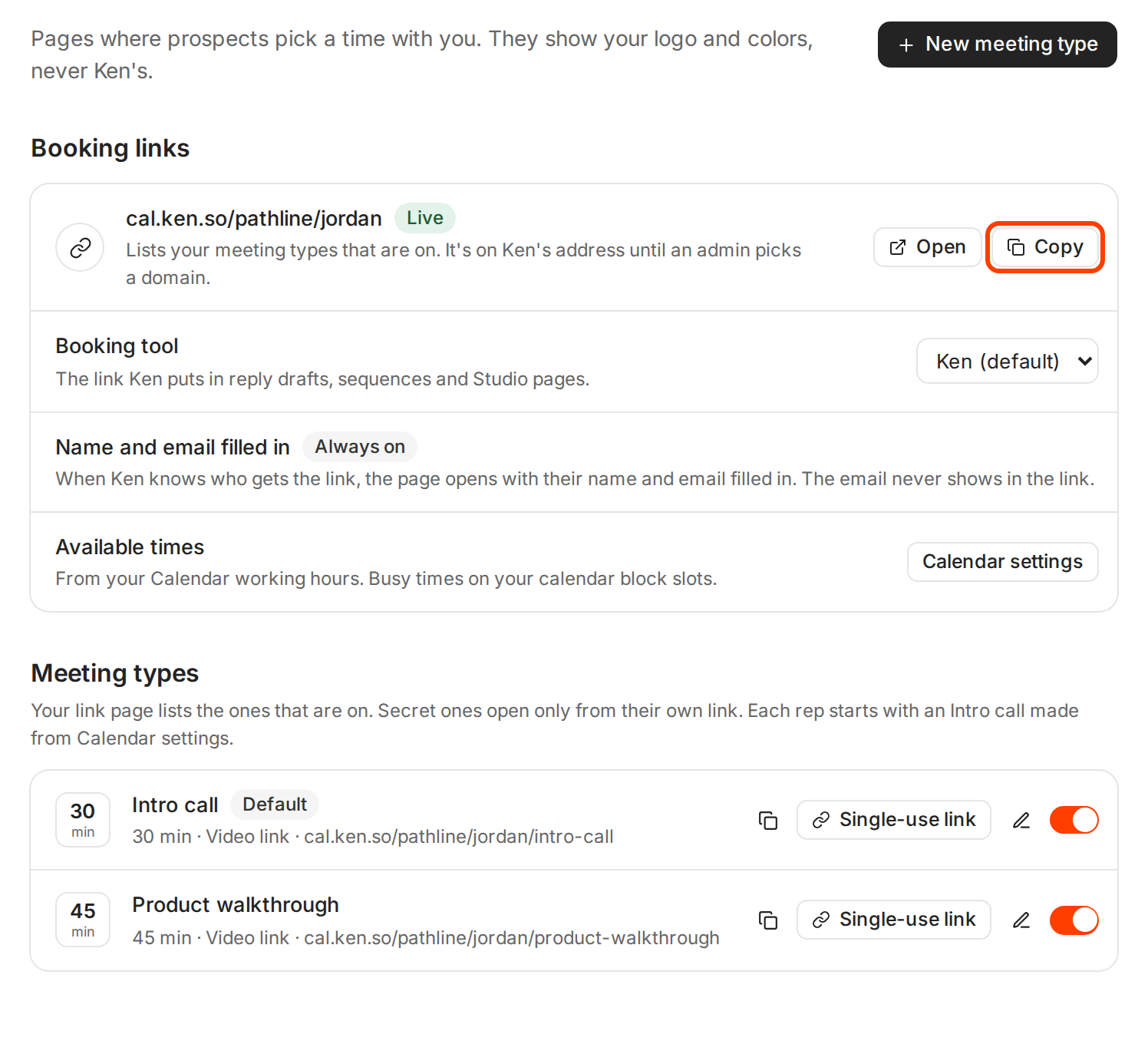
Your link lists every meeting type you have turned on. Example data.
Your link is on Ken's address, cal.ken.so, followed by your workspace and your name, until an admin picks a booking domain. The page shows your logo and colors, never Ken's. When Ken knows who gets the link, the page opens with their name and email filled in, and the email never shows in the link.
The available times come from your Working hours in Calendar settings. Busy times on your calendar block slots.
Meeting types and single-use links
Under Meeting types, each rep starts with an Intro call made from Calendar settings. Click New meeting type to add another, such as a 45-minute walkthrough. Your link page lists the types that are on.
For one person, click Single-use link on a meeting type. Ken copies a link that books once, then stops working.
To keep a meeting type off your link page, edit it and turn on Secret. It then opens only from its own link. Use this for a longer demo you offer only after a first call.
Use another booking tool
Under Booking tool, pick Calendly, Cal.com or HubSpot and paste your link. It must start with https://. Ken then puts that link in reply drafts, sequences and Studio pages. Bookings made there still reach Ken through calendar sync.
Offer times in a reply
- In the Inbox, click the booking link button in the reply box. Insert booking link opens.
- Leave Add 3 times on, and click Insert.
Ken adds three open times as links, then "Or pick another time:" and your booking link. You see Added your booking link and 3 times. Each time opens your booking page with that time already picked and the prospect's name and email filled in, so they only have to confirm. If you have no open time in the next 2 weeks, only the link goes in.
From the Ken pane, type / and choose Send my booking link for the same thing, or Make a single-use link.
Ken picks the first open time on each of the next days that have one, up to 14 days ahead, in your time zone. If you use another booking tool, Ken adds that tool's link without times.
What works
Offer specific times, not an open question. "Let me know what works" makes the prospect do the work and costs a round of email. A few times they can say yes to are easier. Ken's draft offers three. Two is fine too.
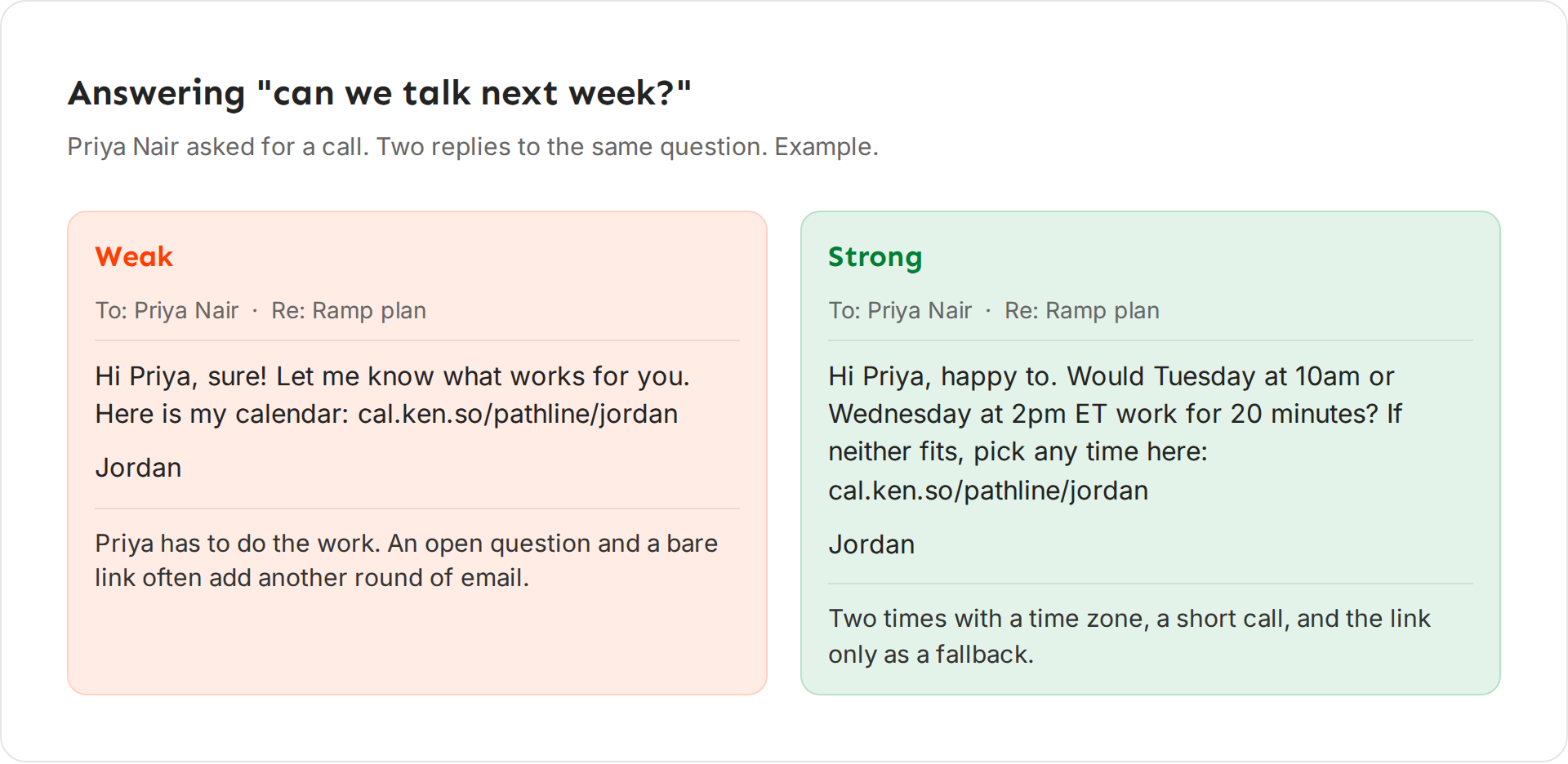
Keep the first call short. Ask for 15 or 20 minutes, not an hour. A short first call is easier to accept, and you can book a longer one once you know there is a fit.
Write the time zone. "Tuesday at 10am ET" avoids a reply that asks "your time or mine?"
Don't put a booking link in a cold email. End each cold email with one soft ask, such as "Worth a look?", and don't ask for a meeting yet. Offer times or your link once the prospect replies. The campaigns Ken's team runs for clients follow this rule. A first email with no links is also more likely to reach the inbox.
Use a single-use link for a hand-picked prospect. It cannot be forwarded around a team and fill your week.
If something goes wrong
The page says "Calendar settings are not on for this workspace". The calendar uses the defaults until they are. Write to [email protected] to ask when they reach your workspace.
Ken offers times when I'm busy. Check that your calendar shows under Calendars, and that the busy event is on that calendar.
Ken offers times outside my day. Check Time zone and Working hours in Calendar settings.
The reply box says "Reconnect your calendar, your booking link is down." Your calendar connection stopped. In Settings, then Calendar, find the calendar marked Needs reconnecting, click Manage and sign in again.
Only my link went in, with no times. Ken found no open time in the next 2 weeks, or Add 3 times was off. Check your Working hours and your busy events.
My booking link shows "Not in drafts". You picked another booking tool, so drafts use that tool's link. Your Ken link still works if you share it.
I can't find Settings, then Booking. Booking links may not be on for your workspace yet. Write to [email protected] to ask for them.
Next: Handle every kind of reply, Reply from the Inbox or Connect Salesforce or HubSpot.