Every reply to your campaigns and account outreach lands in the Inbox. Ken often has a draft ready when you open a thread, so most replies take a quick read, a small edit and a send. This page shows the composer step by step, then how to write a reply that moves the deal forward.
Open a reply
- Click Inbox in the sidebar, or press G then I. The To Reply tab opens.
- Click a row, or move with J and K and press ↵. The thread opens on the right.
Each message in the thread is marked Campaign or Reply. Campaign marks the campaign emails you sent before they answered. Reply marks every message after that, theirs and yours.
A row marked Draft has a reply waiting: one Ken wrote for you, or one you started. When Ken wrote it, the thread opens with the draft already in the composer.
Reply with Ken's draft
-
Read their message first, then Ken's draft under it.
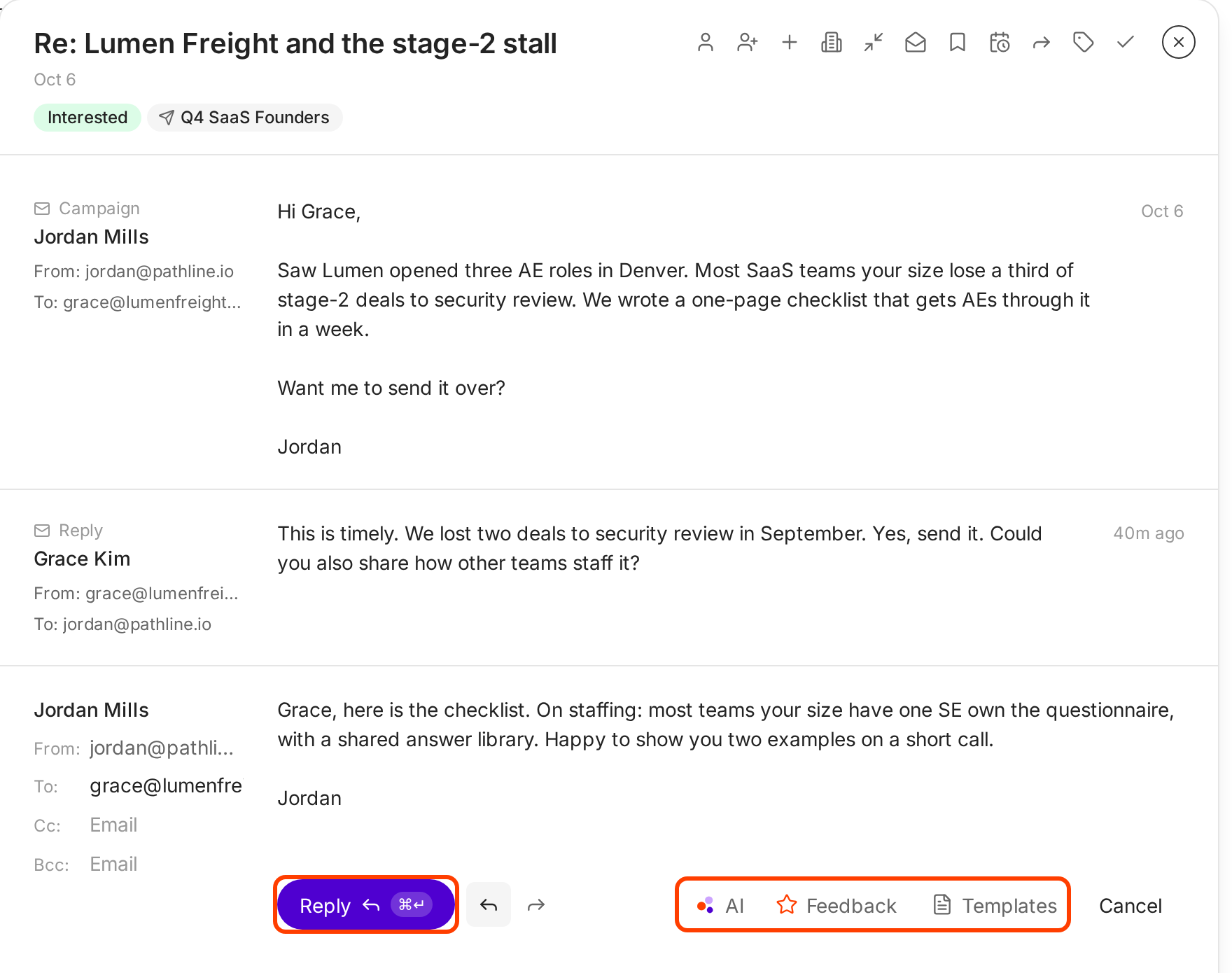
Ken's draft waits in the composer. AI, Feedback and Templates sit on the right. -
Check From. It shows the inbox that sends the reply. To change it, click it and pick another inbox in the list, or type to search.
-
Check To, and add people in Cc or Bcc if needed.
-
Edit the text. Click into the draft and type, like any email. Type / in the text for quick commands: Attach files (up to 5), Insert template and Ask Ken. When booking links are on for your workspace, email replies also get Insert booking link, which adds your link with 3 open times.
-
Click Reply, or press ⌘ ↵ (Ctrl ↵ on Windows).
Ken holds the reply for 10 seconds before it sends. The message shows "Sending in 0:10" with an Undo button. Click Undo to put the reply back in the composer.
To send and mark the thread done in one step, press ⌘ ⇧ ↵. To start a reply on a thread without a draft, press R.
Change the draft with Ken
-
Click AI in the composer, or press ⌘ J. A box opens above the buttons.
-
Pick a change: Rewrite, Simplify, Shorten, Lengthen or Continue. Tone sets the voice: Friendly, Professional, Confident, Casual or Direct.
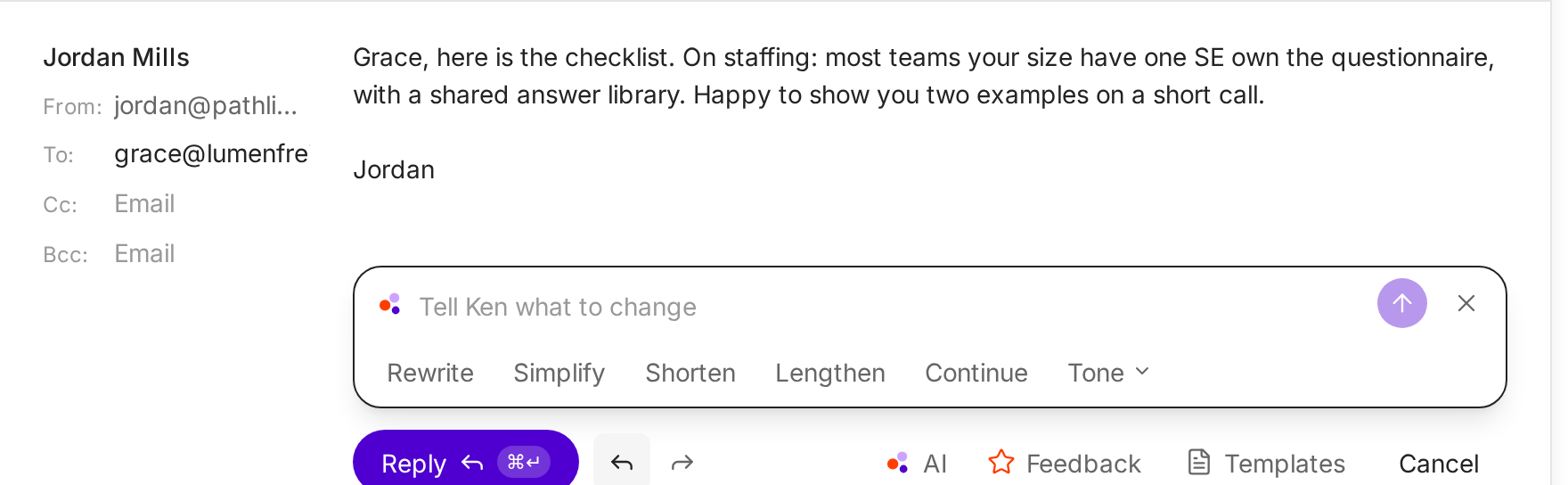
Pick a change, or type what you want different. -
Or type what you want in Tell Ken what to change, such as "answer her staffing question in one line", and press ↵.
-
Read Ken's version. Click Accept (or press ⌘ ↵) to use it, Regenerate for another try, or Discard to keep yours.
If the reply is empty, the box offers starters instead: Draft a reply, Follow-up, Politely decline and Request a call. Press Esc to stop Ken while it writes.
Check the reply with Feedback
Click Feedback to grade the reply out of 10 before you send it.
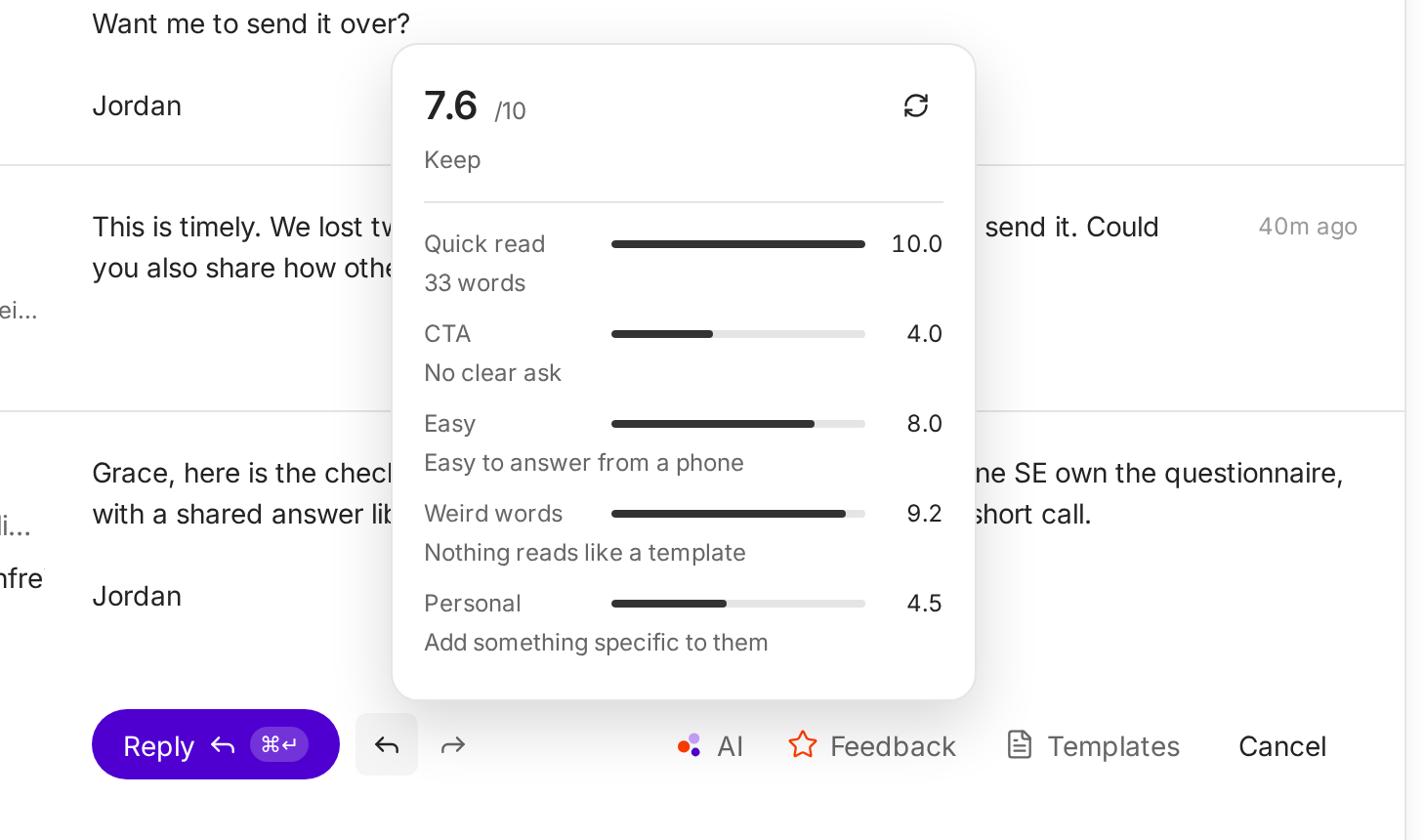
| Check | What it tells you |
|---|---|
| Quick read | The word count. It scores lower past 60 words. |
| CTA | "The ask is clear" with exactly one question. "No clear ask" with none. With two or more, the questions compete. |
| Easy | "Easy to answer from a phone" under 90 words, "Takes effort to answer" from 90 words. |
| Personal | "Add something specific to them" when nothing in the reply is about them, such as something you saw or noticed. |
The score comes from three things: the length, exactly one question, and something specific to them. 7.5 or more reads "Keep", 5.5 to 7.4 reads "Rewrite so it is easier", and below 5.5 reads "Start over".
In the example, the draft scores 7.6 but has no question at the end. Ending with "Want me to send the two examples?" lifts it to 8.8.
How to write a reply that books the meeting
Reply fast. Work To Reply before anything else each day, and answer interested replies the same day. A person who just wrote back is thinking about the problem now.
Answer their question first. If they asked something, the first line answers it. Don't open with a pitch or a recap of your product.
Give one next step. One question at the end. Two asks compete, and the reader picks neither.
Make the meeting easy to say yes to. Propose two specific times, or ask a short question and put your booking link on its own line under it. A link with no question reads like a form letter.
Keep it short. If it does not fit on a phone screen, cut it. Feedback flags 90 words or more.
Keep the same inbox. Reply from the inbox they wrote to, so they see the same name and address.
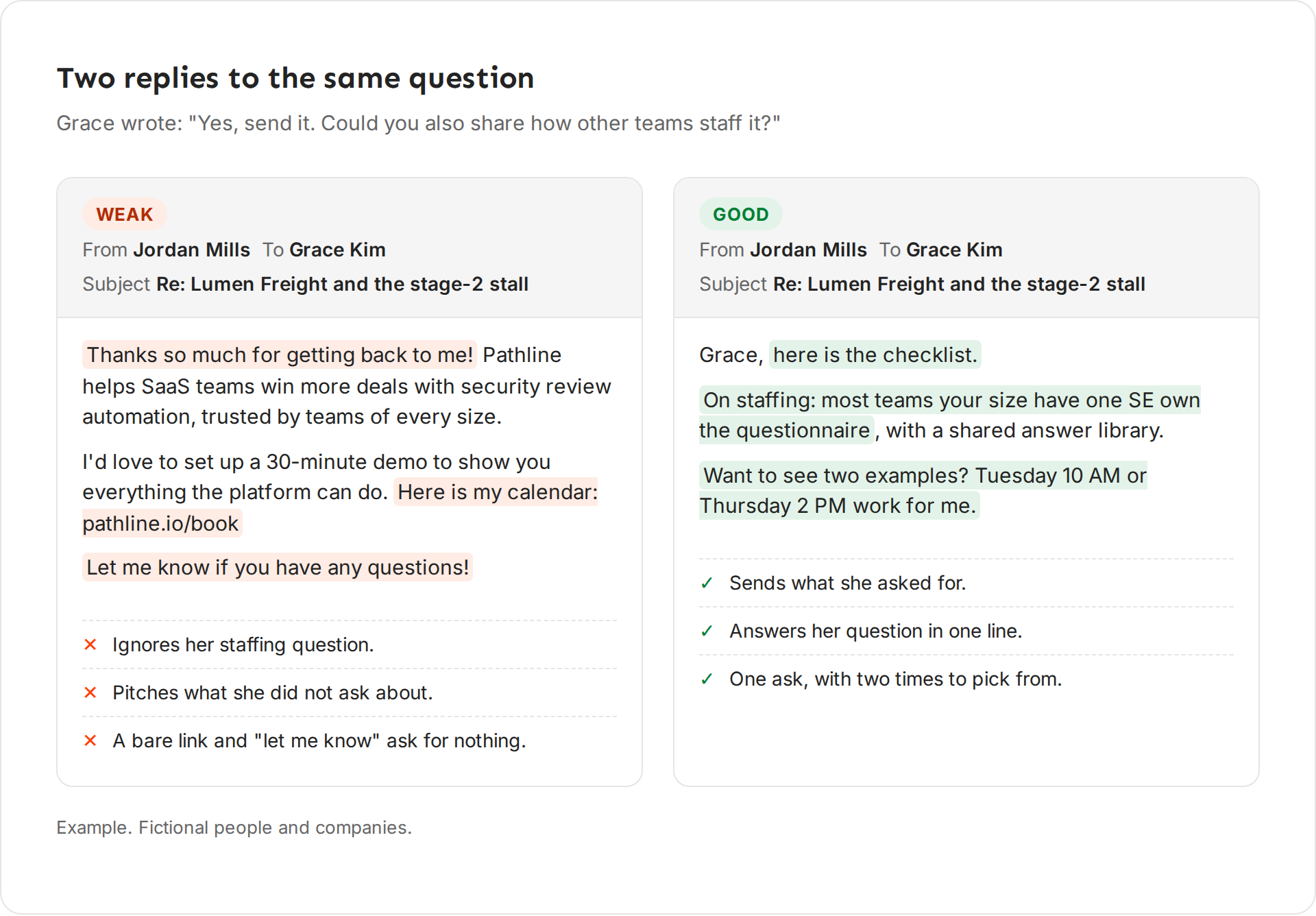
The weak reply ignores her question, adds a pitch and ends on "Let me know". The good reply sends the checklist she asked for, answers the staffing question in one line, and asks one question with two times to pick from.
Keys in the composer
| Key | What it does |
|---|---|
| R | Reply to the open thread |
| F | Forward an email thread |
| ⌘ J | Open Ken in the composer |
| ⌘ ↵ | Send, or accept Ken's version when the Ken box has text |
| ⌘ ⇧ ↵ | Send and mark the thread done |
| Esc | Close an open menu or the Ken box. Press it again to leave the text, and again to close the thread. |
If something goes wrong
"Write a reply first." The text is empty. Type the reply, or click AI and pick Draft a reply.
"Add a recipient first." You are forwarding and To is empty. Add the address you forward to.
"Invalid email" and an address. An address in To, Cc or Bcc has a typo. Fix it, then send again.
"At most 5 attachments are allowed." Remove a file, or share a link instead.
"Wait for the upload to finish." A file is still uploading. Send once its chip finishes.
"I sent it too early." Click Undo while the message says "Sending in". After 10 seconds it sends.
"Ken couldn't draft this reply." Click AI and try again. If it keeps failing, write the reply yourself.
"There is no Forward, Feedback or Templates on this thread." It is a LinkedIn thread. The LinkedIn composer has only AI and Cancel, and there is no email to forward.
Next: Handle every kind of reply, Sort and clear the Inbox or Connect your calendar and share booking links.