Today is the first screen in Ken and your list for the day. It collects the touches waiting for your approval, new replies, today's meetings and fresh signals on your accounts. Work it from top to bottom once each morning, mark each item done or snooze it, and nothing slips.
Open Today
-
Click Today in the sidebar, or press G then T.
-
Read the top of the page. The header shows the date and your progress, such as "0 of 15 done". Below it, Ken's brief says what changed overnight and how many things need you before 10 AM.
-
To ask Ken about something in the brief, click one of the chips under it, such as "Prep me for the Halcyon call".
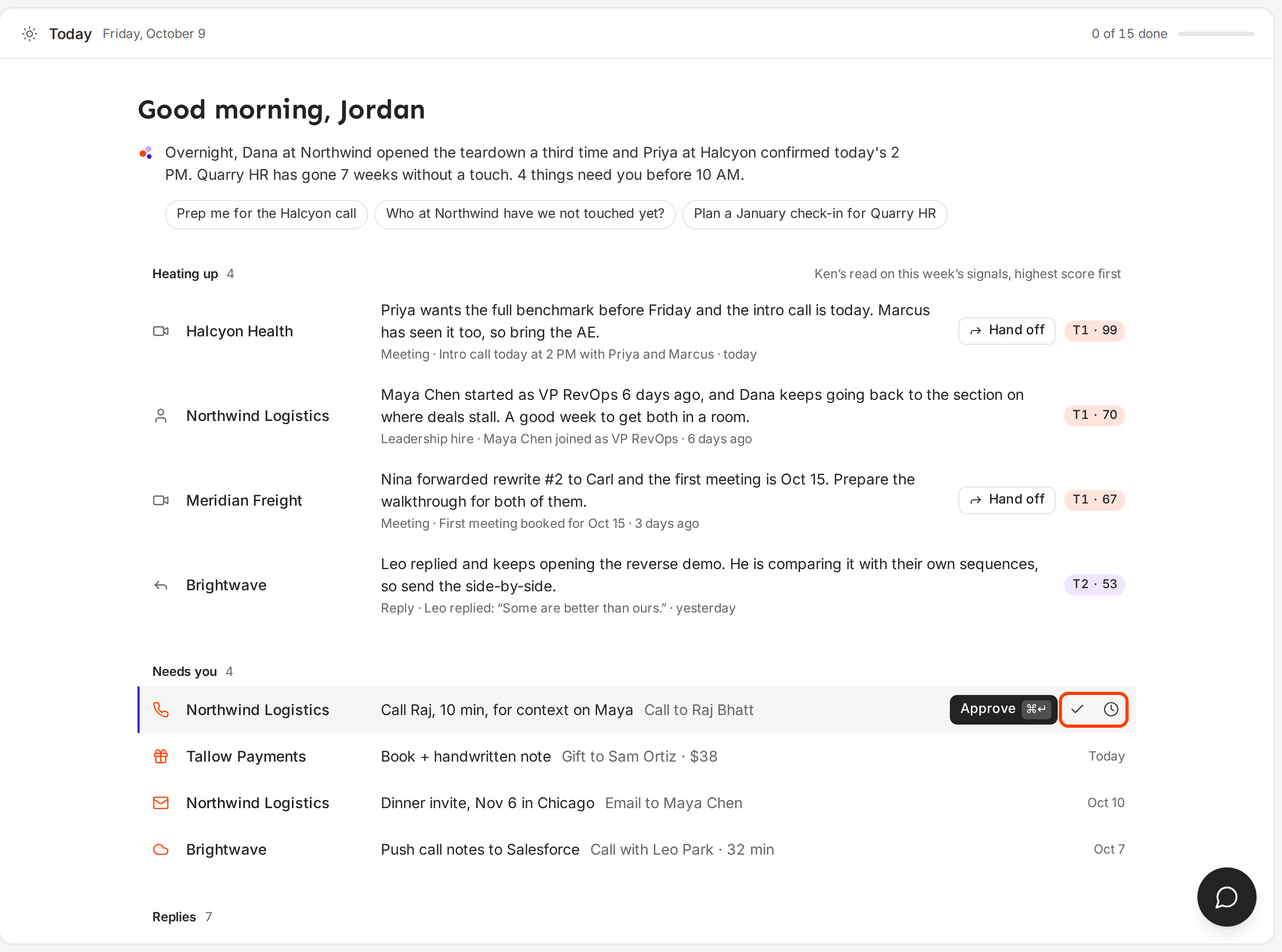
The selected row shows Approve, Done and Snooze.
What each group means
Ken sorts your day into groups. A group only shows when it has something in it.
| Group | What is in it | What you usually do |
|---|---|---|
| Heating up | Up to 4 accounts with a signal in the last 7 days, highest score first. | Act on the top one. If a row shows Hand off, the account is ready for your account executive. |
| Needs you | Touches Ken planned on your accounts that wait for your approval: emails, calls, LinkedIn steps and gifts. | Review, then approve or snooze. |
| Waiting on others | Touches sent from a client's inbox. They are read-only until the client approves. | Nothing until the client approves. |
| Replies | New replies that need an answer, with Ken's label, such as Interested or Objection. | Open the reply and answer it in the Inbox. |
| Meetings | Today's meetings. | Click Open brief to prepare. Mark it done once you are prepared. |
| Signals | New events at your accounts, such as a new CFO. | Decide whether the signal changes your plan. |
| Campaign batches | Bulk emails from your campaigns, such as "40 first-touch emails ready". | Click Review to read the samples Ken picked, then approve the batch, such as Approve 40. |
Items you clear move to Done at the bottom of the page. Click Done to see them.
Right-click a row for more, such as Open account or Ask Ken about this.
Review and approve a touch
-
Press J and K to move down and up the list, or point at a row.
-
Press ↵ to open the touch. The review drawer opens on the right.
-
Read Why now. It says why Ken planned this touch for today. Then check Sources, where Ken found each fact the message uses.
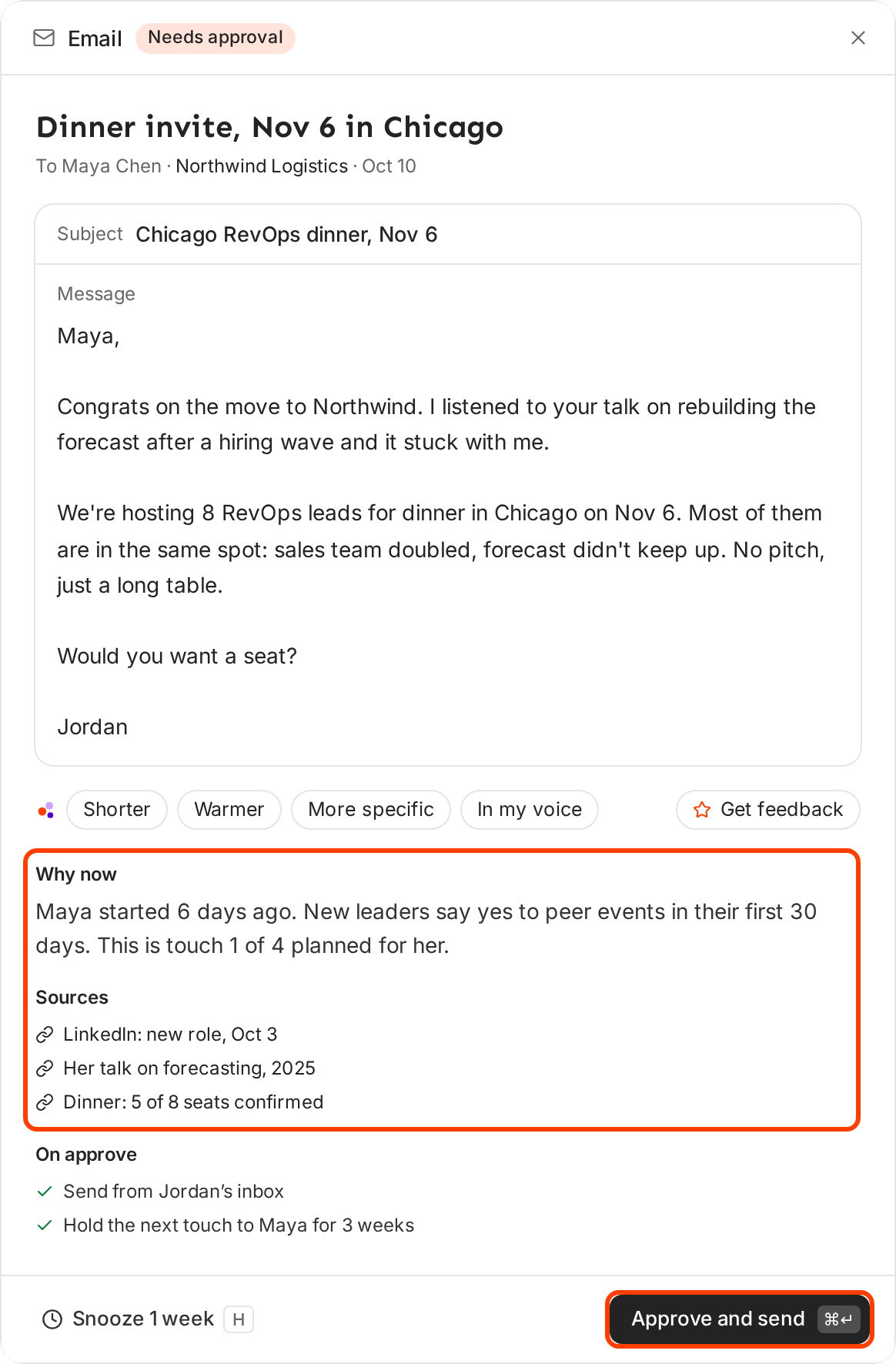
Check Why now and Sources before you approve. -
Edit the message if it needs it. Click it to type, or click a rewrite: Shorter, Warmer, More specific or In my voice.
-
Click Get feedback to grade the message out of 10. The score drops when the message runs long, asks no question or more than one, or says nothing specific to the reader. A score of 7.5 or more reads "Keep".
-
Read On approve. It lists what Ken does when you approve, such as which inbox sends the email and how long Ken waits before the next touch to that person.
-
Click Approve and send, or press ⌘ ↵ (Ctrl ↵ on Windows).
The button names what happens. It reads Mark call done for a call, Approve and order for a gift, and Approve and follow, Approve and like or Approve and post for LinkedIn steps.
You can also approve without opening the drawer. Select the row, then click Approve or press ⌘ ↵.
Done, snooze and undo
The selected row shows its main action, such as Approve or Open notes, then Done (the check mark) and Snooze (the clock). Press E for done or H for snooze.
| Row | Done | Snooze |
|---|---|---|
| A touch | Leaves Today. The touch still waits in the account's plan. | Moves the touch one week later. |
| A reply | Marks the thread done in the Inbox too. | Sets an Inbox reminder and saves the thread. The toast says the day it comes back. |
| A meeting | Marks it as prepped. | Brings it back next Monday. |
| Anything else | Clears it. | Brings it back next Monday. |
After Done or Snooze, a toast shows Undo for 5 seconds. Click it, or press Z, to put the row back.
Rows in Waiting on others have no Done or Snooze. They belong to the client until the client approves. A touch you can't approve has no Snooze either.
A daily routine
Today works best as one short session at the start of the day, in the same order every time.
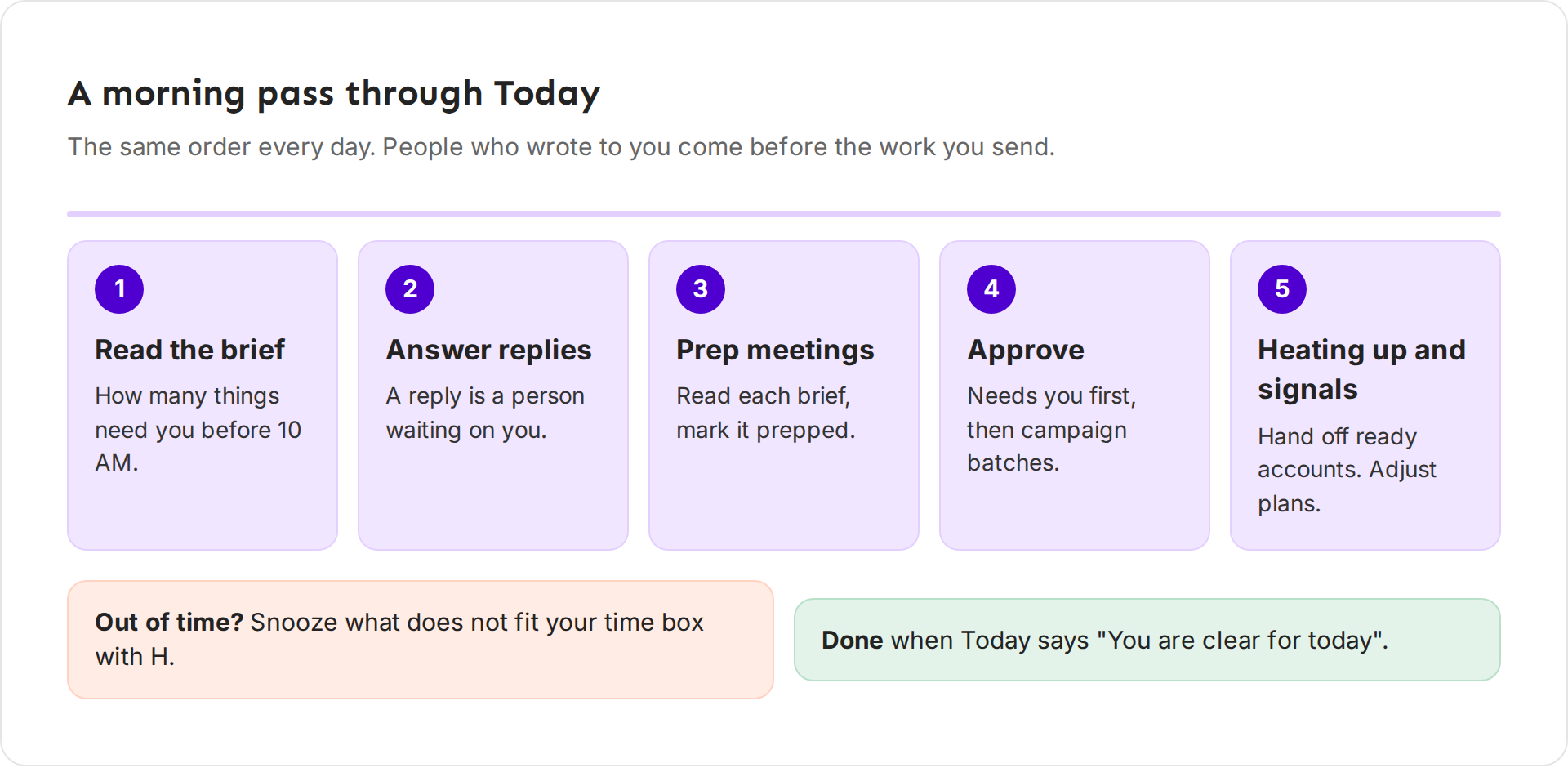
- Read the brief. It tells you how many things need you before 10 AM.
- Answer Replies. These are people waiting on you, so they come first.
- Prep Meetings. Open each meeting's brief and mark it done once you are prepared.
- Approve touches and batches. Work through Needs you, then Campaign batches.
- Act on Heating up and Signals. Click Hand off on an account that is ready for your account executive. For the others, decide whether the signal changes your plan.
Give the session a fixed time box, such as 20 minutes, and snooze what does not fit. You are done when the page says "You are clear for today". Ken brings the next batch the next morning at 7 AM.
Tips from our team
- Do the replies before the approvals. A reply is a person who already answered you. A planned touch can wait an hour.
- Approve fewer, better touches. If Get feedback says "Rewrite so it is easier", fix it or click Shorter before you approve. A short, specific message beats a long one.
- Use Done for work you finished elsewhere. If you called someone from your phone, mark the call row done so Today stays honest.
- Don't snooze the same item twice. If you snoozed it last week, decide now: do it, or mark it done.
If something goes wrong
"Snooze does nothing on this row." The row is in Waiting on others, or the touch belongs to someone else to approve. Only that person can move it.
"I approved the wrong touch." Click Undo in the toast, or press Z, within 5 seconds. Approving a campaign batch has no Undo, so review its samples first.
"There is no Approve button on a row." The touch is waiting on a client's approval, or it is not yours to approve. Open it to read it.
"Marking a reply done or snoozing it needs inbox access." Your role can't change the Inbox. Ask a workspace admin for access, or leave the reply for a teammate.
"Today is empty." That is the goal. The page says "You are clear for today", and Ken brings the next batch the next morning.
"A row keeps coming back." You snoozed it. Mark it done instead, or open it and act on it.
Next: Reply from the Inbox, Handle every kind of reply or What Ken does on its own.