Everything you do every day in Ken works from the keyboard. Learn the five keys you use most, J, K, E, H and ⌘ ↵, and you can clear Today and the Inbox without the mouse. This page lists every key by screen.
On Windows and Linux, use Ctrl wherever this page shows ⌘. For example, the command menu is Ctrl K.
See the shortcuts in the app
- Press ? on any screen. The Keyboard shortcuts sheet opens.
- Press Esc to close it.
You can also open it from the account menu at the bottom of the sidebar, with View shortcuts in Settings, Preferences, or by typing "Keyboard shortcuts" in the command menu.
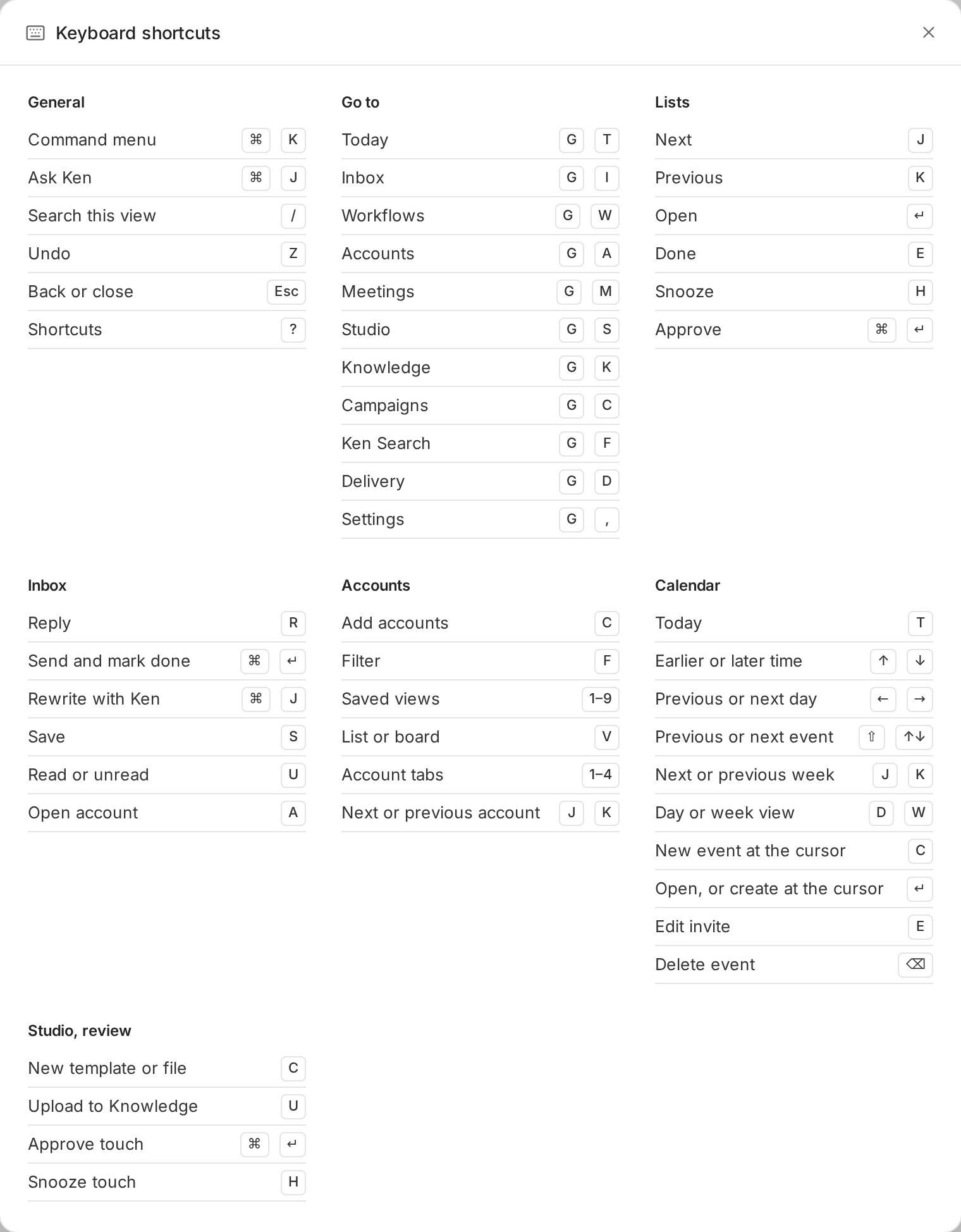
The sheet shows the keys you use most. This page lists every key, including the ones the sheet leaves out.
The command menu
The command menu finds any screen, account, campaign, template or setting, and runs actions such as New campaign.
- Press ⌘ K, or click Search or jump to at the top of the sidebar.
- Type a few letters, such as "deliv". When Ask Ken is on for you, the first result is Ask Ken with what you typed. The matches follow.
- Press ↓ and ↑ to pick a result. The list wraps from the bottom to the top.
- Press ↵ or Tab to open it. Press Esc to close the menu.
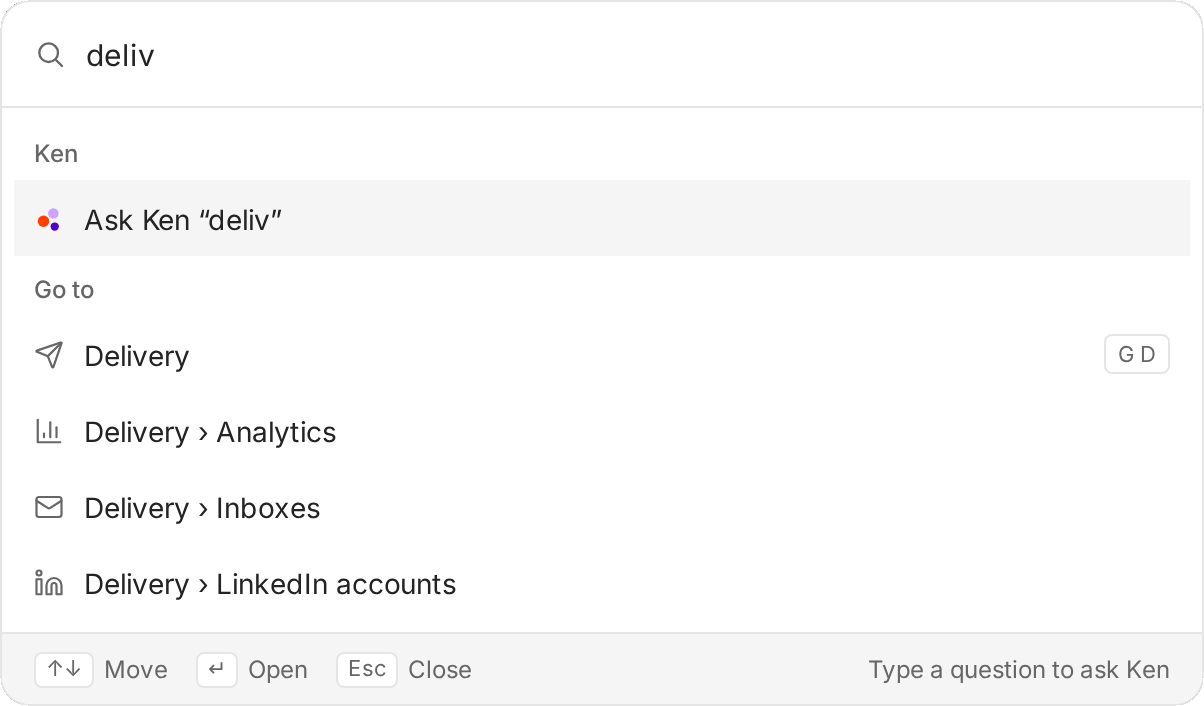
Before you type, the menu lists the screens, your first accounts and common actions: Add accounts, Buy credits, Buy Ken inboxes, New campaign, New template, New workflow, Keyboard shortcuts, and switching between light and dark theme.
Go to a screen
Press G, let go, then press the screen's letter within one second.
| Keys | Screen |
|---|---|
| G then T | Today |
| G then I | Inbox |
| G then M | Calendar |
| G then A | Accounts |
| G then C | Campaigns |
| G then F | Search |
| G then W | Workflows |
| G then S | Studio |
| G then K | Knowledge |
| G then D | Delivery |
| G then , | Settings |
| G then P | Approvals, for client seats |
| G then H | Share, when share links are on for your workspace |
The shortcut sheet calls Calendar "Meetings" and Search "Ken Search". The keys are the same.
Anywhere
| Keys | What it does |
|---|---|
| ⌘ K | Open the command menu. Works while you type. |
| ⌘ J | Ask Ken. Works while you type. In the reply composer it opens Ken in the composer. |
| / | Search this view |
| Z or ⌘ Z | Undo the last action while its toast shows |
| Esc | Go back, or close the top layer |
| ? | Open the shortcut sheet |
Lists
These work on Today, the Inbox and the other lists.
| Keys | What it does |
|---|---|
| J or ↓ | Next item |
| K or ↑ | Previous item |
| ↵ | Open the item |
| E | Mark done |
| H | Snooze. In the Inbox, set a reminder. |
| ⌘ ↵ | Approve, where there is something to approve |
Today
| Keys | What it does |
|---|---|
| ↵ | Open the row. A touch opens in the review drawer. |
| E | Mark the row done. Rows in Waiting on others can't be marked done. |
| H | Snooze the row. Rows waiting on someone else can't be snoozed. |
| ⌘ ↵ | Approve the touch |
In the review drawer, ⌘ ↵ approves, H snoozes the touch one week, and Esc closes the drawer.
Inbox
| Keys | What it does |
|---|---|
| J or ↓, K or ↑ | Next or previous thread. With a thread open, opens the next or previous one. |
| ↵ | Open the thread. In an open thread, start a reply. |
| R or C | Reply |
| F | Forward an email thread |
| X | Select the thread for bulk actions |
| E | Mark done, or not done |
| ⇧ E | Mark not done |
| H | Remind in 2 work days, or on the check-in date Ken suggested |
| T | Change the label or add a tag |
| S | Save or unsave |
| U | Mark read or unread |
| A | Open the account or campaign |
| Esc | Close a menu or the Ken box, leave the text, then close the thread |
In the reply composer:
| Keys | What it does |
|---|---|
| ⌘ J | Open Ken in the composer |
| ⌘ ↵ | Send. When the Ken box has a new version, accept it. |
| ⌘ ⇧ ↵ | Send and mark the thread done |
| / in the text | Attach files, insert a template or booking link, or ask Ken |
The shortcut sheet lists Send and mark done next to ⌘ ↵. In the composer, ⌘ ↵ only sends. Add ⇧ to send and mark the thread done.
Accounts
| Keys | What it does |
|---|---|
| C | Add accounts |
| F | Filter |
| 1 to 9 | Your saved views, in order |
| V | List or board |
| J and K (or ↓ and ↑), then ↵ | Move through the list and open an account |
On an account page:
| Keys | What it does |
|---|---|
| 1 to 4 | Tabs: Activity, People, Assets, Research |
| J or K (or ↓ and ↑) | Next or previous account |
| Esc | Close what is open, then go back to the list |
Opportunities is a tab at the top of Accounts, when it is on for your workspace. There, C adds an opportunity, F filters, V switches list or board, and 1 to 3 pick the views Open, Closing soon and Won.
People is the other tab in the Accounts top bar. There, J and K move, ↵ opens the person, X selects a row, F filters, and N adds a person if you can edit.
Calendar
| Keys | What it does |
|---|---|
| T | Today |
| ↑ or ↓ | Earlier or later time |
| ← or → | Previous or next day |
| ⇧ ↑ or ⇧ ↓ | Previous or next event |
| J or K | Next or previous week in Week view, next or previous day in Day view |
| D or W | Day or week view |
| C | New event at the cursor |
| ↵ | Open the selected event, or create one at the cursor |
| E | Edit the invite of the open event. Only the organizer can edit it. |
| ⌫ or Delete | Delete the selected event |
Other screens
| Screen | Keys |
|---|---|
| Campaigns | C new campaign, if you can edit campaigns |
| Workflows | C new workflow. ↵ or N puts the cursor in the prompt. |
| A workflow | T test run. ⌘ D duplicates the selected step, and ⌫ or Delete deletes it. Esc goes back. |
| Studio | J and K (or → and ←) next and previous, ↓ and ↑ by row, ↵ open, C new template or file, U upload to Knowledge |
| Studio builder | ⌘ ↵ approves when Ken asks for your decision or the page says "Ready to approve". Esc goes back to Studio. |
| Knowledge | C new file, U upload |
| Knowledge review | J and K move, A accept, D dismiss |
| Settings | J and K (or ↓ and ↑) next and previous page |
For client seats, on Approvals, J and K move, ↵ opens the approval, ⌘ ↵ approves and S skips. In an open approval, E edits and Esc closes.
When a key does nothing
- You are typing. Single keys don't work in a text field. Press Esc to leave the field first. ⌘ K and ⌘ J still work.
- A menu or dialog is open. Keys go to the open layer. Close it with Esc.
- You held Alt. Ken ignores single keys pressed with Alt or Option.
- The G key timed out. Press the second letter within one second of G.
To hide the key hints on buttons and in lists, turn off Show shortcut hints in Settings, Preferences, under Behavior. The keys still work.
If something goes wrong
"Ctrl K goes to my browser's search bar." The Ken page did not have focus. Click inside the page, then press it again.
"I pressed ↵ in the command menu and Ken started answering." The first result is Ask Ken. Press ↓ to reach the match you want before ↵.
"G then P does nothing." Approvals exists only for client seats.
Next: Work through Today, Ask Ken from any page or Sort and clear the Inbox.