The Inbox keeps every reply, but you only need to work one tab: To Reply. Ken labels each reply and moves auto-replies, out-of-office notes and plain no's out of your way. This page shows what each tab holds, how to filter, and how to clear the list every day.
The tabs
-
Open Inbox in the sidebar, or press G then I.
-
Pick a tab at the top. To Reply opens first.
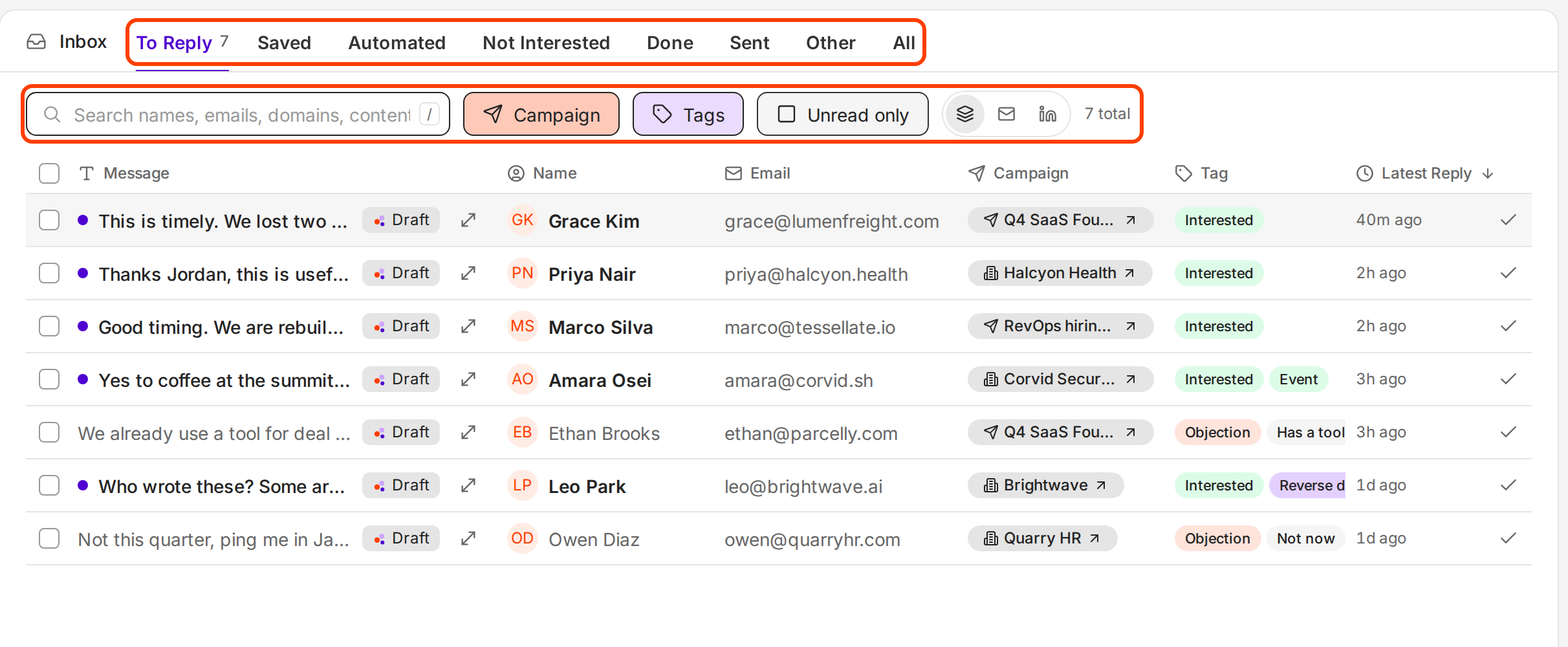
Tabs at the top, filters under them.
| Tab | What it holds |
|---|---|
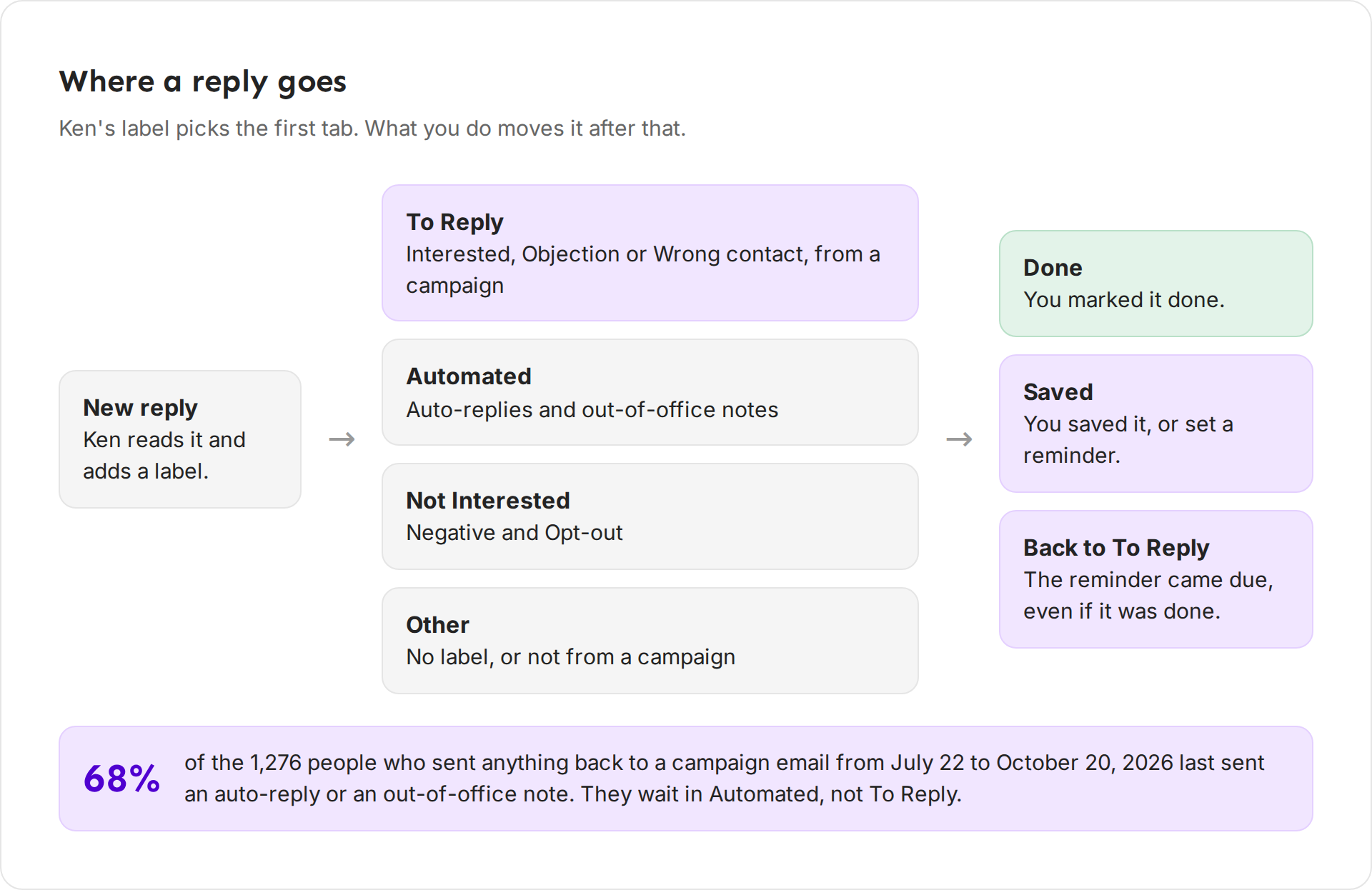
| To Reply | Replies to a campaign that Ken labeled Interested, Objection or Wrong contact, until you mark them done. |
| Saved | Threads you saved, and threads with a reminder. |
| Automated | Auto-replies and out-of-office notes. |
| Not Interested | Replies labeled Negative or Opt-out. |
| Done | Threads you marked done. |
| Sent | Messages you sent. |
| Other | Replies without a label, and replies that are not from a campaign. |
| All | Every reply, including bounces. |
A reminder that comes due brings its thread back to To Reply, even if you marked it done.
Why To Reply leaves so much out
Most replies are not written by a person. From July 22 to October 20, 2026, we counted 1,276 people across Ken workspaces who sent anything back to a campaign email. For 869 of them (68%), the latest reply was an auto-reply or an out-of-office note. Ken moves those to Automated, so To Reply shows the people who wrote to you.
Filter the list
Use the row under the tabs to narrow any tab.
-
Search. Press / or click the search box, and type a name, an email address, a domain or words from the message.
-
Campaign. Click it and pick All replies, Accounts (1:1) for one-to-one account threads, All campaigns, or one campaign. Each choice shows its count.
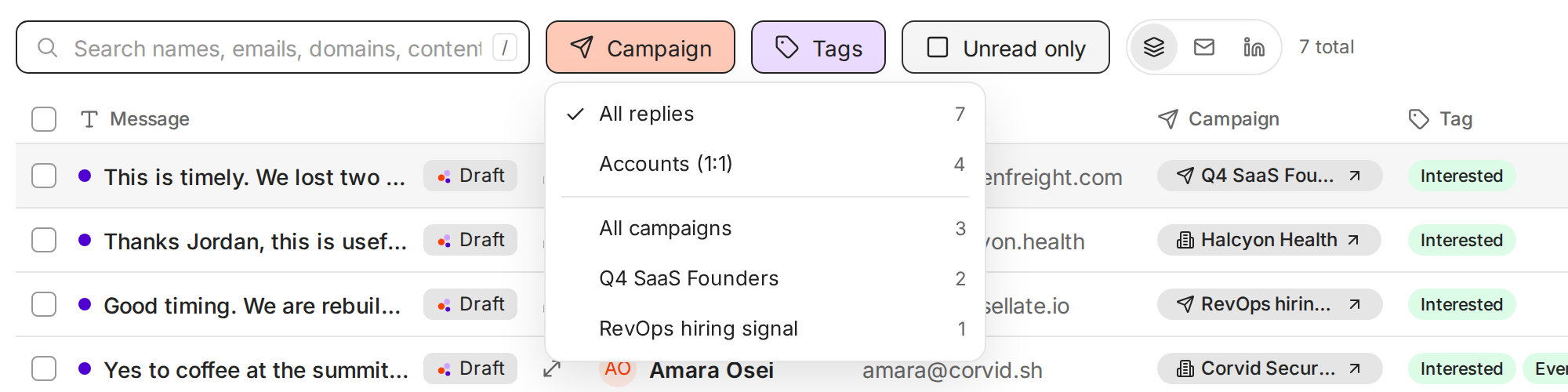
Pick one campaign to work it on its own. -
Tags. Click it and tick one or more tags, such as "Not now" or "Has a tool". All tags clears the choice.
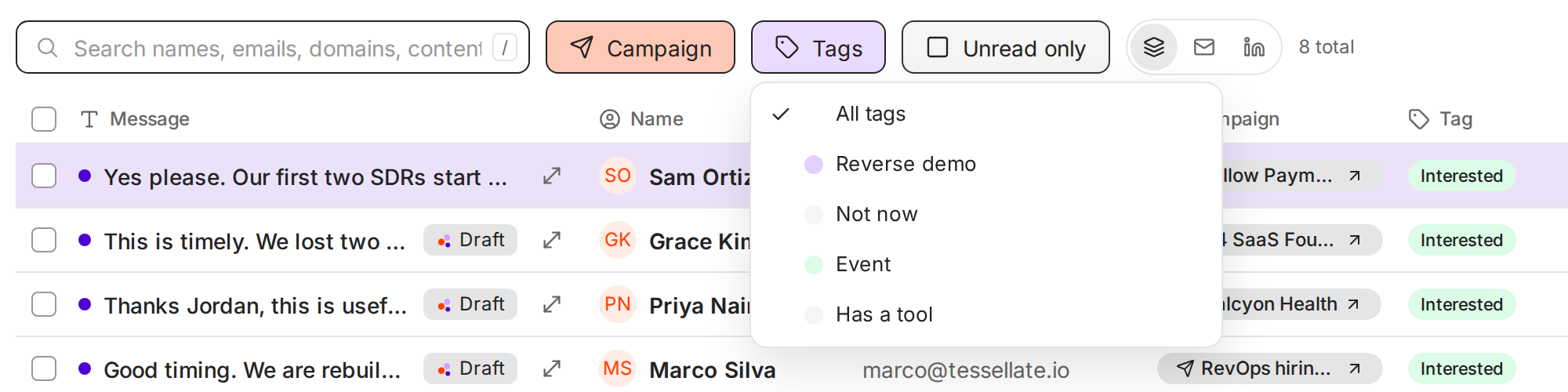
Tick several tags to see replies with any of them. -
Unread only. Click it to hide what you have read.
-
Channel. Click the stack icon for all channels, the envelope for email, or the LinkedIn icon for LinkedIn.
The count at the end of the row, such as "8 total", shows how many replies match.
Labels and tags
Ken labels each reply: Interested, Objection, Wrong contact, Negative, Opt-out or Out of office. The label decides the first tab, so check it when a reply seems to be missing. To change it, open the thread and press T, or click the label chip. A reply without a label waits in Other.
The same menu adds your own tags. Type a name, and pick Create if the tag is new. Tags don't move a reply between tabs. Use them to group replies for later, with the Tags filter.
Mark replies done
A reply leaves To Reply when you mark it done, or when you change its label to one that belongs in another tab, such as Negative or Out of office. To answer and clear a reply in one step, send with ⌘ ⇧ ↵ (Ctrl ⇧ ↵ on Windows).
One at a time
- Open the thread, or select its row with J and K.
- Press E, or click the check mark at the end of the row. The toast says "Marked done" with the person's name, and offers Undo.
With a thread open on To Reply, E also opens the next thread, so you can work down the list without the mouse. This follows Advance after done in Settings, Preferences, which is on by default. To bring a thread back, open it in Done and press ⇧ E.
Several at once
-
Tick the box at the start of each row, or press X on a selected row.
-
The bar on the right of the filter row shows how many you selected, such as "3 selected".
-
Click the check mark (Mark as done). The other buttons are Save, Mark as read and Clear selection.
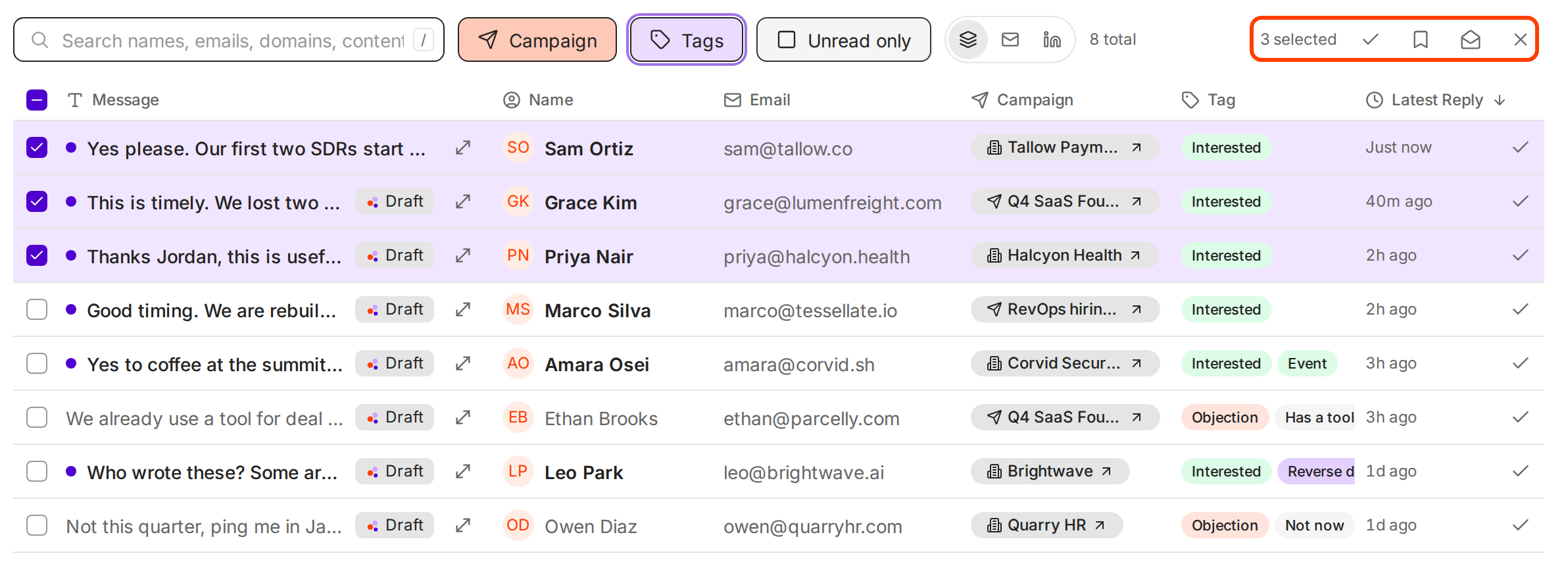
The bulk bar appears once you tick a row.
The toast confirms it, for example "Marked 2 replies done", with Undo.
A daily routine to reach an empty Inbox
- Open To Reply with no filters. This is the real list.
- Answer every Interested reply first. Use Ken's draft when there is one. See Reply from the Inbox.
- Work the rest top to bottom. Answer, set a reminder, or mark done. Every thread leaves with a decision.
- Bulk-clear what needs no answer. Filter to one campaign, tick the threads you already handled, and mark them done together.
- Glance at Automated and Other once. Look for a real reply that Ken labeled as an auto-reply or left without a label, and set its label with T.
When To Reply is empty, the Inbox says "Inbox zero!".
Tips from our team
- Mark done means decided, not deleted. Done threads stay in Done and in All, and a reminder still brings them back.
- Don't use Saved as a to-do list. Nothing brings a saved thread back on its own. Set a reminder with a date instead.
- Work one campaign at a time when replies pile up. The same campaign gets the same questions, so your answers get faster.
If something goes wrong
"A reply is missing from To Reply." Check Automated, Not Interested and Other. Ken may have labeled it as an auto-reply or a no, or left it without a label. Open it and press T to fix the label. A reply that is not from a campaign stays in Other.
"A thread I marked done is back." A reminder came due. Answer it, or set a new reminder.
"The list shows nothing, but the tab has a count." A filter is on. Set Campaign to All replies, clear Tags, and turn off Unread only.
"I marked the wrong replies done." Click Undo in the toast. Later, open Done, tick them, and click Mark as not done.
Next: Snooze and remind, Handle every kind of reply or Keyboard shortcuts.