A company rarely buys because one person says yes. The person who feels the problem, the person who owns the budget and the person who signs all have a say. This guide shows how to map those people on an account's People tab, fill the gaps, and reach them in an order that moves the deal.
Why one contact is not enough
A deal with one contact stalls easily. That person goes on holiday, changes jobs, or likes your idea but can't get budget for it. When three people at the account know you, a quiet week from one of them does not stop the deal.
More people also means more chances to be relevant. The CRO cares about the number. The VP of Sales cares about how fast new reps ramp. One message can't speak to both.
Read the People tab
- Open the account and click People, or press 2.
- Read the chart. Each card shows a person, their title, their priority (P1 is the most important) and their role.
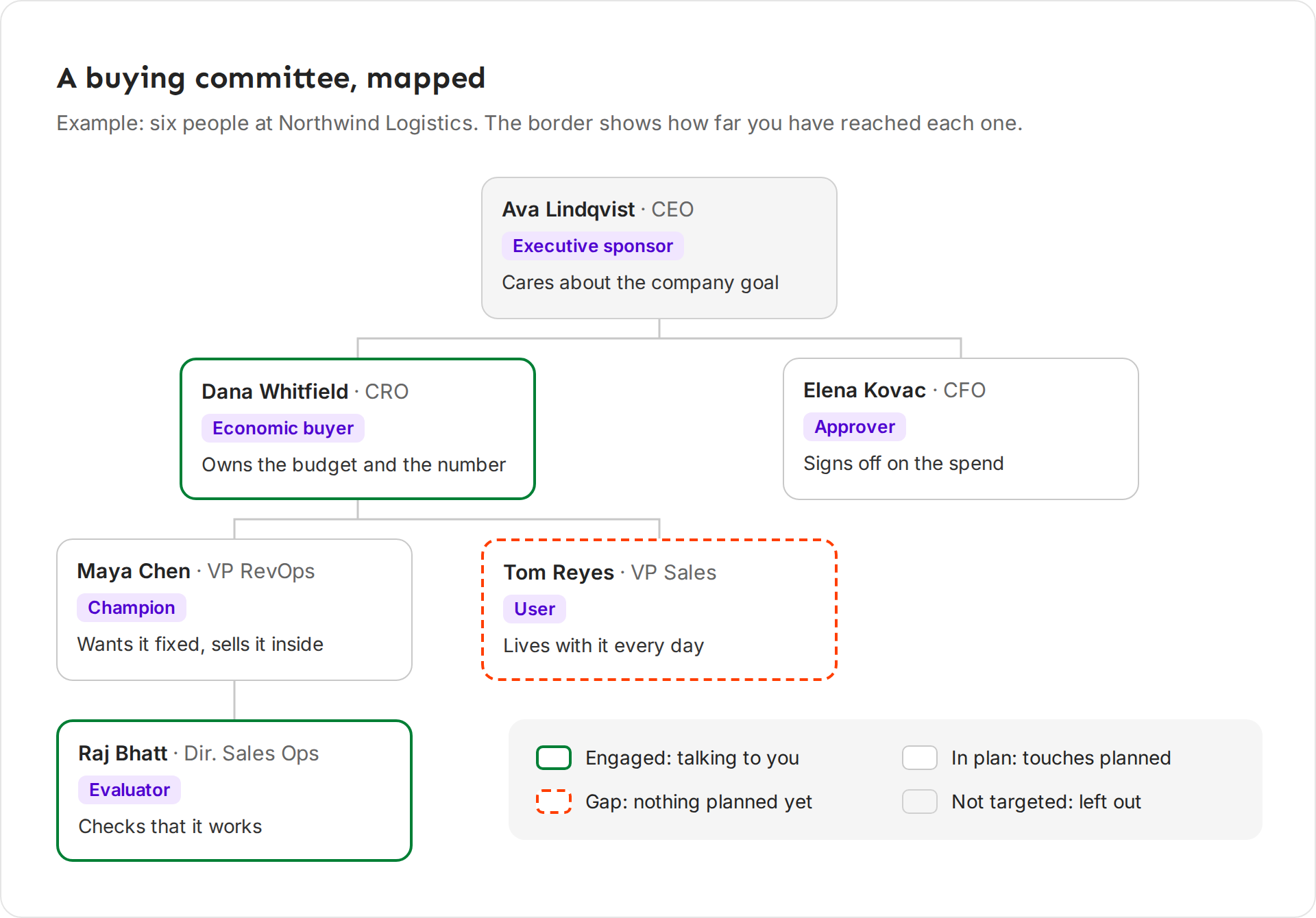
- Read the border. It shows how far you have reached each person.
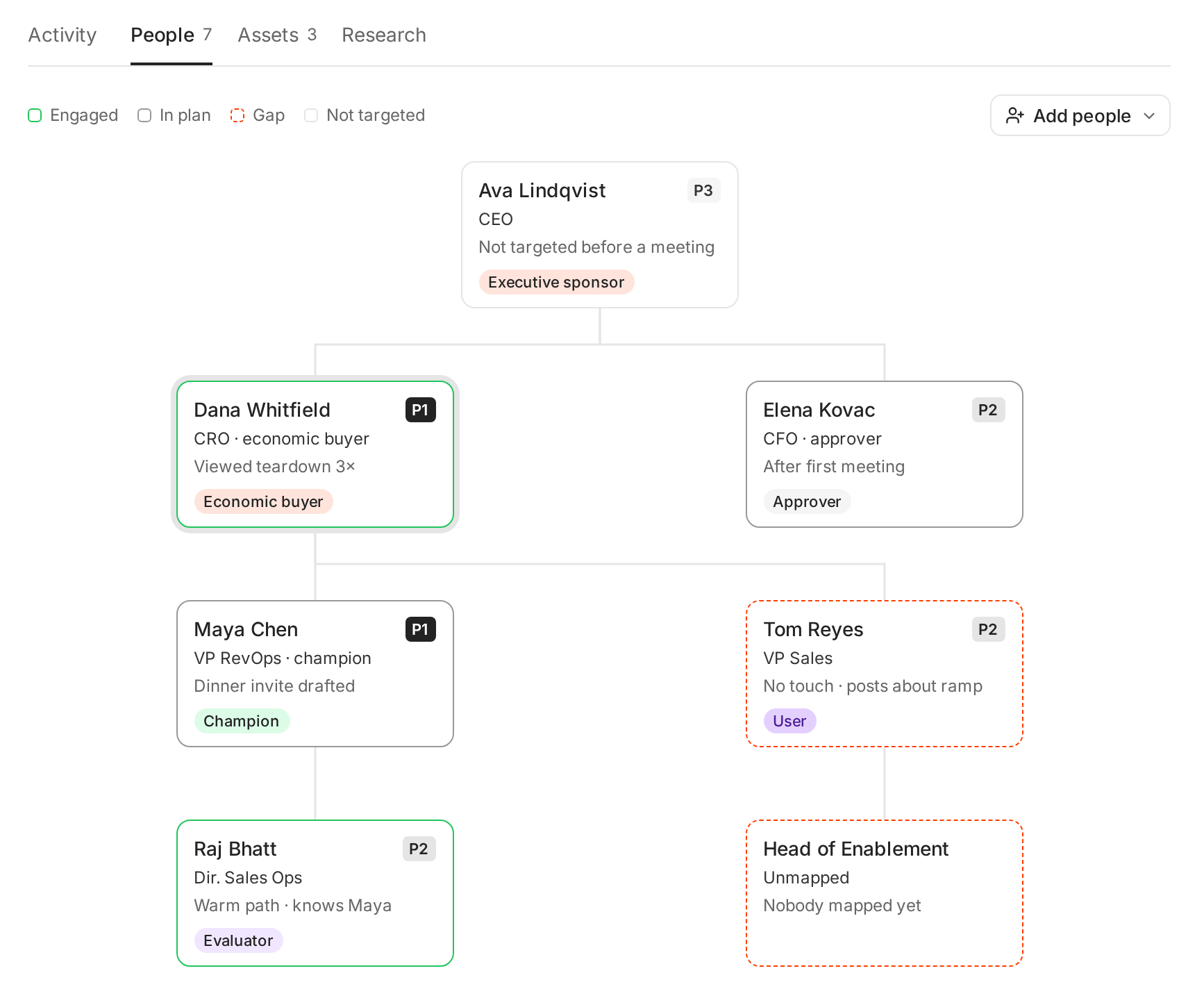
| Border | Means |
|---|---|
| Engaged (solid green) | They replied or are talking to you. |
| In plan (solid gray) | Ken has touches planned for them. |
| Gap (dashed orange) | Nothing is planned for them yet. |
| Not targeted (solid light gray) | Ken leaves them out of the plan. |
A card with a job title and no name is an open seat. It is a role the account needs that nobody fills yet. It says "Nobody mapped yet", or "Role open" with a Job post link when the company is hiring for it.
Under Properties on the right, Committee shows your coverage, like "4 of 7 mapped". It counts the people who are engaged or in the plan, out of everyone on the chart plus every open seat.
The roles
| Role | Who it usually is | What they care about |
|---|---|---|
| Champion | A leader who feels the problem, like a VP of RevOps | Getting it fixed. Looking good to their boss. |
| Economic buyer | The person who owns the budget, like a CRO | The number, the cost, the risk. |
| Approver | Signs off on the spend, like a CFO or legal | Cost, contract and risk. |
| Evaluator | Checks that it works, like a sales ops director | Setup, data, how it fits their tools. |
| User | Uses it every day, like a VP of Sales or a rep | Less busywork, faster results. |
| Executive sponsor | A senior leader above the deal, like the CEO | The company goal it supports. |
| Blocker | Someone who may say no, like a rival tool's owner | Their own project or budget. |
Pick No role when you don't know yet.
Set a role
- On the People tab, click a person. Their details open on the right.
- Click Committee role and pick a role.
- Click Reports to and pick their manager, so the chart shows the real shape of the team. Pick Nobody (top of the chart) for the most senior person.
To change a priority, right-click the person, point at Priority and pick P1, P2 or P3. Ken uses priority to choose who to contact next.
Find the people you're missing
-
On the People tab, click Add people.
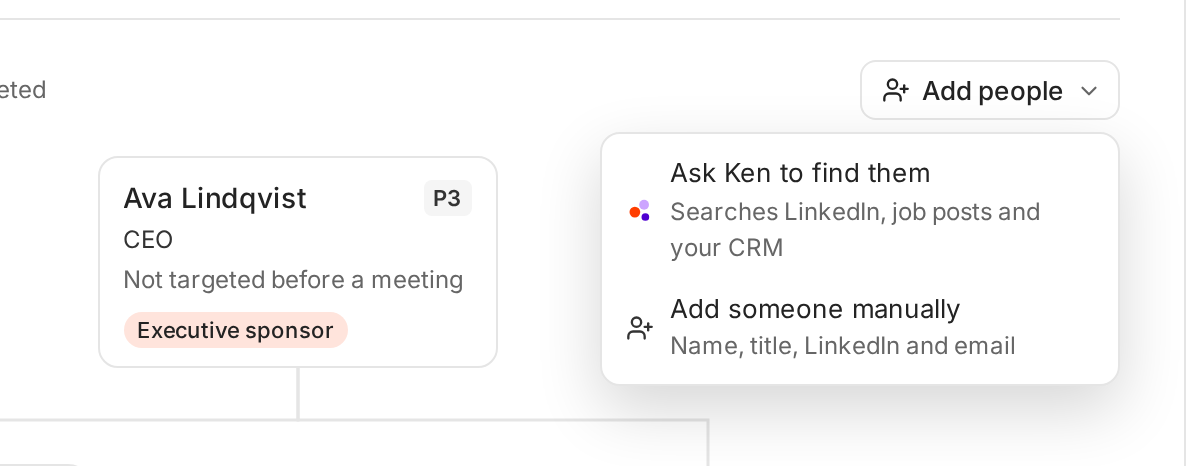
Two ways to add people. -
Click Ask Ken to find them.
-
Under Who's missing?, type who you need, like "whoever owns security". You can leave it empty.
-
Click Find. The tab shows "Ken is mapping the committee" while Ken searches LinkedIn, the web and job posts.
When Ken is done, it shows how many people it added, like "Ken added 2 people", or "Ken found nobody new". To fill one open seat, click the seat and pick Ask Ken to find them.
Ken also maps the committee when you first add an account, so most accounts start with people on the chart.
What it costs. You pay in two parts:
- The search. Ken's research uses credits, based on how much AI work the search takes.
- Emails. After the search, Ken looks for emails for up to 6 P1 and P2 people on the chart who don't have one. Each email Ken finds costs 1 credit. An email Ken can't find costs nothing.
If you run out of credits, the tab shows "Paused · out of credits" with Buy credits. Ken picks the search up again when you have credits. After 14 days without credits, the search stops.
To find the email of one person, click them and click Find email. It costs 1 credit, only if Ken finds one.
Add someone yourself
Use this when you already know the person, from a call, an event or a referral.
- Click Add people, then Add someone manually.
- Fill in Full name, Title, LinkedIn URL and Email. Only the name is required, but Ken can't plan touches to someone with no LinkedIn URL and no email.
- Pick their Committee role, Priority and Reports to.
- Click Add person. Ken shows "Added" with their name.
To add someone who works across two accounts, click them and click Add to another account.
To see everyone Ken has mapped across all your accounts, click People at the top of the Accounts screen.
Who to reach, and in what order
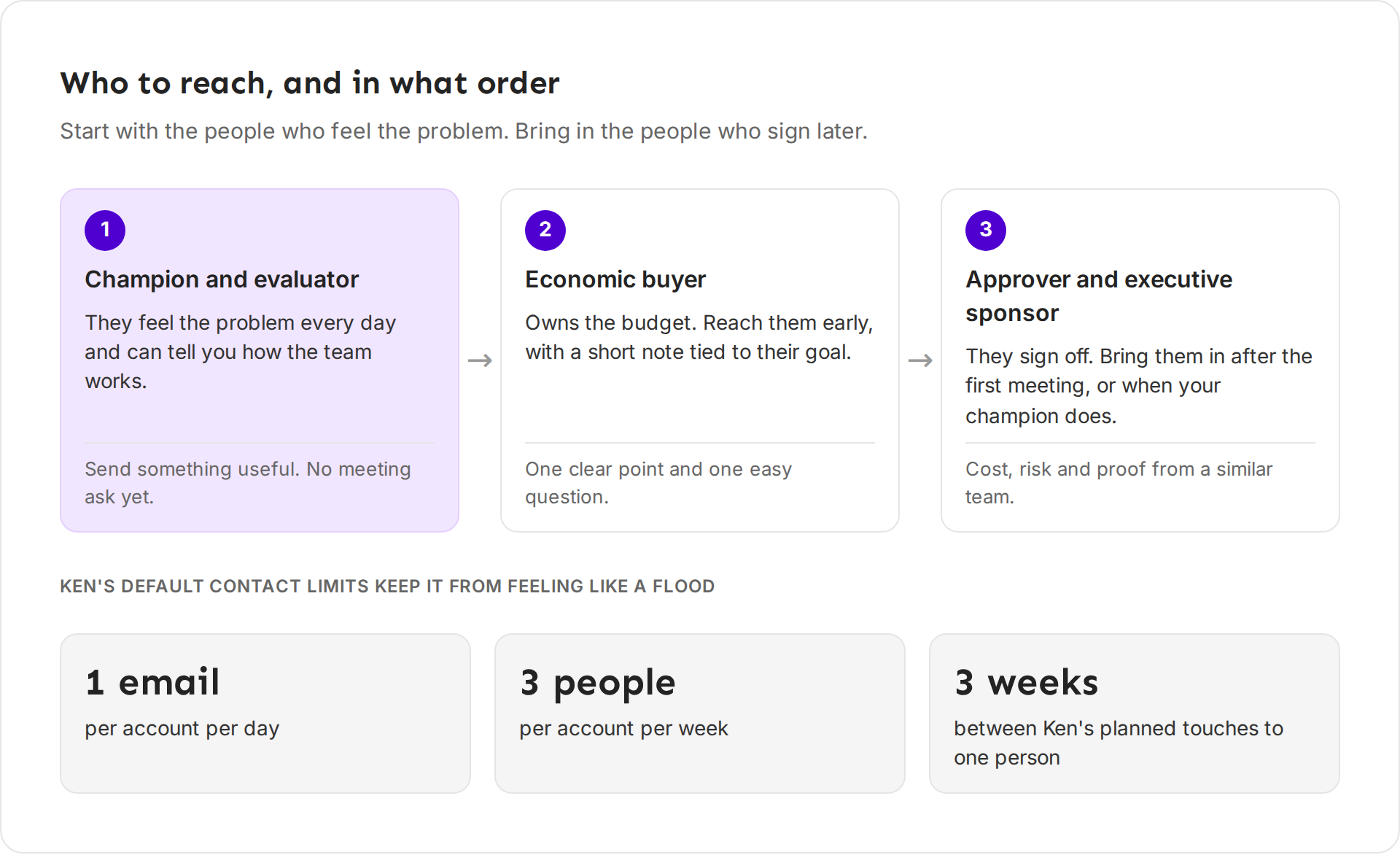
- Champion and evaluator first. They feel the problem and can tell you how the team works. Send something useful, like a checklist or a benchmark, with no meeting ask.
- The economic buyer early. Don't wait for the champion to bring them in. Send a short note tied to their goal, and offer one useful thing.
- The approver and executive sponsor later. Bring them in after the first meeting, or when your champion does. A cold note to a CEO before anyone knows you rarely helps.
- Leave blockers out. Ken never plans touches to a person marked Blocker. Learn their concern through your champion.
Ken's plan uses its own order, and it spreads touches across people first. For each open slot it picks:
- Someone nobody has touched yet.
- Then the person whose last touch was longest ago.
- Then by priority, P1 first.
- Then by role: champion, economic buyer, executive sponsor, approver, evaluator, user.
So Ken usually reaches each person once before it touches anyone a second time. Priority decides who goes first among the new people, so make the person you want reached early a P1. Priority does not hold anyone back, so add a CEO to the chart only when you are ready to reach them.
What to say to each role
Two examples for Northwind Logistics, where Maya Chen just joined as VP RevOps and Dana Whitfield is the CRO.
To the champion, give her something she can forward:
Maya, congrats on the new role. Teams that just hired a RevOps lead usually start with the forecast. We made a one-page checklist that shows where deals stall in stage 2. Want me to send the version for freight SaaS?
To the economic buyer, one point and one offer:
Dana, freight SaaS teams lose most forecast accuracy in stage 2. Two of our customers cut stage-2 slippage by fixing the security review first. Want the one-page breakdown of what they changed?
Keep each message short. Ken's own team keeps a first email to 80 words or fewer and a follow-up under 55. End with one soft ask, such as an offer of something free and useful, never a request for a meeting. Mention a different thing to each person, so that when they talk to each other, they hear one story from two sides.
How many people to map
Map at least 3 people you can reach for each Tier 1 account. Here is why:
- Ken spaces plan touches at least 10 days apart, so a 90-day plan fits about 9 touches.
- By default, Ken waits at least 3 weeks between touches to the same person. So one person gets at most 5 touches in 90 days.
- A plan with fewer than 8 touches is thin. The Activity tab then says "Map more people for a full plan".
So you need at least 2 people Ken can reach for a full plan. A third gives the plan room when someone has no email or goes quiet.
You don't need to email everyone in the same week. By default Ken contacts at most 3 people at one account each week, and sends at most 1 email to the account each day. See Work the account plan for all the limits.
If something goes wrong
- "Ken found nobody new." Ken found no one beyond the people already on the chart. Add a hint under Who's missing?, like a team name, and try again. Or add the person yourself.
- "Ken could not map this account." Click Retry. If it fails again, add people by hand and write to [email protected] with the account name.
- "Paused · out of credits." Click Buy credits. Ken continues on its own.
- "Ken never plans touches to someone." Check their border and role. Ken leaves out people who are Not targeted, blockers, and people with no email and no LinkedIn. Click Find email or add their LinkedIn URL.
- "Maya is already on this committee." That person is on the chart already. Click their card instead of adding them again.
Next: Work the account plan, Hand off an account or Account stages, views and the board.