Every account has one page with everything Ken knows about the company. Read the brief at the top first, then use the tabs and the details on the right to decide your next touch.
Open an account
-
Open Accounts in the sidebar, or press G then A.
-
Click a company to open its page.
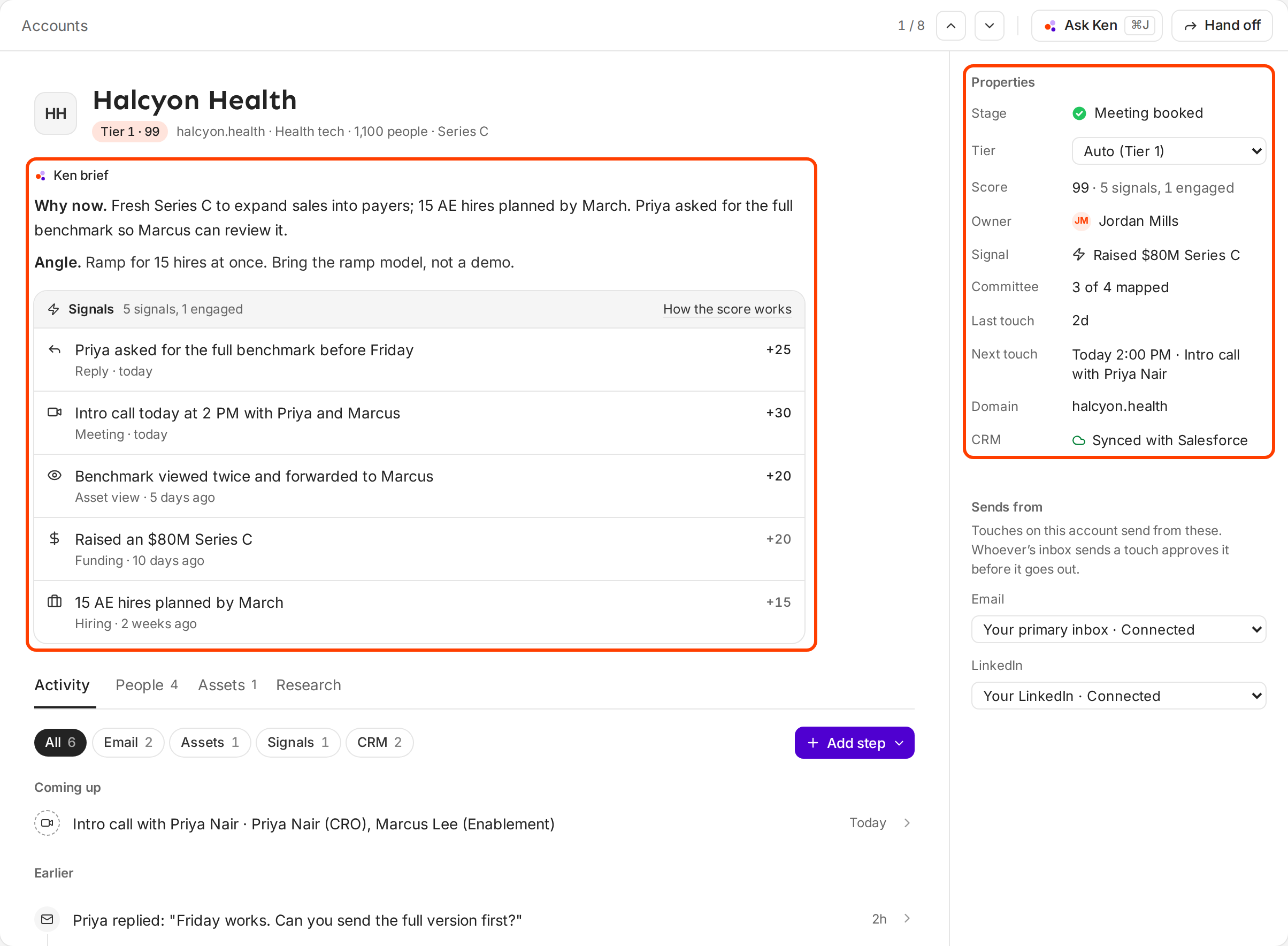
The brief is on the left and the account's details are on the right. -
Press J for the next account and K for the previous one. The top bar shows where you are in the list, like "1 / 8". Press Esc to go back to the list.
Read the Ken brief
The Ken brief is Ken's short summary of the account, in two lines:
- Why now. What changed at the company that makes this a good moment to reach out.
- Angle. What to lead with, based on that change and on what you sell.
Under the brief, Signals lists what Ken found, newest first. The header counts the signals that still add to the score and the engaged people, like "5 signals, 1 engaged". Each row shows what happened, the type of signal, how long ago, and its points:
- Click a signal's text to open its source, like the news story, when Ken has a link for it.
- The number on the right is what that type of signal is worth, like +20 for a funding round. Hover over it to see how many points count toward the score now, because older signals count less.
- A dimmed row adds nothing to the score now, usually because it is more than 90 days old.
- How the score works opens the scoring settings in Knowledge. How signals and tiers work explains them.
Use the tabs
Below the brief are four tabs. Press 1 to 4 to switch between them.
| Tab | Key | What you find |
|---|---|---|
| Activity | 1 | The plan for this account. Coming up lists the next touches and Earlier lists what already happened. Filter with the chips: All, Email, LinkedIn, Calls and meetings, Assets, Signals, CRM and Ken. Click Approve 2 ready to approve every touch that is ready, or Add step to write one yourself. |
| People | 2 | The buying committee. Each person is Engaged, In plan, a Gap or Not targeted. Click Add people to add someone or ask Ken to find them. |
| Assets | 3 | Content made for this account, one version per person. Open one to change it with Ken, or click New asset. |
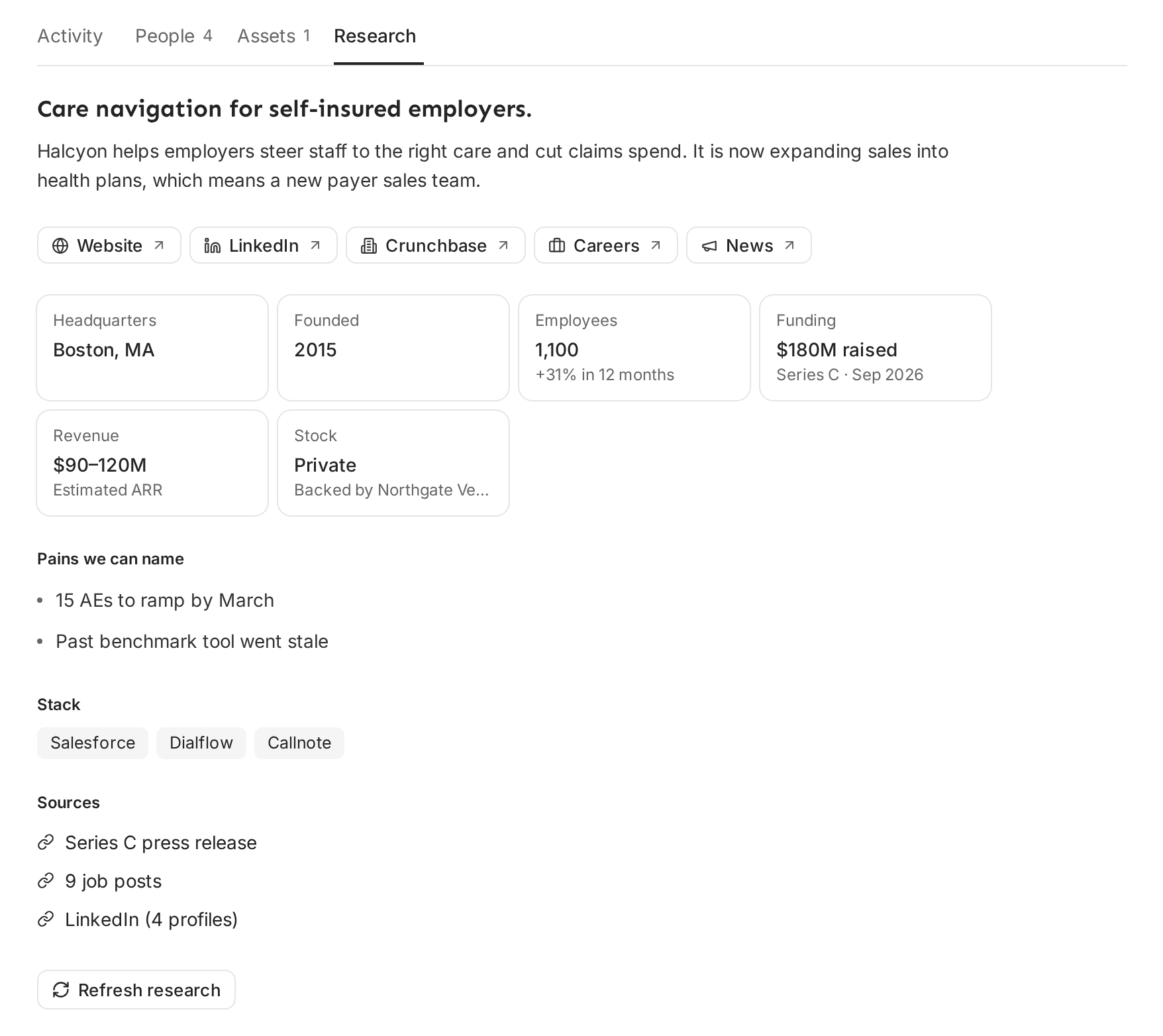
| Research | 4 | What the company does, links to its website and profiles, key facts, Pains we can name, the tools it uses (Stack) and the Sources Ken read. |
Map the buying committee and Work the account plan cover the People and Activity tabs in detail.
Check the details on the right
Under Properties on the right:
- Stage shows where the account is, like Meeting booked. See Account stages, views and the board.
- Tier shows "Auto (Tier 1)" while Ken sets the tier from the score. A tier you pick by hand isn't saved yet, so leave it on Auto.
- Score shows the score and what it is made of, like "99 · 5 signals, 1 engaged".
- Owner is the person who works the account.
- Signal is the newest signal.
- Committee shows how much of the buying committee you cover, like "3 of 4 mapped". It counts the people who are engaged or in a plan, out of everyone on the committee plus the seats still open.
- Last touch and Next touch show the last and next outreach.
- Domain and CRM show the company's website and whether it is synced with your CRM.
- Tags shows the account's tags. Click Add tag to group accounts your own way.
Metrics sums up how the account is going:
| Metric | What it shows |
|---|---|
| Touched | Whether anyone at the account got a touch in the last 7 days |
| Engaged | Whether anyone replied, met with you or viewed an asset in the last 90 days |
| Meetings | Meetings in the last 90 days, plus the ones still to come |
| Committee | People covered out of the whole committee, with the share |
| No-edit drafts | Drafts approved in the last 30 days without a change, out of all approved drafts |
| Time to approve | How long a draft usually waits before someone approves it, over the last 30 days |
Under Sends from, pick the inbox and the LinkedIn account that send touches on this account. By default they are the owner's primary inbox and LinkedIn, shown as Your primary inbox and Your LinkedIn on accounts you own. Whoever's inbox sends a touch approves it before it goes out. Only the account owner or an admin can change these.
Next steps lists what to do now. "Approve:" rows open a touch that waits for you. "Find a way to reach" rows name someone on the committee you cannot reach yet and ask Ken to find a way.
Refresh the research
Ken refreshes research on its own once it is 14 days old. A new touch or signal on the account can also start a refresh.
To ask for a new pass now:
- Press 4 to open Research.
- Click Refresh research at the bottom. Ken shows "Ken is refreshing research".
Check a first email against the brief
Ken drafts the touches from the brief, and you approve each one. Before you approve a first email, or when you write one yourself, check that it uses the brief.
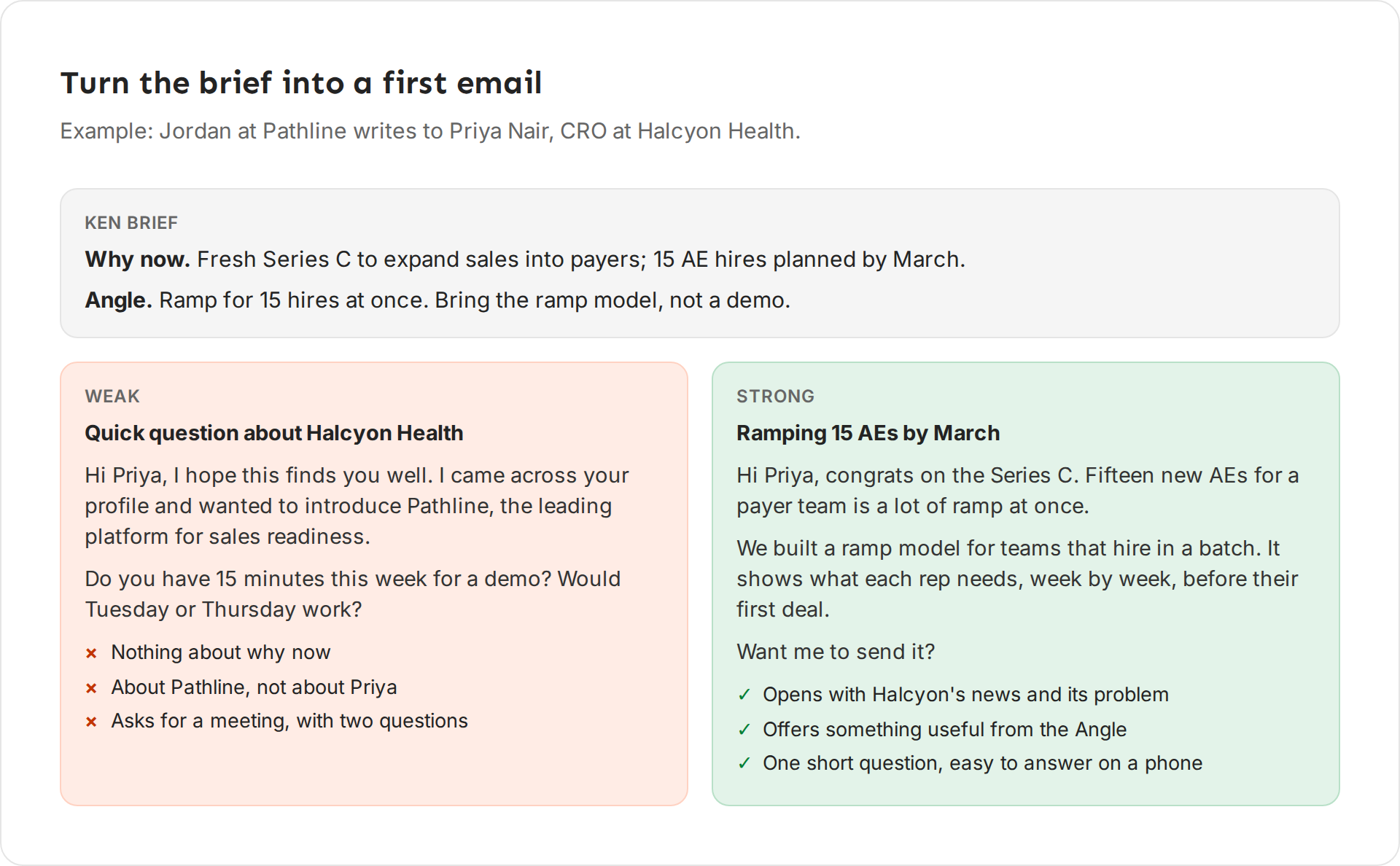
- It opens with Why now. The first line is about them and the change, so it is clear the email was written to this person for a reason.
- It offers the Angle. It gives something useful for free, like a model, a benchmark or an introduction. A first email does not ask for a meeting.
- It asks one short question that can be answered from a phone.
Example: Halcyon Health's brief read "Fresh Series C to expand sales into payers; 15 AE hires planned by March." The Angle was "Ramp for 15 hires at once. Bring the ramp model, not a demo." This is the first email Jordan sent to Priya Nair, the CRO:
Subject: Ramping 15 AEs by March
Hi Priya, congrats on the Series C. Fifteen new AEs for a payer team is a lot of ramp at once.
We built a ramp model for teams that hire in a batch. It shows what each rep needs, week by week, before their first deal.
Want me to send it?
What works
- Keep the first email short. Ken writes first touches with a subject under six words and a body under 90 words, with no "quick question" in the subject. Use the same limits when you edit.
- Skip the filler. Openers like "I hope this finds you well" or "I came across your profile" tell the reader nothing about them.
- Write while the signal is fresh. A signal counts in full for its first 7 days.
- Check Committee before you approve. If only one person is mapped, add more first. By default Ken sends to at most 3 people per account per week, so a wider committee gives you more ways in.
If something goes wrong
- "The Research tab says No research yet." Ken has not researched this account. Your workspace may be out of credits. See How credits work.
- "It says Ken is researching." Research is still running. Come back in a few minutes.
- "The brief is out of date." Click Refresh research on the Research tab.
- "I can't change Sends from." Only the account owner or an admin can. Ask one of them.
- "The tier looks wrong." The score sets the tier, and a tier you pick by hand isn't saved yet. Check the signals behind the score. How signals and tiers work explains them.
Next: Account stages, views and the board, Map the buying committee or Work the account plan.