For each target account, Ken plans a set of one-to-one touches to the people on its buying committee: emails, LinkedIn messages, calls, gifts and more. You read each one, change what you want and approve it. This guide shows how to work the plan day to day, and what makes a plan land.
How Ken builds the plan
Ken starts a plan when the account is in Researching, Warming or Engaged, its research is done, and Ken can reach at least one person. The plan covers 90 days. Touches are at least 10 days apart, fall on weekdays and are due at 9 AM. So a plan fits about 9 touches. A plan with fewer than 8 is thin.
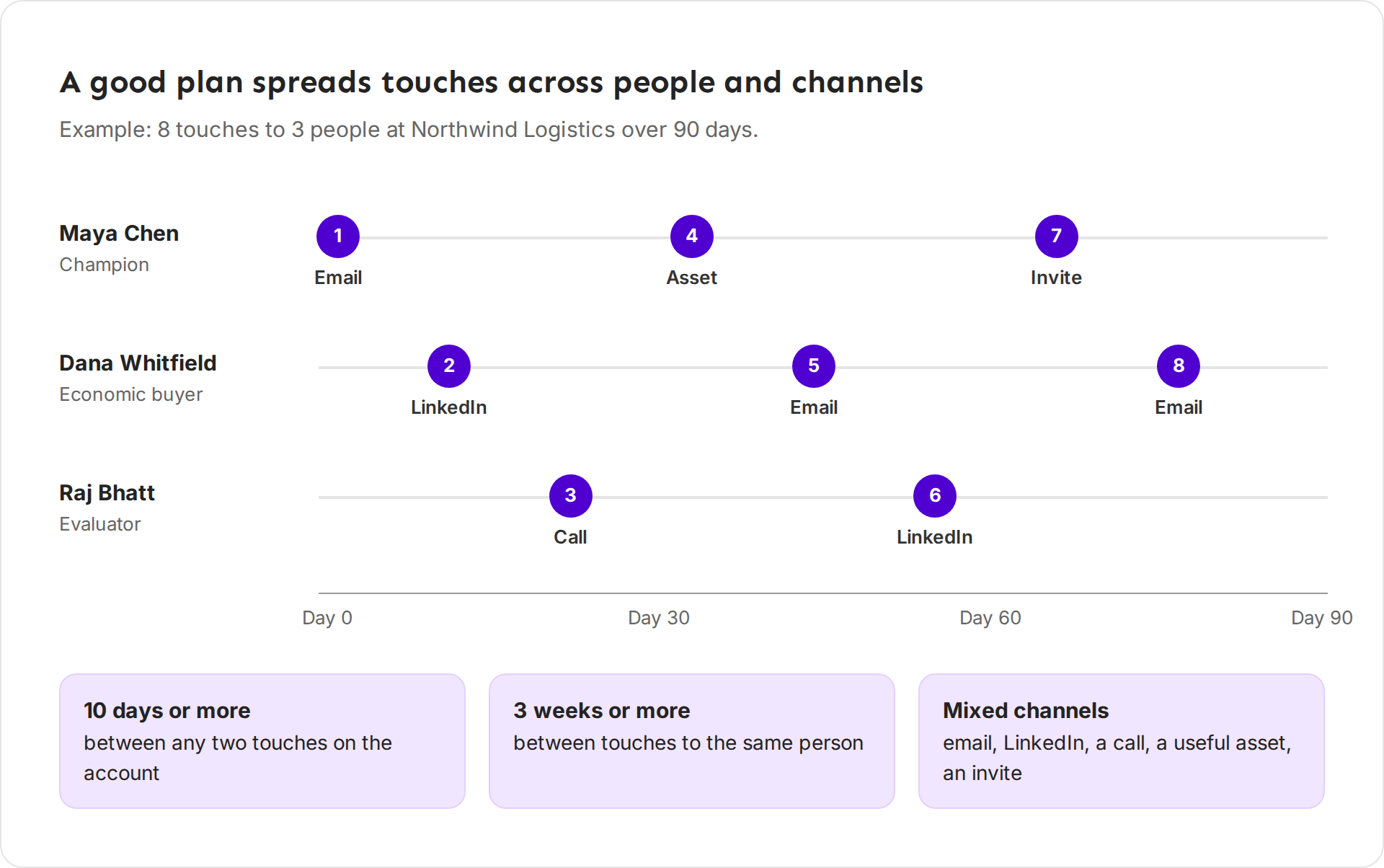
- Who. Ken starts with people nobody has touched yet, then the person whose last touch was longest ago, then goes by priority (P1 first), then by role. It leaves out blockers, people marked Not targeted, and people with no email and no LinkedIn.
- How often. By default, Ken waits at least 3 weeks between its touches to the same person. That is why a plan needs 2 or 3 people. See Map the buying committee.
- Which channel. Ken mixes email, LinkedIn, calls, useful assets, gifts and event invites. The first LinkedIn touch to a person is a connection request. Later ones are messages.
Ken also adds touches between plan steps:
- Signal touches. When a fresh signal comes in, like funding or a new leader, Ken adds a touch titled "Signal: ..." that is due today or tomorrow. It is an email to the person the signal is about, or else the next person in the plan. If nobody can take a touch within the contact limits, it becomes a task for the account owner. It adds at most one signal touch per account every 7 days, only for signals from the past 14 days.
- Reply touches. When someone replies, Ken adds a "Reply to Maya" step and pauses the plan. See "When someone replies" below.
The plan runs only while the account is in Researching, Warming or Engaged. Account stages, views and the board explains what happens in the other stages.
Read Coming up
-
Open the account. The Activity tab opens first, or press 1.
-
Look under Coming up. Each row shows the touch, the person and the due date.
-
A Needs approval tag means the draft is ready and waits for you.
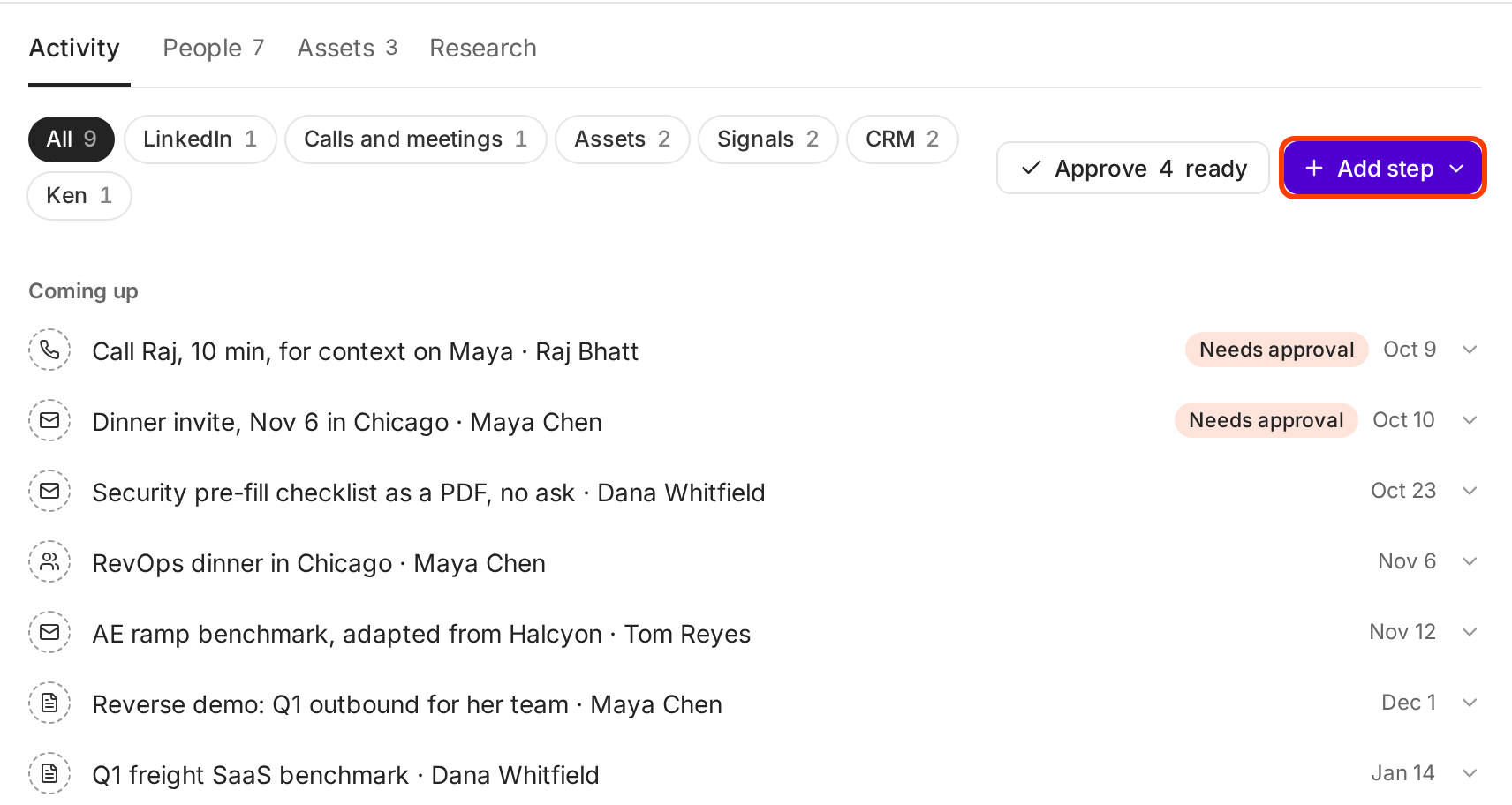
Coming up, with the soonest touch at the top. -
Click a row to open it. Click it again to close it.
The Approve button at the top shows how many drafts are ready, like Approve 4 ready. Click it to approve them all at once.
Above Coming up, a short line tells you when the plan is not running normally:
| You see | It means | What to click |
|---|---|---|
| "Plan paused. Maya replied on Oct 14." | A reply paused the plan. | Resume plan or End plan |
| "Plan ended on Oct 20." | The plan stopped, often because the stage changed. | Plan again |
| "No plan yet." | Ken hasn't planned this account. | Start plan |
| "3 touches planned. Map more people for a full plan." | Too few people to reach for a full plan. | Map people |
Edit a touch
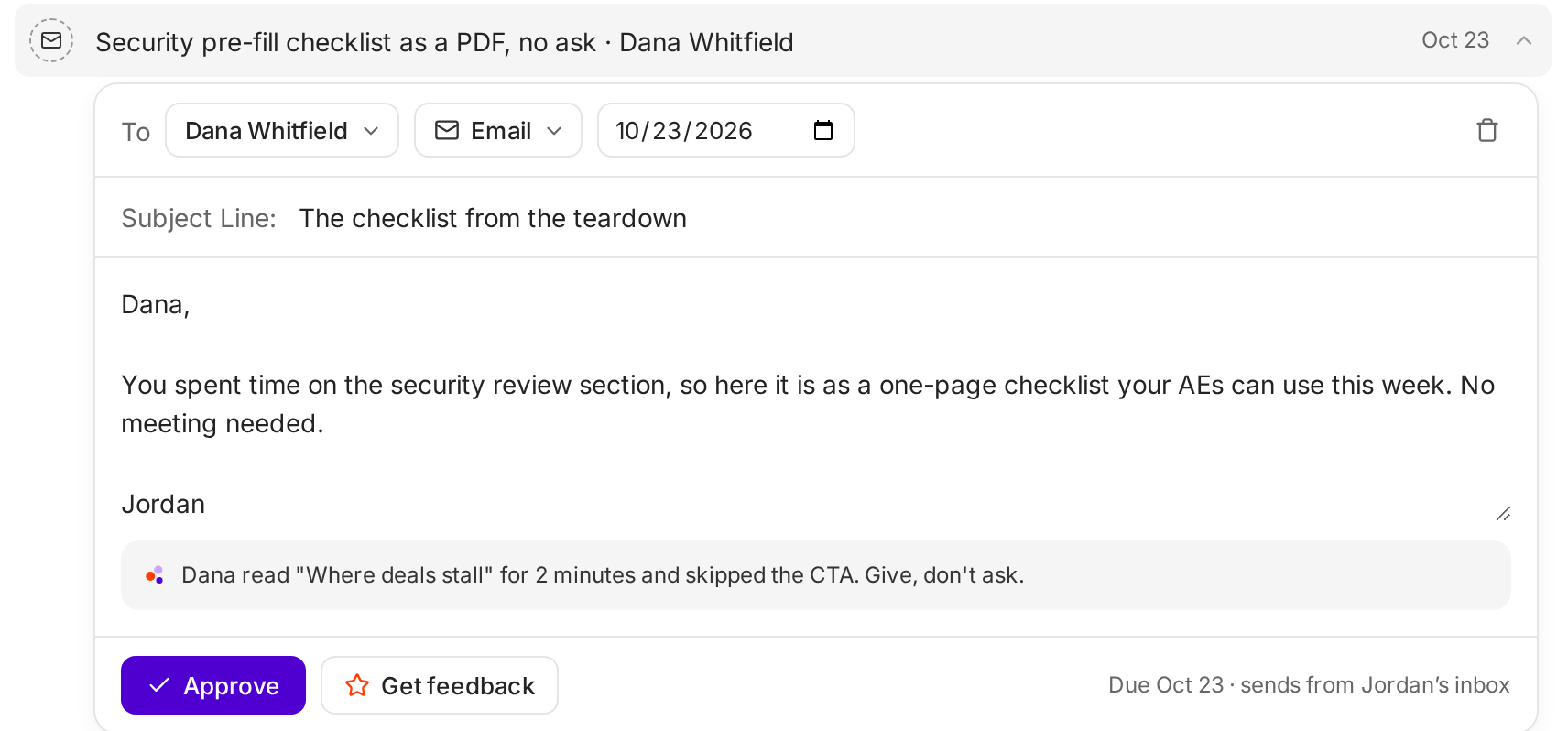
- Click the touch under Coming up. The editor opens below it.
- Pick the person in To.
- Pick the channel, like Email or LinkedIn.
- Pick the date.
- Edit the Subject Line and the message. Ken saves each one when you click away from it.
Under the message, Ken shows why it planned this touch. For Dana, it says she read the "Where deals stall" section for 2 minutes and skipped the ask, so this touch gives instead of asks. Use that reason. It is why the touch should land now.
Add a step
-
On the Activity tab, click Add step.
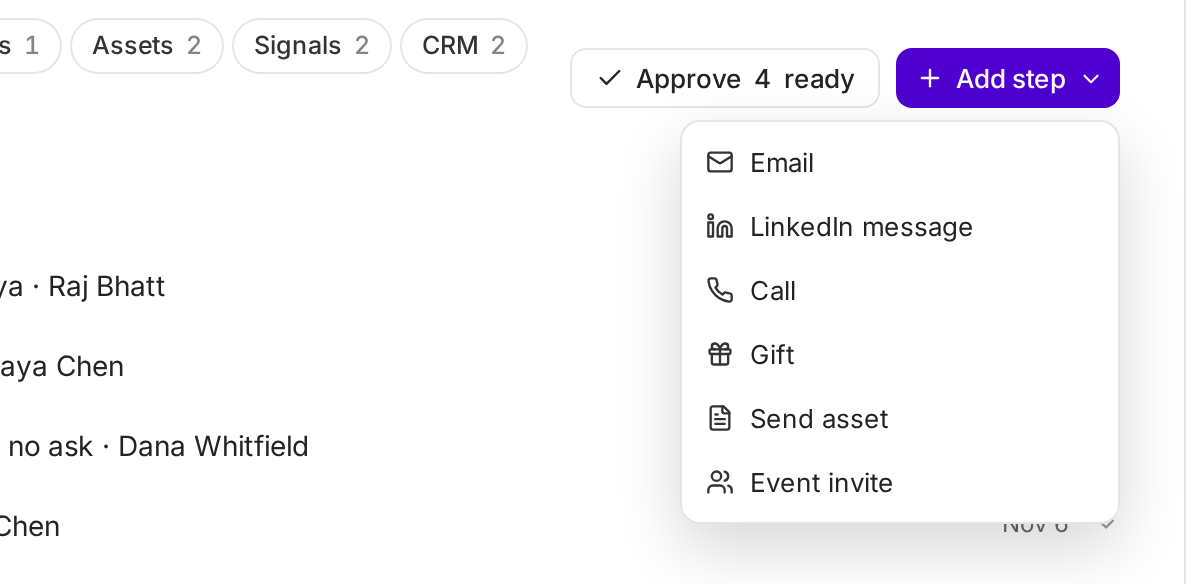
Pick the channel first. You can change the person and date after. -
Pick a channel: Email, LinkedIn message, Call, Gift, Send asset or Event invite.
-
Ken adds the step for a P1 person, about 3 weeks after their last touch. Open it and change To and the date if you want.
-
Write the message, or click Write it now.
A new step has no text. It shows "No draft yet." Click Write it now and Ken writes a first draft. If Ken can't, it says "Ken can't write this yet." Write it yourself.
Get feedback on a draft
Click Get feedback under the message. It shows once the message has text. Ken scores the draft out of 10 and suggests what to do:
- Keep at 7.5 or more.
- Rewrite so it is easier from 5.5 to 7.4.
- Start over below 5.5.
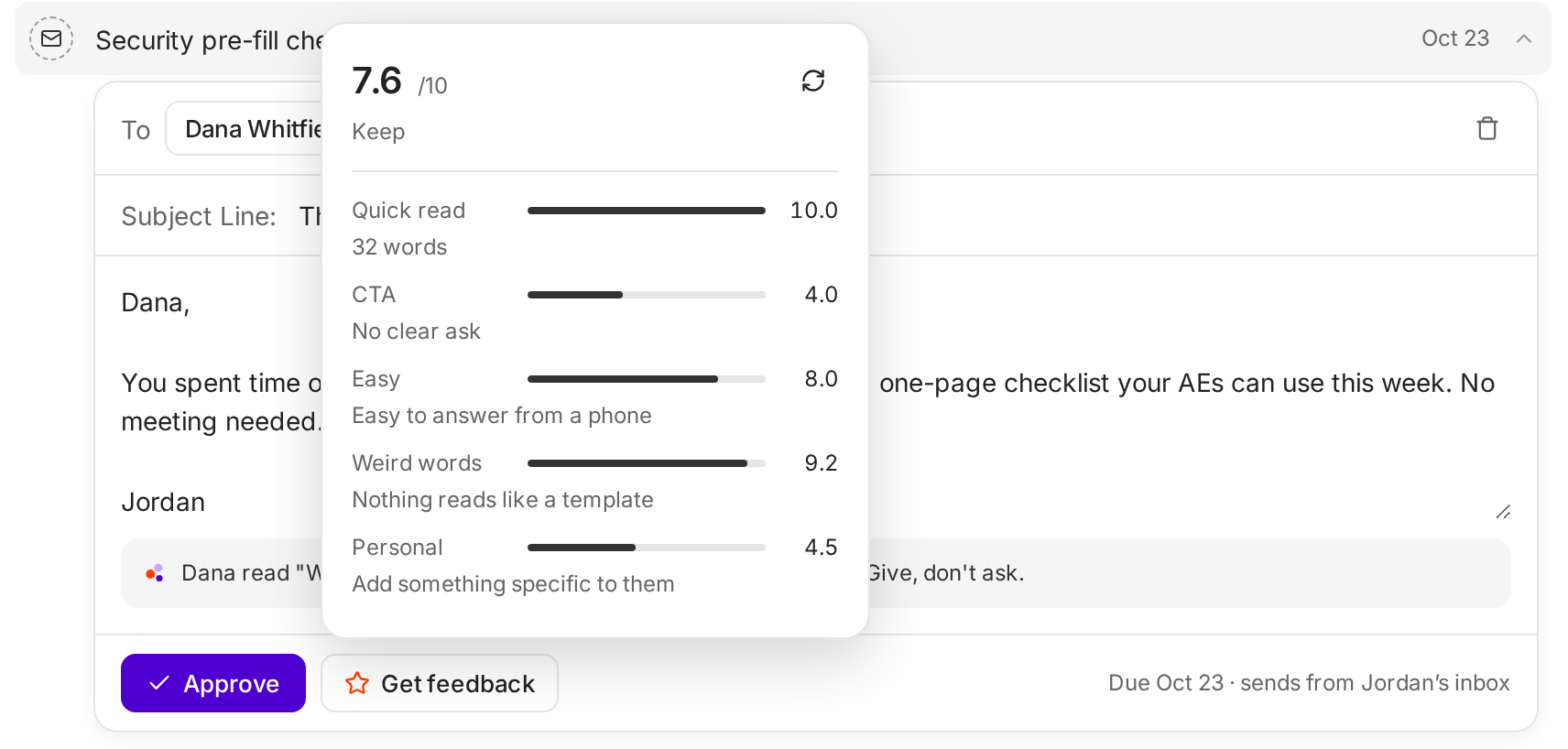
| Check | What it looks at |
|---|---|
| Quick read | Length. Up to 60 words gets full marks. |
| CTA | Question marks. Exactly one question scores best. No question, or several, scores lower. |
| Easy | Length again. Under 90 words counts as easy to answer from a phone. |
| Weird words | Not graded yet. It always shows the same score. |
| Personal | Words like "saw", "noticed", "congrats", "your team", "you posted" or "you mentioned", or a merge tag. |
The score updates as you edit. It checks length, the ask and a personal line. It does not check whether your point is good, so read the draft as Dana would. A "no ask" touch, like the checklist above, scores low on CTA on purpose. That's fine when you planned to give, not ask.
Approve, snooze or delete
- Approve. Open the touch and click Approve. An email or LinkedIn message goes out 1 to 3 minutes later, or at its due time if that is later. To take it back, click Undo in the message right away. You have about 5 seconds.
- Do it yourself. Ken sends only emails and LinkedIn messages. Calls, gifts, assets and event invites are yours to do. Do the task, then open the step and click its button so the timeline shows it done. For a call it says Mark call done. For a gift it says Approve and order, but Ken does not order the gift. Send it yourself.
- Snooze. Right-click the touch and click Snooze one week.
- Delete. Open the touch and click the trash icon, Delete step. Ken shows "Step deleted" with Undo.
Who it sends from
On the right of the account, Sends from shows two rows: Email and LinkedIn. By default they use the account owner's primary inbox and LinkedIn. Change them when a teammate should send, like an AE after a hand-off. Only the account owner or an admin can change this. You can't pick an inbox or LinkedIn account that is disconnected.
Who can approve:
- An email or LinkedIn touch: only the person whose inbox or LinkedIn sends it.
- A call, gift, asset or event invite: only the account owner.
If the sender changes after a touch is approved, the new sender must approve it again. If the sender's inbox or LinkedIn is disconnected, its touches wait until it reconnects.
Why an approved touch waits
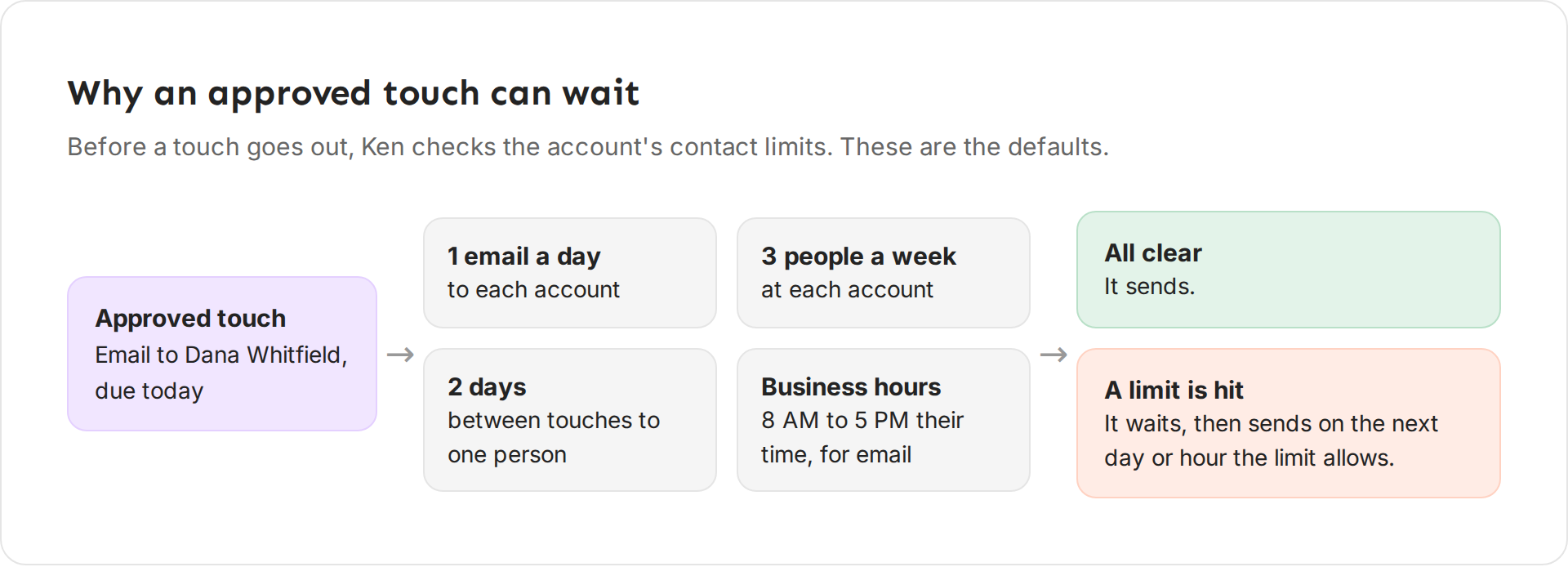
Before a touch goes out, Ken checks the account's contact limits. If a touch would break one, Ken holds it and sends it when the limit allows.
The defaults:
- At most 1 email to one account each day.
- At most 3 people at one account each week.
- At least 2 days between touches to the same person.
- Emails go out from 8 AM to 5 PM in the person's time zone. LinkedIn messages follow the LinkedIn account's own working hours.
The limits count your campaign emails too, and emails you send yourself from a connected mailbox. To see them, open Settings, then Contact limits. During the beta you can't change them there, so write to [email protected] to change one.
When two planned touches on the account would break a limit, the Activity tab shows an orange warning, like "2 emails to Northwind Logistics on Oct 23. The limit is 1 a day." Click the button on the warning, like Move Dana's email to Oct 24, to push one of them to the next free day.
When someone replies
A reply pauses the plan for the whole account. The rest of the committee stops hearing from you while you answer. Ken adds a step like "Reply to Maya", with the reason "Maya Chen replied on Oct 14."
- Click Resume plan to start again. Ken moves the open touches forward by the days the plan was paused.
- Click End plan if the reply changes things, like a meeting, a "not now" or a hand-off.
What works
Give before you ask. Make the first touch to each person useful on its own: a checklist, a benchmark, a short teardown. Save the meeting ask for later, after they have engaged.
One person, one point. Each touch says one thing to one person, tied to what their role cares about. The champion gets the how. The economic buyer gets the number.
Keep it short. Ken's own team keeps a first email to 80 words or fewer and a follow-up under 55. Short notes get read on a phone, between meetings.
Mention why now. A new hire, a funding round, a post they wrote. Ken's reason under each draft is a good start. Say it in your own words.
Mix channels. A LinkedIn note, a call and a useful asset feel like a person paying attention. Six emails in a row feel like a sequence.
Approve on time. A touch planned around a signal loses its point when it goes out two weeks late. Check Coming up each morning, or work all your touches from Today.
The same touch, written two ways
A weak touch to Dana Whitfield, the economic buyer at Northwind Logistics:
Hi Dana, I hope this finds you well. I wanted to reach out because Pathline helps sales teams like yours improve pipeline, forecasting and rep productivity with AI. Would you be open to a 30-minute call next week to see a demo?
It is about Pathline, not Dana. It asks for 30 minutes from someone who doesn't know you yet.
A better one:
Dana, freight SaaS deals tend to stall in stage 2, at the security review. We turned that into a one-page checklist your AEs can use this week. Want me to send it over?
It is 32 words, about Dana's problem, and ends with an easy yes to something useful.
If something goes wrong
- "I can't approve this touch." It sends from someone else's inbox or LinkedIn, or it is a call, gift, asset or invite and you are not the account owner. Ask that person to approve it, or ask the owner or an admin to change Sends from.
- "I approved it, but it hasn't sent." A contact limit, business hours or a disconnected inbox is holding it. Check the orange warning on Activity, and check that the sender's inbox is connected. Ask Ken "Why hasn't my touch to Dana sent?" to hear the reason. If nothing on the account has ever sent, write to [email protected] to check that sending from account plans is on for your workspace.
- "Ken can't write this yet." Write the first draft yourself. Ken still checks it with Get feedback.
- "The plan stopped." A reply paused it, or the stage changed. Read the line above Coming up and click Resume plan or Plan again.
- "I deleted the wrong step." Click Undo right away. After that, add it again with Add step.
Still stuck? Write to [email protected] with the account name.
Next: How signals and tiers work, Hand off an account or Work through Today.