Every account in Ken sits in one stage, from Researching to Meeting booked. The stage tells you what to do next. It also decides whether Ken's account plan runs. This guide explains each stage, how to move accounts, and how to build views that show you the right accounts each morning.
The seven stages
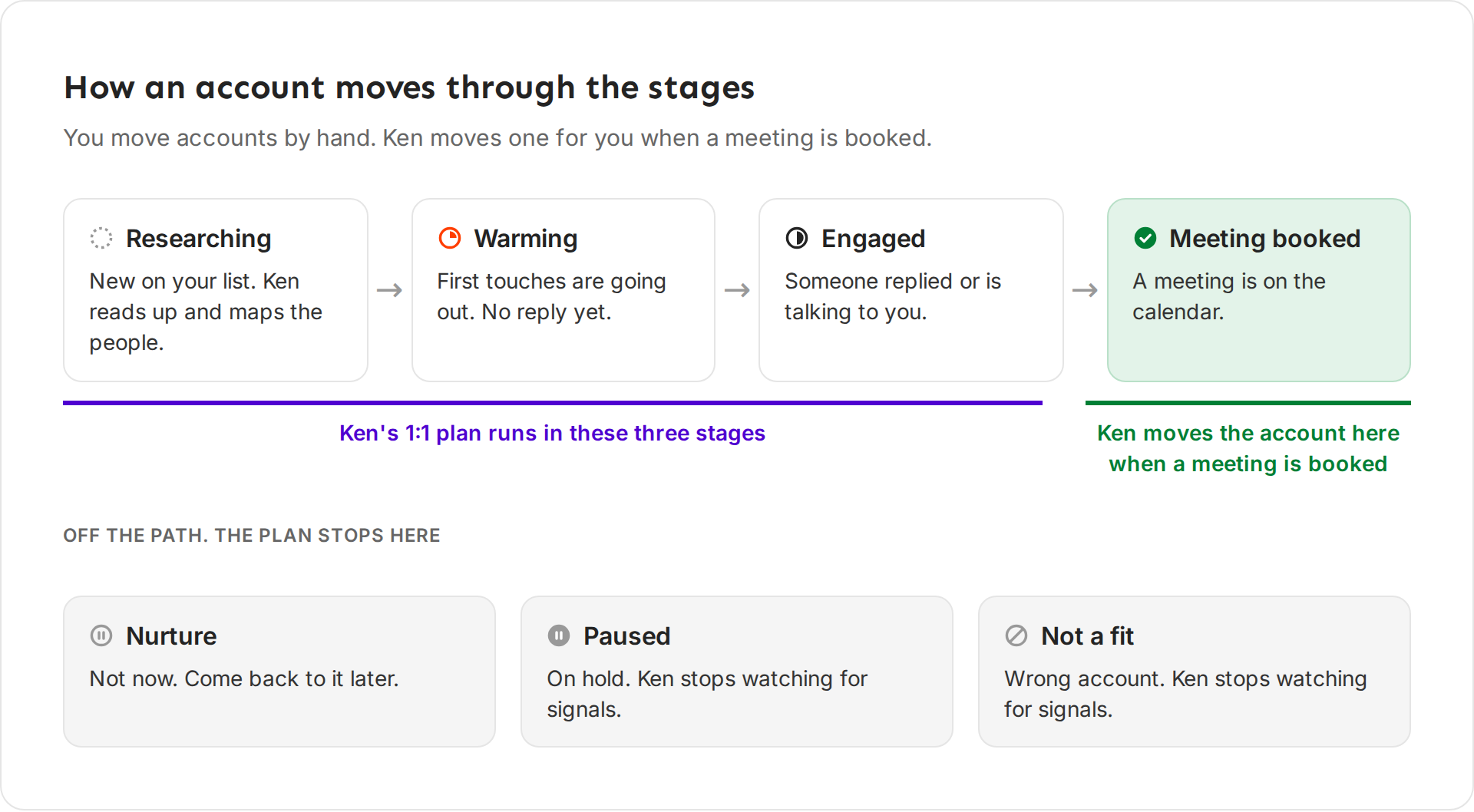
| Stage | What it means | What to do |
|---|---|---|
| Researching | The account is new. Ken is reading up on it and mapping the people. | Check the brief and the committee. Add anyone Ken missed. |
| Warming | First touches are going out. Nobody has replied yet. | Approve touches on time. Look for a new signal to mention. |
| Engaged | Someone replied or is talking to you. | Answer fast. Reach a second person on the committee. |
| Meeting booked | A meeting is on the calendar. | Prepare for the meeting, or hand the account to an AE. |
| Nurture | Not now. The timing is wrong, but the fit is right. | Leave it. Come back when a new signal shows up. |
| Paused | On hold for a reason of your own, like a legal review. | Move it back when the reason is gone. |
| Not a fit | Wrong company for you. | Nothing. It stays here so nobody adds it again. |
What moves an account
You do, almost always. Ken's research and signals never change the stage.
Two things can move an account without you:
- A meeting on your calendar. When a meeting with someone at the account lands on your connected calendar, Ken moves the account from Researching, Warming or Engaged to Meeting booked. This happens even if you set the stage yourself. Ken never moves an account backward.
- A workflow. A workflow in your workspace can have a step that moves accounts to a stage. See Automate your outbound with workflows.
The stage also controls Ken's account plan:
- The plan runs only in Researching, Warming and Engaged.
- When the account moves to any other stage, the plan ends. Ken skips the touches it planned and any signal touches. Replies you still owe and touches you added yourself stay on the account.
- An ended plan does not start again by itself, even if you move the account back. Click Plan again on the Activity tab.
- Ken stops checking Paused and Not a fit accounts for new signals. It keeps checking Nurture accounts, so a new signal tells you when to come back.
Change the stage
-
Open the account. Under Properties on the right, click Stage and pick a stage.
-
Or, in the Accounts list, right-click the account and point at Move to stage.
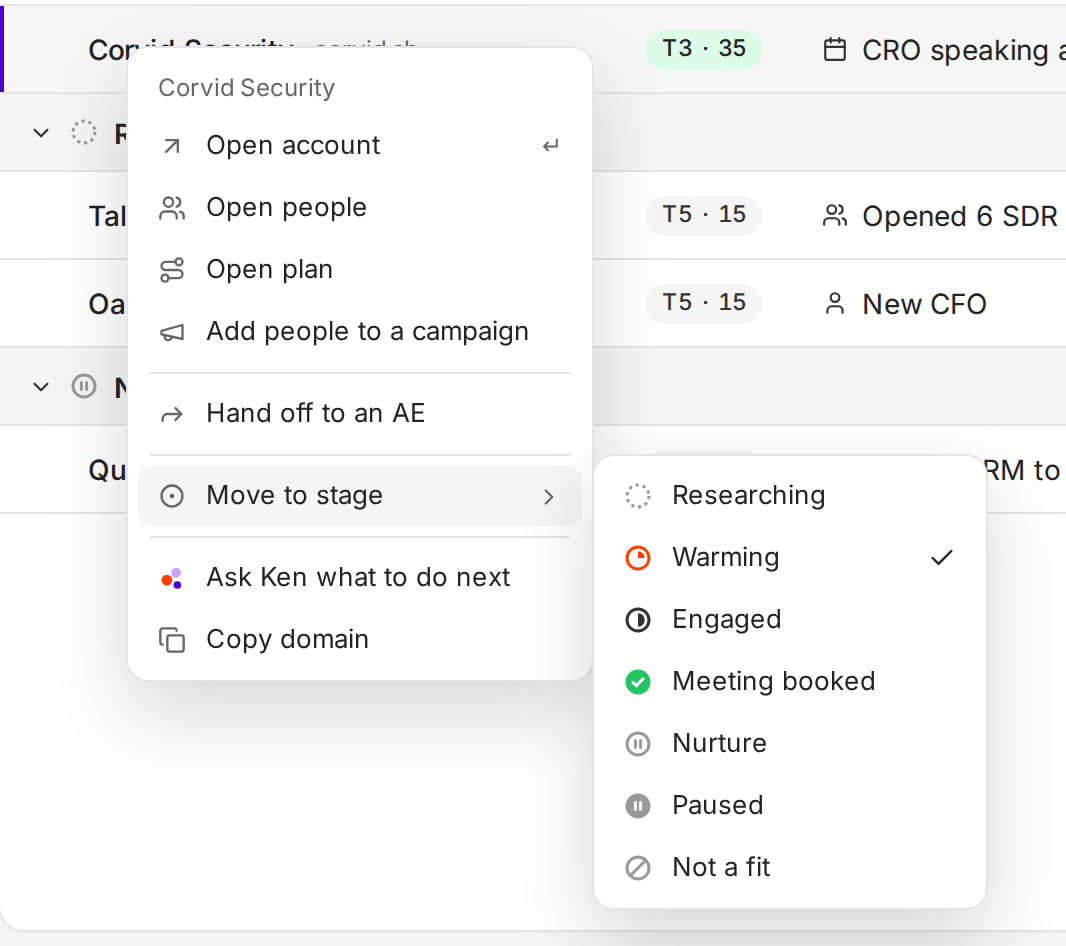
Right-click any account to move it without opening it. -
Ken shows a message like "Corvid Security moved to Engaged" with Undo. Click Undo if you picked the wrong stage.
The Tier row under Properties shows how much effort the account deserves. How signals and tiers work explains each tier.
List or board
The Accounts list groups accounts by stage, with Meeting booked at the top. Click a stage's header to fold its group.
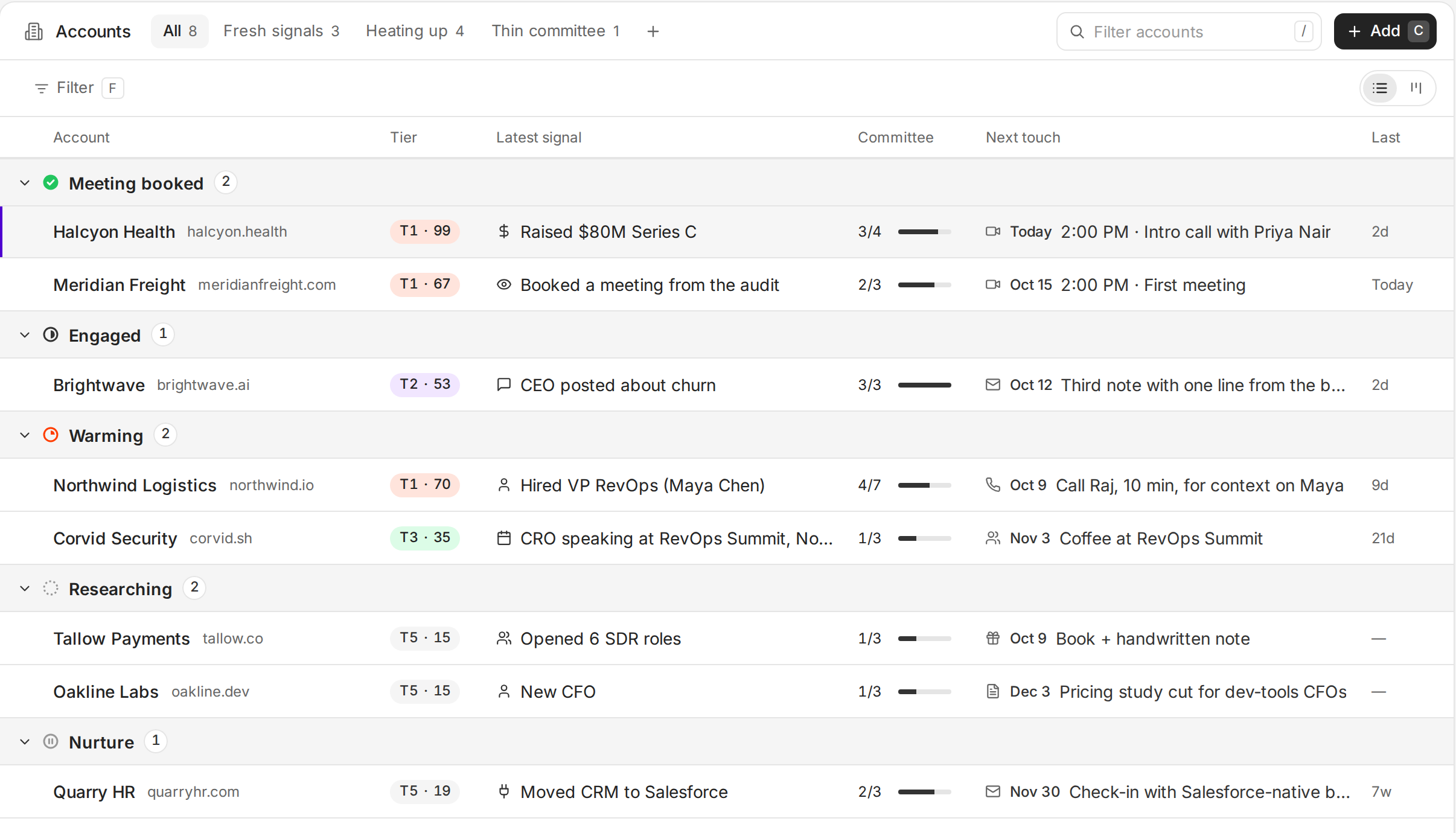
Press V to switch to the board, or use the List and Board buttons at the right of the filter bar. The board shows one column for each stage. Paused and Not a fit get a column only when they have accounts.
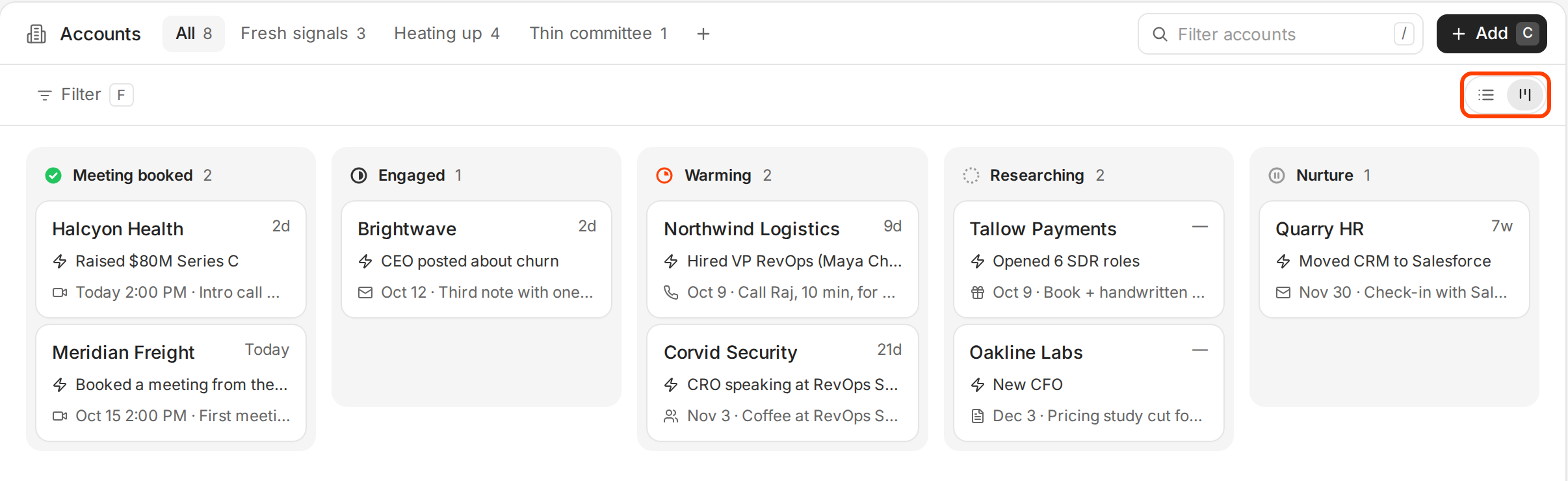
In the list, press J and K to move between accounts and ↵ to open one. Press / to search the list by name.
Views
The tabs above the list are views. A view is a saved set of filters. Ken starts you with four.
| View | Shows |
|---|---|
| All | Every account. |
| Fresh signals | Accounts with a job change or a funding signal. |
| Heating up | Accounts whose latest signal came in the past 7 days. |
| Thin committee | Accounts past Researching, and not in Nurture, where nobody or under half of the committee is engaged or in the plan. |
Click a tab, or press its number: 1 for the first view, 2 for the second, and so on.
Filter and save a view
- Click the All tab. You save a new view from there.
- Click Filter or press F.
- Pick a property, like Tier, then a value, like Tier 1. A chip shows the filter, like "Tier is Tier 1".
- To exclude instead, click is in the chip so it reads is not. To remove a filter, click the x on its chip.
- Click Save as view. Type a name, like "Tier 1 focus", and click Save. The new view gets its own tab.
When you change the filters on a saved view, Ken offers Update view to change it, or Save as new to keep both. Reset takes you back to the view's saved filters.
To rename, copy or delete a view, open it first. Then click the three dots on its tab and pick Rename, Duplicate or Delete view. The All view can't be changed.
Views that work
- "Today": Stage is Engaged or Meeting booked. Work these first, every morning.
- "New signals, Tier 1": Tier is Tier 1 and Latest signal is Past 7 days. A note that mentions a fresh signal lands best.
- "Stuck in Warming": Stage is Warming and Last touch is Over a month ago. Find a new person or a new angle, or move the account to Nurture.
- Thin committee: Keep it. A deal with one contact stalls when that person goes quiet. See Map the buying committee.
Keep the stage honest. If an account went quiet after a "not now", move it to Nurture instead of leaving it in Warming. Your views and Ken's plan only help when the stage is true.
If something goes wrong
- "The plan stopped." The account left Researching, Warming or Engaged. Move it back, then click Plan again on the Activity tab.
- "Ken moved my account to Meeting booked." A meeting with someone at the account came in on your calendar. Move it back if the meeting was not about this deal.
- "The stage changed and it wasn't me or a meeting." Check your workflows for a step that moves accounts.
- "I can't find an account." Your view filters it out. Click All, or click Reset.
- "Could not change the stage. Try again." The change did not save. Wait a moment and try again.
- "My views are gone." You are on another browser or computer. Views stay in the browser where you saved them.
Next: Map the buying committee, Work the account plan or Work through Today.