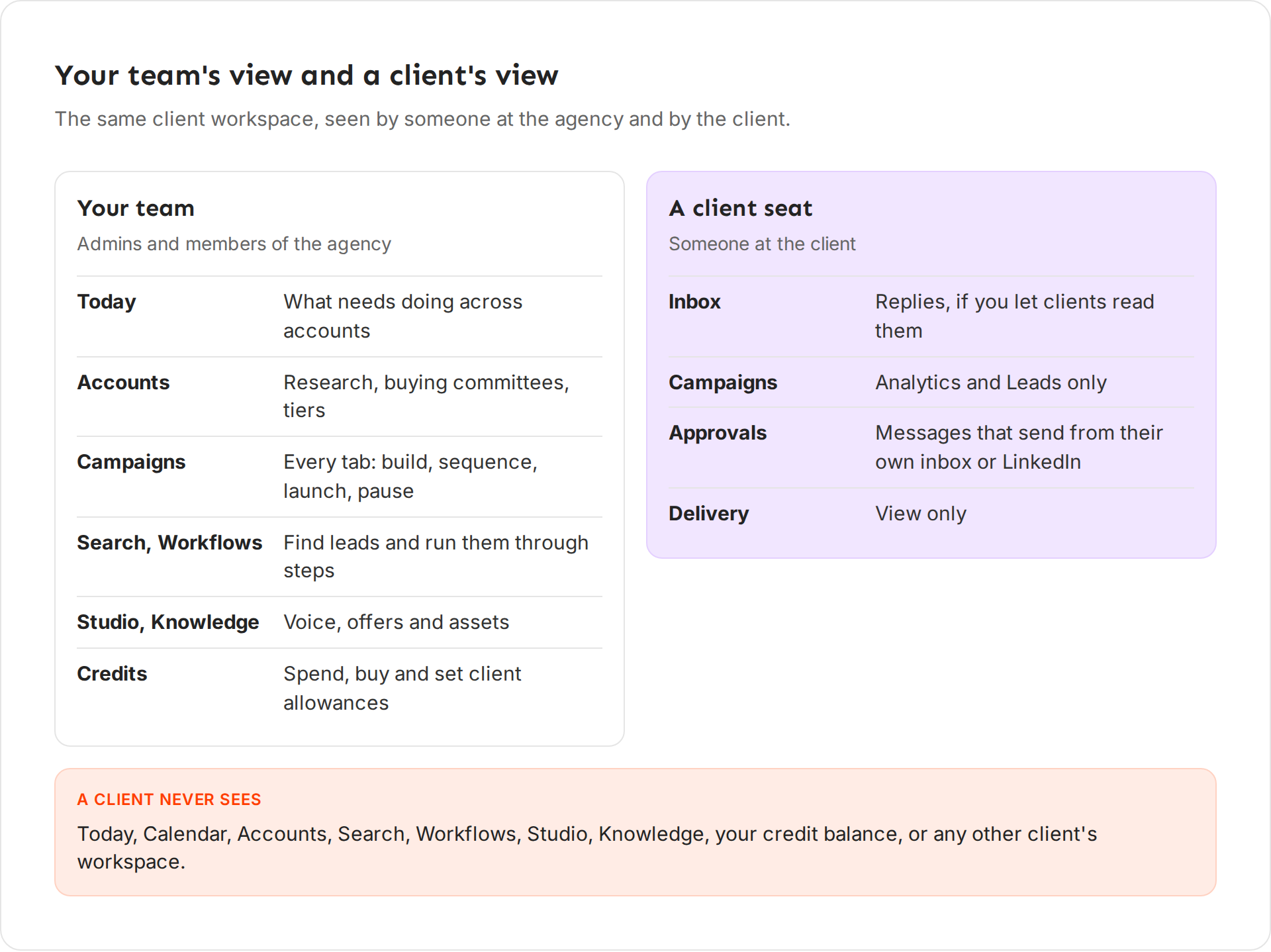
A client seat is a sign-in for someone on your client's team. They see their campaign results, approve messages that send from their own inbox or LinkedIn, and read replies if you turn that on. They never see your research, your credits or your other clients.
What a client sees
A client seat has a short sidebar with up to four pages:
| Page | What the client can do |
|---|---|
| Inbox | Read and answer replies. Only when Clients can read replies is on. |
| Campaigns | See the Analytics and Leads tabs of each campaign. They can't edit, launch or pause. |
| Approvals | Approve, edit or skip messages that send from their own inbox or LinkedIn. |
| Delivery | See how their sending is doing. View only. |
Everything else stays with your team. A client never sees Today, Calendar, Accounts, Search, Workflows, Studio or Knowledge. They can't see your credit balance or buy credits, and they never see your other clients' workspaces.
Choose what clients can do
-
In your agency workspace, open Settings (G then ,) and choose White-label.
-
Under Client seats, turn Clients can read replies on or off. Ken confirms with "Clients can read replies" or "Clients can no longer read replies".
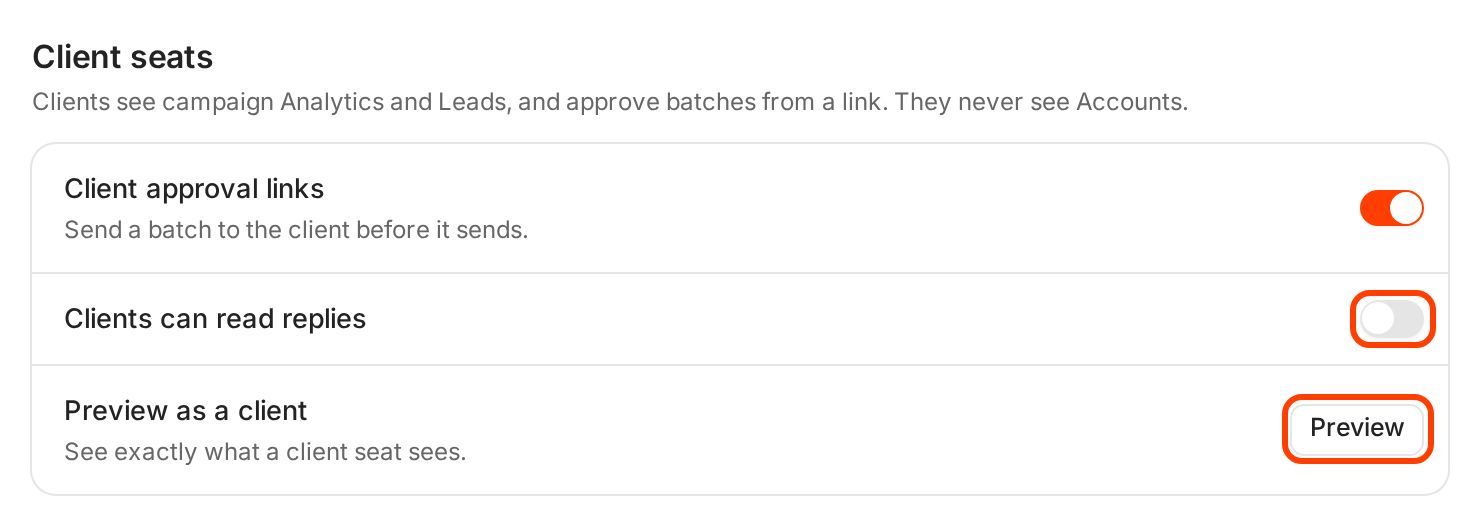
The setting applies to every client seat.
With replies off, Inbox disappears from the client's sidebar. Your team still sees and answers every reply.
Preview the client view
Before you invite anyone, look at what they will see. The preview shows the workspace you are in, so switch to the client's workspace first.
-
Open the Workspaces menu at the top of the sidebar and turn on View as a client seat. In White-label, the Preview button next to Preview as a client does the same.
-
The sidebar now shows only what a client sees. On Campaigns, a bar at the top says "Client view. Clients see campaign Analytics and Leads. Accounts stay private."
-
Open a campaign. Only Analytics and Leads show, under a banner that says "You are viewing as a client seat."
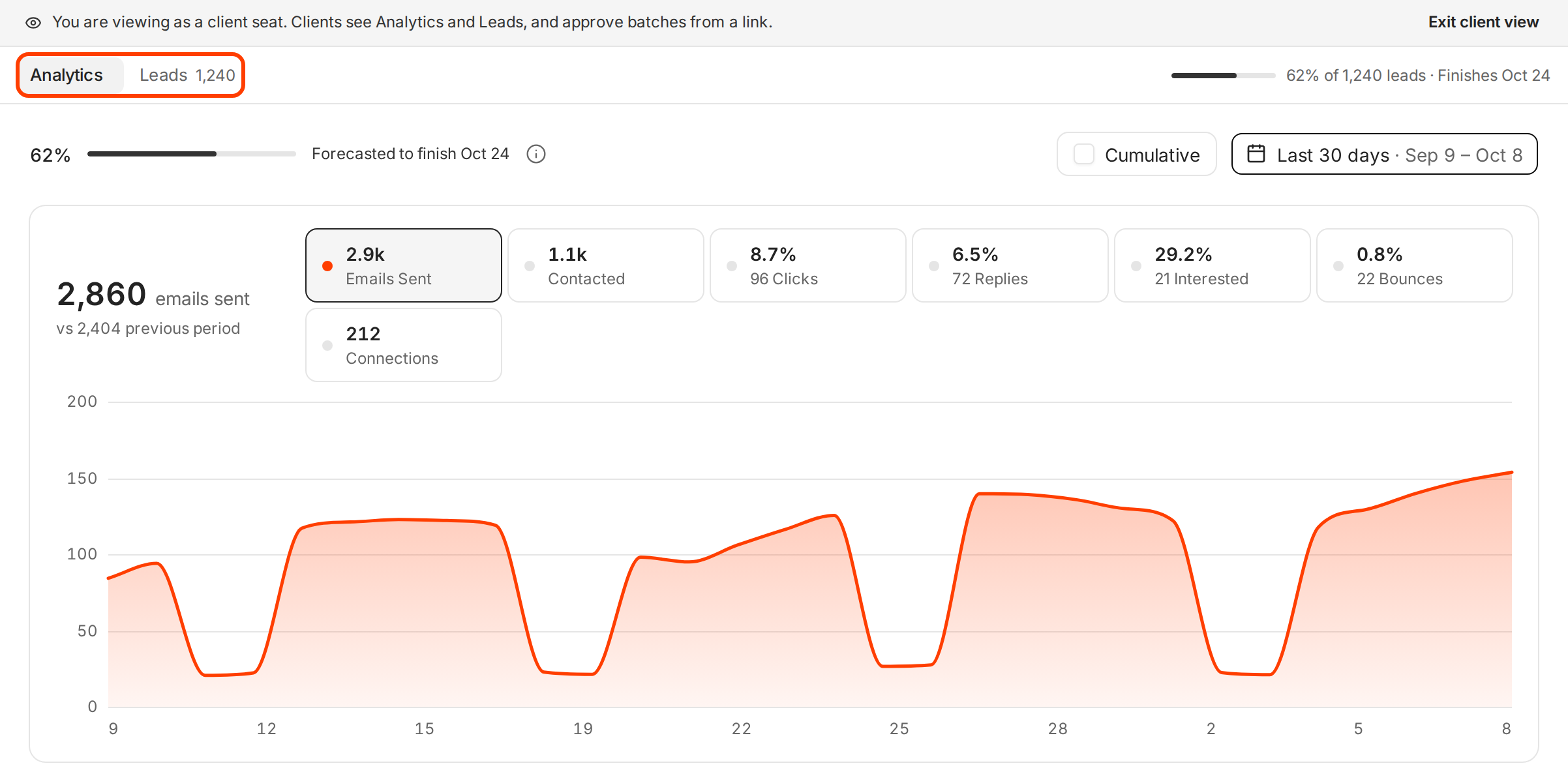
In the client view a campaign shows Analytics and Leads only. -
Click Exit client view in the banner, or Exit in the bar, to go back.
The preview changes only what you see. It doesn't show Approvals, because that page only exists for a real client seat.
Invite a client
- Switch to the client's workspace from the Workspaces menu at the top of the sidebar.
- Open Settings and choose Members.
- Click Invite, type the client's work email, pick the Client template and click Send invite.
Ken confirms with "Invite sent to [email protected]". The client gets an invitation by email and signs in with that address.
Connect the client's inbox and LinkedIn
Some messages work best from the client's own inbox, for example a note from their founder to a top account. Those messages wait until the client connects their account. When messages wait, the client sees a card for each missing account at the top of Approvals:
- Email. Under Connect your Gmail or Outlook, they click Continue with Google or Continue with Microsoft and sign in. Ken only uses the mailbox they log in with.
- LinkedIn. Under Connect your LinkedIn, they click Connect LinkedIn. The Ken extension signs in with their own LinkedIn and sends as them.
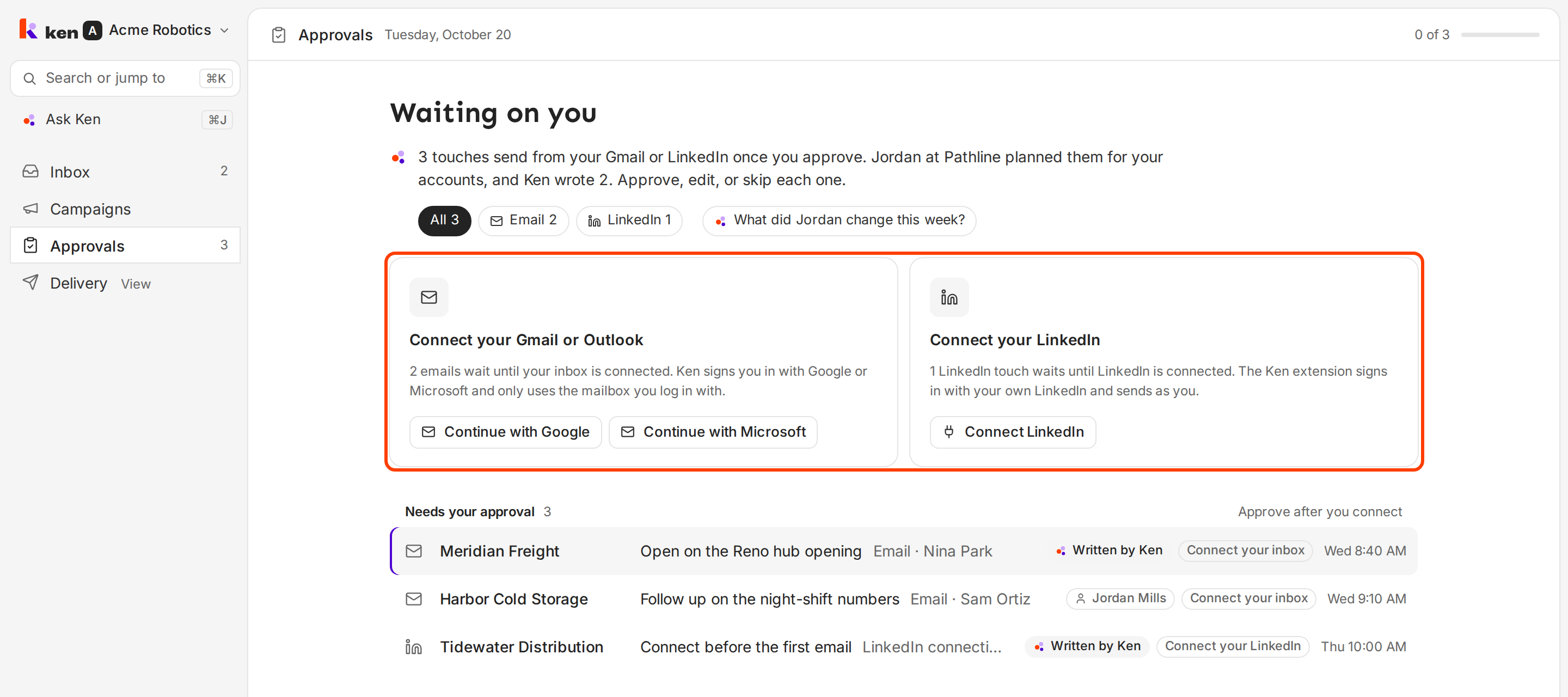
Each card says how many messages are waiting, for example "1 LinkedIn touch waits until LinkedIn is connected."
What works
- Decide who answers replies before you invite. If your team handles replies, leave Clients can read replies off. Two people answering the same lead looks careless. Turn it on when the client books their own meetings.
- Preview again after you add a campaign. A quick look catches a test campaign or an odd name before the client sees it.
- Send from the client's inbox only where it counts. A message from the client's founder or sales lead lands better with a top account. Keep volume sends on your sending inboxes so the client's main mailbox stays safe.
- Tell the client what they will see. Before the first sign-in, send two lines: "You'll see results under Campaigns, and anything that sends from your inbox waits for you in Approvals." Then they know where to look from day one.
- Use one seat per person. Invite each person on the client's team with their own email. You see who approved what.
If something goes wrong
- "My client can't find the Inbox." Clients can read replies is off. Turn it on under White-label, or forward the replies yourself.
- "My client only sees two tabs on a campaign." That is expected. A client seat shows Analytics and Leads only.
- "Approvals says Approve after you connect." The client hasn't connected the inbox or LinkedIn those messages send from. Ask them to use the connect cards on the same page.
- "Approvals says Your Gmail disconnected." The client's inbox lost its connection, and its emails wait. Ask them to click Reconnect Gmail (or Reconnect Outlook) on that banner.
- "The wrong mailbox got connected." Ken uses the mailbox the client logs in with. Ask them to sign in with the address the messages should come from. If it still shows the old one, write to [email protected] with the address it should use.
Next: Approve messages as a client, Share work with a client or Invite your team and set roles.