A share link lets a client review your work without a Ken account. You pick what to share, such as a lead list, the copy or a weekly report, and decide whether they can view, comment or approve. Their answers come back to you on the Share page.
Before you start
- Admins and Editors can create share links. A Viewer or a client seat can't. They need Share for approval in their permissions.
- Anyone with the link can open it, with no sign-in. Send it only to the people who should see the work.
What you can share
| Item | What the client sees |
|---|---|
| Lead list | Who you will contact and why each person is on the list |
| Copy with personalized lines | Every step, with the lines Ken wrote for real leads |
| Campaign settings | Schedule, daily volume, senders and stop rules |
| ICP and targeting | Industries, company size, titles and exclusions |
| Weekly report | Results, what changed and the plan for next week |
| Account plans | Tier 1 accounts: why now, the buying committee and the next touches |
One link can hold several items. The client reviews them one by one.
Create a share link
-
Open Share in the sidebar, or press G then H. Click New share.
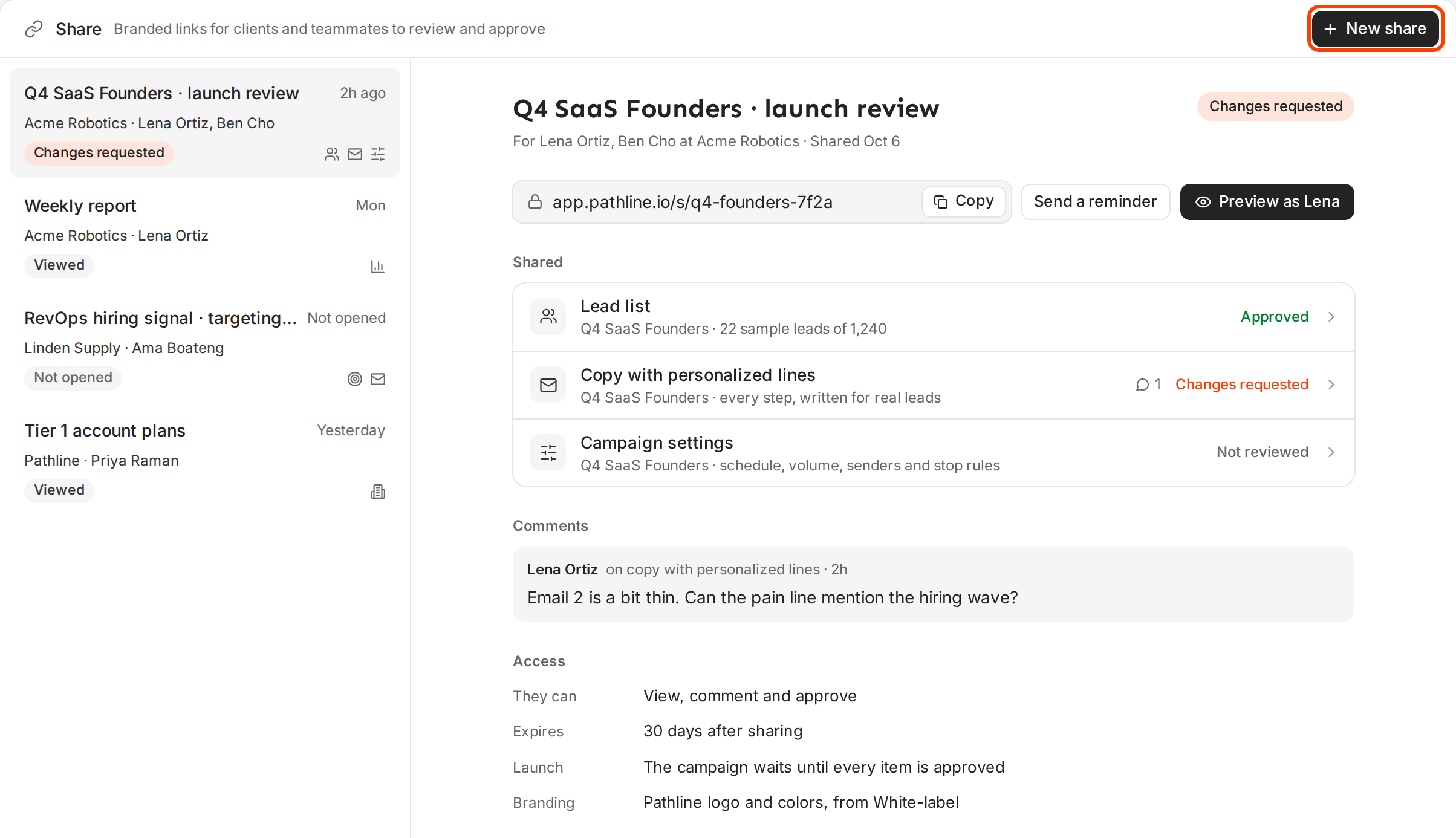
Every link you shared, with its status, on one page. You can also start from the work itself. Click Share at the top of a campaign, or the link button at the top of an account to share its account plan.
-
Click each item you want to share. Lead list and Copy with personalized lines are on to start.
-
If the dialog asks, pick the Campaign and the Company the link is for. Pick your own workspace, marked "(internal)", to share with a teammate.
-
In Email the link to (optional), type the client's email. Separate several people with commas. Leave it empty to only create a link.
-
Under They can, pick View, Comment or Approve. New links start on Approve, and account plans on Comment.
-
Under Link expires, pick 7 days, 30 days or Never. The default is 30 days.
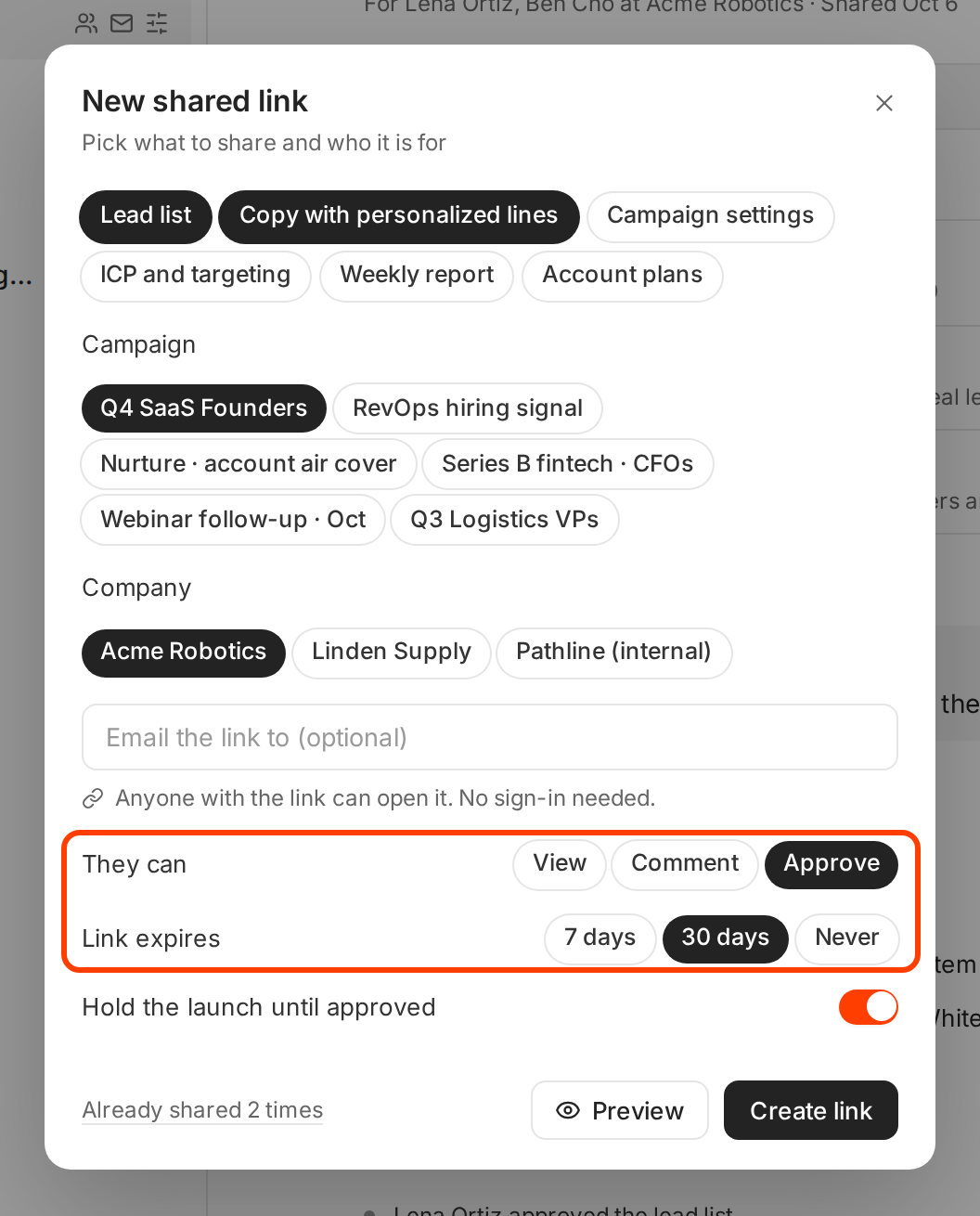
Pick what they can do and when the link stops working. -
Check the switches when they show:
- Hold the launch until approved keeps the campaign from launching until the client approves every item. It shows when the link is set to Approve and holds the lead list, the copy or the settings.
- Send a fresh report every Monday shows when the link holds a Weekly report. Every Monday at 8 AM in the campaign's time zone, Ken makes the report for the week just ended and emails everyone on the link.
-
Click Preview to see the link as the client will.
-
Click Share. If you left the email field empty, the button says Create link.
Ken confirms with "Shared with [email protected] · link copied". The link is on your clipboard too, so you can paste it into your own email or chat.
If you shared the same campaign before, the dialog shows "Already shared once" (or "Already shared 2 times") at the bottom. Click it to see the earlier links on the Share page before you send the client a second link for the same work.
See what the client sees
-
On the Share page, click the link.
-
Click Preview as followed by the person's name, such as Preview as Lena. For a link you emailed, the button shows the email address.
-
A banner reads "Preview. This is what Lena Ortiz sees at" followed by the link. Click through the items as the client would.
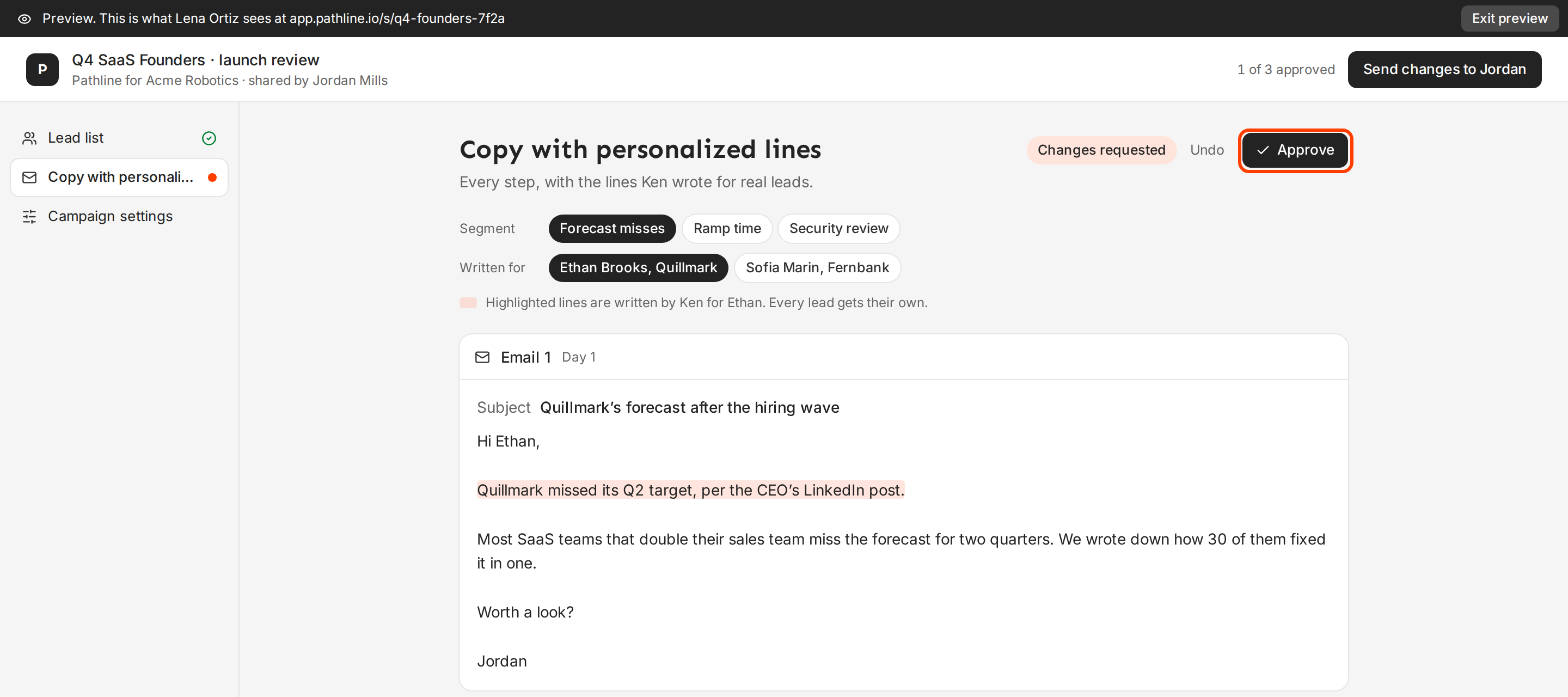
The client reviews each item and approves it or asks for changes. -
Click Exit preview to go back.
The link shows your logo and colors from White-label. Once your app domain is verified, the link uses it too.
What the client does
The client opens the link and sees "Pathline for Acme Robotics · shared by Jordan Mills" at the top. The first time they approve or comment, Ken asks for Your name. They type it once and click Continue.
For each item, they click Approve or Request changes and can leave a comment. On a lead list, they can Remove a lead they don't want contacted. When they are done, they send the review with one button: Send approval, Send review or Send changes to Jordan. On a link set to Comment, the button reads Send comments.
Follow up on a link
Each link on the Share page shows its status: Not opened, Viewed, 2 of 3 approved, Changes requested or Approved. Click a link to see:
- Shared shows each item and where its review is, such as Approved, Changes requested or Not reviewed.
- Comments shows what the client wrote on each item.
- Access shows what they can do, when the link expires, and whether the launch waits.
- Activity shows when they opened it and what they decided.
Click Copy to copy the link again. Click Send a reminder to email everyone on it. Ken confirms with "Reminder sent to Lena Ortiz".
When a client requests changes on a campaign, the Share button at the top of that campaign gets an orange dot.
What works
- Share the lead list and copy before launch, for approval. Turn on Hold the launch until approved. One link replaces a long email thread, and nothing sends that the client hasn't seen.
- Pick the lightest permission that does the job. Use Approve for anything that will send. Use View for a weekly report. A client who can approve a report will wonder what they are approving.
- Use 7 days for approvals. A short expiry gives the client a natural deadline. Use Never for a weekly report that repeats.
- Share with the person who decides. Send an approval link to the one person who signs off. One approver keeps decisions clear.
- Preview every link before you send it. Check that the copy, names and numbers are right. The client sees what the preview shows.
- Remind once, then call. If a link still says Not opened after two working days, click Send a reminder. If that doesn't work, pick up the phone.
If something goes wrong
- "This link has expired." The expiry passed. Create a new link for the same work.
- "This link was turned off." The link doesn't work anymore. Create a new one if the client still needs it.
- "Your review was already sent." The client already sent their decisions. Ask them to email you any late changes.
- "This link doesn't allow that." The link is set to View or Comment. Create a new link with Approve if you need their sign-off.
- "Account plans can't be shared right now: the account list didn't load." Reload the page and try again.
- "Ask a workspace admin for Share for approval." Your permissions don't let you create share links. Ask an admin to turn on Share for approval for you in Members.
Next: Run outbound for clients: a playbook for agencies, Read campaign results or Approve messages as a client.