Your agency plans some messages to send from your own Gmail, Outlook or LinkedIn. Nothing sends from your accounts until you approve it. This page shows how to review, edit, approve or skip those messages. It takes a minute or two a day.
The examples use a fictional agency, Pathline, and its client, Acme Robotics.
Open Approvals
-
Click Approvals in the sidebar, or press G then P. The number next to it is how many messages wait for you.
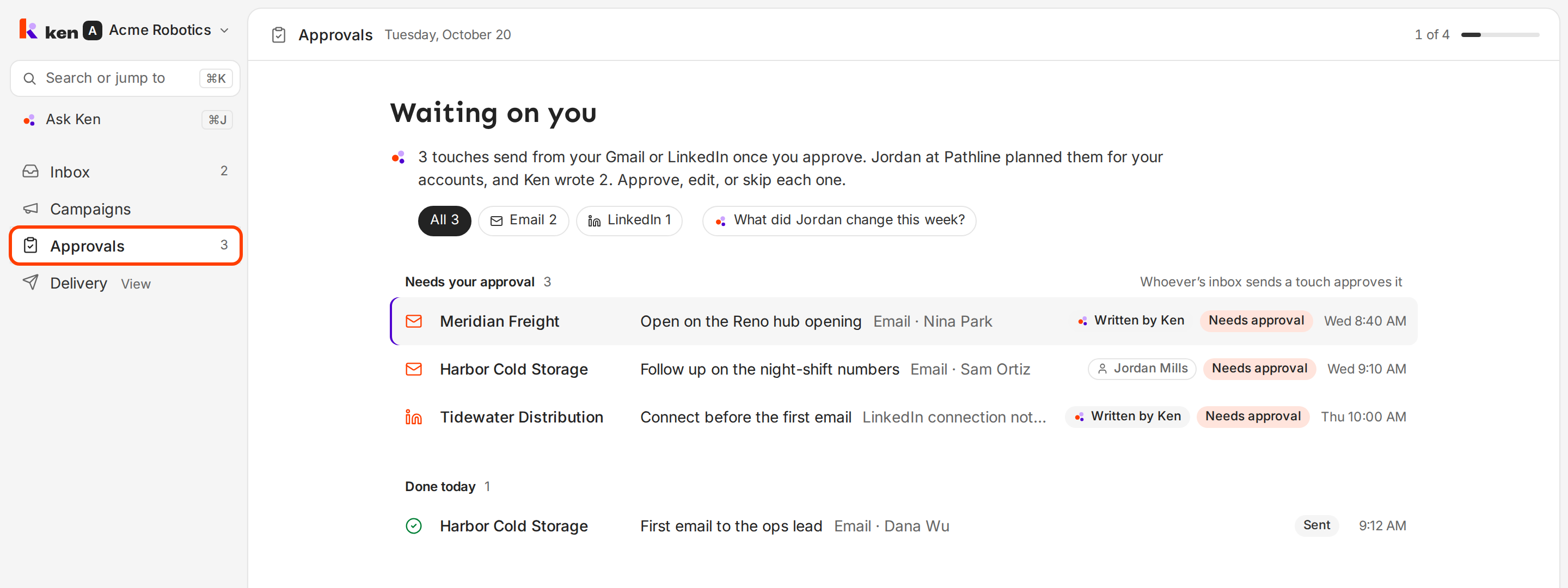
Approvals lists every message that waits for you.
The page starts with Waiting on you and a short summary of what waits and who planned it. The messages sit in groups:
- Needs your approval holds the messages that wait for you.
- Scheduled from your inbox holds messages you approved that haven't sent yet.
- Needs attention holds messages that could not send.
- Done today holds what sent today.
Use All, Email or LinkedIn at the top to see one kind at a time. Each row says who wrote the message, for example Written by Ken or your agency contact's name.
Review and approve a message
-
Click a message. It opens on the right.
-
Check the top. It says who the message goes to, when it sends, and which of your accounts it sends from.
-
Read the message. Why now says why your agency picked this person at this moment. On approve says what happens next.
-
Click Approve, or press ⌘ ↵ (Ctrl ↵ on Windows).
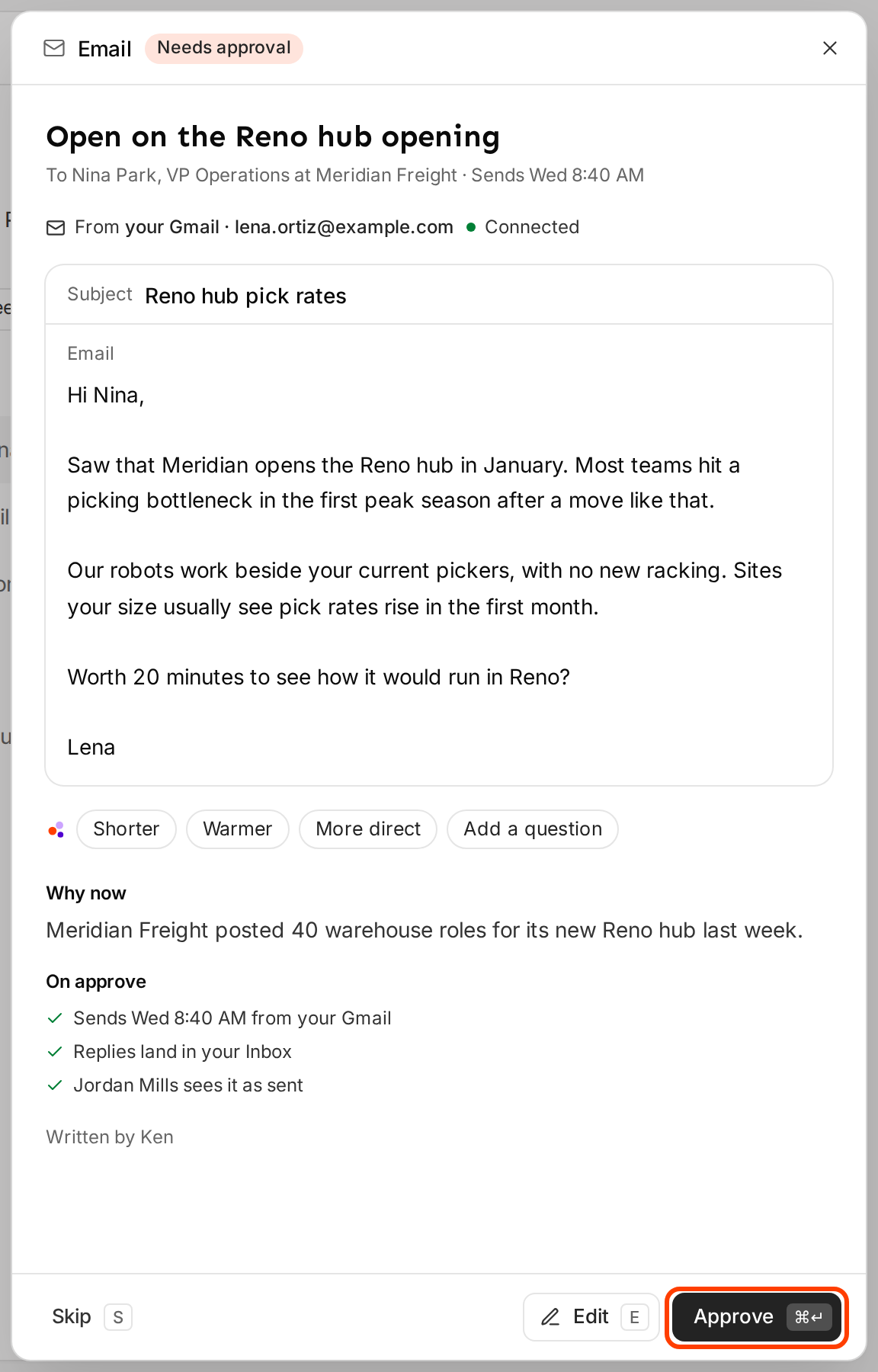
The message, why it goes out now, and what approving does.
Ken confirms with a message such as "Approved · sends Wed 8:40 AM". The message closes and moves to Scheduled from your inbox. Click the next one to keep going.
Edit before you approve
You can change the subject and the body. Who it goes to and when it sends stay as your agency planned them.
-
Click Edit, or press E.
-
Change the subject or the body.
-
Click Save and approve, or press ⌘ ↵. To keep your edit and decide later, click Save. To drop your edit, click Cancel or press Esc.
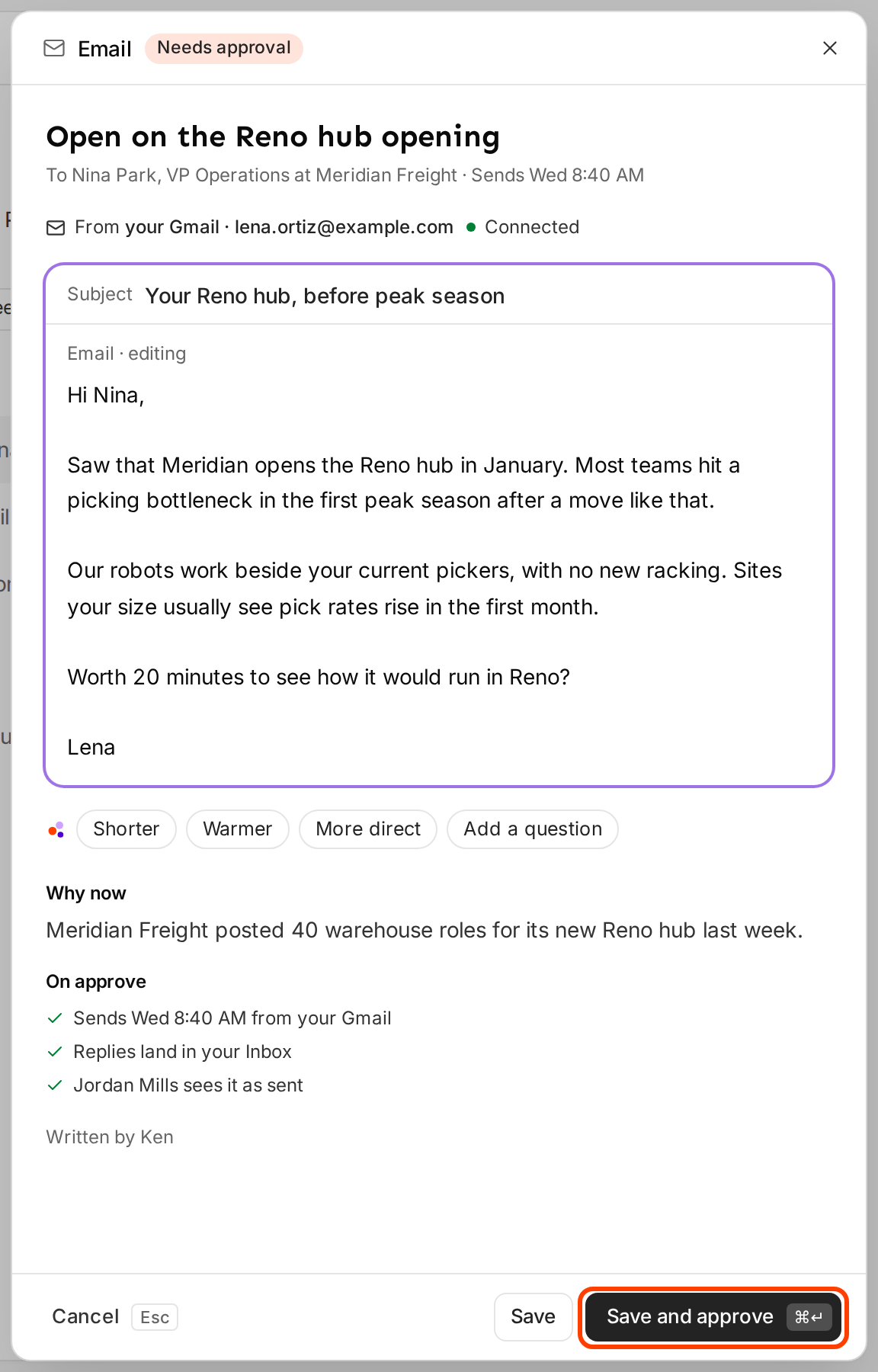
Edit the subject and body, then save and approve in one step.
Skip a message
If a message should not go out, click Skip, or press S. Ken confirms with "Skipped · it won't send". Skipping is right when the person is already your customer, or the timing is wrong. Send your agency a short note so they can fix the list.
Replies your agency writes for you
When someone replies to a message from your inbox, your agency may write the answer for you. That answer waits in Approvals too. Its button reads Approve and send, and it goes out in about a minute, in the same thread. You can edit the body, but the subject stays the thread's subject. There is no Undo for a reply once you approve it.
What your agency sees
Until you decide, your agency sees the message as waiting on you. They can read it, but they can't send it from your inbox.
When you approve, the message sends from your account at the planned time, and your agency sees it as sent. Replies come to your own inbox. If your agency turned on replies for you, they show in your Inbox in Ken too.
Connect your inbox first
If the list says Approve after you connect, your Gmail, Outlook or LinkedIn isn't connected yet. Use the cards at the top of Approvals:
- Click Continue with Google or Continue with Microsoft and sign in with the mailbox the messages should come from.
- Click Connect LinkedIn to sign in with your own LinkedIn.
Tips
- Check once a day. Each message shows its planned send time and waits for you before it goes out. A quick daily look keeps your campaign on schedule.
- Fix facts, not style. You know your customers best. Correct a wrong name, a wrong fact or a product you no longer sell. Small style changes are fine, but your agency tested the wording.
- Tell your agency why you skip. "Already a customer" or "talked to them last week" helps them clean the list, so you see fewer messages like it.
If something goes wrong
- "The Approve button is grey." The account this message sends from isn't connected. Connect it with the cards at the top of the page, then approve.
- "Your Gmail disconnected." Your inbox lost its connection, and its emails wait. Click Reconnect Gmail (or Reconnect Outlook) on the banner. They send once you reconnect.
- "A message is in Needs attention." It could not send. Open it to read Why it failed, then click Retry. If it fails again, tell your agency.
- "I approved the wrong one." Click Undo or press Z within 5 seconds. After that, tell your agency right away.
- "I can't change who it goes to." Your agency sets that. Skip the message and tell them who it should go to instead.
Next: What a client seat can see and do or Reply from the Inbox.