An agency runs each client in its own workspace. A client workspace has its own campaigns, leads, mailboxes and replies, and it spends credits from your agency workspace. This article shows how to create one, switch between clients, give each client credits and put your brand on what clients see.
The examples use a fictional agency called Pathline. Where you see "Pathline" in a label, the app shows your own workspace name.
Before you start
- You need the Admin role, or the White-label and client workspaces permission.
- Open White-label from your agency workspace. In a client workspace it says "White labeling isn't available for this workspace."
Switch between clients
-
Click your workspace name at the top of the sidebar. The Workspaces menu opens with a row for each workspace you belong to. Client rows say "Client · white-label", and a check marks the one you are in.
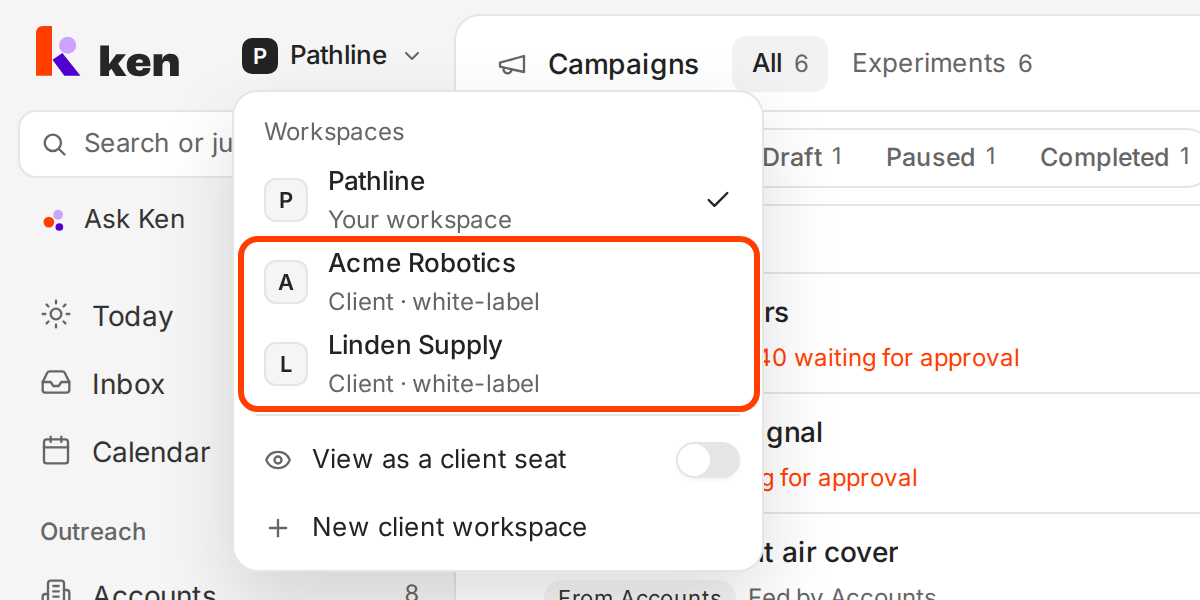
Your agency workspace and each client workspace are in the same menu. -
Click the client you want. Ken confirms with "Switched to Acme Robotics" and keeps you on the same screen, now with that client's data.
Everything you do after the switch happens in that client's workspace: the campaigns you build, the mailboxes you connect and the replies you read. Check the name at the top of the sidebar before you launch anything.
Create a client workspace
-
Open Settings, or press G then ,.
-
Choose White-label under Integrations.
-
Click New client workspace at the top right.
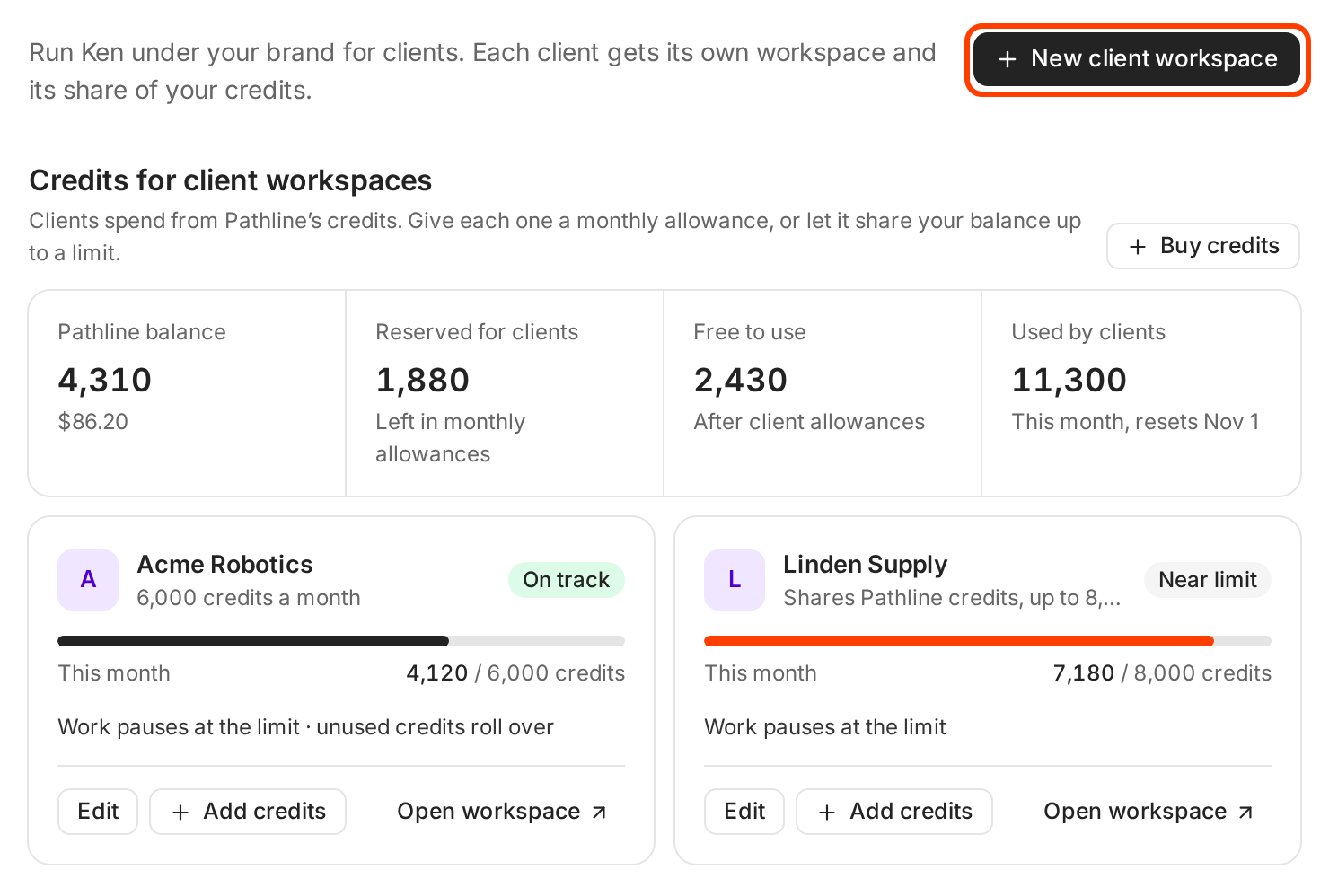
Credits for client workspaces shows your balance and what each client uses. Ken creates a workspace called "New client", confirms with "Client workspace created" and opens its card so you can set it up.
-
Type the client's name in Workspace name, up to 50 characters. Use the name the client uses for itself, because clients see it on share links and reports.
-
Under How it gets credits, pick Monthly allowance or Share Pathline credits, and type the amount. A new client workspace starts with 0 credits, so it can't do any work until you set this.
-
Click Done to save.
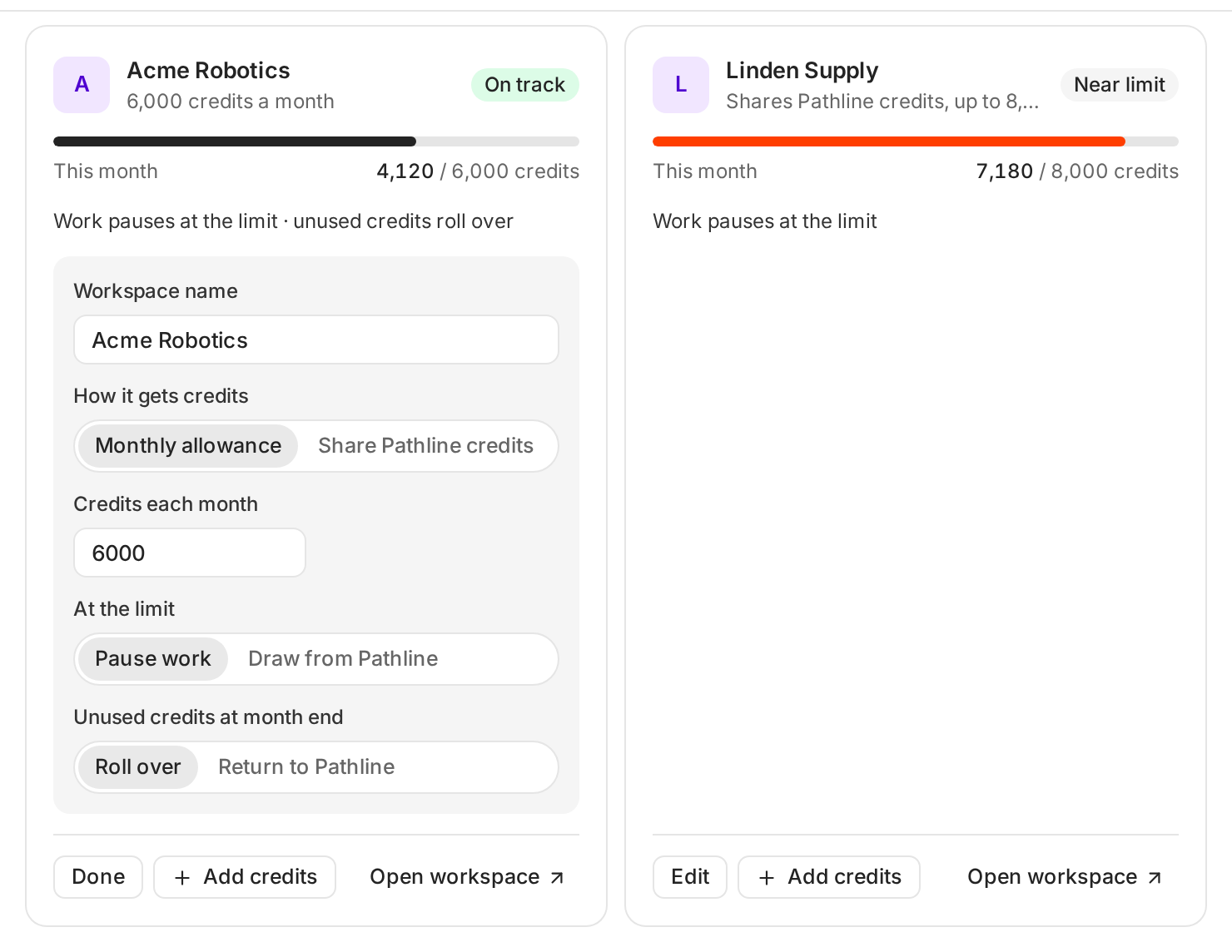
Each client card has its own name and credit rules.
Only you can open the new workspace at first. To bring your teammates in, switch to it, open Settings > Members and invite them.
Give each client credits
Clients spend from your agency's credits. The top of White-label shows four numbers:
| Tile | What it means |
|---|---|
| Pathline balance | The credits your agency has right now |
| Reserved for clients | What is left in your clients' monthly allowances |
| Free to use | Your balance after client allowances |
| Used by clients | What clients spent this month, and when it resets |
Each client card shows what the client used this month and a status: On track, Near limit or At limit.
You choose one of two ways for each client:
- Monthly allowance. The client gets a fixed number of credits each month. Set it in Credits each month. Under Unused credits at month end, pick Roll over to keep them for next month, or Return to Pathline to take them back.
- Share Pathline credits. The client spends from your balance, up to a Monthly limit you set.
Then pick what happens at the limit in At the limit. Pause work pauses the client's work until it gets more credits. Draw from Pathline keeps it running on your balance past the limit.
To top a client up during the month, click Add credits on its card, type the amount and click Send from Pathline. These credits leave your balance now and count for this month only. For a client that shares your credits, the button reads Raise this month and raises this month's limit instead.
Put your brand on Ken
The Brand section of White-label sets what your clients see.
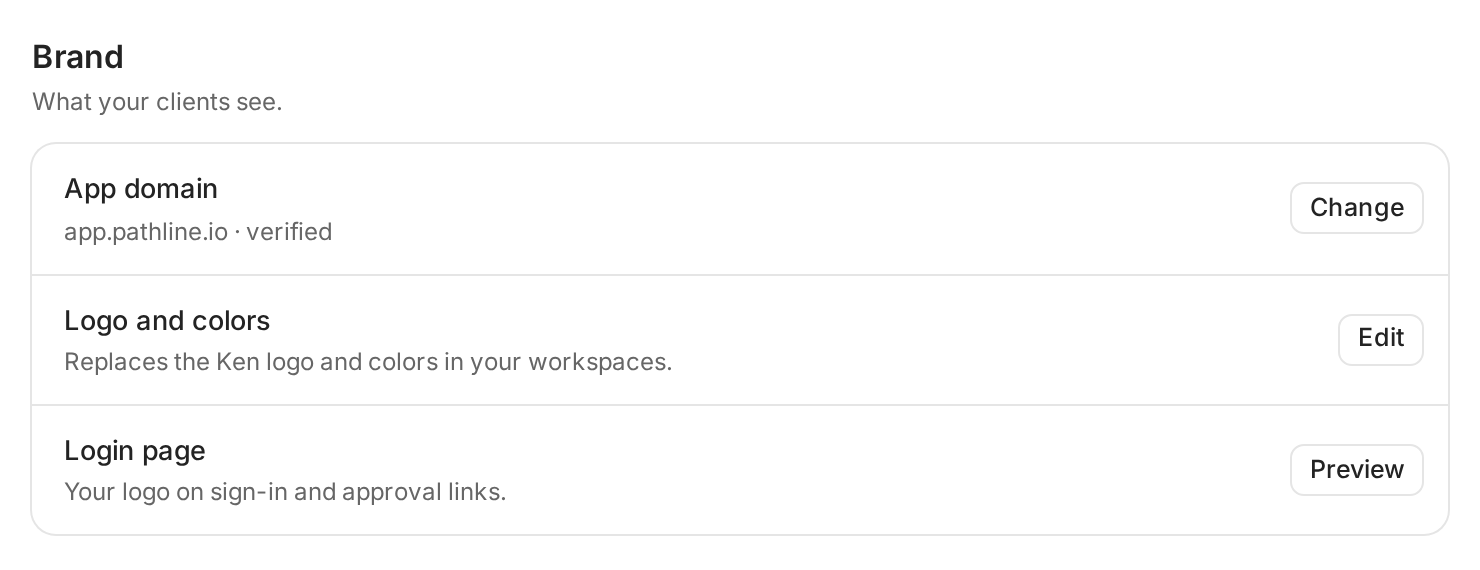
- App domain is the address your clients use, such as app.pathline.io. It shows the current domain and its status. Once it is verified, share links use it too. To set up or change it, write to [email protected] with the domain you want.
- Logo and colors replaces the Ken logo and colors in your workspaces. Click Edit, then Upload and pick your logo (PNG, SVG, JPG, ICO or WebP, up to 2 MB). The logo saves at once and Ken confirms with "Logo updated". Pick an Accent color and click Save to see "Colors saved".
- Login page puts your logo on the sign-in page and on approval links. Click Preview to see both before a client does.
What works
- One client, one workspace. Never run two clients in the same workspace. Their leads, blocklists, replies and results would mix, and a report for one client would show the other's numbers.
- Brand first, invite second. Upload your logo before you invite a client or send a share link. The first screen a client sees should carry your name, not ours.
- Start new clients on Pause work. You don't know a new client's pace yet. Pausing at the limit protects your balance. Switch to Draw from Pathline for clients whose work must never stop, and bill them for it.
- Match the allowance to how you bill. If clients pay you a fixed monthly fee, a Monthly allowance with Return to Pathline keeps unused credits with you. If they prepay a block of work, Roll over keeps what they paid for.
- Check Used by clients every week. A jump usually means a new campaign or a big list import. Ask about it before it uses up a month's allowance in a few days.
If something goes wrong
- "White labeling isn't available for this workspace." You are in a client workspace. Switch to your agency workspace and open White-label again.
- "Enter a whole number of credits". Type a whole number, such as 1000 or 1,000. Decimals don't work.
- "Pathline has 400 credits available". Your balance is lower than the top-up. Click Buy credits at the top of the section, or send a smaller amount.
- A client's campaign stopped. Its card probably says At limit. Click Add credits, raise Credits each month, or set At the limit to Draw from Pathline.
- I clicked New client workspace in the Workspaces menu and nothing was created. That menu item only shows a note. Create the workspace from White-label as described above.
- I launched in the wrong workspace. Pause the campaign right away, switch to the right client and build it there. Check the name at the top of the sidebar next time.
- A teammate can't find a client in the Workspaces menu. Only people invited to a client workspace see it. Invite them from Members in that workspace. If it is still missing, write to [email protected] with the client's name.
Next: What a client seat can see and do, How credits work or Run outbound for clients: a playbook for agencies.