Most wasted credits pay for work on people you never wanted to reach: research on companies that don't fit, emails found for people who were never a fit, or the same people imported twice. These habits keep your spend on accounts and leads that can turn into meetings. Each section has the numbers, so you can check the math for your own team.
Research only accounts that fit
Each target account costs about 18 credits ($0.36): about 12 for research, signals and scoring, and about 6 for buying committee emails, charged only when found. That is cheap for a company you will work for months, and pure waste for one you drop after reading the brief. 100 poor fits cost 1,800 credits ($36).
- Decide fit before you add. Searching the Ken database, company data and lookalikes are free. Check size, industry and location there first, then add only the companies that pass. See Choose the right target accounts.
- Add in small batches. Add your 10 best accounts, read the briefs, and check that Ken's research matches how you sell. Then add the next batch.
- Block before you add. Put customers, partners and competitors on the blocklist before you build lists. Ken won't contact anyone there, though it can still research a blocked company you add to Accounts by hand, so leave those out. See Keep companies and people off your lists.
Qualify before Ken looks for emails
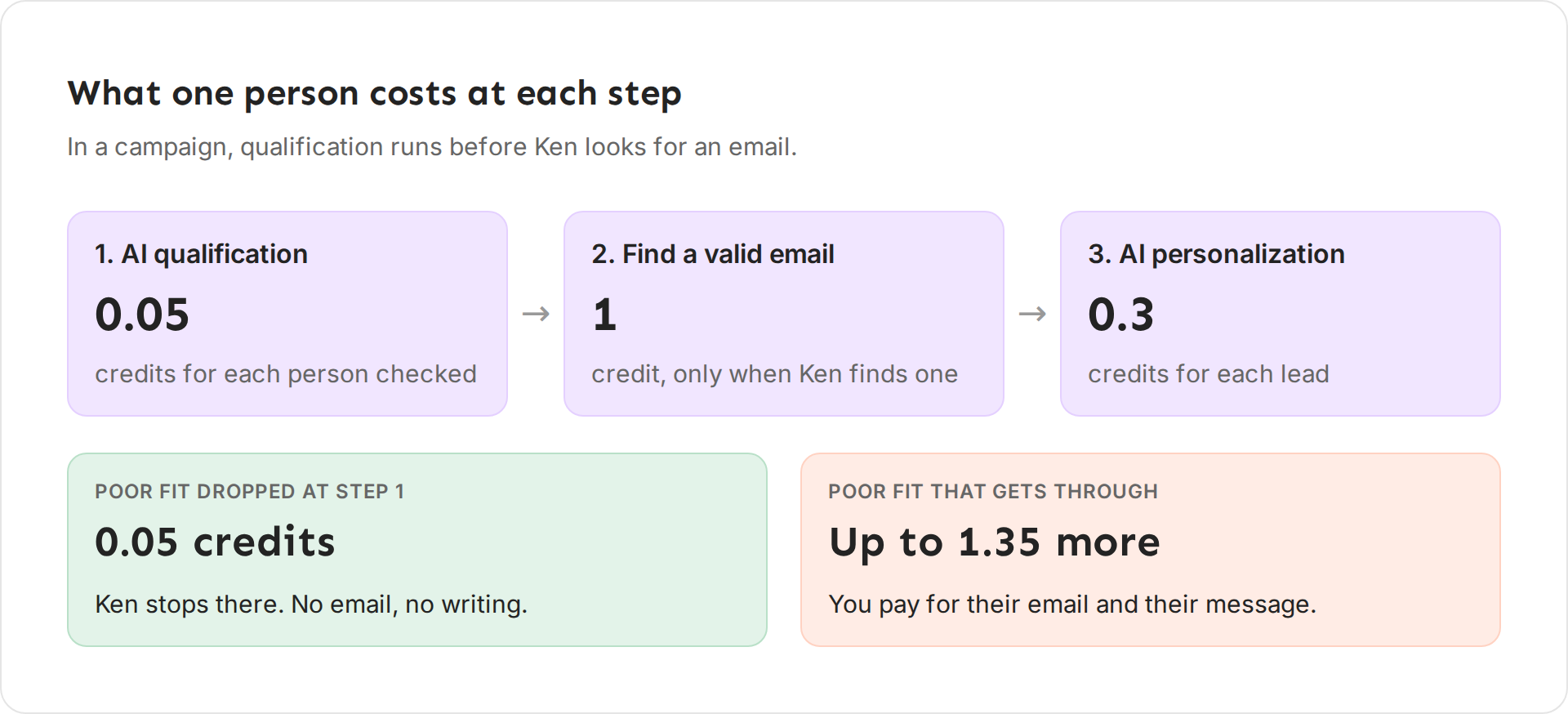
In a campaign, AI qualification checks each lead before Ken looks for an email. The two steps cost very different amounts.
| Step | Credits per person |
|---|---|
| AI qualification | 0.05 |
| Finding a valid email | 1, only when Ken finds one |
| AI personalization | 0.3 |
Every poor fit that qualification drops costs 0.05 credits and stops there. Every poor fit that gets through can cost up to 1.35 more. On a list of 3,000 people with 2,000 poor fits, qualification costs 150 credits and saves up to 2,600.
Make qualification do that job well:
- Keep hard facts in the search filters. Headcount, location, job titles and seniority belong in the search, where filtering is free. Qualification is for what filters can't see, such as product companies versus agencies.
- Write disqualifiers, not a dream profile. List what rules a company out, such as competitors, the wrong business model or services firms when you sell to product companies. Ken's own outbound team writes qualification as a safety net that drops obvious bad fits, not as a second description of the ideal customer.
- When the data is thin, let the lead through. A marginal lead costs about a credit. A good lead you dropped costs a meeting.
Test on a small batch first
Run 50 to 100 leads before you commit a full list. Ken's deliverability playbook puts it plainly: finding a problem at 2,000 sends is expensive, and at 50 it costs almost nothing. The same holds for credits.
| Batch | Credits | Cost |
|---|---|---|
| 100 test leads | About 145 | $2.90 |
| 2,000 leads | About 2,900 | $58 |
After the test batch, check four things before you scale:
- Keep rate. How many leads passed qualification. Ken's own team plans for about 6 in 10 from a well built search. Far fewer means the search is too broad, so tighten its filters.
- Valid email rate. How many leads got a valid email. Ken's team plans for an email for about 3 in 10 people, and for about 7 in 10 of those to pass verification. A much lower rate usually means the search reaches people with no findable work email, so check the titles and company size.
- Bounces. Ken's team warns at 2% bounces and pauses a campaign at 3%. Above that, fix the list before you send more.
- Replies. Read them. Replies such as "wrong person" or "not my area" mean the titles are off.
Save searches instead of building new ones
A saved search keeps the exact filters, so you can import more from the same audience next week, and your team works the same list. When you import into the same campaign again, Ken drops anyone already in it, so you don't pay twice for the same person. See Save a search and reuse it.
Size the search before you import. Ken's outbound team aims for a search about 5 times bigger than the number of people they want to reach, because qualification, email finding and verification each drop some people along the way, as the rates above show. If you want 1,000 people in a campaign, start from a search of about 5,000.
Set spend limits
Limits stop one person or one workflow from using the month's credits.
- Per person. In Settings, Members, open a person's Permissions and set Monthly limit to No limit, 10,000, 2,000 or None. It is the most that person can spend in a month from the workspace balance. Workflow runs don't count toward it. The built-in Viewer and Client templates start at None. See Invite your team and set roles.
- Per workflow. Each workflow, and each step in it that costs credits, can have its own limit per run and per month. At a limit, Ken stops before the next paid step and does what you picked: pause the workflow, ask you first, or hold runs until next month. See Set spend limits on workflows.
- On your card. Auto top-up buys at most 3 times in 24 hours, so even a runaway job can't charge your card more than that.
Bring your own keys for heavy use
On Ken's keys, every valid email costs 1 credit ($0.02). At 5,000 valid emails a month, that is 5,000 credits ($100). If your email finder plan costs less per valid email, add your key under Settings, Provider keys, and emails found with it cost 0 Ken credits. The same works for AI. With your own AI key, research, qualification and writing run at 0 Ken credits, and your AI provider bills you for the model use.
Keep Ken fallback on unless you never want Ken charges for that work. With fallback on, Ken uses its own keys when yours can't find an email or stops working, and charges the normal rate. With it off, that work waits or skips. See Use your own provider keys.
A month plan, worked example
Here is one month for a team on Platform, with 5,000 included credits and 5 Ken inboxes. They work 40 target accounts and run one campaign that ends with 1,500 leads with a valid email. Each lead is about 1.45 credits and each account about 18, as in the estimates Ken shows.
| When | Work | Credits | Total so far |
|---|---|---|---|
| Day 1 | Renewals for 5 Ken inboxes, 200 each | 1,000 | 1,000 |
| Week 1 | Test batch of 100 campaign leads and 5 target accounts | 235 | 1,235 |
| Week 2 | First 700 campaign leads | 1,015 | 2,250 |
| Week 3 | Next 700 campaign leads and 15 more accounts | 1,285 | 3,535 |
| Week 4 | 20 more accounts | 360 | 3,895 |
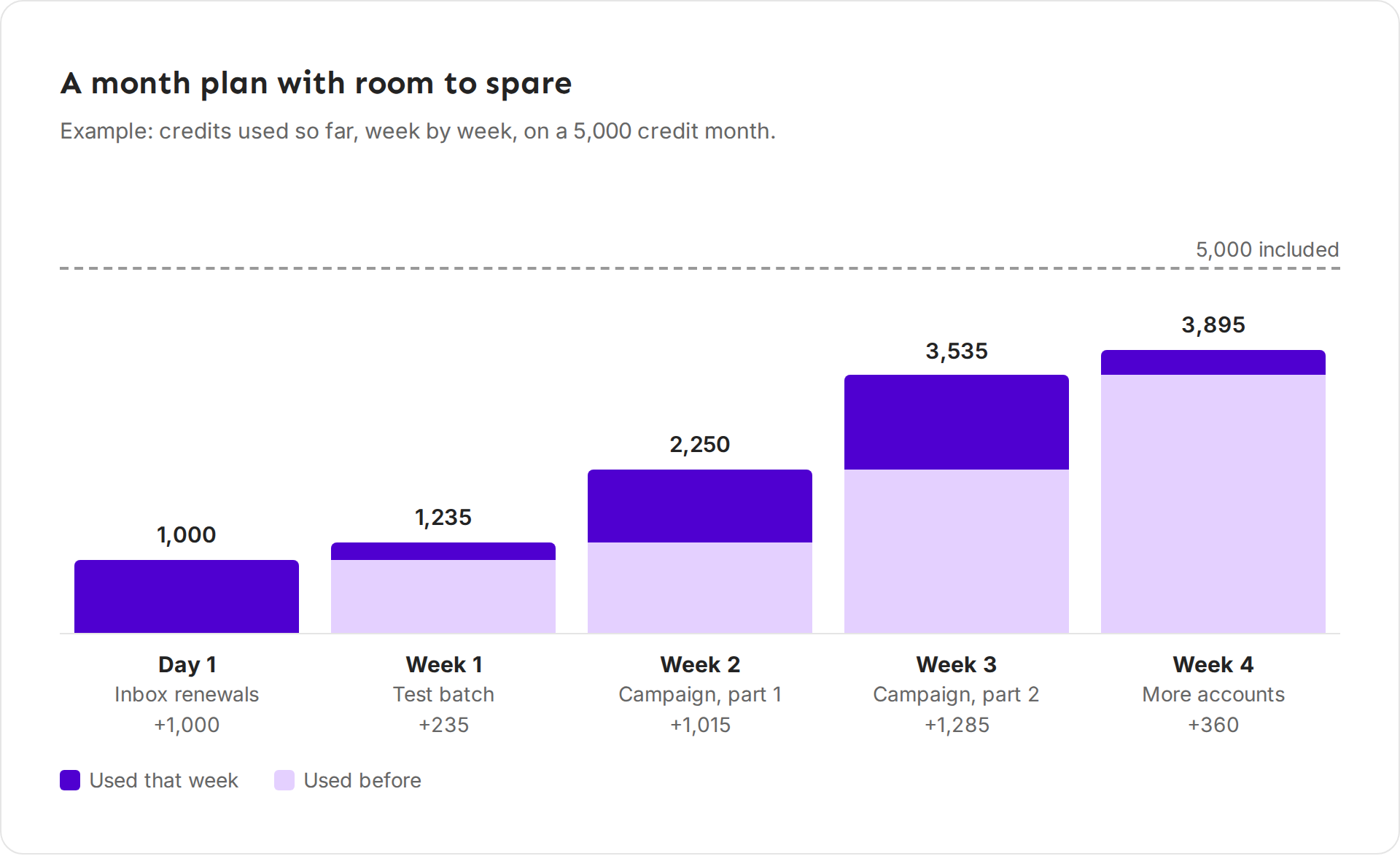
The plan leaves 1,105 credits, about a fifth of the month, unspent on purpose. That buffer covers account research that runs over its estimate, a second campaign build, or a hot account that needs a deeper look. Auto top-up is on with a threshold of 1,000, so renewals never fail even in a busy month.
The test batch in week 1 is what makes the rest safe. If its keep rate or find rate is off, the team fixes the search before spending the next 2,000 credits.
Check your spend once a week
Open Settings, Billing and read the line under your balance. It shows what data and AI used since the billing month started, the daily pace, and whether your credits last until the plan adds more. Then check Activity, filtered to Data and AI, for anything you didn't expect. A workflow you forgot about shows up there first.
If something goes wrong
- "We ran out halfway through the month." Check Activity for the biggest lines. In a campaign, the email is 1 of the 1.45 credits each lead costs, so start there. Tighten qualification, or add your own email finder key.
- "Ken researched accounts we would never sell to." Remove them from Accounts, add their domains to the blocklist, and decide fit in Search before you add the next batch.
- "A teammate used most of the credits." Set a Monthly limit in their permissions.
- "A workflow keeps pausing." It reached its limit. Raise the limit if the spend is worth it, or tighten the workflow's filters.
Next: Use your own provider keys, Set spend limits on workflows or Build a lead list that books meetings.