Ken can run email finding and AI work on your own accounts with outside providers. Ken still does the work, but anything done with your keys costs 0 Ken credits, and your provider bills you directly. This pays off when you find thousands of emails a month or already pay for an AI plan.
Before you start
- You need to be a workspace admin to add, change or remove keys. Other members with the Integrations and API keys permission can see the page but can't change keys.
- Get an API key from your account with the provider. Check that the account has credits or a paid plan.
These providers work today:
| Kind | Providers | What runs on your key |
|---|---|---|
| Email finders | Prospeo, Findymail, LeadMagic | Finding and verifying work emails for your leads |
| AI providers | Anthropic, OpenAI, OpenRouter | Research, qualification and writing |
On Ken's keys, each valid email costs 1 credit ($0.02) and AI work costs the normal credit rates. See How credits work for the full table.
Add a key
-
Press G then , to open Settings.
-
Click Provider keys under Integrations.
-
Find the provider and click Add key.
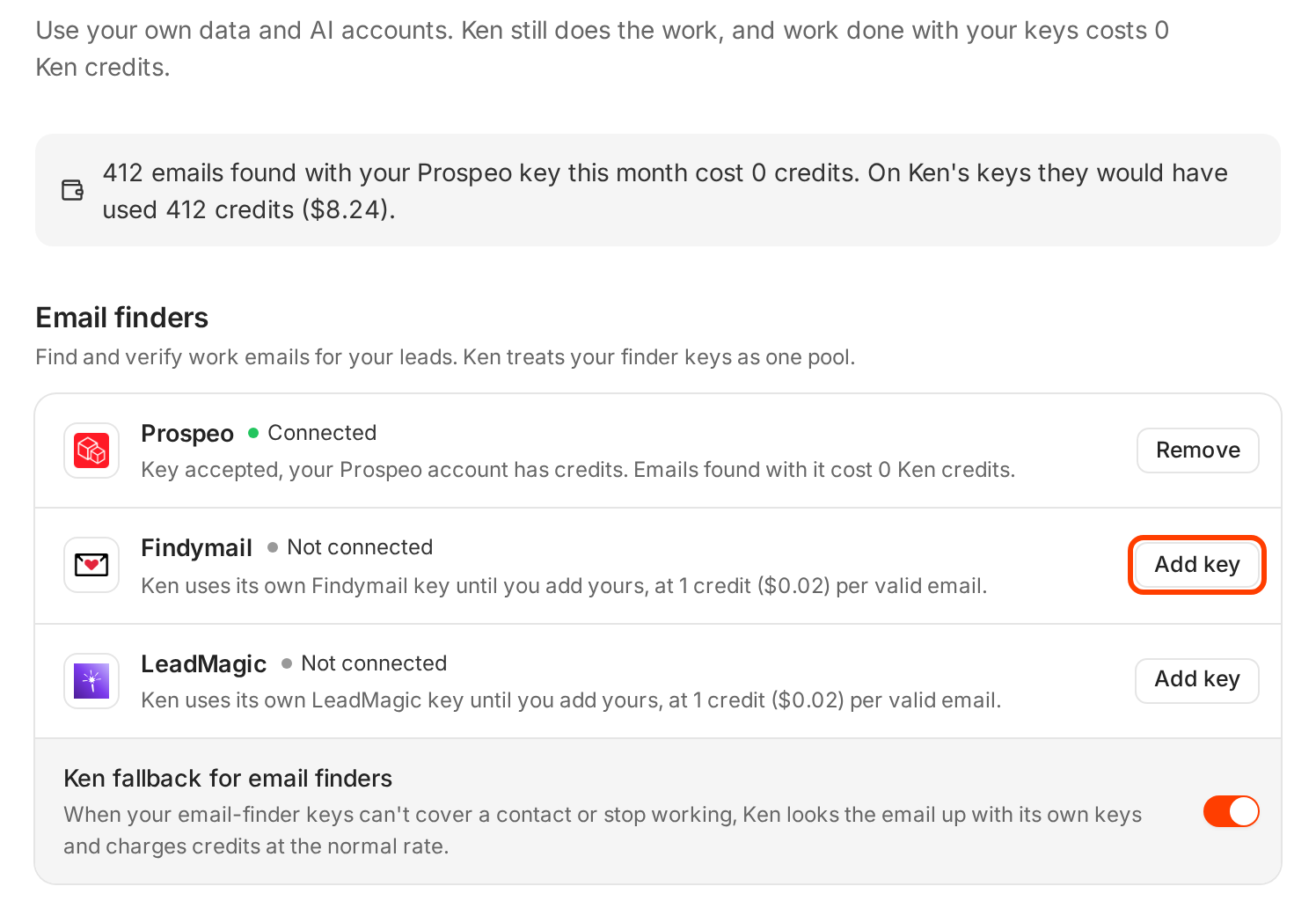
Each provider shows whether your key is connected and what Ken does until you add one. -
Paste your API key and save it. Ken checks the key with the provider before it saves it, which takes up to 10 seconds.
-
Check the row. It now says Connected and "Key accepted, your Findymail account has credits. Emails found with it cost 0 Ken credits."
Ken uses the key only in this workspace. If you run more than one workspace, add the key in each one.
Email finder keys work as one pool
Add more than one email finder and Ken treats them as a single pool, so the fallback switch below covers all of them at once. Once you have a connected finder, the top of the page shows what your keys saved this billing month, for example "412 emails found with your Prospeo key this month cost 0 credits."
AI keys
With an AI key connected, research, qualification and writing for your campaigns run on your key at 0 Ken credits. Until you add one, Ken runs its default model for that work and charges credits.
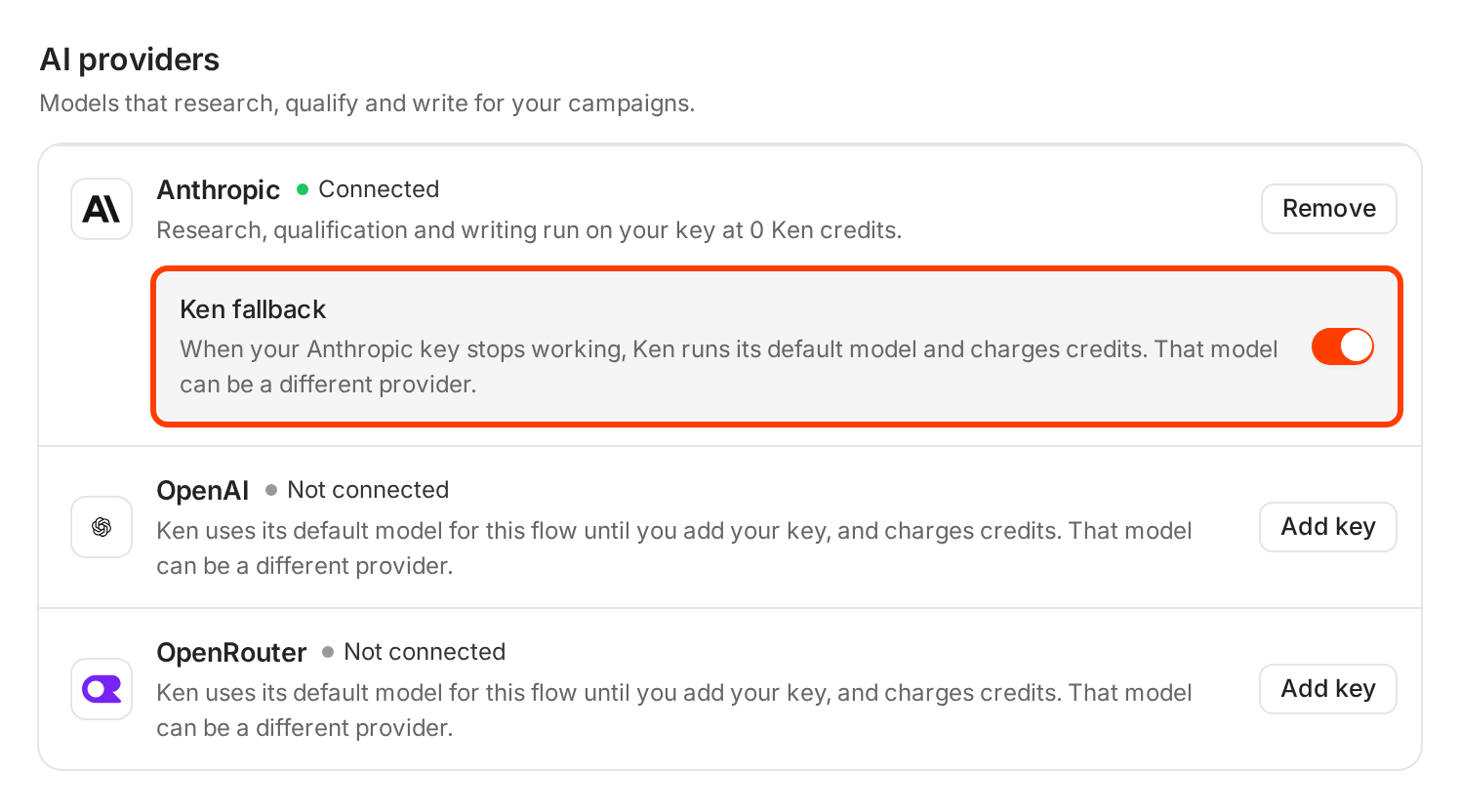
Choose what happens when a key fails
Keys stop working. A provider account runs out of credits, a key gets revoked, or a provider can't find a person. The fallback switches decide what Ken does then.
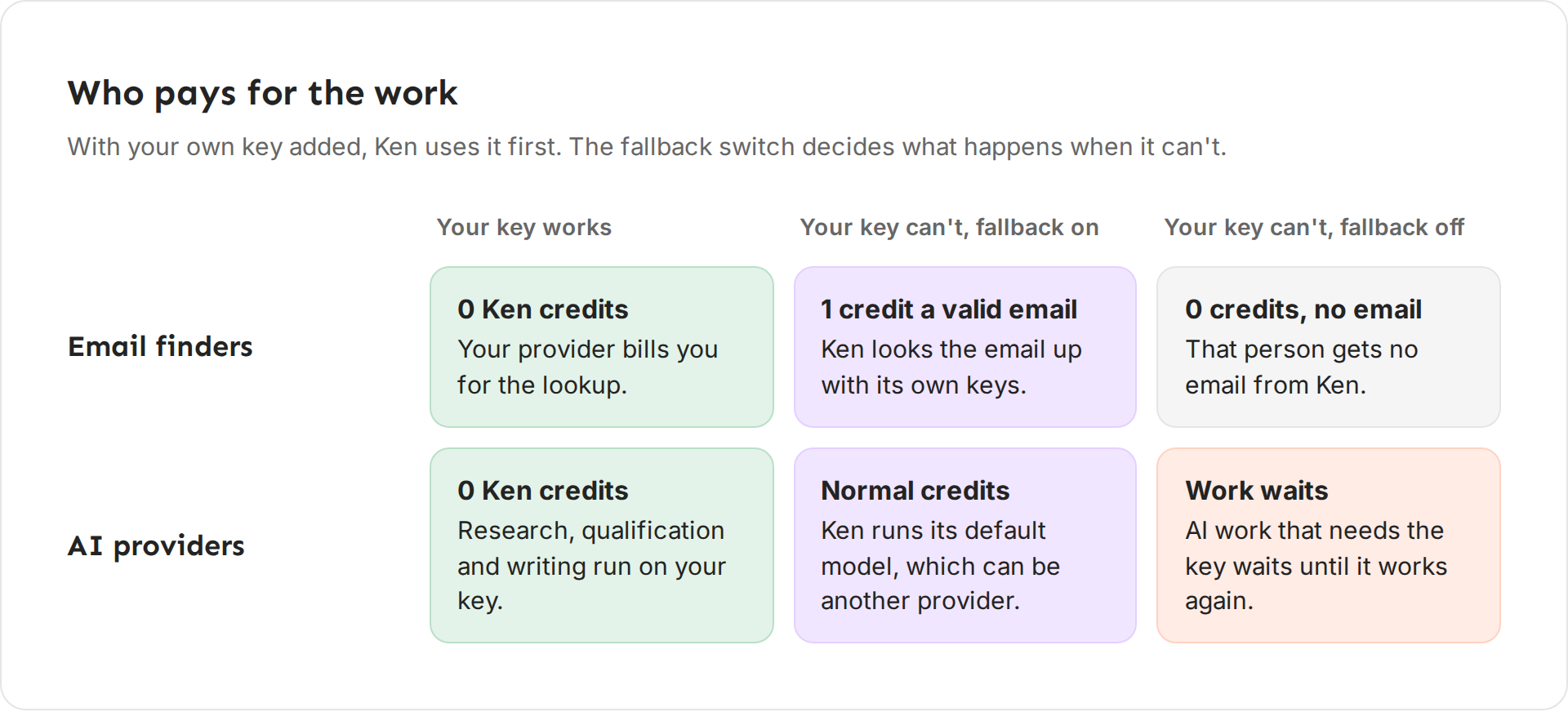
- Ken fallback for email finders is one switch for all your finder keys. On, Ken looks the email up with its own keys and charges 1 credit for each valid email. Off, Ken only uses your keys, and a person they can't cover gets no email and costs no credits.
- Ken fallback under each AI key works the same way for that key. On, Ken runs its default model and charges credits, and that model can be from another provider. Off, AI work that needs the key waits until the key works again.
Both are on when you add a key. To change one:
- On Provider keys, find the switch.
- Turn it off or on. Ken confirms, for example "Ken fallback for email finders is off", and the text under the switch changes.
Replace or remove a key
- Replace. Click Remove, then Add key and paste the new key. Ken checks it the same way as the first one.
- Remove. Click Remove on the provider's row. Ken deletes the stored key right away, and every Ken process stops using it within about a minute. From then on, that work runs on Ken's keys and costs credits again, unless fallback is off.
Keep your keys safe
- Ken never shows a saved key again. The page shows only the last 4 characters, so you can tell keys apart. Nobody in your workspace can copy a key back out of Ken.
- Keys are encrypted and used only in the workspace where you added them.
- Use a dedicated key for Ken. Most providers let you create more than one key. A separate key lets you see Ken's usage in your provider account and revoke it without breaking your other tools.
- Set a spending cap at the provider if it offers one. When your account hits the cap, Ken treats the key as failed and follows your fallback switch.
- Rotate keys when someone leaves. If a person who had access to the raw key leaves your company, create a new key at the provider, add it in Ken, then revoke the old one.
If something goes wrong
- "Ken says my key was rejected." The provider refused it, and Ken didn't save it. Copy the key again with no spaces before or after it, check that it is active in your provider account, and add it again.
- "The key is saved but says it has no credits." Ken saved it, but your provider account is empty. Top it up at the provider. Until then, Ken uses its own keys if fallback is on.
- "Ken couldn't check my key." The provider didn't answer in time, so Ken saved the key without a check. If work on that key doesn't come through, remove the key and add it again.
- "I'm still being charged credits for emails." Your finders couldn't cover those people, and fallback is on. Ken's keys found them at 1 credit each. Turn off Ken fallback for email finders if you don't want that.
- "I can't add or remove a key." Only admins can change keys. Ask an admin to do it for you.
Next: How credits work, Get more from your credits or Invite your team and set roles.