A quiet campaign usually has one main problem, and its numbers tell you which one. This guide matches each symptom to its cause, says what to fix first, and shows how to test one change at a time so you know what worked.
Before you change anything
-
Open Campaigns, or press G then C. Hover a campaign to see its Contacts, Contacted, Emails sent, Clicks, Replies, Positive replies and Bounces.
-
Open the campaign. The Analytics tab opens first. The Bounces pill above the chart shows your bounce rate.
-
Read the segments table. It shows Contacts, Messages sent, Progress, Replies, Interested and Clicks for each segment. Hover a segment's Messages sent to see its bounces by reason, and its Replies to see human and automated replies.
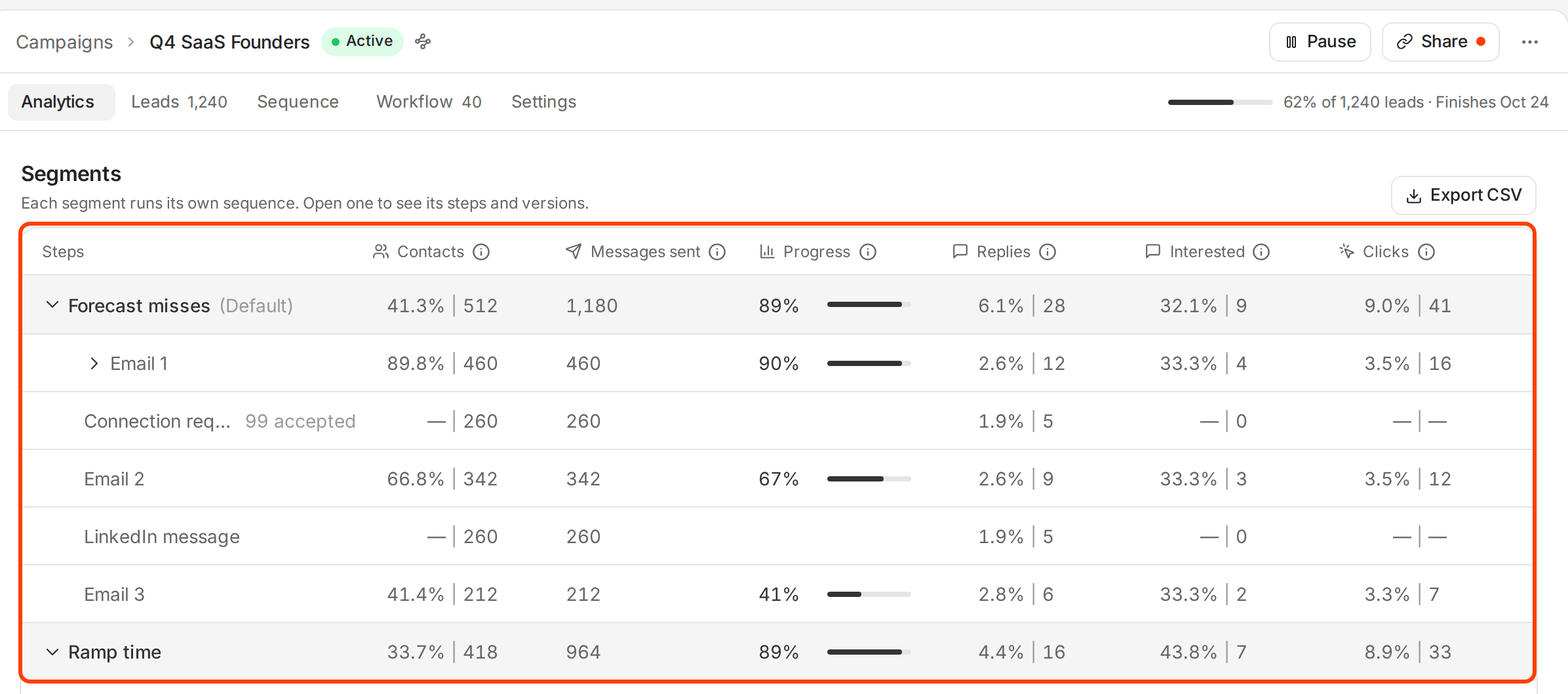
The segments table shows which group is working.
Three rules before you judge:
- Give it enough volume. Reply rates are usually under 2%, so a small sample is mostly luck. Compare segments only after each has reached a similar number of people. To compare two versions of an email, a segment needs about 2,000 contacts.
- Look at replies, not opens. Track opens is off by default, because open tracking hurts deliverability.
- Read Interested, not only Replies. Replies counts every inbound reply, including auto-replies. The Interested pill above the chart is a share of replies, not of leads. In one campaign Ken ran, about 3 in 4 replies were automatic.
Find the symptom
Go down the questions in order and stop at the first yes. Each problem hides the ones below it. Better copy cannot help an email that lands in spam.
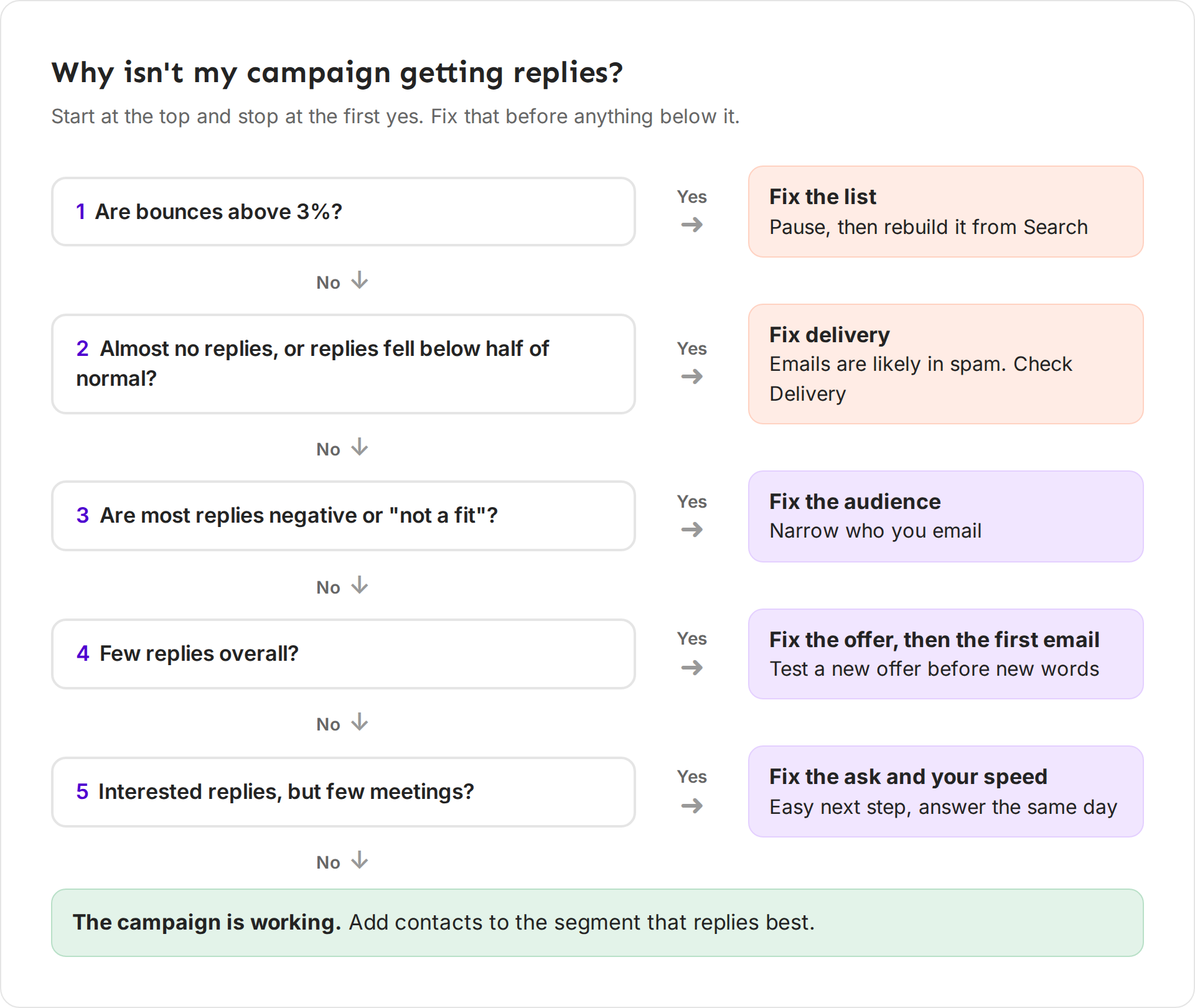
| What you see | Likely cause | What to fix |
|---|---|---|
| Bounces above 3% | Old or unverified contacts | Pause the campaign and rebuild the list from Search |
| Almost no replies of any kind, or replies fell below half of their usual rate | Emails land in spam | Check your inboxes and sending volume in Delivery |
| Replies come in, but most say "not interested", "unsubscribe" or "we're not a fit" | Wrong people, or an email that reads like an ad | Tighten the audience first, then the tone |
| Delivery looks healthy, but few people reply | The offer or the first email | Change the offer, or rewrite the first email |
| Interested replies, but few meetings | A hard ask, or slow answers | Make the next step easy and answer the same day |
| One segment replies and another does not | That segment is the wrong fit | Move volume to the segment that works |
Fix each cause
Fix the list when bounces are high
The Ken team keeps the bounce rate under 2%, watches it closely between 2% and 3%, and pauses the campaign to clean the list once it passes 3%. Bounces tell inbox providers your list is careless, which hurts every email you send after.
- Pause the campaign.
- Rebuild the list from Search, where Ken checks each email before you send. In one campaign Ken checked, only 73% of an old CSV's emails were safe to send, against 97% for a list built in Search.
- If one segment bounces far more than the others, look at where its contacts came from.
Fix delivery when nobody replies
When almost nobody replies, not even to say no, your emails are probably in spam. A sudden drop to less than half your usual reply rate is the same warning.
- Check your inboxes in Delivery, or press G then D.
- Lower the daily volume per inbox. Plan on about 30 campaign emails a day from each inbox. Ken never sends more than 50 a day from one inbox.
- Remove links and images from the first email.
See Keep your email out of spam for the full checklist.
Fix the audience when replies are negative
If people answer "not interested" or "we don't do that", the email reached the wrong people. Rewriting the copy will not fix it.
- Read 20 replies and note what the senders have in common: title, company size, industry.
- Narrow the filters to exclude them, or move the audience to the segment that answers well.
- If replies complain about the tone, cut buzzwords and the long intro. See Write cold emails people reply to.
Fix the offer, then the first email, when few people reply
If the inboxes are healthy and the audience is right, but few people answer, the offer is not strong enough or the email hides it.
- The offer comes first. An offer they can see value in is easier to say yes to than a demo. For example, run your product on their own data, send a sample you made for them, or back the result with a guarantee. Test a different offer before you test different words.
- Then the first email. Per email sent, the first email gets the most replies, so start there. Shorten it, make the first line about them, and end with one soft ask, such as "Worth a look?"
- Keep the sequence short. Three or four steps, three or four days apart. The Ken team reviews any cold sequence longer than four steps.
Fix the ask and your speed when replies don't become meetings
- Answer interested replies the same day, while they still remember your email.
- Make the next step easy. Suggest two times, or send a booking link in the reply.
- Ask for less in the first email. A soft ask, such as "Worth a look?" or "Want me to send the one-page ramp benchmark?", is easy to answer from a phone. "Book 30 minutes" asks for a commitment before they trust you. Ask for the meeting once they reply.
In one account Ken runs, about 3 in 10 interested replies became meetings. If yours is far below that, read your replies and your answers together.
Rough numbers to compare against
Your own last 90 days are the best baseline. Until you have them, compare your reply rate with the range for your audience in Read campaign results. Across Ken's campaigns, replies per contacted run from 0.3% for C-suite buyers at large companies to 2% for owners of small businesses. Keep the bounce rate under 2%.
Test one change at a time
If you change the audience, the subject and the offer in one week and replies go up, you will not know why. Change one thing, wait for the result, then change the next.
-
Open the campaign's Sequence tab and pick the step you want to test, usually the first email.
-
Click Add Version under the step. A step can have up to 4 versions.
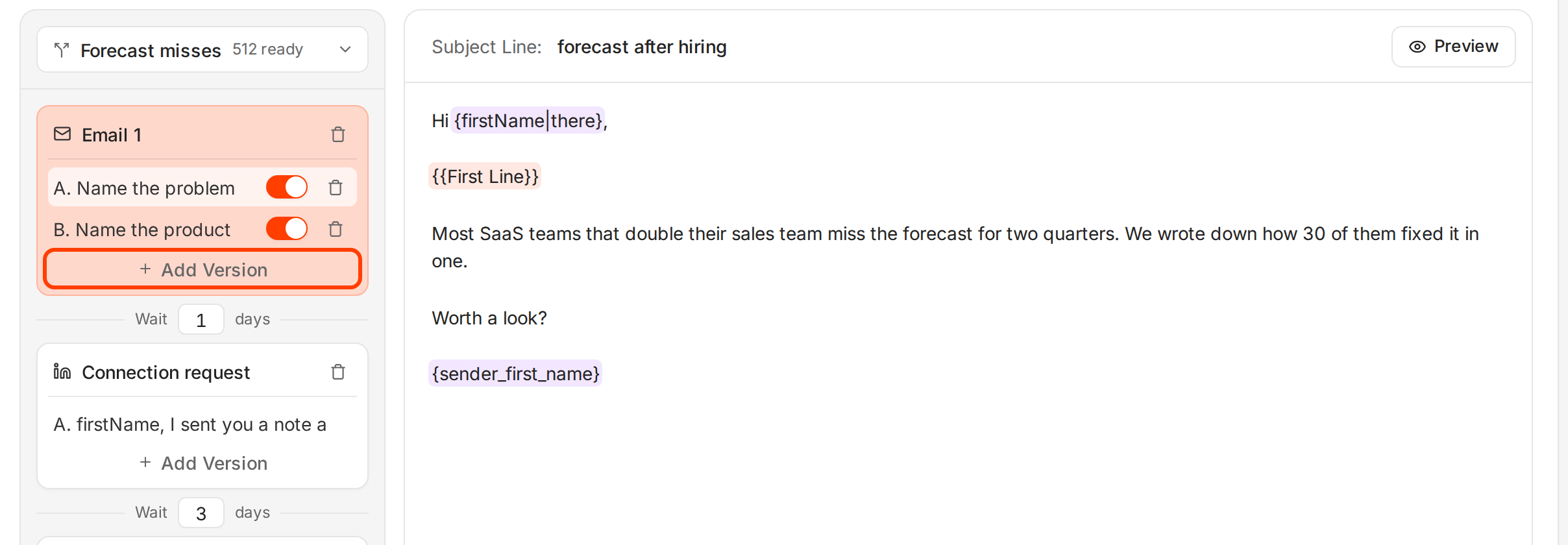
Each version of a step can have its own subject and body. -
Write the new version with only one change, such as the subject, the opening line, the offer or the ask.
-
Double-click the version to give it a name that says what you changed, such as "B. Soft ask".
-
Click Save. Ken picks one active version at random for each lead, so each version reaches a similar group.
-
Compare the versions in the segments table on the Analytics tab once each one has reached a similar number of people. Click the segment, then the step, to see a row for each version.
-
Turn off the losing version with its Active version switch, and start the next test.
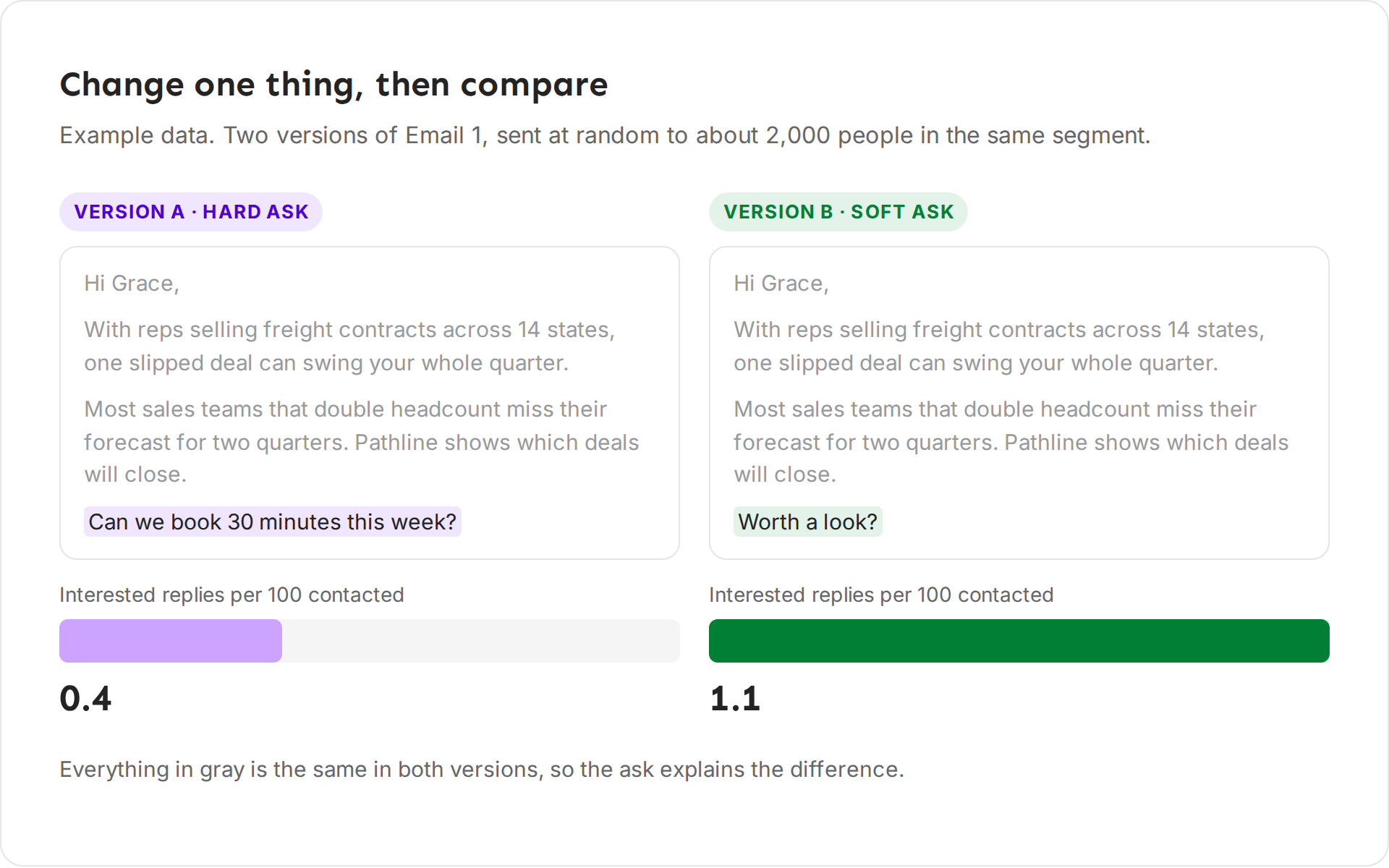
For example, version A ends with the hard ask "Can we book 30 minutes this week?" and version B with the soft ask "Worth a look?" Everything else is the same. If B gets 1.1 interested replies per 100 contacted and A gets 0.4, the ask made the difference, so keep B and test the next thing.
If something goes wrong
- "Both versions look the same." The change was too small, or the volume is too low. Test a bigger change, such as a new offer, and wait for more contacts.
- "Replies dropped after I edited the email." Check the bounce rate and Delivery first. A sudden drop is more often a delivery problem than a copy problem.
- "My edit didn't change emails that already went out." Saving changes only affects emails that have not sent yet.
- "I can't add another version." A step holds up to 4 versions. Turn off or delete a losing one first.
- "Ken says 0 ready." Leads become ready after Ken finishes writing their AI variables. See Personalize emails with AI variables.
Next: Read campaign results, Keep your email out of spam or Choose your audience and split it into segments.