A campaign's Settings tab decides when it sends, how fast, from which inboxes, and when Ken stops writing to someone. Good settings protect your inboxes and land your emails while people are at their desks. This guide explains every setting and how to launch, pause, resume and archive a campaign.
Before you start
Connect your inboxes and let them warm up first. A new inbox needs between about 10 days and 6 weeks of warm-up before it sends cold email. See How warm-up works.
Open a campaign's settings
-
Press G then C to open Campaigns, and click your campaign.
-
Open the Settings tab. It has a card for each part, such as Sending, Senders, Stop rules, Tracking, Prompts and Details.
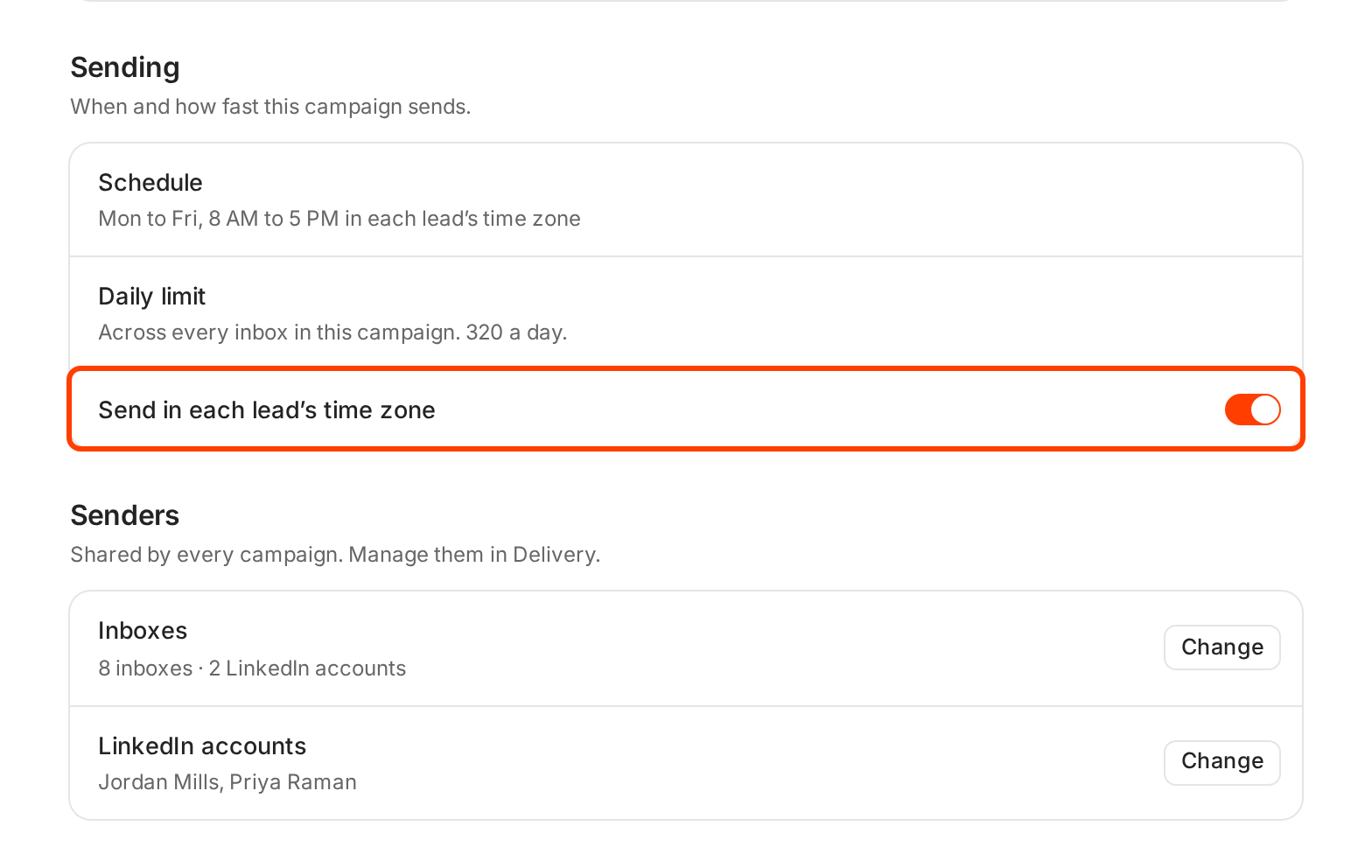
Sending shows the schedule and the daily limit. Senders shows which inboxes and LinkedIn accounts send. -
Turn a switch on or off. Ken saves the change right away.
Every setting
| Card | Setting | What it does | What we recommend |
|---|---|---|---|
| Sending | Schedule | The days and hours the campaign sends | Weekdays, across the lead's working day, such as 8 AM to 5 PM |
| Sending | Daily limit | The most emails the campaign sends in a day, across every inbox in it | About 30 for each warmed inbox in the campaign |
| Sending | Send in each lead's time zone | Reads the schedule in each lead's local time | On |
| Sending | Auto-launch when ready | Starts sending as soon as Ken finishes writing the campaign. Shown only before launch | On, once the sequence and settings are final |
| Senders | Inboxes | The inboxes that send. Every campaign shares them. Change opens Delivery | Several inboxes, never one |
| Senders | LinkedIn accounts | The accounts that run LinkedIn steps | One per sender |
| Stop rules | Stop when the lead replies | Ends the sequence for anyone who replies. On by default | On |
| Stop rules | Stop for the whole company when anyone replies | Ends it for everyone at that company. Off by default | On |
| Stop rules | Protect account plays | Skips anyone at an account you work 1:1, and stops if an account moves to Warming. On by default | On |
| Tracking | Track link clicks | Counts clicks on links in your emails. On by default | Off if your emails have no links |
| Tracking | Track opens | Counts opens with a hidden image. Off by default | Off |
| Tracking | Unsubscribe link | Adds an unsubscribe option to the hidden email headers, so mail apps show an Unsubscribe button. Nothing is added to the body. On by default | On |
| Prompts | One row per prompt, such as Qualification and Personalization | The prompts Ken runs for this campaign, for everyone or for one segment. You can read them here, not edit them | Check that each row names the prompt you expect |
| Details | Owner, Tags | Who owns the campaign and how you group it | |
| Details | Save as a template | Reuses the sources, segments and sequence from Studio | |
| Details | Archive campaign | Stops sending. Leads and replies stay |
A switch that Ken can't change on your campaign yet shows "Available soon."
Schedule and time zones
The Schedule row shows the days and hours, such as "Mon to Fri, 8 AM to 5 PM in each lead's time zone". The Daily limit row shows the most the campaign sends in a day.
When you set up your first campaign, its Schedule tab lets you set these yourself:
- Sending schedule. Pick days, or use Weekdays or All Days.
- The time window. Drag the start and end times.
- The time zone. Prospect's time zone is first in the list. The others are fixed zones, such as Eastern Time or London.
- Max emails per day. The most this campaign sends in a day, across every inbox it uses.
- Ramp-up days. How many sending days it takes to reach full daily volume, from 0 for no ramp to 30.
- Scheduling. Two checkboxes, Stop outreach to same-company contacts after a reply and Send to same-company contacts on the same day. Both start on.
The defaults are Monday to Friday, 8 AM to 11 AM in each prospect's time zone, 50 emails a day and 5 ramp-up days.
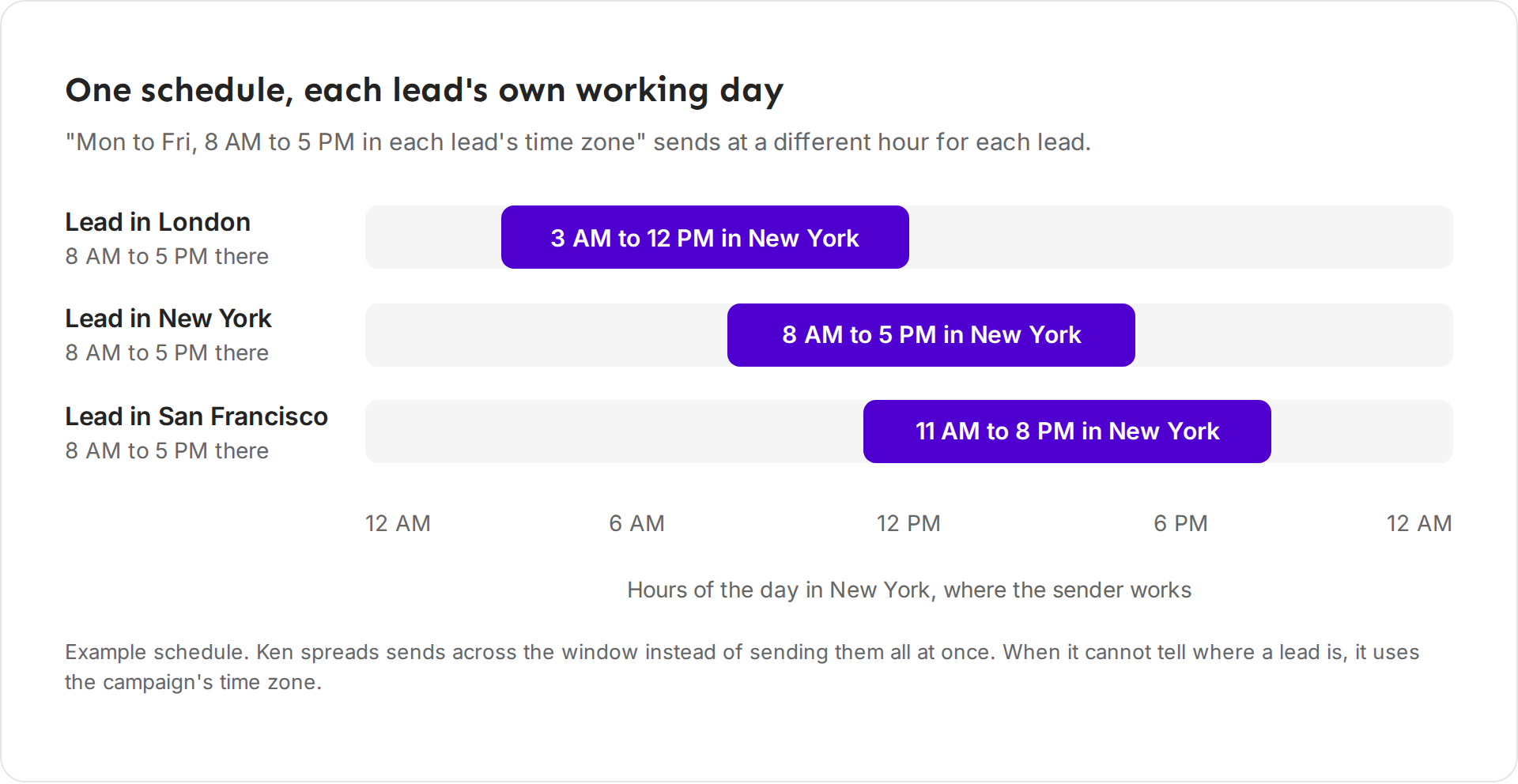
With Send in each lead's time zone on, Ken works out where each lead is. It checks, in order, a time zone saved on the lead, the company's location, the lead's city, region or country, the company's headquarters, the phone number's country, and the country of the email domain. If none of these work, it uses the campaign's time zone, and New York time if the campaign has none.
Ken spreads emails across the window instead of sending them all at the start. Each lead's send time is fixed, so a retry never moves it.
Launch, pause, resume and archive
The button at the top right of a campaign changes with its state.
- Launch starts a draft. Ken confirms with "Launched" and the campaign name. If Ken is still writing the campaign, Launch turns on auto-launch instead, for example "Auto-launch is on. Q4 SaaS Founders launches when Ken finishes building it."
- Pause stops all sending for this campaign. Ken confirms it, for example "Paused Q4 SaaS Founders. Nothing else sends until you resume."
- Resume starts sending again on the campaign's schedule.
- To archive, go to Details in Settings, click Archive next to Archive campaign, and confirm. Archiving stops sending. Leads and replies stay.
Stop rules and tracking
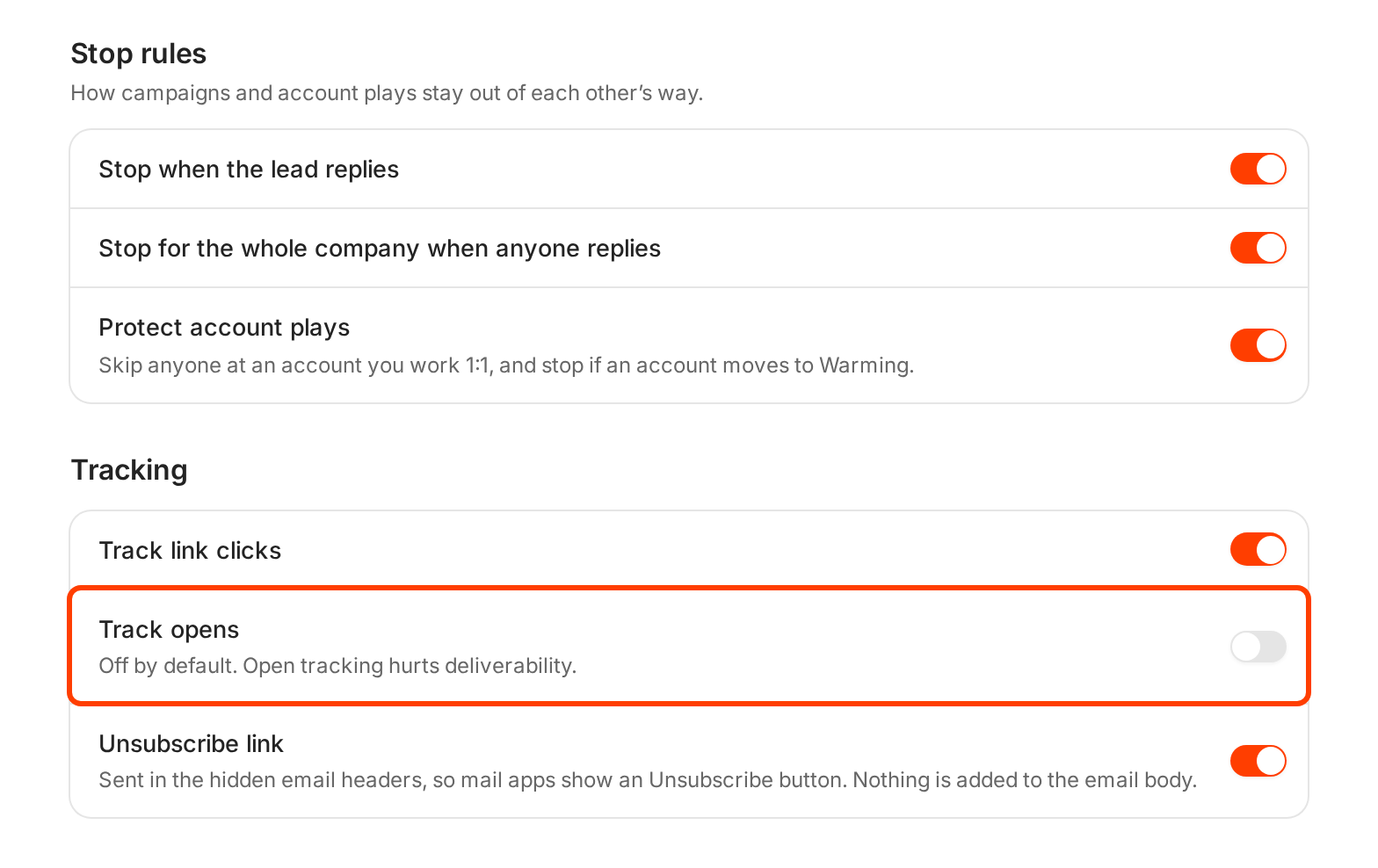
Keep all three stop rules on. Stop for the whole company when anyone replies starts off, so turn it on. Writing again to someone who replied, or to their colleague, turns a neutral answer into a complaint.
Leave Track opens off. Open tracking adds a hidden image to every email, which spam filters notice. The numbers are wrong too, because Apple Mail and company email scanners open emails before a person does. Judge a campaign on replies and interested replies instead.
What works
- Weekdays, across the lead's working day. Ken's deliverability playbook spreads sends across the lead's business hours. A window such as 8 AM to 5 PM in each lead's time zone gives Ken room to space the emails out. The first-campaign default of 8 AM to 11 AM is fine at low volume.
- Spread sends across many inboxes. Plan on about 30 cold emails a day from each warmed-up inbox. Ken never sends more than 50 campaign emails a day from one inbox. For 500 emails a day, that is 17 inboxes plus spares, about 21 in all. See How many inboxes do I need.
- Ramp up slowly. Ken ramps a new inbox by itself: 5 campaign emails on its first sending day, then 2 more each sending day. For a new campaign, use Ramp-up days so its volume grows over the first days. A sudden jump in volume is a spam signal.
- Count warm-up sends. Ken's limits count campaign email only, but Google and Microsoft count everything an inbox sends. An inbox that sends 40 warm-up emails and 40 cold emails is an 80-a-day inbox to them.
If something goes wrong
- "I can't edit the schedule." The schedule and daily limit are read-only in Settings for now. Write to [email protected] with the change you need.
- "Emails arrive at 3 AM." Send in each lead's time zone is off, or Ken could not find where the lead is. Turn the switch on and check that your leads have a location.
- "The campaign sends less than the daily limit." The inboxes' own daily limits in Delivery are lower than the campaign's. Add inboxes, or check each inbox's limit in Delivery. See How many inboxes do I need.
- "Someone replied and still got the next email." Check that Stop when the lead replies is on. If a colleague at the same company got it, turn on Stop for the whole company when anyone replies.
- "Auto-launch when ready is missing." It shows only before the campaign launches.
Next: Read campaign results, How many inboxes do I need or Build a sequence.