A sequence is the list of steps every lead in a segment gets: emails, LinkedIn steps and the waits between them. In Ken campaigns, about 6 in 10 replies come after a follow-up, so your follow-ups need as much care as your first email. This guide shows how to build a sequence in the Sequence tab and what a good one looks like.
How a sequence works
- Each segment has its own sequence. A campaign can split its leads into segments, such as "Forecast misses" and "Ramp time". Each one gets steps written for it.
- Steps run from top to bottom. A wait sits between each pair of steps.
- Each wait counts from the last send. A wait of 3 days means 3 full days after the email before it went out to that lead, not 3 days after launch. Weekends count. If a wait ends on a day you don't send, the email goes out on the next sending day.
- A reply ends it. With the stop rule Stop when the lead replies on, anyone who replies gets no more steps. See Set a sending schedule.
Build or edit a sequence
-
Press G then C to open Campaigns, and click your campaign.
-
Open the Sequence tab. If the campaign has segments, pick one at the top of the steps column. The number beside it, such as "512 ready", counts the leads ready to start.
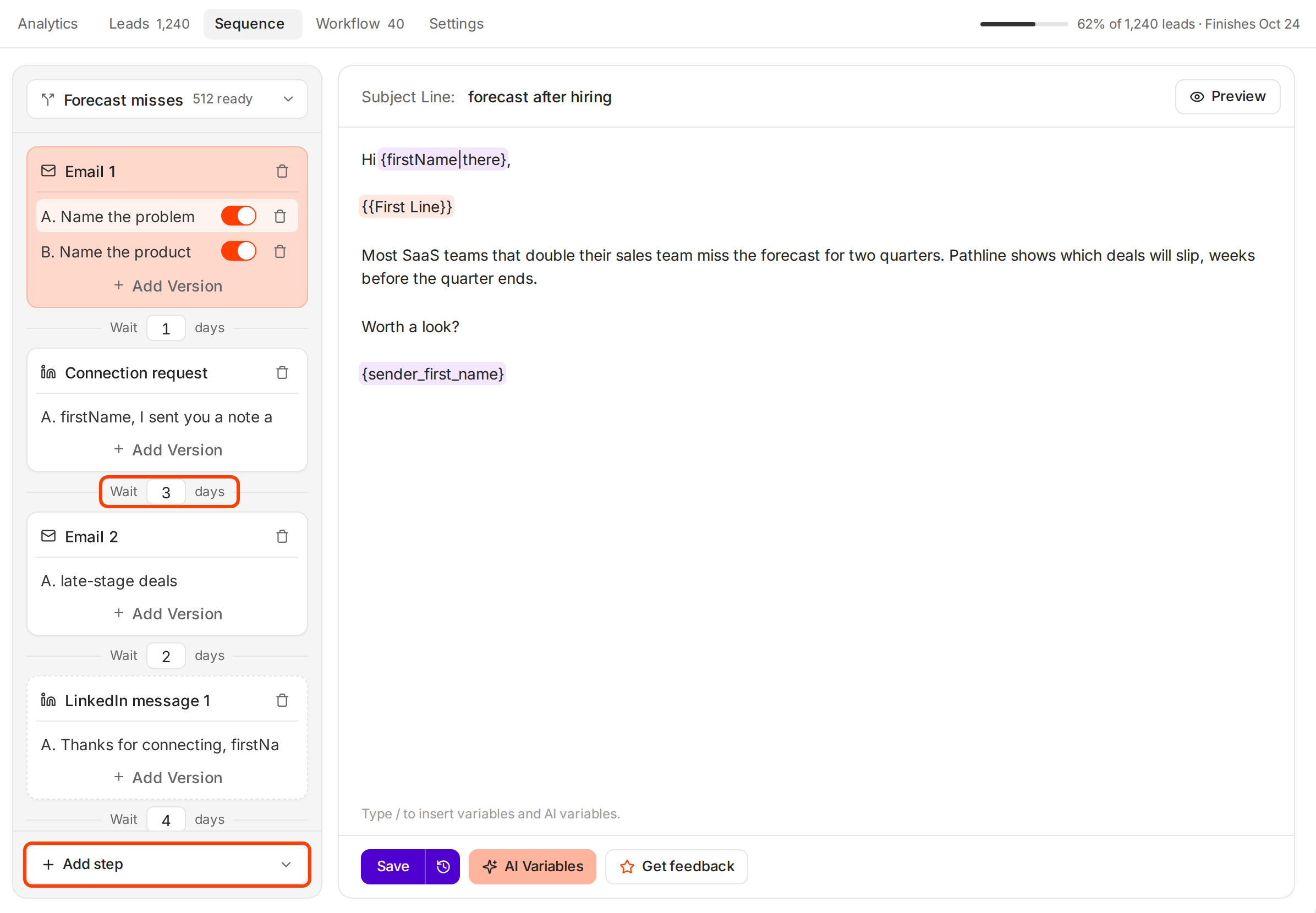
The steps on the left, the selected email on the right. A wait and Add step are outlined. -
Click Add step at the bottom of the steps column and choose Email. LinkedIn steps such as Connection, Message and Profile visit are in the same menu.
-
Set the wait in the box above the new step, between Wait and days. A new email waits 3 days. The most you can set is 30 days.
-
Write the subject in Subject Line. A new follow-up starts with "Re:" and the subject of your first email. Replace it with a short subject of its own, or clear it. The next section explains both.
-
Write the body. Type / to insert a variable, such as the lead's first name or company, or an AI variable that Ken writes for each lead.
-
Click Preview to see the email filled in for a real lead, on desktop or mobile, in Gmail or Outlook.
-
Click Save. Ken confirms with "Saved. Changes apply to emails that have not sent yet."
Subjects for follow-ups
Ken handles a follow-up's subject in one of two ways.
- A subject of its own. Ken sends the follow-up as a new email with that subject. This is how the Ken team writes every campaign: two to four plain words, such as "late-stage deals".
- An empty subject. Ken sends the follow-up as a reply in the same thread, with "Re:" and the first subject, and quotes the earlier email below it. If a different inbox sends this step, Ken starts a new thread instead, because that inbox never wrote to the lead.
Variables and fallbacks
Variables fill in each lead's details when the email sends. Type / in the subject or body to see them all.
- Lead fields come from the lead's record, such as
{firstName}and{company}. - AI variables use double braces, such as
{{First Line}}. Ken writes them for each lead from public information. See Personalize emails with AI variables. - Sender fields fill in details of the inbox that sends, such as
{sender_first_name}for the sign-off.
A fallback is the text Ken uses when a field is empty. Write it after a vertical bar inside the braces. For example, Hi {firstName|there}, becomes "Hi Hannah," when the lead has a first name and "Hi there," when the lead has none. New emails start with this greeting already in place.
Add a fallback to any lead field that can be empty. "Hi ," in a cold email tells the reader a machine wrote it.
Versions for testing
Each step can have up to 4 versions, A to D. Use them to test one change, such as a different subject or a different ask.
- Click Add Version under a step to add the next letter. At 4 versions the button reads Max 4 Versions.
- Versions must differ in the subject or the body. Ken doesn't save two versions that are the same.
- Double-click a version to name it after the change, such as "B. Name the product".
- Only versions with their switch on send. Ken picks one active version at random for each lead.
- When every step has the same number of active versions, a lead keeps the same letter all the way through. A lead who got version A of the first email gets version A of each follow-up.
To run a test and read the result, see Fix a campaign that isn't getting replies.
What saving changes
Save applies to emails that have not sent yet. Emails already sent stay as they were. A lead halfway through the sequence gets your new text at their next step.
Each save keeps a version of the sequence. To go back, click the clock button next to Save, find the version in Version history and choose Preview and restore. The old text loads into the editor so you can check it, then click Save again.
Build it with Ken
You don't have to write from a blank page. When Ken builds a campaign for you, the Sequence step asks how long it should be: 3 steps, 5 steps or 7 steps. Ken drafts the emails from your Knowledge, and you edit them in the Sequence tab. Pick 3 steps, or pick 5 steps and delete the fifth. The section below explains why.
To check a draft, click Get feedback under the editor. Ken scores the email out of 10 and answers questions such as Quick read, Sounds like a person, CTA and Would you reply. The verdict at the top reads "Keep", "Rewrite so it is easier" or "Start over". It is advice, not a button: you make the changes in the editor.
What works
Three or four emails, 3 to 4 days apart
Start with three emails, and add a fourth only when you have a new reason to write. Stop at four. Ken's copywriting guide makes three emails the default for the campaigns the Ken team writes, and its deliverability playbook calls 3 to 4 steps the working default. Steps after the fourth add few replies and more unsubscribes and spam complaints.
Space the emails 3 to 4 days apart. Waits of 3, 4 and 4 days send on days 0, 3, 7 and 11, so the whole sequence takes under two weeks.
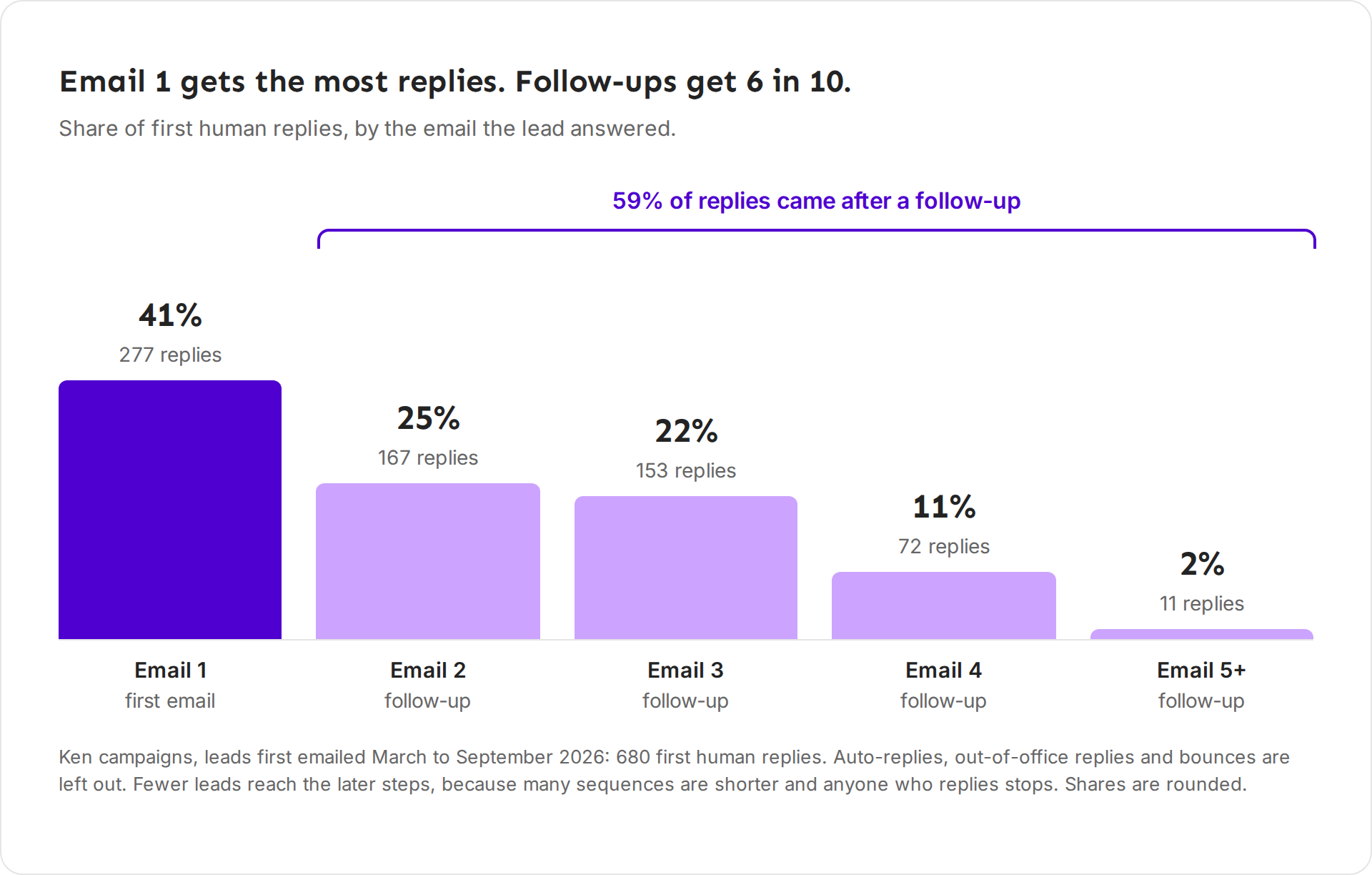
The chart shows three things.
- The first email gets the most replies. It also gets more than half of the interested ones: 67 of 121. Make it your best email.
- Follow-ups bring most of the rest. 59% of replies came after a follow-up. A sequence of one email leaves them behind.
- The fifth step adds little. Email 5 and later got 2% of replies.
Give every follow-up a new reason to reply
A follow-up that says "just following up" asks the lead to scroll back and reread. Each step should stand on its own and add something new.
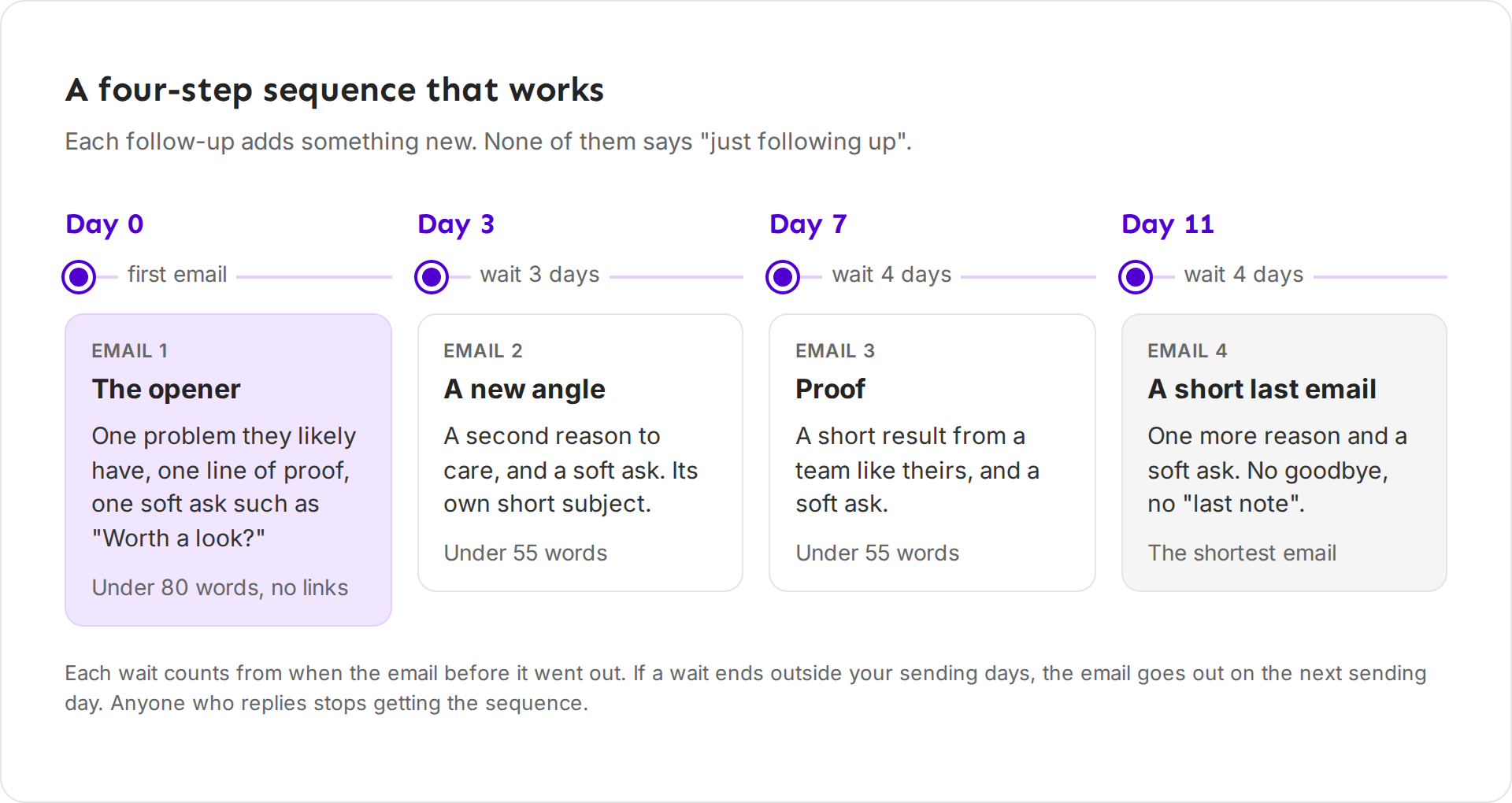
- The opener. One problem the lead likely has, one line of proof, and one soft ask, such as "Worth a look?"
- A new angle. A second reason to care, and a soft ask.
- Proof. A short result from a team like theirs, and a soft ask.
- A short last email. One more reason and a soft ask. Skip "last note" and "Should I stop here?", because the email doesn't need to announce that it is the last one.
Short and plain
- Keep the first email under 80 words of body and each follow-up under 55. Ken's copywriting guide sets these limits for every campaign the team writes.
- No links, images or attachments in the first email. They make spam filters more careful when your inbox has the least reputation. If you need a link, add it at step 2 or 3.
- Plain text, one soft ask. Write like one person to another, and end every email with one short question the lead can answer from a phone. Ask "Worth a look?" or offer something free and useful, and save the meeting for after they reply. A single question gets more answers than a menu of options. Write cold emails people reply to explains the ask.
Example: a four-step sequence
Here is a sequence for the "Forecast misses" segment, sent by Jordan at Pathline to sales leaders at fast-growing software companies.
Email 1, day 0. Subject: forecast after hiring
Hi {firstName|there},

{{First Line}}

Most SaaS teams that double their sales team miss the forecast
for two quarters. Pathline shows which deals will slip, weeks
before the quarter ends.

Worth a look?

{sender_first_name}
Email 2, wait 3 days. Subject: late-stage deals. The new angle is new reps.
Hi {firstName|there},

One more pattern. New reps keep deals in late stages too long,
so the forecast looks full until the last week of the quarter.

Want the short checklist we use to spot those deals?

{sender_first_name}
Email 3, wait 4 days. Subject: slipped deals. Proof.
Hi {firstName|there},

A RevOps lead at a 40-rep team ran Pathline on last quarter's
deals. It flagged 9 of the 11 that slipped.

Want me to send the one-page write-up?

{sender_first_name}
Email 4, wait 4 days. Subject: a quick check. One more reason, and something free.
Hi {firstName|there},

If the forecast is on track this quarter, ignore this. If not,
our one-page ramp benchmark shows when new reps' deals slip.

Want a copy?

{sender_first_name}
Each email is short, each ends on one soft ask, and no follow-up repeats the first email. None of them asks for a meeting. The meeting comes after the lead replies.
If something goes wrong
- "My edit didn't change emails that already went out." That is expected. Save changes only emails that have not sent yet.
- "A lead got 'Hi ,' with no name." The field was empty and had no fallback. Change
{firstName}to{firstName|there}and save. - "I can't add another version." A step holds up to 4 versions. Turn off or delete a losing one first.
- "Ken won't save my new version." Two versions of a step can't be the same. Change the subject or the body of one of them.
- "I wanted a reply in the same thread, but the follow-up started a new one." Ken sends in the same thread only when the subject is empty. Clear the subject and save. If a different inbox sends the follow-up, Ken still starts a new thread, without "Re:".
- "I can't set a wait longer than 30 days." 30 days is the limit. For a longer pause, end this sequence and add the lead to another campaign later.
- "I want to undo my last save." Open Version history next to Save, choose Preview and restore on an earlier version, then save.
Next: Set a sending schedule, Write cold emails people reply to or Personalize emails with AI variables.