An AI variable is a line Ken writes for each lead, such as a first line about how their team sells. You write the instruction once, put the variable in your email, and Ken fills it in for every lead before the email goes out. This page shows how to add one, how to write a prompt that gives good lines, and how to check the result before you send.
How it works
Your email has two kinds of variables.
- Lead fields use single braces, like
{firstName}and{company}. Ken copies them from the lead. Add a fallback after a bar, so{firstName|there}writes "there" when the first name is missing. - AI variables use double braces, like
{{First Line}}. Ken writes a new sentence for each lead from your prompt.
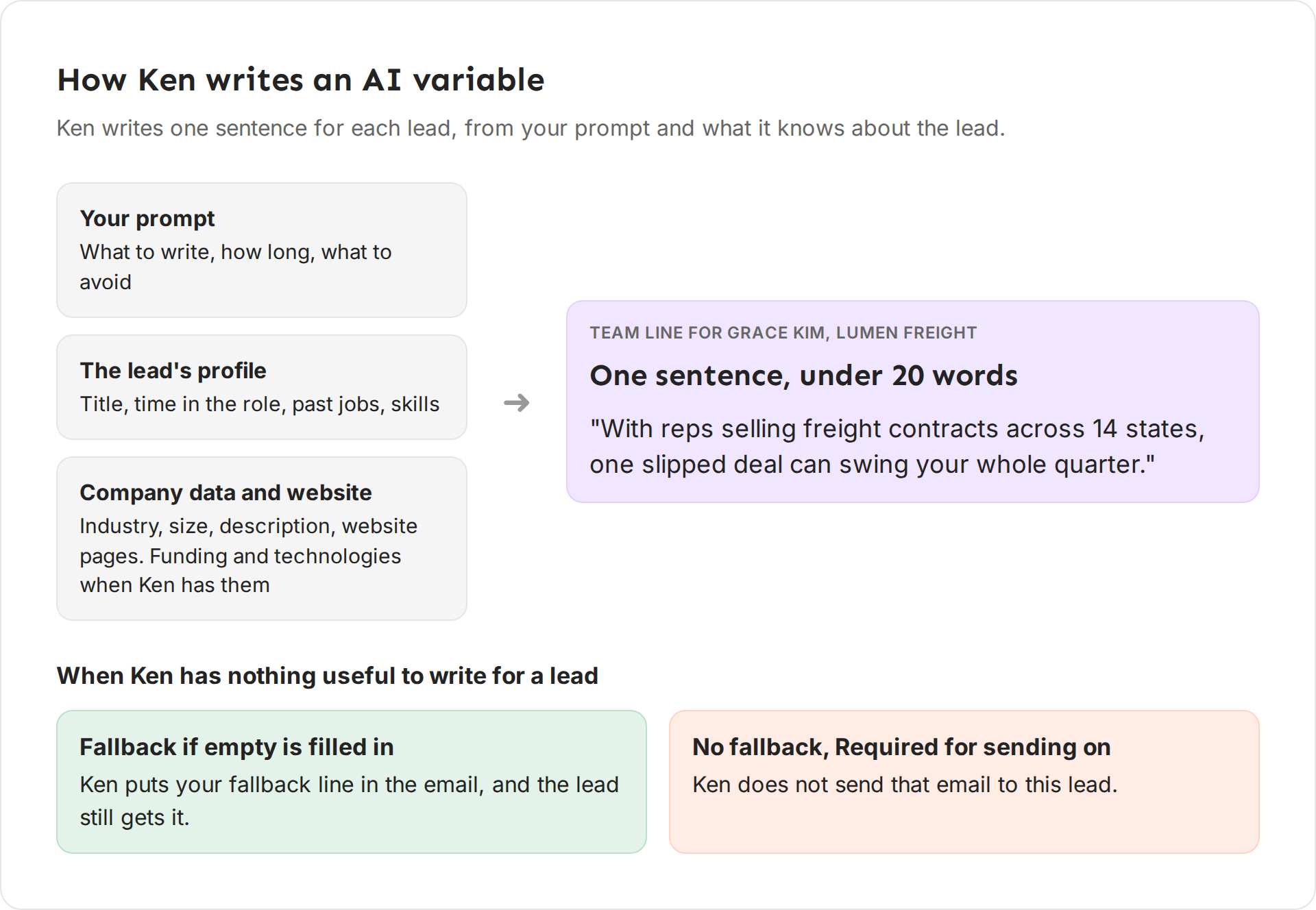
To write an AI variable, Ken reads the lead's profile (title, time in the role, past jobs, skills), the company's data (industry, size and description) and pages from the company website. Funding rounds and technologies are there only for some companies, so don't build a prompt on them. Ken does not read news, social posts or job posts. Ask only for what that data can answer.
Add an AI variable
-
Open Campaigns, or press G then C, and open your campaign. Click the Sequence tab.
-
Pick the segment at the top of the steps list. Each segment can have its own variables.
-
Click AI Variables below the email editor. The AI Variables dialog opens.
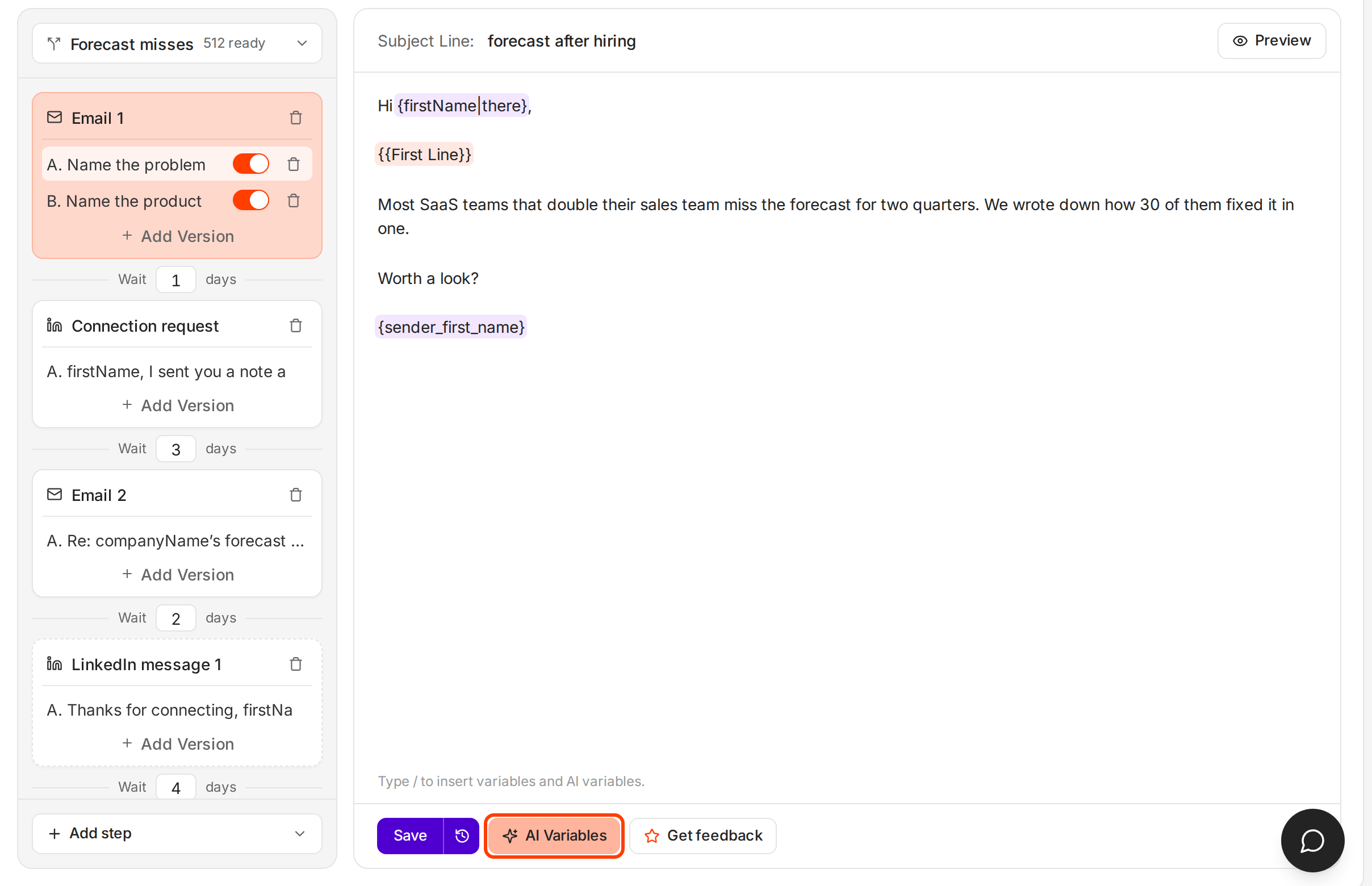
AI Variables sits next to Save and Get feedback. -
Click Add Variable. A card named "New Variable" appears.
-
Replace "New Variable" with a name, such as "Team Line". The card shows the token to use in your email,
{{Team Line}}. -
Write the prompt in the box that says "What should Ken write for each lead?". The next section shows how.
-
Type a line in Fallback if empty that works for anyone. Leave Required for sending off for now. "Fallback and Required for sending" below explains when to turn it on.
-
Click Save. Ken confirms with "Saved the AI variables."
Add a variable, write the prompt and the fallback, then save. -
In the email body, click where the line goes and type
/. Pick your variable under AI variables. The menu works in the body only.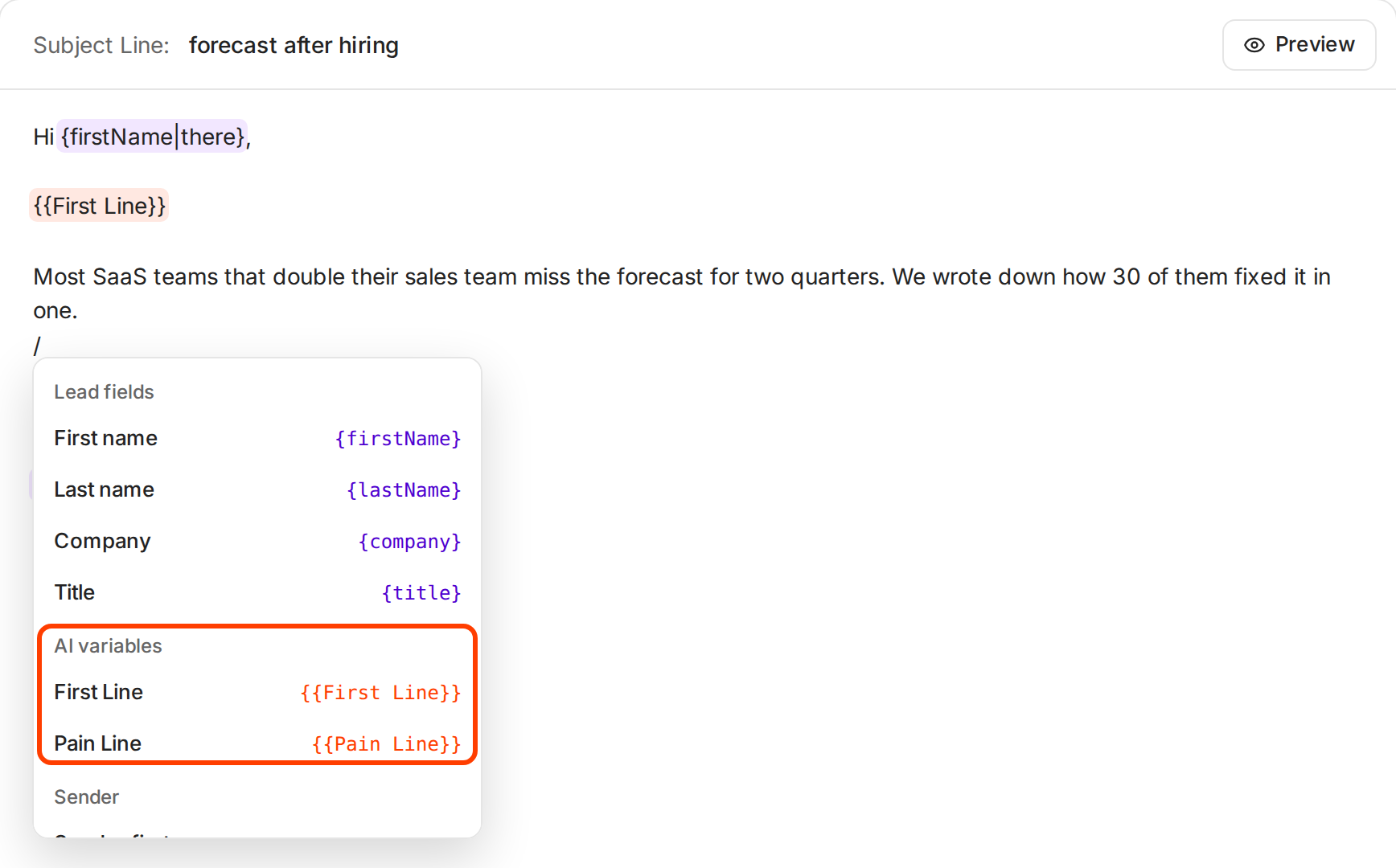
Type / in the email to insert a lead field or an AI variable.
If leads already have their lines, Ken asks before it saves a change that makes it write them again. Click Save anyway to go ahead, or Cancel to keep the old lines.
Write a prompt that gives good lines
Write the prompt like a brief for a new assistant who has never met your customer. Tell it five things: what to write, where to look, how long, what to avoid, and what to do when it finds nothing.
Pathline helps B2B software companies keep deals from slipping. It gets deals through security review and ramps new account executives faster. Its emails open with the risk of a missed forecast, so its prompt ties each line to that:
"From their profile and the company website, write one sentence about how this company's sales team sells: who they sell to, where, or how big the team is. Connect it to the risk of a missed forecast. Under 20 words. No compliments, no questions, no greeting. Do not invent numbers or news. If you find nothing specific, write about what the company sells."
For Grace Kim at Lumen Freight, Ken might write: "With reps selling freight contracts across 14 states, one slipped deal can swing your whole quarter."
What makes it work:
- One sentence, under 20 words. A first line is a hook, not a paragraph. Long lines read like a template.
- About their business, tied to your offer. The line should lead into the problem you solve, so the next sentence of your email follows from it.
- A clear "don't" list. Without it, models praise people ("I was impressed by your journey") and ask filler questions.
- No made-up facts. Ken cannot see news, posts or job listings, so a prompt that asks for "recent news" gets guesses.
- No
{firstName}inside the prompt. The email already greets the lead. Say "this person" or "their company" in the prompt.
Under Extra Options, Rewriting: gives Ken a second set of instructions to polish the lines, such as "Keep lines punchy, avoid product jargon". Turn it on when the lines say the right thing in the wrong tone. A clear prompt matters more.
Good lines and weak lines
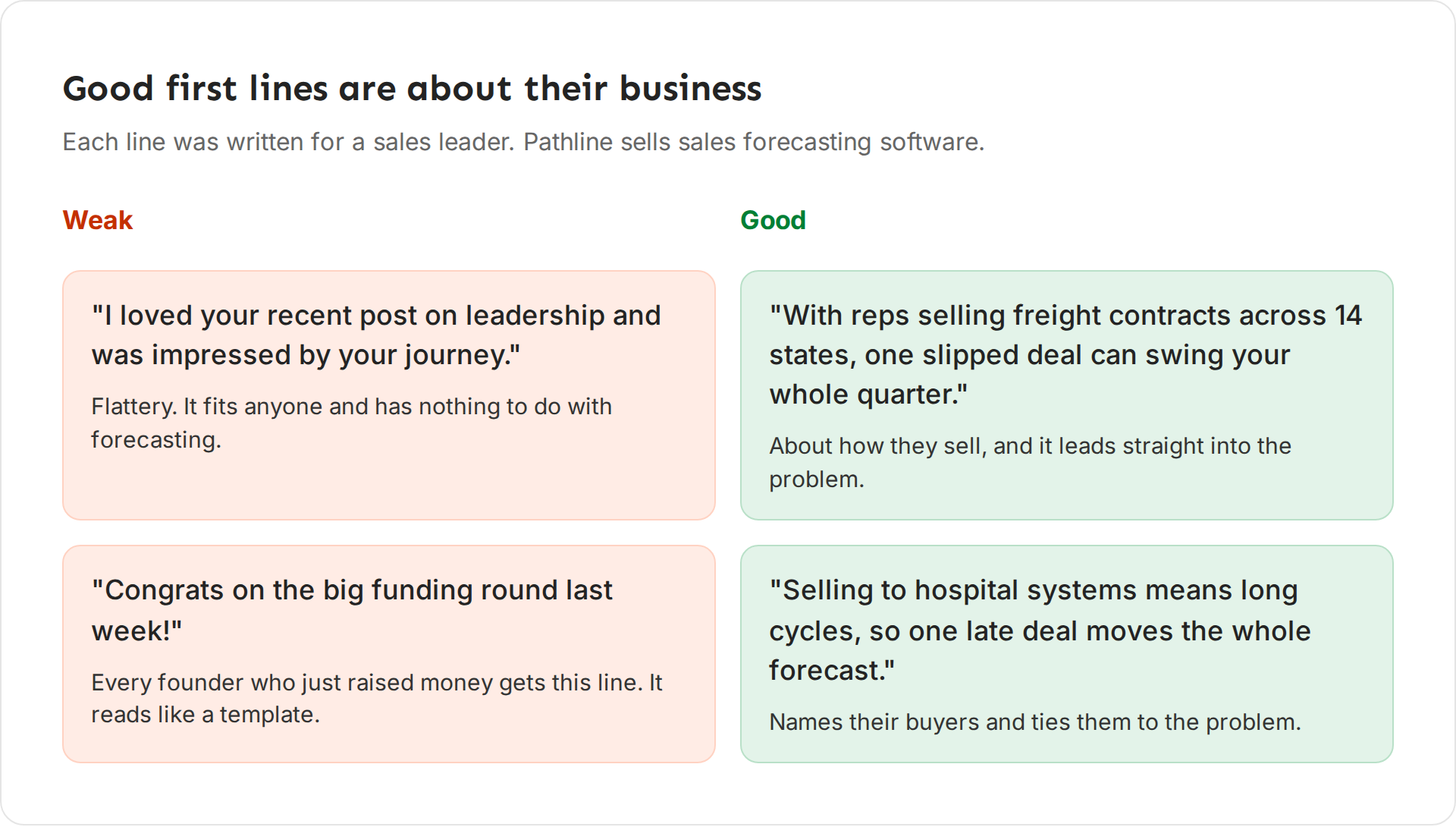
Weak lines:
- "I loved your recent post on leadership and was impressed by your journey." It flatters, could be sent to anyone, and has nothing to do with forecasting.
- "Congrats on the big funding round last week!" Every founder who just raised money gets this line, so it reads like a template.
Good lines:
- "With reps selling freight contracts across 14 states, one slipped deal can swing your whole quarter." It shows you looked at their business and sets up the problem.
- "Selling to hospital systems means long cycles, so one late deal moves the whole forecast." It names their buyers and ties them to the problem.
If the line would still make sense in an email to a different company, it is not personal yet.
Fallback and Required for sending
When Ken has nothing useful to write for a lead, the variable comes back empty. What happens next depends on two settings.
- Fallback if empty is filled in. The lead gets the email with your fallback line. This is the right setup for most variables.
- The fallback is empty and Required for sending is on. The lead does not get that email.
Always fill in one of the two. A fallback keeps every lead in the campaign. Required for sending keeps a generic line out of an email that needs a personal one.
Write the fallback so it fits the same spot in the email. For the Team Line above, a good fallback is "When a team grows fast, the forecast slips first."
Turn Required for sending on, with an empty fallback, only when a generic line would make the email wrong. For example, a subject line variable, or a line that the next sentence refers to.
Check it on a few leads
-
Click Preview at the top right of the email editor.
-
Pick a lead in Load data for. The preview shows the email exactly as that lead gets it, with every variable filled in.
-
Step through 10 to 20 leads. Include a few with short profiles, since they show you the fallback.
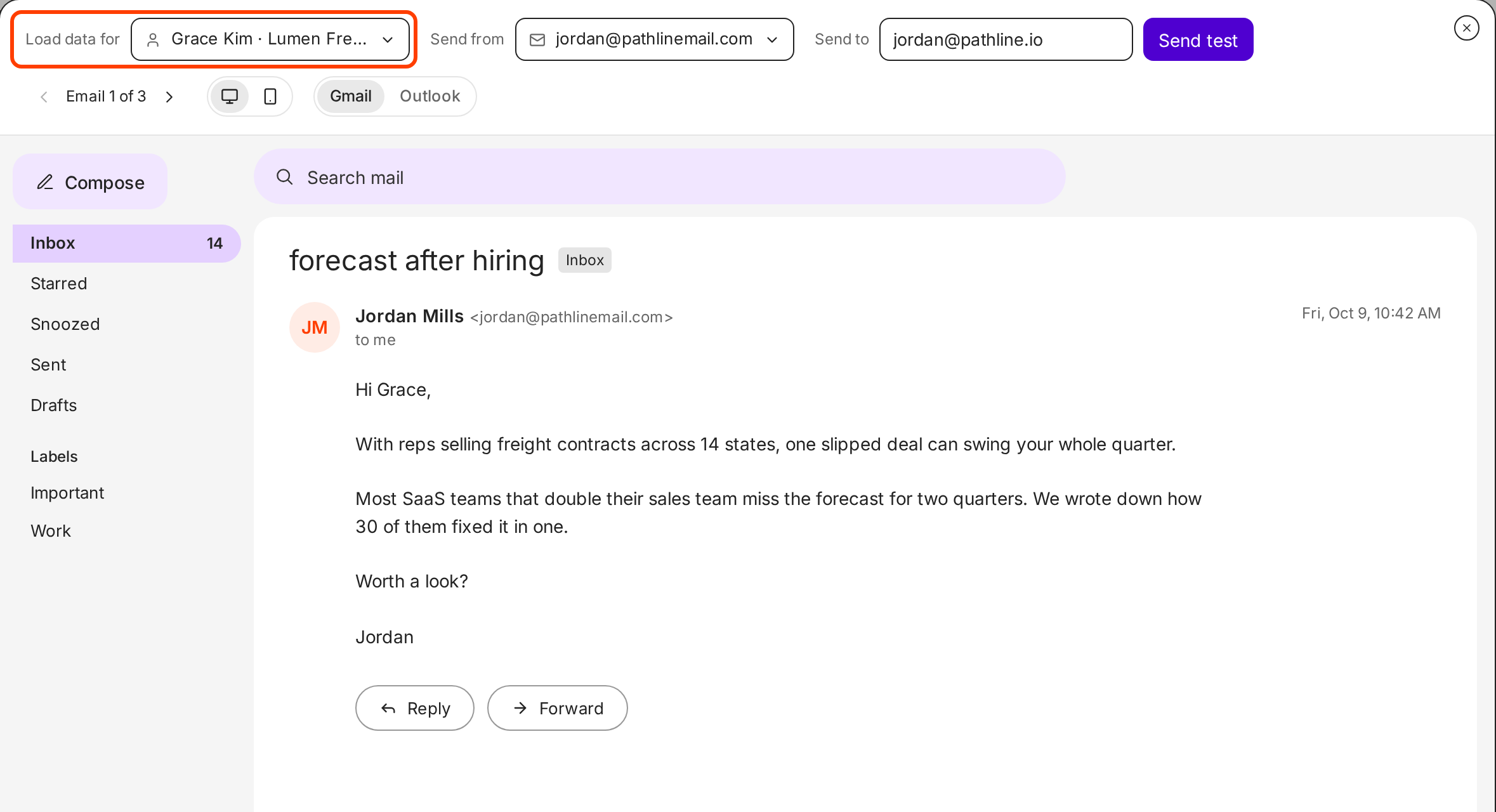
Load data for fills the email with a real lead's values. -
If the lines are off, change the prompt, save, and check again.
To see it in your own inbox, type your address in Send to and click Send test. The test sends the saved emails of this segment's sequence, so save your changes first.
What it costs
AI personalization uses 300 credits per 1,000 leads ($6). The price is per lead, not per variable, so a second variable costs nothing extra. The AI Variables dialog shows the estimate for your campaign, such as "Personalizing 1,240 leads uses ~372 credits ($7.44) · 300 credits per 1,000".
- Writing the lines again costs again. Saving a change that makes Ken rewrite the lines uses credits for those leads a second time. Test a prompt on a few leads first.
- Your own AI key costs 0 credits. If you connect your own AI key, the writing runs on it at 0 Ken credits, and the provider bills you instead. See Use your own provider keys.
See How credits work for how credits work.
If something goes wrong
- "The lines mention things that aren't true." The prompt asks for something Ken cannot see, such as news or a recent post. Point it at the profile and website, and add "Do not invent facts".
- "Almost every lead got the fallback." The prompt is too narrow, or the leads have thin profiles. Allow a wider topic, like "what the company sells", as a second choice.
- "Some leads never got the first email." Required for sending is on and the fallback is empty, so Ken skipped leads whose line came back empty. Add a fallback, or accept the skips.
- "My campaign shows 0 ready." Ken is still writing the lines. A lead is ready to send only after its personalization finishes.
- "The same sentence shows up in two emails." You used
{{First Line}}in more than one step. Make a second variable, such as "Bump Line", for later emails.
Next: Build a sequence, Write cold emails people reply to or Get more from your credits.