One inbox sends only a few dozen campaign emails a day, so volume comes from many inboxes spread over several domains. This guide turns your daily goal into a number of inboxes and domains, shows how to add them in Ken, and explains when to add more or rest one.
The math in three steps
Start from the number of campaign emails you want to send each day. Round up at every step.
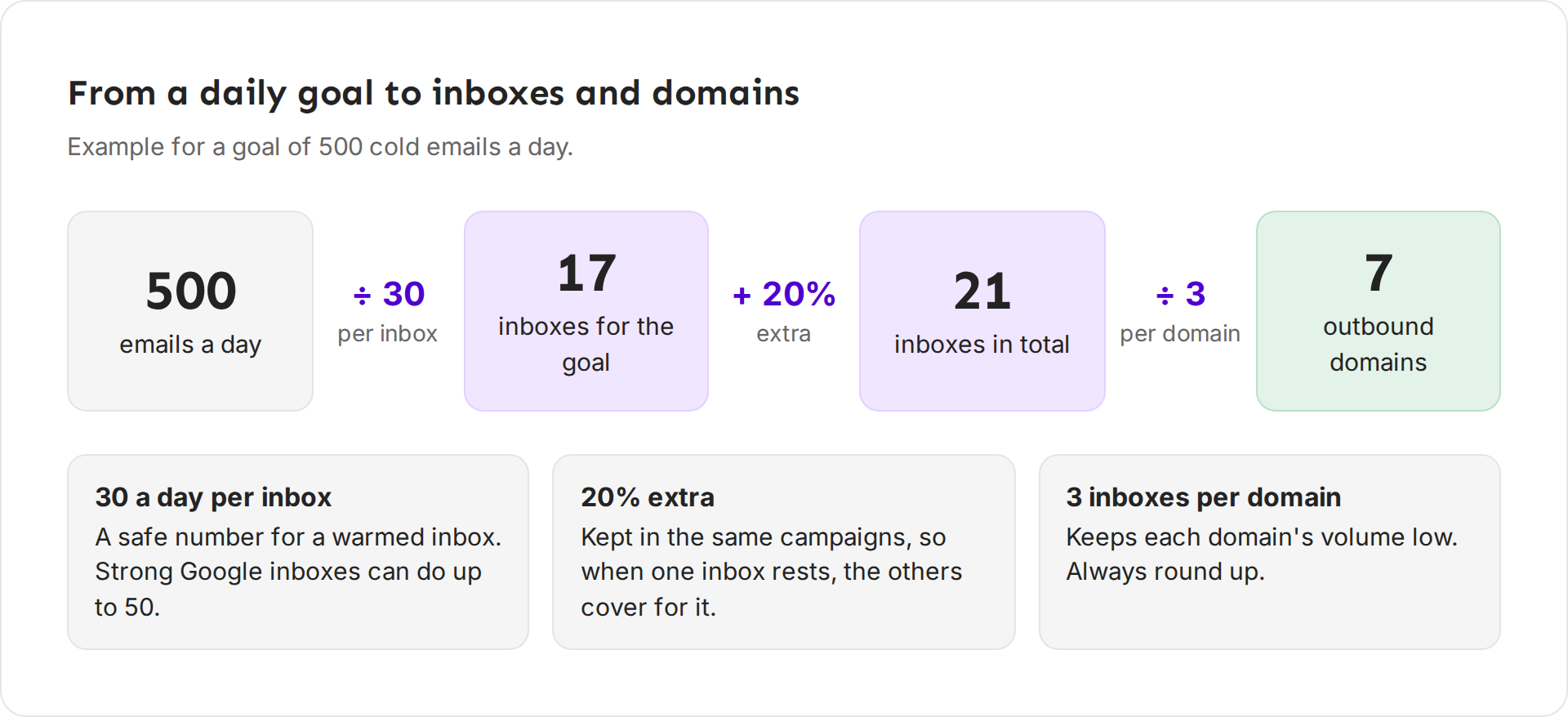
- Divide by 30 to get the inboxes your goal needs. 30 a day is a safe number for a warmed inbox. Strong Google Workspace inboxes can do up to 50.
- Add 20% extra. Put the extra inboxes in the same campaigns, so each inbox sends a little under its limit. When one inbox needs a rest, the others cover for it. Our playbook keeps 15 to 25% extra capacity.
- Divide by 3 to get the domains. 2 or 3 inboxes per domain keeps each domain's volume low.
For a goal of 500 emails a day, that is 500 ÷ 30 = 17 inboxes. Add 20% and you have 21 inboxes. Divide by 3 and you need 7 outbound domains.
Plans for common goals
| Campaign emails a day | Inboxes for the goal | 20% extra | Inboxes in total | Domains |
|---|---|---|---|---|
| 100 | 4 | 1 | 5 | 2 |
| 250 | 9 | 2 | 11 | 4 |
| 500 | 17 | 4 | 21 | 7 |
| 1,000 | 34 | 7 | 41 | 14 |
| 2,000 | 67 | 14 | 81 | 27 |
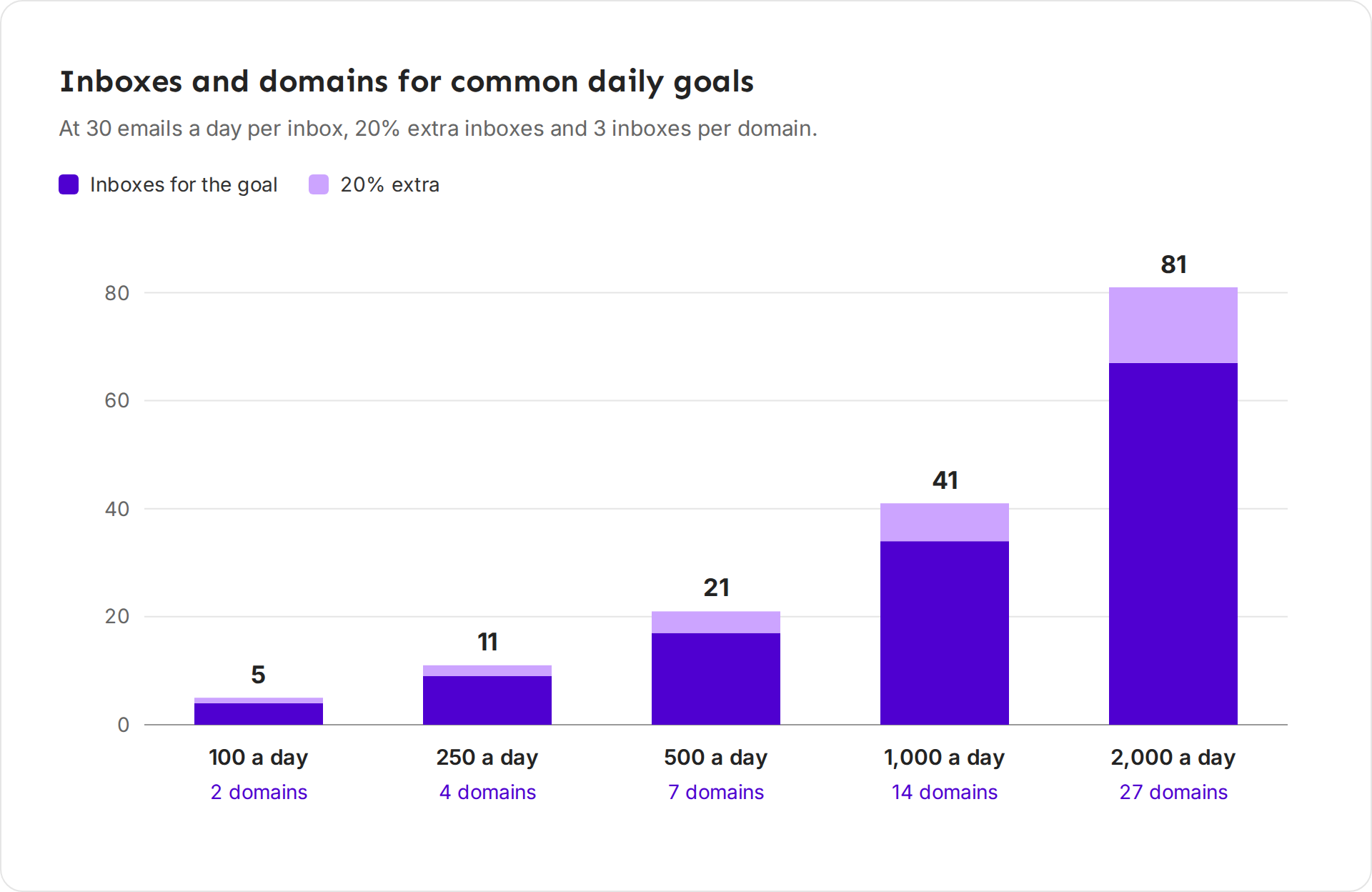
The table uses 30 a day per inbox, which is the safe end. Once your inboxes are mature and their numbers are clean, Google Workspace and Microsoft 365 inboxes can send more, so you need fewer of them. Our playbook plans 40 to 65 inboxes across 15 to 25 domains for 2,000 a day.
New inboxes need time
A new inbox can't send at full volume on its first day. Plan for two waits:
- Warm-up. On a new domain, give inboxes 3 to 4 weeks of warm-up before campaigns on Google Workspace, and 4 to 6 weeks on Microsoft 365. See How warm-up works.
- The ramp. Ken starts each new inbox at 5 campaign emails on its first sending day and adds 2 each sending day. After 14 sending days the ramp ends, and the inbox's own Daily send limit applies. Days with no campaign email don't count. Ken counts only the sending days of the last 60 days, so an inbox that rests for weeks ramps up again.
So order inboxes 4 to 6 weeks before you need the volume. If you need 500 a day by the first of the month, buy the domains and inboxes in the first days of the month before.
Add inboxes
-
Open Delivery in the sidebar, or press G then D.
-
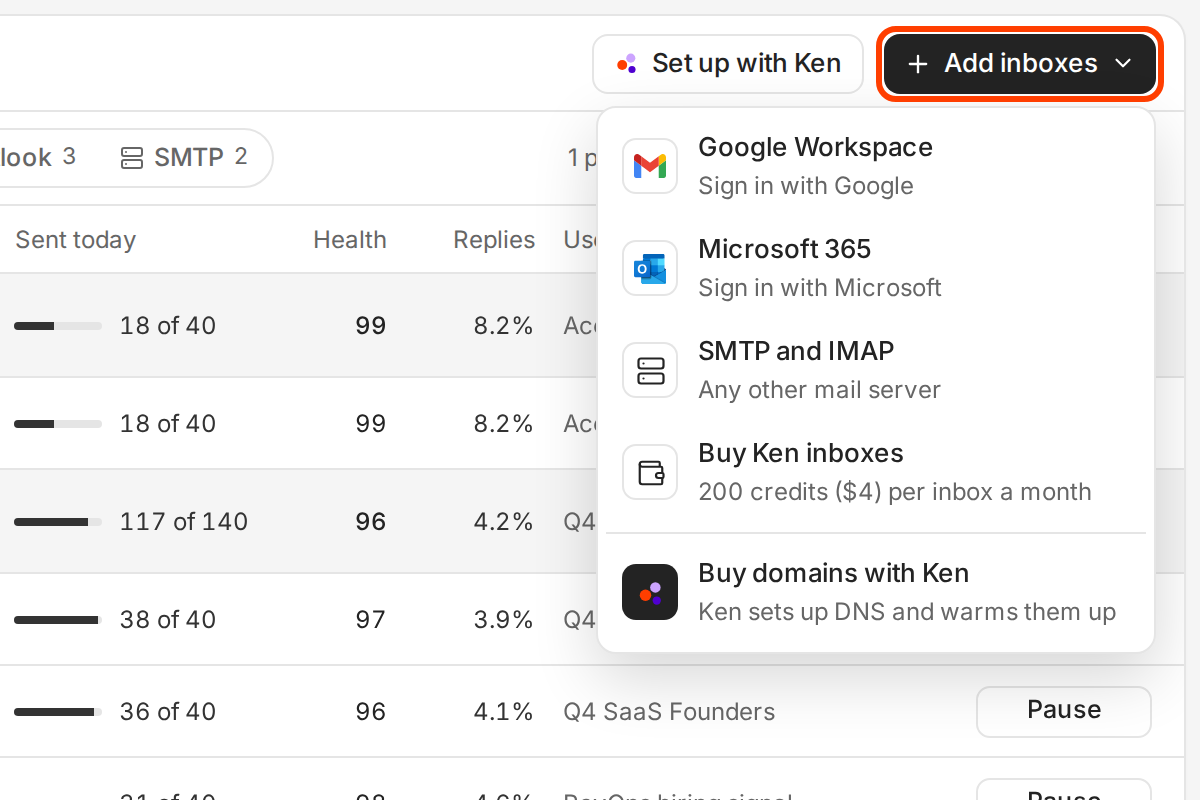
Click Add inboxes at the top right. The menu lists every way to add one.
Connect an inbox you have, or buy new ones from Ken. -
Pick the kind of inbox:
- Google Workspace ("Sign in with Google") and Microsoft 365 ("Sign in with Microsoft") connect an inbox you already have. Enter the mailbox address and click Continue. Then click Sign in with Google or Sign in with Microsoft and sign in as that mailbox. Ken brings you back when you're done.
- SMTP and IMAP ("Any other mail server") connects any other mail server with its login. Fill in the server details and click Connect inbox. Ken signs in to both servers before it saves the inbox, and confirms with "Connected" and the address. Gmail and Microsoft 365 servers don't work here. Connect those with the first two rows.
- Buy Ken inboxes ("200 credits ($4) per inbox a month") buys new domains and inboxes in one order, with DNS set up for you. The steps are in Set up sending domains and check their DNS.
- Buy domains with Ken opens Ask Ken with a request to buy 2 domains with 3 inboxes each. Change the numbers and send it.
A mailbox on your workspace's main domain connects as your own inbox, not as a campaign inbox. It must be the address you sign in to Ken with, and it sends only one-to-one email.
Some Microsoft 365 tenants need an admin to approve Ken's app first. If yours does, Ken shows "Your admin approves Ken Mail first". Under Send to your admin, click Copy message or Email it to send your admin the steps. Once they approve, click Connect again.
What works
- Keep the extra inboxes in active campaigns. When an inbox from Ken isn't in an active campaign for 30 days, Ken pauses its warm-up. Inside the campaign, the inbox sends a little each day and stays ready.
- Split providers. Put part of your inboxes on Google Workspace and part on Microsoft 365. One provider's policy change or a suspended account then stops only part of your sending, and you learn which provider lands better with your buyers.
- Add inboxes in small groups, a few days apart. New inboxes that all ramp on the same day look like a burst to inbox providers. Our playbook spaces start dates 2 to 4 days apart.
- Raise limits slowly. Raise an inbox's Daily send limit only after its numbers stay clean for a few weeks, and by at most 30 to 50% over the last week's peak. Fix an inbox that needs attention shows how to change the limit.
When to add inboxes
Add inboxes when one of these is true:
- Your goal grows. Run the math again with the new number.
- Your inboxes are full. Most inboxes reach their limit every day. In an inbox's side panel, Sent today then shows the same number twice, such as 30 of 30. You have no room left when an inbox needs a rest. More email needs more inboxes, not higher limits.
- You paused or retired inboxes. Replace them so you keep about 20% extra.
When to rest an inbox
Our playbook rests an inbox when it shows trouble:
- its bounces pass 3% of its last 100 sends, or 5% in one day,
- it gets 2 or more spam complaints in a day,
- its replies fall below half of what it used to get, or
- Ken paused it, and the reason shows in orange under its address.
To rest it, pause the inbox in its side panel. A paused inbox sends nothing, and warm-up keeps running, so it stays warm. The playbook's re-warm plan is 7 to 14 days of warm-up only, then campaigns at 25% of the old volume, then 30 to 50% more each week. Your other inboxes keep campaigns going meanwhile.
Example plan
Pathline wants 500 campaign emails a day by the start of next month.
| Week | What happens |
|---|---|
| Week 1 | Buy 7 domains with 3 Google Workspace inboxes each (21 inboxes). Ken sets up DNS and starts warm-up. |
| Weeks 1 to 3 | Warm-up only. Keep the new inboxes out of campaigns that are sending. |
| Week 4 | Set each inbox's Daily send limit to 30, because inboxes from Ken start at 25. Add all 21 inboxes to the campaign. Each sends 5 on day 1, then 2 more each sending day. |
| End of week 6 | After 14 sending days, the ramp ends. 21 inboxes at 30 a day can send 630, so the campaign's 500 a day leaves room for an inbox to rest. |
If something goes wrong
- "Connecting Microsoft 365 inboxes isn't on for this workspace". Your workspace can't connect that kind of inbox yet. Write to [email protected] and say which provider you use.
- "Couldn't start the Google Workspace sign-in". Try again in a minute. If it keeps failing, ask your Google Workspace admin to trust Ken's app, as the dialog explains.
- "Your admin approves Ken Mail first". Your Microsoft 365 tenant needs an admin to approve Ken. Send them the message from Send to your admin, then click Connect again after they approve.
- "This Microsoft 365 mailbox is on your workspace's main email domain". Ken won't use a main-domain mailbox as a campaign inbox. Connect it as your own inbox, and buy outbound domains for campaigns.
- "Gmail and Microsoft 365 must be connected via OAuth, not SMTP/IMAP." You entered a Google or Microsoft server in the SMTP form. Close it and use Google Workspace or Microsoft 365 in the Add inboxes menu.
- "My new inboxes send only 5 a day". That is the ramp. Each inbox adds 2 a day as it sends, for 14 sending days.
- "I set the limit to 80 but it sends 50". 50 a day is the most Ken sends from one inbox. Add inboxes to send more.
Next: How warm-up works, Set up sending domains and check their DNS or Set a sending schedule.