Deliverability is whether your email lands in the inbox or in spam. It depends on your setup, your volume, your list and your content, and one weak spot can undo the rest. This guide gives you a checklist with the numbers to aim for, shows where to read them in Ken, and tells you what to check first when results drop.
The checklist
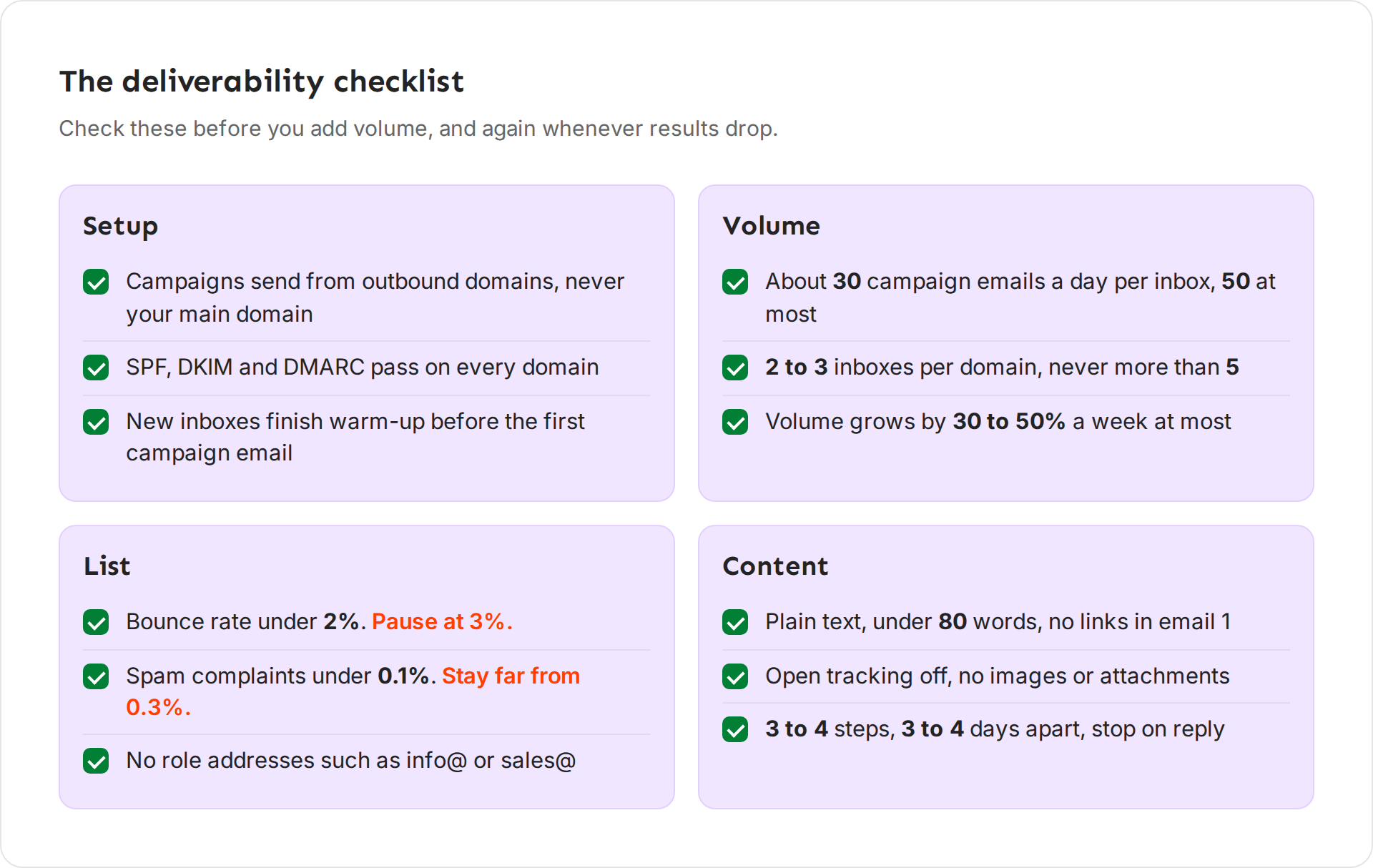
Check these before you add volume, and again whenever results drop. Each number comes from Ken's deliverability playbook.
Setup
- Campaigns send from outbound domains, never your main domain. A bad week then hurts one outbound domain, not your company's everyday email. See Set up sending domains and check their DNS.
- SPF, DKIM and DMARC pass on every domain. Without them, receivers can't confirm the email is yours.
- New inboxes finish warm-up before the first campaign email. On a new domain, that is 3 to 4 weeks on Google Workspace and 4 to 6 weeks on Microsoft 365. Ken warms the inboxes you buy from Ken. Warm inboxes you connect yourself outside Ken. See How warm-up works.
Volume
- About 30 campaign emails a day per inbox, 50 at most. More than that from one inbox looks like bulk mail. Ken never sends more than 50 campaign emails a day from one inbox.
- 2 to 3 inboxes per domain, never more than 5. Each domain's total volume stays low.
- Volume grows by 30 to 50% a week at most. Sudden jumps are a spam signal, even from healthy inboxes.
- Warm-up counts too. Ken leaves warm-up out of the inbox's daily limit, but Gmail and Outlook count every email. Keep campaign and warm-up email together inside the numbers above.
List
- Bounce rate under 2%. Pause at 3%. Bounces tell providers you email people you don't know.
- Spam complaints under 0.1%. Stay far from 0.3%. 0.3% is the hard ceiling inbox providers set for senders.
- No role addresses such as info@ or sales@. Nobody owns them, so they rarely reply and often complain.
- Keep catch-all addresses to 20 to 30% of a list at most. A catch-all domain accepts every address, so Ken can't confirm the person exists. Those bounce more.
Content
- Plain text, under 80 words, no links in email 1. A short plain note looks like a person wrote it. Add a link in step 2 or 3 if you need one.
- Open tracking off, no images or attachments. Open tracking adds a hidden image, and images and attachments look like marketing. Ken leaves open tracking off by default ("Off by default. Open tracking hurts deliverability.").
- 3 to 4 steps, 3 to 4 days apart, and stop on reply. Long sequences to people who never answer earn complaints.
Spam word lists are outdated. Filters today look at who sends, how much, and how people react, far more than at single words such as "free".
Same pitch, two first emails
Both emails pitch the same thing. The first one trips spam filters before anyone reads it. The second reads like a note from a person.
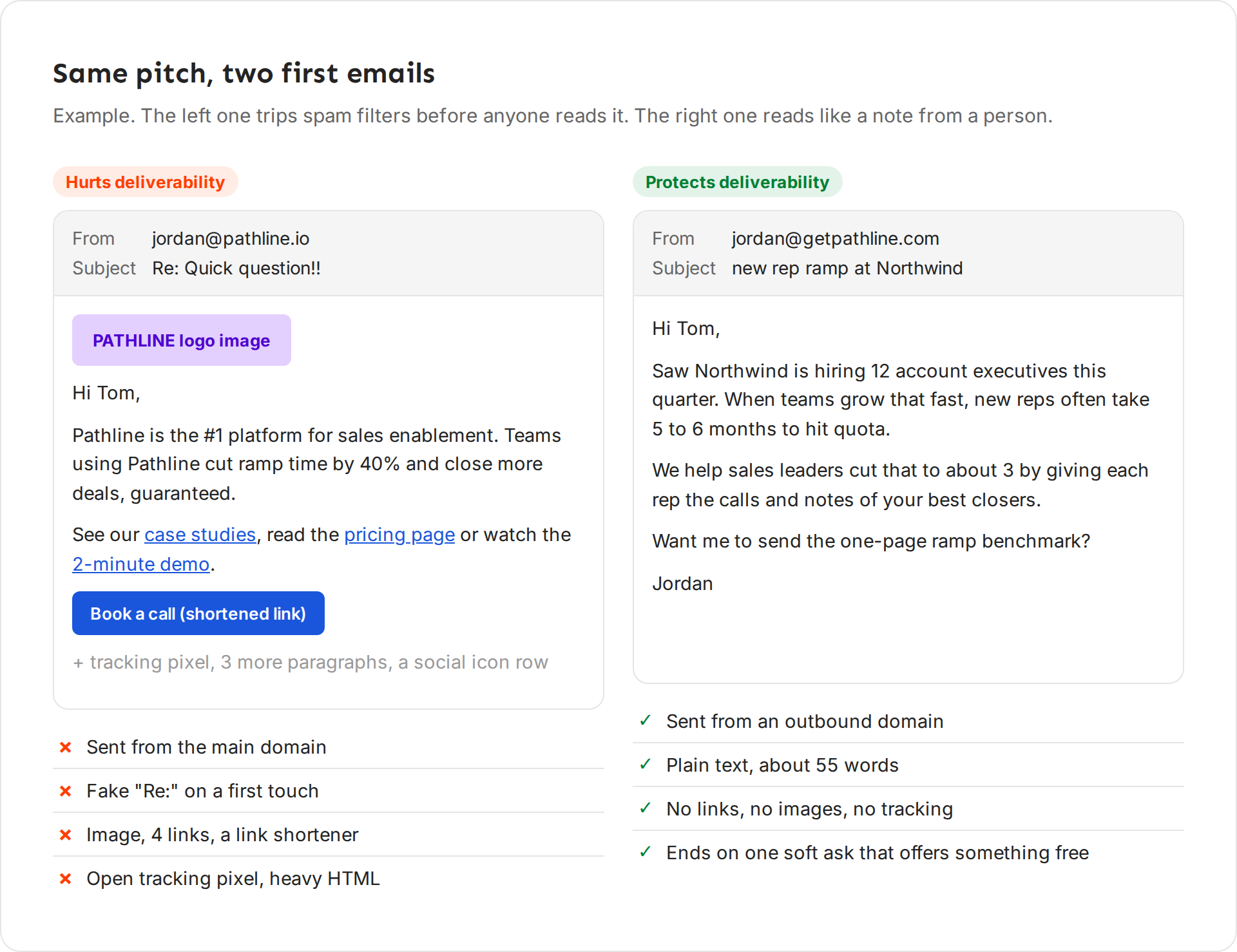
The weak email comes from the main domain, pathline.io, with the subject "Re: Quick question!!". It opens with a logo image and says "Pathline is the #1 platform for sales enablement. Teams using Pathline cut ramp time by 40% and close more deals, guaranteed." Then it links to case studies, pricing and a demo, adds a shortened "Book a call" link, a tracking pixel, three more paragraphs and a row of social icons. What hurts it:
- It comes from the main domain.
- "Re:" on a first email is a fake reply.
- One image, four links and a link shortener.
- An open tracking pixel and heavy HTML.
The strong email comes from an inbox on getpathline.com, an outbound domain, with the subject "new rep ramp at Northwind":
Hi Tom,
Saw Northwind is hiring 12 account executives this quarter. When teams grow that fast, new reps often take 5 to 6 months to hit quota.
We help sales leaders cut that to about 3 by giving each rep the calls and notes of your best closers.
Want me to send the one-page ramp benchmark?
Jordan
It is plain text and about 55 words, with no links, no images and no tracking. It ends on one soft ask that offers something free. For more on writing emails like this, see Write cold emails people reply to.
Read your numbers in Ken
-
Open Delivery in the sidebar, or press G then D.
-
Click the Analytics tab.
-
Pick a Date range: Last 7 days, Last 30 days or Last 90 days.
-
Read the five tiles at the top: Sent, Delivered (with the number bounced), Bounce rate, Spam complaints and Inbox placement.

Bounce rate and Spam complaints are the two tiles to watch every week. -
If Ken paused sending somewhere, a banner under the tiles says why and what it paused, for example "Replies to" an inbox's address, then "stopped syncing. Ken paused sending from it until" and a date.
-
Scroll to Domains. Each row shows a domain's health, its complaints and its DNS, such as "SPF · DKIM · DMARC" when all three pass or "DKIM failing" when one fails. Health is the average across each domain's inboxes. Click a row to open the domain.
What good looks like
| Number | Healthy | Watch | Act now |
|---|---|---|---|
| Bounce rate | Under 2% | 2 to 3% | Over 3%: pause the campaign and clean the list |
| Spam complaints | Under 0.1% | 0.1 to 0.3% | 0.3% or more: cut volume by half or more |
| Reply rate, all replies | In the typical range for your audience, 0.3 to 2% | Below that range | Under half your usual rate: run the checks in "When results drop" |
| Inbox placement | 80 to 90% in the inbox | 50 to 80% | Under 50% |
Reply rate is the number that matters most. Opens are not a reliable signal, which is why Track opens is off by default. Read replies per campaign, and the typical range for each audience, in Read campaign results.
Run an inbox placement test
A placement test sends a campaign's current email from one of your domains to seed inboxes, and counts how many land in the inbox.
- On the Analytics tab, scroll to Inbox placement tests.
- Click Run a test. The button is greyed out until a campaign sends from your inboxes.
- In Run a placement test, pick the Campaign and the domain to Send from, then click Run test.
Ken confirms with "Started a placement test for", the campaign and the domain. While it runs, the Inbox placement tile reads "Placement test running". When it ends, the tile shows the result and "Placement test on" with the date. Run a test before a campaign's first big send and after you change its email.
One test is a snapshot, not a verdict. Judge placement over several tests, together with replies, bounces, DNS and blocklists.
When results drop
Check in this order. Stop at the first yes, fix it, then watch the next few days of sends.
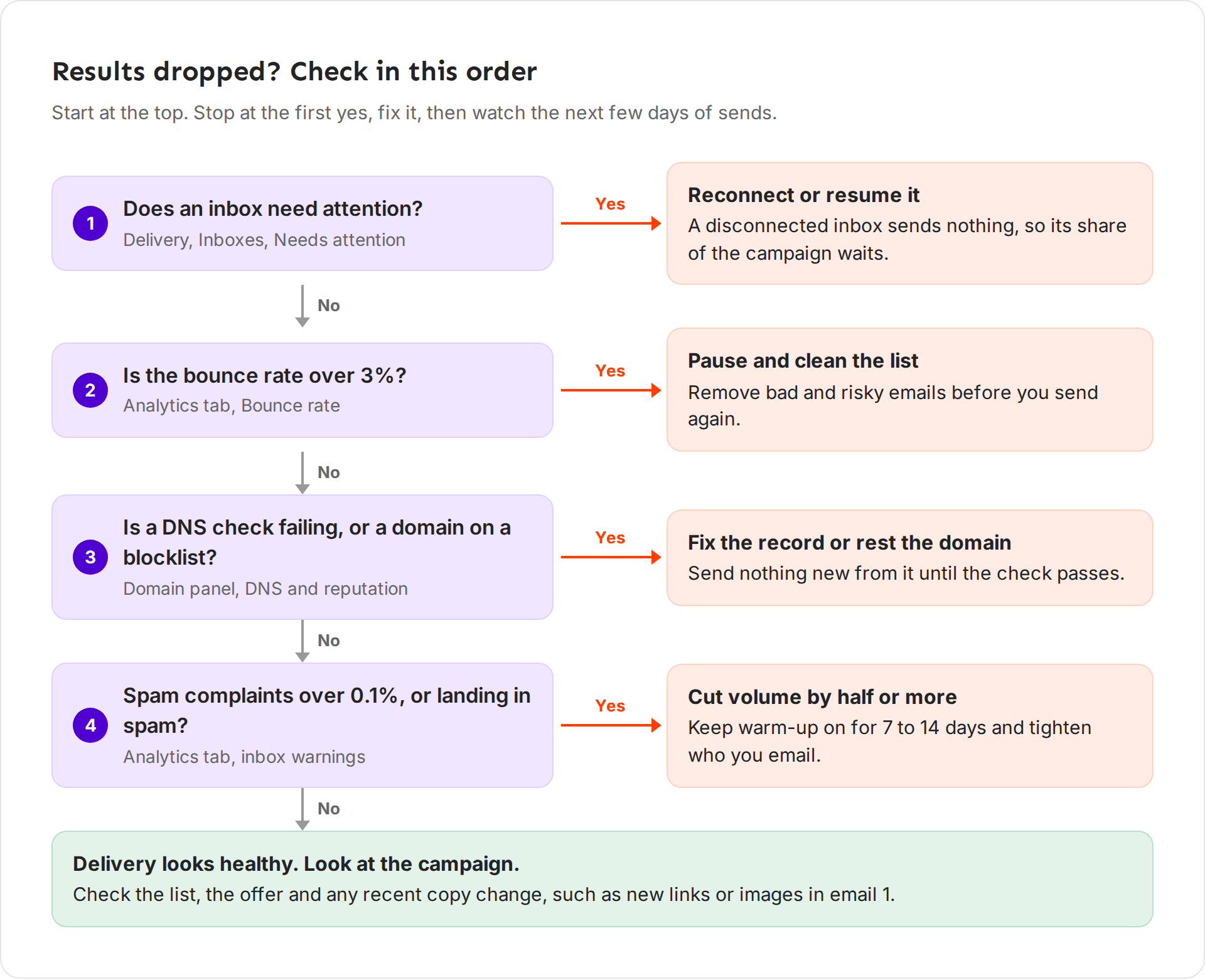
- Does an inbox need attention? On the Inboxes tab, click Needs attention. A disconnected or paused inbox sends nothing, so its share of the campaign waits. Reconnect or resume it. See Fix an inbox that needs attention.
- Is the bounce rate over 3%? Look at the Bounce rate tile on Analytics. If yes, pause the campaign and remove bad and risky emails before you send again.
- Is a DNS check failing, or a domain on a blocklist? Open each domain and look at DNS and reputation. If yes, fix the record or rest the domain. Send nothing new from it until the check passes.
- Are spam complaints over 0.1%, or is email landing in spam? Look at the Spam complaints tile, the placement test and the orange warnings under your inboxes. If yes, cut volume by half or more, keep warm-up on for 7 to 14 days, and tighten who you email.
If all four are no, delivery looks healthy and the drop comes from the campaign. Check the list, the offer and any recent copy change, such as new links or images in email 1. See Fix a campaign that isn't getting replies.
What works
- Change one thing at a time. If you change the list, the copy and the volume in one week, you can't tell which one moved the numbers.
- Start every new campaign small. Send to 50 to 100 people first, read the bounces and replies, then open it up.
- Watch Gmail closely. If you email many Gmail users, set up Google Postmaster Tools for your outbound domains. Once Gmail's spam rate for you passes 0.1%, cut volume by 50 to 80% for 7 to 14 days and fix your targeting.
- Keep 20% extra inboxes in your campaigns. When one needs rest, the others carry its share and the campaign keeps its pace. See How many inboxes do I need.
If something goes wrong
- An orange warning under an inbox. Ken paused that inbox. The warning names the reason and the date it sends again, such as replies that stopped syncing. Fix the cause before then. See Fix an inbox that needs attention.
- "Our reply rate halved this week". Go through the four checks in "When results drop" above, in order.
- "Spam complaints says Not reported yet". Ken hasn't received complaint data for the range yet. Look again in a day or two.
- "Inbox placement says No placement test in 30 days". No test ran in the range. Run one with Run a test.
- "Run a test is greyed out". Its tip reads "No campaign sends from these inboxes yet". Start a campaign first, then test it.
- "Gmail puts us in spam but Outlook doesn't". Gmail weighs complaints and engagement heavily. Cut volume by half, narrow the list to the people most likely to reply, and run a placement test.
Next: Fix an inbox that needs attention, Fix a campaign that isn't getting replies or Write cold emails people reply to.