Campaigns in Ken send from outbound domains, which are extra domains you use only for cold email. Each one needs four DNS records so inbox providers can tell your email really comes from you. This guide shows how to pick and buy domains, what the records do, and how to check them in Ken.
Why campaigns send from separate domains
Cold email carries more risk than everyday email. Some people mark it as spam, and some addresses bounce. When that happens on your main domain, your team's everyday email and your invoices can start to land in spam too.
So keep your main domain for your website, your team and your own one-to-one email. Buy a few outbound domains for Campaigns and put 2 or 3 inboxes on each. Campaigns spread their daily sends across every inbox in that pool. If one outbound domain gets a bad reputation, you rest or retire that one domain, and your main domain keeps working.
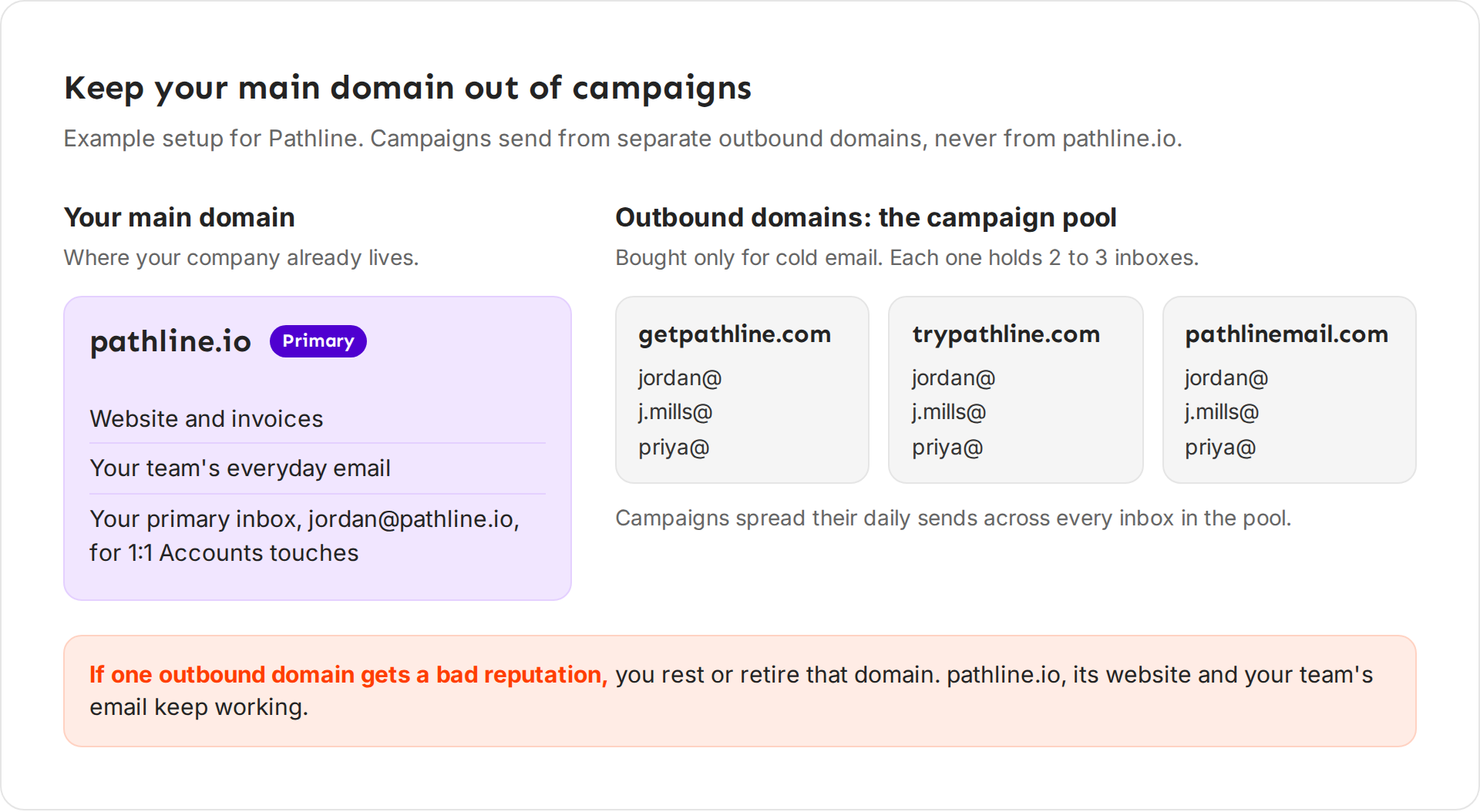
Ken follows the same rule. A mailbox on your workspace's main domain connects as your own inbox. It sends only one-to-one email and never joins a campaign.
Pick good domain names
A good outbound domain looks like your brand, so a prospect who reads the address still trusts it. Our deliverability playbook recommends these rules:
- Use a plain variation of your company name. For a company at pathline.io, that is getpathline.com, trypathline.com or pathlinemail.com.
- Prefer .com.
- Buy separate domains, not subdomains such as mail.pathline.io. A subdomain shares its reputation with your main domain.
- Point each domain's website at your real site, so a prospect who types it in lands somewhere real.
- Let a new domain age before it sends campaign email. Wait at least 7 to 14 days, and 14 to 30 days is better.
Plan 2 or 3 inboxes on each domain. To work out how many domains you need, see How many inboxes do I need.
Get domains
You can buy domains through Ken, ask Ken to set them up, or bring domains you already own.
Buy domains and inboxes in one order
Ken buys the domains, sets up their DNS records and starts warm-up on the new inboxes. You pay in credits. Ken inboxes and domains need the Platform plan. Without it, the dialog explains the plan and shows See the Platform plan. Connecting your own inboxes is free on every plan.
- Open Delivery in the sidebar, or press G then D.
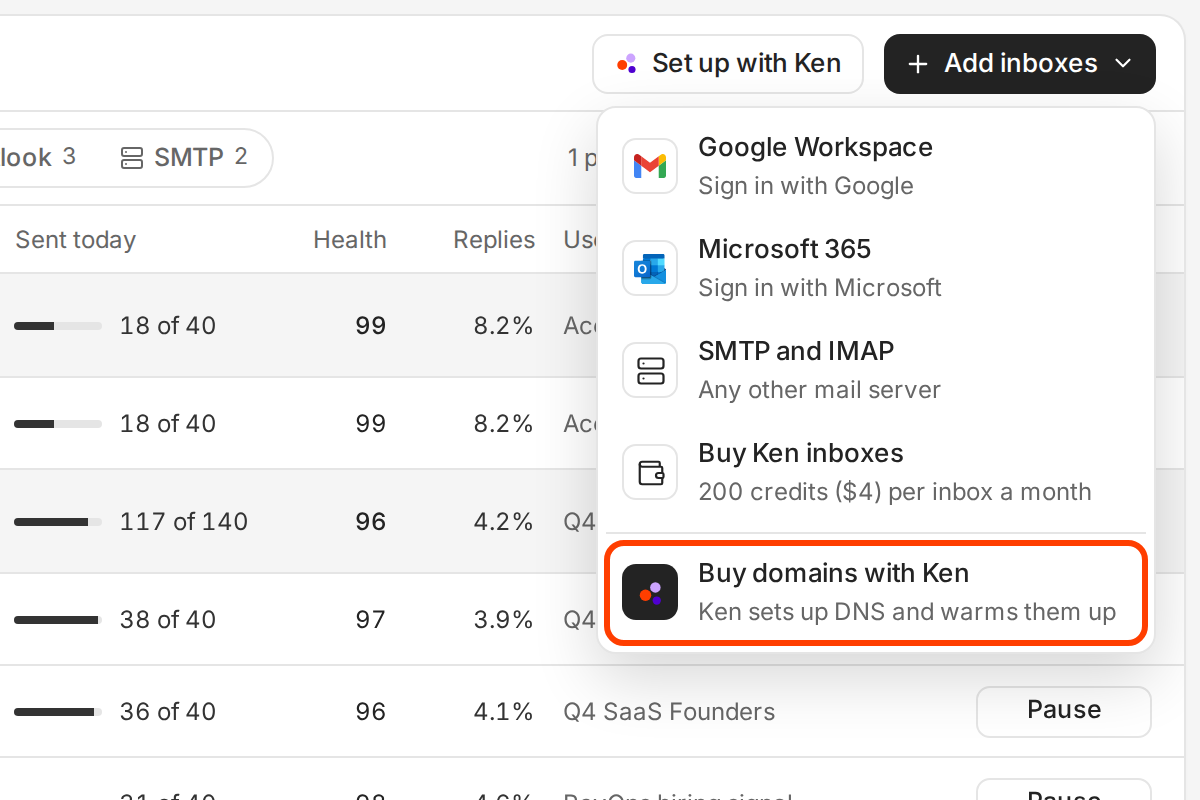
- Click Add inboxes, then Buy Ken inboxes.
- Pick the Provider: Google Workspace or Microsoft 365.
- Set how many Domains you want (1 to 20) and the Inboxes per domain (1 to 5). The order starts at 2 domains with 3 inboxes each. Our playbook puts 2 or 3 inboxes on each domain.
- If Ken has no website on file for your workspace, it asks for a Forwarding URL. Enter your website. Visitors to the new domains go there.
- Read the names Ken picked for the domains and the sender names. Click Pick again for a different set.
- Check the estimate. It shows what the order uses now, and what you pay each month for the inboxes and each year for the domains.
- Click Pay. The button shows the total, such as "Pay 2,300 credits ($46)". Some workspaces pay by card at checkout instead. Their button reads Continue to checkout, and checkout shows the final price.
Ken confirms with "Ordered", the number of domains and inboxes, and their names, followed by "Ken sets up DNS and starts warmup." While Ken prepares a new inbox, its status on the Inboxes tab reads Setting up.
New .com domains cost about 550 credits ($11) a year each. Each inbox costs 200 credits ($4) a month. Inboxes renew monthly in credits. New inboxes from Ken start with a Daily send limit of 25, and you can raise it once they are warm.
Ask Ken to do it
At the top of Delivery, Set up with Ken opens Ask Ken with a request already written: "Set up 2 new sending domains with 3 inboxes each and start warmup". Buy domains with Ken, the last row of the Add inboxes menu, opens Ask Ken with the same request to buy them. Change the numbers to fit your plan, then send it.
Bring your own domains
Buy the domains at any registrar and create the inboxes at Google Workspace or Microsoft 365. Add the four records below at your registrar, then connect the inboxes to Ken (see Connect your mailbox and LinkedIn). With your own domains, you keep the DNS records correct yourself.
The four records, in plain words
Your mail provider gives you the exact values. Here is what each record does, with example values for pathlinemail.com on Google Workspace.
| Record | The question it answers | Example host and value |
|---|---|---|
| SPF | Who may send email for this domain? A list of the mail servers allowed to send as you. Mail from any other server looks forged. | Host @, TXT v=spf1 include:_spf.google.com ~all |
| DKIM | Did this email really come from you, unchanged? A public key. Your provider signs each email, and the receiver checks the signature with this key. | Host google._domainkey, TXT v=DKIM1; k=rsa; p=... (a long key) |
| DMARC | What should happen when SPF or DKIM fails? Your policy, and where to send reports. | Host _dmarc, TXT v=DMARC1; p=none; rua=mailto:[email protected] |
| MX | Where do replies and bounces go? The server that receives mail for the domain. Without it, replies bounce and never reach Ken. | Host @, MX 1 smtp.google.com |
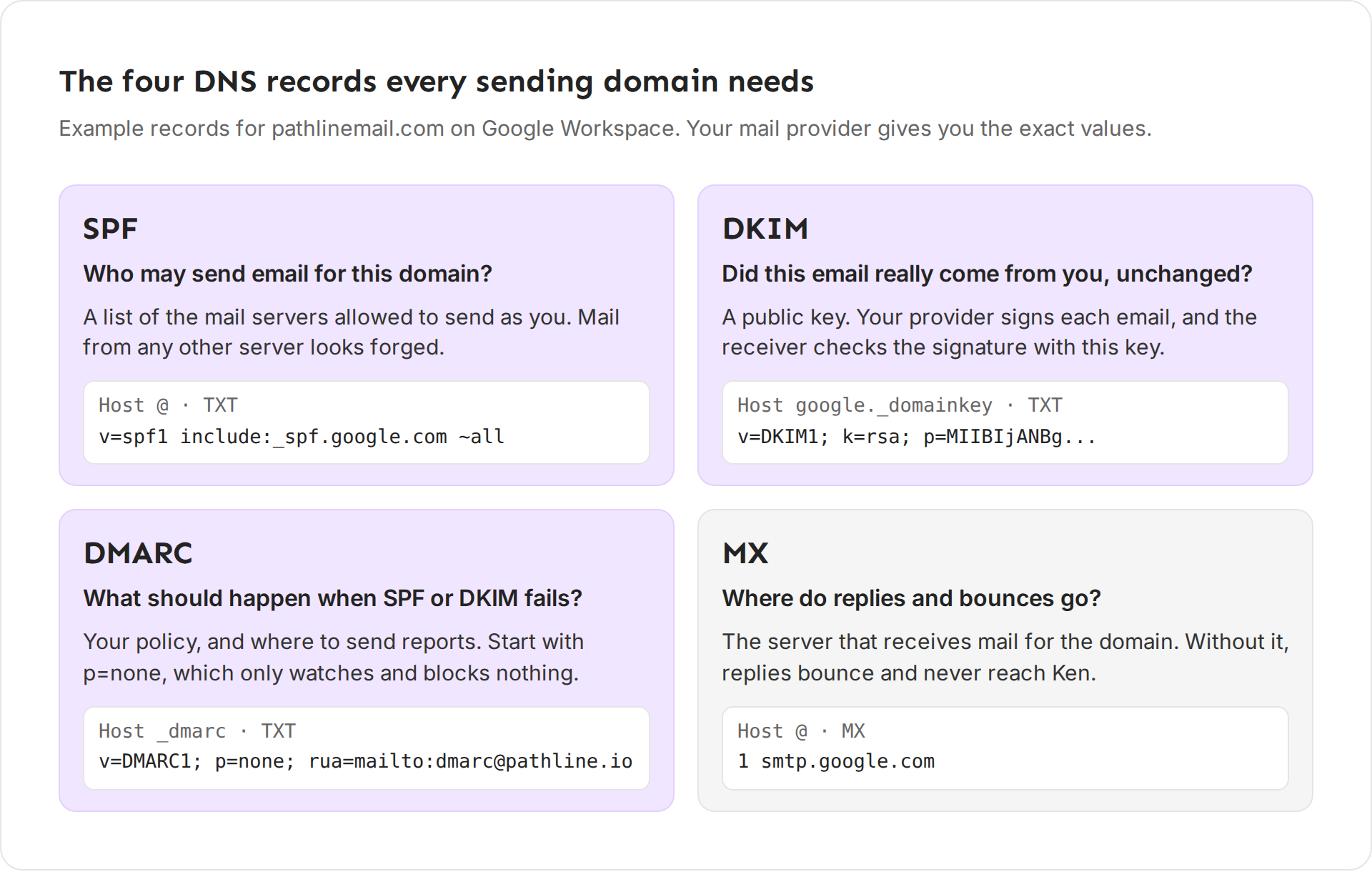
Three rules from our playbook keep these records healthy:
- Keep one SPF record per domain, with fewer than 10 DNS lookups in it. Two SPF records make both fail.
- Use a 2048-bit DKIM key when your provider offers one.
- Start DMARC at
p=none, which only watches and blocks nothing. After 30 or more days of clean reports, move top=quarantine, thenp=reject.
Check a domain's DNS and health
Ken checks each domain's records and shows the result in the domain's side panel.
-
Open Delivery, or press G then D.
-
On the Inboxes tab, click a domain name. Its side panel opens on the right.
-
Look at DNS and reputation. It has a chip for SPF, DKIM, DMARC, Nameservers, Blocklists and SSL. Each chip is passing (a check mark), failing (a cross) or not confirmed (a dash). Hold the pointer on a chip to read its state, such as "DKIM passing".
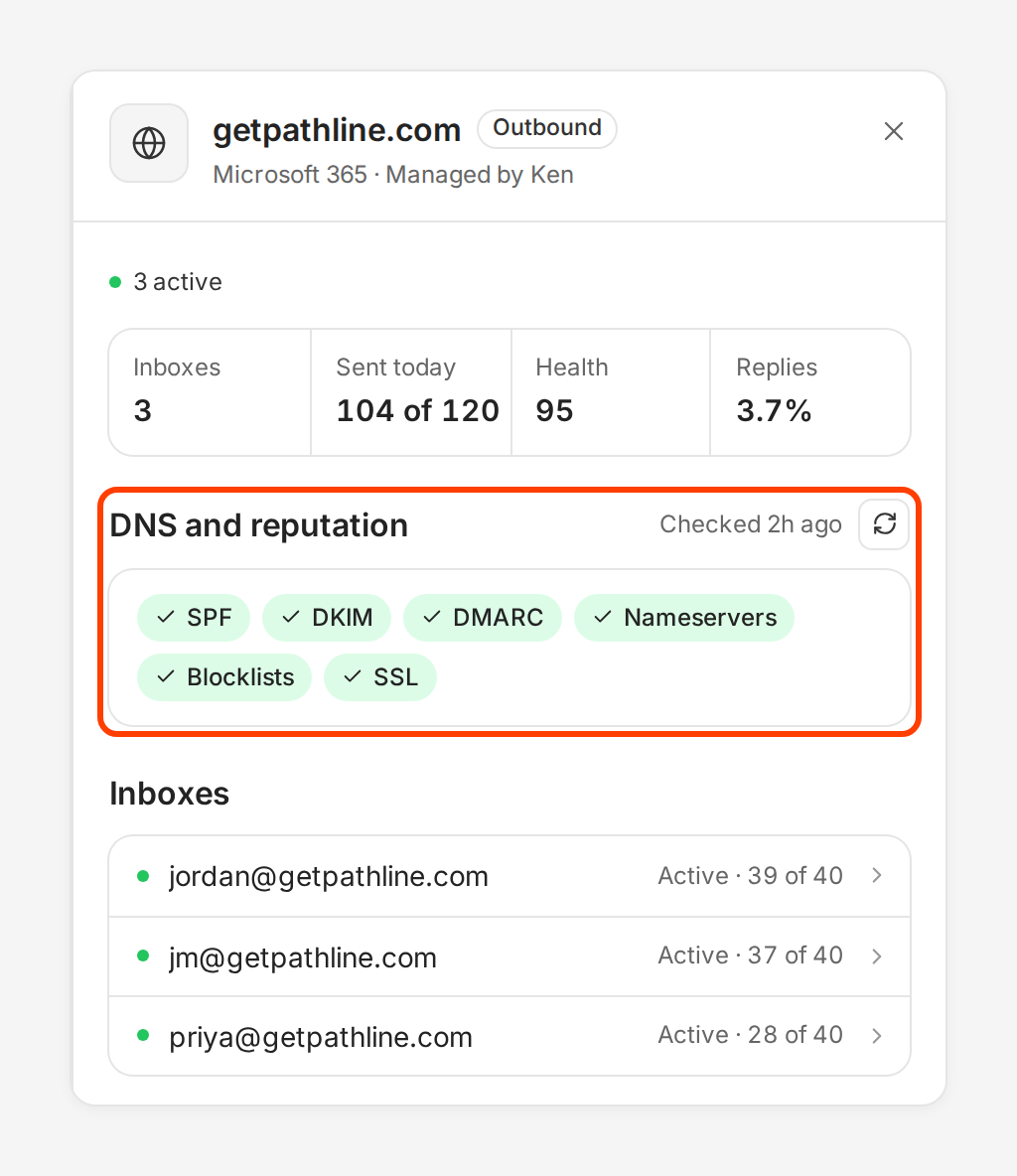
Every chip in DNS and reputation should show a check mark. -
After you change a record, click Check DNS now, the round arrow next to the time of the last check. Ken checks the records again and shows "Checked DNS for" and the domain name. The time changes to "Checked just now".
When a domain is on a blocklist, the chip reads Blocklists with the number of lists, such as "Blocklists (2)". A line under the chips names them, after "Listed on".
You can also open a domain from an inbox. In the inbox's side panel, click the domain name under the address.
The domain's other settings
The same side panel holds the settings that apply to every inbox on the domain. Click Save changes after you edit them.
- Ramp-up sets how many days new inboxes on this domain take to reach their full daily limit, from 0 to 30 days. 0 means "Off. New inboxes start at their full daily limit." Leave it on for new domains, but keep it short, because each new inbox also has its own ramp. See How warm-up works.
- Click tracking "Rewrites links through a tracking subdomain so Ken can count clicks." The tracking subdomain is
link.in front of the domain, such as link.getpathline.com. Ken never puts its own domains, such as ken.so, in your cold email. - Forwarding URL shows when Click tracking is on. It is "Where visitors to the root domain go." Set it to your website, or leave it blank to clear it.
- Auto-renew shows only on domains you bought with Ken. On, it reads "Renews" with the date and "for 550 credits ($11)". Off, the domain expires on that date, and Ken stops sending from it a week before.
- Tags let you filter domains and pick sending pools by tag.
What works
- Set up DNS before anything else. Add SPF, DKIM, DMARC and MX before you connect the inboxes and start warm-up. Warm-up only builds trust once receivers can confirm the email is yours.
- Fix DKIM first. A failing DKIM chip means receivers can't confirm your email is yours, so it lands in spam or bounces.
- Keep each domain small. Put 2 or 3 inboxes on each domain, so one bad domain affects a few inboxes, not all of them. Buy the domains your volume needs and no more. Every extra domain is more DNS to keep right, and a pile of throwaway domains looks like spam to receivers.
- Keep the TTL low while you set up. A TTL of 300 to 3,600 seconds means your fixes take effect within minutes to an hour.
- Check DNS after every change, and once a week while campaigns run.
If something goes wrong
- "DKIM failing". The DKIM record is missing, has a typo, or sits on the wrong host. Copy the value from your mail provider again, exactly as given. Some registrars split long values into parts, so check that the whole key is there. Then click Check DNS now.
- "SPF failing". Often the domain has two SPF records. Merge them into one record that starts with
v=spf1. - "DMARC not confirmed". Ken can't find a DMARC record. Add a TXT record on host
_dmarcwithv=DMARC1; p=none;and a report address. - "I fixed the record but the chip still fails". DNS changes take time to spread, up to the record's TTL. Wait an hour and click Check DNS now again.
- "Blocklists (1)". Pause the domain's inboxes, which keeps warm-up running, and look at their bounces and complaints. See Keep your email out of spam. If you bought the domain with Ken, write to [email protected] with the domain name.
- "Nameservers failing" on a domain I bought with Ken. Ken can't confirm the domain uses the nameservers it set up, so its records may have changed. Write to [email protected] with the domain name.
- "You need 2,300 credits ($46) and have 900 credits ($18)". The order costs more credits than the workspace has. Click Buy credits next to the message. If it adds "Your Ken team manages credits for this workspace.", ask your Ken team instead. See How credits work.
- "I don't see Add inboxes or Set up with Ken". You can view Delivery but not change it. Ask a workspace admin.
Next: How many inboxes do I need, How warm-up works or Keep your email out of spam.