Ken sends your one-to-one emails from your own inbox and reads the replies there, so connecting it is the first thing to do. This guide shows how to connect Google Workspace or Microsoft 365, what Ken can read and send, what to do when your company's admin has to approve Ken first, and how to connect LinkedIn.
Your inbox and your sending inboxes
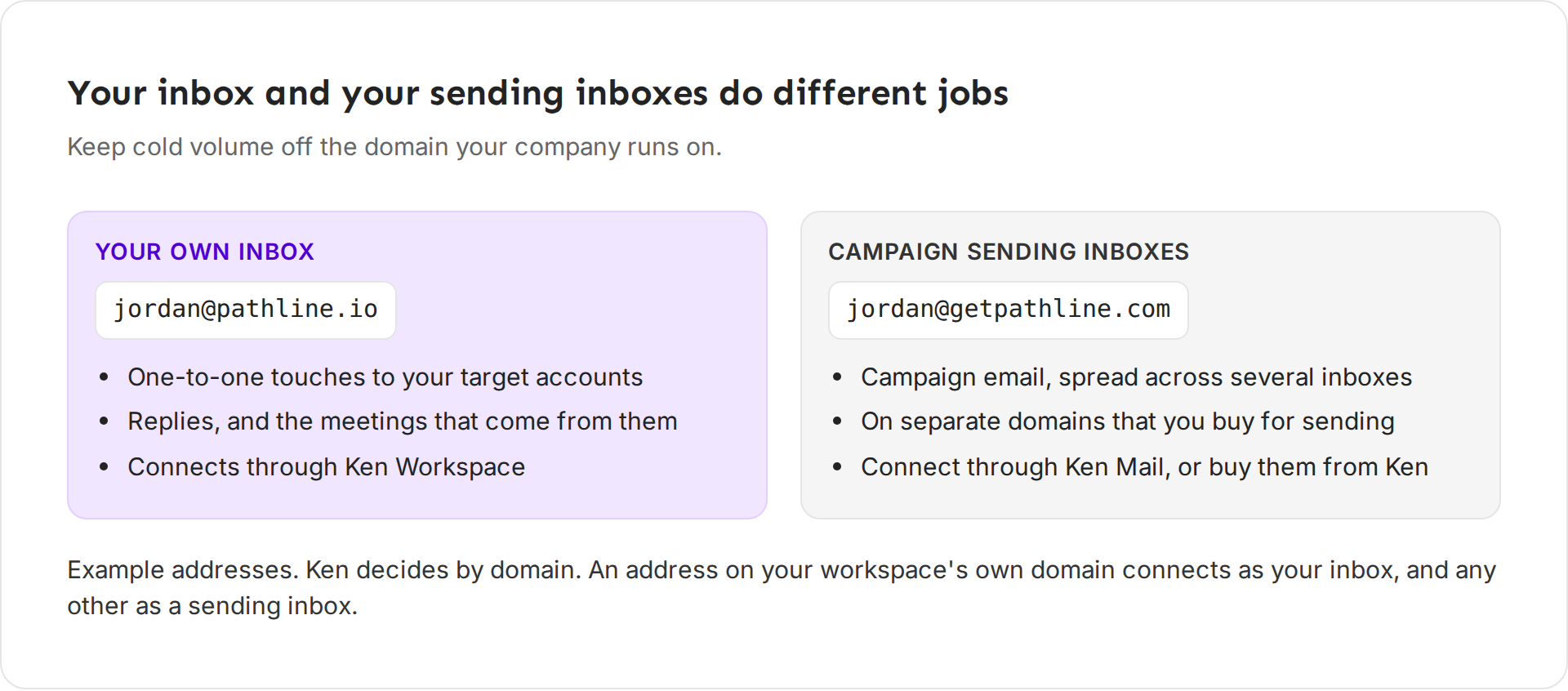
Ken uses two kinds of inbox, and they do different jobs.
- Your own inbox, such as [email protected], sends your one-to-one touches to target accounts and handles the replies. It connects through an app called Ken Workspace.
- Sending inboxes sit on separate domains you keep for outreach. Campaign email goes out from them, spread across several inboxes, so your main domain keeps its reputation. They connect through an app called Ken Mail, or you can buy them from Ken.
Ken decides by domain. An address on your workspace's own domain connects as your inbox. Any other address connects as a sending inbox. To plan sending inboxes, read How many inboxes do I need and Set up sending domains and check their DNS.
Connect your inbox
-
Open Delivery. Click Delivery in the sidebar, or press G then D. Open the Inboxes tab.
-
Click Add inboxes, then Google Workspace or Microsoft 365.
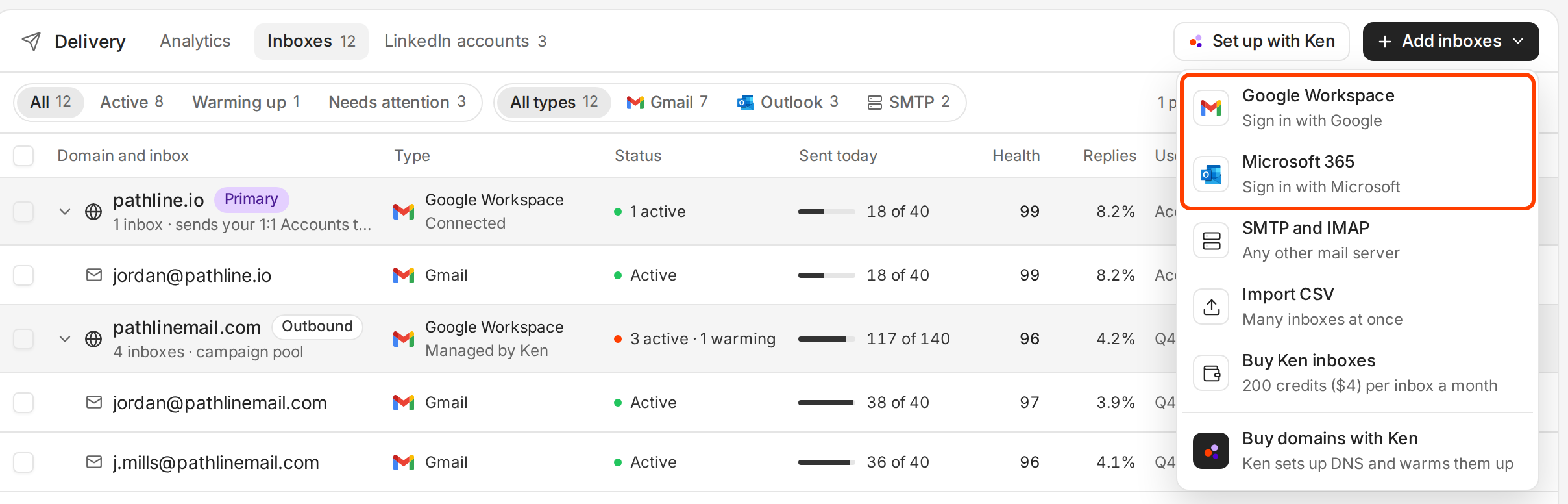
Pick Google Workspace for Gmail, or Microsoft 365 for Outlook. -
Enter the address. Type the mailbox you want Ken to send from. Under the field, Ken tells you how it connects. For an address on your own domain it says the address "connects as your inbox through Ken Workspace". Click Continue.
-
Sign in. Click Sign in with Google or Sign in with Microsoft. The sign-in page opens in the same tab. Sign in as that same address and allow the permissions. Ken brings you back to Delivery when you're done.
If the dialog asks for an admin first, see "If your company has to approve Ken" below.
Check the connection
Your inbox now shows in Delivery under Inboxes. To see what Ken does with it, open its page in Settings.
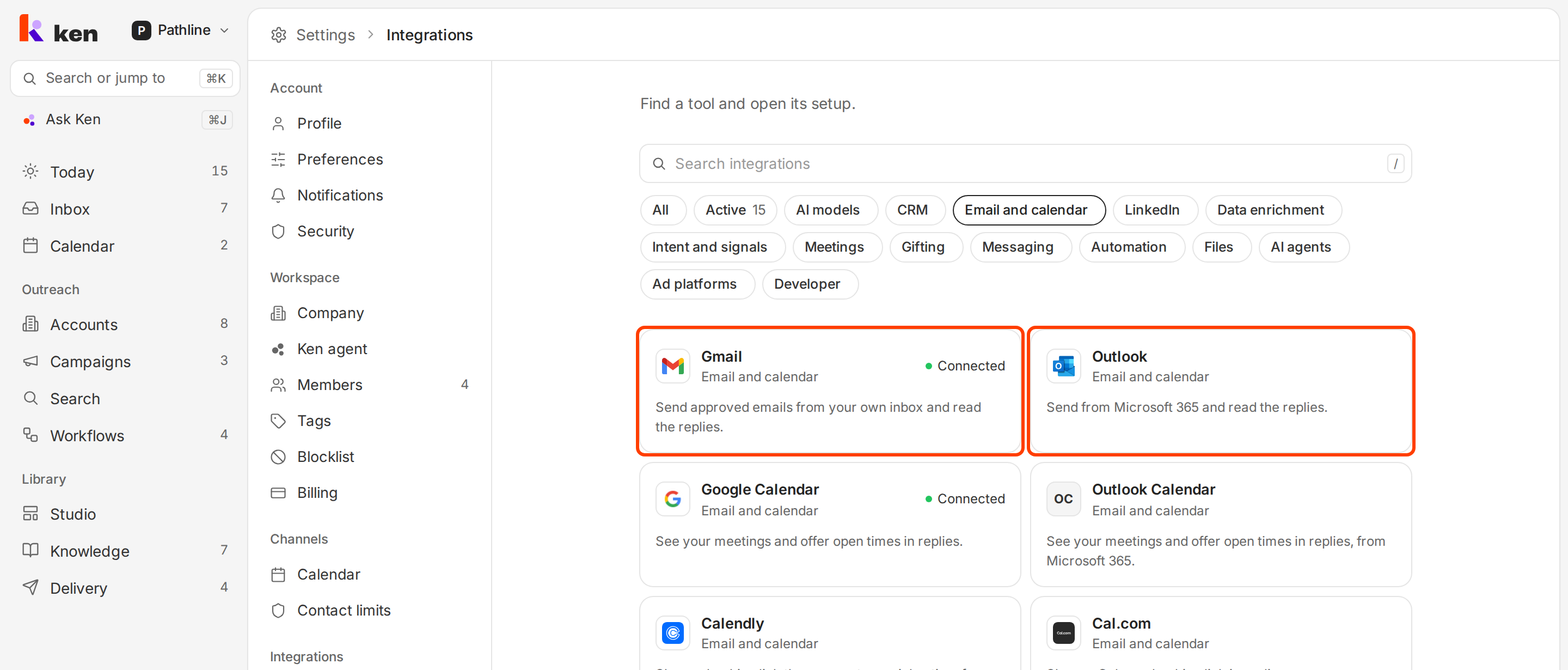
- Open Settings with G then , and click All integrations.
- Click Email and calendar, then Gmail or Outlook.
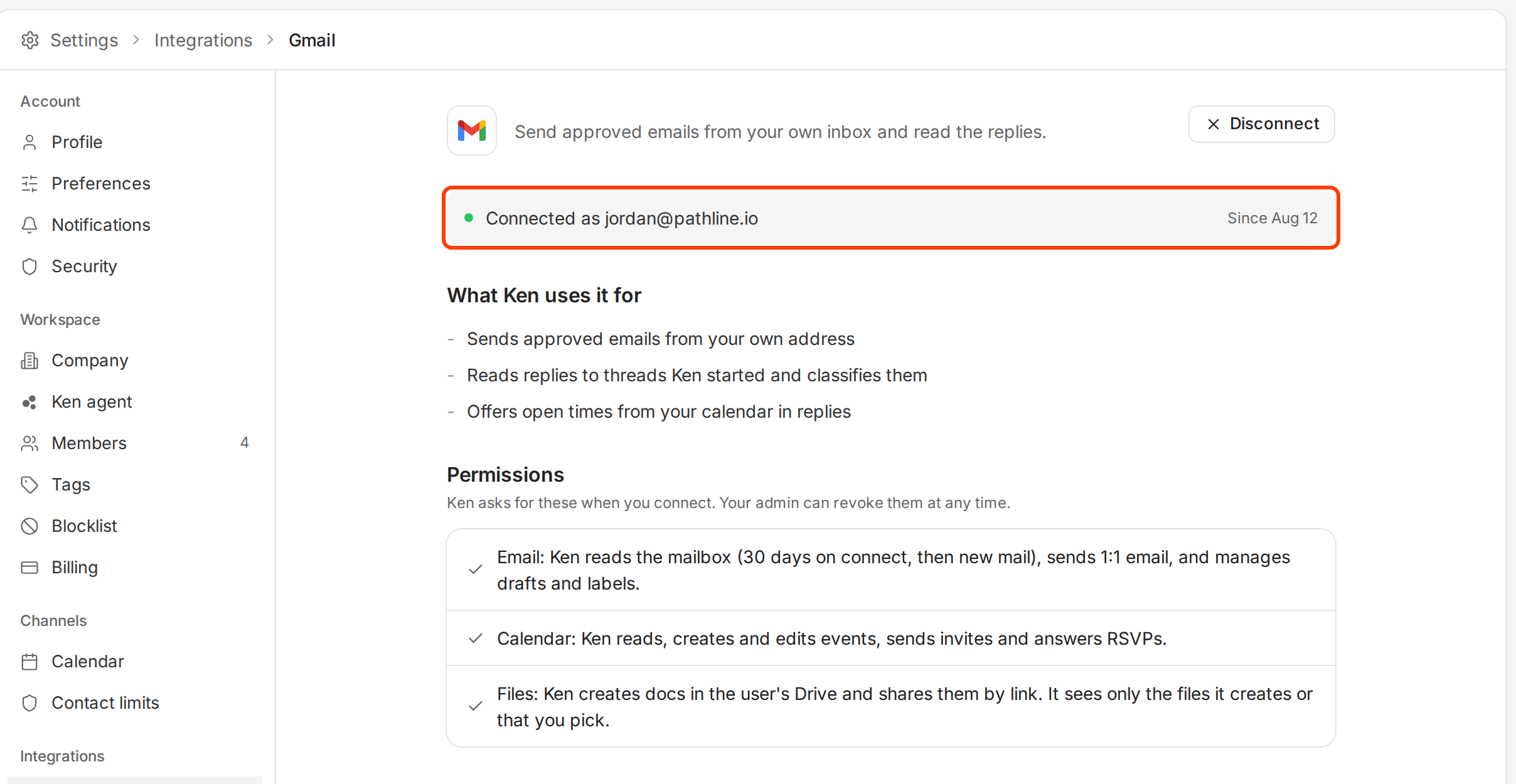
- Check the status line. It reads "Connected as" followed by your address.
The page lists What Ken uses it for and the Permissions Ken asked for. Below them are two switches for your inbox:
- Add your signature is on by default. Ken adds the signature set on each inbox in Delivery, under Sender.
- Track opens is off by default. It adds a tracking pixel, which can hurt deliverability.
What Ken can read and send
- It sends only what you approve. Ken sends approved emails from your address and nothing else.
- It reads replies. Ken reads replies to the threads it started and sorts them in Inbox.
- It learns from your mail only if you turn that on. Learn from my mail is off by default and is opening to workspaces in stages. When it is on, Ken keeps short facts, never the mail itself. See Teach Ken how you write.
- It reads your calendar. Ken syncs events from 12 months back to 12 months ahead, so it can prepare you for meetings and offer open times in replies.
- It sees only its own files on Google Drive. Ken sees the files it creates or that you pick. On OneDrive, Microsoft's permission covers your whole OneDrive, and Ken uses it only to create and share the docs it makes.
Your admin can revoke access at any time.
If your company has to approve Ken
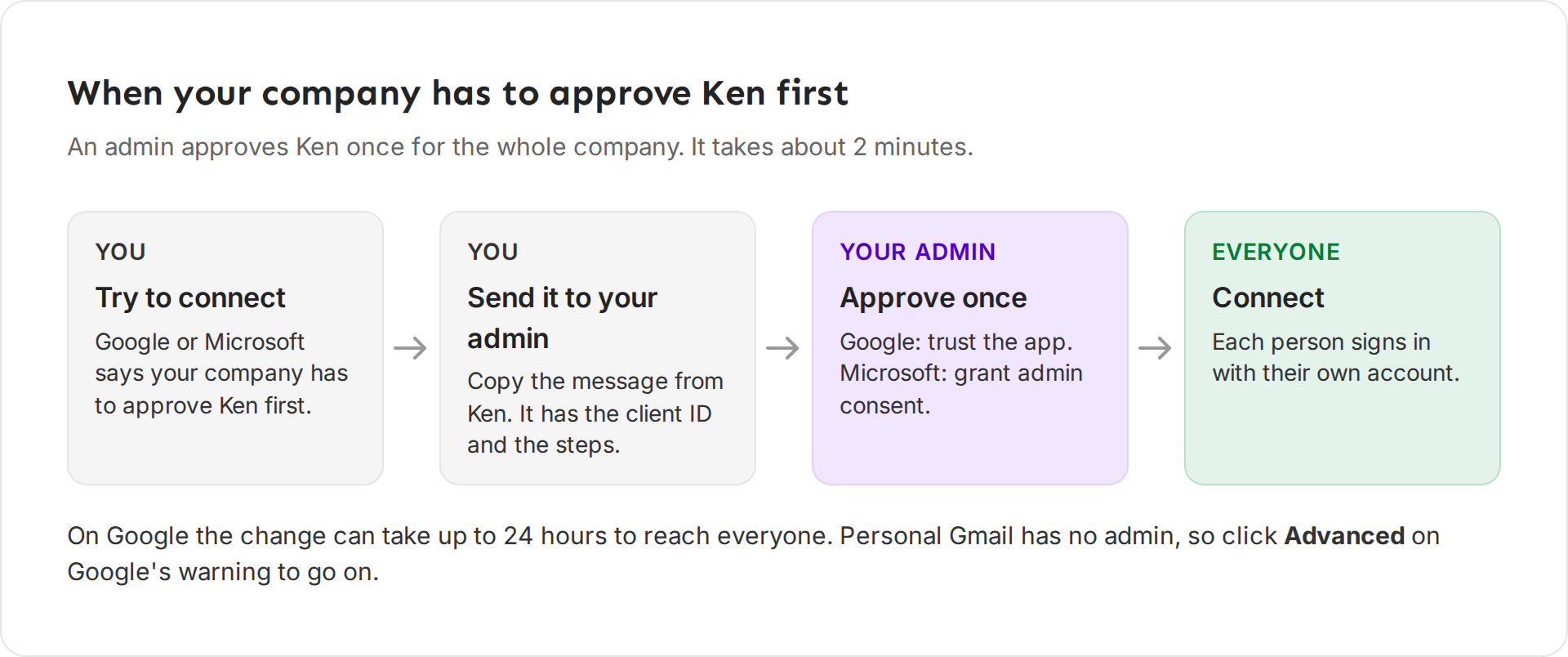
Some companies let only an admin approve new apps. Google then shows a warning, or blocks the sign-in. Microsoft says admin approval is required. An admin approves Ken once for the whole company. It takes about 2 minutes.
- Send it to your admin. On the Gmail or Outlook page in Settings, find Send to your admin. Click Copy message or Email it. The message has the client ID and the steps. Read the admin guide opens the full guide for your admin.
- Your admin approves Ken. On Google, they open the Admin console and go to Security, then Access and data control, then API controls. They click Manage App Access, then Configure new app, paste the client ID and pick the app. They choose Trusted, click Continue and then Finish. On Microsoft, they open the admin consent link from the message and accept. Ken Workspace and Ken Mail are two apps, so if you also connect sending inboxes, your admin approves each one.
- Connect again. Once your admin is done, everyone at your company can connect their own inbox.
Connect LinkedIn
Ken sends your LinkedIn invites and messages from your own account, after you approve them.
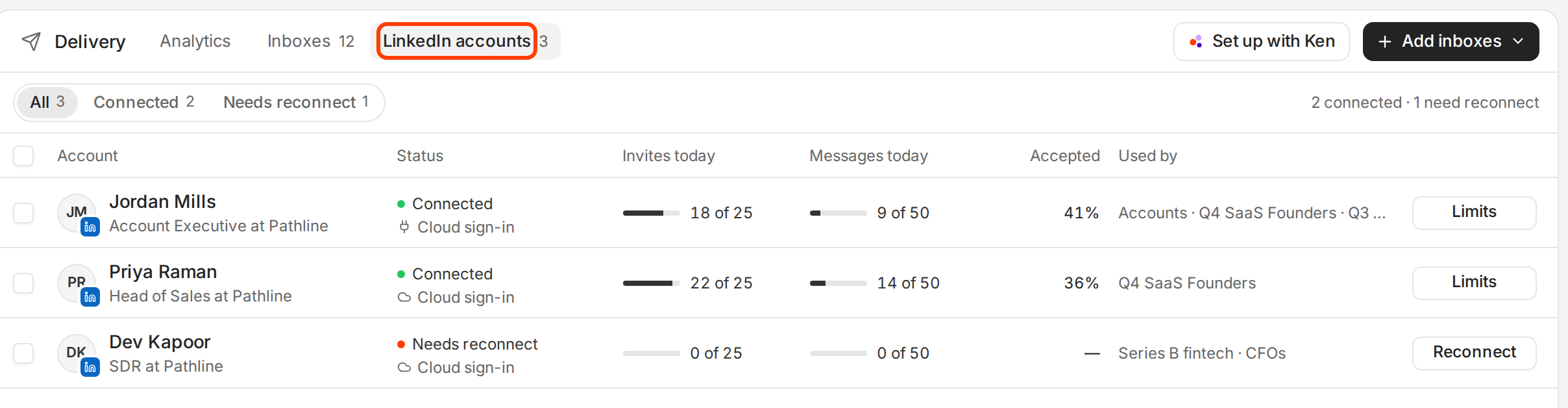
- In Delivery, open the LinkedIn accounts tab.
- Click Connect account. The dialog Connect a LinkedIn account? shows what the account costs per month and how many credits you have.
- Click Continue. LinkedIn's sign-in opens in a new tab.
- Sign in with the LinkedIn account Ken should send from. Delivery reloads when you're done.
A LinkedIn account costs 1,500 credits a month. Ken takes the first month when the account connects, then it renews monthly.
Tips
- Connect the inbox you actually sell from. Prospects reply to the address they see. If your account executives send, each one connects their own inbox and LinkedIn.
- Never run campaigns from your main domain. If your main domain gets a bad reputation, your invoices, support mail and sales threads land in spam too. A sending domain can be replaced.
- Leave Track opens off. Ken judges results by replies, and the pixel can push your email into spam.
- Keep each inbox's volume low. Plan on about 30 campaign emails a day from each warmed inbox. Ken never sends more than 50 a day from one inbox. To send more, add inboxes instead of raising the limit.
If something goes wrong
- "Connecting your own inbox on" your domain "isn't on for this workspace." Connecting your own inbox is not turned on for your workspace yet. Write to [email protected] to ask for it.
- Google says the app is unverified, or blocks you. Your company has to trust Ken first. Use Send to your admin.
- "Microsoft 365 admin consent is required." Send your admin the message from Send to your admin. It has the admin consent link. When they are done, Ken says "Microsoft 365 admin consent is done. You can connect the mailbox now."
- You typed the wrong address. Before you click Sign in, click Use another address and type the right one.
- You signed in with a different mailbox. Ken asks "Connect" and the mailbox's address. Click It's mine, connect it only if the mailbox is yours. Otherwise click Cancel and connect again with the right account.
- "...is on your workspace's main email domain, so it can't be a campaign inbox." You tried to add your own address as a sending inbox. Connect it as your own inbox, and put sending inboxes on separate domains.
- "Another member of this workspace already connected..." A teammate connected that mailbox as their own inbox. Ask them or a workspace admin to disconnect it first.
- "...connect link expired or was started by someone else." Start again from Add inboxes.
- A LinkedIn account shows Needs reconnect. Click Reconnect on its row and sign in again.
- "You need" a number of credits "and have" fewer. Click Buy credits in the dialog, then connect the account.
- "All LinkedIn seats are in use." Your plan has no free LinkedIn seat. Write to [email protected] to add seats.
- "LinkedIn accounts aren't included on the Free plan." Upgrade to the Platform plan to connect one.
- "Couldn't open the LinkedIn sign-in." Your browser blocked the new tab. Allow pop-ups for app.ken.so and try again.
Next: Launch your first campaign, How many inboxes do I need or How warm-up works.