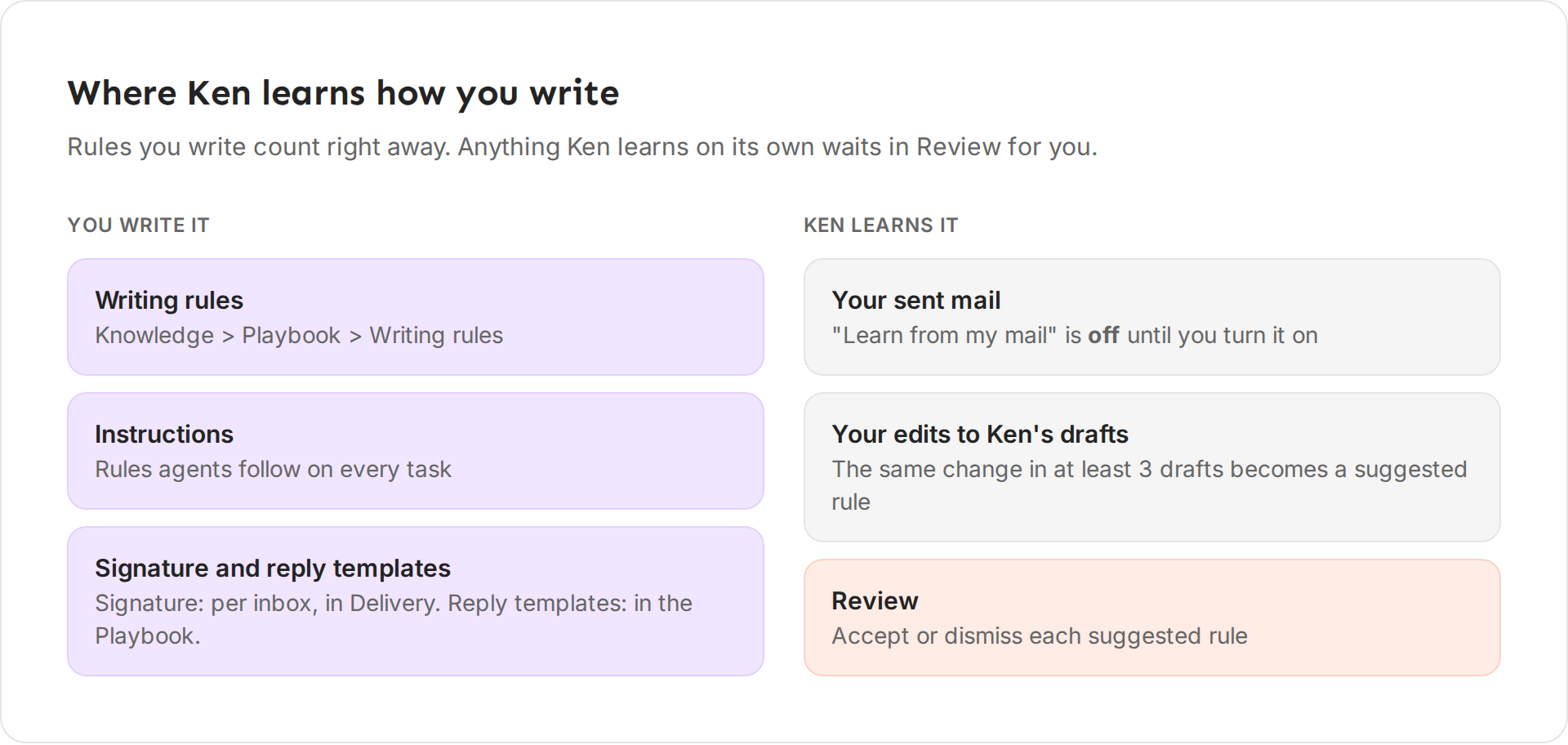
Ken drafts emails, LinkedIn messages and replies in your name, so they should sound like you. You teach Ken your voice with writing rules. Ken also learns from the edits you make to its drafts and, once it is on for you, from your sent mail. Rules you write count right away. Rules Ken learns on its own wait for you in Review.
Add a writing rule
Your writing rules apply to every email, LinkedIn message and reply Ken drafts for you. Agents connected to Ken over MCP follow them too.
-
Open Knowledge, or press G then K.
-
Under Playbook, click Writing rules.
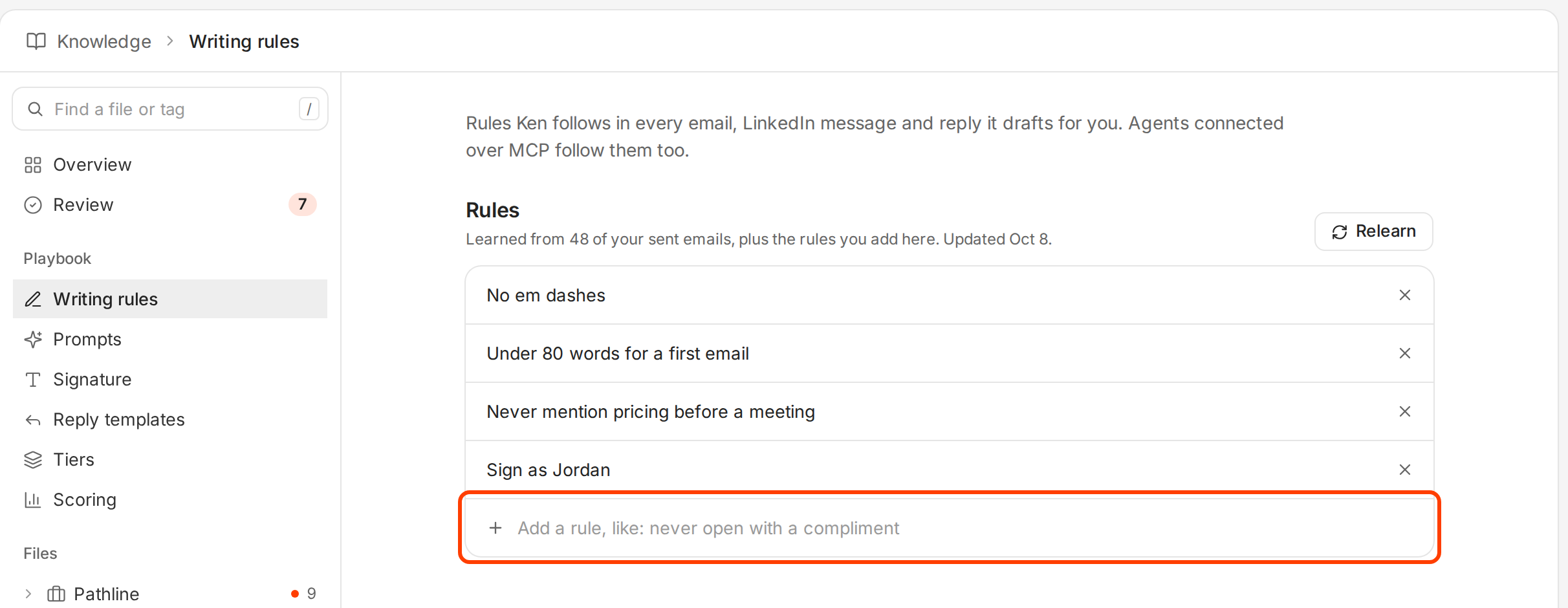
Your rules, and the row where you add a new one. -
Click the row that says "Add a rule, like: never open with a compliment".
-
Type one rule and press ↵.
The rule shows in the list at once. To remove a rule, click the × at the end of its row.
Your rules live in your own Writing style file, in your You folder. Only you and agents working for you can read it.
Where to put a rule
| Put it in | Who follows it |
|---|---|
| Writing rules | Every email, LinkedIn message and reply Ken drafts for you, and agents connected over MCP |
| A file in your company folder | Drafts Ken writes for anyone in your workspace. Keep it short. Ken reads about 2,000 words of company files per draft. |
| A skill or instruction shared with Only you | Agents working for you, such as Ask Ken. Not the drafts Ken writes on its own. |
Write rules Ken can follow
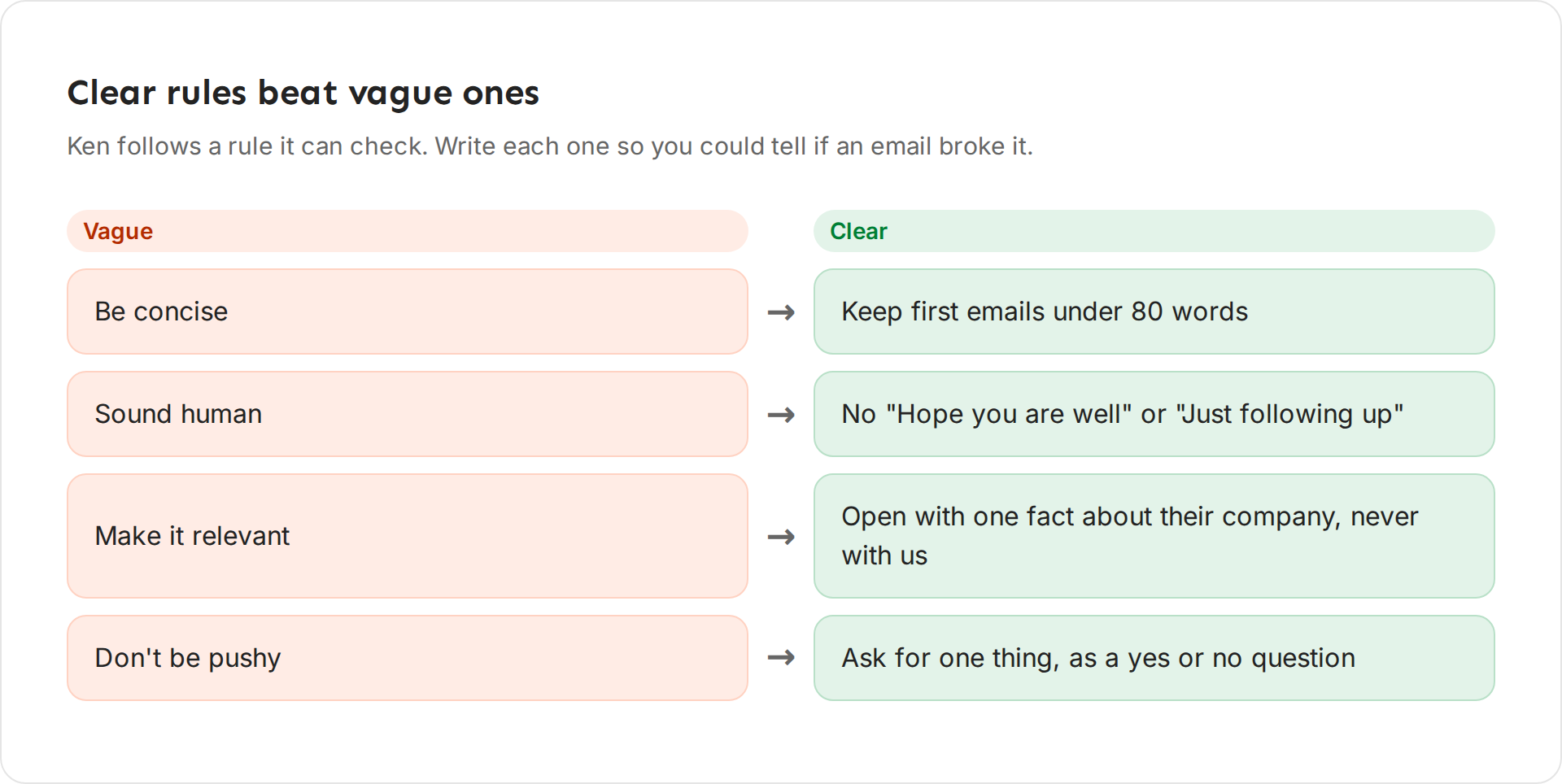
A good rule is one you could check. Read a draft and you can tell if it broke the rule. A vague rule leaves Ken to guess what you meant.
| Vague | Clear |
|---|---|
| Be concise | Keep first emails under 80 words |
| Sound human | No "Hope you are well" or "Just following up" |
| Make it relevant | Open with one fact about their company, never with us |
| Don't be pushy | Ask for one thing, as a yes or no question |
| Be professional | No exclamation marks. Sign with my first name only. |
What works
These rules come from the copywriting guide Ken's own team uses on client campaigns, and from the rules Ken's own writer follows.
- Set a word limit. Our guide keeps the body of a first email to 80 words or less, not counting the greeting and signature. Follow-ups stay under 55.
- Ban the filler. The guide rules out "Just following up", "Circling back" and "Last note from me".
- Keep the ask soft. End with one short question they can answer from a phone, such as "Worth a look?", or offer something free and useful. Don't ask a stranger for a meeting or a call.
- Run two tests on a draft. If the email could go to 500 people unchanged, it is a blast, so rewrite it. If you delete every sentence about your product and nothing is left for the reader, rewrite it.
- Note six things before you write: who reads it, the words those readers use, words to never say, how formal to be, who you are as the sender, and the proof that lands.
Keep each rule to one line, and remove rules that overlap. A short list is easier to keep true.
Before and after
Here is the same first email, written before and after five rules.
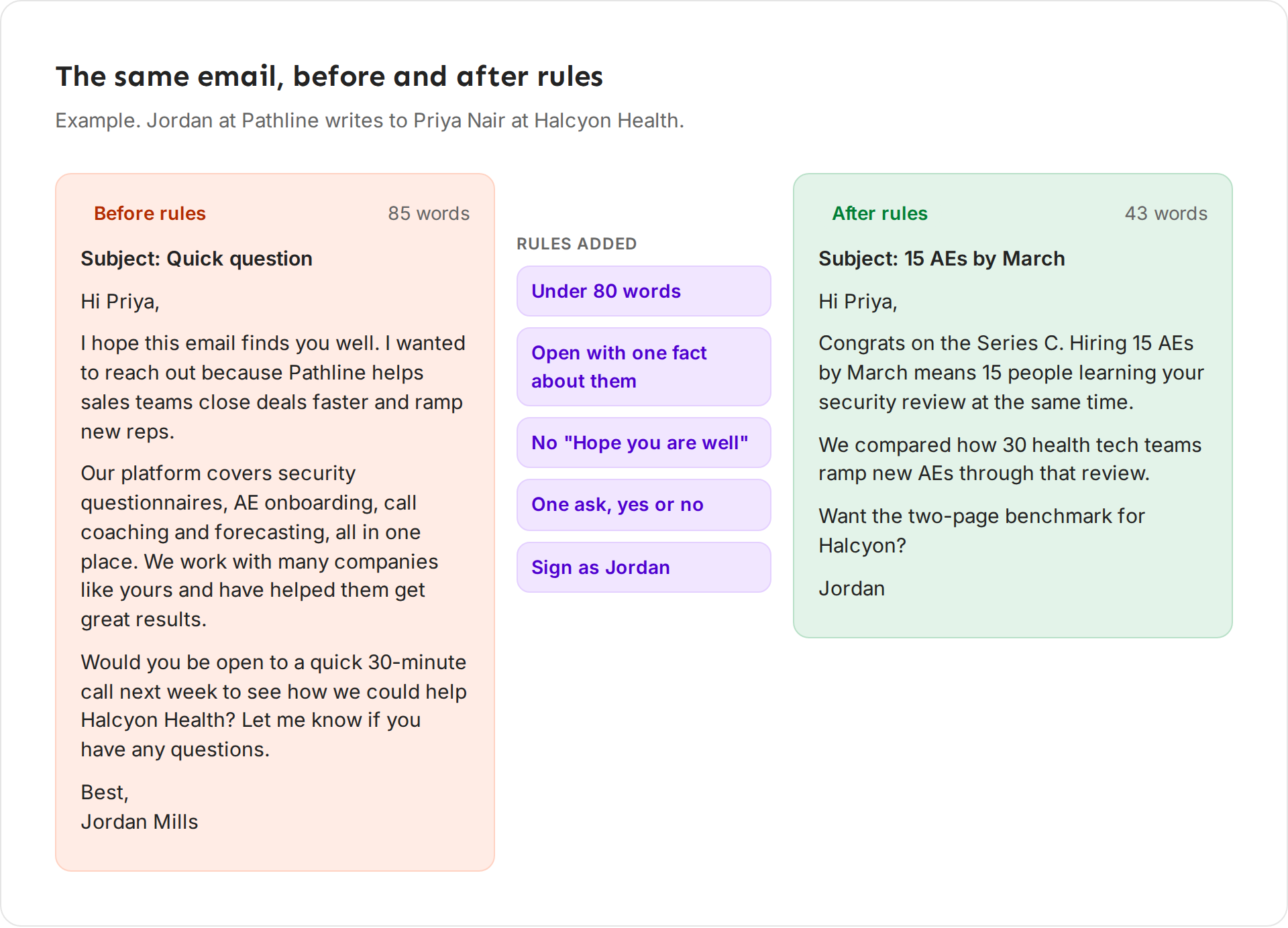
The rules were: under 80 words, open with one fact about them, no "Hope you are well", one ask as a yes or no question, sign as Jordan. The first version talks about the sender for 85 words and asks for a 30-minute call. The second opens with the prospect's hiring, offers one useful thing, and ends with a question they can answer in a word.
Let Ken learn from your edits
When you change a draft Ken wrote for an account and then approve it, Ken notes what you changed. Once a night, it looks across your edits. If the same kind of change shows up in at least 3 different drafts, such as always cutting the first line, Ken suggests a rule for it.
- Open Knowledge, then Review.
- Find the rule. It says "Learned from your edits to 3 drafts", or however many drafts it found.
- Click Accept to add it to your Writing rules, or Dismiss to drop it.
Ken never suggests the same rule twice. A rule you dismissed stays dismissed.
Let Ken learn from your mail
Ken can also read your sent mail and suggest rules from how you already write. Learning from mail is opening to workspaces in stages. If you don't see the switches below, it is not on for your workspace yet.
- Open Settings, then Integrations.
- Open Gmail or Outlook.
- Under Knowledge, turn on Learn from my mail. Ken reads mail that involves your accounts and keeps facts, never the mail.
- Leave Share what Ken learns from my mail with my team on to let your team's agents use those facts. Turn it off to keep them for your own agents only.
| Switch | Default |
|---|---|
| Learn from my mail | Off |
| Share what Ken learns from my mail with my team | On |
Disconnecting the mailbox deletes the facts Ken learned from it.
With mail on, click Relearn on the Writing rules page. Ken reads up to your 50 newest sent one-to-one emails and needs at least 5. New rules wait for you in Review, where you accept or dismiss each one.
Signature
Your signature is set on each inbox, so every email from that inbox ends the same way.
- Open Delivery and click the inbox.
- Under Sender, fill in Signature. You can insert
{{sender.first_name}},{{sender.last_name}}and{{sender.title}}. - Click Save changes.
To give several inboxes the same signature, select them all and fill in Signature once, then click Apply to and the number of inboxes. It replaces the signature on every selected inbox.
Reply templates
Reply templates are saved replies for your workspace. You insert them from the Inbox.
- In Knowledge, under Playbook, click Reply templates.
- Click New template. It starts with "Hi {{first_name}},".
- Name it and write the reply. It saves when you click away.
To use one, open a reply in the Inbox and click Templates in the composer. Ken puts the person's first name in place of {{first_name}}. It does not fill {{company}} or {{sender_name}} yet, so type those in before you send. To save a reply you wrote as a new template, click Save as template.
Good first templates: a reply to "send me more info", a reply to "not now", and a booking reply with your calendar link.
Skills and instructions
Instructions are rules agents follow on every task. Skills are step-by-step playbooks for agents, such as how to write a follow-up email. Each skill has:
- an Active switch,
- Runs when, for when the skill starts on its own,
- Shared with, which says who can use it.
A skill or instruction you create is shared with Only you and starts active. It guides agents working for you, such as Ask Ken. The drafts Ken writes on its own, such as account emails and replies, follow your Writing rules and your company files instead.
An active skill shows up as a / command in Ask Ken. Open Ask Ken with ⌘ J, or Ctrl J on Windows, and type /. A skill Ken wrote says "Ken wrote this. Agents won't use it until you approve it." Click Approve before you turn it on.
If something goes wrong
"No rules yet. Ken starts your Writing style file the first time it learns how you write." There is no row to add a rule until Ken makes the file. Put rules for everyone in a company file for now, as the note under Add a writing rule explains.
"Ken isn't reading connected mail for this workspace yet." Learning from mail is not on for your workspace, so Relearn cannot run. Add your rules by hand for now.
"Ken is not reading connected sources for this workspace yet." The same thing, shown on the Gmail or Outlook page.
"Too soon to relearn again. Try again in a few minutes." Wait a few minutes and click Relearn again.
"You can read these rules but not change them." Your role lets you read the rules but not edit them. Ask an admin.
Ken ignores a rule. Check that it is one line and something you could check. "Be concise" is easy to miss. "Under 80 words" is not.
A rule Ken suggested is wrong. Dismiss it in Review. If you already accepted it, click the × on its row in Writing rules.
My signature doesn't show in emails. Ken uses the signature set on each inbox in Delivery. Set it there, under Sender.
Next: Make assets in Studio, Write cold emails people reply to or Reply from the Inbox.