Knowledge is where Ken keeps what it knows about your company, about you and about every account you work. Ken reads it before it drafts an email, a LinkedIn message or a reply, so better files make better drafts. You add files yourself, and Ken adds what it learns from uploads, research, calls and mail.
What Knowledge holds
Open Knowledge in the sidebar, or press G then K. The left side lists Overview, Review, the Playbook pages and your files.
| Folder | What goes in it | Who reads it |
|---|---|---|
| Your company folder, named after your workspace | Your offer, customers, pricing and objections. It starts with a Competitors folder and a Proof folder. | Every agent and everyone in your workspace |
| You | About you, your goals and how you write | Only you, and agents working for you |
| Accounts | One folder per account, with its Company and Deal files, a People folder, and a Public folder for research and signals | People who can see the account, and agents working on it |
| Skills | Step-by-step playbooks for agents. Active skills show up as / commands in Ask Ken. | Agents, when the skill is on |
| Instructions | Rules agents follow on every task | Every agent. Company rules win over yours. |
The Playbook holds the settings Ken uses when it writes: Writing rules, Prompts, Signature, Reply templates, Tiers and Scoring. Teach Ken how you write covers the writing pages.
What Ken reads before it writes
Ken reads two packs before each draft. The first is the same for every account: your instructions, the skill you run (if any), your company files and your own You files. The second is about one account: its Company, Deal and Signals files, the file of the person you write to, its latest signals and the facts Ken learned about it.
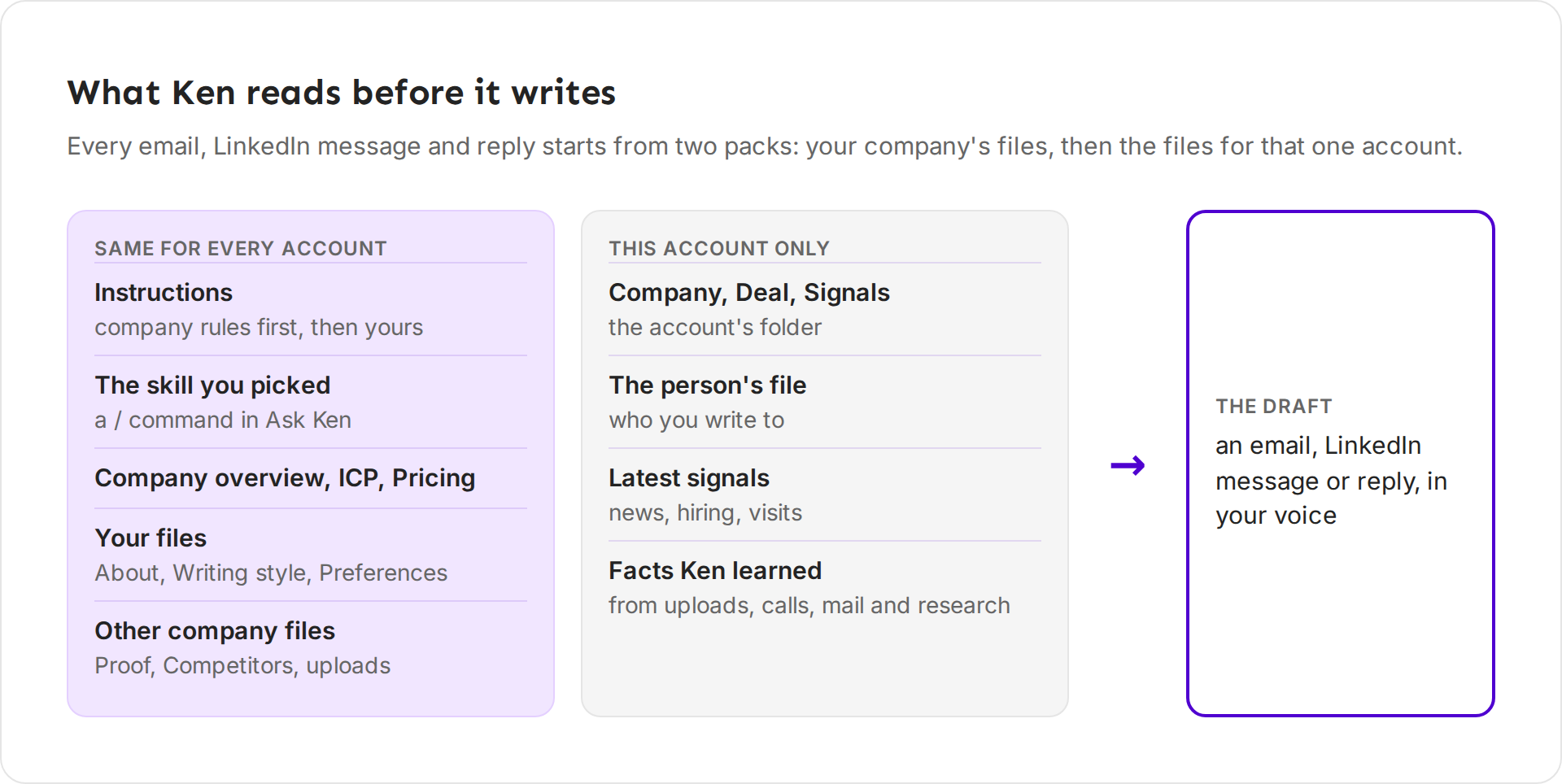
The company pack has room for about 2,000 words. Instructions go in first. When your company files hold more than that, Ken picks the files that match the task, then the newest. Ken also cuts any single file after about 6,000 characters (roughly 1,000 words).
Add a file
- Open the folder the file belongs in. For facts about your company, use your company folder.
- Click New file, or press C.
- Type a title, then write. Type / for blocks such as Heading, Bulleted list, To-do or Quote. Markdown works too:
#for a heading,-for a list. - Click + Tag to tag the file. Press ↵ or type a comma after each tag.
To edit the whole file as plain text, click Edit as markdown (the <> button at the top right of the file).
Upload documents
- Open your company folder, or a folder inside it.
- Click Upload, or press U. You can also drop files on the page.
- Wait while the file shows Reading. Ken looks for new uploads every 5 minutes and reads each file before agents use it.
Each file can be up to 10 MB. For now, uploads go only to your company folder or a folder inside it. Ken reads about the first 200 pages of a long file, so split very long documents.
Review what Ken learned
Ken suggests updates when it learns something from an upload, a call, your mail or its research. The Review mode on Overview decides how many of them wait for you:
- Review everything. Every change waits in Review until someone accepts it.
- Ken checks, you see exceptions. This is the default. Ken adds what passes its checks. Changes to company-wide files, conflicts and anything Ken wasn't sure about wait for you, plus 5% of the rest as spot checks.
- Auto. Ken adds everything that passes its checks, company-wide files included.
In every mode, conflicts, sensitive facts and anything Ken wasn't sure about still wait for you. You can see each change and undo it. Only admins can change the review mode.
-
On Overview, click Review in the banner at the top.
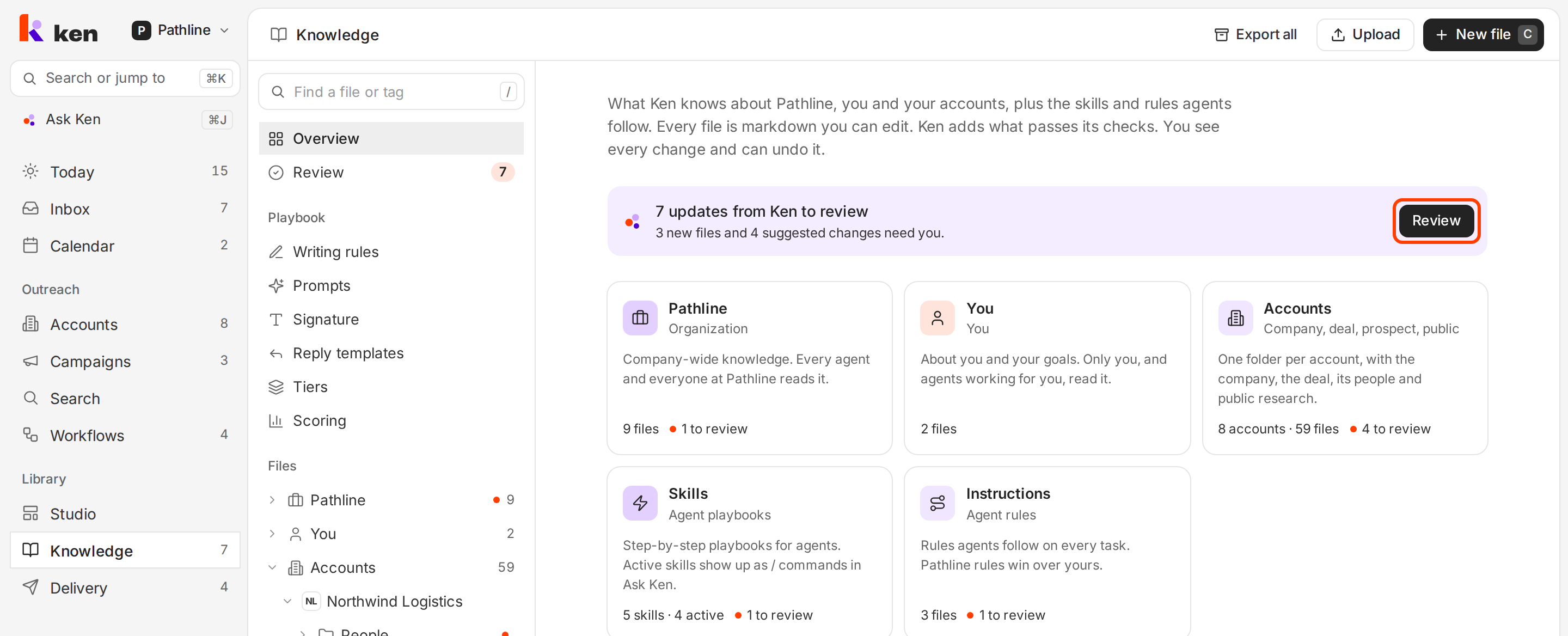
The banner says how many updates wait for you. -
Read each item. It says what Ken wants to change and where it learned it.
-
Decide:
- For a suggested change, click Accept or Dismiss.
- For a new file Ken wrote, click Approve or Discard.
- To take every item at once, click Accept all. To take everything from one call or upload, click Accept everything from this source.
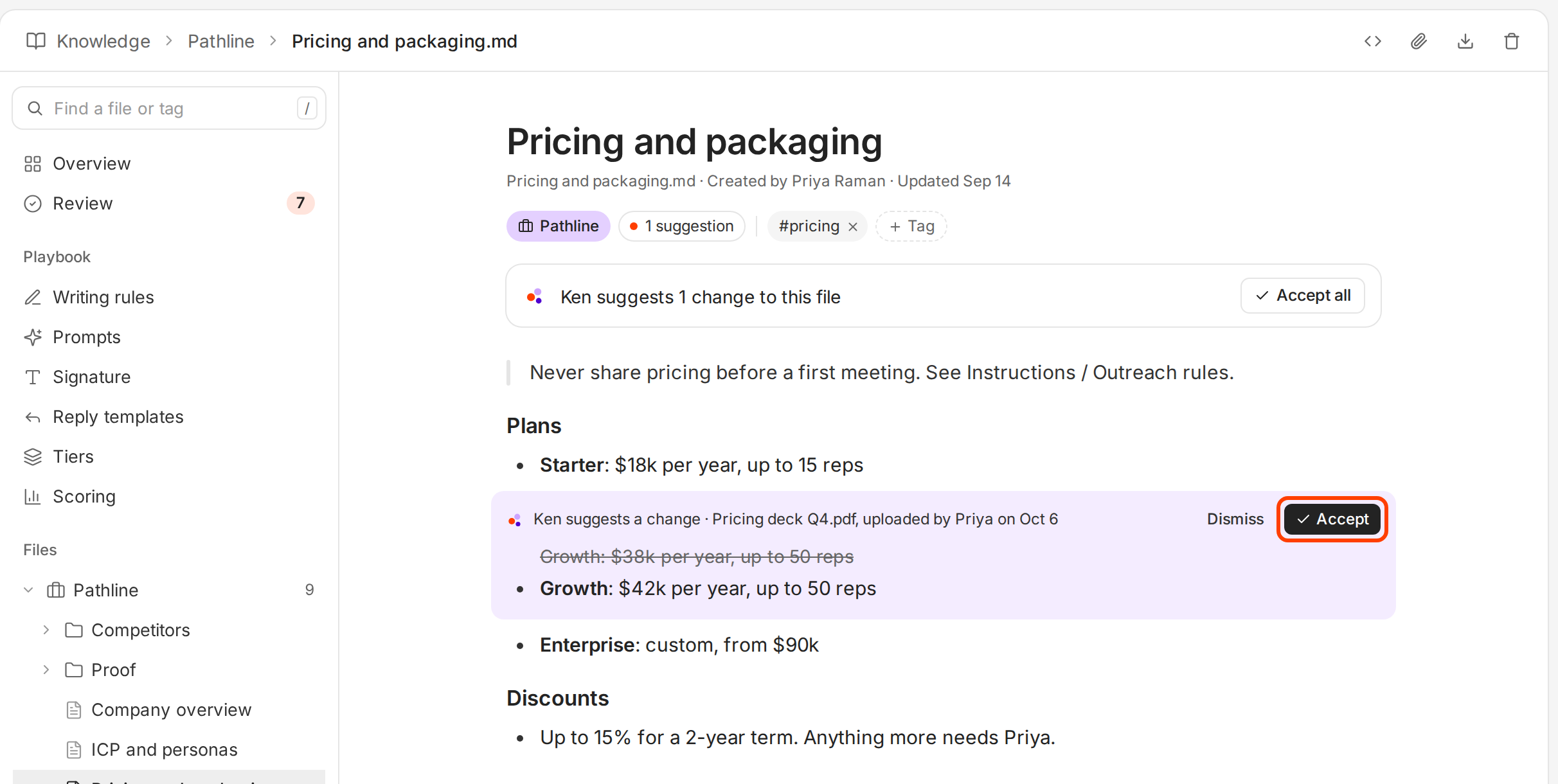
Ken crosses out the old line, shows the new one, and says where it learned it.
You can also decide inside a file. A file with waiting changes shows a count, such as 1 suggestion, under its title. Each change has its own Accept and Dismiss.
Ken confirms each accepted change with "Accepted · agents use it now". Nothing you dismiss reaches an agent.
With the keyboard, press J and K to move between items, A to accept and D to dismiss.
To see what changed, open the Changes tab next to To review. Every change by Ken or a teammate shows there, newest first, with Undo.
What to put in first
Ken writes from what it knows. Our research playbook says it plainly: "Thin sources produce thin research." These five give Ken the most to work with, so add them in your first week.
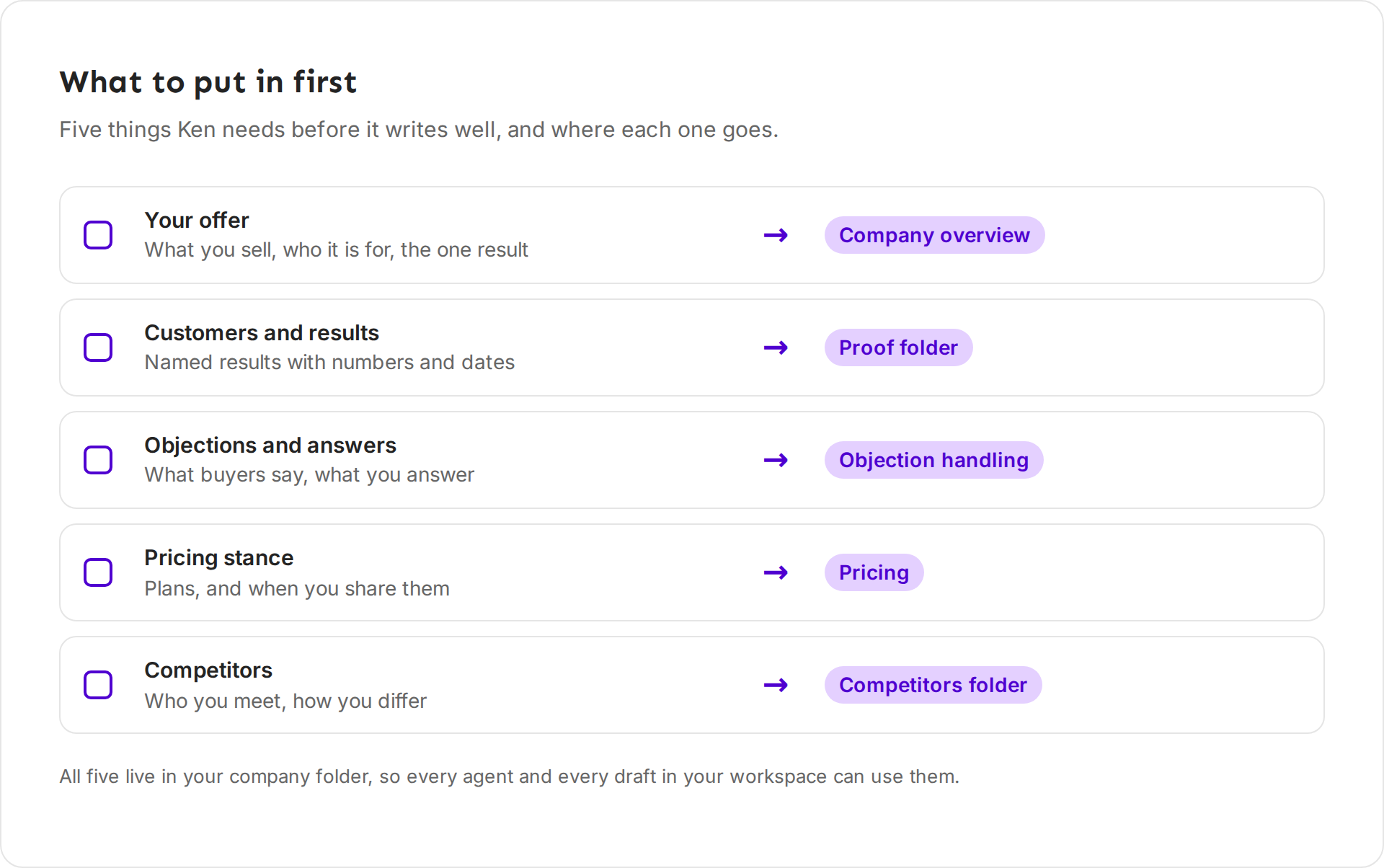
- Your offer. What you sell, who it is for, and the one result you deliver. Write it as "we", the way your team says it.
- Customers and results. Named results with a number and a date, in the Proof folder. One file per customer story works well.
- Objections and answers. The five things buyers say most, and what you answer. Take them from real calls.
- Pricing stance. Your plans, and when you share them. If you never quote price in a first email, write that in the file too, such as "Share price only after a first call."
- Competitors. Who you meet in deals and how you differ, one file per competitor in the Competitors folder.
Weak versus strong
| Weak | Strong |
|---|---|
| "We help companies grow." | "We cut new AE ramp from 7 months to 4 for B2B SaaS teams with 20 to 200 reps." |
| "Customers love us." | "Tallwood Software cleared 12 of 14 stalled security reviews in its first quarter with us, in 2026." |
| "Pricing on request." | "Plans start at $800 a month. Share price only after a first call." |
The strong versions give Ken facts it can use in a sentence. The weak ones give it nothing to say. The figures are examples, not real customers.
What works
- Keep one file per topic. If pricing lives in two files, Ken may quote the old one. Keep one pricing file and edit it.
- Keep files short. Ken cuts a file after about 6,000 characters, and the company pack holds about 2,000 words. A short file with the facts beats a long document.
- Add call notes after important calls. Our research playbook adds the transcript after every important call. It gives a sharper picture of your buyer and better angles for outreach. Upload each transcript and accept the facts you agree with.
- Never let Ken guess. Our playbooks never claim what your site and calls do not support. Dismiss a wrong suggestion, and fix the file if it already says it.
- Write instructions as rules you could check. "Never mention pricing before a meeting" works. "Be careful with pricing" does not.
If something goes wrong
"Upload files up to 10 MB." The file is too big. Split it, or save a smaller PDF, and upload again.
"For now, uploads go to the workspace folder..." You tried to upload into Accounts, You, Skills or Instructions. Open your company folder first.
A file stays on Reading. Ken keeps reading it and checks again when you open the folder. If Ken cannot read a file, it turns Off and the file says why.
Ken learned something wrong. Open Review, then Changes, find the change and click Undo. Or open the file and fix the text.
"People rejected too many spot checks, so everything waits in Review until..." Your team dismissed too many of Ken's spot checks, so Ken stopped adding changes on its own for a while. Keep reviewing. Ken goes back to your review mode on the date shown.
"Approve it first, then turn it on." A skill Ken wrote needs your approval before its Active switch works. Click Approve on the file, then turn it on.
I don't see Knowledge in the sidebar. Knowledge is opening to workspaces in stages. Write to [email protected] and we will tell you when it reaches yours.
Next: Teach Ken how you write, Make assets in Studio or Ask Ken from any page.