Once you publish a template, you can run it on your accounts. Ken builds one page per account from that account's research, and each page waits in the account's Assets tab for you. Nothing is sent until you put a page in a touch and approve it.
Before you start
- The template has a published version. If not, see Make assets in Studio.
- Pages have somewhere to live. Ken uses your hosting subdomain, such as
go.yourcompany.com. If you don't have one, it uses the link tracking host of one of your sending domains. Set up the hosting subdomain below shows how. - You have enough credits for the run. The dialog shows the estimate before you start.
Run a template
- Open the template in Studio and click Run on accounts. You can also right-click its card and choose Run on accounts.
- Tick the accounts you want. The list starts with none ticked. Each row shows the account and its domain.
- Under Who fills the pages, choose:
- Ken fills them. Ken researches and writes each page.
- Fill with your agent. Ken sets up the pages, and your own AI agent researches and writes them through the Ken MCP, on your own model. Start the run, then paste the text Ken shows into your agent.
- Read the estimate. It says "Building 3 pages uses ~" and a credit amount, with three lines under it:
- Page link, charged when a page first publishes
- Research and data steps
- Writing, on Ken models
- Click Build 3 pages. The number matches the accounts you ticked.
The dialog shows the run's progress: Waiting to start, then Researching and writing…, then Done. The pages are ready for review. A counter shows how many are done, failed and total. The run keeps going if you close the dialog. If Ken leaves an account out, it lists it under Left out with the reason.
You can run a template on up to 500 accounts at once. An account gets one page per template, so running the same template on it again reuses its page.
To make one page for a single account instead, open the account's Assets tab, click New asset, pick a template and click Create page. The dialog shows about how many credits it uses.
Review the pages
- Open Accounts, or press G then A, and click an account.
- Open the Assets tab, or press 3.
- Click a page card to open it.
Each card shows the page's state, whether you sent it, and its link once it has one. After a person opens the page, the card shows how many people viewed it and when.
| State | What it means |
|---|---|
| Draft | Not filled yet. Run the template to fill it for this account. |
| Building | Ken is filling the page. |
| Ready | Filled and checked. The first link publishes it. |
| Needs review | Some slots fell back, or a check failed. Refresh the page before it goes out. |
| Failed | The fill failed. Refresh to run it again. |
| Live | A link went out. The URL stays the same from now on. |
| Retired | No activity for 30 days. Republish to bring the same URL back. |
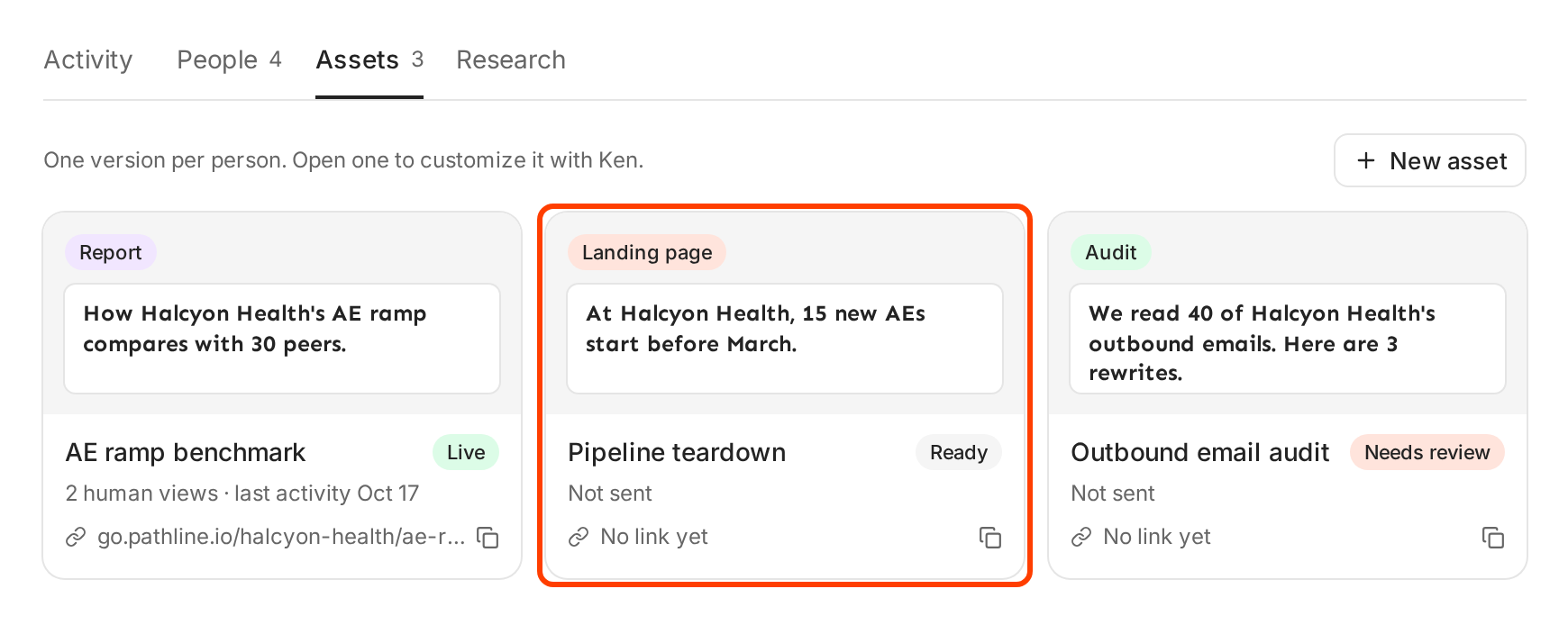
Read every fact on the page before you send it. Ken writes from its research, and you know the account better.
Right-click a card for more: Open, Refresh, Customize, Copy link and Use in next touch. Refresh has Ken refill the page from fresh research. The page stays up while Ken refills it.
Customize a page for one account
Sometimes one account needs a different number or a different line.
- Open the page and click Customize. The page says "Customize this page for" the account or person, and "The template stays the same."
- Change the fields you want.
- Click Save. Ken confirms "Saved for" the account "only. The template is unchanged."
To undo one field, click Reset next to it. To undo everything, click Reset to template. A customized page shows a Customized tag.
When you publish a new version of the template, an older page offers Update this page. Ken refills only the sections that changed and keeps your customizations. The link stays the same.
Use a page in a touch
- Open the page and click Use in next touch.
- If the page has no link yet, confirm Publish and add. Publishing a page uses 1 credit. More links to it are free, and the URL stays the same from then on.
Ken puts the link in the account's next open email or LinkedIn message. If no touch is open, Ken adds a follow-up step with the link to the account plan, 14 days out. A message confirms where it went, such as "Added to the plan" with the date.
To share the page another way, click Copy link. The first copy publishes the page and uses 1 credit, the same as above. Republishing a retired page also uses 1 credit.
Set up the hosting subdomain
Ken serves Studio pages, and the open pixel on one-to-one emails, from a subdomain of your primary email domain, such as go.yourcompany.com. You set it up once.
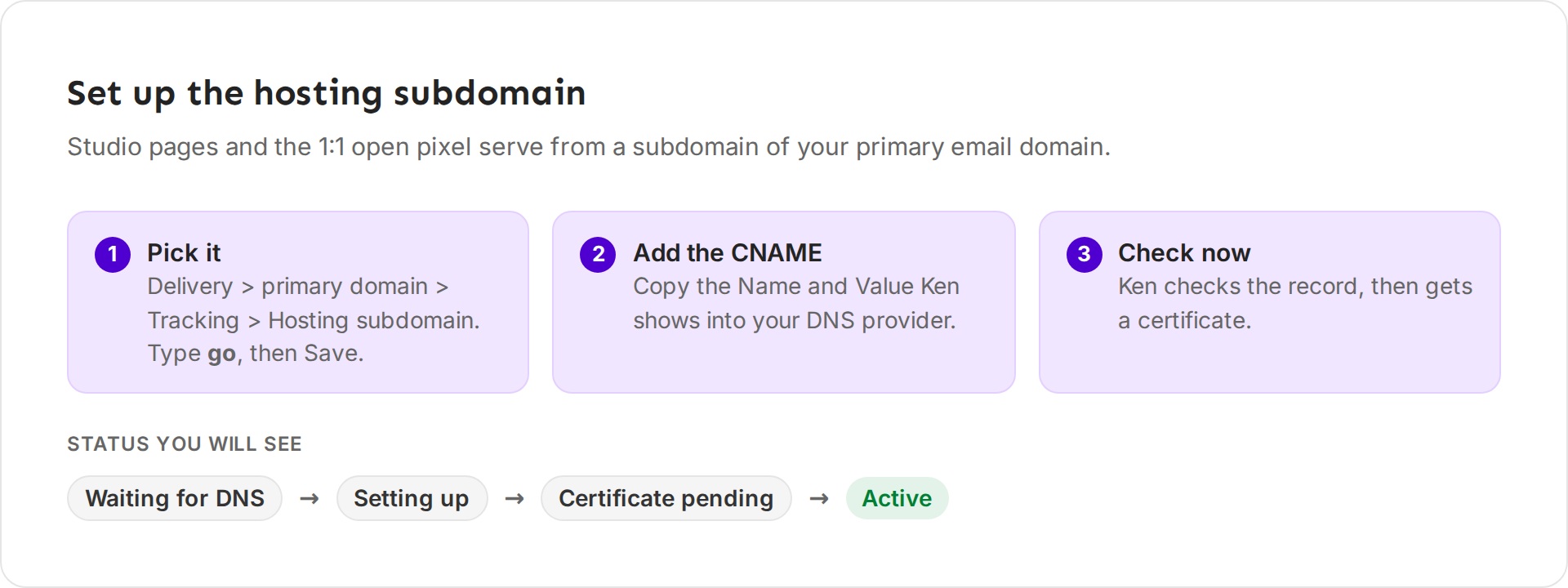
- Open Delivery and click your primary domain.
- Under Tracking, find Hosting subdomain. Type a subdomain, such as
go, and click Save. - Ken shows a CNAME record with a Name and a Value. Add it at your DNS provider.
- Back in Ken, click Check now.
The status moves from Waiting for DNS to Setting up, Certificate pending and then Active. Pages serve from the subdomain once it is Active. For help with DNS records, see Set up sending domains and check their DNS.
What works
Start small, check the pages, then scale.
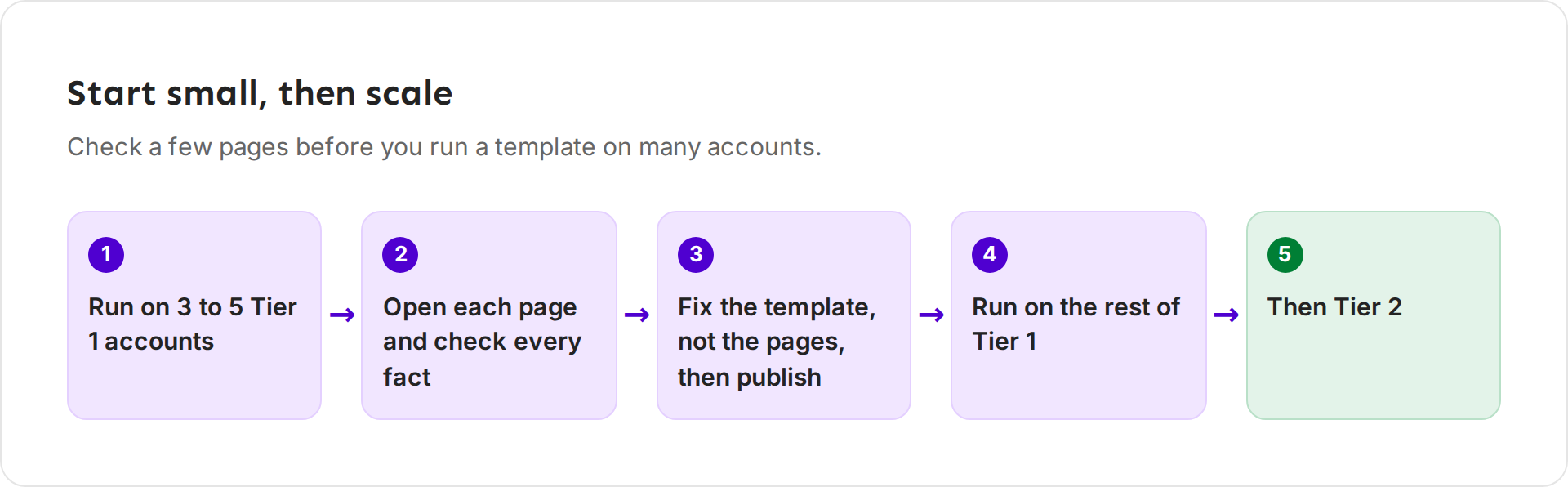
- Start with your top tier. Run the template on three to five Tier 1 accounts first. These are the accounts where a wrong fact costs most.
- Check every page in that first run. Look for numbers without a source and lines that could be about any company.
- Fix the template, not the pages. If the same problem shows on two pages, change the template, publish, and choose All to refill the live pages. Customize only what is true for one account.
- Then run on the rest. Each page you build uses research and writing credits, even if you never send it, so build pages for accounts you plan to reach.
If something goes wrong
"Not enough credits. This run needs..." The message says how many credits the run needs and how many you have. Tick fewer accounts, or add credits. See How credits work.
"Publish a version first." The template has no published version. Open it, click Validate, then Publish.
"This workspace has no ready link host for Studio pages..." Pages have nowhere to live yet. Set up your hosting subdomain, or link tracking on one of your sending domains, then try again.
"This page needs review..." A page in Needs review cannot go out yet. Right-click its card and choose Refresh, then check it again.
An account is under Left out. Ken lists the reason next to it. Fix it, then run the template on that account again.
"This page is retired. Republish it before you add it to a touch." Pages retire after 30 days with no activity. Right-click the card and choose Republish. The page comes back at the same URL and uses 1 credit.
The hosting subdomain stays on Waiting for DNS. DNS changes can take time to show. Check the Name and Value match exactly, then click Check now again.
Someone opened the page but the card shows no views. The card counts human views only. Ken leaves out visits from link scanners and mail security bots, and any visit within 60 seconds of the send.
Next: Work the account plan, Read an account or How credits work.