Studio makes the pages you send to target accounts: an audit, a benchmark report, a landing page. You build a template once, and Ken fills it in for each account from its research. Publish a new version of the template and every new page uses it.
How a template works
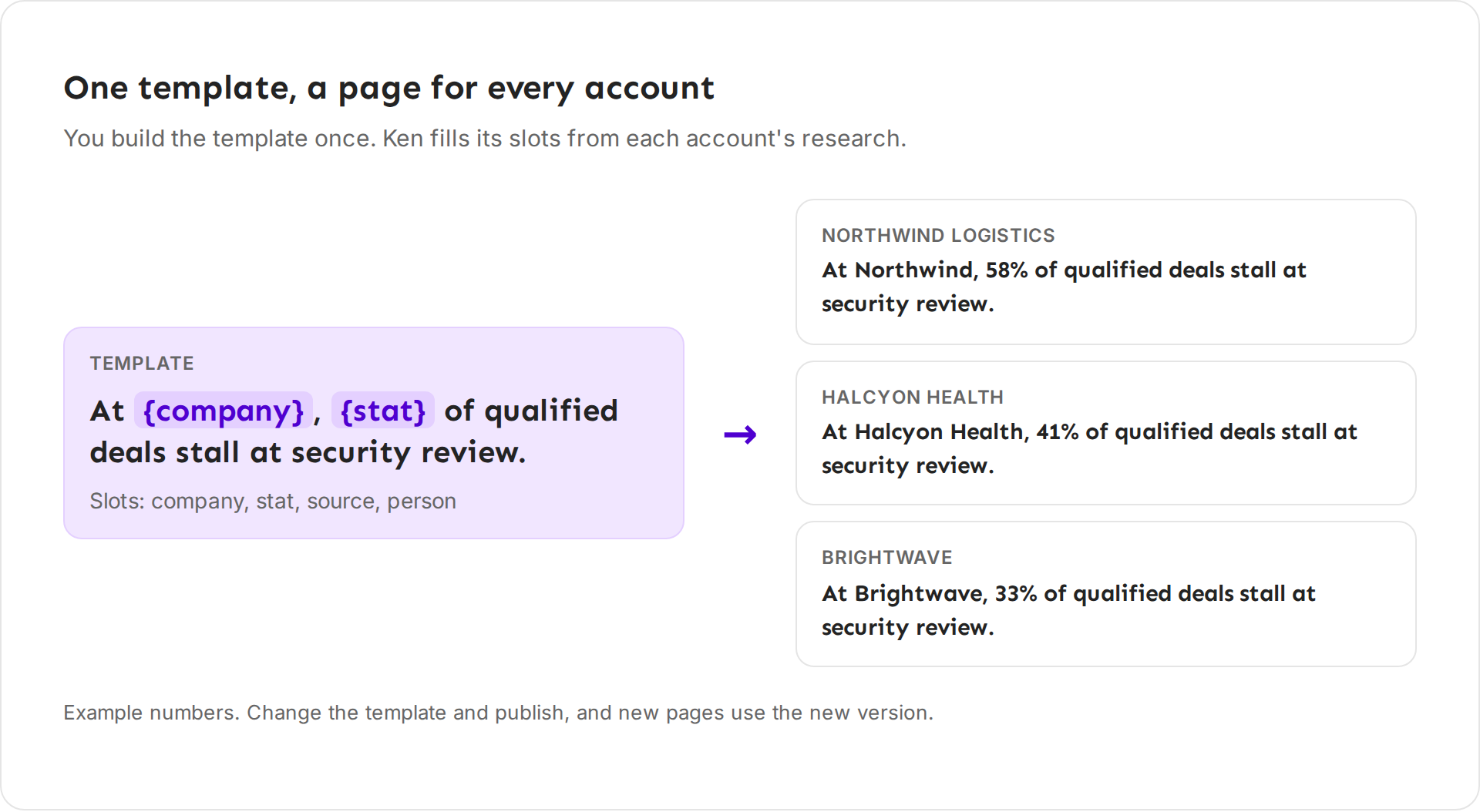
A template is a page with slots. Some text is the same for everyone. Ken fills the slots, such as the company name, a number or its source, for each account from what it knows about that account.
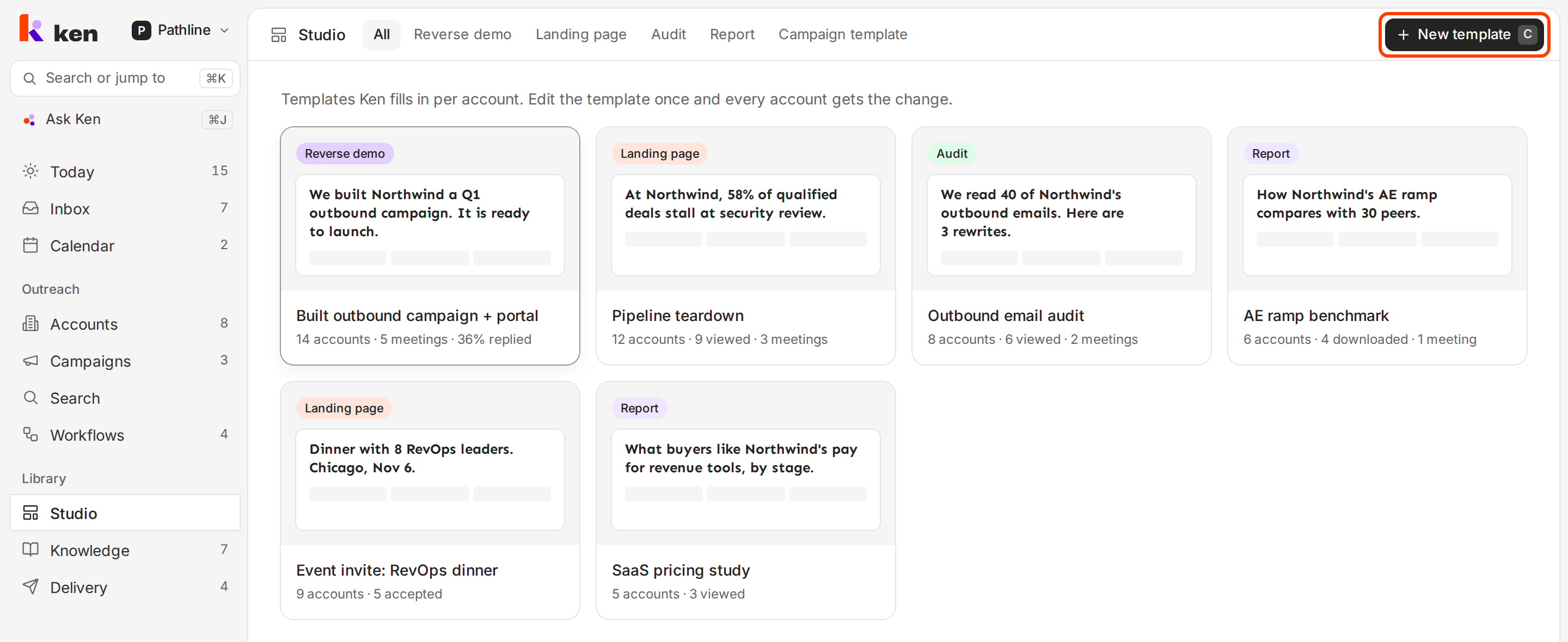
Open Studio in the sidebar, or press G then S. The tabs sort your templates by type:
| Type | What it is for |
|---|---|
| Reverse demo | Shows them the work you would do for them, such as a campaign built for them, ready to approve |
| Landing page | A page about their team, such as where their deals stall, or an invite to a small dinner |
| Audit | Their own work, such as their outbound emails, scored, with rewrites |
| Report | Their numbers against a group of peers |
| Campaign template | A saved campaign. Each one starts a new draft with the same sources, segments and sequence. |
Templates of the types Event, Calculator and Other get their own tab once you have one.
Start a template
- In Studio, click New template, or press C.
- Pick how to start:
- Build with your agent. Pick your AI tool, copy the text Ken shows and paste it into the tool. The agent creates the template in your library through the Ken MCP and builds it. This works with Claude Code, Codex, Cursor, Claude and ChatGPT. See Use Ken from Claude or ChatGPT.
- Start from a starter. Ken copies one of its ready-made templates into your library and opens it in the builder. Make it yours with your agent.
- Check the new template in the builder, as the next sections show.
Build with Ken in the same menu says "Ken's template builder is coming soon. Build with your agent for now."
Change a template
Your AI agent makes the changes. Right-click a template card, or point at it and click the three dots at its top right, and choose Edit with your agent. Copy the text, paste it into your agent and tell it what to change, such as "Make the headline shorter" or "Rewrite it for a CFO". The agent saves a new draft of the template. It does not change pages that are already live until you publish and choose to update them.
The card menu also has Open in builder, Run on accounts, Duplicate and Delete.
Check a template in the builder
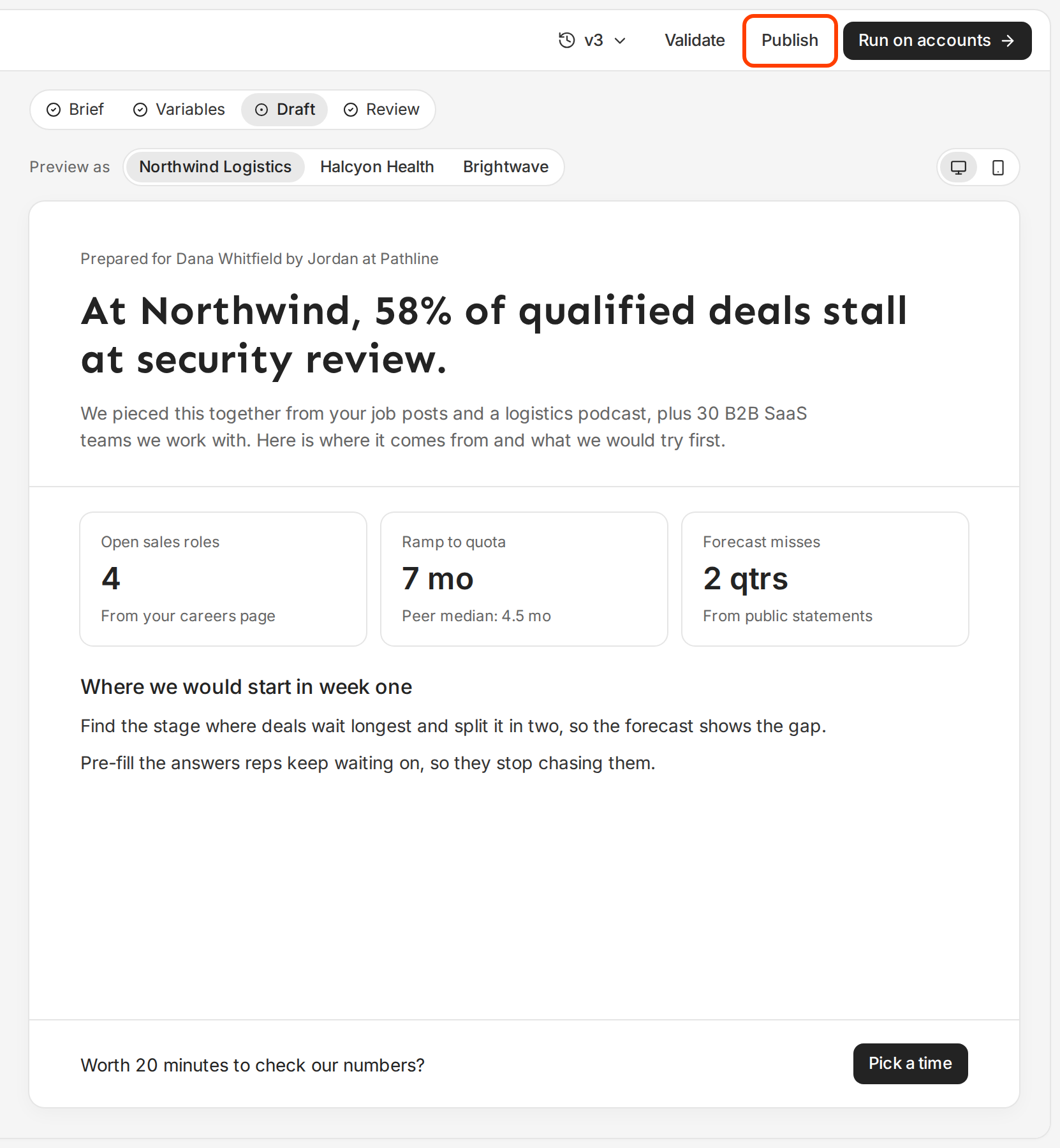
Click a template card to open the builder. It has four steps across the top:
- Brief. Ken does not save a brief yet. Give your agent the brief instead: who reads the page, what it should do and the one ask.
- Variables. Each slot, where Ken fills it from, and the fallback Ken uses when an account's research has nothing for it.
- Draft. The page itself. Preview as shows it filled for your workspace's first three accounts. The two buttons at the right show it on desktop and on mobile.
- Review. What Ken checked, and anything to fix.
Check and publish
A template needs a published version before you can run it on accounts.
- Click Validate. The Review step shows the result: Valid, Valid with a count of warnings, or a count of errors. Each issue says what is wrong and how to fix it.
- Ask your agent to fix any errors. Warnings do not block publishing. Errors do.
- Click Publish, then confirm. New pages use the published version right away.
If some pages are already live on an older version, Ken asks "Update them?":
- All refills every live page on the new version.
- Some lets you pick the pages to refill.
- None leaves live pages as they are.
The version menu next to Validate shows each version, who made it, when, and whether it is Published or a Draft.
Where pages live
Each page gets its own link on your hosting subdomain, such as go.yourcompany.com. The link names the account, the page and the person, so the person who opens it sees a page made for them. You set the subdomain up once, in Delivery. Run a Studio template on your accounts shows how.
What makes a page worth sending
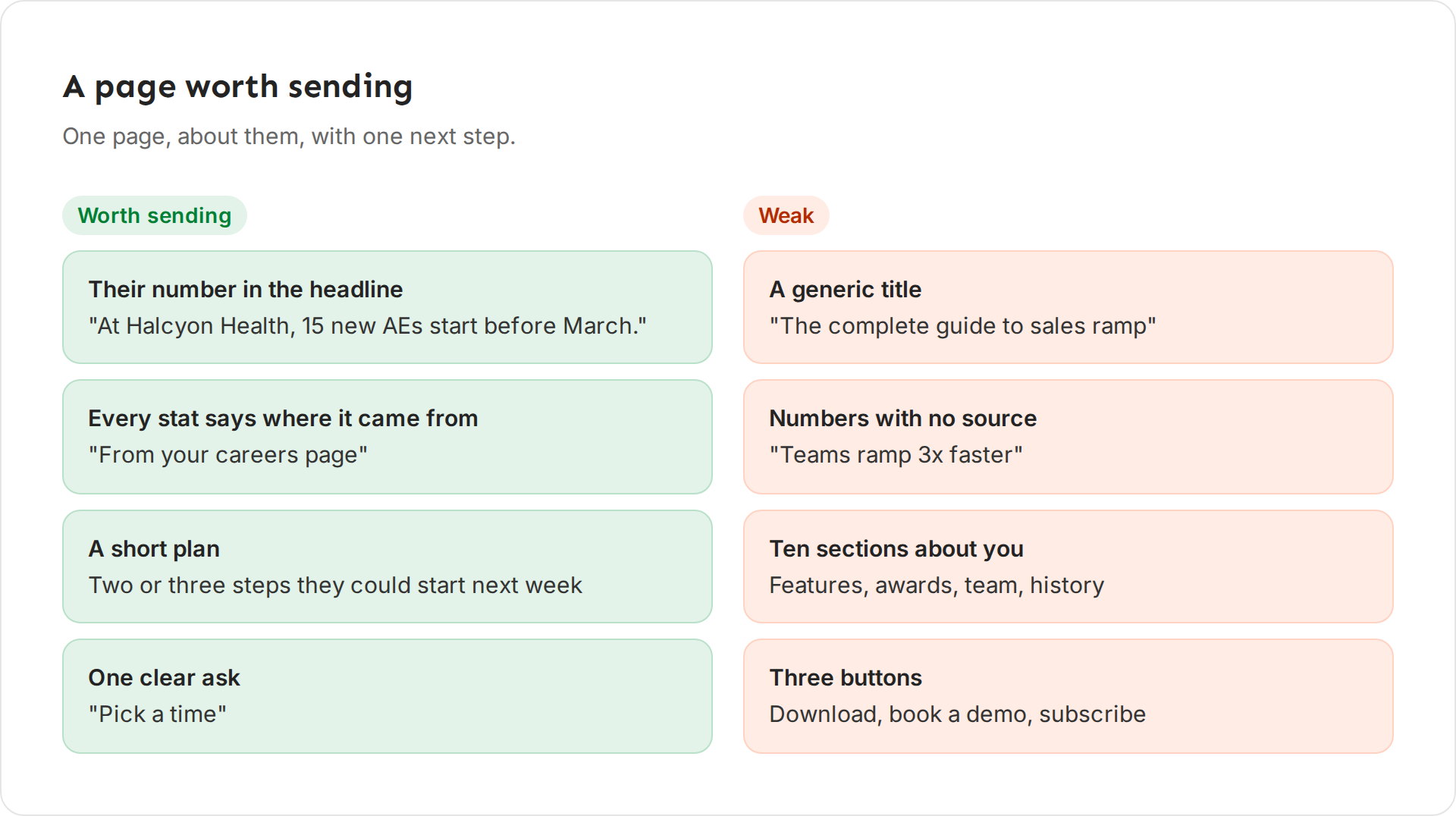
A Studio page earns a reply when it is one page, about them, with one clear next step.
These rules come from the playbook Ken's team uses to design offers for client campaigns:
- Do the work for them. The offers our playbook rates highest include a done-for-you sample, such as one campaign or one audit made for that account. A Reverse demo or an Audit template is that kind of page.
- Quick to read. Good offers give their value in under 5 minutes. Make a page they can skim.
- Their numbers, not general advice. Our playbook prefers personal numbers and benchmarks over generic advice.
- Worth paying for. Ask whether they would pay $50 to $500 for this if they did not know you. If not, make it more specific.
- Not another checklist. Our playbook rates PDF checklists, ultimate guides and ROI calculators with generic numbers 2 stars out of 5. They are easy to make and underperform.
Give the page one button, and make it the same ask as your email.
Weak versus strong
| Weak | Strong |
|---|---|
| "The complete guide to sales ramp" | "At Halcyon Health, 15 new AEs start before March." |
| "Teams ramp 3x faster" | "Ramp to quota: 7 months. Peer median: 4.5 months." with the source under it |
| Pages about your features, team and awards | Two or three steps they could start next week |
| Download, book a demo and subscribe | One button: "Pick a time" |
The figures are examples, not real companies.
If something goes wrong
"Run on accounts · publish first." The template has no published version yet. Open it, click Validate, then Publish.
Publish says the version has validation errors. Open Review in the builder. It lists each error. Ask your agent to fix them, then validate and publish again.
Publish refuses a link in the page. Studio does not link to domains registered less than 30 days ago, or to domains on a block list. Remove the link, or point it at an older domain you trust.
I changed the template but a live page did not change. Your agent saved a draft, or you chose None when you published. Publish again and choose All or Some.
I typed in the builder chat and nothing happened. The chat is not open to workspaces yet. Right-click the card and choose Edit with your agent.
I don't see Studio in the sidebar. Studio is opening to workspaces in stages. Write to [email protected] and we will tell you when it reaches yours.
Next: Run a Studio template on your accounts, Teach Ken with Knowledge or Work the account plan.