Ken does the research and the writing for your outbound. You choose who to reach, Ken researches each company and person and drafts the outreach, and nothing goes out until you approve it. This page explains that loop, the two ways to sell with Ken, and the screens you use every day.
The loop
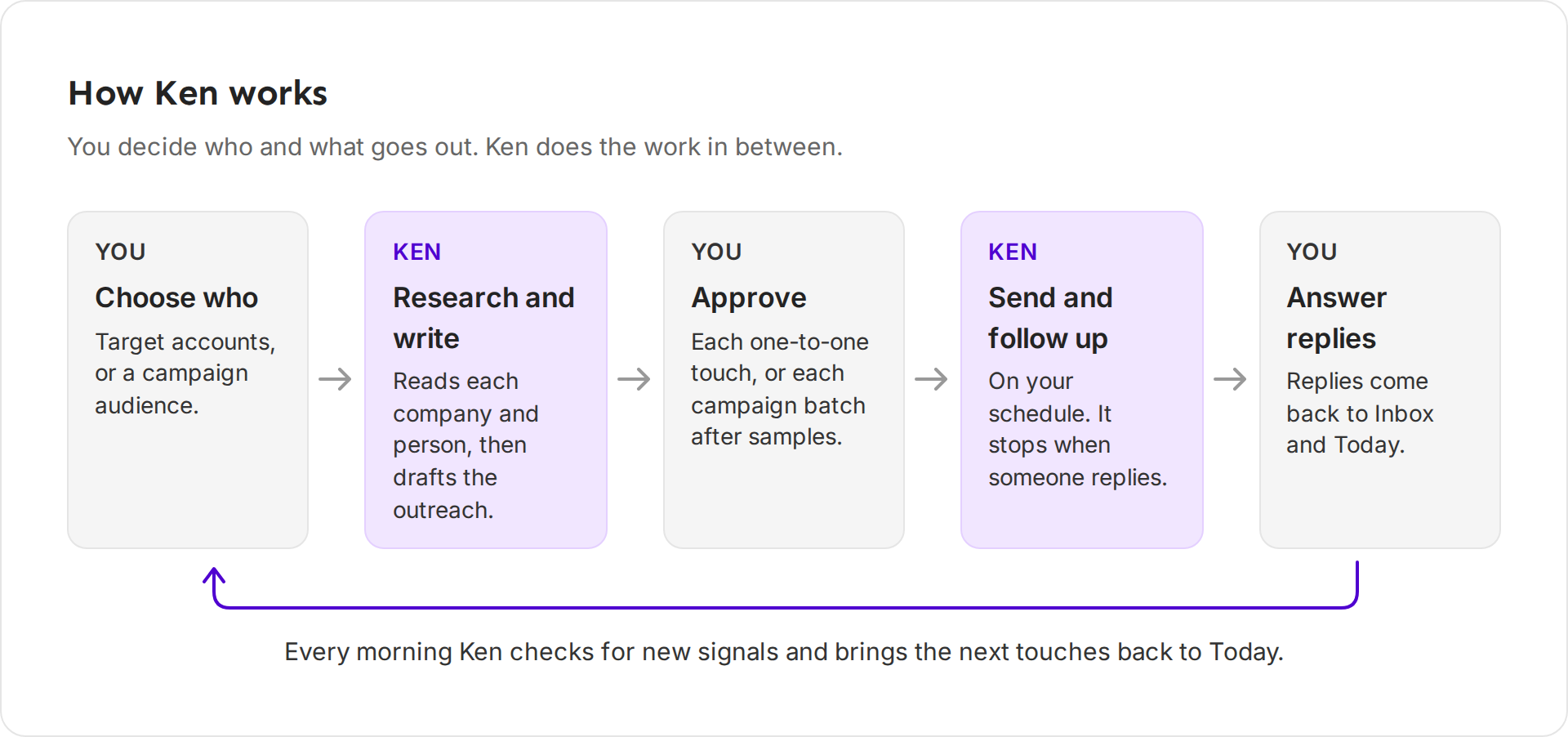
Everything in Ken follows the same five steps.
- You choose who. Pick a short list of target companies in Accounts, or an audience for a campaign in Campaigns.
- Ken researches and writes. It reads each company and person, then drafts the email or LinkedIn message.
- You approve. In Accounts you approve each touch. In Campaigns you approve email in batches, after Ken shows you samples.
- Ken sends and follows up. It sends on your schedule and stops following up with anyone who replies.
- You answer replies. Replies land in Inbox, and the next steps show up in Today.
Then the loop starts again. Every morning Ken checks for new signals, such as a funding round or a new sales leader, and brings the next touches back to Today.
Two ways to sell
Accounts is for a short list of companies you work one to one. Ken researches each company, maps its buying committee, watches for signals and plans the next touch. Every touch sends from the inbox and LinkedIn account under the account's Sends from, which are the account owner's by default. You approve each touch before it goes.
Campaigns is for reaching many people with one offer. Ken builds the audience, splits it into segments, writes the sequence and sends from inboxes on separate sending domains. You approve campaign email in batches. Before each batch, Ken picks a few sample emails for you to read.
Most teams use both. Read Choose between Accounts and Campaigns to decide what goes where.
Where you work
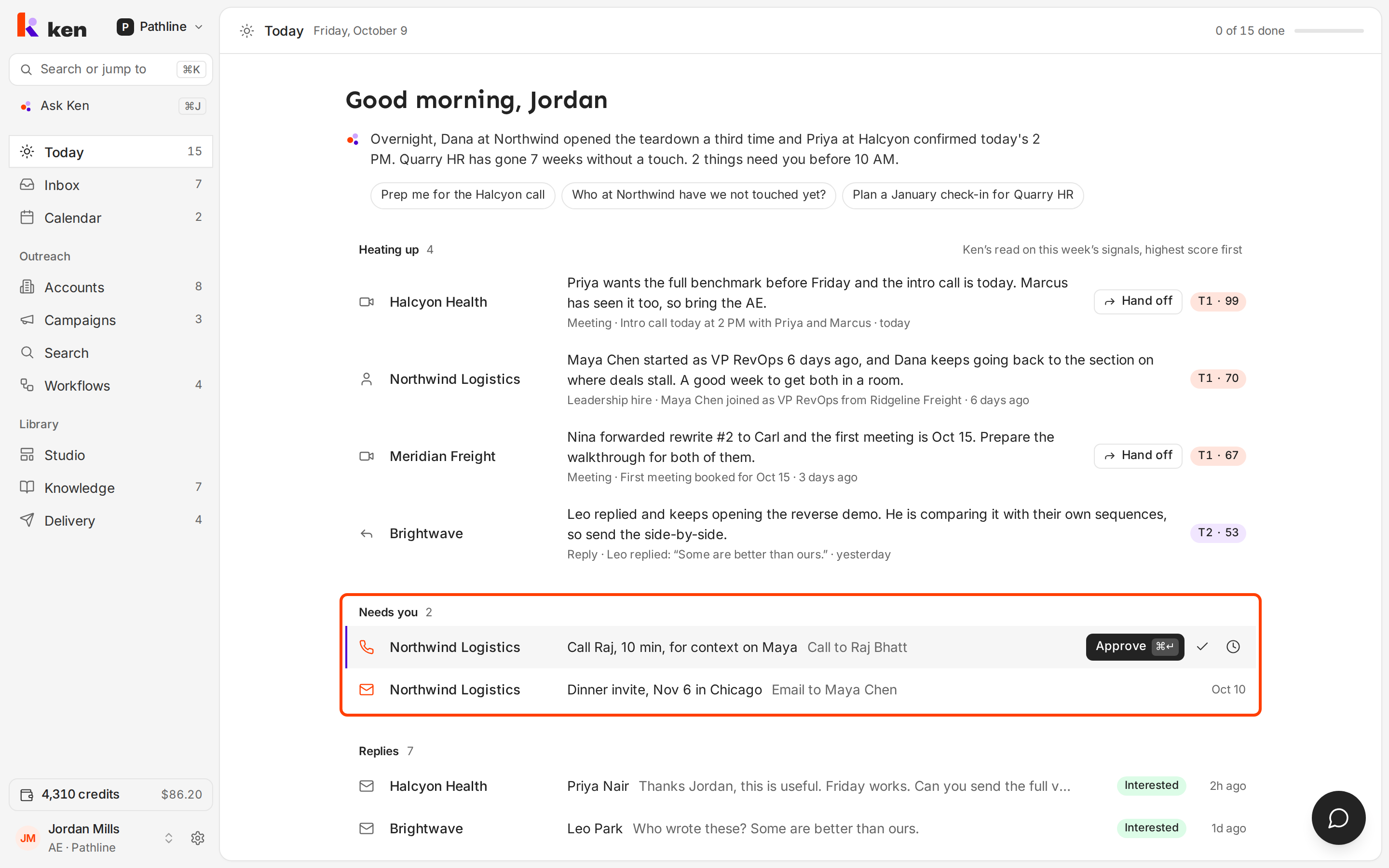
The sidebar has three groups: your daily screens at the top, Outreach in the middle and Library at the bottom. Every screen has a shortcut. Press G, then the screen's letter.
| Screen | Shortcut | What it is for |
|---|---|---|
| Today | G then T | Your daily queue: touches to approve, replies, meetings and signals |
| Inbox | G then I | Every reply to your outreach, sorted for you |
| Calendar | G then M | Your meetings |
| Accounts | G then A | Target companies you work one to one |
| Campaigns | G then C | Outreach at volume |
| Search | G then F | Find companies and people |
| Workflows | G then W | Steps Ken runs for you when something happens |
| Studio | G then S | Page templates Ken fills in for each account |
| Knowledge | G then K | What Ken knows about your company and how you write |
| Delivery | G then D | Your inboxes, sending domains and LinkedIn accounts |
Settings is the gear at the bottom of the sidebar, or G then ,. To jump anywhere, press ⌘ K, or Ctrl K on Windows. To ask Ken a question, press ⌘ J.
Today
Today is your queue for the day. Heating up lists up to 4 accounts with a new signal in the last 7 days, highest score first. Needs you holds the touches and tasks that wait for you. Below that come Waiting on others, Replies, Meetings and Signals. When a campaign has a batch of email ready, it shows under Campaign batches.
You can work the whole list from the keyboard:
- J and K move up and down, and ↵ opens a row.
- ⌘ ↵ approves a touch.
- E marks a row done.
- H snoozes a row. A touch comes back in a week, a reply in two business days, and anything else on Monday.
- Z undoes your last action.
Inbox
Inbox holds the replies to your outreach. Ken reads each reply and sorts it into tabs: To Reply, Saved, Automated, Not Interested, Done, Sent, Other and All. Start with To Reply. It holds the people who are waiting on you.
Knowledge
Knowledge is what Ken writes from. It holds files about your company, your offer, your buyers and your accounts, and Ken reads them before it drafts anything. Its Playbook holds your Writing rules, Prompts, Signature, Reply templates, Tiers and Scoring. When Ken learns something new, it makes routine updates itself and puts the rest in Review for you.
What Ken does on its own, and what waits for you
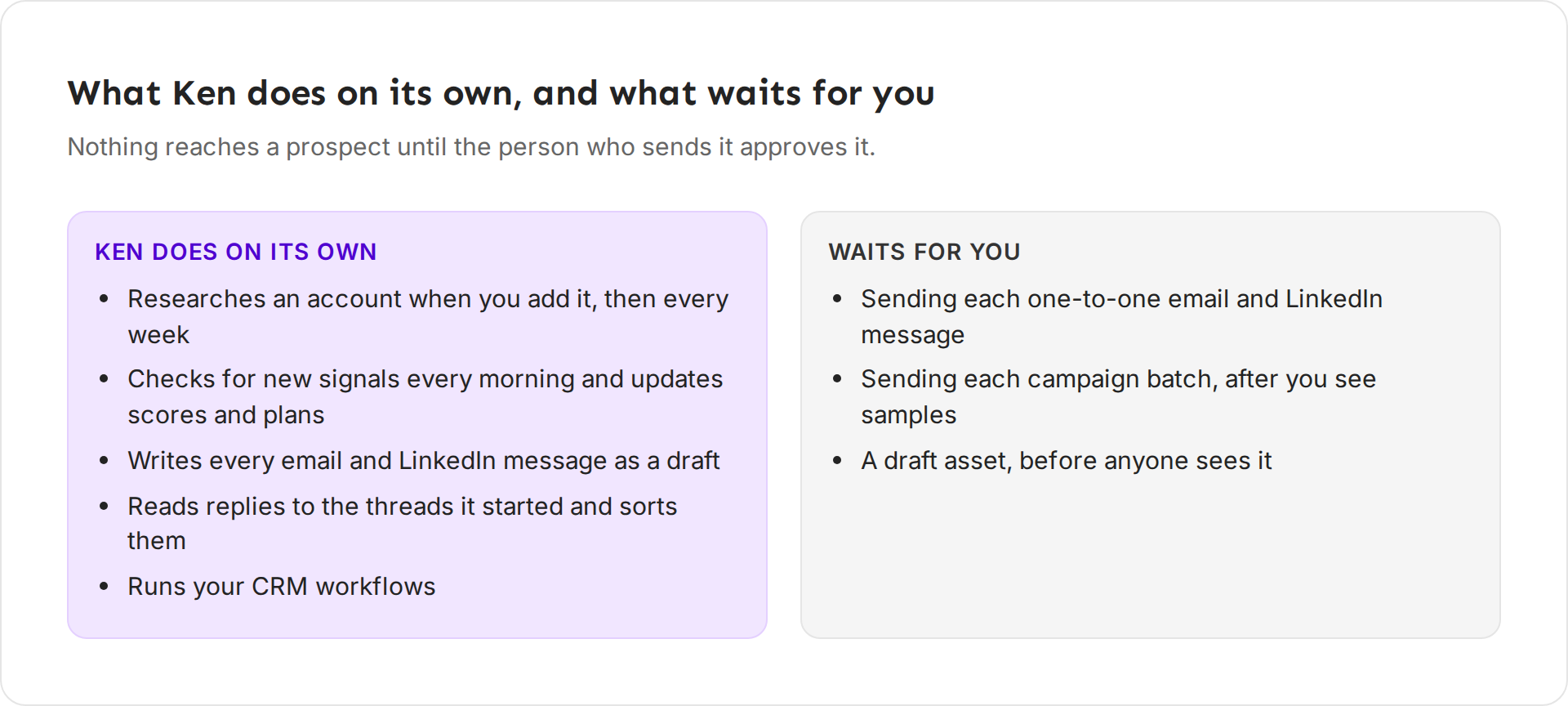
Ken works in the background: it researches each account when you add it and again every week, checks for new signals every morning, drafts every email and LinkedIn message, sorts replies and runs your CRM workflows.
Anything a prospect would see waits for a person: each one-to-one email and LinkedIn message, each campaign batch, and each asset Ken drafts. The person whose inbox or LinkedIn sends a touch is the one who approves it. The one exception is automatic replies, on a campaign where your team turned them on. What Ken does on its own has the full rule and the limits Ken works within.
How to get the most out of Ken
- Fix facts in Knowledge, not in each draft. Ken writes from Knowledge. If it gets your pricing or your buyer wrong, correct the file once and every later draft improves.
- Start small. When you sign up as a founder, Ken sizes your first campaign for one sender at 25 accounts. A short list you read closely teaches you more than a big list you skim.
- Open Today every morning. A few minutes a day keeps touches from going stale and replies from waiting.
- Read the samples before you approve a batch. If they miss, click Send back to Ken. Ken rewrites the batch and asks you again.
- Judge results by replies, not opens. Track opens is off by default because open tracking hurts deliverability.
If something goes wrong
- Today says "You are clear for today". Ken fills Today from your accounts, campaigns and replies, and brings the next batch at 7 AM. If you are new, add target accounts or start a campaign first.
- Ken got a fact about your company wrong. Open Knowledge with G then K, find the file and fix it.
- You see companies you never added. You are looking at sample data. A bar at the top says "Demo with sample data. Nothing sends." Some screens show it while Ken is in private beta.
- An email went to someone you work one to one. Open the campaign's Settings tab and check that Protect account plays is on under Stop rules.
If you are still stuck, write to [email protected] with a screenshot of the screen.
Next: Choose between Accounts and Campaigns, Create your workspace or What Ken does on its own.