Your workspace holds your accounts, campaigns, inboxes and everything Ken knows about your company. When you sign up, Ken reads your website, drafts what you sell and who buys it, and builds a first campaign from that. Setup takes a few minutes, and nothing sends.
Before you start
- Use your work email. Ken reads the website on your email's domain to set things up. Sign-up refuses Gmail, Outlook.com and other personal addresses.
- Know your company website. Ken guesses it from your email. Check it before you continue, because you can't come back to that step.
Sign up
-
Go to app.ken.so/get-started. The page is called Get early access.
-
Choose how to sign in. Click Continue with Google, Continue with Microsoft or Continue with LinkedIn. Or type your address under Work email and click Continue with email. With email, you set a password and confirm your address on the next screen.
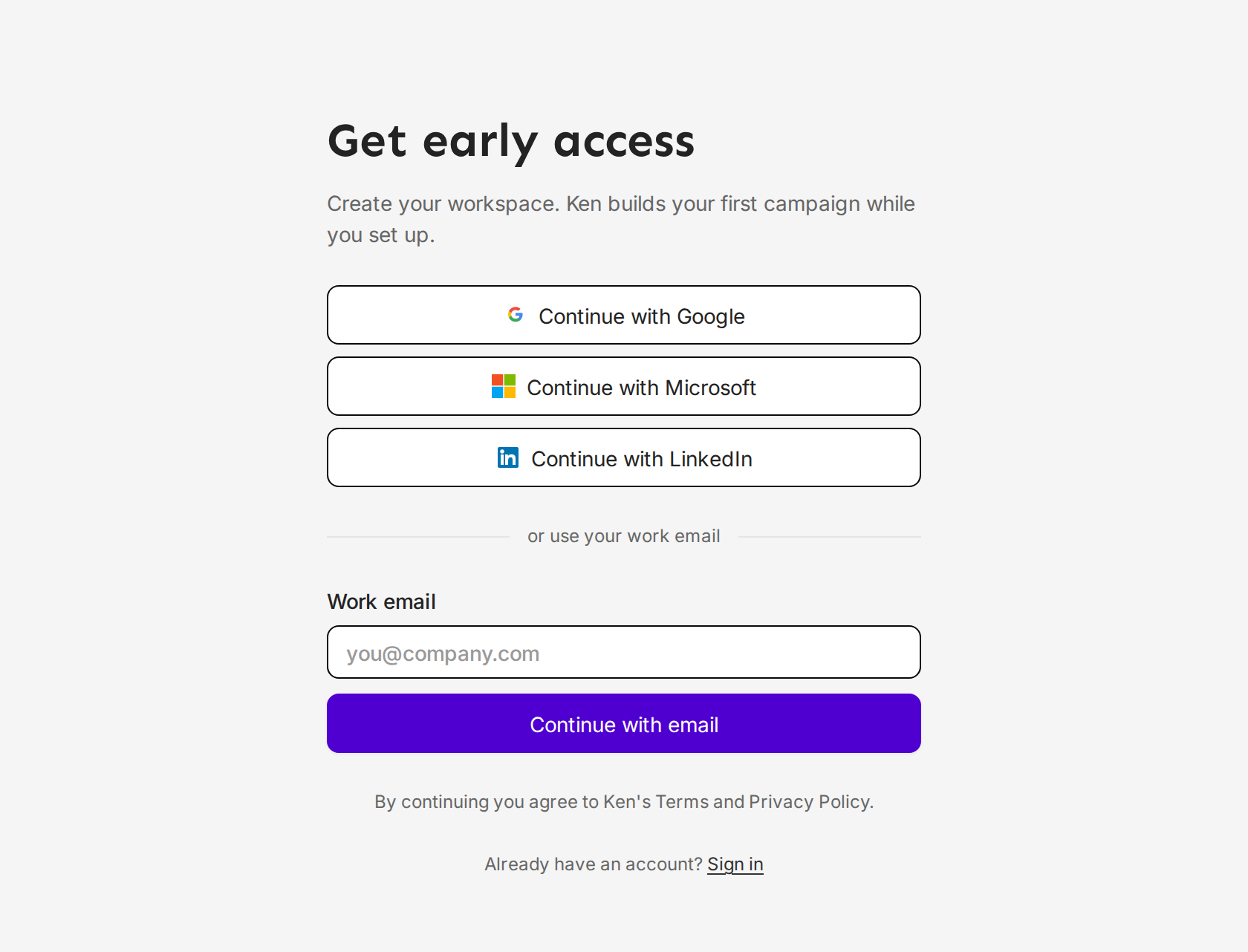
Sign in with Google, Microsoft or LinkedIn, or use your work email. -
Check your workspace. On Set up your workspace, Ken fills in Your name, Company and Website from your email. Check the Website field most of all, because Ken reads that site. Fix anything that's off and click Continue.
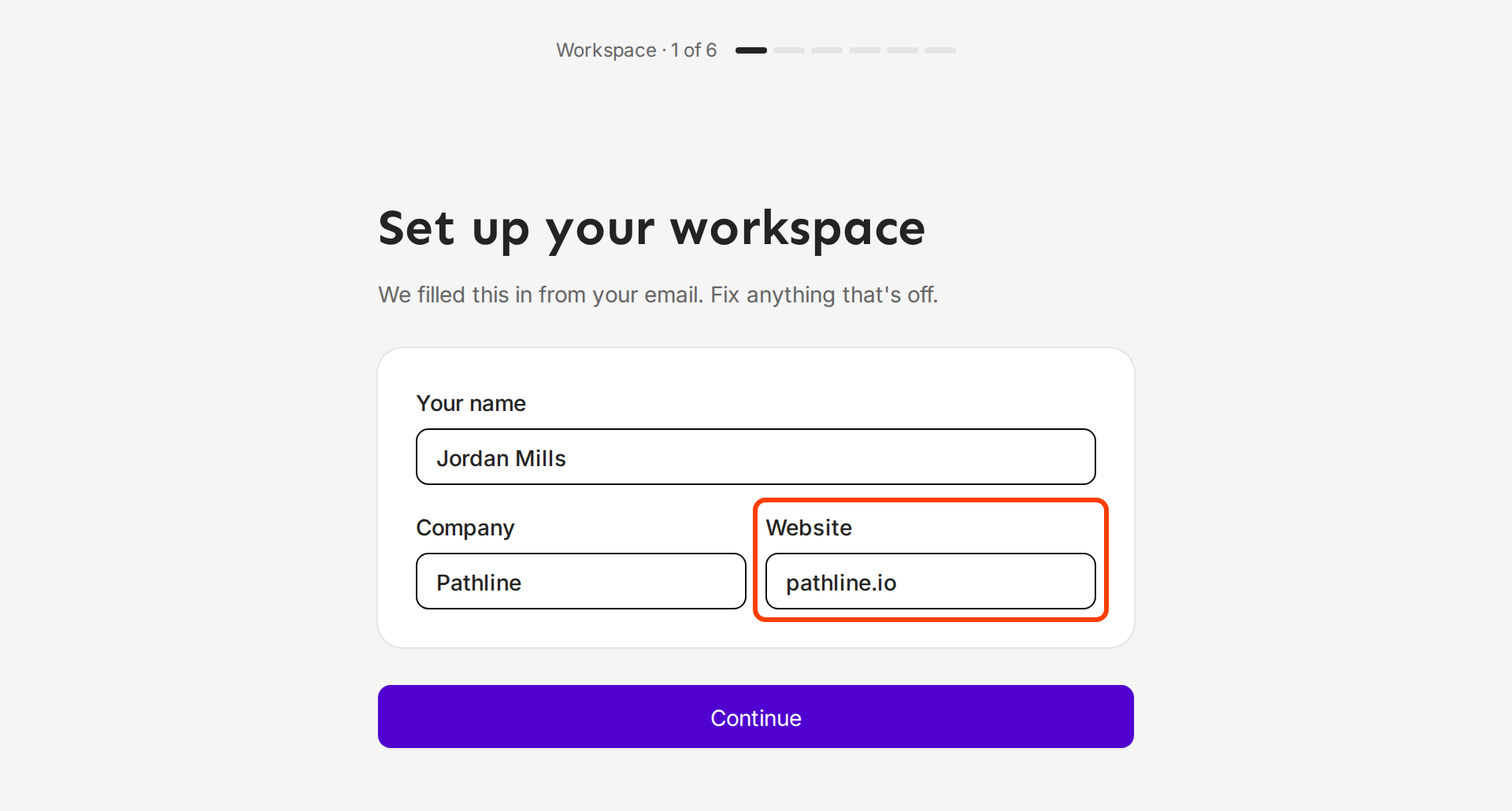
Ken fills this in from your email. Check the website, because Ken reads it next. -
Confirm who you are. Ken reads your website while you answer. Here's what Ken found shows Ken's guess, such as "Looks like you're the founder of Pathline", and what that changes. Click That's me, or click Not quite and pick the closest match: Founder, SDR / BDR team, Agency, RevOps or AI-native operator. Then answer Have you run outbound before? with Never, A few times or It's my job, and click Continue.
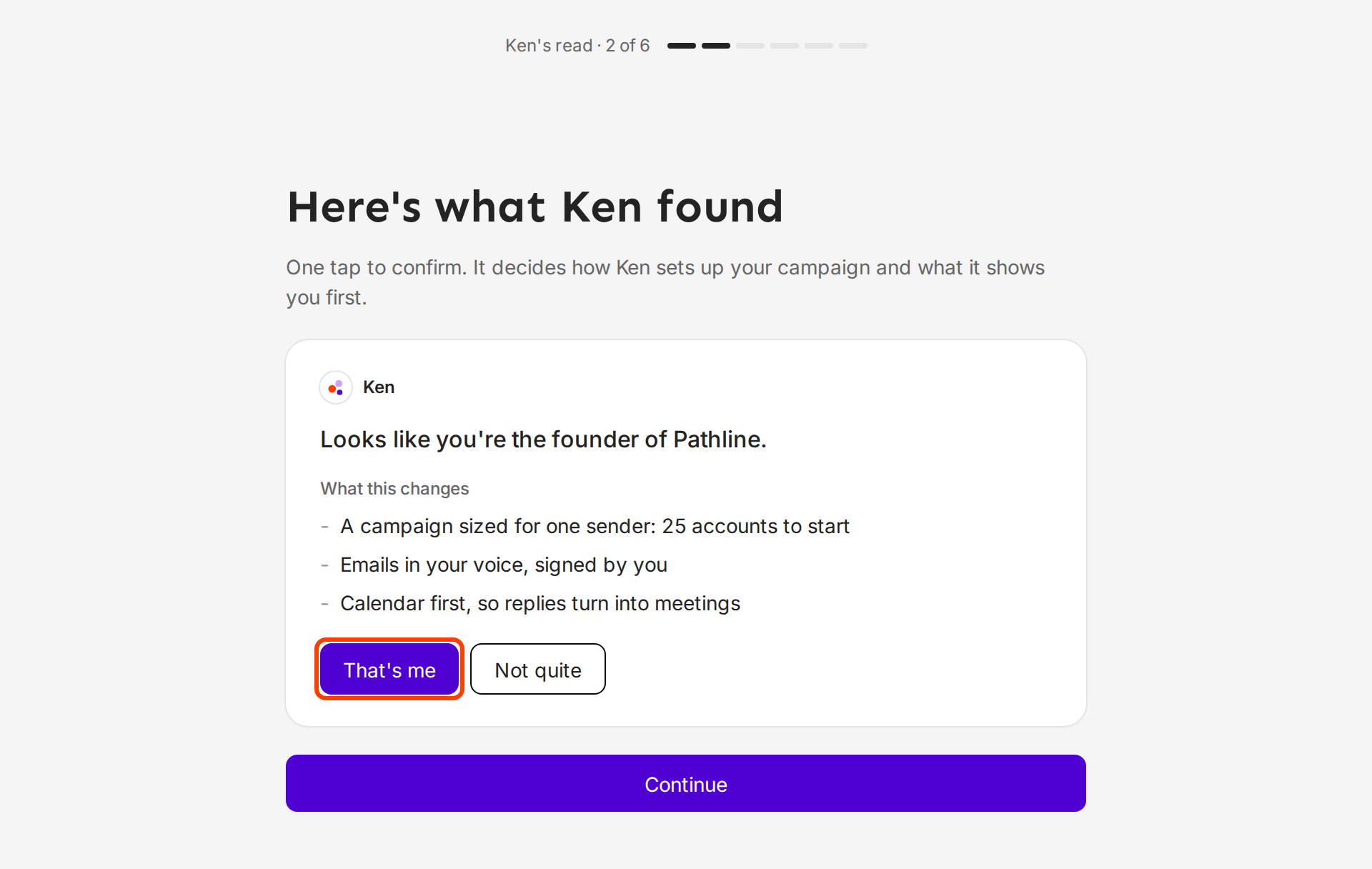
Your answer decides how Ken sets up your first campaign. -
Check your business. Your business, drafted shows what Ken wrote from your website:
- What you sell: one or two sentences you can edit.
- Who buys it: buyer titles. Click the x to remove one, or type a title and press ↵ to add it.
- Company size: 11-50, 51-200, 201-1,000 or 1,000+.
- Buying signals: Hiring AEs, Raised funding, New sales leader, SOC 2 in progress and Moved CRM. Ken checks for these every morning.
Your answer in step 4 can add one more box: Your reps for an SDR team, Your first client for an agency, What Ken may write to your CRM for RevOps, or Describe it your way for an AI-native operator. Then click Build my campaign.
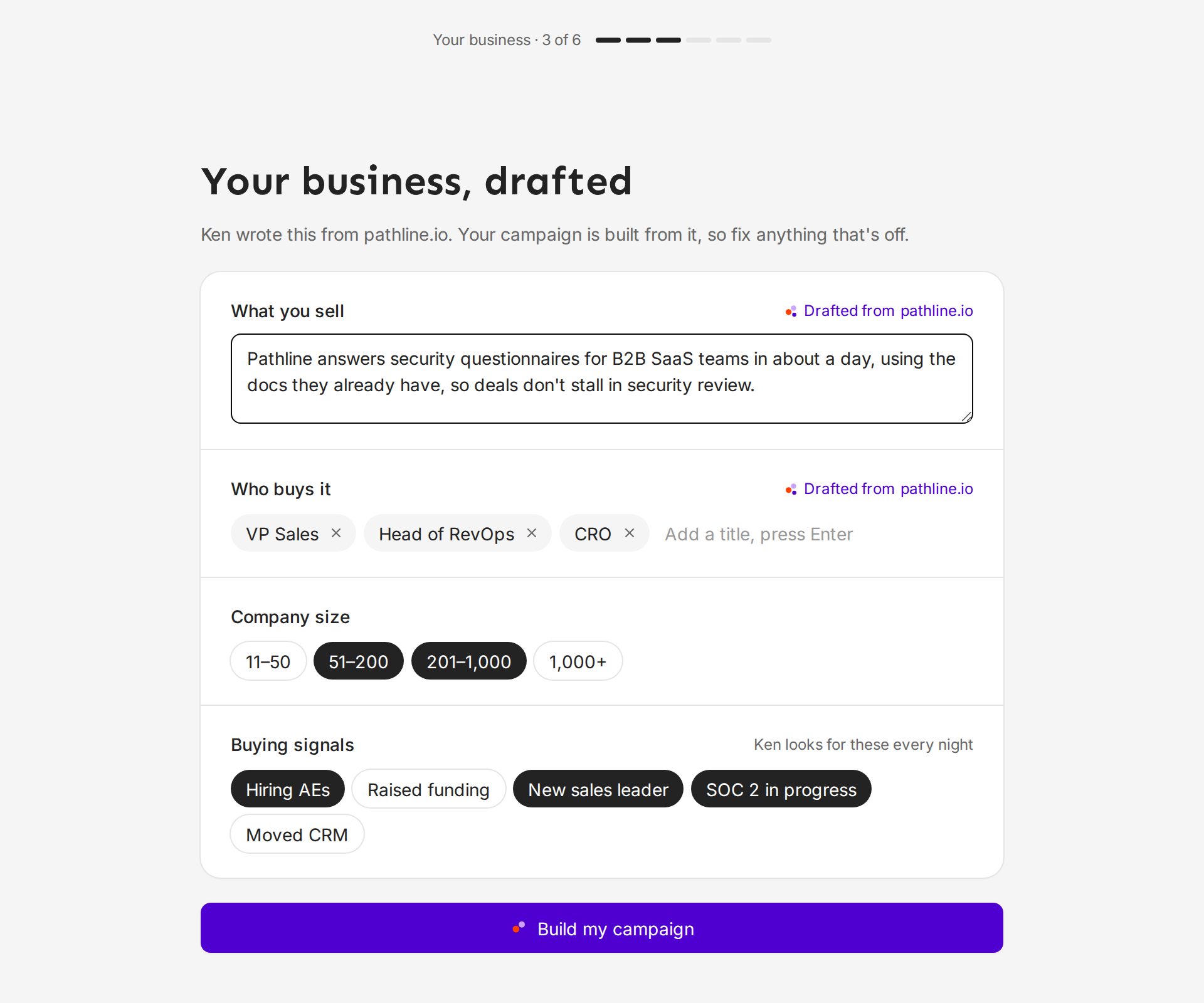
Your first campaign is built from this page, so fix anything that's off. -
Wait while Ken builds. Ken is building your first campaign takes about a minute. It ticks off each task: reading your site and your answers, finding matching accounts, picking contacts, writing a 3-step sequence and setting the send schedule. When it is done, click Review campaign.
-
Review the campaign. The campaign has three tabs:
- Accounts: the companies Ken picked. Click the x on a row to remove a company that doesn't fit. Undo brings back the last one.
- Sequence: the emails, which send from your address. Edit any email, or ask for Make it shorter, More casual or Try another angle.
- Schedule: the sending days and hours, the daily limit and the ramp-up.
Then click Save campaign. Ken saves it as a draft. Nothing sends.
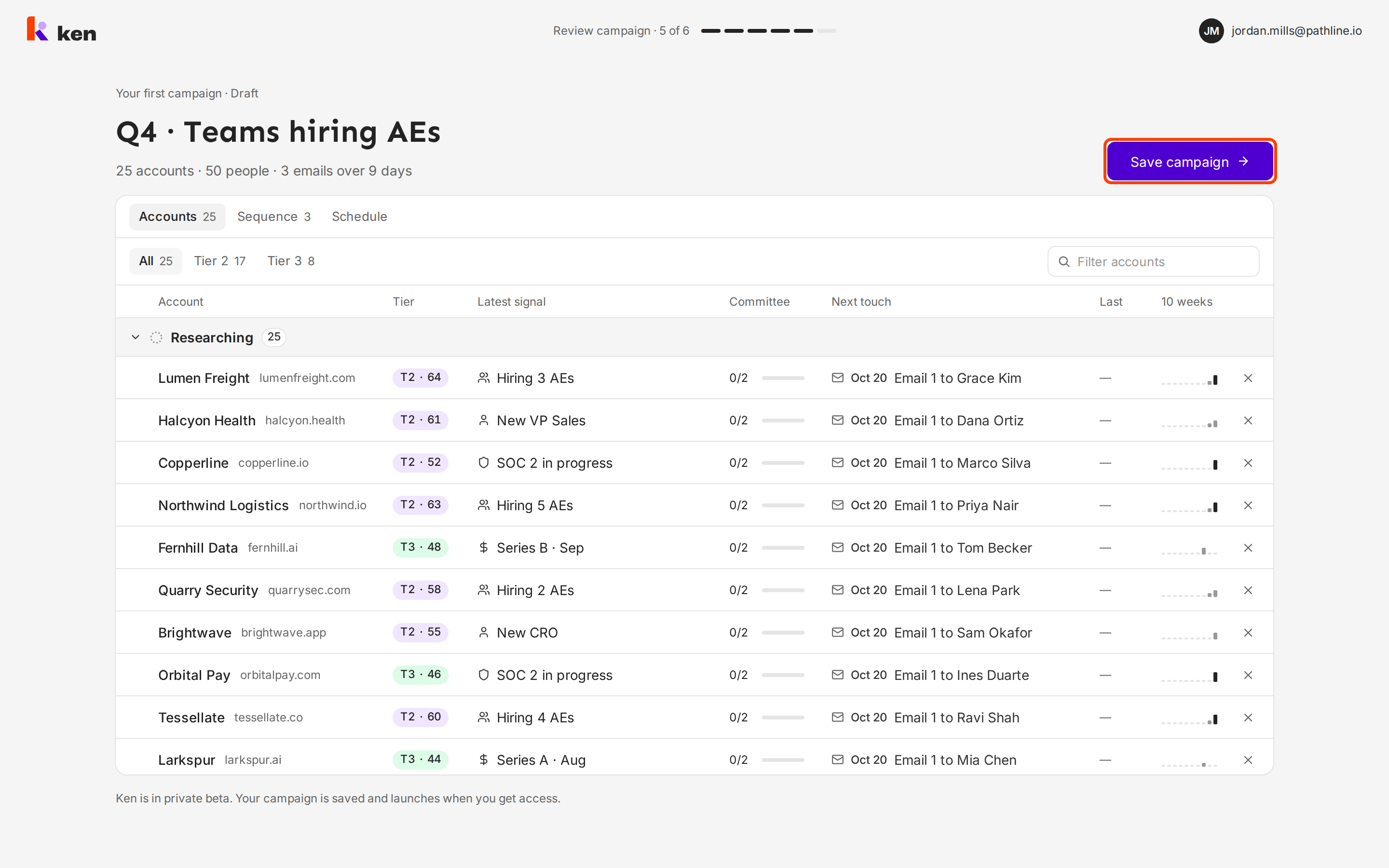
Ken saves your first campaign as a draft. Nothing sends from here. -
Finish. You're in shows your saved campaign and any free credits in your workspace. Ken is in private beta, so this screen also offers Book a call to get early access and Explore the demo.
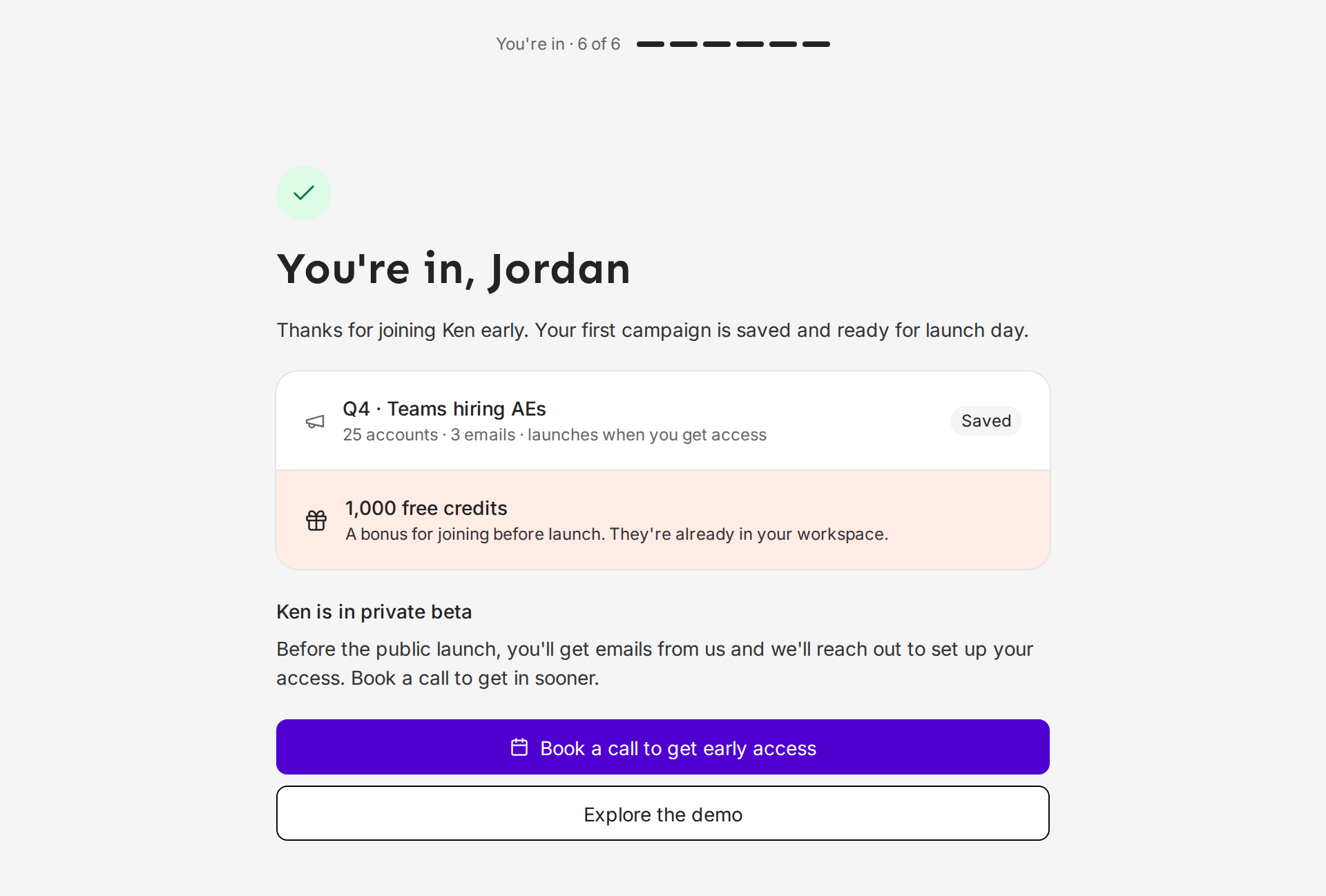
Your campaign stays saved until your access opens.
Find your way around
The sidebar on the left has every screen:
- Today, Inbox and Calendar at the top
- Outreach: Accounts, Campaigns, Search and Workflows
- Library: Studio, Knowledge and Delivery
Your credits and your name are at the bottom. Settings is the gear next to your name.
Every screen has a two-key shortcut. Press G, then the screen's letter: G then T for Today, G then A for Accounts, G then C for Campaigns. How Ken works lists them all.
Use the command menu
The command menu takes you anywhere without the mouse.
- Press ⌘ K, or Ctrl K on Windows. You can also click Search or jump to at the top of the sidebar.
- Type the name of a screen, an account or a template, or use the arrow keys to pick from Go to.
- Press ↵ to open it, or Esc to close the menu.
If you type a question instead, the menu offers to ask Ken.
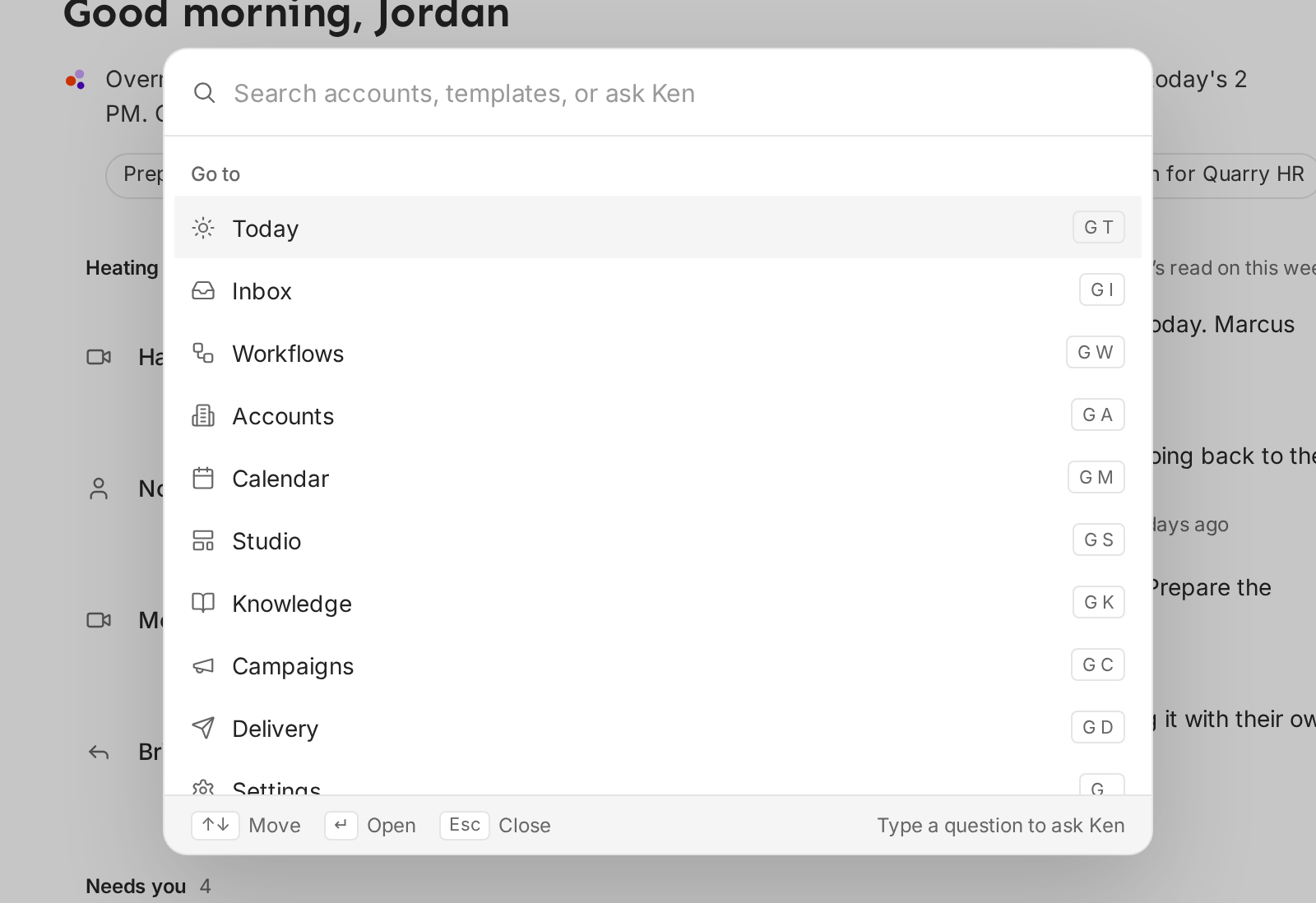
Switch workspaces
If you belong to more than one workspace, such as an agency with client workspaces, switch between them from the top of the sidebar.
- Click the workspace name next to the Ken logo.
- Under Workspaces, click the one you want. A check marks the workspace you are in.
Ken shows "Switched to" and the workspace name, and keeps you on the same screen. The same menu has View as a client seat, which shows the app the way your client sees it, and New client workspace. Run several client workspaces explains both.
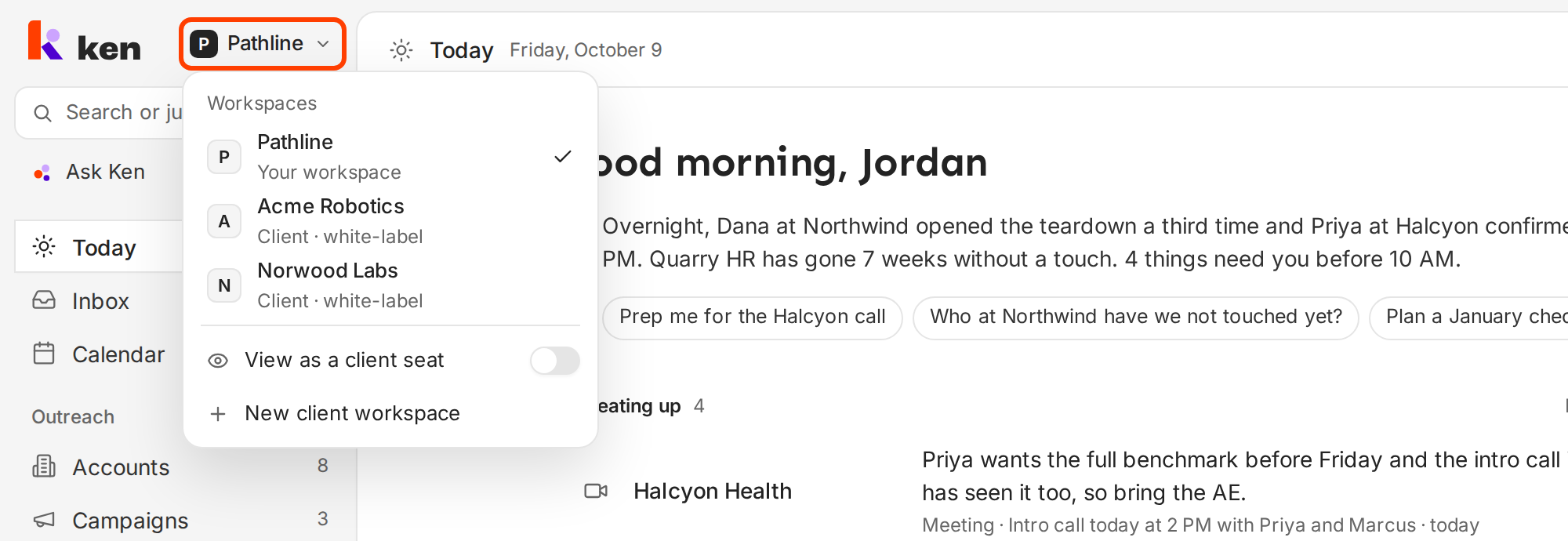
Tips for a good start
- Spend a minute on the business step. Ken builds your first campaign from What you sell and Who buys it. A vague line there gives you vague emails later.
- Name the buyer, not the company type. "Head of RevOps" gives Ken a person to write to. "SaaS companies" does not.
- Pick only the signals that fit your buyer. Ken uses them to find the accounts for your first campaign. If you pick all five, the list is less focused.
- Read one email on the Sequence tab as your buyer. If a line would make you delete it, rewrite it now. These are the emails that go out when your access opens.
- Fix facts later in Knowledge. What you tell Ken here becomes files in Knowledge. You can edit them at any time.
If something goes wrong
- "Use your work email. Ken reads your company website to set things up." You typed a personal address. Use the address on your company's domain.
- "Enter your work email." The field is empty or the address is missing a part. Check for typos.
- You signed in with Google or Microsoft and landed back at the start. Your Google or Microsoft account uses a personal address, so Ken signed you out. Sign in with your work account.
- The business step is empty. Ken could not read your website. Fill in What you sell, Who buys it, Company size and Buying signals yourself. Ken builds the campaign from your answers.
- What Ken drafted about your business is wrong. Edit What you sell and Who buys it before you click Build my campaign. Ken builds from what is on the page, not from the website.
- "Ken found no accounts with a buyer to reach for these answers." Your answers are too narrow. Click Back to Your business, add buyer titles or company sizes, or pick fewer signals, then click Build my campaign again.
- "Ken couldn't build your campaign. Try again." Click Try again. If it keeps failing, write to [email protected] with your work email.
- "We're not available in your region yet." Ken has no data for companies based in your region yet. Click Email [email protected] to request access.
- "Ken couldn't save your campaign. Try again." Click Save campaign again. If it keeps failing, write to [email protected] with your work email.
- You already have an account. Click Sign in under the terms line on Get early access.
Next: Connect your mailbox and LinkedIn, Teach Ken with Knowledge or Invite your team and set roles.