A campaign sends one offer to many people from your sending inboxes. Ken builds the audience, writes the sequence and sends on your schedule, and nothing goes out until you approve the first batch. This guide takes you through the whole path once, with the choices that matter for a first campaign.
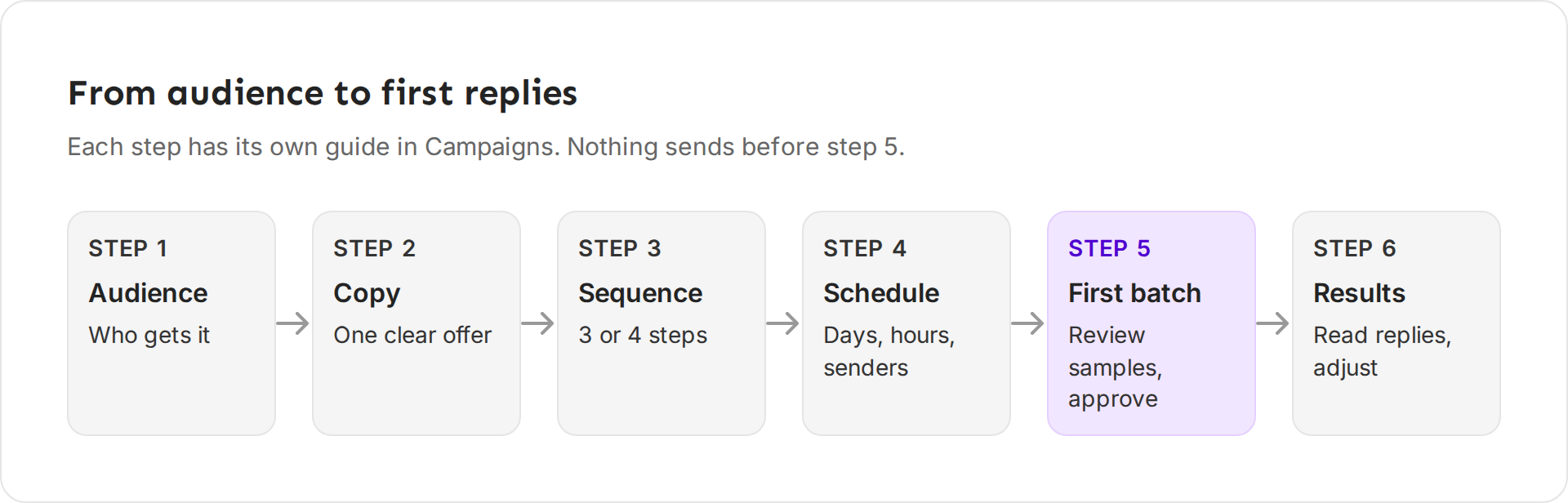
Each step has a longer guide: choose the audience, write the emails, build the sequence, set the schedule, approve batches and read the results.
Before you start
- Your sending inboxes are warmed up. Campaigns send from inboxes on separate sending domains, and a new domain needs weeks of warm-up first. Ken can send from an inbox that is still warming up, so add only warm inboxes to a campaign. Read How warm-up works.
- Knowledge is right. Ken writes from what it knows about your offer and your buyers. Check Knowledge with G then K.
- You have credits. Your first build each month is free, and the builder shows Free build at the top. After that, it shows how many credits a build uses.
Build the campaign
-
Open Campaigns. Press G then C, then click New campaign or press C.
-
Basics. Name the campaign after its audience, such as "Q1 RevOps leaders". Pick Email, Email and LinkedIn or LinkedIn, then click Continue.
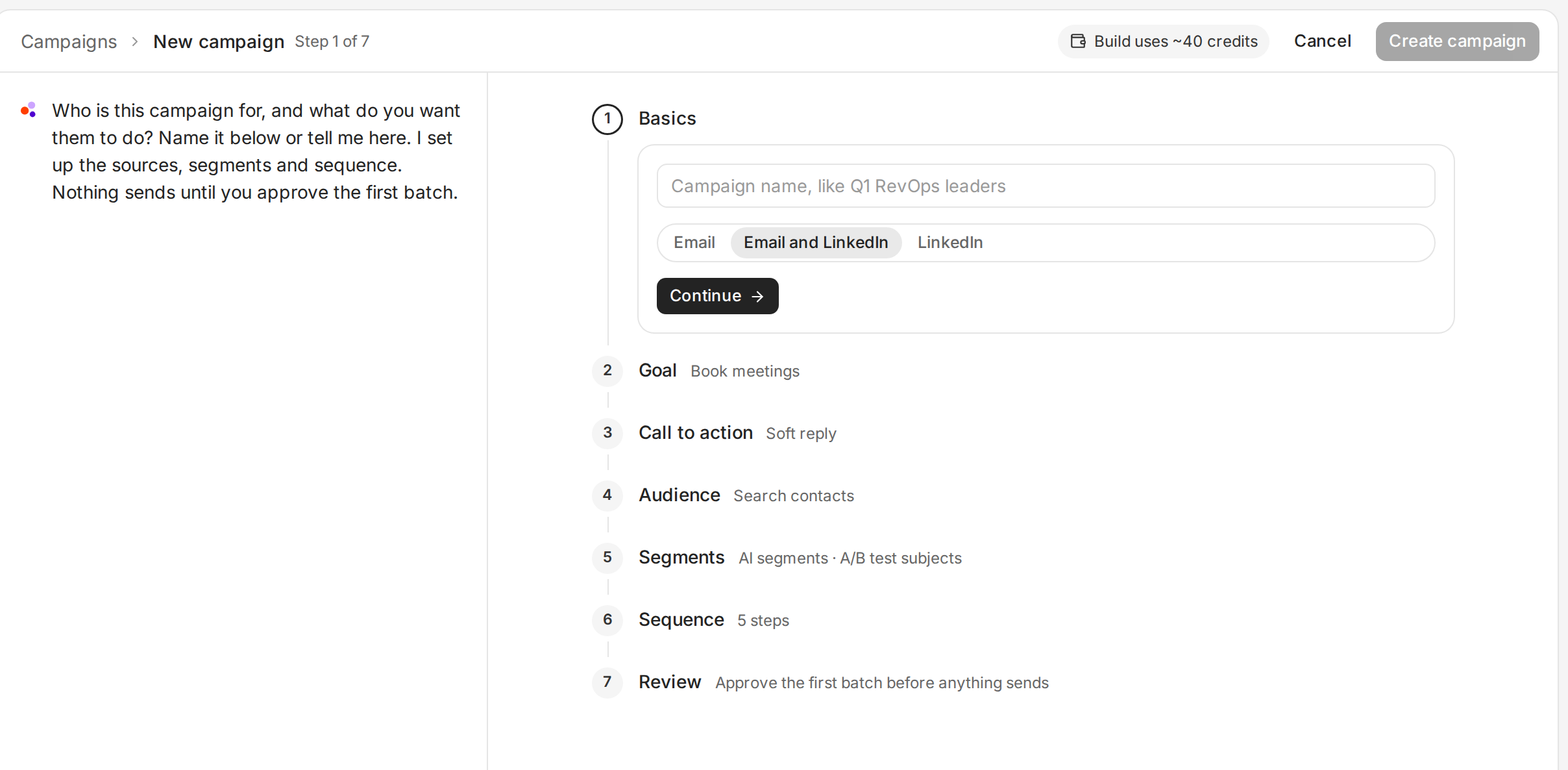
The builder has seven steps. Ken explains each one on the left. -
Goal. Pick what you want: Book meetings, Free trial sign-ups, Direct sales, Drive traffic, Brand awareness or Educate and nurture. Ken tunes the sequence and how it sorts replies to this goal.
-
Call to action. Keep Soft reply, which Ken selects by default. As Ken explains on the left, a soft ask such as "Worth a look?" gets more replies, while Hard reply goes straight for a meeting. Link and No CTA are the other choices.
-
Audience. Pick where the people come from: Search contacts, Job posts, Import contacts, Signals or From Accounts.
-
Segments. Pick AI segments, Manual segments or One segment. AI segments group people by the problem they most likely have, and Ken writes an opening line for each group.
-
Sequence. Pick 3 steps for a first campaign.
-
Review. Check the summary. Protection skips anyone you work one to one, and Approval says Ken sends in batches of 50 and shows you 5 samples first. Click Create campaign.
Check the schedule and senders
Open the campaign and click the Settings tab.
- Schedule. Check the sending days and hours, such as "Mon to Fri, 8 AM to 5 PM in each lead's time zone".
- Daily limit. Check how many emails the campaign sends a day, across all its inboxes.
- Send in each lead's time zone. Leave it on, so emails arrive during each person's working hours.
- Auto-launch when ready. Turn it on to launch the campaign as soon as Ken finishes building it. This row shows only until the campaign launches. The same switch, Auto-launch, is at the top of the campaign.
- Senders. Check Inboxes and LinkedIn accounts. Every campaign shares them. Click Change to manage them in Delivery.
You can't change Schedule or Daily limit on this tab yet. If either one is wrong, write to [email protected] with the campaign name.
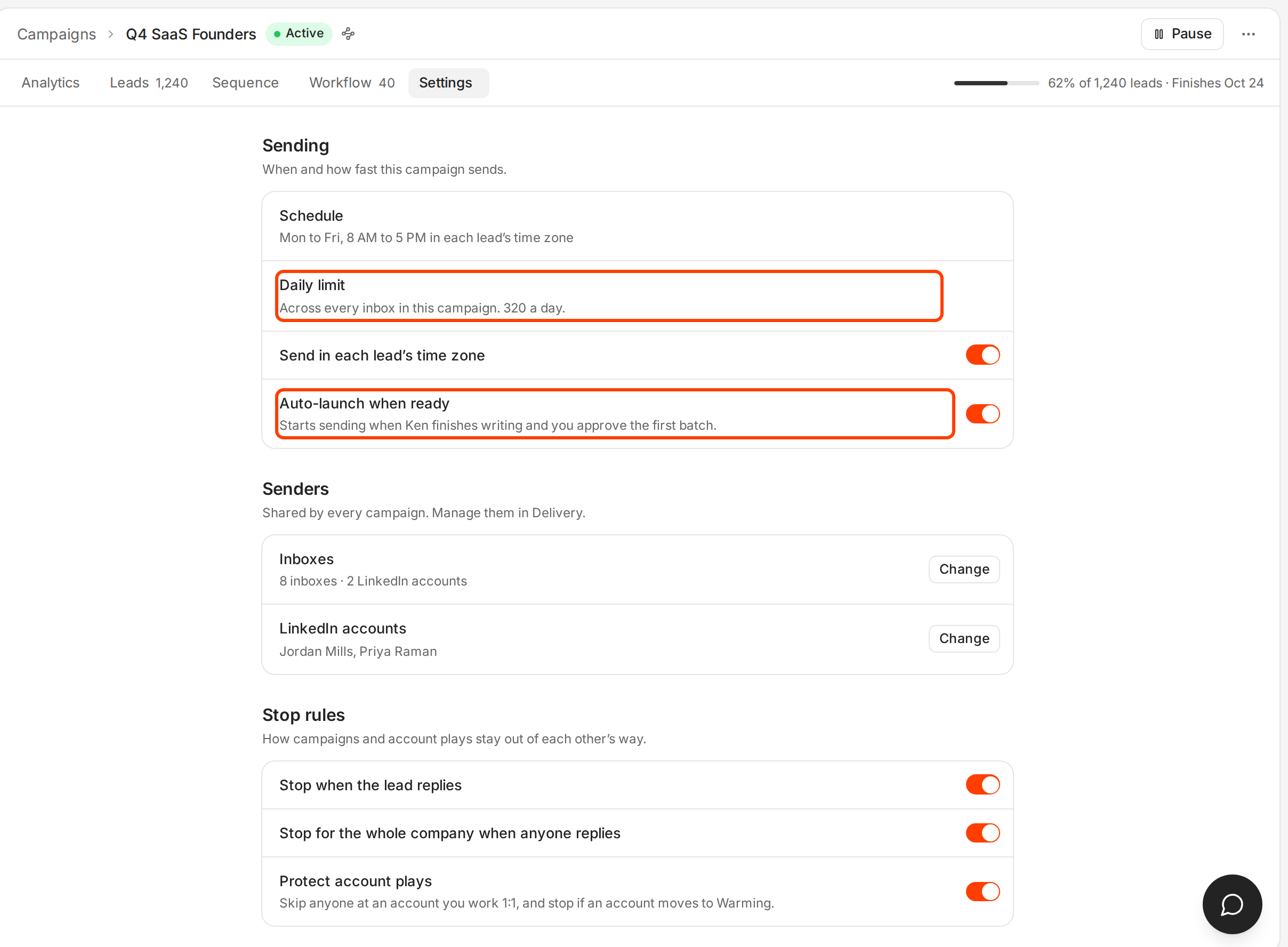
Under Stop rules, leave Stop when the lead replies, Stop for the whole company when anyone replies and Protect account plays on.
Under Tracking, leave Track opens off, because open tracking hurts deliverability. Track link clicks and Unsubscribe link are on by default. The unsubscribe link sits in hidden email headers, so mail apps show an Unsubscribe button and nothing is added to the email body.
How to size the daily limit
Plan on about 30 campaign emails a day for each warmed inbox, and multiply by your inboxes. For example, 8 inboxes at 30 a day give a daily limit of 240. Ken never sends more than 50 a day from one inbox. Set a sending schedule shows how to add spare inboxes.
You don't need to start slowly by hand. A new campaign ramps up over its first 5 sending days, from a fifth of the daily limit on day 1 to the full limit on day 5. A new inbox also has its own ramp, explained in How warm-up works.
Approve the first batch
When Ken has written the first emails, the batch waits for you under Campaign batches in Today (G then T). Click Review, read the Samples Ken picked, then click Approve to send the batch on schedule. The button shows the batch size, such as Approve 50. If the samples miss, fix the cause in Knowledge and click Send back to Ken. Approve outreach before it sends has the five checks for every sample.
Ken stops the sequence for anyone who replies. While the campaign sends, Pause at the top of the campaign stops it, and Resume starts it again.
What works for a first campaign
These come from the campaigns Ken's team runs for its clients.
- A market that can grow, a first list you can read. Ken's team only plans a campaign when the broad audience has at least 5,000 people. Start with the few hundred who fit best, so you can read the samples closely and learn fast.
- One clear offer. Name one problem, one result and one ask in each email. A second offer gives the reader a reason to put the email off.
- 3 steps. Ken's team writes 3 emails by default and adds one only when it has a new idea. It reviews any sequence longer than 4 steps and avoids 7 or more for cold email.
- Short emails. Keep the first email under 80 words, not counting the greeting and signature. Keep follow-ups under 55.
- Space the steps out. Ken's team sends on days 0, 3 and 7, and on day 11 when there is a fourth email.
- End every email with one soft ask. A short question they can answer from a phone, such as "Worth a look?", or an offer of something free and useful, such as "Want me to send the one-page ramp benchmark?" Don't ask for a meeting or a call in a cold email. The meeting comes after they reply.
What to watch in the first week
Open the campaign's Analytics tab. It shows Emails Sent, Contacted, Clicks, Replies, Interested and Bounces for the period you pick.
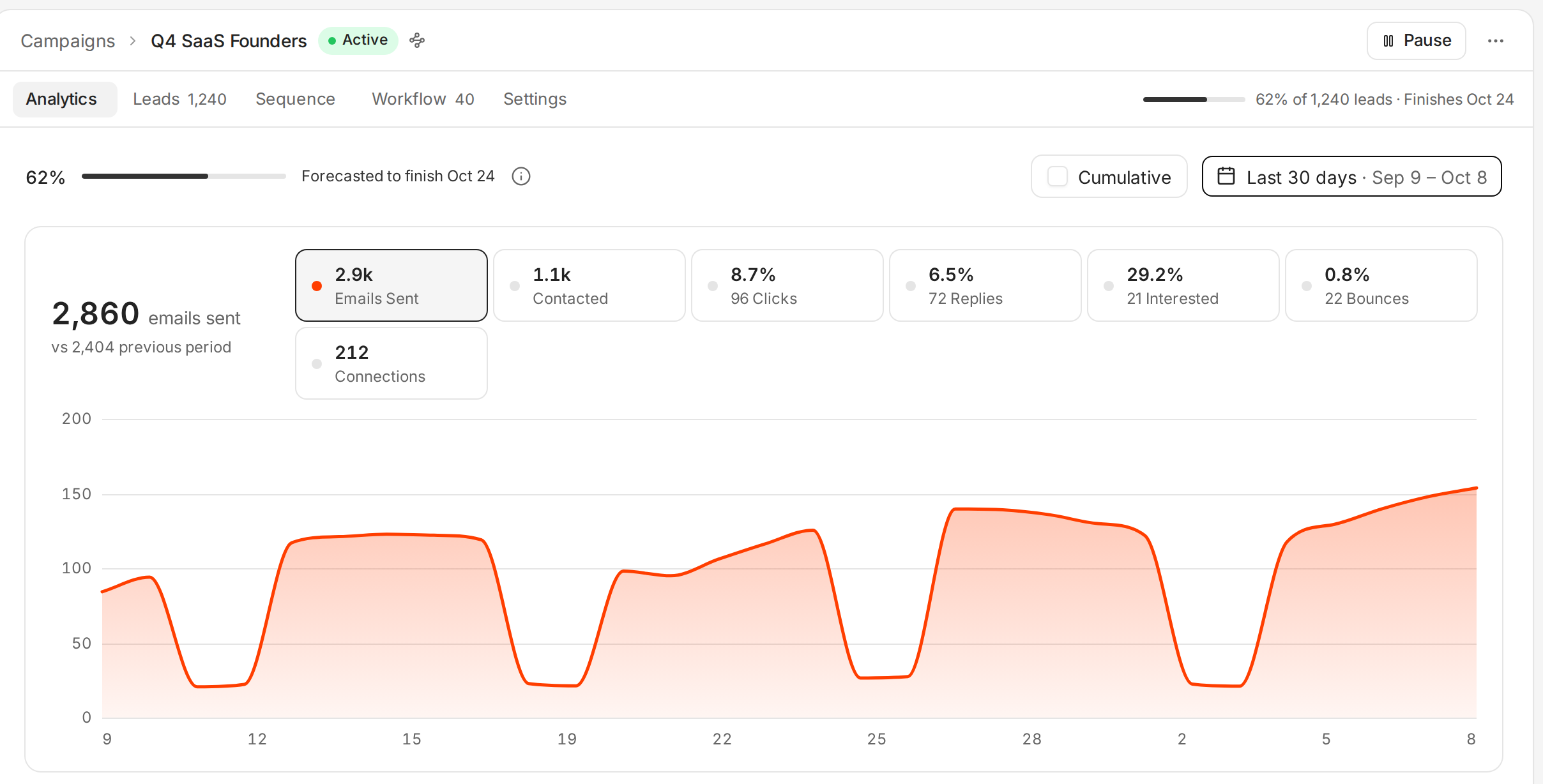
Check these, in this order.
- Bounces. A hard bounce rate above 2% means the list has bad addresses. Above 3%, pause the campaign and clean the list before you send more.
- Replies. Count every reply, then the interested ones. Read them all in Inbox. They tell you more than any rate.
- Reply rate. This is replies divided by people contacted. Ken's team expects about 0.3 to 2%, depending on the audience: about 0.3 to 0.5% from the C-suite at large public companies, up to 1.5 to 2% from owners of small businesses and agencies. Read campaign results has the range for each audience. Once you have run a few campaigns, compare it with your own past results too.
Don't judge a campaign too early. At a 1% reply rate, 300 people give you about 3 replies, and one more or one fewer changes the rate a lot. Under about 100 sends, count replies instead of reading percentages.
If something goes wrong
- The batch never shows up in Today. Ken may still be writing. Check that the campaign has inboxes under Senders in its Settings tab. If the batch still isn't there the next day, write to [email protected] with the campaign name.
- "Creating campaigns from the builder isn't on for this workspace." Write to [email protected] to ask for it.
- Nothing sends after you approve. Check the Schedule. Ken sends only on the days and hours you set, in each person's time zone.
- Bounces are high. Pause the campaign with Pause. Check where the list came from, and remove the addresses that bounced before you resume.
- Someone you work one to one got the email. Check that Protect account plays is on under Stop rules.
- The samples sound wrong for your company. Fix the facts in Knowledge, then click Send back to Ken on the batch.
Next: Your first week with Ken, Write cold emails people reply to or Read campaign results.