A disconnected or paused inbox sends no campaign email, so every campaign that uses it slows down. The Needs attention filter on Delivery lists these inboxes in one place. This guide shows how to fix each problem, and how to change an inbox's settings in its side panel.
Find the inboxes that need attention
-
Open Delivery in the sidebar, or press G then D.
-
On the Inboxes tab, click the Needs attention filter. The number next to it is how many inboxes it holds.
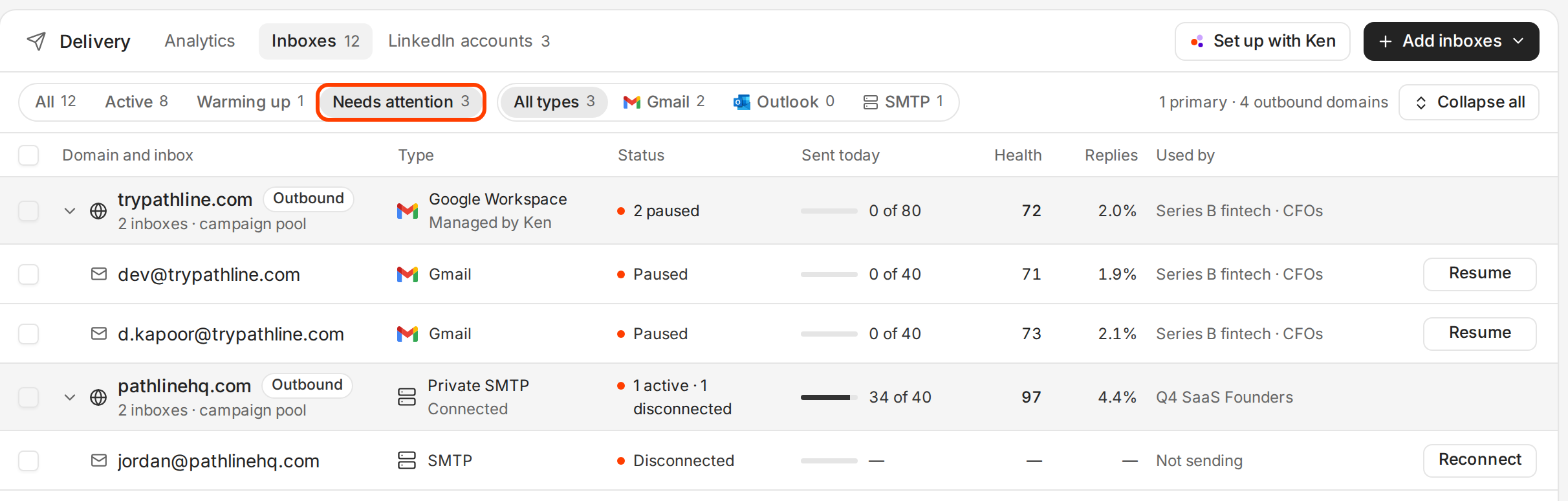
Each row shows its status and the button that fixes it. -
Read each inbox's status, and use the button on its row.
| Status | What it means | What to do |
|---|---|---|
| Disconnected | Ken lost its login, for example after a password change or a revoked sign-in. It sends nothing. | Click Reconnect. |
| Paused | Someone paused it, or Ken did. It sends nothing, and warm-up keeps running. | Click Resume if your team paused it. |
| Banned | The mail provider blocked the mailbox. Ken can't send from it. | Ask your mail admin. For an inbox you bought from Ken, write to [email protected] with the address. |
Check this filter once a week, and every time a campaign sends less than you expected.
Reconnect an inbox
For a Google Workspace or Microsoft 365 inbox:
- Click Reconnect on the inbox's row. The Reconnect Google Workspace or Reconnect Microsoft 365 dialog opens with the address filled in.
- Click Continue. The dialog asks you to sign in as that address.
- Click Sign in with Google or Sign in with Microsoft, and sign in as that exact address. Ken brings you back to Delivery.
If your Microsoft 365 tenant needs an admin to approve Ken first, Ken shows "Your admin approves Ken Mail first". Click Copy message or Email it under Send to your admin. Once your admin approves, click Connect again.
For an SMTP inbox, or an inbox you bought from Ken, click Reconnect and Ken checks the login again. It then shows one of these messages, with the address:
- "Reconnected". It works again.
- "still can't connect. Check its login." For an SMTP inbox, sign in at your mail provider to check the password and the server details. For an inbox from Ken, write to [email protected] with the address.
- "Checked", then "Reload to see its status." Reload the page.
Resume or pause an inbox
To resume, click Resume on the inbox's row or in its side panel. Ken shows "Resumed" and the address, and the inbox sends again.
Resume shows only on an inbox someone paused in Ken. When Ken holds an inbox, the reason shows in orange under its address with an end date, and the inbox sends again on that date. A paused inbox with no Resume and no orange text was paused outside Ken. Write to [email protected] with the address.
To pause an inbox yourself, click Pause on its row or in its side panel. Ken asks "Pause" with the inbox's address, and says "It sends nothing, campaign or 1:1, until you resume it. Warm-up keeps running, so it stays warm." Click Pause inbox. Under the address the panel then reads "Paused. It sends nothing until you resume it. Warm-up keeps running."
When Ken holds an inbox for a while
Sometimes Ken stops campaign email from an inbox for a few days. The inbox can still read Active, so it isn't in Needs attention. Look for orange text under its address, in the table and in the side panel, such as "Replies stopped syncing. Ken paused sending from it until Oct 24."
| Warning | What to do |
|---|---|
| Replies stopped syncing | Ken can't read this inbox's replies, so it holds campaign email until they sync. Reconnect the inbox. |
| Bounce rate too high, or Campaign bounce rate too high | Clean the list behind the campaign before the date in the warning. |
| Spam complaints too high, Gmail spam rate too high, or Landing in spam | Cut the campaign's volume, tighten who you email, and keep warm-up on. |
| A link is on a blocklist | Remove or replace the link in your campaign's emails. |
| Domain DNS not resolving | Check the domain at its registrar. It may have expired or lost its records. |
| Microsoft 365 tenant blocked sending | Microsoft blocked sending for the whole Microsoft 365 account. Your Microsoft 365 admin has to clear it. |
| Sending paused | A renamed inbox waits about a week before campaigns use it, or your Ken team paused it. It sends again on the date in the warning. |
For the bounce and spam warnings, also look at the domain's DNS before you send more. See Keep your email out of spam.
Change an inbox's settings
-
Click the inbox's address. Its side panel opens on the right. The top shows Sent today, Health, Replies and Bounce.
-
Under Sending, set the Daily send limit, "The most it sends in a day." A limit of 0 stops campaign email from the inbox.
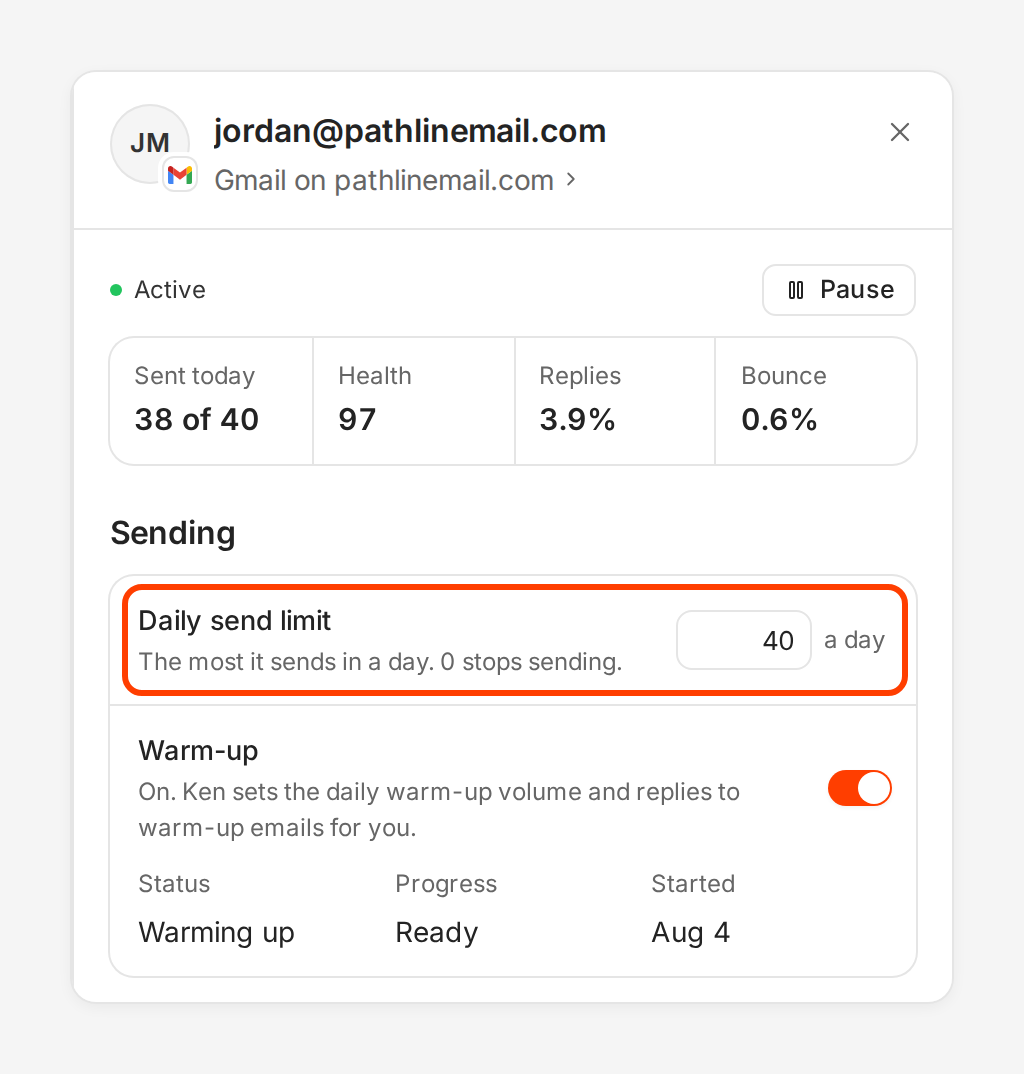
The Daily send limit is the most campaign email this inbox sends in a day. -
Under Sender, set the From name, the first and last name "Shown on every email this inbox sends." Then write the Signature, which is "Added under every email from this inbox." It can use
{{sender.first_name}},{{sender.last_name}}and{{sender.title}}. -
Under Replies, pick Reply forwarding. Off keeps replies in Ken only. Forward to my email also sends a copy to the address you type in Forward replies to. "Replies still land in Ken."
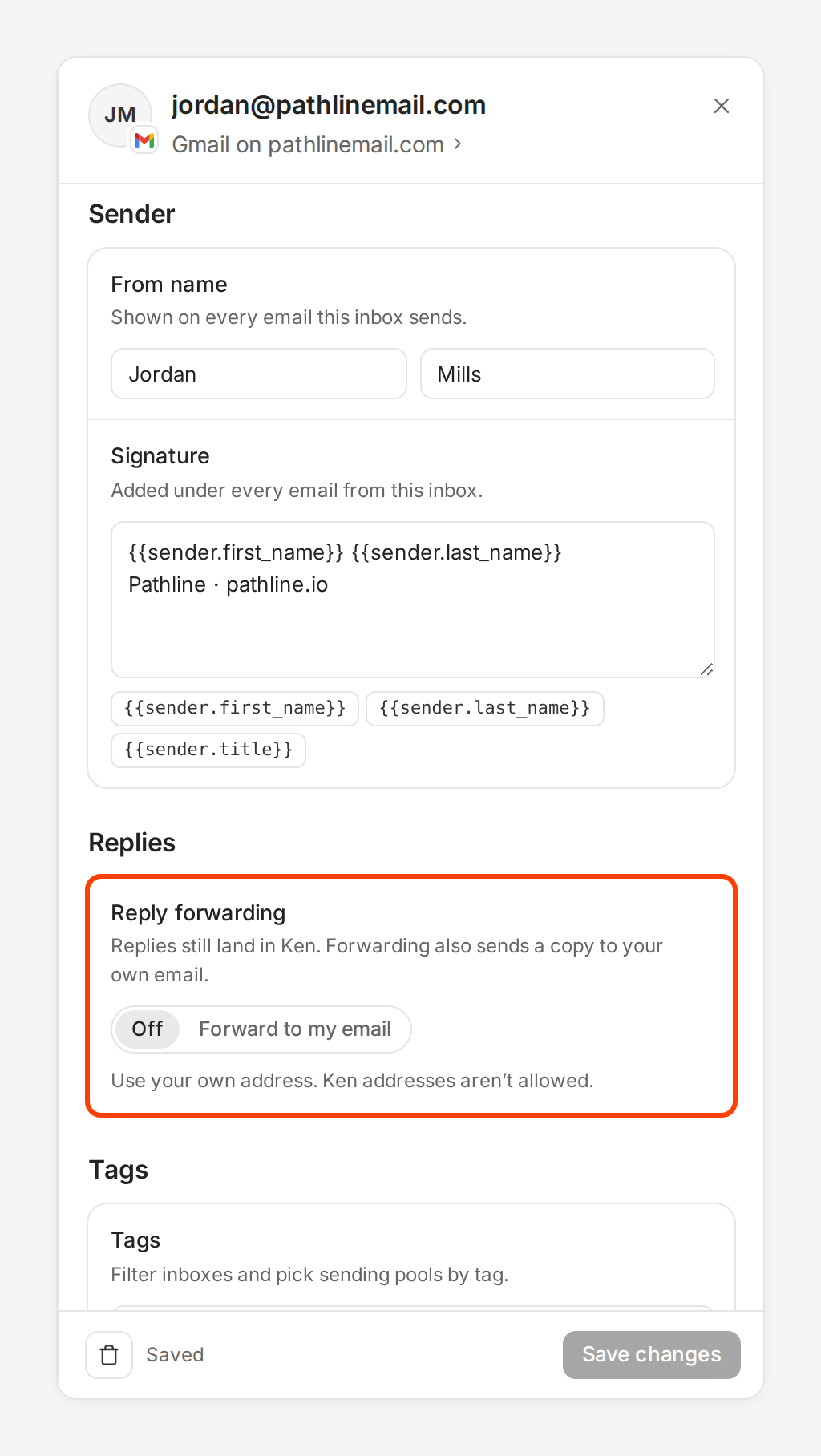
Forwarding sends a copy. The reply still lands in Ken. -
Click Save changes. Ken shows "Saved" and the address.
While an inbox warms up, its limit reads "Warm-up sets today's volume. This is the most it sends once warm-up ends." See How warm-up works.
What works
- Plan on about 30 a day per inbox. A strong Google Workspace inbox can go up to 50 once its numbers are clean. Raise a limit by at most 30 to 50% a week, and only while bounces stay under 2%. Ken never sends more than 50 campaign emails a day from one inbox, or 30 from an SMTP inbox.
- Use a real person's name in From name. People reply to people.
- Keep the signature plain: name, title and company. No logo, no image, no links.
- Forward replies to the person who follows up, so nobody misses an answer while away from Ken.
If something goes wrong
- "Reconnect keeps failing for a Google inbox". A Google Workspace admin may need to trust Ken's app first. The connect dialog shows the client ID and the steps. See How many inboxes do I need.
- "Your admin approves Ken Mail first". Your Microsoft 365 tenant needs admin approval. Send your admin the message from Send to your admin, then click Connect again.
- "There is no Resume button on a paused inbox". Ken paused it, or it was paused outside Ken. Read the orange text under its address for the reason and the date. With no orange text, write to [email protected] with the address.
- "The inbox sends nothing but it says Active". Check for orange text under the address. If there is none, check that its Daily send limit isn't 0 and that an active campaign uses it.
- "Enter the email to forward replies to". You picked Forward to my email but left Forward replies to empty. Type the address, or pick Off.
- "Forward to your own email. Ken addresses aren't allowed." Use your own work address, not an address on a Ken domain.
- "An inbox's password changed and Reconnect still fails". Write to [email protected] with the address, and we'll help you update its login.
Next: Keep your email out of spam, How warm-up works or How many inboxes do I need.