
What is Ken AI?
Ken AI is a cold-email platform that builds, sends, and manages outbound campaigns for B2B teams - handling everything from finding leads to writing personalized emails to triaging replies.
Overview
Ken AI is an end-to-end outbound platform. It covers five core jobs:
- Find leads - Search a 280M+ person database to build targeted prospect lists.
- Build campaigns - Use an AI chat assistant or a manual workflow to configure targeting, email sequences, and personalization.
- Send at scale - Ken manages the sending infrastructure (domains, inboxes, warmup) so you do not need to configure a separate ESP.
- Triage replies - A Superhuman-style inbox surfaces replies and lets your team respond without leaving the platform.
- Track performance - A dashboard and per-campaign analytics show emails sent, contacts reached, clicks, replies, positive replies, and bounces.
Who it is for: B2B sales and marketing teams who run outbound cold-email campaigns and want AI to handle list building, copywriting, and reply classification - not just sending.
Where to find it: After signing in, every surface is accessible from the left sidebar. The four main sections are:
| Sidebar item | Route | What you do there |
|---|---|---|
| Dashboard | /dashboard | See aggregate stats and active campaigns at a glance |
| Campaigns | /campaigns | Create, manage, and launch campaigns |
| Delivery | /delivery | Monitor inboxes, domains, and email infrastructure health |
| Replies | /replies | Read and respond to inbound replies |
Before you start
- You must have an active workspace. If the dashboard shows "Choose an active workspace," create or join one before proceeding.
- Most platform features are available to all workspace members. Settings and billing require the Admin role.
- Some features (AI campaign building, lead search) are gated by your plan. Contact your account owner if a section appears locked.
How to use the dashboard
The dashboard at /dashboard is your starting point. It loads automatically after sign-in.
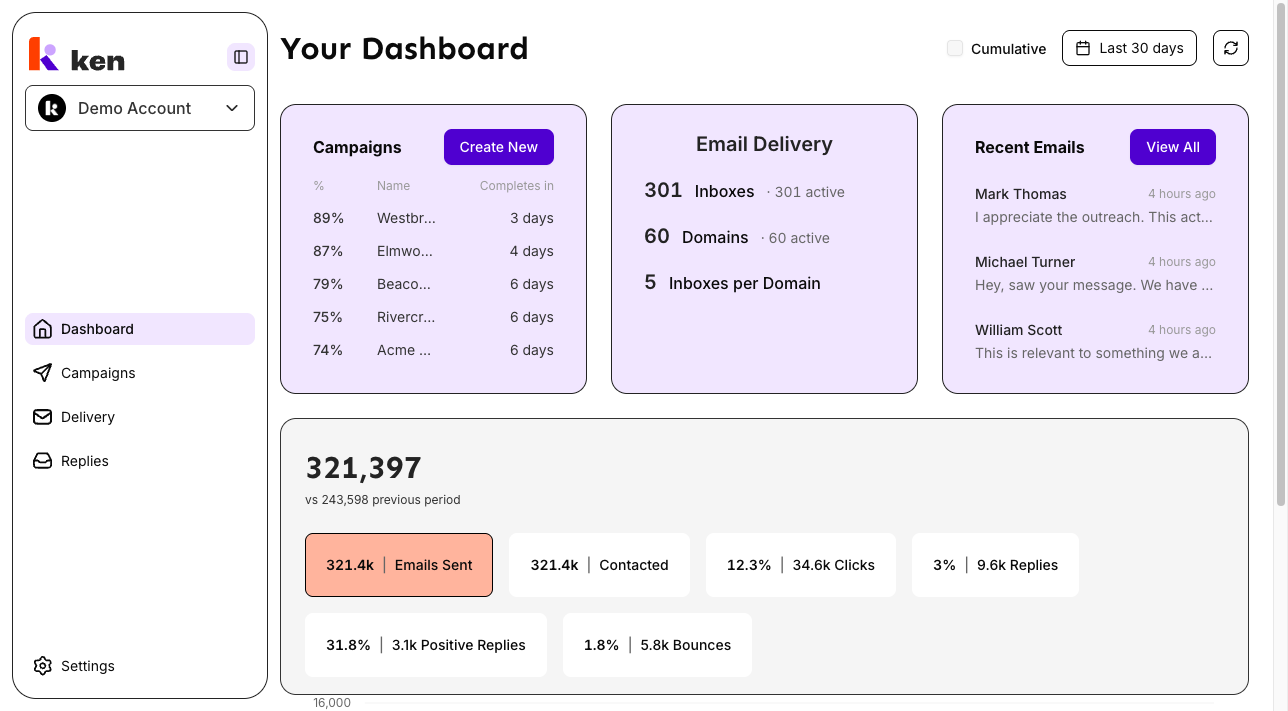
Read the summary cards
Three cards appear at the top of the page:
- Campaigns - Lists your active campaigns with a completion percentage and estimated days remaining. Click any campaign name to open it. Click "Create New" to start a new campaign.
- Email Delivery - Shows total Inboxes, Domains, and Inboxes per Domain. Each number links to the relevant tab in Delivery. An "· N active" count appears next to each total when active counts are available.
- Recent Emails - Shows the three most recent replies waiting for action. Click "View All" to open the full Replies inbox.
Read the analytics chart
Below the cards is a date-ranged analytics chart. Use the controls in the header to adjust it:
- Click the date picker to choose a preset (Last 7 days, Last 30 days, etc.) or enter a custom range.
- Click one of the six metric pills to change the chart: Emails Sent, Contacted, Clicks, Replies, Positive Replies, or Bounces.
- Check the Cumulative checkbox to see running totals instead of daily values.
- Click the refresh icon to reload all dashboard data.
The headline number above the chart compares the current period against the previous period of the same length.
How it works
Lead finding
Ken includes a built-in search index of 280M+ B2B contacts. You can search by title, company, industry, headcount, location, and more. Title and industry searches use AI expansion - type "VP Sales" and Ken also searches related titles like "Head of Sales" and "Director of Business Development," so your list is not limited to your exact phrasing.
The index re-sweeps for intent signals monthly: job changes, promotions, hiring surges, and funding rounds. Leads matching your saved filters are automatically re-sourced into live campaigns on each sweep.
AI campaign building
When you create a campaign with the "Create with AI" path, an AI assistant guides you through building the campaign. The assistant asks about your ICP, researches your company, and generates targeting filters, email sequences, and personalization instructions. You review and approve each section before anything goes to contacts.
For manually configured campaigns, you set the targeting filters, write the email sequences, and configure the AI personalization prompts yourself.
Enrichment and verification
Before any email is sent, Ken runs each lead through an enrichment and verification pipeline:
- Email addresses are found using multiple providers, checked against Ken's own previously-found address cache first (to avoid unnecessary provider spend).
- Every address is re-verified through an independent verification service. A finder's "valid" verdict is not accepted at face value - Ken runs its own check.
- Catch-all domains (where any address technically accepts mail) go through a dedicated multi-provider verification race to confirm the address is real.
- Once any provider marks an address Invalid, it is permanently marked invalid across all campaigns - even if a later provider says otherwise.
- Consumer email addresses (Gmail, Yahoo, etc.) are rejected. B2B outreach to personal inboxes harms domain reputation.
AI personalization
Ken runs a four-step AI pipeline on each qualified lead: qualify, segment, personalize, rewrite.
- Qualify - An AI reviewer checks whether the lead matches your ICP. It reads the company's website (not just a job-title dropdown) and defaults to qualifying when evidence is ambiguous, because a missed real prospect costs more than one extra email.
- Segment - The lead is assigned to a segment (e.g. "Series A SaaS" vs "Enterprise"). Each segment can have different email copy.
- Personalize - The AI writes a personalized first line or PS using enriched data (website content, role, company details). A second AI evaluator scores the line and rewrites it in a loop until it passes.
- Rewrite - The full email is rewritten to read naturally, with hard rules enforced: no em-dashes, no "just following up," no fabricated specifics.
Sending infrastructure
Ken manages the sending infrastructure on your behalf. Domains and inboxes are provisioned, warmed, and monitored automatically. The warmup process follows a fixed ramp - never more than a daily percentage increase, with a pause triggered if bounce rates spike. DNS records (SPF, DKIM, DMARC) are set and checked on a schedule. Inbox placement tests run weekly using real campaign copy from your sending inboxes.
Reply handling
Every inbound reply is classified by AI: Interested, Not Interested, Out of Office, Question, or other categories. Out-of-office replies are detected automatically - the lead is removed from the active send queue and re-enrolled after the return date. The Replies inbox surfaces unread replies, lets you respond with a composer that supports variables and reply-to-reply threading, and supports keyboard shortcuts for fast triage.
Analytics
Campaign analytics track emails sent, contacts reached, clicks, replies, positive replies, and bounces - per campaign, per segment, per step, and per A/B variant. Click tracking uses per-recipient tracking links. Bot and prefetch clicks (those arriving within 30 seconds) are stripped from human metrics and never trigger follow-up sequences.
Troubleshooting & debugging
Dashboard shows "Choose an active workspace" / no data loads
- Cause: No workspace is active for this session.
- Fix: Open the workspace switcher in the top navigation and select or create a workspace. If no workspaces appear, the account may not be a member of any organization - contact an admin to be invited.
Dashboard cards load but analytics chart shows "No data for the selected period"
- Cause: No campaigns have sent emails in the selected date range, or analytics have not yet been recorded.
- Check: Switch the date range to "Last 30 days" or "Last 12 months." If data appears for a wider range but not a narrow one, the period simply has no activity. If no date range shows data, check that at least one campaign has been launched and has sent emails.
Campaigns card shows "No campaigns found"
- Cause: No campaigns exist in this workspace, or the workspace is newly created.
- Fix: Click "Create New" on the Campaigns card to start a campaign.
Email Delivery card shows 0 Inboxes or 0 Domains
- Cause: No inboxes or domains have been added to this workspace yet, OR the backend has not finished provisioning them.
- Check: Open Delivery in the sidebar and look at the Inboxes and Domains tabs. If provisioning is in progress, the count will update within a few minutes. If the Delivery page also shows zero, inboxes need to be added - contact your admin.
"Couldn't load dashboard data" toast appears
- Cause: One or more backend queries failed.
- Check: Refresh the page. If the error persists, check whether the API is reachable by trying another page (e.g. Campaigns). If other pages also fail, there may be a platform outage - check your status page or contact support.
Analytics numbers look wrong (e.g. 0 clicks despite activity)
- Cause: The Clicks metric uses tracking link data, not the sending platform's click count. If tracking links were not included in the email sequence, clicks will read 0.
- Check: Open the campaign, go to the sequence, and confirm tracking links are inserted in the email body. Campaigns sent before tracking links were added will not backfill.
Replies card shows emails but clicking one does nothing
- Cause: This can happen if the Server Action that loads the reply thread is stale after a recent deploy. The error usually appears as a toast message.
- Fix: Do a full page reload (Cmd+Shift+R on Mac). If replies still fail to open, try clearing the browser cache and reloading.
Dashboard date range resets on page reload
- Cause: Relative presets (e.g. "Last 30 days") intentionally re-resolve their window on each load, so a bookmarked link stays relative rather than frozen.
- Expected behavior: This is correct. If you need to share a fixed date window, select a custom date range - only custom ranges serialize the exact dates into the URL.
FAQ
Do I need to bring my own sending infrastructure? No. Ken provisions and manages domains, inboxes, warmup, and DNS on your behalf. You do not need a separate ESP account.
Can I import my own lead list? Yes. Open a campaign, go to the Audience section, and upload a CSV. The import supports up to 43 fields with dynamic column mapping and per-row validation. Alternatively, build a list directly from the Ken Search database.
How does Ken prevent my emails from being flagged as spam? Several layers work together: domain warmup ramps gradually, inbox placement tests run weekly against real seed mailboxes, DNS records are managed and swept for errors, the AI personalization evaluator rewrites lines that read as machine-generated, and verified-invalid or consumer addresses are never sent to.
What happens to replies that come in while I'm not online? All replies are stored and classified automatically. Out-of-office replies trigger an automatic reschedule. Other replies wait in the Replies inbox for your team to handle. Nothing is lost.
Can multiple team members share one workspace? Yes. A workspace can have multiple members with different roles (Admin, Member, etc.). Nav visibility and some settings are role-gated. All members share the same campaigns, inbox, and analytics.
How fresh is the lead database? The 280M+ person index is rebuilt monthly. Intent signals (job changes, funding, hiring) are re-swept on the first of each month and automatically re-source matching leads into active campaigns.