
Navigating the dashboard
A practical guide to the Ken AI sidebar, dashboard cards, command palette, and keyboard shortcuts - for users who want to move fast and support agents who need to diagnose navigation problems.
Overview
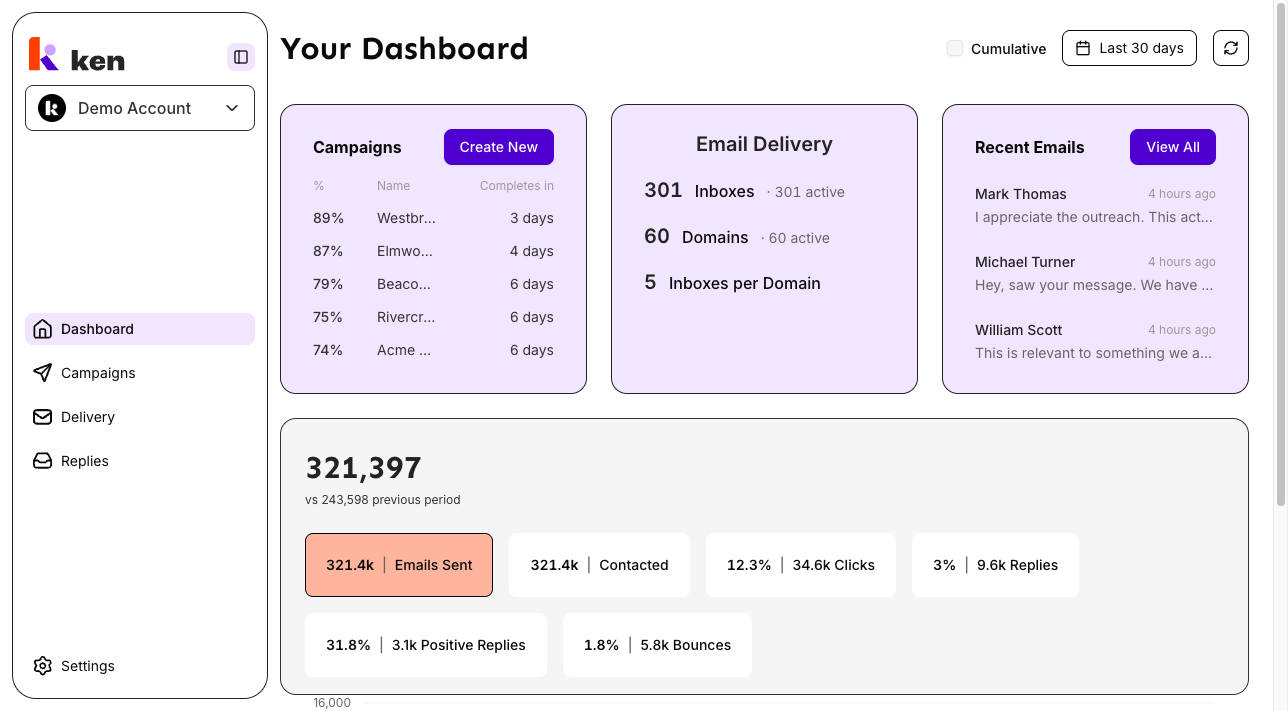
The Ken AI dashboard is the first page you see after signing in. It lives at /dashboard and serves as your control center: a summary of your campaigns, email fleet health, and recent replies. From here you can reach every section of the product without ever touching the mouse.
The left sidebar provides the main navigation. Four items appear by default: Dashboard, Campaigns, Delivery, and Replies. A Settings button sits at the bottom of the sidebar and opens a menu with account, company, and billing options. Above the nav items, a workspace switcher shows your active client workspace and lets you switch between clients when you manage more than one.
Before you start
You must be signed in and assigned to at least one workspace. If the workspace switcher shows "No workspaces assigned. Contact your administrator," you need your workspace admin to add you before any navigation will load data.
How to navigate the dashboard
Use the sidebar
The sidebar is always visible on the left side of the screen. Click any item to go straight to that section:
| Sidebar item | Route | What it shows |
|---|---|---|
| Dashboard | /dashboard | Summary cards, performance chart |
| Campaigns | /campaigns | All campaigns for the active workspace |
| Delivery | /delivery | Inboxes, domains, warmup, and analytics |
| Replies | /replies | Prospect replies threaded by sender |
| Settings | (menu) | Profile, company, team, billing, integrations |
When the sidebar is expanded, each item shows its label. When collapsed to icon-only mode, labels disappear and a tooltip shows the name on hover. Use the toggle button (top right of the sidebar header) to expand or collapse it. The keyboard shortcut Cmd+B (Mac) or Ctrl+B (Windows/Linux) also toggles the sidebar.
Switch workspaces
Click the workspace button at the top of the sidebar (below the Ken AI logo). A dropdown opens with a search field and a list of all workspaces you have access to. Click any workspace to switch to it. The page reloads scoped to that client's data.
If you are a super-admin, a "Create new workspace" option appears at the bottom of the list. A "Manage workspace settings" link takes you to /settings/company for the active workspace.
Use the dashboard cards
The /dashboard page has three summary cards. Every number and heading on these cards is a link - click one to jump straight to the relevant filtered view.
Campaigns card:
- Click "Campaigns" to go to
/campaigns. - Click any campaign name to open that campaign directly.
- Click "Create New" to open the campaign creation flow.
Email Delivery card:
- Click "Email Delivery" to go to
/delivery. - Click an Inboxes or Domains count to open the Delivery page with no status filter applied.
- Click the "· N active" suffix next to a count to open the Delivery page already filtered to active items only. For example, clicking "· 1306 active" next to Inboxes lands on
/delivery?tab=inboxes&status=activewith the status filter pre-set - no extra filter clicks needed. - The "Inboxes per Domain" row links to the Inboxes tab.
Recent Emails card:
- Click "Recent Emails" to go to
/replies. - Click "View All" to go to
/replies. - Click any email row to open that specific conversation thread in the Replies inbox.
Use the command palette
Press Cmd+K (Mac) or Ctrl+K (Windows/Linux) from anywhere in the app to open the command palette.
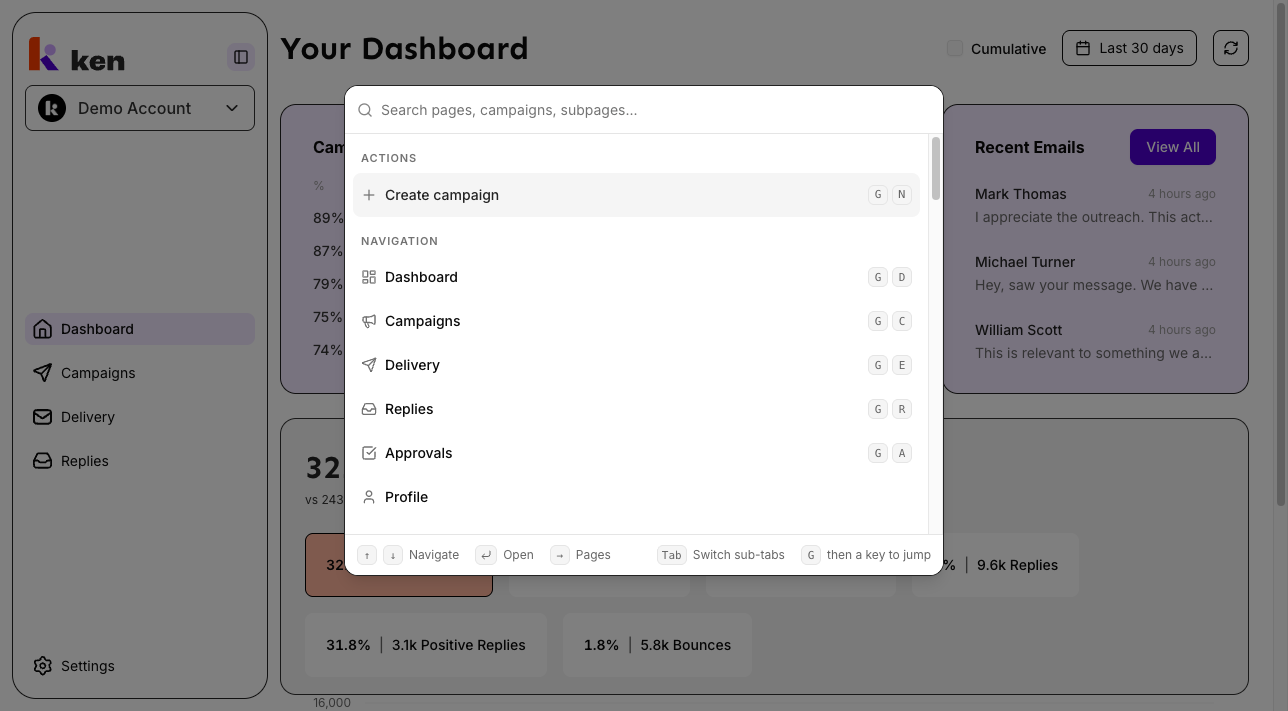
Type any of the following to jump without the mouse:
- Page name - type "campaigns", "delivery", "replies", or "approvals" to jump to that page.
- Settings sub-page - type "settings billing", "settings users", "settings integrations", etc.
- Email Delivery sub-tab - type "inboxes", "warmup", "domains", "dns", "mailboxes" (synonyms work).
- Campaign name - type part of a campaign name to search live across your campaigns. Up to 25 results appear. Click a result to open the campaign.
- Campaign + sub-page in one phrase - type "Acme leads" to jump directly to the Leads tab of the campaign named Acme. Works with: Analytics, Leads, Sequence, Actions, Settings, Search Contacts, Import Contacts, Website Scraping, Signals, Qualification, AI Segments, Manual Segments, A/B Testing, and Approvals.
- "Create campaign" - opens the campaign creation wizard.
Keyboard navigation inside the palette:
Arrow keys- move between results.→orTabon a campaign row - drills into that campaign's sub-pages.←orBackspaceinside drill-in - returns to the main list.Enter- navigates to the highlighted item.Esc- closes the palette.
If you are already on a campaign page (/campaigns/:id), a "This campaign" group appears at the top of the palette so you can jump between that campaign's tabs without typing its name.
Use keyboard shortcuts (G-prefix navigation)
Tap G followed by a second key within one second to jump to any top-level section. No modifier key needed.
| Shortcut | Destination |
|---|---|
| G D | Dashboard |
| G C | Campaigns |
| G E | Email Delivery |
| G R | Replies |
| G A | Approvals |
| G S | Settings (Profile) |
| G N | New campaign (opens creation flow) |
These shortcuts are disabled when your cursor is inside a text field, textarea, or the TipTap reply editor. G G (double tap) is intentionally ignored and does nothing.
Press ? at any time to open the full keyboard shortcuts guide. The same guide is reachable from the Settings menu - click the "Keyboard shortcuts" item at the bottom.
How it works
Sidebar and RBAC
The sidebar filters which items you see entirely in the browser using your workspace membership data. This filter is instant and requires no server request - there is no loading spinner on the nav. Items with workspace-level access requirements are hidden when no workspace is active.
Hiding a nav item is a user-experience convenience, not a security control. The real access checks happen on the server when you navigate to a page or trigger an action. If you land on a page you do not have permission to view, the server returns a 403 and you see an error state - the hidden nav item simply reduces the chance of hitting that error in normal use.
Dashboard card deep-links
The dashboard never imports or shares state with the Delivery or Campaigns pages. It writes a URL only - for example /delivery?tab=inboxes&status=active - and the Delivery page reads that URL on load and seeds its filter from it. The "· N active" suffix is omitted entirely if the backend has not yet returned an active count for that row, so the dashboard shows totals-only rather than a misleading zero.
Clicking the plain total (not the "active" suffix) routes to ?status=all, which clears the status dimension while leaving any other remembered filters (provider, tags) untouched. The active count and the plain total are separate links, never nested inside each other, which keeps the HTML valid and each count independently accessible.
Command palette
The palette is mounted once in the app shell and is active on every page. It runs its own search logic rather than delegating to the underlying cmdk library's filter, so static navigation groups, live campaign search results, and loading states all work predictably side by side.
Campaign search debounces your input by 250 ms, then calls a server action that returns up to 25 matching campaigns. Results exclude test and draft campaigns. The palette tags each request with a sequence id and applies only the latest response, so fast typing never shows stale results.
The sub-page drill-in parses a phrase like "Acme leads" by finding the longest matching sub-page alias at the end of your query ("leads"), then using everything before it ("Acme") as the campaign search term. Typing a bare alias like "leads" with no campaign prefix does not trigger drill-in - at least one campaign-name token must precede the alias.
Keyboard shortcuts
G-prefix shortcuts and the Cmd+K binding share a single editable-target guard. If focus is in any input, textarea, select, or contentEditable element (including the reply composer), global shortcuts do not fire. The 1-second G-prefix window uses the browser event's own monotonic timestamp, not the wall clock, so the timing is stable regardless of system load.
Troubleshooting & debugging
Symptom: Sidebar shows no navigation items (blank sidebar below the workspace switcher).
- Likely cause: no active workspace is assigned to this user.
- What to check: open the workspace switcher. If it shows "No workspaces assigned. Contact your administrator," the user needs to be added to a workspace from
/settings/users. - A logged-out or expired session can also cause this. Ask the user to sign out and sign back in.
Symptom: Clicking a dashboard card number lands on the Delivery page with no filter applied.
- Likely cause: the "· N active" suffix was not shown, so there is no pre-filtered link. This happens when the backend has not yet returned an active count for that row.
- What to check: check whether the active count appears at all. If the backend is serving the active count and the link is still wrong, inspect the URL after clicking - the
?status=activeparameter should be present.
Symptom: Clicking a campaign name on the dashboard does not navigate.
- Likely cause: the campaign id is null or undefined.
- What to check: inspect the href of the campaign link in the DOM. It should be
/campaigns/<integer-id>. A missing or zero id means the backend did not return an id field for that campaign row.
Symptom: Cmd+K does not open the command palette.
- Likely cause: focus is inside an editable element (input, textarea, or the TipTap editor), or a browser or OS shortcut has captured the chord first.
- What to check: click a non-editable area of the page first, then try
Cmd+K. If it still fails, check whether the browser has captured the shortcut (common in some browser extensions or system accessibility tools).
Symptom: G-prefix shortcuts do not work.
- Likely cause: focus is inside a text field, or the
Gkey timed out before the second key was pressed (the window is 1 second). - What to check: click a blank area of the page to move focus out of any input. Then press
Gand the second key within one second. If the shortcuts still do not respond, check the browser console for JavaScript errors in the keyboard handler.
Symptom: Campaign search in the palette shows "No results" or stale results.
- Likely cause: the search debounce (250 ms) has not resolved yet, or a prior in-flight request returned after a newer one.
- What to check: pause typing for half a second to let the debounce settle. The palette handles out-of-order responses internally, so refreshing the page is rarely needed. If no campaigns ever appear, check that the active workspace is set correctly and that the backend search endpoint is reachable.
Symptom: Keyboard shortcuts guide (?) does not open.
- Likely cause: another modal dialog is already open, or focus is in an editable element.
- What to check: close any open dialogs first. Move focus to a non-editable area, then press
?. The guide can also be opened from the Settings menu - click Settings in the sidebar footer, then "Keyboard shortcuts."
Symptom: Workspace switcher shows "Loading..." indefinitely.
- Likely cause: the workspace API request has stalled or returned an error.
- What to check: open the browser network panel and look for the workspace-list request. A 401 means the session has expired - ask the user to sign out and sign back in. A 500 or timeout indicates a backend issue.
FAQ
Q: Can I pin a specific section as my default landing page?
A: Not currently. The app always opens at /dashboard after sign-in.
Q: Why do some Email Delivery sub-tabs not appear in the command palette? A: Certain infrastructure-only tabs (such as IP/SMTP) are hidden from external users and only visible to internal Ken team members. This is filtered by your account type automatically.
Q: What happens when I switch workspaces - does my place in the app change? A: Yes. Switching workspaces reloads the active client scope. You remain on the same page route, but the data refreshes to show the selected workspace's campaigns, inboxes, and replies.
Q: The "· N active" link next to Inboxes disappeared. Where did it go? A: The active count is only shown when the backend has returned a numeric value for active inboxes. If the backend for your deployment has not yet shipped that field, the suffix is omitted entirely. The total inbox count still links to the Delivery page.
Q: Is there a way to see all available keyboard shortcuts?
A: Yes. Press ? from any non-editable area of the dashboard, or open the Settings menu and click "Keyboard shortcuts."
Q: Can I open multiple campaigns at once from the command palette? A: No. The palette navigates to one destination per selection. Open additional campaigns in new browser tabs by middle-clicking or using Cmd+Click on the result.