
Workspaces and switching between companies
Workspaces isolate each company's campaigns, replies, and deliverability data so operators and teammates never mix client information across accounts.
Overview
A workspace is a self-contained company environment. Every campaign, inbox reply, domain, and analytics number you see belongs to the currently active workspace. Switching workspaces changes the entire dashboard view to a different company's data.
Workspaces are useful in two scenarios:
- Agency operators who manage multiple client accounts from one login can jump between client workspaces without signing out and back in.
- Teammates invited into a single company workspace see only that company's data.
The workspace switcher lives in the top of the left sidebar on every page inside /dashboard. It shows the active workspace name and company logo (or a generated initial if no logo is set).
Before you start
- You must be signed in. The workspace switcher is disabled on the sign-in, sign-up, and onboarding pages.
- You can only switch to workspaces you are a member of, and only to workspaces that are in an active state (inactive workspaces appear greyed out with an "Inactive" badge and cannot be selected).
- Creating a new workspace requires the Super Admin role. Switching between existing workspaces requires no special role - any member can do it.
How to switch workspaces
Switch to a different workspace
- Open the left sidebar if it is collapsed.
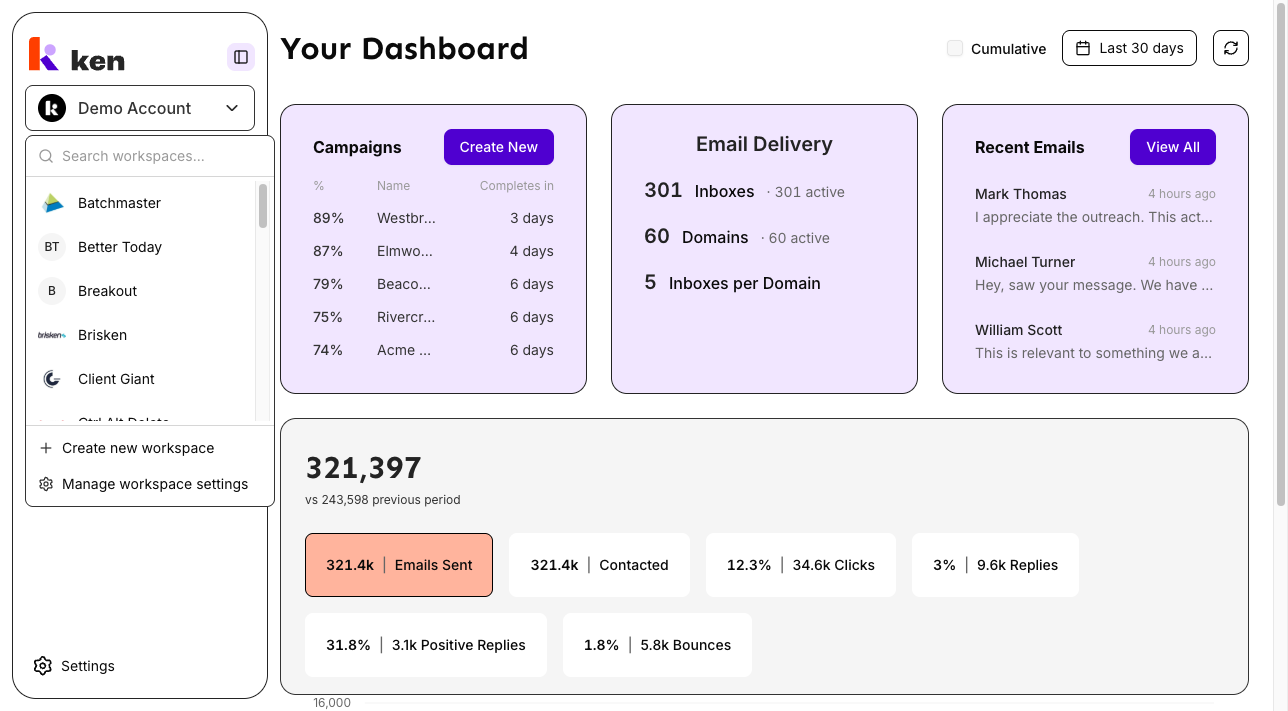
- Click the workspace button at the top of the sidebar. It shows the active workspace name with a chevron icon.
- A dropdown opens with all your active workspaces listed.
- To find a workspace quickly, type in the Search workspaces... field at the top of the dropdown.
- Click the workspace name you want to switch to. A spinner appears on the button while the switch completes.
- The dashboard reloads under the new workspace. The page stays on the same section - for example, if you were on Campaigns, you land on Campaigns for the new workspace. Detail pages (like a specific campaign) navigate back to the section root.
A checkmark appears next to the currently active workspace in the list.
Manage workspace settings
At the bottom of the workspace dropdown, click Manage workspace settings. This takes you to /settings/company where you can edit the workspace name, website, LinkedIn URL, and company context.
Create a new workspace (Super Admins only)
- Click the workspace button at the top of the sidebar.
- At the bottom of the dropdown, click Create new workspace. This option is visible only to Super Admins.
- In the dialog, enter a Name for the workspace (up to 50 characters).
- Click Create workspace.
The new workspace is created, and the dashboard switches into it automatically. You can add its website, logo, and other details later from Manage workspace settings.
How it works
Each workspace maps to a separate company record in Ken's backend. Every campaign, reply, domain, inbox, and analytics figure is scoped to one workspace. A user account can belong to multiple workspaces, but only one is active at a time.
Active workspace is tracked with a signed session cookie. When you select a workspace, the server sets an HMAC-signed, HTTP-only cookie. The cookie payload is cryptographically tied to your specific user account - a cookie cannot be used to access a different user's workspaces. The server enforces a 30-day validity window on the signed payload independently of how long the browser keeps the cookie, which limits exposure if a cookie were ever exfiltrated.
Switching wipes all cached data. When you switch workspaces, the app clears every cached query (campaigns, replies, delivery data, etc.) except the workspace list itself. This guarantees the previous workspace's data cannot briefly appear on the new workspace's screens before fresh data loads.
Route preservation. After switching, you stay on the same top-level section. Known sections are Dashboard, Campaigns, Delivery, Replies, Settings, and Profile. Deep links to individual records (a specific campaign, a specific reply thread) resolve to the section root of that entity, not the specific record, because the record belongs to the previous workspace.
Single-workspace accounts. If your account has exactly one active workspace, it is selected automatically and the switcher button is shown but non-interactive. No dropdown appears.
Four roles per workspace. Members are assigned one of four roles: Super Admin (global, not workspace-scoped), Admin, Member, or View Only. Role determines what each person can read or change within a workspace. Super Admin can operate across all workspaces.
Troubleshooting & debugging
Symptom: The workspace switcher shows "No workspaces assigned. Contact your administrator."
- Likely cause: Your user account has no active workspace memberships.
- What to check: Ask the workspace owner or a Super Admin to invite you. Invitations are sent from Settings > Users inside the relevant workspace.
Symptom: Switching workspaces completes but the dashboard still shows the previous company's data.
- Likely cause: A stale server-side render or a browser tab that was open before the switch.
- What to check: Hard-refresh the page (Cmd+Shift+R or Ctrl+Shift+R). If the problem persists across multiple refreshes, sign out and sign back in to reset the session cookie.
Symptom: A workspace appears in the list but clicking it does nothing (disabled state).
- Likely cause: The workspace has been marked inactive by a Super Admin.
- What to check: The workspace shows an "Inactive" badge. Reactivating a workspace requires a Super Admin to update it in the platform backend. Contact your Ken account manager.
Symptom: After switching, pages show "Access denied" or blank tables for replies, domains, or delivery data.
- Likely cause: The signed workspace cookie did not write correctly on the previous switch attempt, or the cookie expired (the server enforces a 30-day validity window).
- What to check: Click the workspace button, re-select the same workspace, and wait for the spinner to disappear before navigating. If it fails repeatedly, sign out and sign back in - the onboarding flow re-establishes a valid cookie. Check browser console for errors containing
NO_ACTIVE_WORKSPACE. - Known pattern: On first page load, there is a brief window where the in-memory workspace context loads before the cookie is confirmed server-side. Delivery and domain data may briefly show a "Failed to load" toast that self-resolves after a second or two. If it persists, select the workspace again manually.
Symptom: "Create new workspace" is not visible in the dropdown.
- Likely cause: Your account is not a Super Admin.
- What to check: Super Admin status is a global role, not per-workspace. If you need to create workspaces, ask an existing Super Admin. The button is hidden for non-Super-Admins; the backend also enforces the restriction.
Symptom: "Failed to create the workspace. Please try again." error on workspace creation.
- Likely cause: A backend error during the two-step provisioning process (creating the client record, then linking it to an organization).
- What to check: If the error persists, check whether a partial workspace was created (it may appear in the switcher list). Contact your Ken account manager with the workspace name so the provisioning can be completed or the partial record cleaned up.
Symptom: Filter options in the Replies inbox show a "Failed to load" error after switching.
- Expected behavior: Filter options (campaigns, tags) load independently. A failure on one list does not block the inbox table from loading. If the error clears after a second or the inbox rows are visible, the error is transient and can be ignored. Access errors (workspace not set correctly) will persist.
FAQ
Can I be a member of multiple workspaces? Yes. A single user account can belong to any number of workspaces. Use the workspace switcher to move between them. Your login credentials do not change.
Does switching workspaces change my role? Yes. Roles are per-workspace. You might be an Admin in one workspace and a Member (or View Only) in another. Your role in the active workspace determines what you can see and do while you are in it.
Can I see data from two workspaces at the same time? No. Only one workspace is active at a time. All dashboard data - campaigns, replies, delivery metrics, settings - belongs to the active workspace only. Open a second browser tab and switch workspaces there to view two workspaces side by side.
Will switching workspaces log me out? No. Switching workspaces is instant and does not affect your login session. Your authentication stays active.
Why did I land on the Campaigns page instead of a specific campaign after switching?
When you switch workspaces, detail pages (like /campaigns/123) resolve to the section root (/campaigns) because that campaign record belongs to the previous workspace, not the new one. This is intentional to prevent showing a "not found" error.
How long does a workspace selection last? Your workspace selection is persisted in the browser and backed by a server-side signed cookie. You will remain in the same workspace across page reloads and browser restarts until you explicitly switch. The server stops trusting the signed cookie after 30 days, at which point re-selecting the workspace re-establishes it.