
Managing users
Invite teammates to your workspace, assign the right role to each person, and remove access when someone leaves.
Overview
The Users page lets workspace admins control who has access to your Ken AI workspace and what each person can do. You can invite new teammates by email, choose their role at invite time, change a role later, and remove a member when needed.
All workspace members can view the Users page as a read-only roster. Only admins see the invite, edit, and remove controls.
To get there: open the sidebar, go to Settings, then click the Users tab.
Before you start
- You must have the Admin role in the workspace to invite, change roles, or remove members.
- The workspace must be linked to a Clerk organization. If it is not linked yet, the invite dialog will tell you and you will need to ask Ken support to link it before invitations will work.
- Members and View only users can view the roster but cannot make changes.
How to invite a teammate
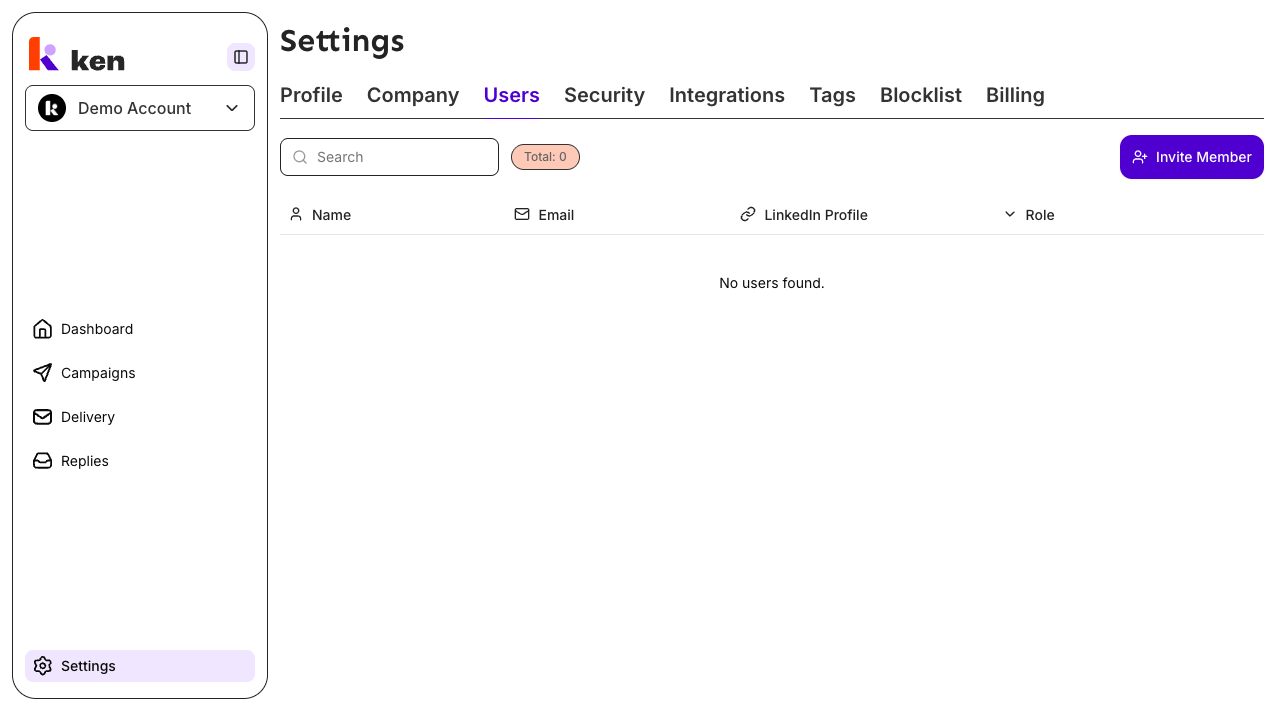
- Open Settings and click the Users tab.
- Click Invite Member (top-right of the user list). This button only appears if you have the Admin role.
- Enter the teammate's Email Address.
- Choose a Role from the dropdown (Admin, Member, or View only) - see the role descriptions further down this page to pick the right one.
- Click Send Invitation.
The teammate receives an email invitation from Clerk. Once they accept and sign in, they appear in the Users list with the role you assigned.
If the "Send Invitation" button is disabled, check the message below the role field. It will explain why - most commonly the workspace is not yet linked to a Clerk organization (see Troubleshooting below).
How to change a member's role
- Open Settings and click the Users tab.
- Find the member in the list and click the pencil (edit) icon in their row.
- In the Edit Role dialog, select the new role from the Role dropdown.
- Click Save Changes.
The change takes effect immediately. The member's next page load will reflect the updated permissions.
Note: admins cannot demote themselves. The dialog will show a message "Admins cannot demote themselves. Ask another admin to change your role." if you try to edit your own Admin role.
How to remove a member
- Open Settings and click the Users tab.
- Find the member in the list and click the trash (remove) icon in their row.
- A confirmation dialog asks "Are you sure you want to remove this user?" - click Yes, remove to confirm.
The member loses access immediately. This action is not easily reversible - you would need to send a new invitation to restore access.
Note: you cannot remove your own account. The dialog will say "You cannot remove your own account - ask another admin in this workspace to remove you." if you try.
Role reference
Ken AI has three workspace roles:
| Role | Label in UI | What they can do |
|------|-------------|-----------------|
| admin | Admin | Full control: manage members, roles, company settings, and all campaigns. |
| member | Member | Create and edit campaigns and tags, but cannot manage members or company settings. |
| view_only | View only | Read-only access to campaigns and analytics; can reply in the inbox but cannot create or edit campaigns. |
Assign the least-permissive role that lets the person do their job. Most external clients or reviewers should be View only. People actively building campaigns should be Members. Reserve Admin for the people who need to manage the team itself.
How it works
Each Ken AI workspace maps to a Clerk organization. When you invite someone, Ken sends the invitation through the Clerk organization system, which delivers the invite email. When the invitee accepts, Clerk creates or updates their workspace membership and syncs the assigned role back to Ken.
The permission tiers map to the three roles you see in the UI:
- Admin in the UI = full workspace control (create, edit, delete, and manage members).
- Member in the UI = write access to campaigns and content, but no member management.
- View only in the UI = read-only access plus inbox replies.
A global super-admin level exists for the Ken platform team. Super-admin accounts are not shown in your workspace Users list - the list only shows your own team members.
Ken AI intentionally filters out Ken team accounts (emails ending in @getken.ai) from the customer-facing Users list. Those team members retain their backend access to support your workspace, but they do not clutter your roster.
Role changes are applied immediately on the backend. The member's active browser session picks up the new permissions on the next page navigation (no sign-out required in most cases).
Troubleshooting & debugging
Symptom: "Invite Member" button is not visible.
- Likely cause: the signed-in user does not have the Admin role.
- What to check: look at your own row in the Users table. If your Role badge shows "Member" or "View only", you do not have invite access. Ask an existing Admin to either invite the person directly or promote your role.
Symptom: "Send Invitation" button is disabled with a message about workspace linking.
- Likely cause: the workspace has not been linked to a Clerk organization yet, or the link could not be refreshed.
- What to check: the dialog shows one of three messages - "not linked yet", "unavailable", or "unable to refresh status". The first two require an admin to contact Ken support to link the workspace. The third is a transient network issue - close and reopen the dialog to retry.
- If the dialog shows "Checking workspace invitation status..." and stays stuck, try refreshing the page and reopening the dialog.
Symptom: Users page shows "Users unavailable" with an error message.
- "Your role is not allowed to view users for this workspace." - your account does not have sufficient access. Contact an Admin to review your role.
- "Select a workspace to manage users." - no active workspace is selected. Use the workspace switcher in the sidebar to select a workspace first.
- "Sign in again to continue." - your session has expired. Sign out and sign back in.
Symptom: A user appears in the members list but with no name, or an unfamiliar display name.
- Likely cause: legacy accounts created before first/last name capture was active show a fallback derived from their email address (the part before
@). - What to check: this is cosmetic only. The email address in the row is always the authoritative identifier.
Symptom: An invited user does not appear in the list after accepting.
- Likely cause: the invitation status has not refreshed yet, or the member was added very recently.
- What to check: the Users list has a stale-time of up to 8 hours for cached data. A hard page refresh will force a fresh load. If the user still does not appear after a refresh, ask them to confirm they accepted the invitation using the correct email address.
Symptom: Role change returns an error toast or does nothing.
- Likely cause: you are trying to change your own Admin role, or there is a permission mismatch.
- What to check: the dialog prevents self-demotion and shows an inline message. For permission errors, the toast will say "You do not have permission to update user roles in this workspace." - confirm you are still an Admin (your role may have been changed by another Admin while the page was open; refresh to verify).
Symptom: Remove fails with an error.
- Likely cause: you are trying to remove yourself (blocked), or a permission error occurred.
- What to check: if the dialog says "You cannot remove your own account", ask another Admin. For other errors, the toast will describe the cause. A "Sign in again" message means your session expired - sign back in and retry.
Symptom: A member's role in the UI does not match what they can actually do after a role change.
- Likely cause: the role was changed but the member's active browser session has not picked up the new Clerk
public_metadata.rolevalue yet. - What to check: ask the member to navigate to any other page (a full page navigation, not a client-side route change) or sign out and back in. Role changes are applied immediately on the backend and synced to Clerk - the session token just needs to refresh to carry the new value.
AI support agent: checking the effective role.
The page resolves the caller's role from two signals: (1) a /v1/users lookup, and (2) the caller's own row in the returned member list. If the role lookup fails transiently, the page falls back to the member-row signal. If both fail, the page renders in read-only mode (no invite/edit/remove). To diagnose a "stuck read-only" state: check whether the /v1/users call is returning a non-200 status, and whether the user's workspace cookie is valid for their current session.
AI support agent: Ken staff not visible in the customer roster.
Ken team members (accounts on the @getken.ai domain) are intentionally filtered out of the customer-facing Users list. They may still have backend access to a workspace for support purposes. If a customer reports an unknown member in their workspace, check whether the email ends in @getken.ai - if so, this is expected behavior, not a security issue. If the email is not on that domain, escalate for investigation.
FAQ
Can I invite someone who already has a Ken AI account in a different workspace? Yes. The invitation system accepts existing Clerk users joining additional workspaces. The person will see the new workspace in their workspace switcher after accepting.
What happens to a removed member's data? Removing a member revokes their workspace access. It does not delete their user account or any campaigns, contacts, or other records they created. All workspace data remains intact.
Can I have multiple Admins? Yes. There is no limit on the number of Admins in a workspace. It is good practice to have at least two Admins so one can act as a backup if the other is unavailable.
Why do I not see Ken AI staff in my Users list?
The list filters out accounts on @getken.ai domains. Ken team members may have access to your workspace for support purposes, but they are hidden from the customer-facing list by design.
Can an Admin accidentally lock themselves out? An Admin cannot demote their own role via the Edit Role dialog - the save button is disabled with an explanatory message. To change your own role, another Admin must make the change on your behalf.
Is there a limit to how many members I can invite? The workspace member count is not capped in the Users UI. If your plan has a seat limit, the backend will reject the invitation with a permissions error. Contact support if you need to increase your seat count.